HYPR and CrowdStrike Zero Trust Assessment (ZTA) Policy Configuration
Policy Management Overview
Overview
This guide covers integrating CrowdStrike Falcon's Zero Trust Assessment (ZTA) posture into the HYPR Adapt access decision process. HYPR Adapt evaluates ZTA events against your risk policy to determine whether a user is granted access, required to use phishing-resistant authentication, undergo identity verification, or denied access.
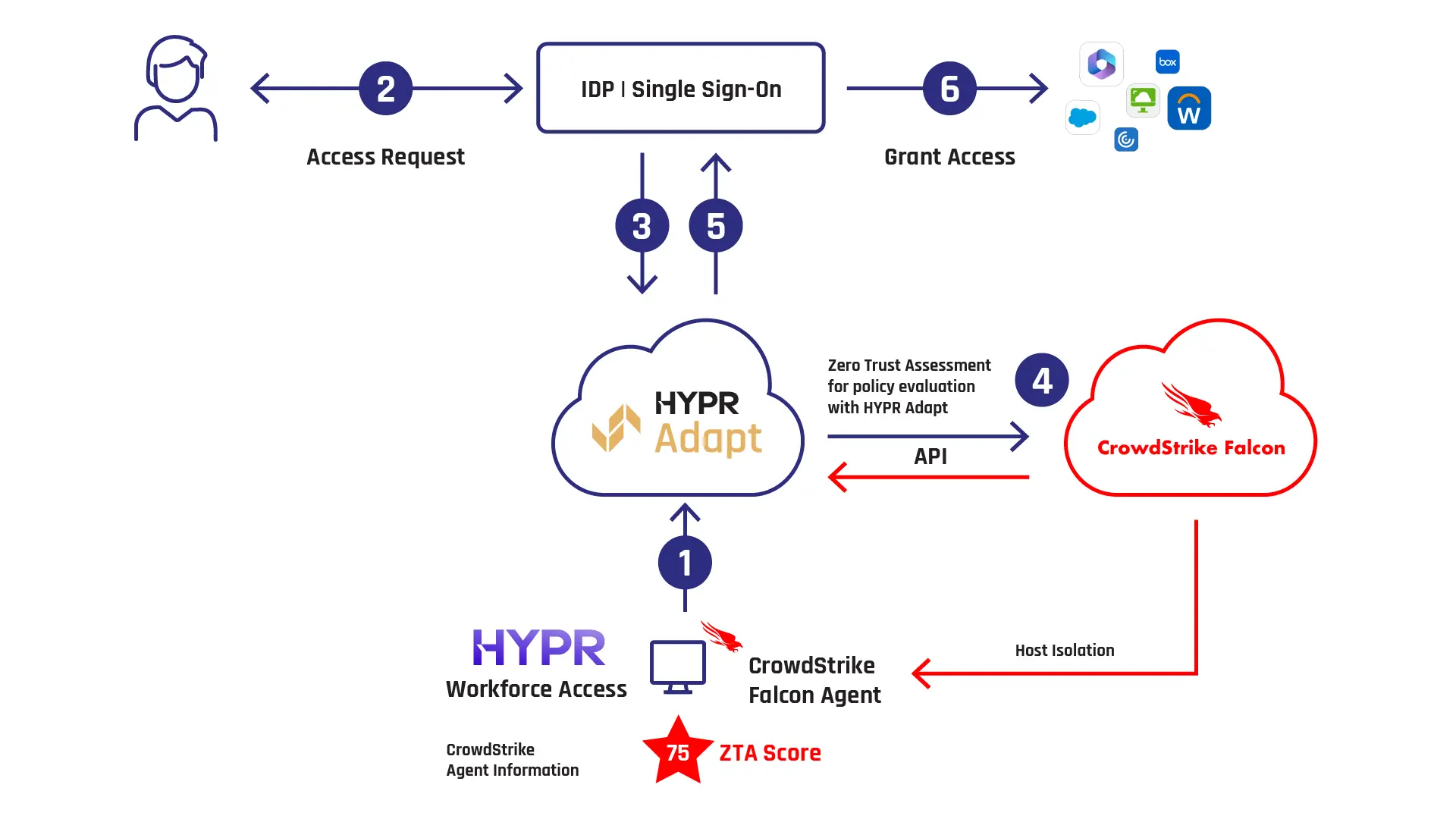
In this guide, you will learn how to create a standard policy for CrowdStrike, specifically for the Zero Trust Assessment Score. Multiple policies can be defined for different use cases or scenarios.
Manage HYPR Adapt risk policies using standard administrative operations via the HYPR Control Center.
On this page
- Set up the CrowdStrike signal handler in Control Center
- Set up CrowdStrike
- Set up the risk policy in Control Center
- Assign the policy
Complete the setup in this order:
- Set up the CrowdStrike signal handler in Control Center
- Configure CrowdStrike Falcon to send ZTA events
- Create and assign the CrowdStrike ZTA risk policy in Control Center
Set up the CrowdStrike signal handler in Control Center
Create the signal handler first so that HYPR Adapt can receive CrowdStrike ZTA events before you build the policy. For general Signal Handler screen details, see Signal Handler Management.
-
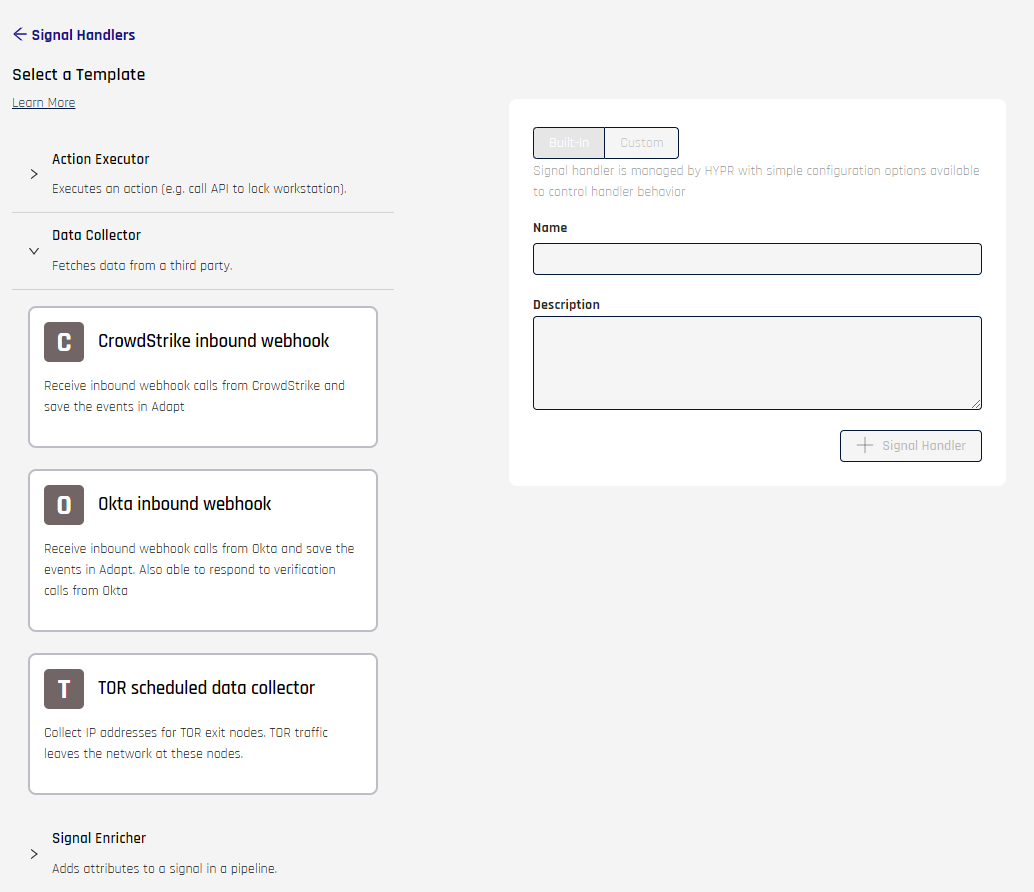
In Control Center Standard Mode, go to HYPR Adapt > Signal Handlers and click + Signal Handler.
-
Expand Data Collector and select CrowdStrike Webhook Data Collector.
For CrowdStrike webhook handlers, HYPR recommends starting with the Built-In content type. Built-In handlers use a definition tested by HYPR and only expose configuration fields. Selecting Custom lets you edit the underlying code; do this only if you need to extend the behavior and make sure any changes are thoroughly tested before using the handler in production.
-
Set the Name and Description for the handler, then create it.
-
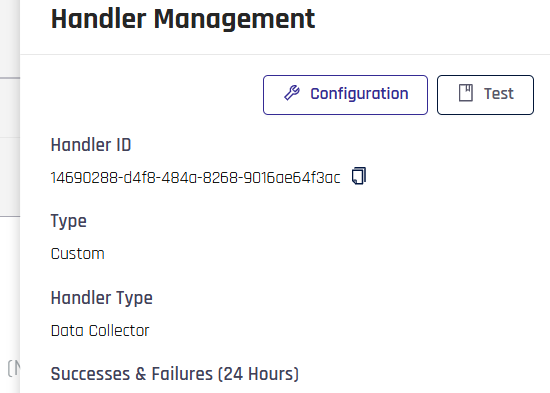
Once you have created the signal handler, click Configuration on the pane that appears on the right.
Make sure you specify the following credentials:
- Control Center API key
- Control Center base URL
- HMAC secret key
- HMAC test key
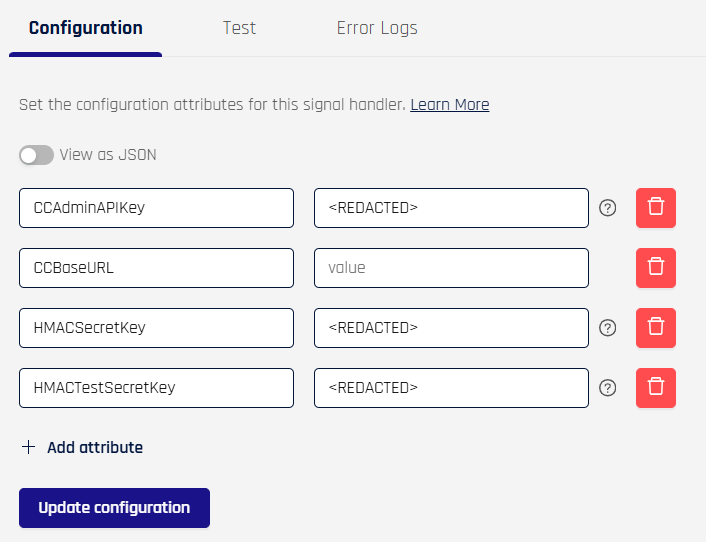
The HMAC secret key is a production value that is not defined by HYPR or CrowdStrike. Whatever value you choose, it must exactly match the Secret configured on the CrowdStrike webhook client so that HMAC signature validation succeeds.
To use the sample test event later in this guide, set HMACTestSecretKey to hmacsecretkeyhmacsecretkeyhmacsecretkey.
Click Update Configuration.
Set up CrowdStrike
After the signal handler is ready, configure CrowdStrike Falcon to send the ZTA events that HYPR Adapt will evaluate.
HYPR prerequisites
- Confirm with your HYPR representative that the feature flag SEND_WORKSTATION_SIGNALS is enabled for your tenant.
- Confirm with your HYPR representative that the feature flag ENABLE_ADAPT_POLICIES is enabled for your tenant.
- Confirm with your HYPR representative that the feature flag ENABLE_ADAPT_UNAUTHENTICATED_WEBHOOK is enabled for your tenant.
Create a CrowdStrike API client (for ZTA reads)
In CrowdStrike Falcon, create an OAuth2 API client and enable Read scope for:
- Hosts
- Zero Trust Assessment
You’ll use the client ID/secret and tenant information when configuring the HYPR Adapt policy.
Configure the CrowdStrike webhook client
In CrowdStrike Falcon, configure a webhook client that targets Control Center.
-
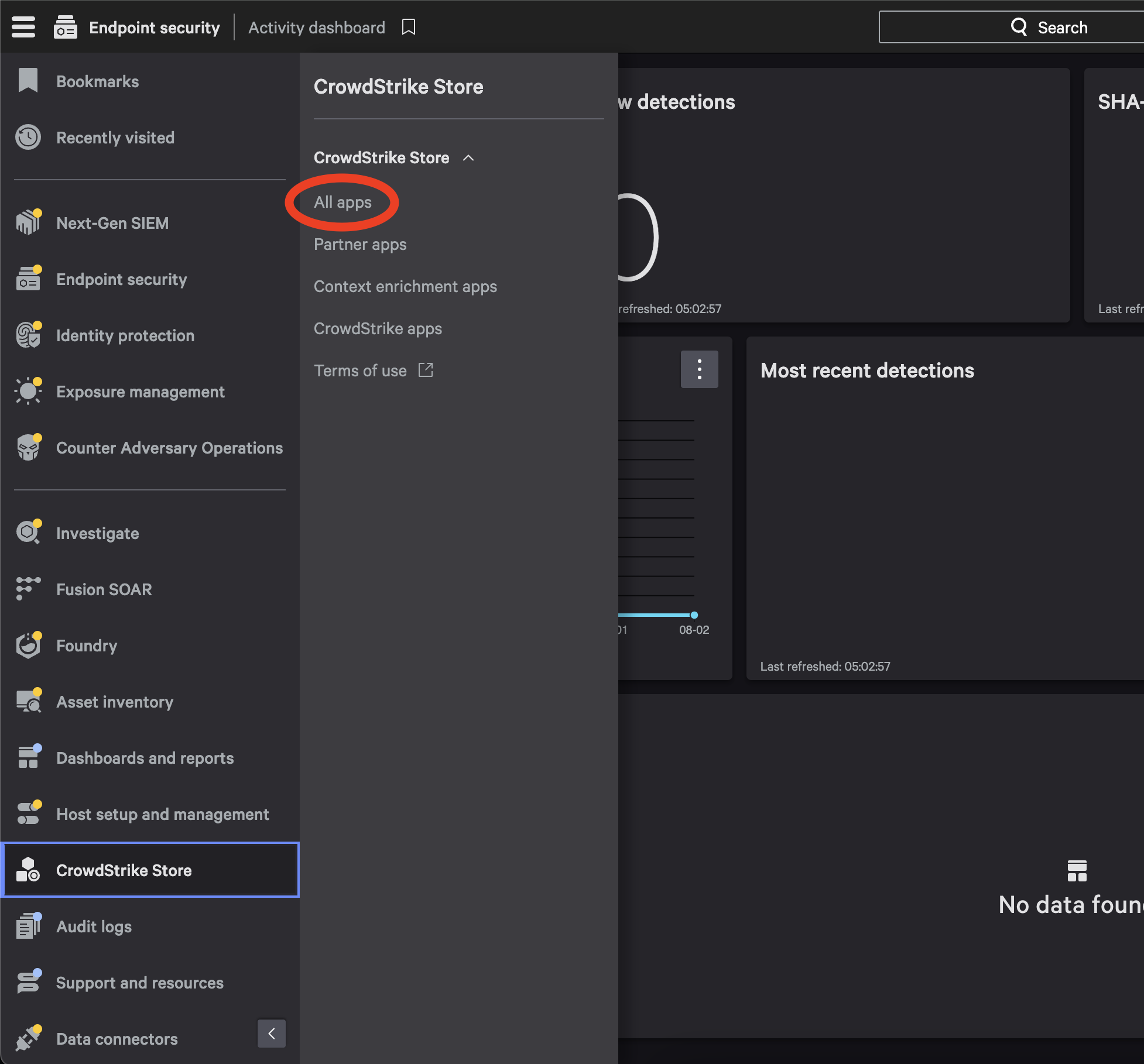
Go to CrowdStrike Store → All Apps.
-
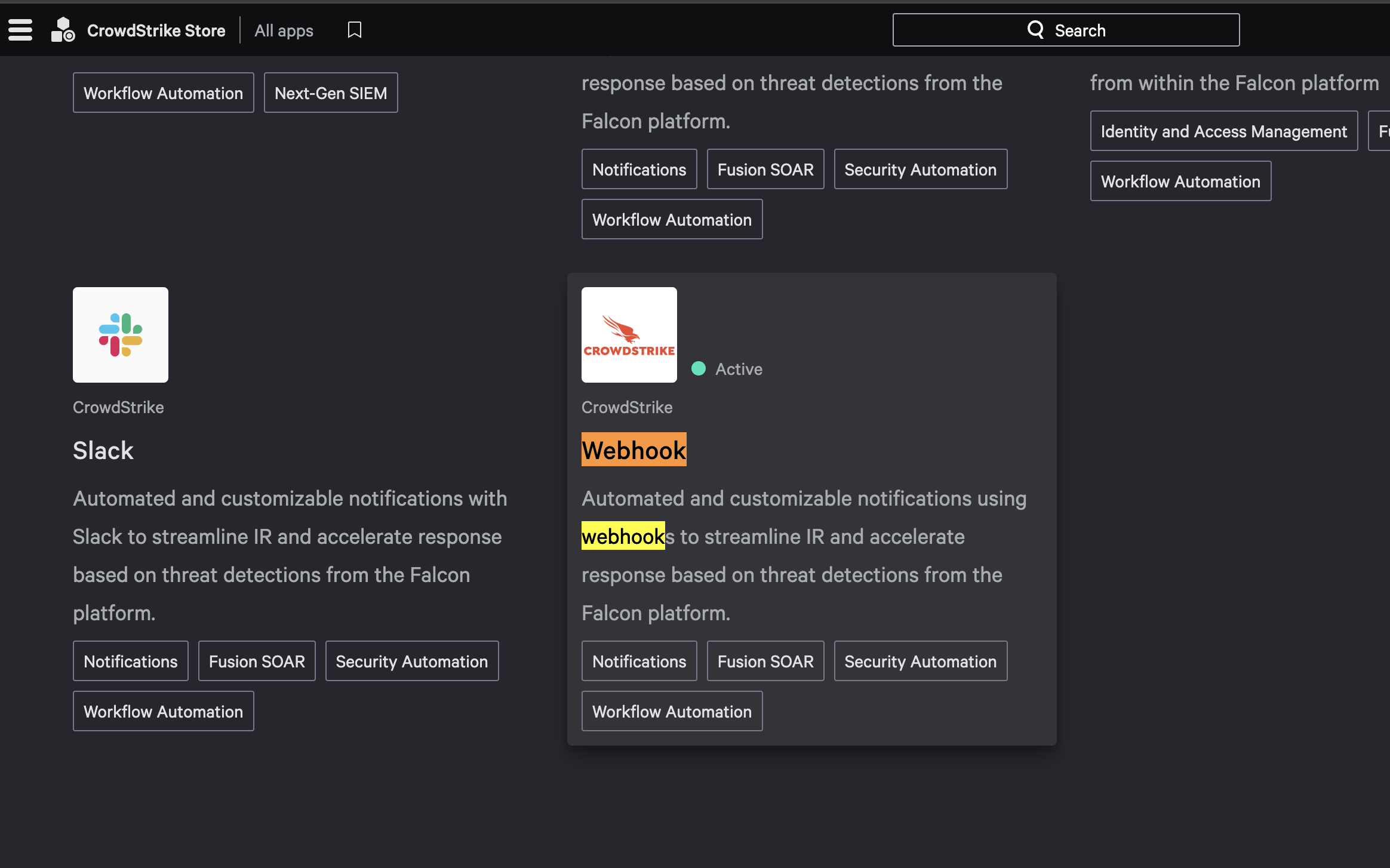
Open the Webhook application.
-
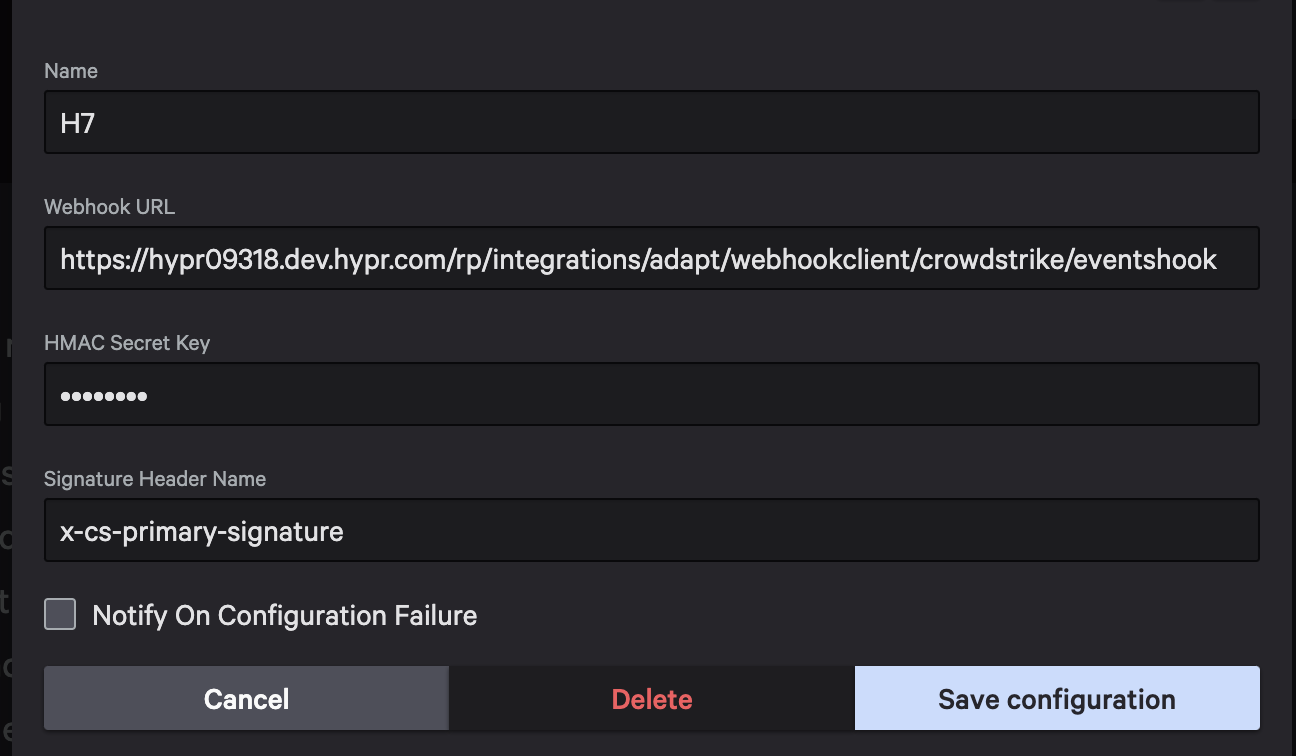
Select Configure → Add Configuration and set:
-
Webhook URL:
{baseURLForCC}/rp/integrations/adapt/webhookclient/crowdstrike/eventshook -
Signature header name:
x-cs-primary-signatureNote: CrowdStrike creates the Signature Header name in a mixed case format, i.e.,
X-Cs-Primary-Signature. You will need to manually update the Signature Header to be all-lowercase format. -
Secret: set this to the same strong, random value you configured as the HMAC secret key in the HYPR signal handler.
-
-
Save the configuration. Keep the Webhook name handy—you’ll select it in the workflow step.
Create the ZTA workflow (Fusion SOAR)
-
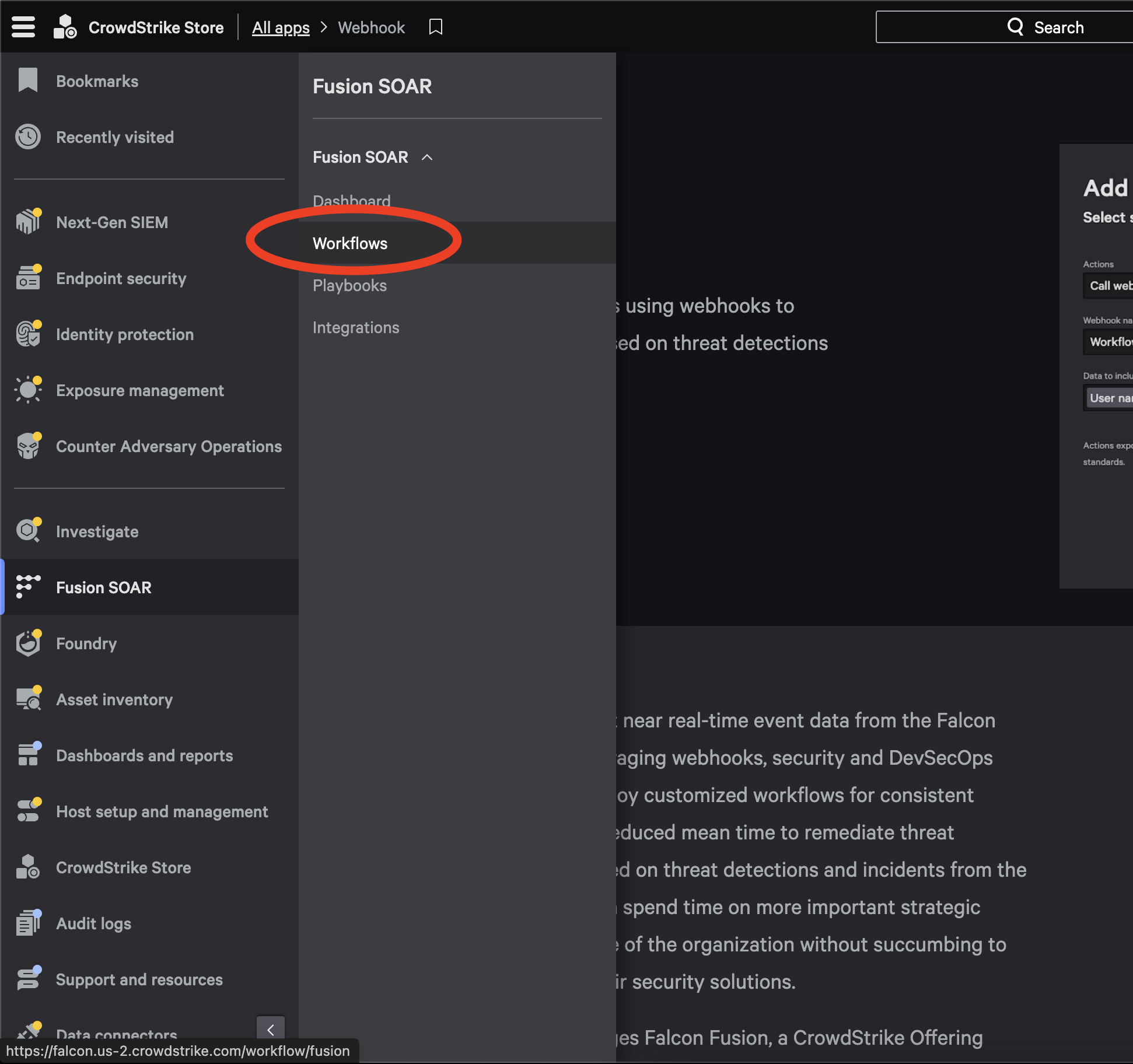
Go to Fusion SOAR → Workflows.
-
Select Create Workflow (top right).
-
In the popup, select
Create workflow from scratch.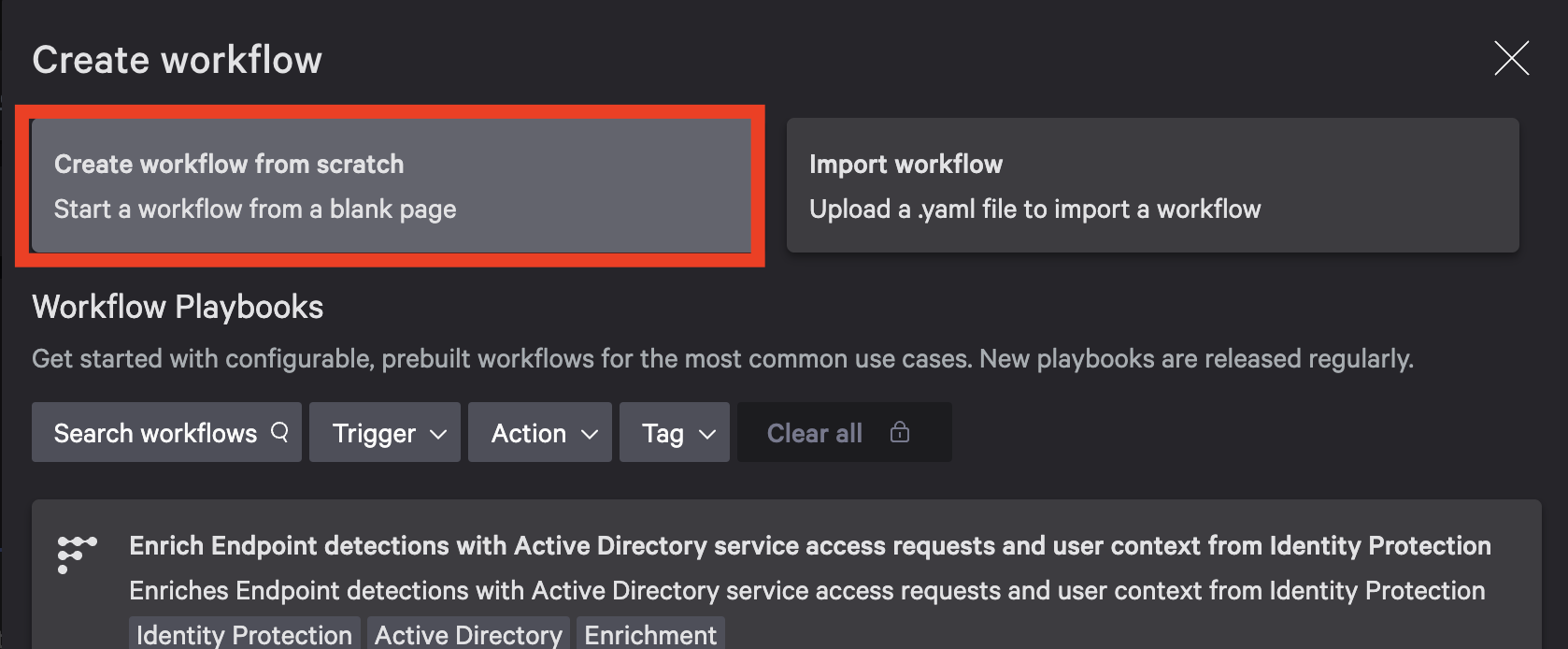
-
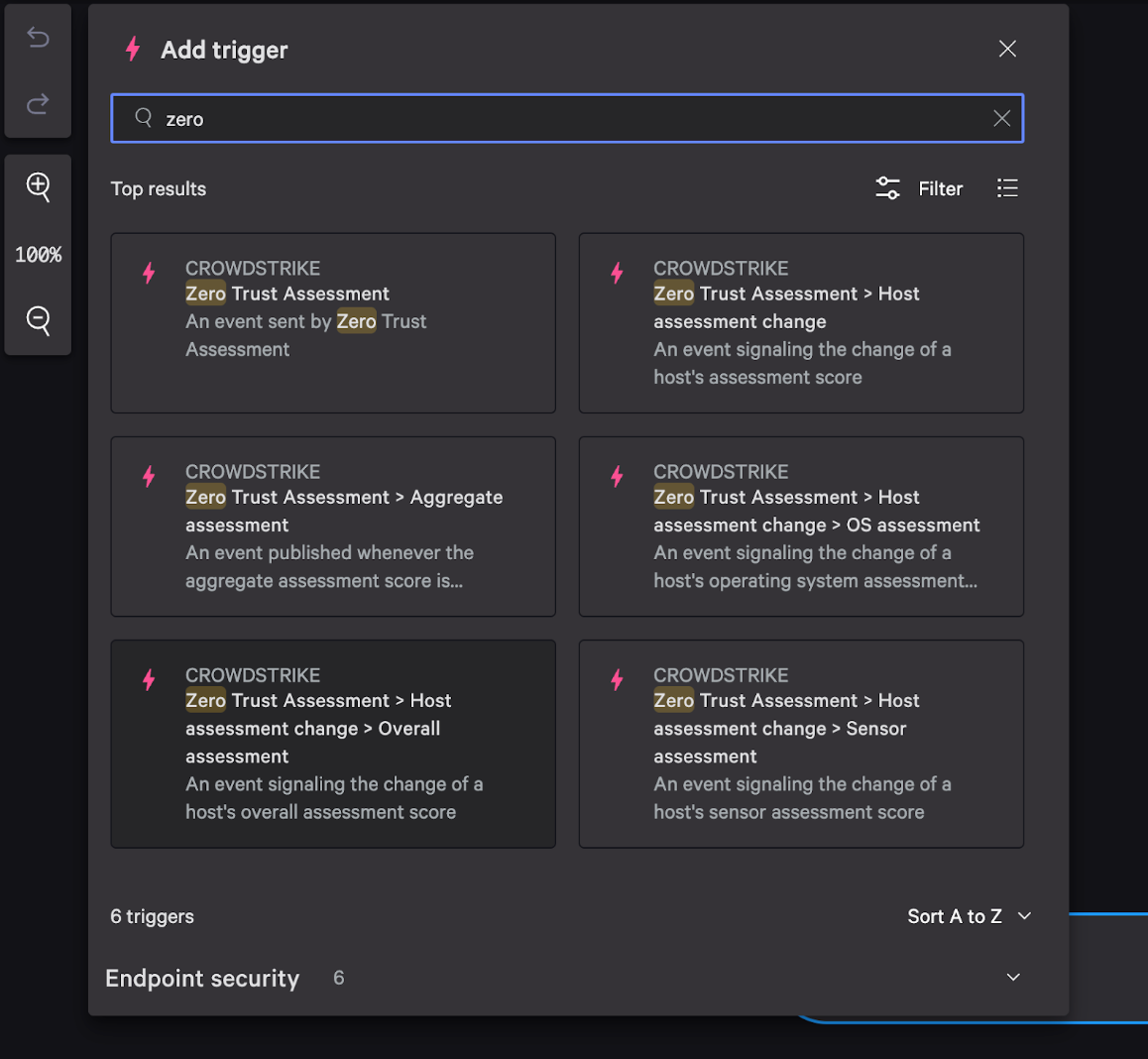
Select Add trigger.
-
Configure the event trigger for ZTA changes (for example: Zero Trust Assessment → Host assessment change → Overall assessment), then select
Next.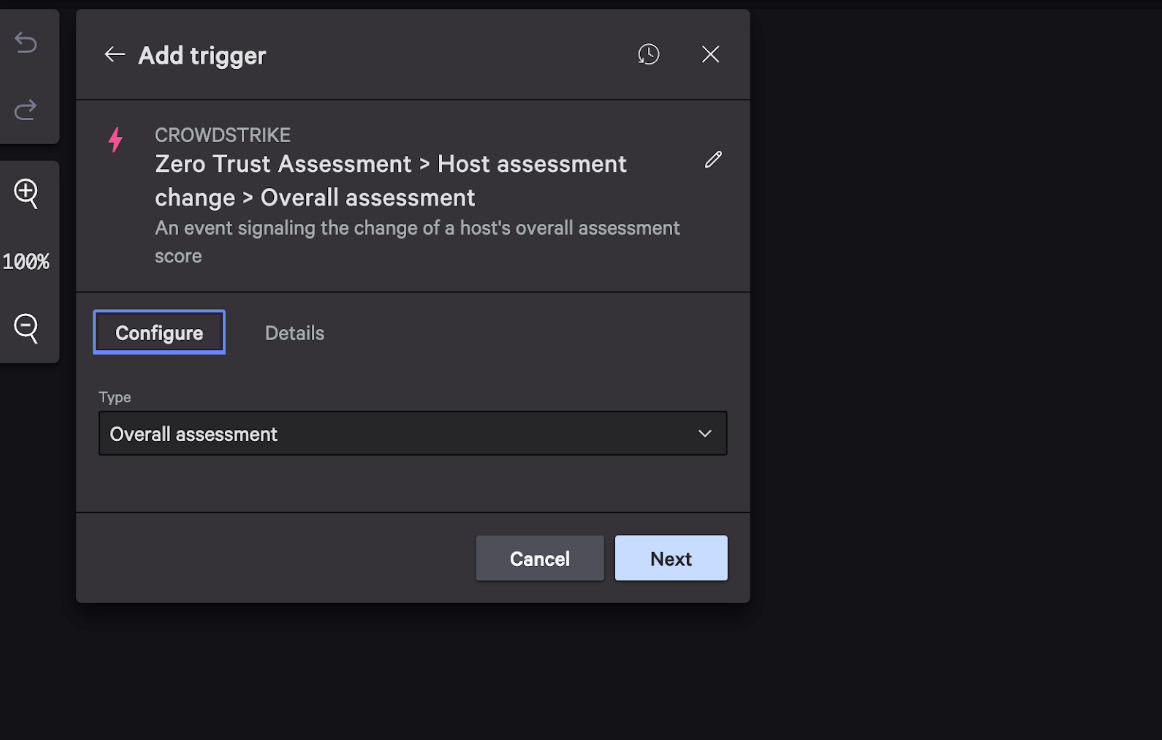
-
Hover over the trigger object and click the arrow, then choose
Actionas the next step.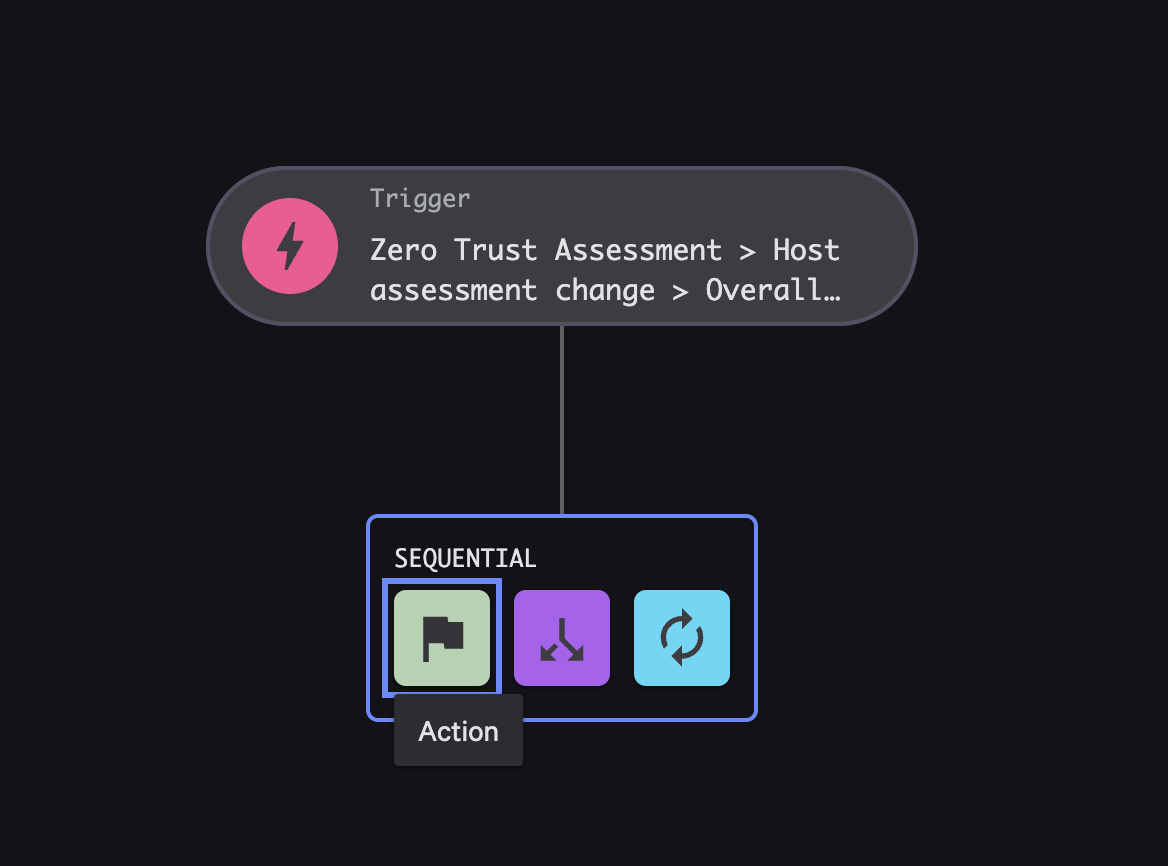
-
Search for
webhookand chooseCall webhook.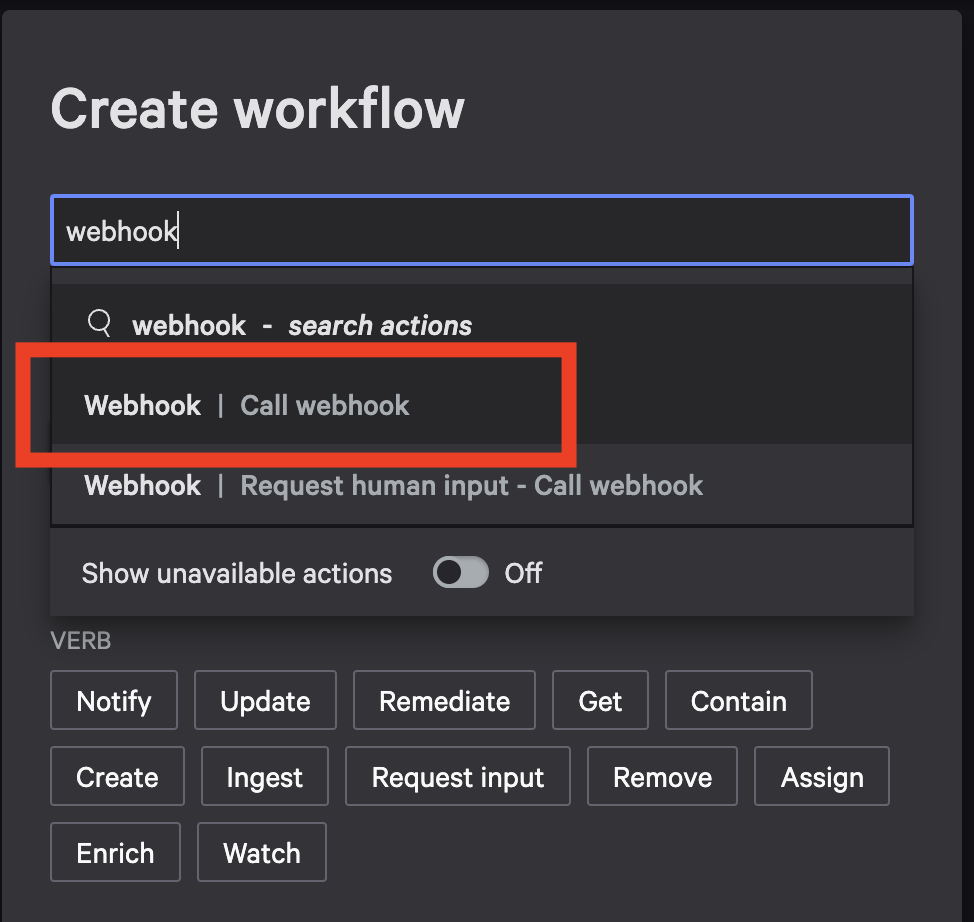
-
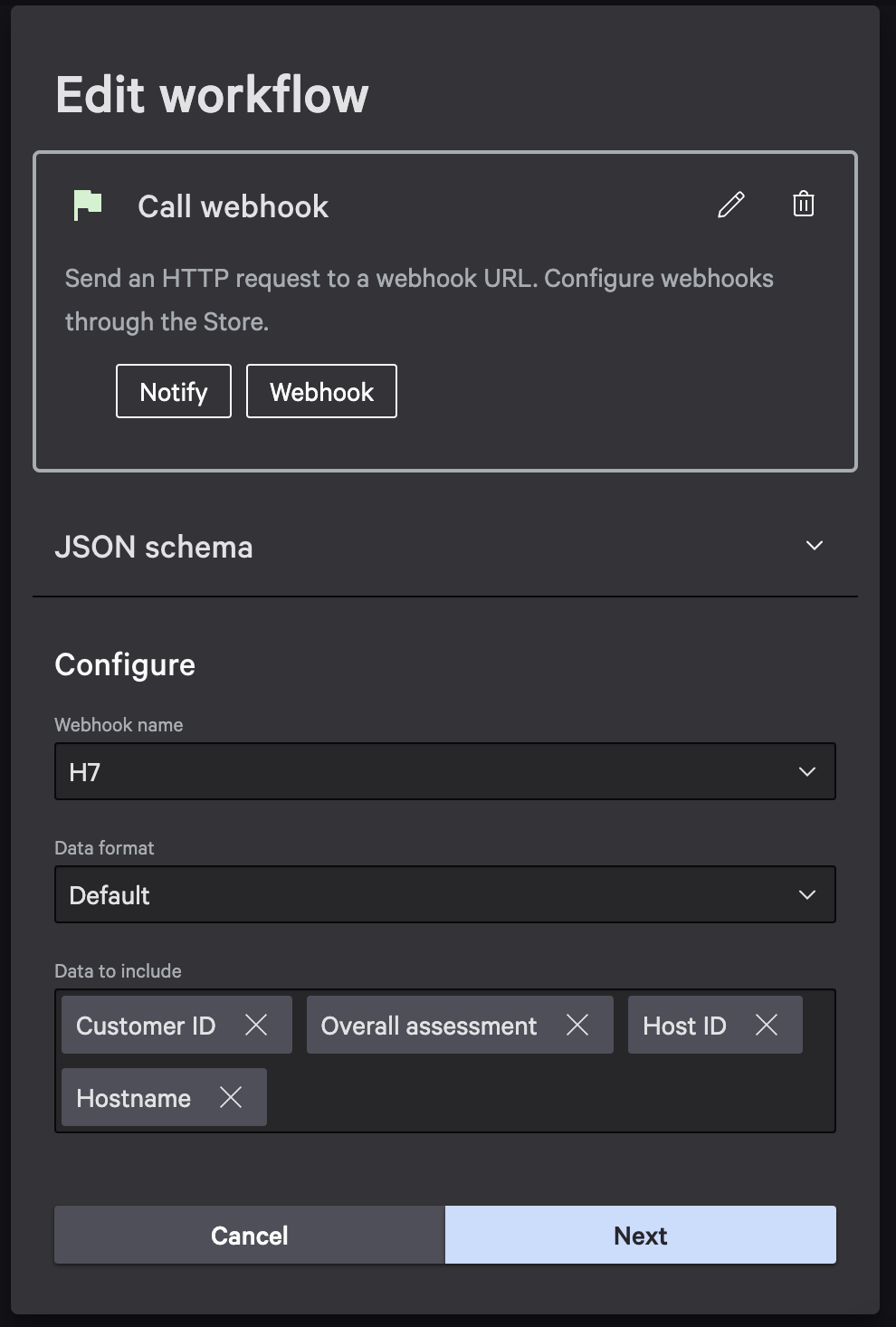
Configure the webhook call:
- Select the Webhook name you created earlier.
- Leave the default format as JSON.
- Include data elements required for evaluation. At minimum, include:
- The endpoint identifier (CrowdStrike Agent ID / AID)
- The ZTA overall assessment / score
- An event timestamp
-
Select
Next, then selectFinish. -
In the final confirmation window, test the workflow with the CrowdStrike-provided sample trigger data as described in Testing the workflow. After the sample trigger data test is successful and you can see the event in View Ingested Signals, return to this confirmation window and set
Workflow statustoONso events are sent immediately.
Testing the workflow
After you configure CrowdStrike, validate the ZTA workflow end-to-end using CrowdStrike-provided mock trigger data. This confirms not just that Control Center can receive CrowdStrike events, but that the Fusion workflow and webhook are wired correctly.
To verify the workflow end-to-end (and to complete Create the ZTA workflow step 10), use Custom trigger data in CrowdStrike Fusion to use CrowdStrike's provided Custom JSON:
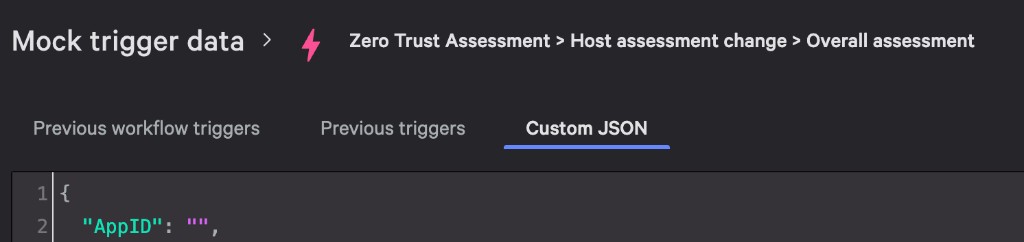
In Control Center, open the ZTA Signal Handler, go to View Ingested Signals, and confirm the Custom JSON event appears. Once this test is successful, you have verified that the ZTA workflow works end-to-end and you can safely set the workflow's status to ON.
Signal Handler -> View Ingested Signals -> View as JSON
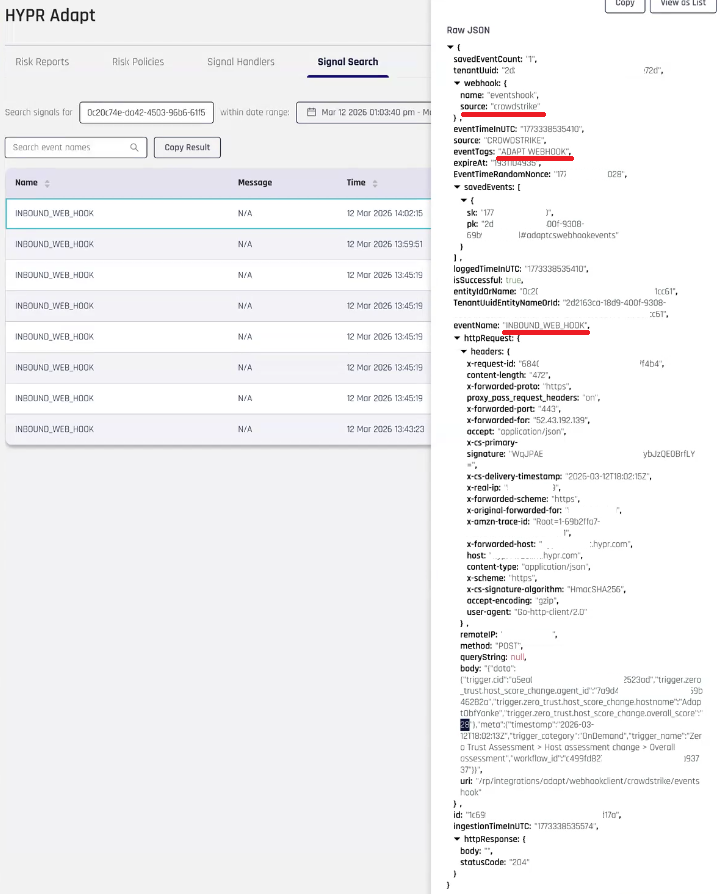
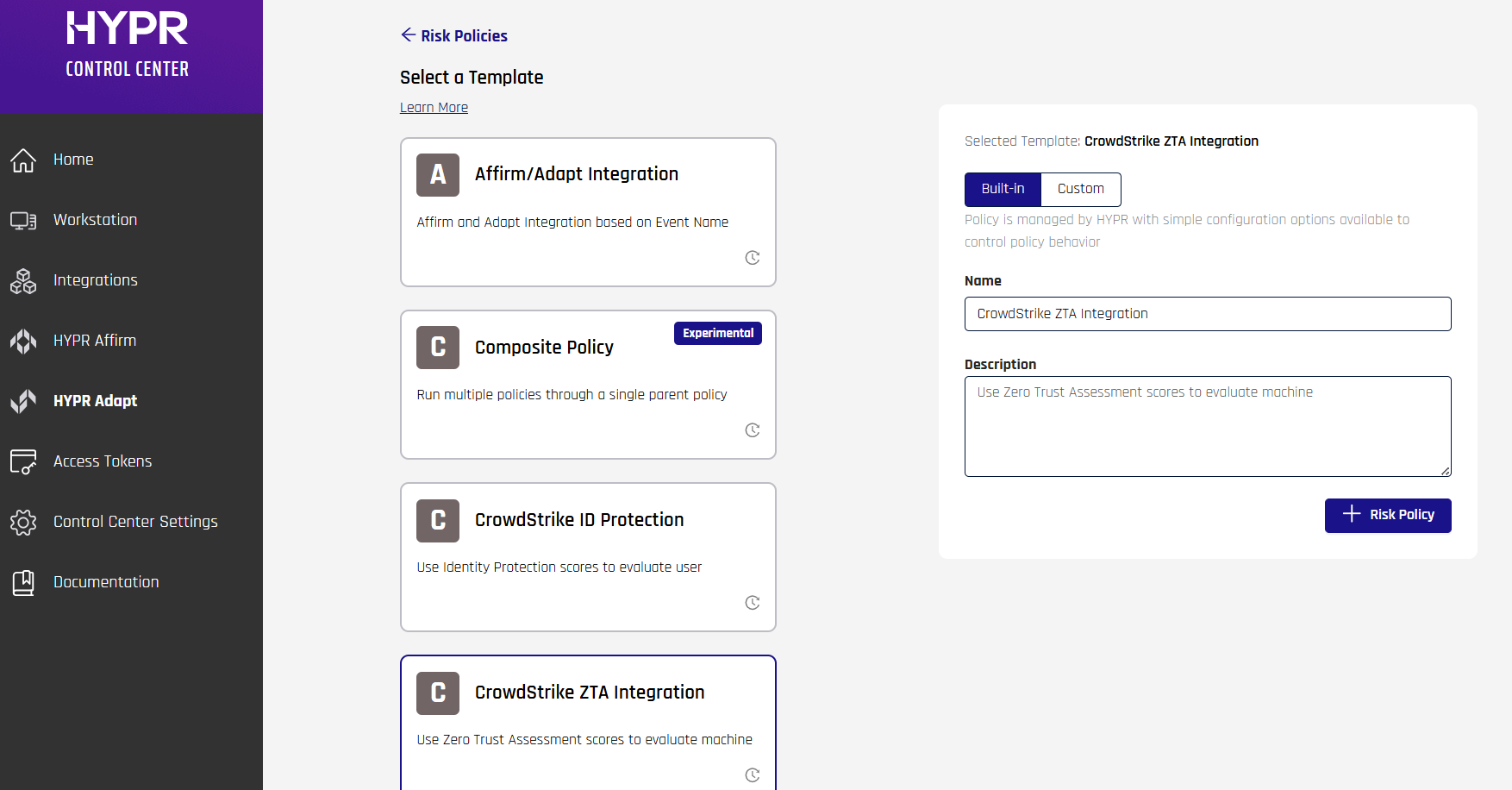
Once you have confirmed the test payload works, you can begin setting up a Risk Policy in HYPR Adapt -> Risk Policies -> +Risk Policy.
For the CrowdStrike ZTA policy, select CrowdStrike ZTA Integration:
Set up the risk policy in Control Center
Take a few minutes to watch HYPR Adapt CrowdStrike policy configuration.
To get started, first you must create a policy.
-
At the top right of the Policy Management Overview, select Add New Policy.

-
Complete the Add New Risk Policy dialog fields as follows:
Field Value Policy Type Custom Policy Policy Templates CrowdStrike ZTA Integration Policy Name (Provide a name.) Policy Description (Provide a description.) -
Click Create when you have finished.
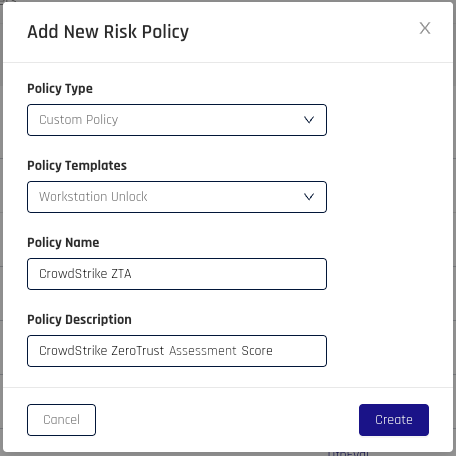
Your policy now appears in the Risk Policies list.
Form Configuration
As part of creating a policy, you must define the variables that will be used for the policy. For CrowdStrike, we must create an AgentID field, URL field, Client field, Secret field, and Customer ID field. For testing purposes, you can include a field to hold a CrowdStrike Agent ID (AID). Keep in mind, the form names, such as crowdstrikeURL, will be used as variables in the policy.
Once the form is populated, click Save.
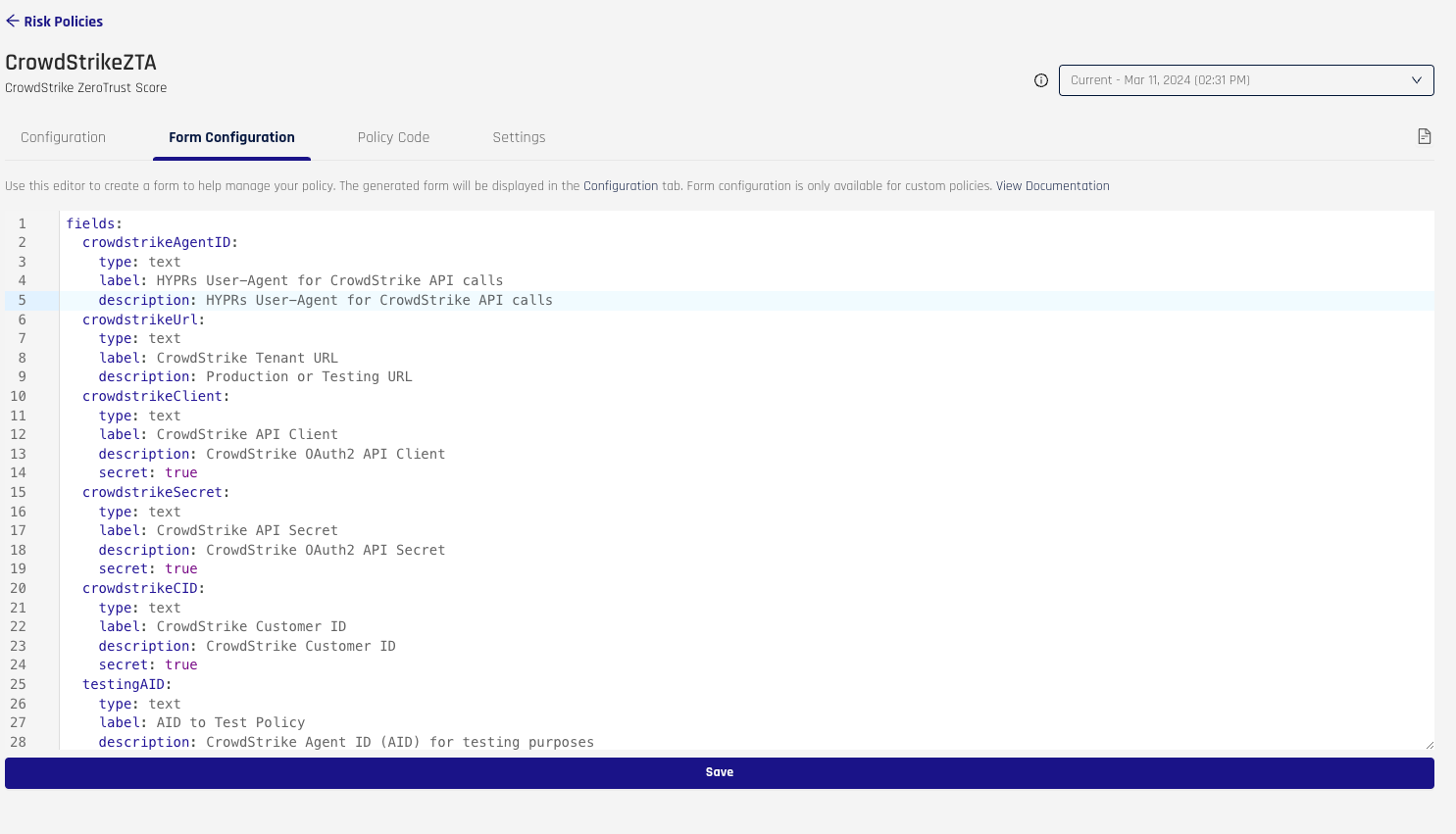
Configuration
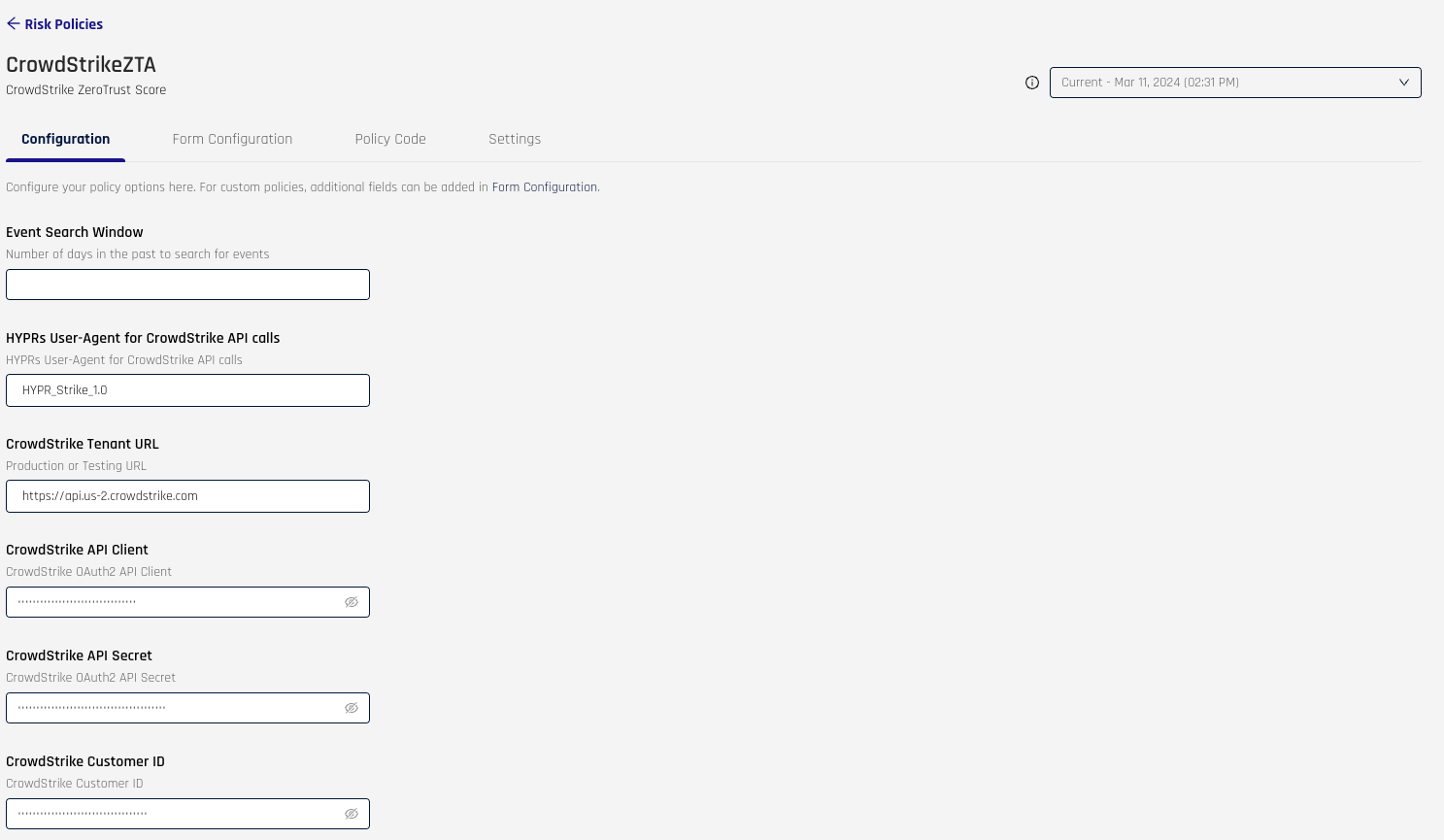
With the form configured, you can now define the values that will be used as part of the policy.
-
Enter the CrowdStrike Tenant URL.
-
Provide your OAuth2 CrowdStrike API Client and CrowdStrike API Secret.
-
Add your CrowdStrike Customer ID.
-
When you are satisfied with the values in these fields, click Save Configuration.
-
Ensure your CrowdStrike API client has the required ZTA read permissions. For the CrowdStrike-side setup steps, see Stage 2: Set up CrowdStrike.
Policy Code
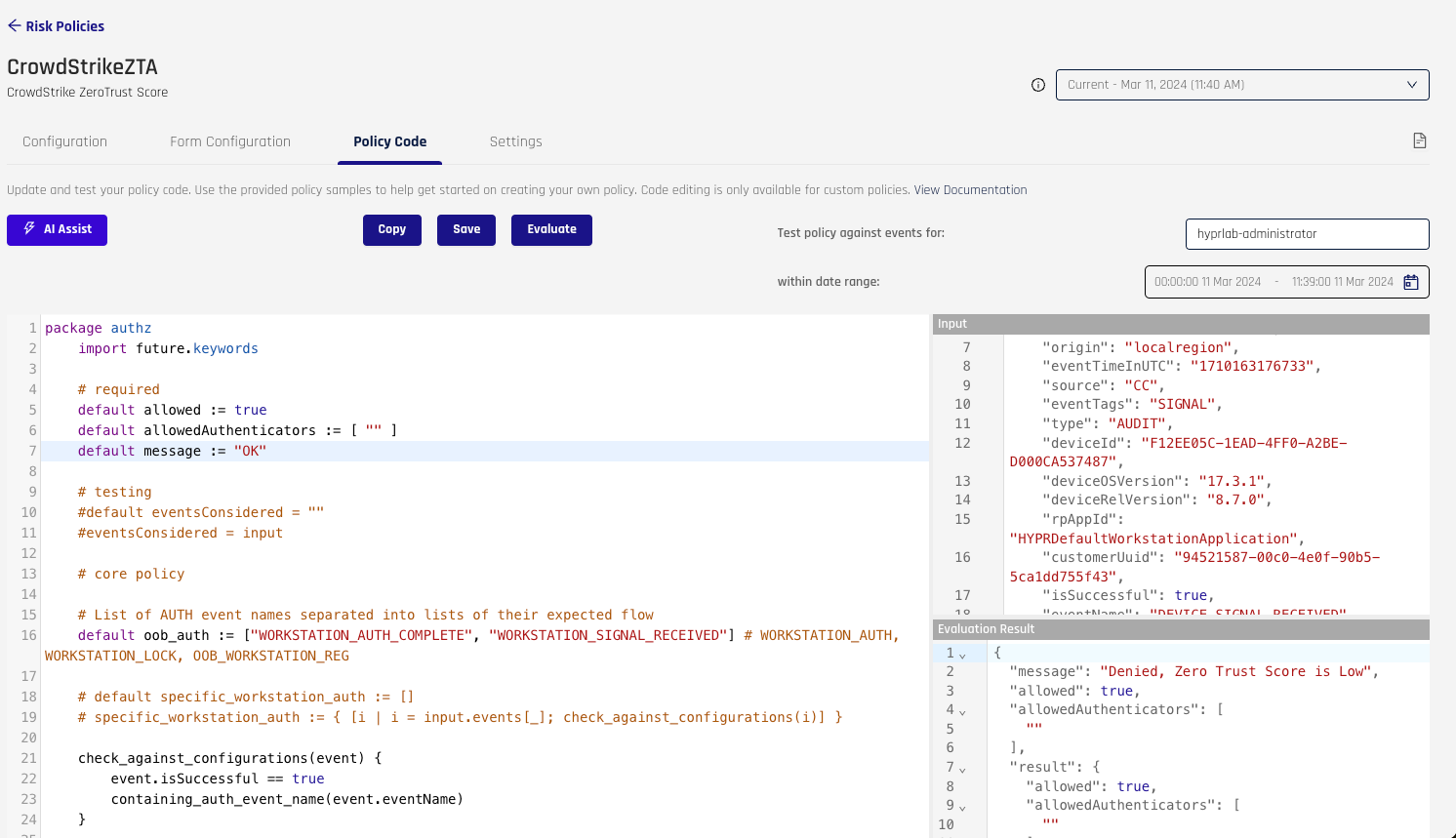
Within the Policy Code tab, you will be able to modify and test the policy to your desired outcome.
To test a policy:
-
Request the policy from HYPR to get started.
-
Provide a user at the top right.
-
Add a date range to receive data for the user to test. You will see the data populate the area labeled Input.
-
Click Evaluate. The results will be displayed at the bottom right, labeled Evaluation Result.
-
Once the policy meets your requirements, click Save.
Assign the policy
After you save the policy, assign it to the application and evaluation point that should enforce CrowdStrike ZTA-based decisions.
-
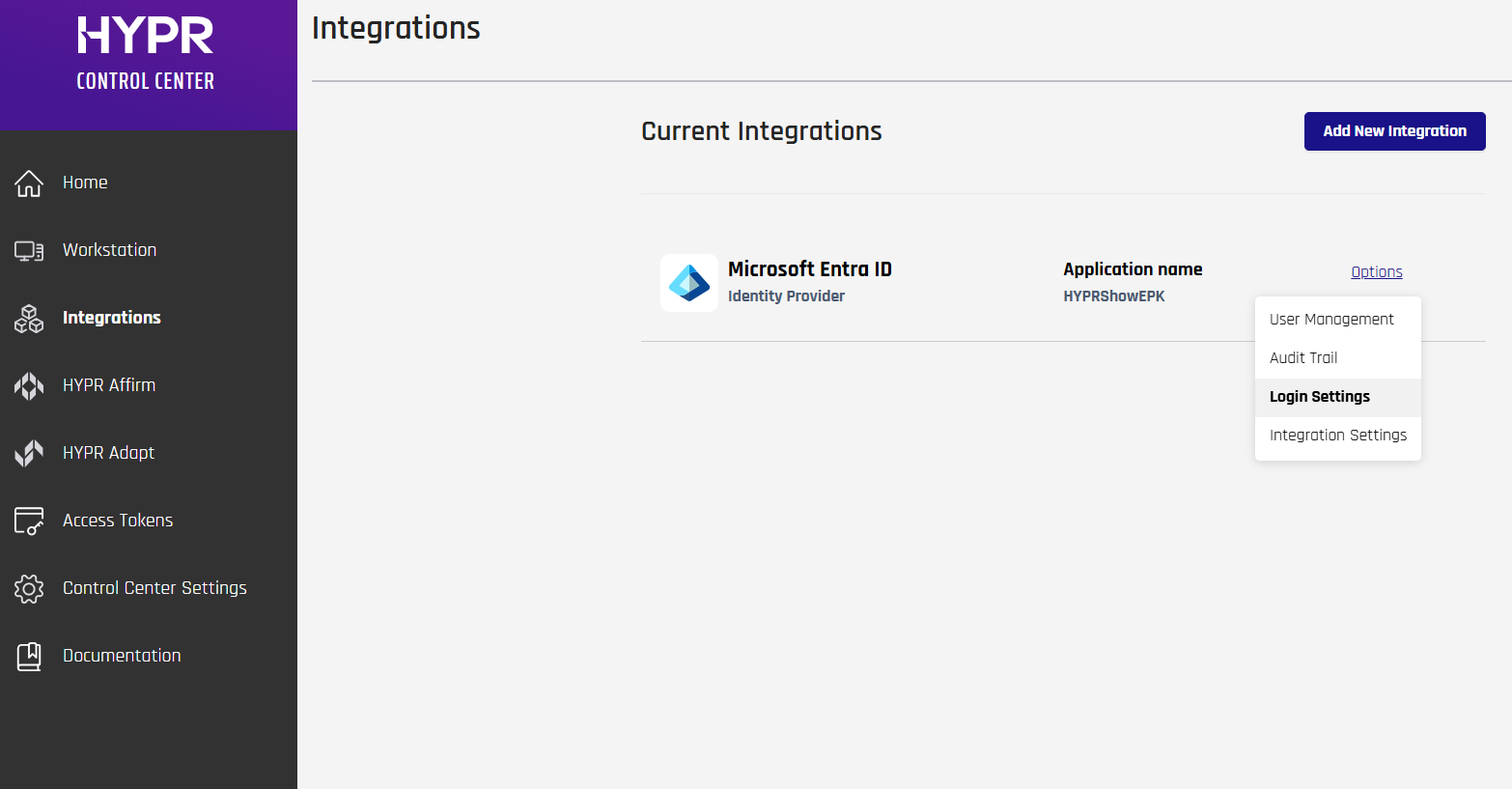
In Control Center Standard Mode, go to Integrations > Configured Integration Name > Login Settings for the workstation application that should use this policy.
-
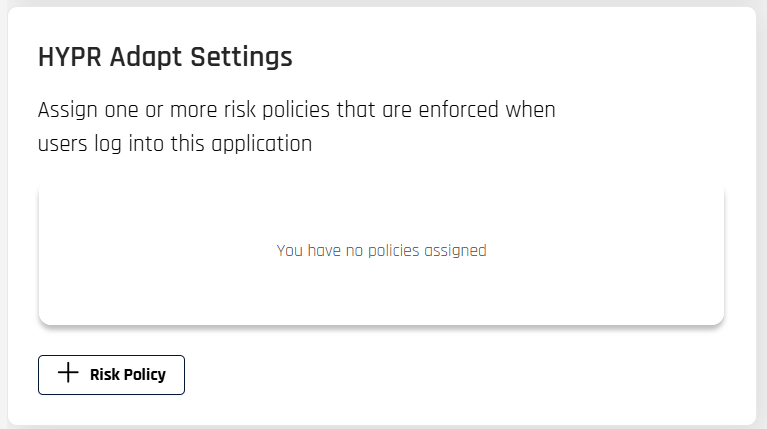
In the HYPR Adapt Settings section, click Assign Risk Policy to open the assignment dialog.
-
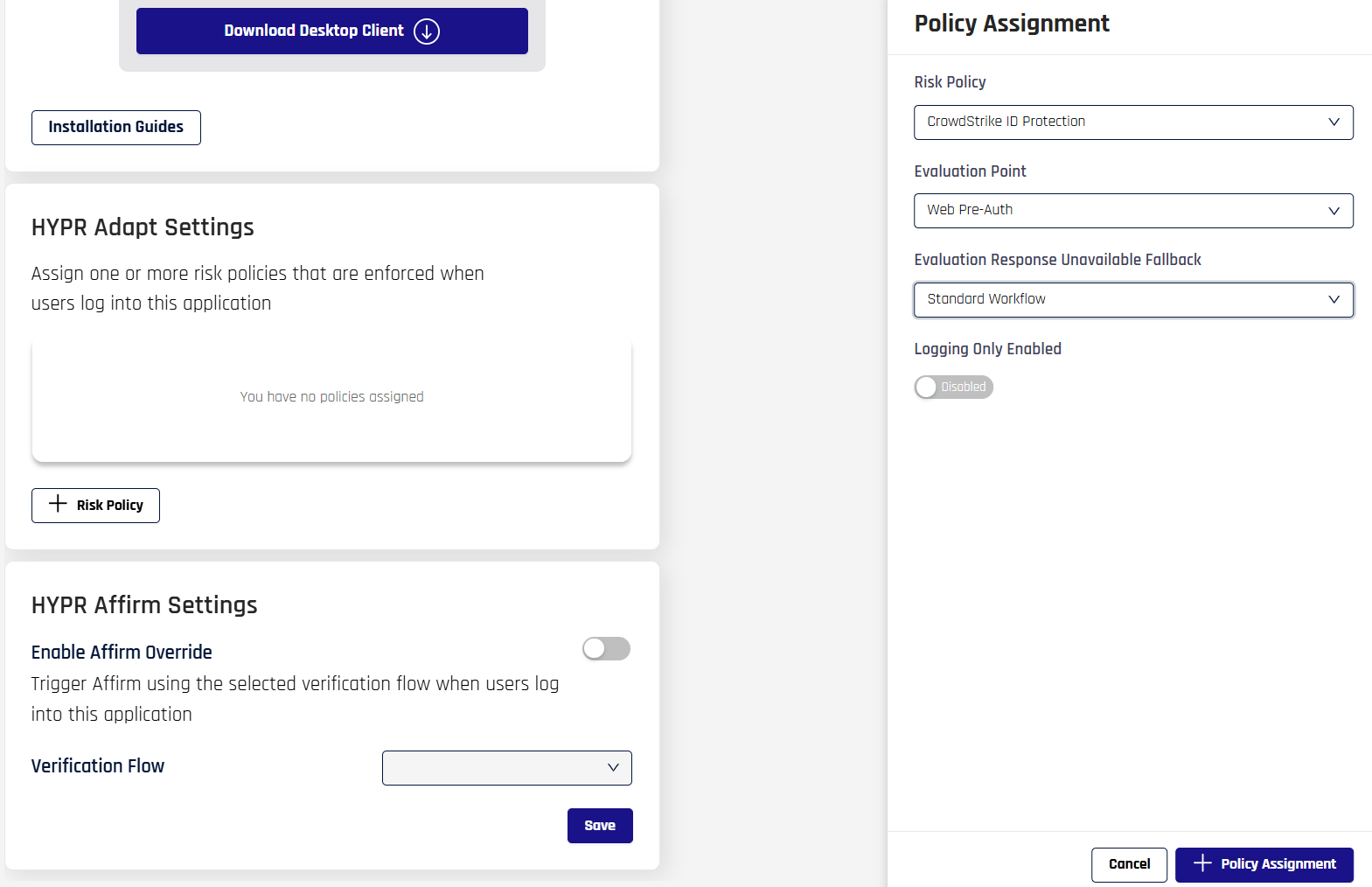
In the dialog, select this CrowdStrike ZTA policy in Risk Policy, select the correct Application, and choose the appropriate workstation Evaluation Point (see the Evaluation Points diagrams in Risk Policy Management).
-
Set the Evaluation Response Unavailable Fallback and Logging Only Enabled options as needed for your environment, then click +Policy Assignment so the assignment appears under HYPR Adapt Settings.
-
Assign this policy to Workstation Pre-Unlock or Workstation Post-Unlock evaluation points so HYPR evaluates the CrowdStrike ZTA posture during workstation authentication flows (see see Risk Policy Management for details).
-
Make sure that the selected application and evaluation point match the production workstation flow that should use the CrowdStrike ZTA score.