HYPR Enrollment Service
The HYPR Certificate Enrollment Service issues and revokes certificates for workstation access. This service is required when deploying Web to Workstation Single Registration.
The Enrollment Service is necessary only for Web to Workstation Single Registration flows. Workstation to Web Single Registration does not require the Enrollment Service.
How It Works
The Enrollment Service coordinates certificate generation and delivery through the following process:
- Certificate management: Communicates with AD CS to generate and revoke Workstation authentication certificates for end users
- Asynchronous processing: When users add mobile devices via web registration, HYPR Control Center Server queues certificate requests
- Polling mechanism: Enrollment Service polls HYPR Control Center Server for pending certificate requests
- Encrypted delivery: Enrollment Service returns encrypted certificates to Control Center Server for transport to the user's mobile device
- Server coordination: The
WINDOWS_WEB_ENROLLMENTfeature flag controls interaction between components
Installation
The Enrollment Service is distributed as an MSI installer package. The file name is HyprEnrollmentService_x64.msi. The installer has no user interface – it is intended to be installed by an IT professional on a server, where a GUI may not be available. Installation parameters must be passed on the msiexec command line
Do not install the Enrollment Service on the Domain Controller or the AD CS server, but on a separate server in the same security tier/level.
Local Administrator or Domain Administrator privileges are required to install the HYPR Certificate Enrollment Service.
The .NET Framework 4.6.2 is required in the server to install the HYPR Certificate Enrollment Service.
Prerequisites
Before deploying the Enrollment Service, ensure you have:
- Network access to both AD CS and HYPR Control Center
- HYPR Control Center deployed and configured with
WINDOWS_WEB_ENROLLMENTfeature flag enabled (Global level) - Active Directory Certificate Services (AD CS) infrastructure with certificate templates configured
- Service account with appropriate AD CS permissions
Certificate Enrollment Service Installation
Enrollment service and Workforce service are not dependent on each other
- The VM/Workstation must be domain joined
- Download the
HyprEnrollmentService_x64.msi. You can download the entire ZIP file and extract the MSI, or just download the MSI individually. - Create an
install.batfile like this:
@echo off
setlocal

if "%1%"=="" goto USAGE
if not exist "%1%" goto USAGE

set RP="https://hyprXXXX.int.hypr.com/rp"
set APITOKEN="hypap-XXXXXXXX-XXXX-XXXX-XXXX-XXXXXXXXXXXX"
set TEMPLATE="HYPREnrollmentUser"
set HASH="++MBgDH5WGvL9Bcn5Be30cRcL0f5O+NyoXuWtQdX1aI=,r/mIkG3eEpVdm+u/ko/cwxzOMo1bk4TyHIlByibiA5E="

msiexec /i %1 /qn /norestart /L*V install.log HYPRRP=%RP% HYPRHASH=%HASH% HYPRTEMPLATE=%TEMPLATE% HYPRAPITOKEN=%APITOKEN% HYPRLOGLEVEL="5"

exit /b 0

:USAGE
echo Usage: install "<path-to-msi>"
exit /b 1
- Update the install.bat file as appropriate for your HYPR tenant.
- RP should be your HYPR tenant URL, using the hyprXXXX form of the name.
- APITOKEN must be
- an API Token for the Control Center Admin application
- scope must be HYPR_CC_APPLICATIONS
- do not use an Install or Endpoint Token, and do not use a token for the Web or Workstation application.
- TEMPLATE should be left at the default
HYPREnrollmentUser, unless you called it something else when you created it on the ADCS server.- HASH
- SSL Pinning by public key. This is the
hashof the public key in RP's web SSL certificate - Use may use this utility to generate the hash
#!/bin/bash

# Test script to troubleshoot SSL pin hash extraction
# This version includes error handling and diagnostics

HOST="hypr58931.dev.hypr.com"
PORT="443"

echo "=== Step 1: Extracting certificate from ${HOST}:${PORT} ==="
openssl s_client -connect ${HOST}:${PORT} -showcerts </dev/null 2>/dev/null | openssl x509 -outform PEM > cert.pem

if [ ! -s cert.pem ]; then
echo "ERROR: Failed to extract certificate. Possible issues:"
echo "  - Host unreachable or wrong hostname"
echo "  - Port blocked or wrong port number"
echo "  - SSL/TLS handshake failed"

    # Try with more verbose output to diagnose
    echo ""
    echo "Trying with verbose output:"
    openssl s_client -connect ${HOST}:${PORT} -showcerts 2>&1 | head -20
    exit 1
fi

echo "✓ Certificate extracted successfully"
echo ""

echo "=== Step 2: Examining certificate ==="
openssl x509 -in cert.pem -text -noout | grep -E "(Subject:|Issuer:|Public Key Algorithm:|Not Before|Not After)"
echo ""

echo "=== Step 3: Extracting public key hash ==="

# Check the public key algorithm
KEY_TYPE=$(openssl x509 -in cert.pem -noout -text | grep "Public Key Algorithm:" | awk '{print $4}')
echo "Public Key Algorithm: ${KEY_TYPE}"
echo ""

# Extract SSL pin hash (works with both RSA and EC keys)
SSL_PIN=$(openssl x509 -in cert.pem -pubkey -noout | openssl pkey -pubin -outform DER | openssl dgst -sha256 -binary | openssl enc -base64)

echo "=== Result ==="
echo "SSL Pin Hash: ${SSL_PIN}" - SSL Pinning by public key. This is the
- HASH
-
Place both .bat and .msi files in the same folder
-
Run CMD as an Admin
-
cd into the directory where the files above live and run the following command:
install.bat HyprEnrollmentService_x64.msi -
Intaller takes a few seconds to run. On a successful install, you should see the
HYPR Enrollment servicerunning.
- Open Win services view with Right click Start > Run > services.msc

Optional Installation Parameters
The parameters are detailed here:
| Parameter | Description | Type |
|---|---|---|
HYPRLOGLEVEL | Log level to the Enrollment Service (5 = Debug, 6 = Trace, other values should be avoided). Default is 5 if not specified. | Optional |
HYPRPROXYSERVER | Proxy server address and port (e.g., proxy.foobar.com:8080 or 12.34.56.78:8888). | Optional |
HYPRPROXYBYPASS | Subnets and/or hosts that should bypass the proxy. | Optional |
Many of these properties are also used in HYPR Passwordless client installation. See HYPR Passwordless client Key Installation Parameters for more details.
Monitoring and Logs
Monitor the Enrollment Service through:
- Event Viewer: Windows Event Viewer logs on the Enrollment Service server
- HYPR Control Center Console: Audit trail shows certificate requests and status
- Events:
- ENROLLMENT_SERVICE
- WORKSTATION_CERTIFICATE_REQUESTED(tags
- WORKSTATION_CERTIFICATE_ISSUED
- WORKSTATION_CERTIFICATE_REVOKED
- WORKSTATION_CERTIFICATE_REENROLLED
- Events:
- Application Logs: Enrollment Service application logs for troubleshooting
- Logs are in
C:\ProgramData\HYPR Enrollment Service\Log -
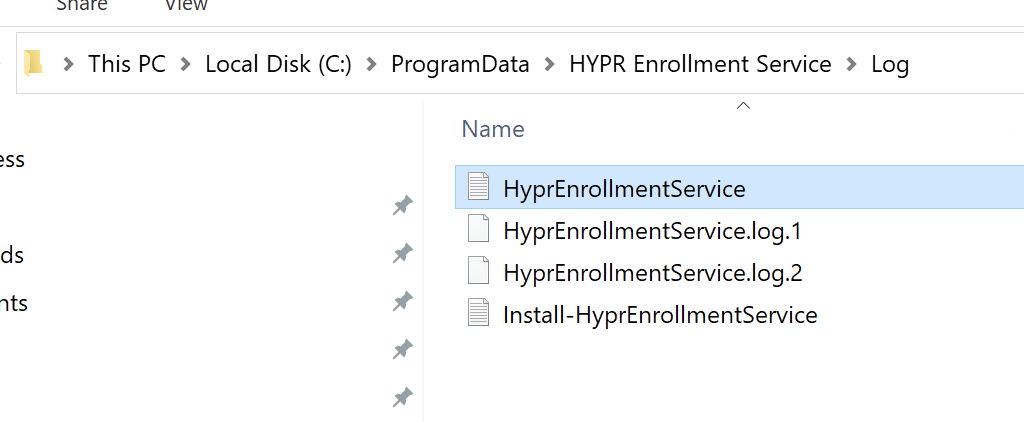
- If everything is working correctly, you should see logs for API calls to CC. Example:

- Logs are in
Next Steps
After deploying the Enrollment Service:
- Enable Web to Workstation Single Registration on your rpApps
- Test the complete workflow with a pilot group of users
- Review audit trails to verify successful certificate provisioning
- Monitor system performance during scaled deployment