End User Guide: Setting Up Passwordless Login
This guide helps you set up passwordless login for your workstation using your mobile device. Once set up, you can log in to your computer and access work applications without a password.
- Your work mobile device (iPhone or Android)
- Your work computer (Windows)
- A few minutes to complete setup
Getting started
Before you can use passwordless login, prepare your mobile device.
How your setup begins
Depending on how your company is configured, the first step can reach you in different ways:
- From a Magic Link in email — open the link from your IT team and follow the on-screen pairing steps.
- From a web portal — sign into the portal and choose Add New Login Method or Set Up Passwordless, then scan the QR code with HYPR Mobile App.
- After identity verification (HYPR Affirm) — at the end of the verification flow, tap the button (for example, Register HYPR App) to start pairing.
Whichever way yours starts, the steps below are the same.
Download the HYPR Mobile App
- Open the App Store (iPhone) or Google Play Store (Android) on your phone.
- Search for HYPR app.
- Download and install the app.
- Open the app and sign in with your work email address.
If HYPR Mobile App is already installed, update it to the latest version from your app store.
Enable HYPR as your passkey provider
Your phone needs to allow HYPR to work as a passkey provider. The HYPR Mobile App guides you through this the first time it detects HYPR is not enabled — you don't need to find the right Settings screen on your own. Follow the steps for your phone.
If the banner doesn't appear, open your phone's Settings directly and search for "passkey" or "passwords" — turn on the HYPR toggle there. The exact location varies by phone model.
On Android
On Android, passkeys need Android 14 or later and a strong biometric, such as a fingerprint sensor. If your phone doesn't meet these requirements, the app tells you that passkeys are not supported — the rest of the app still works, and you can keep signing in the way you do today.
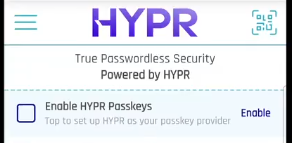
Open the HYPR Mobile App. You'll see an Enable HYPR Passkeys banner across the top of the home screen. Tap Enable, then Open Settings in the dialog. Your phone jumps to the Passwords, passkeys, and autofill screen — turn on HYPR Credential Provider under Additional services and tap the back button to return to the app.
Also check Chrome. Enabling HYPR in your phone's Settings is not enough for Chrome, which picks a passkey provider with its own setting. While Chrome is set to Autofill with Google, your HYPR passkey still works, but the sheet appears as Google Password Manager rather than HYPR.
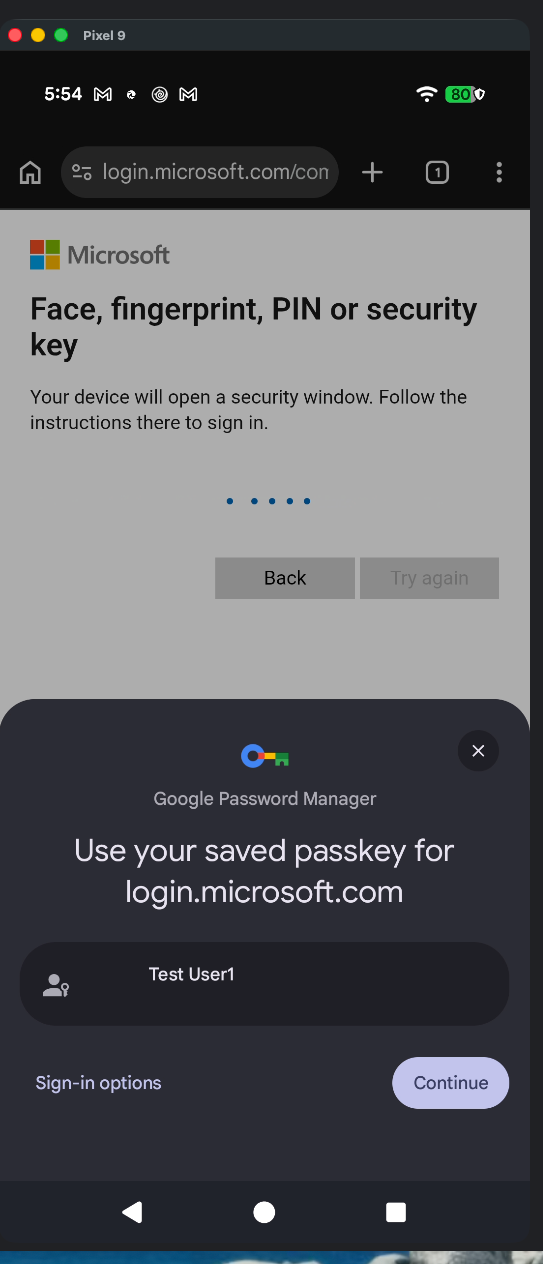
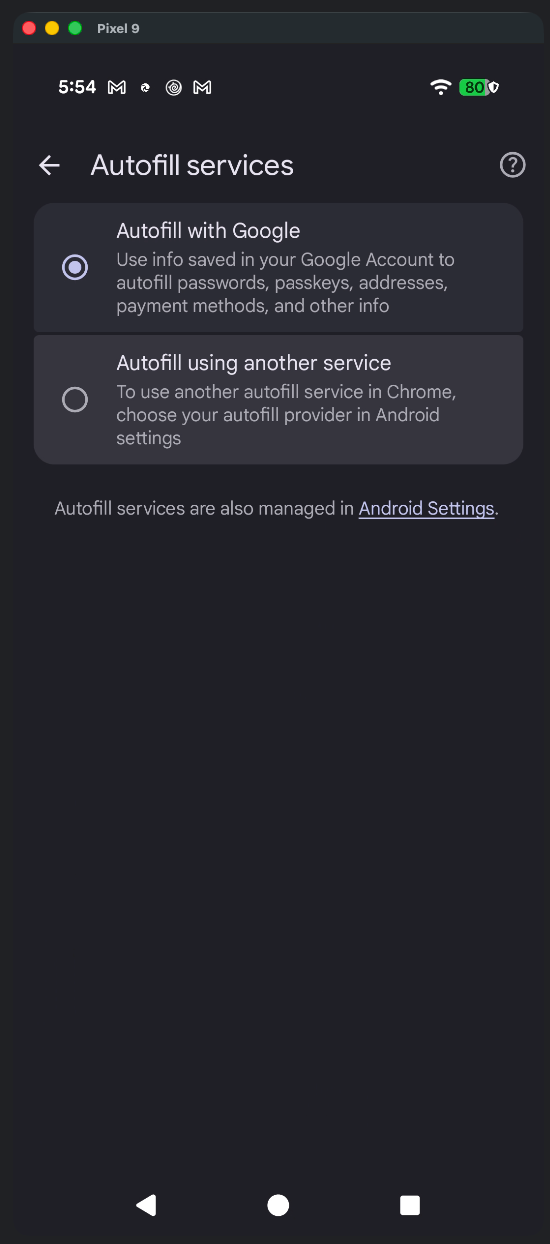
Open Chrome Settings → Autofill settings → Autofill service provider, select Autofill using another service, then restart Chrome when it asks. The passkey sheet then appears as HYPR Credential Provider.
On iPhone
Open the HYPR Mobile App and go to My Passkeys. You'll see an Enable HYPR Passkeys banner. Tap Enable, then accept the iOS prompt to turn on AutoFill from HYPR. Your phone enables HYPR under Settings → General → AutoFill & Passwords. You can leave the native Passwords app enabled as well.
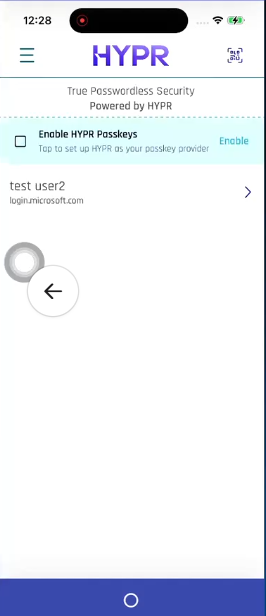
On iPhone, the Passwords app is enabled as a passkey provider by default. Enable HYPR under Settings → General → AutoFill & Passwords before you register your first passkey; otherwise the passkey may be saved into Apple's Passwords app instead of HYPR.
Pairing your workstation
You'll pair your phone with your computer so your phone unlocks your workstation.
- On your computer, open HYPR Passwordless and click Start Pairing.
- Choose Smartphone when prompted to pair a smartphone or a security key.
- On your phone, open the HYPR Mobile App.
- Tap Scan QR at the bottom of the screen (or the QR icon in the upper right if you already have other pairings).
- Point your phone's camera at the QR code on your computer.
- Use your phone's biometric (fingerprint or face) when prompted.
- Wait for pairing to complete.
Once pairing is complete, you'll see your computer in My Computers and a new passkey in My Passkeys.
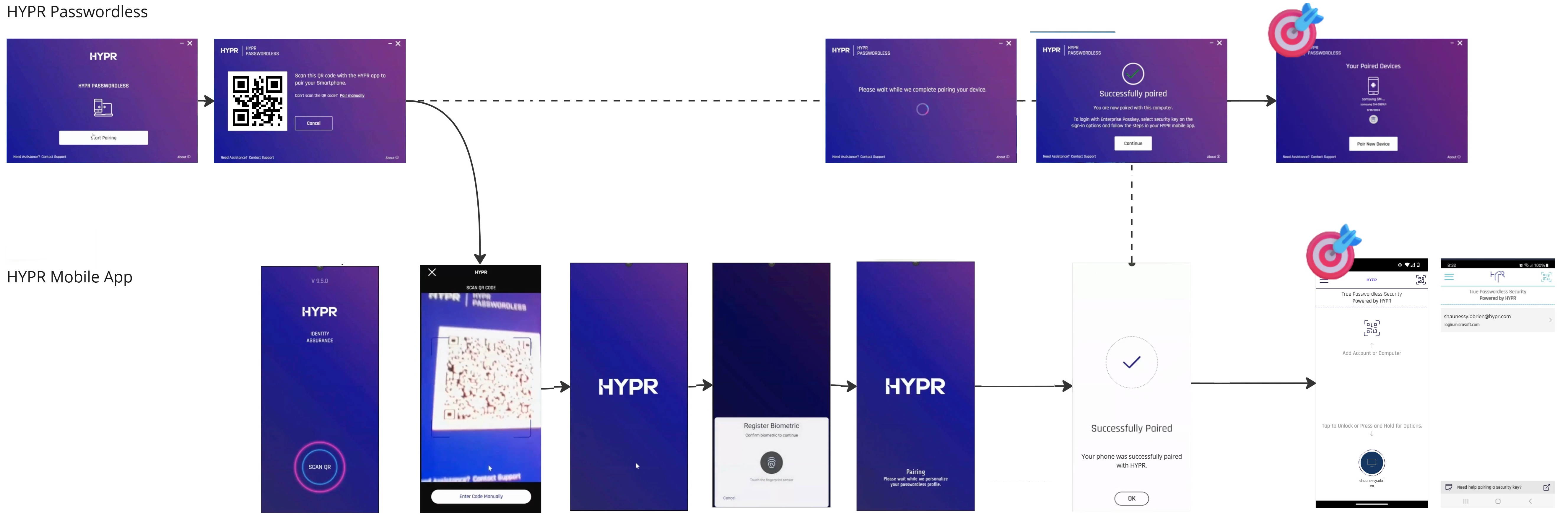
If you click Start Pairing and choose Security Key, follow the on-screen instructions to register a FIDO2 security key (such as a YubiKey). For Entra-joined devices, you may also be offered the option to provision the security key directly into Microsoft Entra ID.
Logging in to your workstation
Standard login (tap-to-unlock)
- Open HYPR Mobile App and tap the icon of the workstation you want to unlock.
- Confirm with your phone's biometric.
- Your computer unlocks.
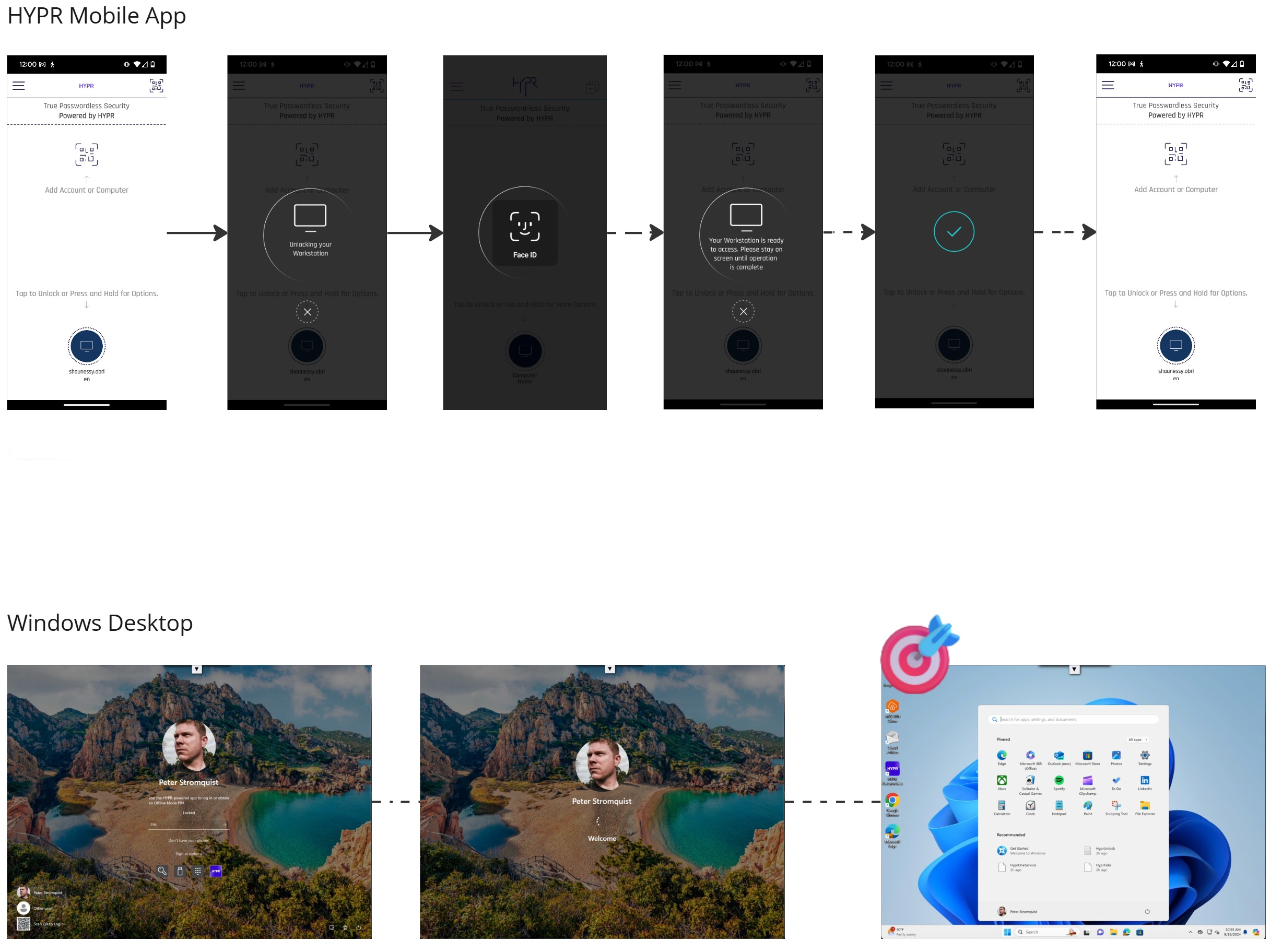
Locking your workstation
Open HYPR Mobile App, tap the workstation icon, and the workstation locks.
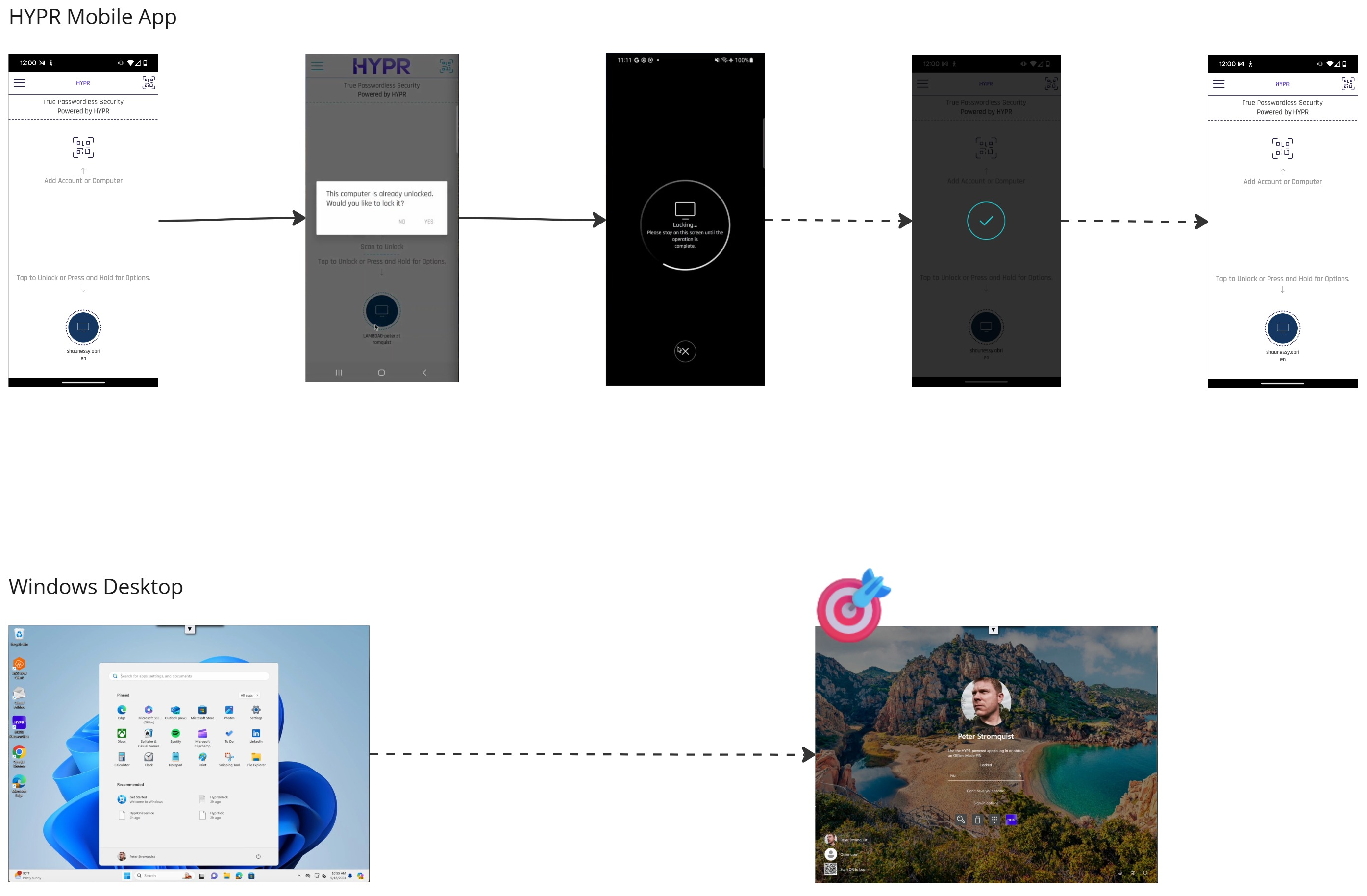
QR-to-login (any computer)
For a different or shared computer:
-
At the login screen, select Scan QR to Login.
-
Open HYPR Mobile App on your phone.
-
Scan the QR code. If your phone has registrations for more than one account, choose the one to use.
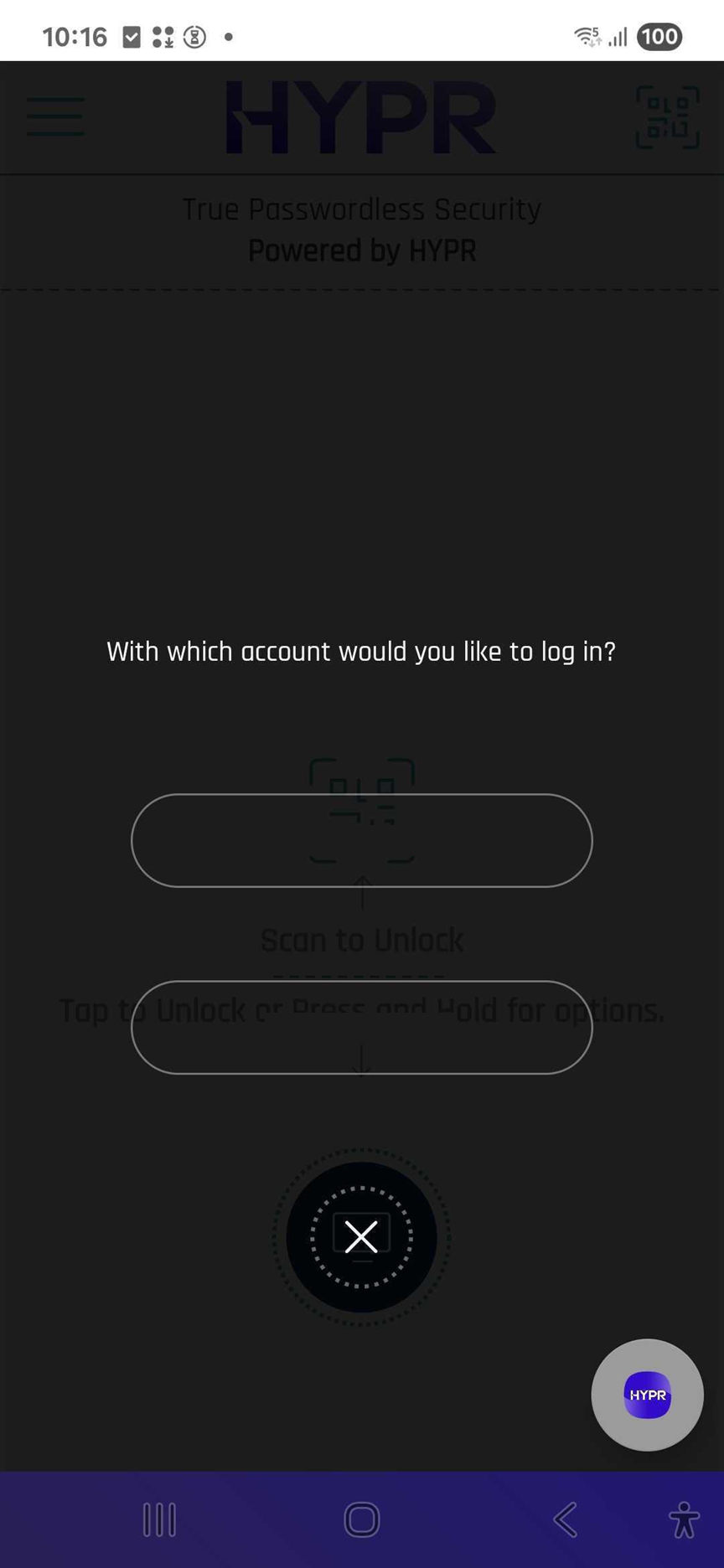
-
Confirm with your phone's biometric.
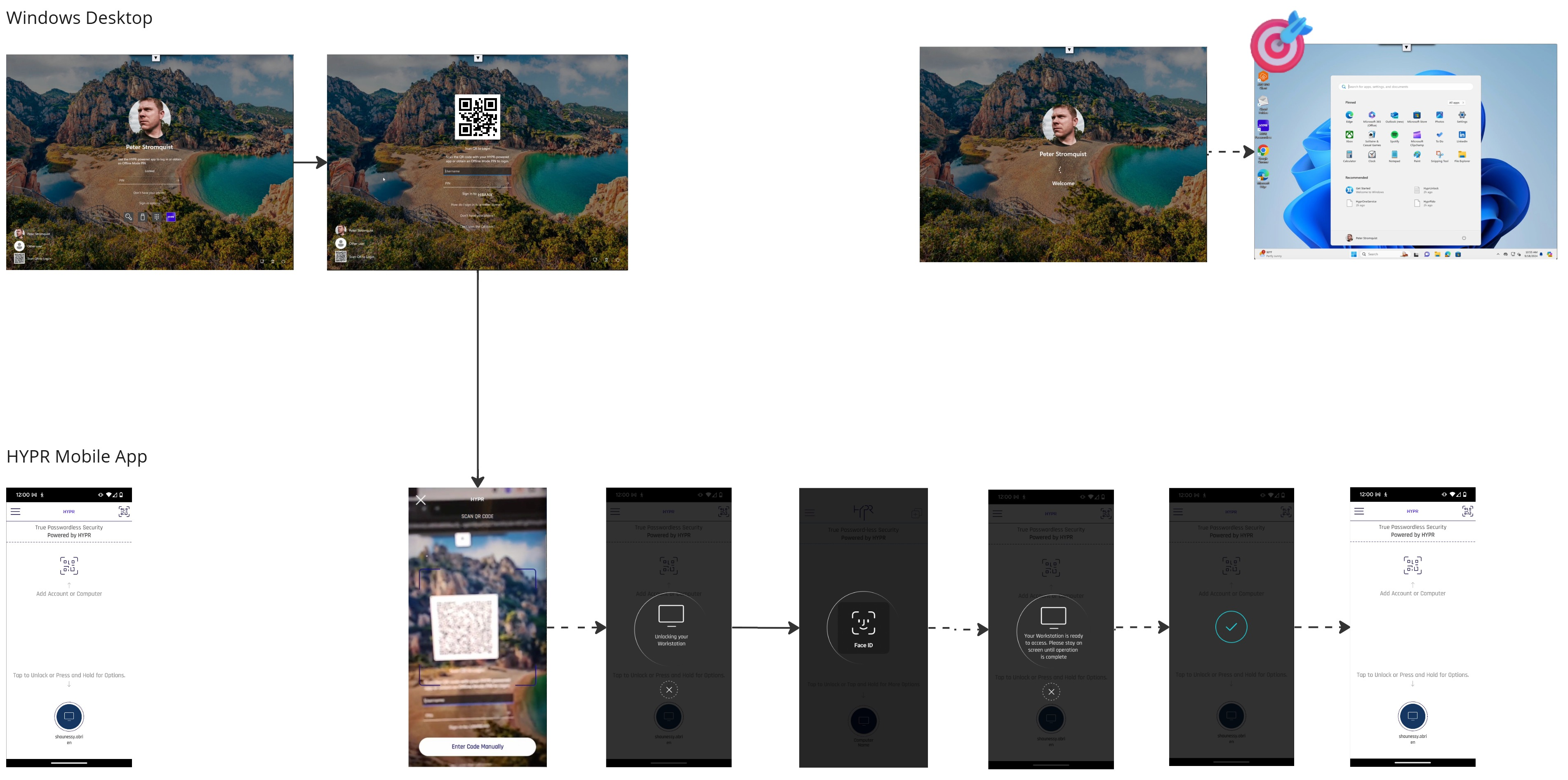
After a successful QR login, the HYPR Mobile App may prompt you to save that workstation to My Computers so future logins are tap-to-unlock — no QR scan required.
Using an offline PIN
If your phone or workstation is offline:
- Open HYPR Mobile App and tap the workstation icon.
- When the app suggests it, tap Use an Offline PIN.
- Confirm with your phone's biometric.
- Enter the displayed PIN at your workstation.
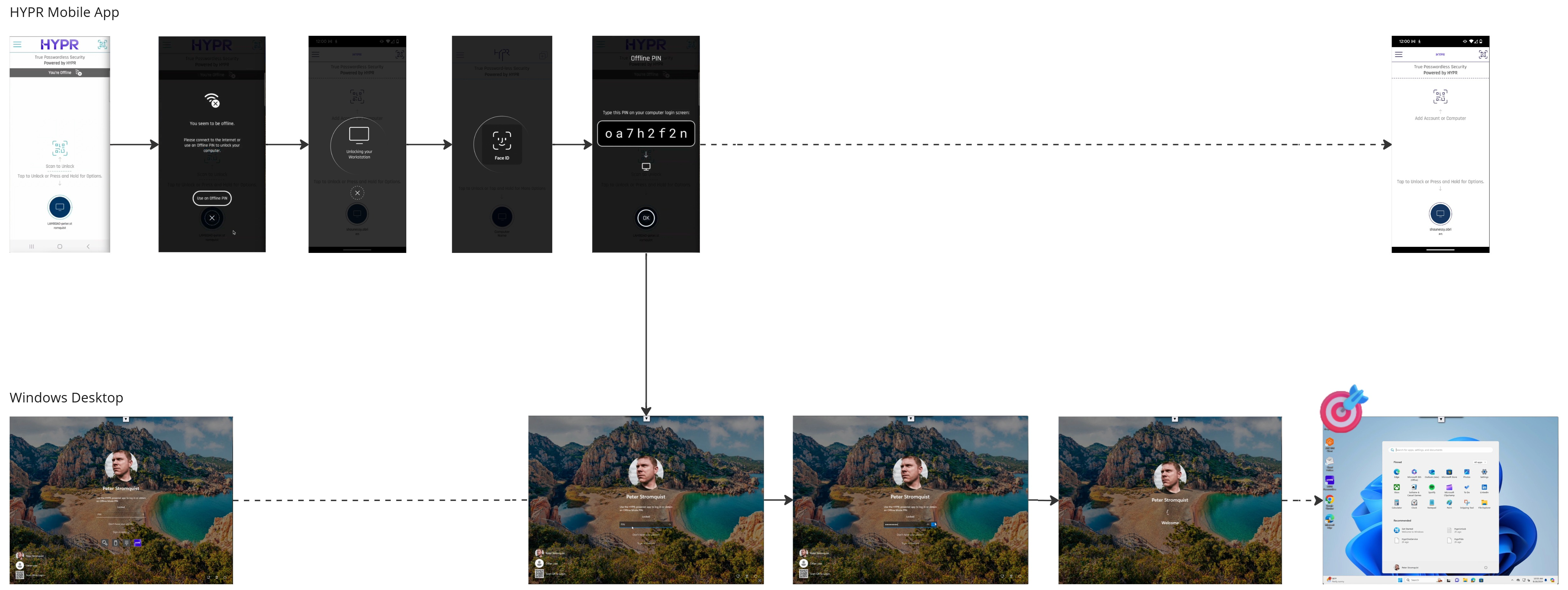
Your offline PIN is a backup security method. Don't share it.
Using passkeys
A passkey lets you sign in to a website or application using your phone's biometric — no password required.
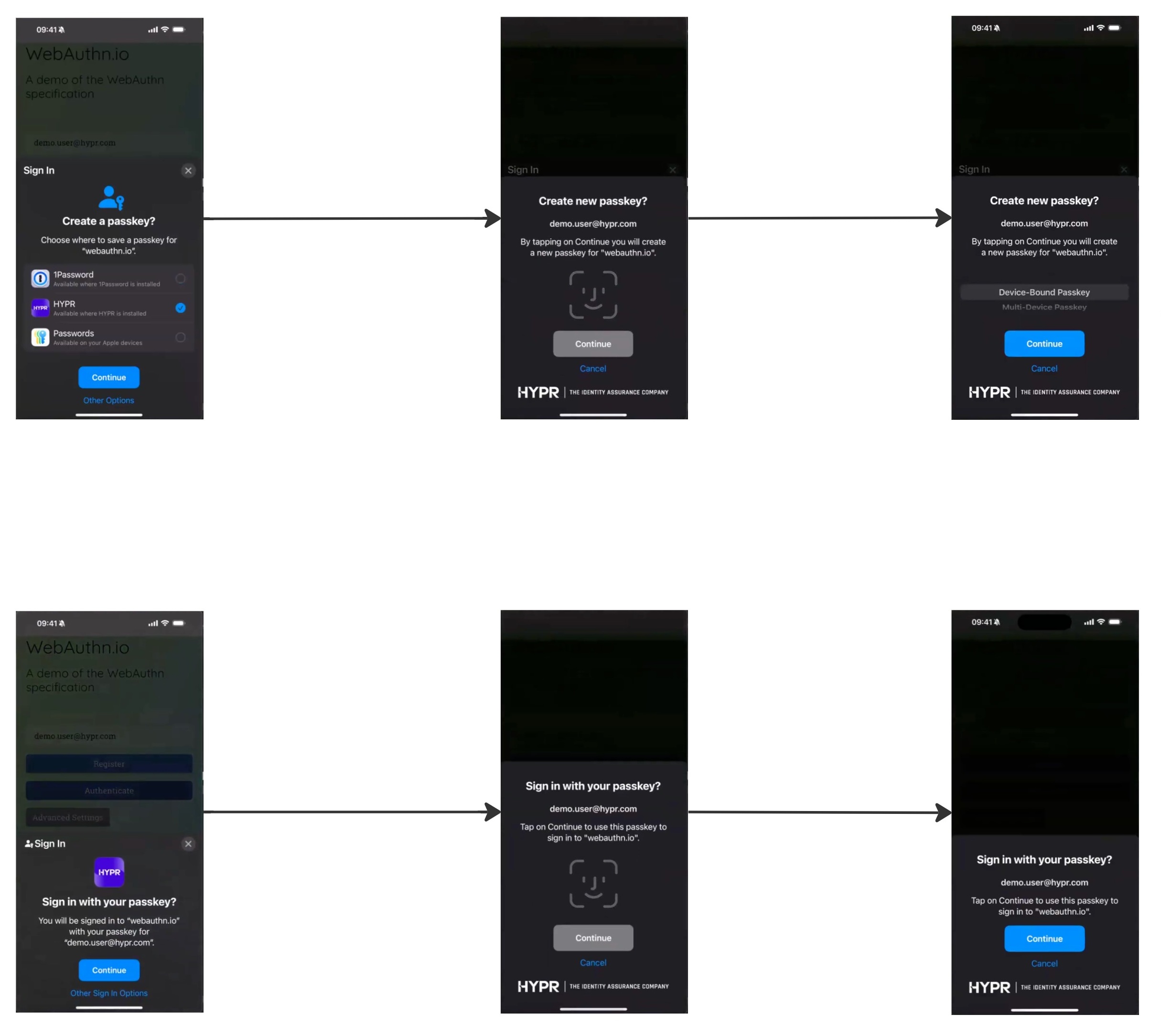
Setting up a HYPR Passkey
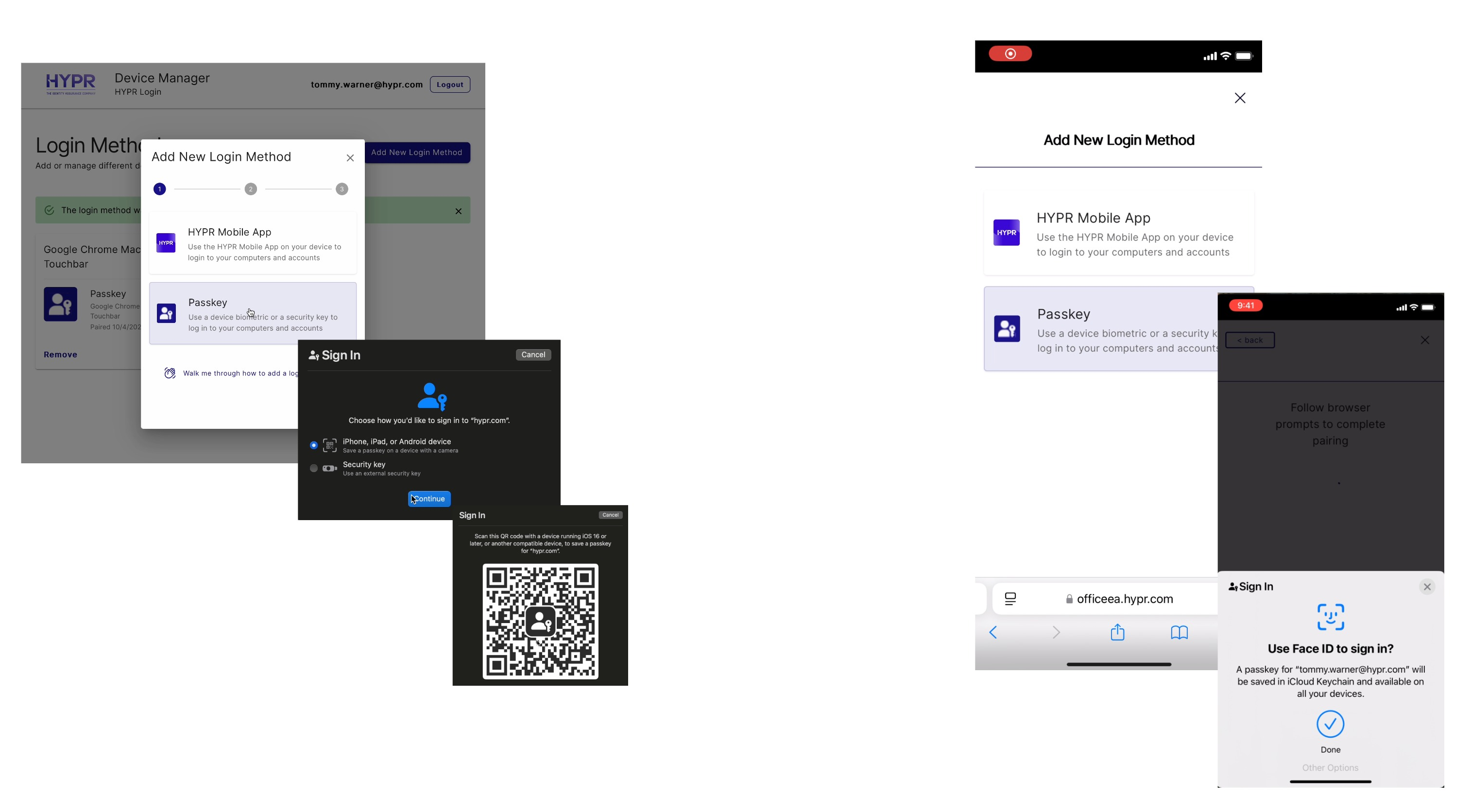
The first time you access a passwordless-protected app (for example, an Entra-protected site or Microsoft 365), your phone prompts you to set up a passkey:
- Follow the on-screen prompt to set up a passkey.
- Choose HYPR as your passkey provider when offered.
- Confirm with your phone's biometric.
- You can now access the app.
If you need to set up a HYPR Passkey separately (not during workstation pairing), use the Scan QR option in the HYPR Mobile App on the relevant page on your computer or browser.
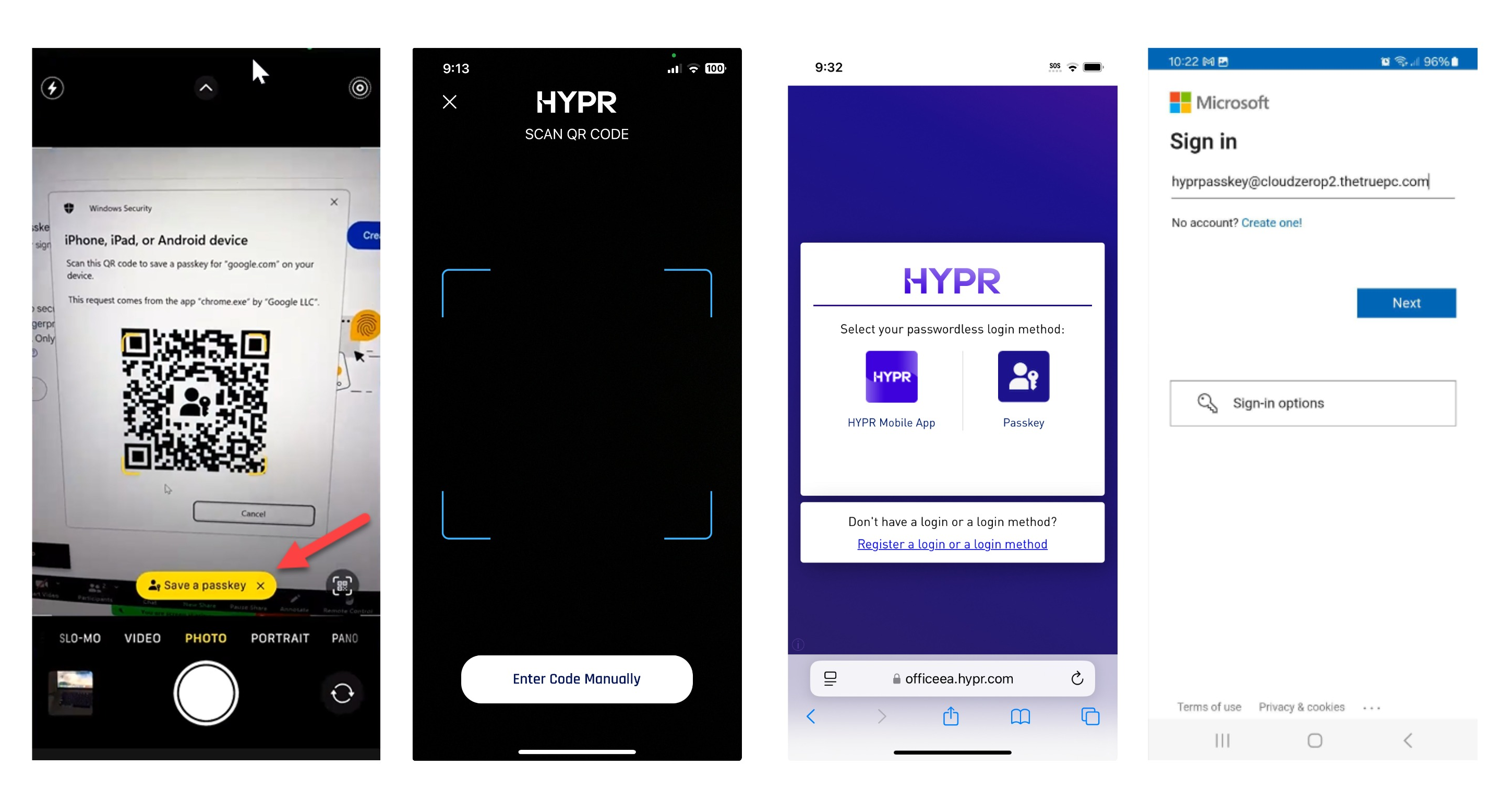
Signing in with a passkey
When you return to the same site or app:
- The site offers passkey sign-in (or your browser surfaces the saved passkey).
- Confirm with your phone's biometric.
- You're signed in.
Example: Okta sign-in to Office
- Navigate to your company's Office portal.
- Choose Passkey or HYPR Mobile App as the login method.
- Scan the QR code with your phone if shown, then confirm with your biometric.
- You're signed in.
This works on both workstation browsers and mobile browsers.
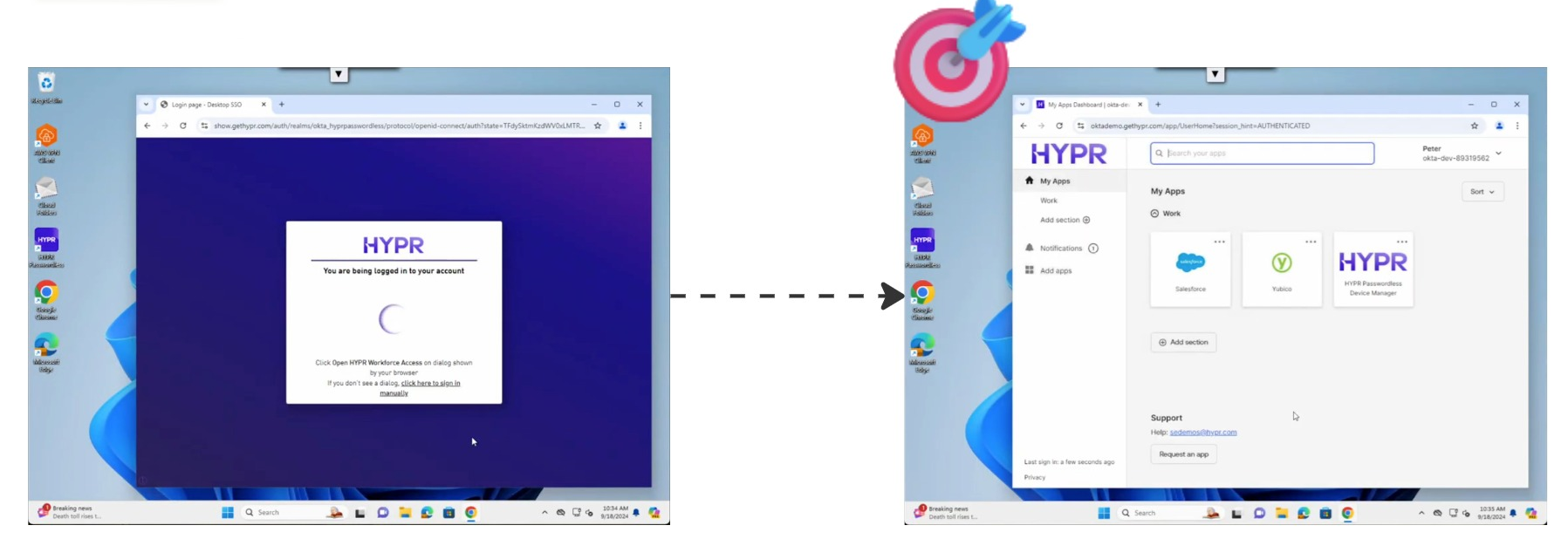
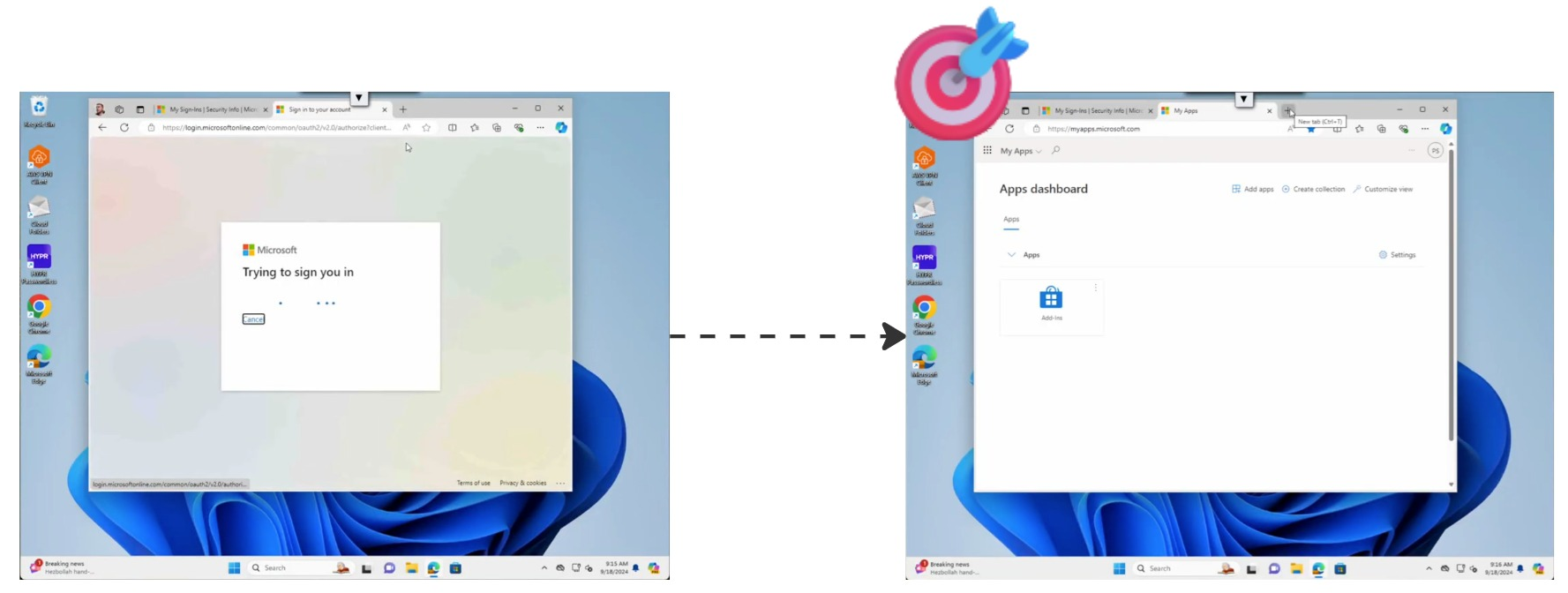
Desktop SSO and Entra SSO
Once you sign in to one Entra-protected application with your passkey, the same passkey carries you into other Microsoft services (Outlook, Teams, SharePoint, Microsoft 365) without re-authenticating.
What the mobile prompt looks like
When a sign-in needs your passkey, your phone shows a native prompt that names the account; confirm with your biometric and the sign-in completes.
-87c05974f0bb4dd868f3b871d09a64b2.jpg)
Managing your devices and passkeys
In HYPR Mobile App you can see all paired computers under My Computers and your passkeys under My Passkeys. To remove a device:
- Open My Computers.
- Tap and hold the device.
- Select Remove or Unpair, then confirm.
Once removed, you'll need to pair the device again to use passwordless login.
Common questions
What if I lose my phone?
Contact your IT support team immediately. They can remove the lost device, set up passwordless login on a new device, and temporarily restore password access if needed.
Can I use this on multiple computers?
Yes — pair your phone with as many work computers as you need; each one appears in My Computers.
Pairing doesn't work
Check your phone's camera permission for HYPR, enable Bluetooth, verify both devices have internet, restart both devices, and confirm you have the latest app version.
Security tips
- Use a screen lock and enable biometrics on your phone.
- Don't share your phone — it's now a security key for your work account.
- Report a lost or stolen phone to IT support immediately.
- Keep the HYPR Mobile App updated.
Getting more help
Your IT support team can troubleshoot setup issues specific to your environment. You can also check your company's internal documentation, or visit HYPR Support at support.hypr.com.
For technical setup and configuration, administrators should see the Enterprise Passkey and HYPR Passkey Setup Guide. For the technical implementation of HYPR Passkey user experience, see the Enterprise Passkey User Experience Guide.