CIAM Deployments for Passkeys Playbook
This playbook provides practical guidance for designing and rolling out passkeys in customer identity and access management (CIAM) environments.

Introduction
Passwords have long been the standard way to secure online accounts, however they’re easy to forget, often reused, and vulnerable to phishing and data breaches. Even the most complex passwords are vulnerable to phishing attacks, in which unsuspecting users are tricked into entering their passwords on fraudulent look-alike websites controlled by the attackers. Even authentication apps used as part of multi-factor authentication (MFA) are not foolproof, as users can still be deceived into entering one-time passwords on fake login pages. To address these challenges, passkeys are emerging as a modern, more secure alternative to traditional passwords.
A passkey is a passwordless authentication method that uses cryptographic keys where the private key is stored securely on the user’s device. Instead of typing a password, users authenticate using biometrics (like fingerprint or face recognition), a device PIN, or other built-in security mechanisms. The private key never leaves the user’s device, making passkeys resistant to phishing, credential theft, and server-side breaches.
Why Use Passkeys is simple: they offer stronger security and better user experience by eliminating the need to remember complex passwords, reducing login friction, and significantly lowering the risk of account compromise. As cyber threats continue to evolve and users demand faster, safer access, passkeys represent a major step toward a more secure and user-friendly internet.
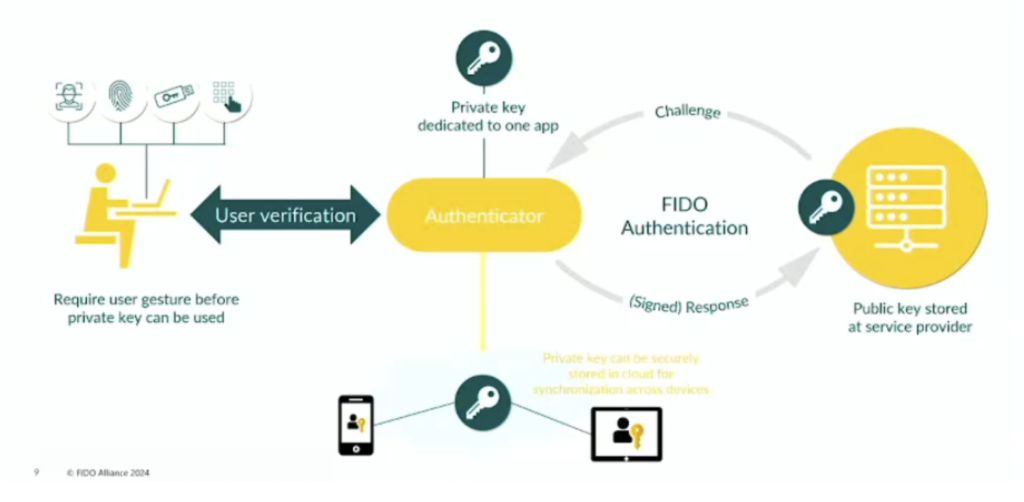
Below is a high-level overview diagram as published by FIDO Alliance which provides a conceptual, simplified view of a passkey's core components and interactions.
Web Passkey
User Experience
-
Registration
- Chrome Browser
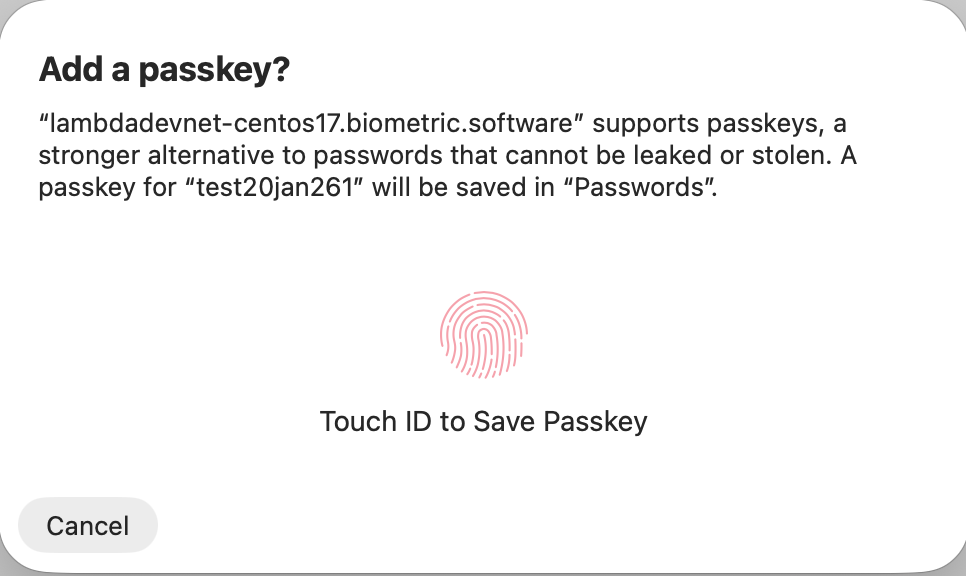
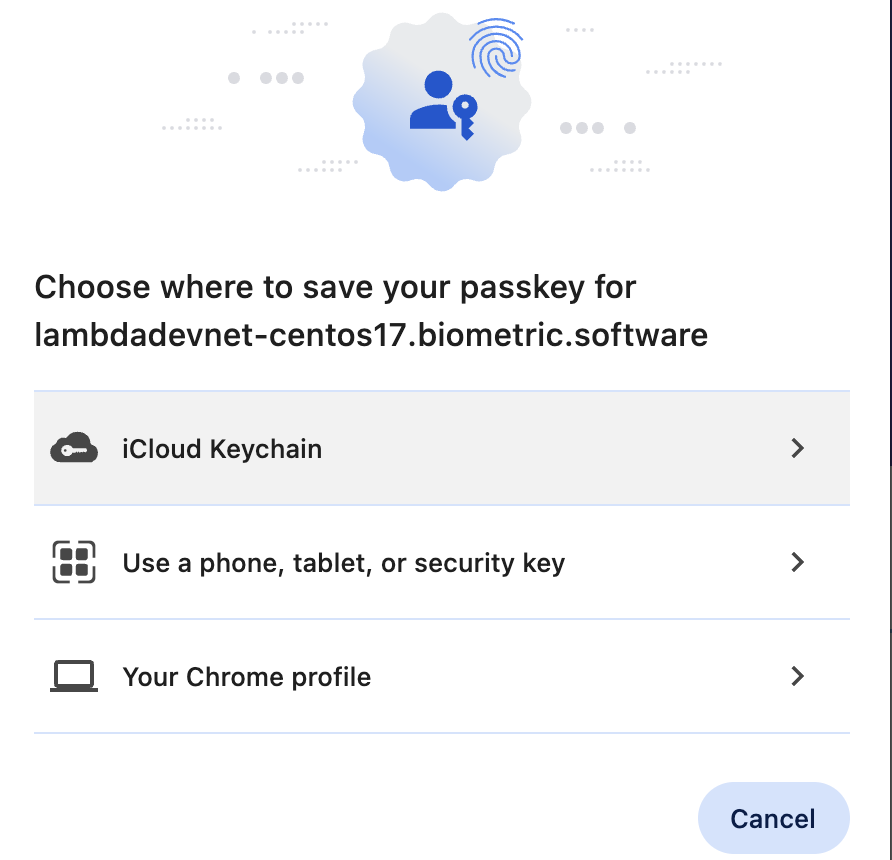
- Safari Browser
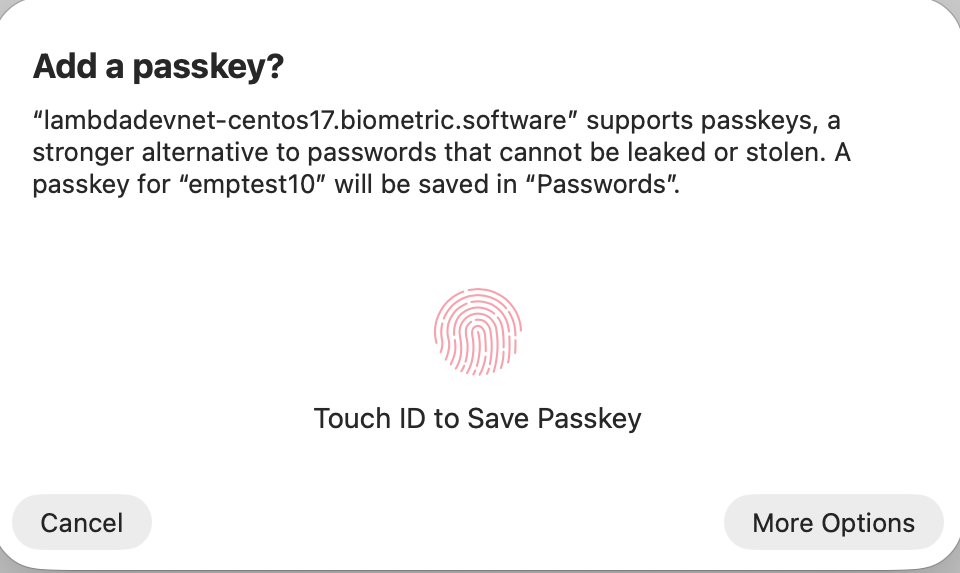
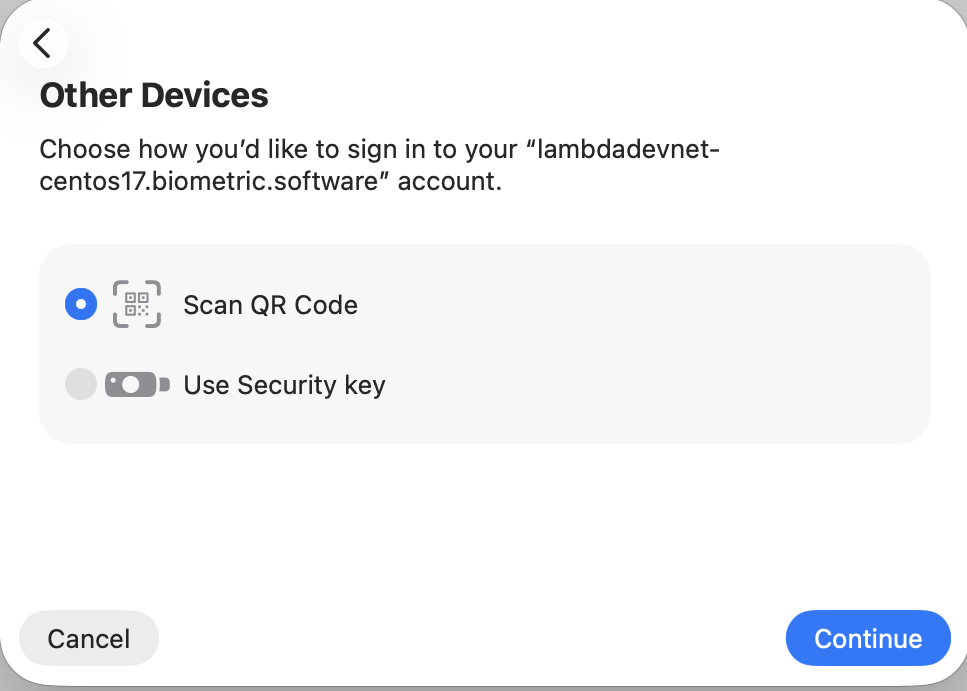
- Windows 11→ Edge Browser
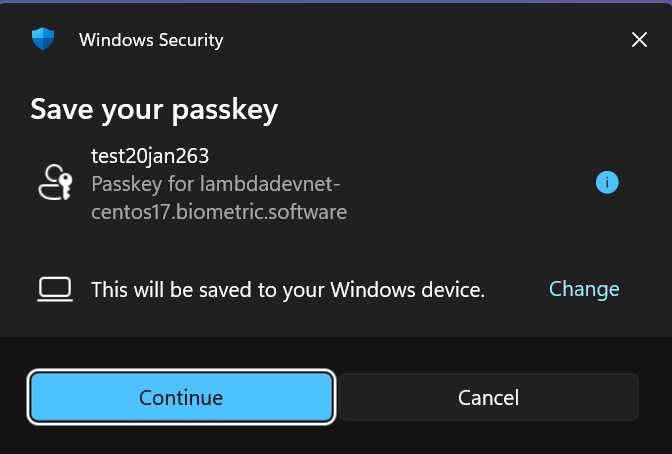
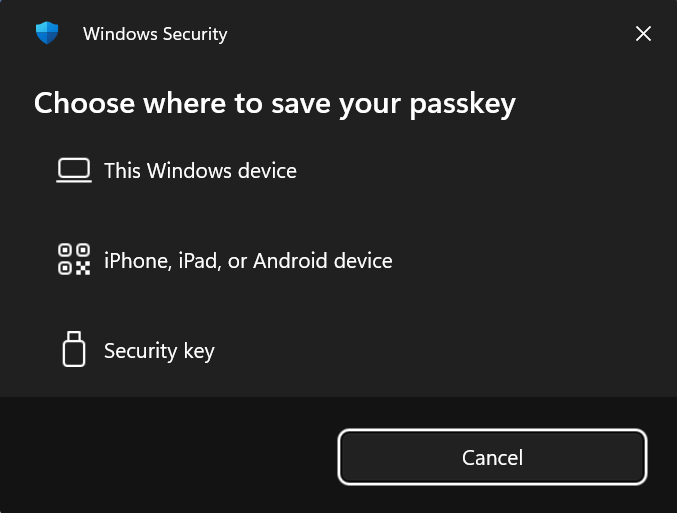
-
Authentication
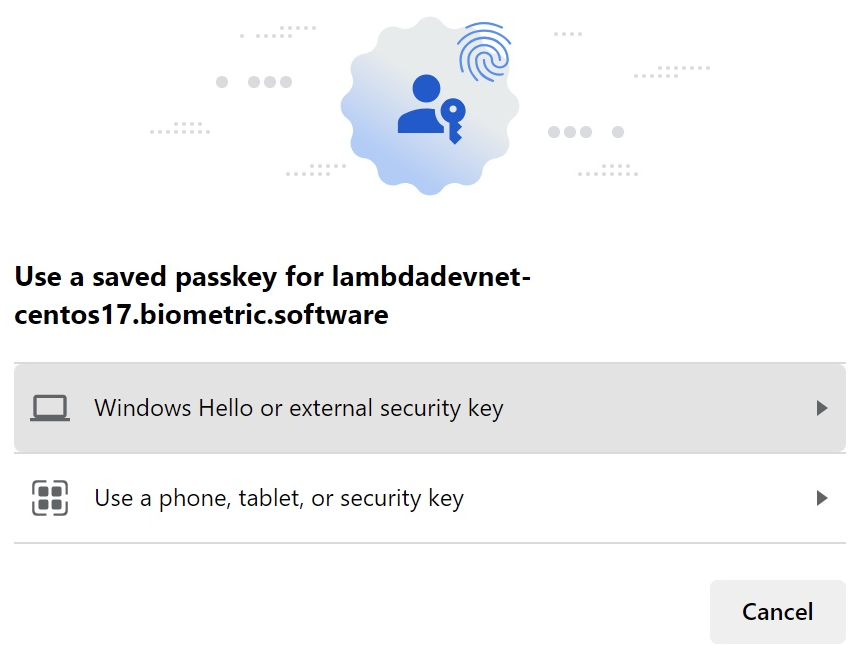
- Chrome Browser (Authentication)
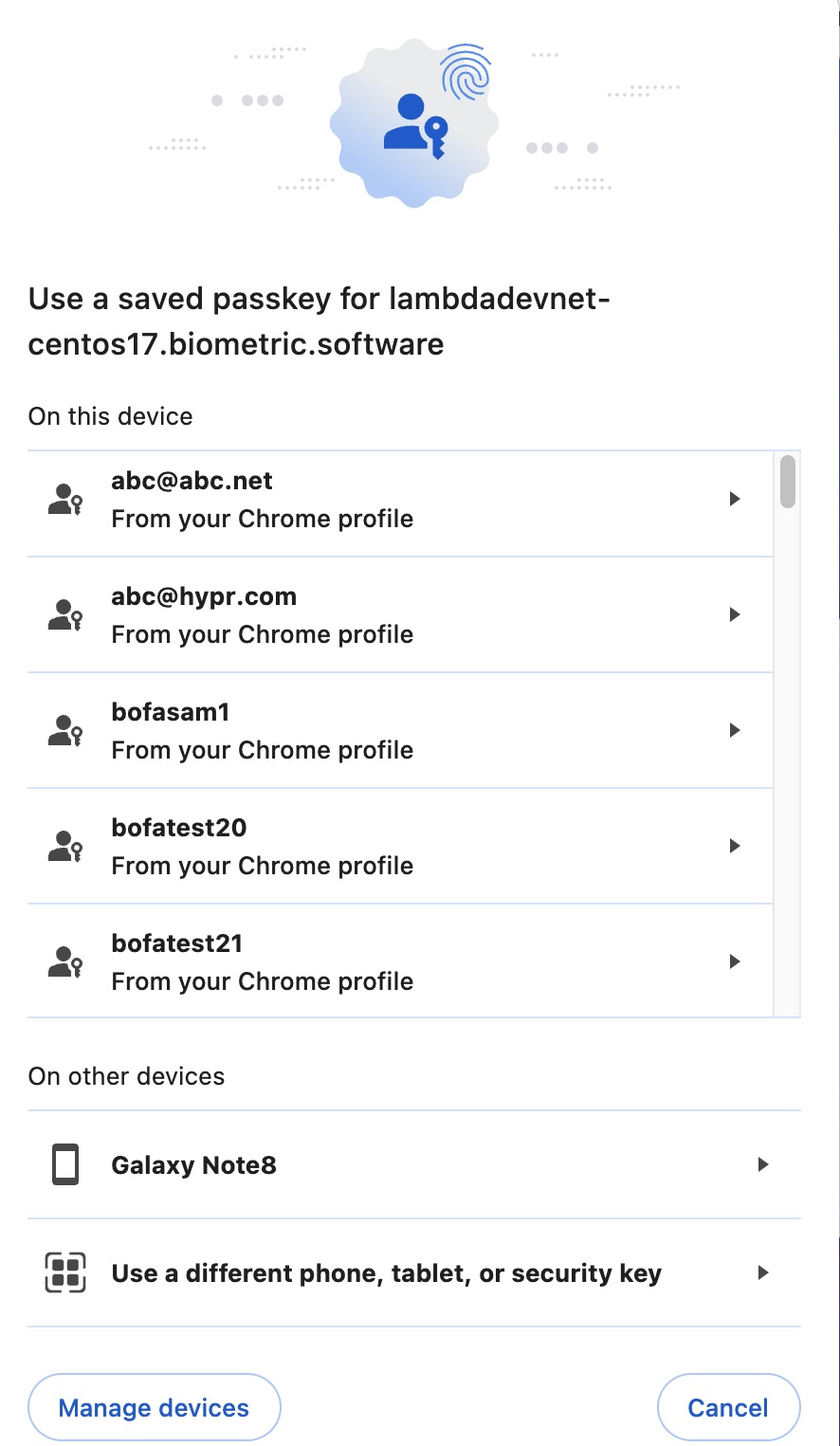
- Safari Browser (Authentication)
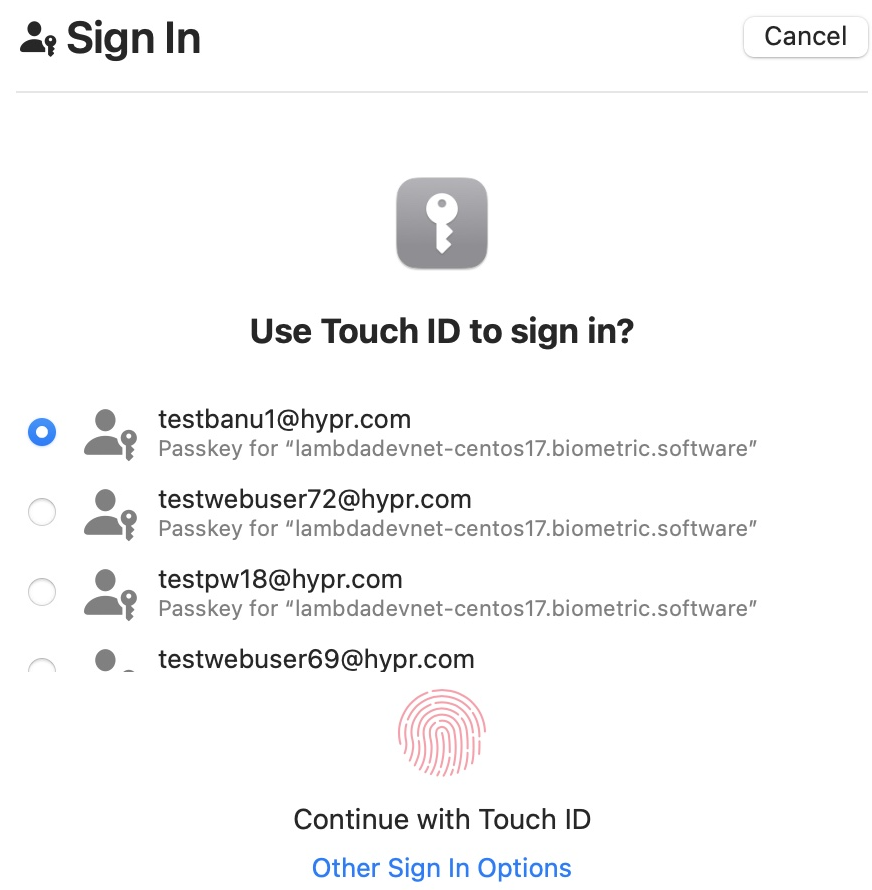
- Windows 11→Edge Browser (Authentication)
Facts
-
Passkeys are WebAuthn credentials which can be synced across devices within an ecosystem (Apple iCloud Keychain or Google Password Manager) via Apple or Google cloud accounts.
-
Passkey leverages WebAuthn specification for web application to interact with authenticators for passwordless login.
-
Each passkey is unique and bound to a username and a web application’s domain. The user wouldn’t be able to have multiple passkeys for the same username, application domain and passkey provider.
-
As part of login using passkey workflow, biometric fingerprint or face scan is only used locally to unlock the passkey credential. Biometric elements are NOT sent to the passkey server.
-
The browser acts as the trusted intermediary, facilitating communication between the relying party web application and the user's authenticator (mobile, computer, security key).
-
Passkey types by storage
-
Synced Passkey (Multi-Device)
-
Device Bound Passkey (Single Device)
-
-
Passkey types
-
Platform Passkey
-
The authenticators are embedded in users' client devices (Apple TouchID/FaceID, Windows Hello etc).
-
The client device is linked to the Google account or iCloud account.
-
Passkey credential is stored locally on the client device.
-
-
Cross-Platform Passkey
-
The authenticators are separate from users' client devices.
-
The authenticators connect with client devices through the USB protocol or near-field communication (NFC) technology.
-
Passkey credential is registered using QR Code scan (iOS, Android devices)
-
Passkey credential is registered and stored on the security key.
-
-
-
HYPR Server maintains FIDO2 metadata in the database which includes passkey provider Authenticator Attestation GUID (AAGUID) and this data is in sync with publicly maintained metadata by FIDO Alliance.
Pre-Requisites
-
HYPR FIDO2 SDK - Java Script Library (hyprfido2sdk.js)
-
Adding SDK to our application - Refer Docs
- As a node module - npm i @hyprjs/hypr-fido2-sdk
-
As a script reference to html/js resource:
-
<script src="https://unpkg.com/@hyprjs/hypr-fido2-sdk/dist/hyprfido2sdk.compatible.js"></script>
-
The user's browser must support Webauthn specification.
-
The client device is linked to the Google account or iCloud account for platform passkeys.
Sequence Diagrams
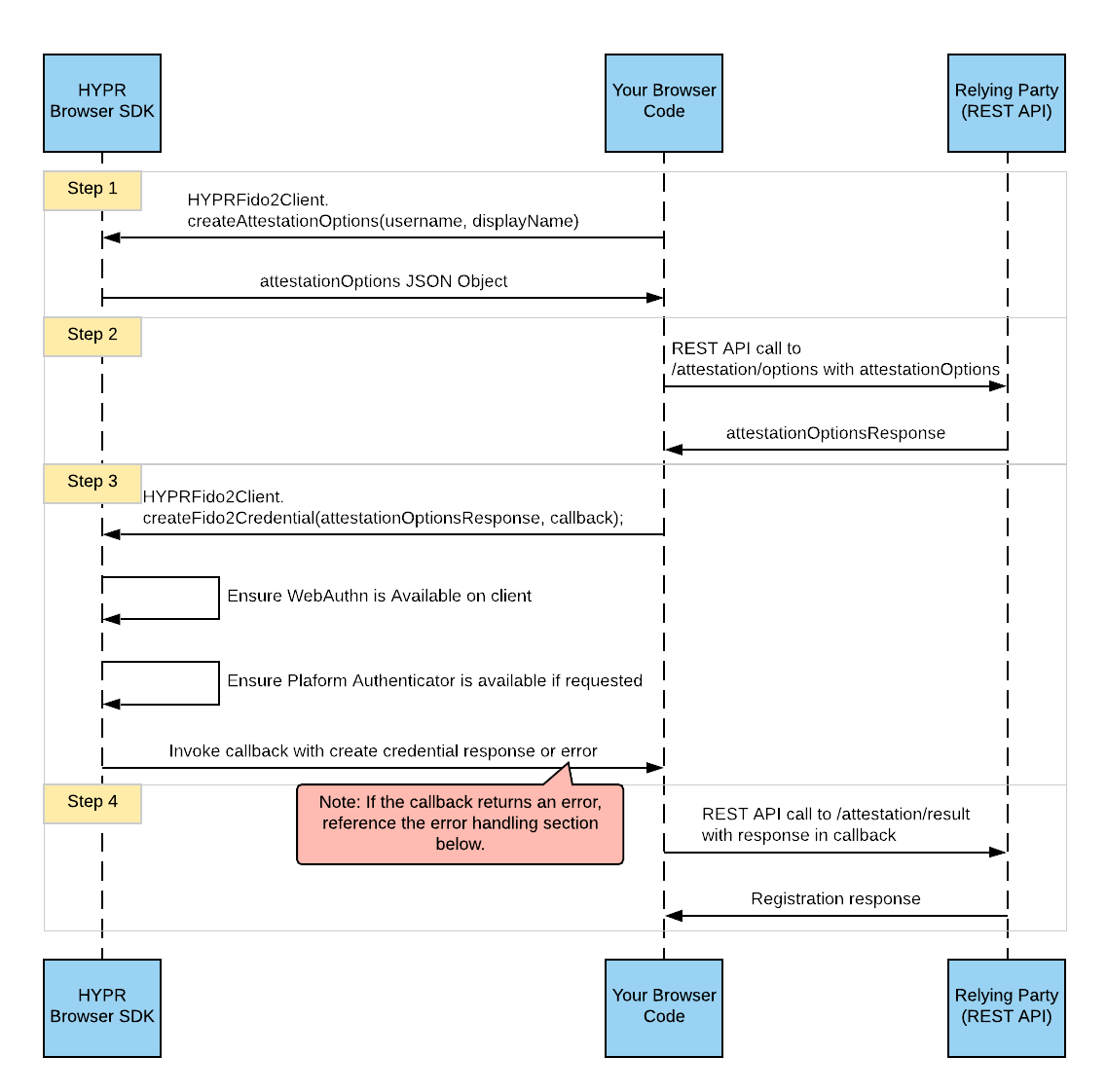
Passkey Registration
-
Passkey creation can happen either when a new user registers for an account, or when an authenticated user intends to create a passkey for their existing account in the profile settings.
-
On behalf of the user, the client application requests a random challenge from the Passkey server.
-
The client application then calls the WebAuthn with credentials.create(challenge) and hands over the challenge.
-
The user will get prompted for biometric verification (face/fingerprint).
-
The client application sends the passkey credential ID and the signed challenge back to the passkey server.
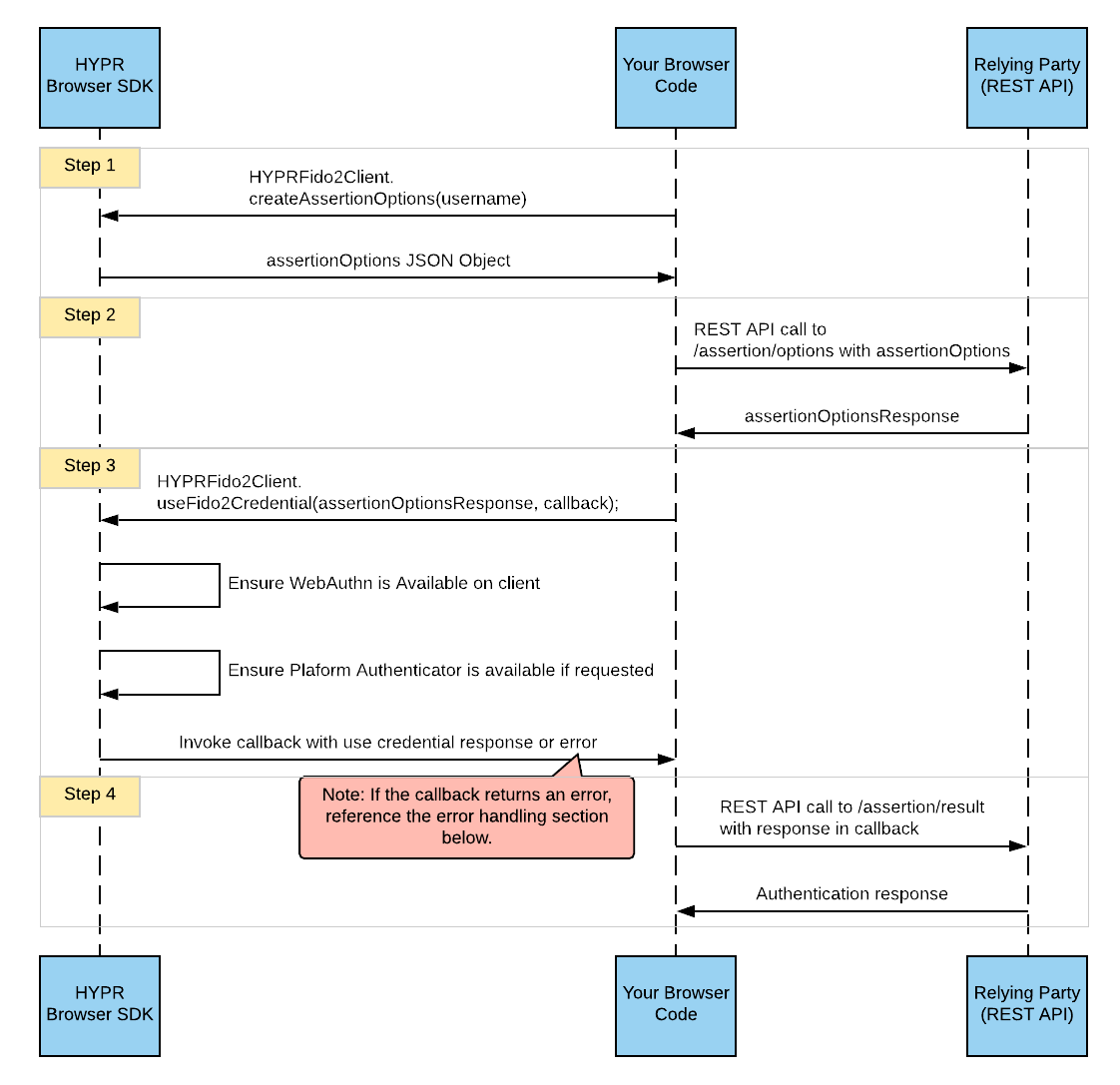
Authentication Using Passkey
-
Passkey does not leave the user’s device and it is not intended to be sent over to the passkey server.
-
The passkey is used locally to create a unique cryptographic signature that proves to the server that it has been created with the passkey. The passkey authentication workflow can be triggered by the user on the client application via ”Sign in with a passkey” button.
-
The client application requests a random challenge from the server.
-
The client application calls the WebAuthn with credentials.get(challenge), which results in prompting the user for biometric verification.
-
The client application sends the signed challenge and the credential ID back to the server.
-
After verifying the signed challenge successfully, the server can safely assume that the user was in possession of the passkey and mark the authentication successful.
Configuration
-
Enable FIDO2 for the rpApp
-
Navigate to CC Console->rpApp->ADVANCED CONFIG-->FIDO2 Settings
-
Toggle On the Enable FIDO2
-
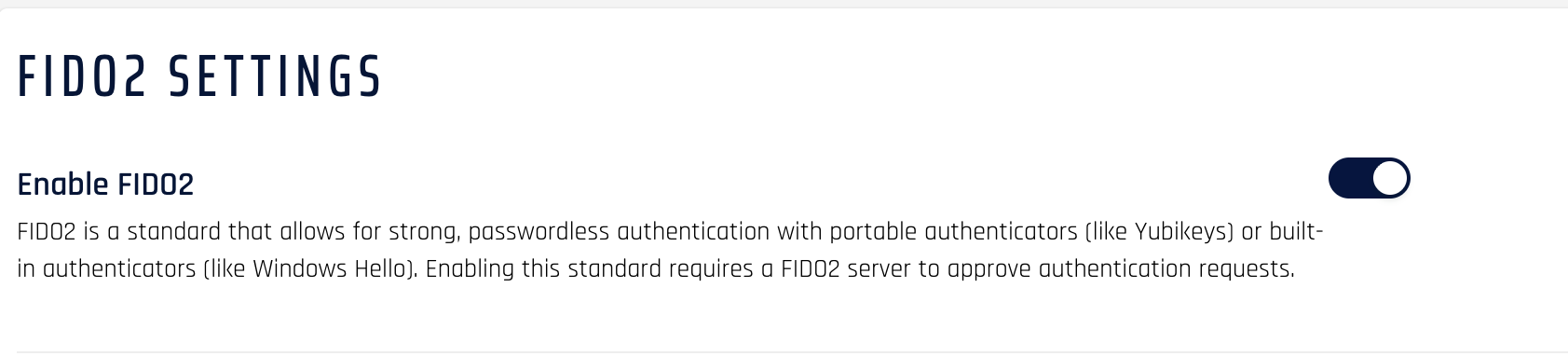
- Add values to the configuration elements
| Config Name | Value | Default Value | Description |
|---|---|---|---|
| Client Origin URL | https://host.com | Relying Party application URL | |
| Discoverable Credentials | -discouraged -preferred -required | discouraged | Required: The Relying Party requires a client-side discoverable credential. Preferred: The Relying Party strongly prefers creating a client-side discoverable credential, but will accept a server-side credential. Discouraged: The Relying Party prefers creating a server-side credential, but will accept a client-side discoverable credential. |
| User Verification mode | -discouraged -preferred -required | preferred | Required: The Relying Party requires user verification for the operation and will fail if the response does not have the user verification flag set. Preferred: The Relying Party prefers user verification for the operation if possible, but will not fail the operation if the response does not have the user verification flag set. Discouraged: The Relying Party does not want user verification. |
| Attestation Type | -none -direct -indirect -enterprise | direct | Relying Parties may use an Attestation Type to specify their preference regarding attestation conveyance during credential generation. Direct: The Relying Party wants to receive an attestation statement that may include uniquely identifying information. Indirect: This indicates that the Relying Party wants to receive the attestation statement as generated by the authenticator. None: This indicates that the Relying Party is not interested in authenticator attestation. Enterprise: By default, the authenticator provides only product information using the AAGUID and high-level information about its type and capabilities, explicitly prohibiting an authenticator from providing uniquely identifying information. However, Enterprise attestation removes that limitation, as it binds a unique authenticator key pair to a serial number or equivalent unique identifier. |
| Attestation Timeout | 30000 | Registration Timeout in milliseconds | |
| Assertion Timeout | 30000 | Authentication Timeout in milliseconds |
- Client Application Code to support Passkey Registration
function doAttestation() {
  "use strict";

  var fido2username = document.getElementById("username").value;
  document.getElementById("fido2username").value = fido2username;

  if (!HYPRFido2Client) {
    console.error("hyprfido2sdk not loaded");
    return;
  }

  var isFido2AvailableCallback = function isFido2AvailableCallback(error, result) {
    if (error !== null) {
      continueAttestation("cross-platform");
    } else {
      continueAttestation();
    }
  };

  HYPRFido2Client.isFido2Available(isFido2AvailableCallback, true);
}

function continueAttestation(fidoType) {
  var fido2username = document.getElementById("fido2username").value;

  var attestationOptions = HYPRFido2Client.createAttestationOptions(
    fido2username,
    fido2username,
    fidoType,
    "required",
    false,
    "direct"
  );

  fetch(host + "/rp/api/versioned/fido2/attestation/option", {
    method: "POST",
    cache: "no-cache",
    headers: { "Content-Type": "application/json" },
    body: JSON.stringify(attestationOptions),
  })
    .then(function (response) {
      if (!response.ok) {
        throw new Error("HTTP status " + response.status);
      }

      return response.json();
    })
    .then(function (resp) {
      resp.excludeCredentials = resp.excludeCredentials || [];
      resp.excludeCredentials = resp.excludeCredentials.map(function (x) {
        return {
          id: base64ToArrayBuffer(fromBase64URL(x.id)),
          type: x.type,
          transports: x.transports,
        };
      });

      completeAttestation(resp);
    })
    .catch(function (error) {
      console.error(error);
      displayErr("continueAttestation: Unable to process this request.");
    });
}

function completeAttestation(optionsResponse) {
  var attestationCallback = function attestationCallback(error, result) {
    if (error !== null) {
      displayErr(String(error));
      return;
    }

    completeAttestationFinal(result);
  };

  HYPRFido2Client.createFido2Credential(optionsResponse, attestationCallback, false);
}

function completeAttestationFinal(resultRequestPayload) {
  fetch(host + "/rp/api/versioned/fido2/attestation/result", {
    method: "POST",
    cache: "no-cache",
    headers: { "Content-Type": "application/json" },
    body: JSON.stringify(resultRequestPayload),
  })
    .then(function (response) {
      if (!response.ok) {
        throw new Error("completeAttestationFinal : HTTP status " + response.status);
      }

      return response.json();
    })
    .then(function (data) {
      if (data.status === "failed") {
        throw new Error("completeAttestationFinal : HTTP response has error : " + data.errorMessage);
      }

      var fieldNameElement = document.getElementById("successMessage");
      fieldNameElement.innerHTML = "Passkey Registration is Successful";
      $("#successSection").show();
    })
    .catch(function (error) {
      console.error(error);
      displayErr("Unable to process this request.");
    });
}
- Client Application Code to support Passkey Authentication
function doAssertion() {
  "use strict";

  var fido2username = document.getElementById("username").value;
  document.getElementById("fido2username").value = fido2username;

  var fieldNameElement = document.getElementById("loggingInMessage");
  fieldNameElement.innerHTML = "Follow the browser prompts to complete your login…";
  $("#loggingIn").show();

  if (!HYPRFido2Client) {
    console.error("doAssertion : hyprfido2sdk not loaded");
    return;
  }

  var isFido2AvailableCallback = function isFido2AvailableCallback(error, result) {
    if (error !== null) {
      console.log("doAssertion : isFido2AvailableCallback : error: " + String(error));
      displayErr("FIDO2 is not available on this browser..");
      return;
    }

    continueAssertion();
  };

  HYPRFido2Client.isFido2Available(isFido2AvailableCallback, false);
}

function continueAssertion() {
  var fido2username = document.getElementById("fido2username").value;

  var assertionOptions = HYPRFido2Client.createAssertionOptions(fido2username, "preferred");

  fetch(host + "/rp/api/versioned/fido2/assertion/options", {
    method: "POST",
    cache: "no-cache",
    headers: { "Content-Type": "application/json" },
    body: JSON.stringify(assertionOptions),
  })
    .then(function (response) {
      console.log(response.status);

      if (!response.ok) {
        throw new Error("continueAssertion : HTTP status " + response.status);
      }

      return response.json();
    })
    .then(function (resp) {
      resp.allowCredentials = resp.allowCredentials || [];
      resp.allowCredentials = resp.allowCredentials.map(function (x) {
        return {
          id: base64ToArrayBuffer(fromBase64URL(x.id)),
          type: x.type,
          transports: x.transports,
        };
      });

      completeAssertion(resp);
    })
    .catch(function (error) {
      console.error(error);
      displayErr("continueAssertion: Unable to process this request.");
    });
}

function completeAssertion(optionsResponse) {
  var assertionCallback = function assertionCallback(error, result) {
    if (error !== null) {
      console.log("completeAssertion : Assertion Callback : Error: " + String(error));
      return;
    }

    completeAssertionFinal(result);
  };

  HYPRFido2Client.useFido2Credential(optionsResponse, assertionCallback);
}

function completeAssertionFinal(resultRequestPayload) {
  fetch(host + "/rp/api/versioned/fido2/assertion/result", {
    method: "POST",
    cache: "no-cache",
    headers: { "Content-Type": "application/json" },
    body: JSON.stringify(resultRequestPayload),
  })
    .then(function (response) {
      if (!response.ok) {
        throw new Error("completeAssertionFinal : HTTP status " + response.status);
      }

      var fieldNameElement = document.getElementById("successMessage");
      fieldNameElement.innerHTML = "Passkey Authentication is Successful";
      $("#successSection").show();
    })
    .catch(function (error) {
      console.error(error);
      displayErr("completeAssertionFinal: Unable to process this request.");
    });
}
Passkey Conditional UI
-
Facts
-
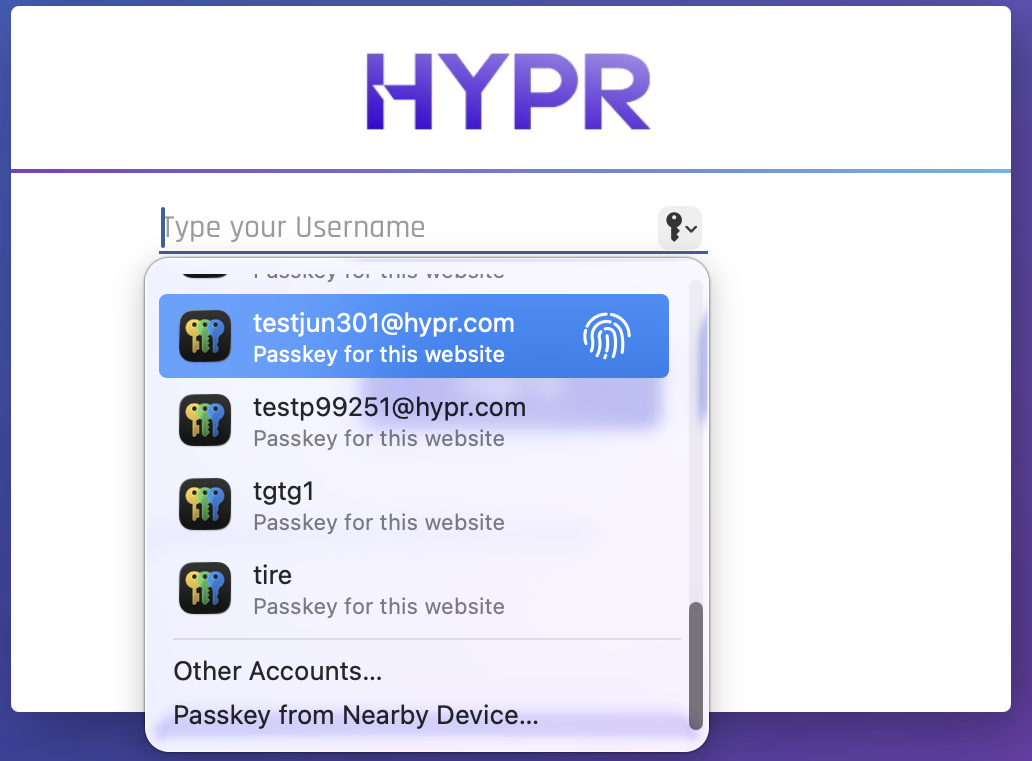
Conditional UI, also referred as passkey autofill, displays available passkeys in a selection dropdown for the user, when a user has a resident key registered with the relying party web application.
-
It enhances the login experience and streamlines the authentication process for users with registered credentials.
-
The main benefits include a seamless transition from passwords to passkeys, improved user satisfaction by minimizing login steps, and the integration of passkeys with autofill features for a smoother authentication experience.
-
Browsers should support conditional UI, enabling seamless sign-in prompts without explicit button clicks.
-
-
Configuration - Below code is required to be added in the client web application or in hypr-fido2-sdk.js.
checkWebAuthnConditionalUISupport: async function() {
  if (window.PublicKeyCredential && PublicKeyCredential.isConditionalMediationAvailable) {
    const isCMA = await PublicKeyCredential.isConditionalMediationAvailable();
    if (isCMA) {
      return true;
    } else {
      return false;
    }
  }

  return false;
}

//Call navigator.credentials.get conditionally based on function defined above
if (HYPRFido2Client.checkWebAuthnSupport(callback)) {
  if (checkWebAuthnConditionalUISupport) {
    navigator.credentials.get({});
  }
}
- User Experience
Testing the Workflow
-
Passkey Registration
-
The user navigates to the client application→account setting screen and clicks the “Create Passkey” button.
-
The user is prompted for biometric verification and the registration is marked as successful.
-
-
Sign In using Passkey
-
Happy Path
- The user navigates to the client application→login screen and enters username and clicks the “Sign-in using Passkey” button.
-
Alternate Flow
- The user navigates to the client application→login screen and doesn’t enter the username and clicks the “Sign-in using Passkey” button.
-
Conditional UI Flow
-
The user navigates to the client application→login screen and taps on the username field.
-
The client application displays available passkeys in a selection dropdown.
-
The user selects the available passkey and biometric verification is performed.
-
-
Deployment Strategy
-
Gradual Adoption
-
Lower Cost, Slower Gain
-
Introduce passkeys as an optional feature within account settings or alongside passwords. Users discover them organically.
-
-
Rapid Adoption
-
Higher Effort, Faster Benefit
-
Proactively promote and integrate passkeys into new user sign-up flows and existing login pages, educating users on benefits
-
Logs and Audit Trail
-
HYPR CC Console provides administrators with an Audit Trail mechanism for tracking events that flow through the HYPR components. HYPR Public Documentation Refer to this documentation for details.
-
The Audit Trail events are stored in the HYPR database for a limited time. Customers can integrate their existing SIEM footprint with HYPR Server for permanent storage of these audit events.
-
Events related to Passkey
| Event Name | Event Description |
|---|---|
| FIDO2_DEVICE_REG | Passkey registration is/was initiated and the challenge is/was sent back to the client application. |
| FIDO2_DEVICE_REG_COMPLETE | Passkey registration is/was done. |
| FIDO2_WEBAUTHN | Passkey authentication is/was initiated and the challenge is/was sent back to the client application. |
| FIDO2_WEBAUTHN_COMPLETE | Passkey authentication is/was done. |