Configuring Injectable Outcomes & Retry Limits
This guide provides administrators with instructions for setting up and configuring Injectable Outcomes & Retry Limits for HYPR Affirm workflows.
This article provides comprehensive guidance for setting up and configuring Injectable Outcomes & Retry Limits for HYPR Affirm workflows, including administrator configuration, user experience details, and best practices.
Injectable Outcomes & Retry Limits is currently in Beta status and is available for the following verification steps:
- Phone/Email Verification
- Location Verification
- Identity Verification
- Photo ID and Liveness Capture
Supported Verification Steps
Injectable Outcomes & Retry Limits is available for the following verification steps:
Phone/Email Verification
- SMS Code verification
- Email OTP verification
- Phone number verification
Location Verification
- IP-based location checks
- Geographic location validation
Identity Verification
- Document verification
- Identity document validation
- HR data comparison
Photo ID and Liveness Capture
- Document upload verification
- Biometric liveness detection
- Photo ID validation
- Auto capture and real-time feedback capabilities
Prerequisites
- HYPR Control Center access with Affirm administration permissions
- HYPR 10.3.0 or later
- Understanding of Affirm workflow configuration
- Knowledge of your organization's security policies and retry requirements
Overview
Injectable Outcomes & Retry Limits allows administrators to configure step-level outcomes and retry limits for verification steps. This provides granular control over how each step handles Success, Failure, and Error conditions, enabling organizations to implement step-specific dynamic logic.
Before HYPR 10.3.0, Affirm workflows allowed customers to define authentication outcomes (Success, Failure, Error) only at the workflow level. Injectable Outcomes introduces step-level conditional outcomes, enabling organizations to determine different responses based on the result of each verification step within an Affirm workflow.
With this enhancement, customers can configure individual verification steps to have distinct responses for Success, Failure, or Error conditions. Instead of a single workflow-wide decision, organizations can implement step-specific dynamic logic, improving security, fraud prevention, and user experience.
Key Benefits
- Step-Level Control: Define how each verification step handles Success, Failure, and Error outcomes
- Configurable Actions: Set Deny Verification, Redirect Workflow, Continue Workflow, retry attempts, fallback verification methods, and escalation procedures
- Flexible Retry Logic: Configure retry limits and time windows for each step
- Enhanced Security: Take different actions based on which step failed rather than applying uniform workflow-wide responses
- Improved User Experience: Reduce friction for users while enforcing step-specific security policies
Configuration Process
Step 1: Access Workflow Configuration
- Navigate to Affirm > Verification Flows
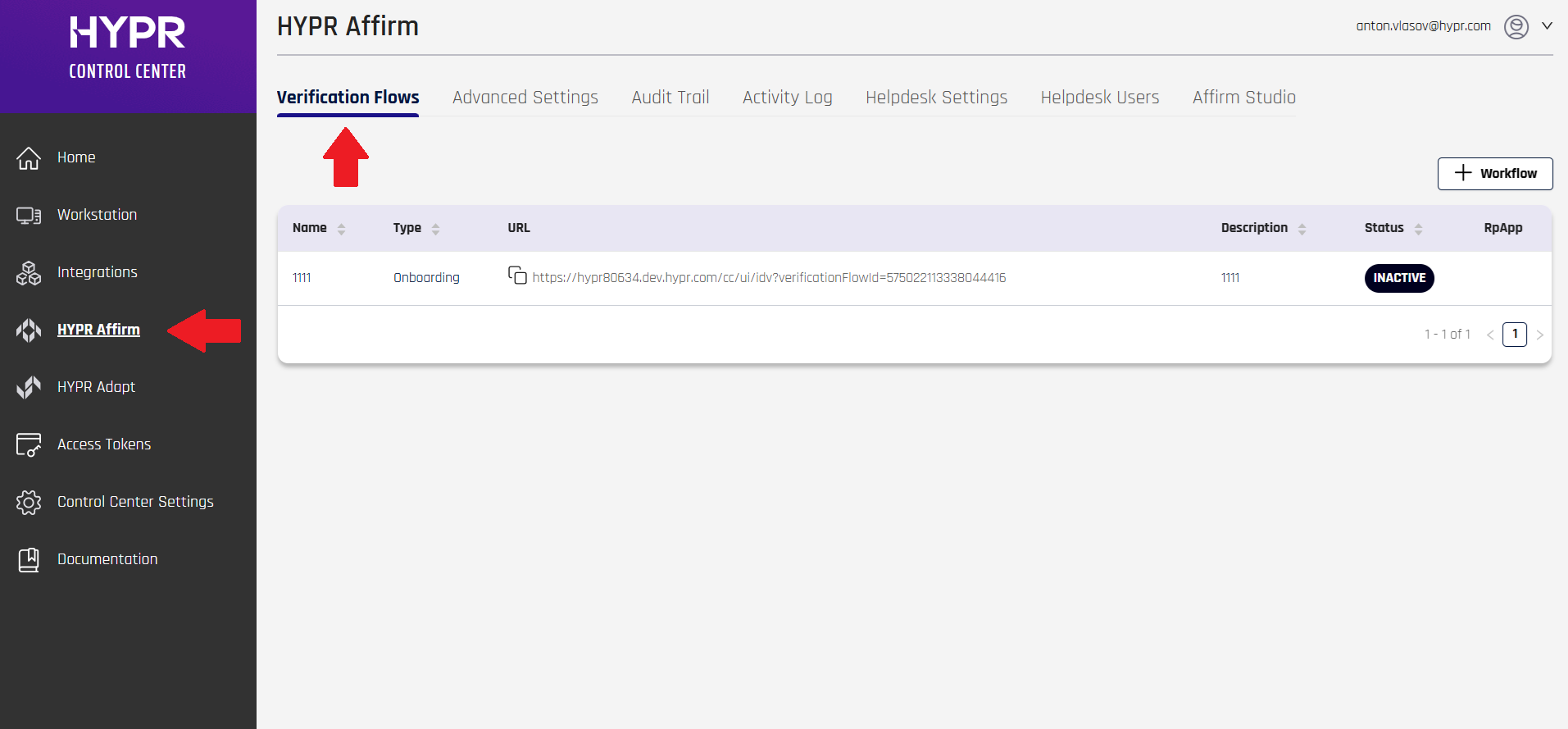
- Click the workflow you want to configure; doing so will slide in an edit panel for that flow
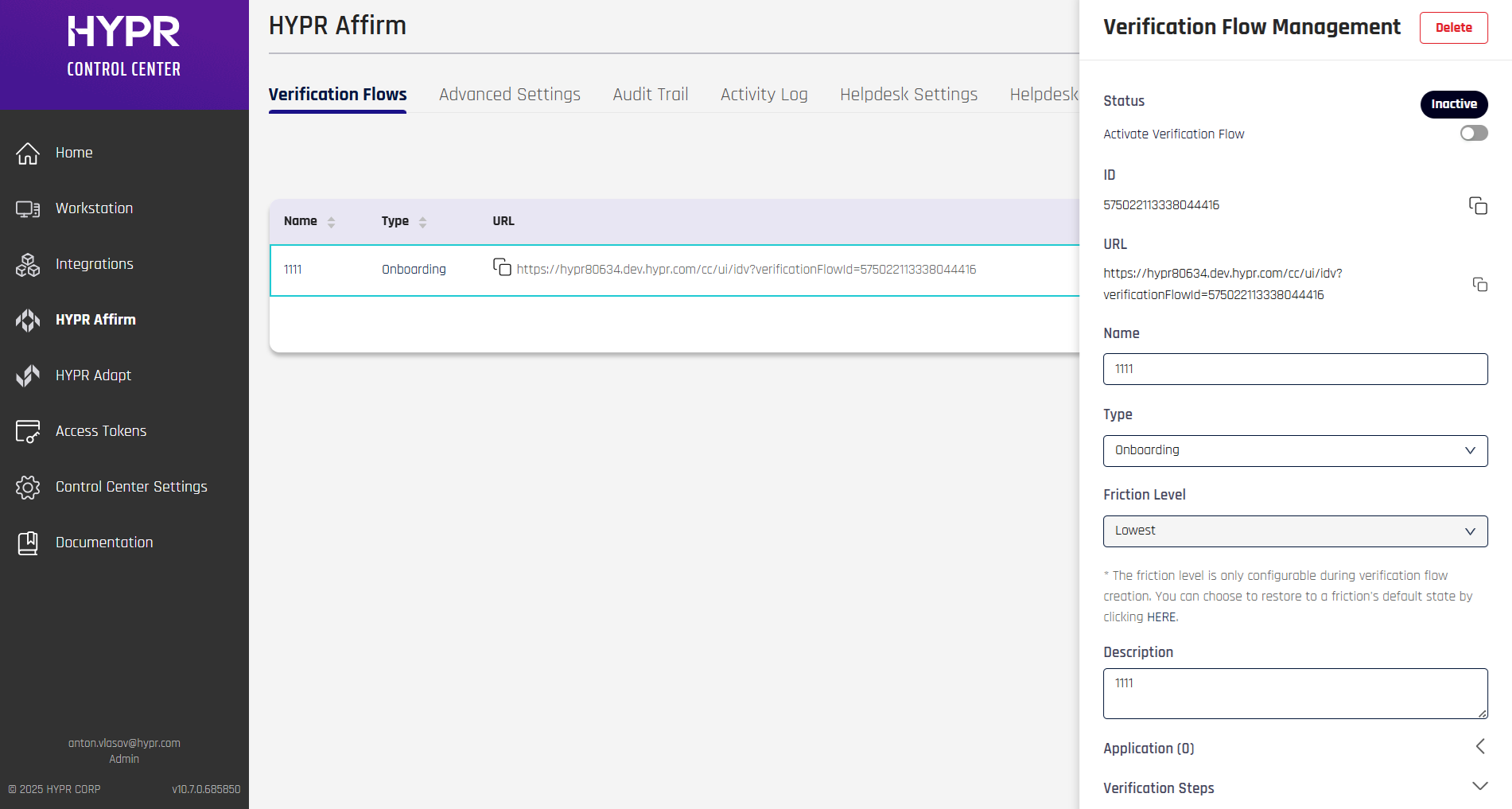
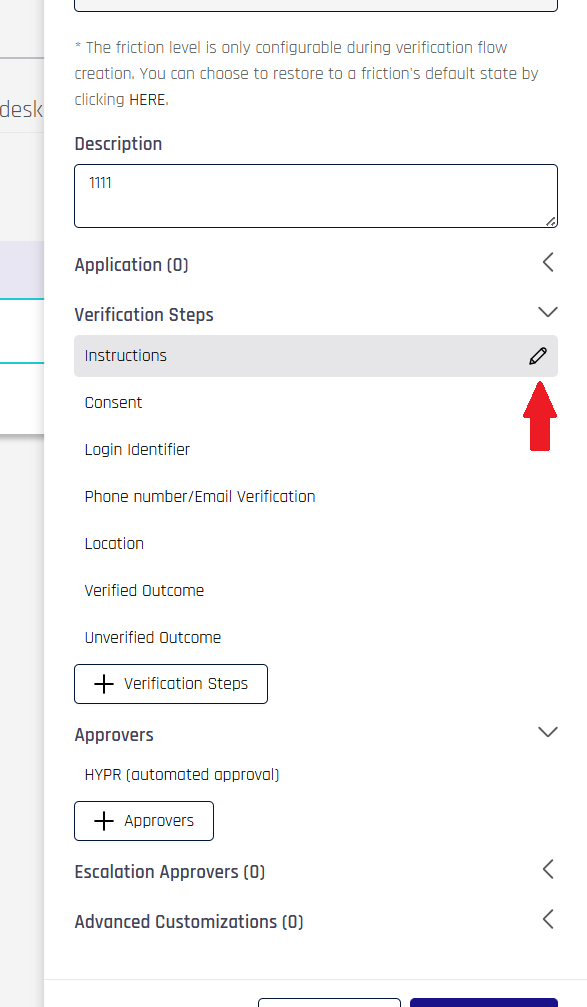
- Scroll down to Verification Steps. Here, you can hover the cursor over a verification step you would like to customize and click the pencil icon that appears to the right of the step
Step 2: Configure Step-Level Outcomes
For each supported verification step, you can configure the following settings:
Retry Settings
-
Retry Limit: Set the number of retry attempts (0-10)
-
Retry Window: Configure the time window for retries (0-60 minutes in 5-minute intervals)
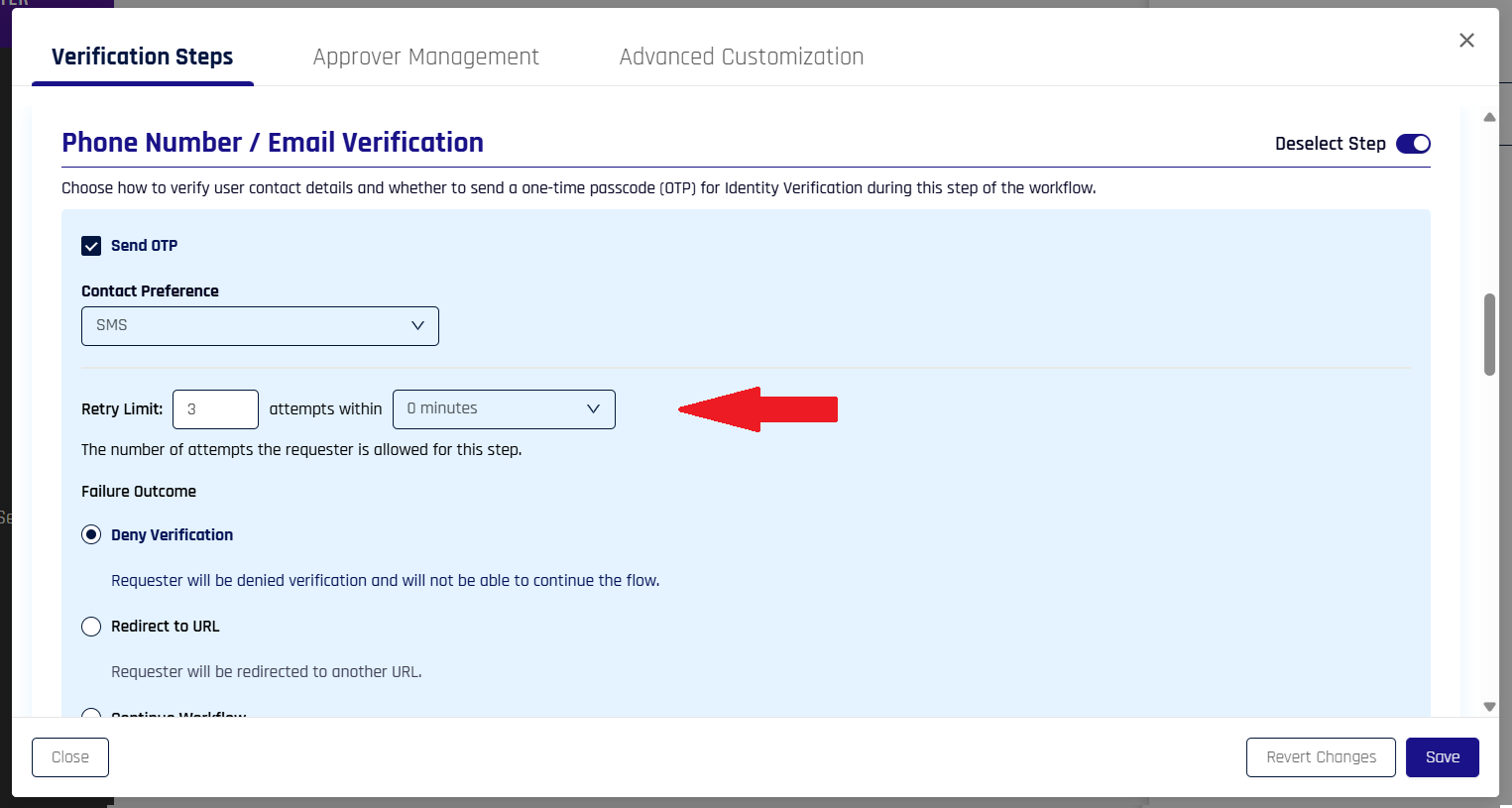
Failure Outcome Types
Choose one of the following outcomes when a step fails or reaches the retry limit:
Deny Verification
- Use Case: High-security scenarios
- Behavior: User is blocked from continuing the workflow
- Block Duration: Configure how long the user is blocked (15 minutes to permanent)
Redirect to URL
- Use Case: Alternative verification methods
- Behavior: User is redirected to the URL you specify in the field that appears when selecting Redirect to URL
- Configuration: Set static URL or use dynamic URL from runtime
Continue Workflow (No Escalation)
- Use Case: Low-risk scenarios
- Behavior: User can continue despite step failure
- Result: Workflow outcome will be marked as failure
Continue Workflow (Escalate to Live Chat)
- Use Case: Scenarios requiring human oversight
- Behavior: User can continue but requires manual verification
- Result: Live chat escalation at the end of the flow
Step 3: Configure Global Settings
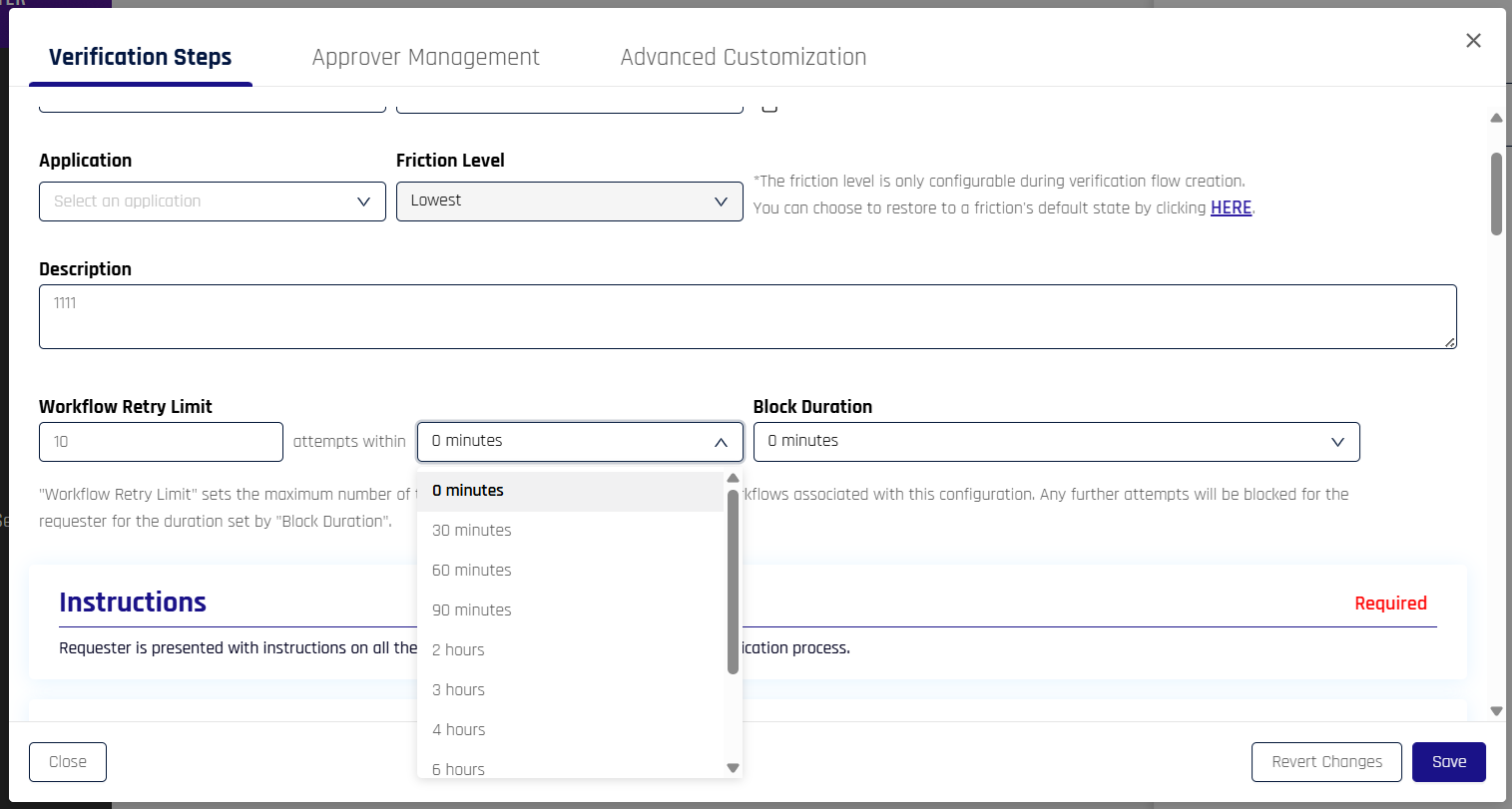
Block Duration
At the top of the Verification Steps dialog window, you can set a default block duration for all users who are denied verification, for example:
- 0 minutes - No blocks for users
- 30 minutes - Short-term blocks for minor issues
- 60 minutes or 90 minutes - Lengthier blocks for failed attempts
- 24 hours - Extended blocks for repeated failures of high-security workflows
- Permanent - Manual unblock required
Live Chat Escalation (Optional)
Configure global live chat escalation settings:
-
Enable Global Escalation: You can enable the Escalate to Live Chat step will trigger escalation for any failed step

Configuration Examples
High-Security Workflow
Phone/Email Verification:
  Retry Limit: 2
  Retry Window: 15 minutes
  Failure Outcome: Deny Verification
  Block Duration: 24 hours

Location Verification:
  Retry Limit: 1
  Retry Window: 5 minutes
  Failure Outcome: Deny Verification
  Block Duration: 1 hour

Identity Verification:
  Retry Limit: 3
  Retry Window: 30 minutes
  Failure Outcome: Continue Workflow (Escalate to Live Chat)
User-Friendly Workflow
Phone/Email Verification:
  Retry Limit: 5
  Retry Window: 30 minutes
  Failure Outcome: Continue Workflow (No Escalation)

Location Verification:
  Retry Limit: 3
  Retry Window: 15 minutes
  Failure Outcome: Redirect to URL
  Redirect URL: /alternative-verification

Identity Verification:
  Retry Limit: 4
  Retry Window: 45 minutes
  Failure Outcome: Continue Workflow (Escalate to Live Chat)
Balanced Security Workflow
Phone/Email Verification:
  Retry Limit: 3
  Retry Window: 20 minutes
  Failure Outcome: Continue Workflow (Escalate to Live Chat)

Location Verification:
  Retry Limit: 2
  Retry Window: 10 minutes
  Failure Outcome: Deny Verification
  Block Duration: 2 hours

Identity Verification:
  Retry Limit: 3
  Retry Window: 30 minutes
  Failure Outcome: Continue Workflow (Escalate to Live Chat)
End User Experience
Denied Screen
When a user is denied due to step failure, they will be redirected to the Identity Verification Denied screen, which clearly communicates the denial and any next steps.
Verification Unsuccessful Screen
When a user is allowed to continue their workflow despite step failure, they will see the Verification Unsuccessful page. After 5 seconds, the requester will be automatically redirected to the next eligible screen. After 3 seconds, a Continue button will appear, allowing the user to interact with the screen manually.
For more information about customizing these screens, see:
Use Cases
Secure Employee Onboarding
- Configure biometric verification failure to result in immediate denial for high-risk systems
- Set document verification failures to escalate to manual review for new hires or remote employees
- Allow location check failures to trigger additional authentication factors rather than outright denial
Help Desk Identity Verification Support
- Provide additional retry attempts for document verification if users upload blurry or unreadable images
- Configure step-specific outcomes to reduce support burden
- Enable escalation to human approvers for complex verification scenarios
IT Admin Customization
- Set different retry limits for different verification steps to reduce user frustration while preventing brute-force attacks
- Configure location check failures to trigger additional security questions instead of blocking access
- Define custom outcomes based on risk level and user context
Best Practices
Security Considerations
- Use
DENYoutcomes for high-risk scenarios and sensitive systems - Configure appropriate retry limits to prevent brute-force attacks
- Set reasonable block durations to balance security and user experience
User Experience
- Use
CONTINUEoutcomes for low-risk scenarios to reduce user friction - Configure appropriate retry limits to give users reasonable attempts
- Provide clear messaging about why verification failed and next steps
Operational Efficiency
- Use
REDIRECToutcomes to guide users to alternative verification methods - Configure live chat escalation for scenarios requiring human oversight
- Monitor step failure rates to identify potential issues
Photo and Liveness Detection Integration
Photo ID and Liveness Capture steps are fully integrated with Injectable Outcomes & Retry Limits, providing enhanced configuration options:
Enhanced Capabilities
- Auto Capture: Leverage automatic document detection for improved user experience
- Real-Time Feedback: Utilize live feedback on document quality issues
- Retry Optimization: Configure retry limits that work with enhanced capture capabilities
Configuration Benefits
- Retry Limits: Set appropriate retry attempts for document capture failures
- Failure Outcomes: Configure how to handle failed document verification
- Escalation Options: Set up live chat escalation for complex verification scenarios
- User Experience: Combine Injectable Outcomes with 10.3.0 photo and liveness enhancements for optimal verification flows
Dynamic Redirect URLs
For Redirect to URL outcomes, you can configure dynamic URLs that are provided at runtime:
{
  "failureOutcome": "REDIRECT",
  "redirectUrl": "dynamic",
  "redirectUrlTemplate": "/verification-failed?step={step}&reason={reason}&user={userId}"
}
Conditional Outcomes
Configure different outcomes based on user attributes or risk levels:
High-Risk Users:
  Phone/Email Verification:
    Failure Outcome: Deny Verification
    Block Duration: 24 hours

Standard Users:
  Phone/Email Verification:
    Failure Outcome: Continue Workflow (Escalate to Live Chat)
Retry Logic Customization
Configure different retry logic for different steps:
Phone/Email Verification:
  Retry Limit: 5
  Retry Window: 30 minutes
  Failure Outcome: Continue Workflow (No Escalation)

Identity Verification:
  Retry Limit: 2
  Retry Window: 15 minutes
  Failure Outcome: Deny Verification
  Block Duration: 4 hours
Monitoring and Analytics
Step Failure Tracking
Monitor step failure rates and patterns:
- Failure Rate by Step: Track which steps fail most frequently
- Retry Success Rate: Monitor how often retries are successful
- Block Duration Impact: Analyze the effectiveness of different block durations
Operational UX Monitoring
To evaluate impact post‑deployment, review UX signals (completion rate, escalation rate, user feedback) in Analytics.
Security Metrics
Monitor security-related metrics:
- Brute Force Attempts: Track repeated failure attempts
- Blocked User Count: Monitor how many users are blocked
- Escalation Volume: Track live chat escalation volume
Troubleshooting
Common Issues
Users Getting Blocked Too Frequently
- Review retry limits and time windows
- Consider increasing retry limits for low-risk scenarios
- Adjust block durations based on user feedback
Live Chat Escalation Overload
- Review step-level escalation settings
- Consider using
Continue Workflow (No Escalation)for low-risk steps - Monitor escalation volume and adjust accordingly
Redirect URL Issues
- Verify redirect URLs are accessible
- Test dynamic URL templates
- Ensure proper error handling for invalid URLs