Troubleshooting Common Issues
This section provides solutions for common issues encountered during setup and usage of Enterprise Passkey with HYPR Passkey.
Administrator Setup Issues
Entra ID Configuration Problems
App Registration Issues
- Problem: Cannot create app registration
- Solution: Ensure you have Global Admin access to the Entra ID tenant
- Verification: Check your permissions in Entra ID > Users > Your Profile > Assigned roles
API Permissions Not Working
- Problem: Entra API permissions are not being granted or HYPR apps are unable to communicate with Entra
- Solution:
- Ensure you click "Grant admin consent" after adding permissions
- Verify you have Global Admin or Application Administrator role
- Check that the permissions are correctly added to both Application and Delegated permissions
FIDO2 Authentication Method Not Available
- Problem: FIDO2 Security Key option is not visible in Authentication methods
- Solution:
- Ensure you have appropriate Entra ID licensing
- Check that the feature is enabled in your tenant
- Verify you're looking in the correct location: Authentication methods > Policies > FIDO2 Security Key
HYPR Control Center™ Configuration Issues
Feature Flags Not Saving
- Problem: Feature flags are not persisting after clicking Update
- Solution:
- Ensure you have appropriate permissions in HYPR Control Center™
- Check that you're clicking "Update" and confirming the changes
- Verify you're in the correct tenant context
Integration Creation Fails
- Problem: Cannot create Entra ID integration
- Solution:
- Verify all required feature flags are enabled globally
- Check that the client ID, client secret, and tenant ID are correct
- Ensure the app registration has all required permissions
- Verify the client secret has not expired
Magic Link Generation Issues
- Problem: Cannot create Magic Links for users
- Solution:
- Ensure the user email exists in Entra ID
- Verify the user has appropriate permissions
- Check that the workstation settings are configured correctly
User Experience Issues
Mobile App Problems
Passkey Provider Not Enabled
- Problem: HYPR passkey provider is not available in device settings
- Solution:
- iOS: Settings > General > Passwords > Enable HYPR toggle
- Android: Settings > Security > Passkeys > Enable HYPR toggle
- Ensure device biometrics are set up
QR Code Scanning Issues
- Problem: Difficulties or inability to scan QR codes with mobile app
- Solution:
- Grant camera permissions to the HYPR Mobile App
- Ensure good lighting conditions
- Hold device steady and align QR code properly
- Try refreshing the QR code on the workstation
Workstation Issues
Security key tile not visible
Windows presents passkey-based workstation sign-in under the Security key sign-in method. If the Security key option is missing, Windows sign-in with Enterprise Passkey cannot proceed.
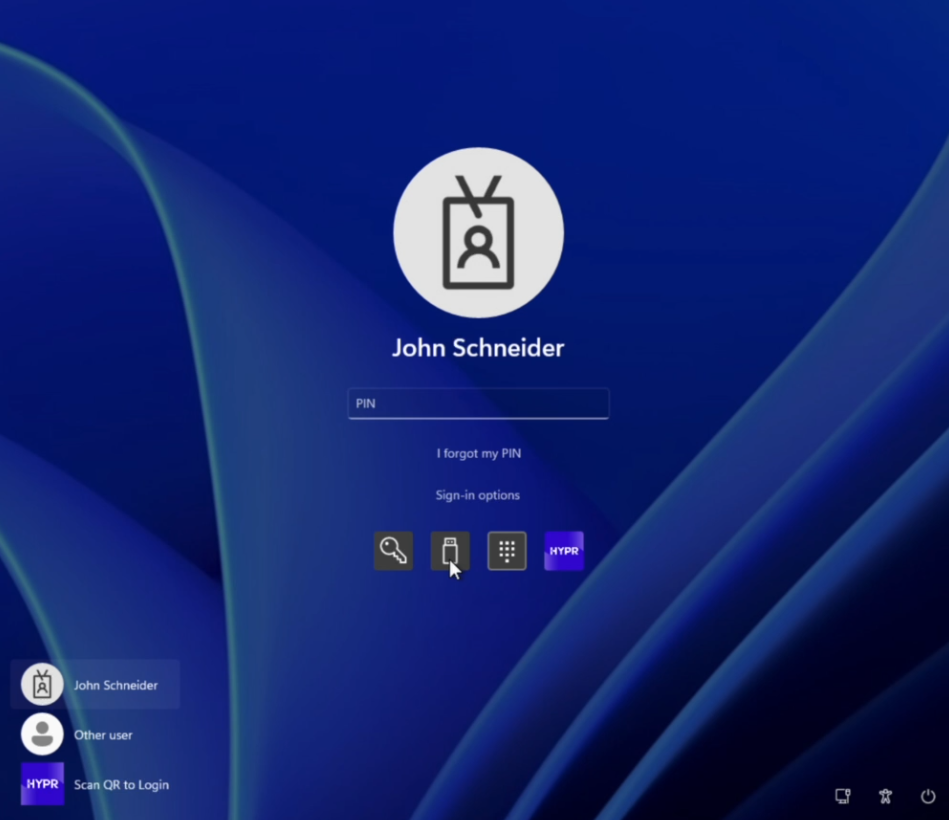
- Problem: Security key option not showing on Windows login screen
- Solution:
- Verify registry key is set:
HKEY_LOCAL_MACHINE\SOFTWARE\Policies\Microsoft\FIDO\EnableFIDODeviceLogon = 1 - Restart the computer after registry changes
- Ensure the workstation is Entra-joined or hybrid-joined
- Check that HYPR Passwordless for Windows™ is installed correctly
- Verify registry key is set:
HYPR Passwordless for Windows™ Installation Issues
- Problem: Installation fails or doesn't complete
- Solution:
- Run installer as Administrator
- Ensure both MSI and hypr.json files are in the same directory
- Check that the hypr.json file is from the correct tenant
- Verify Windows version compatibility (Windows 10/11)
Pairing Process Fails
- Problem: Cannot pair mobile device with workstation
- Solution:
- Ensure both devices are on the same network
- Check that appropriate passkey settings are enabled on mobile
- Verify mobile device biometrics are set up
- Ensure the HYPR Mobile App is version 10.5.0 or later
- Try restarting both devices
Registration failed (Error 1550012 / AzureSecurityKeyRegistrationFailed)
- Problem: Users see “Registration failed. The FIDO2 security key could not be registered with Entra ID. Please contact Support. (Error Code: 1550012)” when trying to set up Enterprise Passkey / HYPR Passkey, even though HYPR logs may show a successful flow.
- What this usually means:
- Passkeys not enabled on mobile: The error can occur if the user has not enabled passkeys on their mobile device for the HYPR Passwordless app (e.g. on iOS: Settings → Passwords → Passkeys, enable HYPR).
- Entra ID is blocking or interrupting passkey creation, typically due to Conditional Access or MFA enforcement applied to Microsoft Graph.
- Microsoft may reject the user’s Primary Refresh Token (PRT) after Windows sign‑in, so HYPR never receives the FIDO2
creationOptionspayload from Entra that is required to create the passkey. - In some environments, registrations may appear to originate from Virginia / us‑east‑1, because HYPR infrastructure is primarily hosted in that region; location‑based CAP policies must take this into account.
- Checklist – things to verify:
- Registry key for Windows FIDO sign‑in
- Confirm the key exists and is spelled correctly:
HKEY_LOCAL_MACHINE\SOFTWARE\Policies\Microsoft\FIDO\EnableFIDODeviceLogon = 1(DWORD)
- Ensure this is deployed by Group Policy / Intune and the workstation has been rebooted.
- Confirm the key exists and is spelled correctly:
- Mobile passkey provider and local device state
- HYPR is enabled as a passkey / Credential Provider on the mobile device.
- Biometrics are configured and the HYPR Mobile App has been restarted after enabling passkeys.
- Conditional Access and MFA policies
- Check whether a General MFA or Conditional Access policy is requiring MFA for Microsoft Graph or blocking Graph calls from the HYPR Enterprise Passkey registration app.
- After the user signs in to Windows and attempts registration, confirm whether browsing to
login.microsoft.comimmediately signs them in or prompts for MFA / terms & conditions — extra prompts here often correlate with 1550012 during registration. - For pilot / enrollment scenarios, consider:
- Temporarily excluding pilot users or the HYPR registration integration from strict Graph‑focused CAP policies.
- Creating a dedicated CAP that allows Graph calls for HYPR Enterprise Passkey registration flows while still enforcing MFA elsewhere.
- Location and IP‑based rules
- If CAP policies use named locations or IP ranges, ensure they include the HYPR Control Center / Enterprise Passkey registration egress IPs, which typically appear as US‑East‑1 (Virginia).
- Registry key for Windows FIDO sign‑in
Common Pairing Issues
If No Passkey Appears in My Passkeys After Pairing
If users don't see their passkey after pairing, check the following:
- Confirm Credential Provider: Verify the mobile Credential Provider is enabled in the HYPR Mobile App, and that HYPR is enabled as a credential provider in the Passkey settings of your mobile device
- Check Biometrics: Ensure device biometrics are set up; passkeys require biometrics
- Verify Account Type: Must login as Entra cloud-only or hybrid account (not local Windows account)
- Check Network Connectivity: Ensure both devices have stable internet connection
- Verify Entra Join Status: Run
dsregcmd /statusto check workstation join status
Common Pairing Issues
- Camera Access: Ensure mobile device camera permission is enabled for QR code scanning
- Bluetooth/Proximity: Check that Bluetooth and proximity features are working
- Network Connectivity: Verify both devices have internet connectivity
- Version Compatibility: Ensure HYPR Passwordless for Windows™ 10.5.0+ and the current HYPR Mobile App version
- Account Type: Must login as Entra cloud-only or hybrid account (not local Windows account)
- Biometrics Required: Mobile device biometrics must be enabled for passkey functionality
- Credential Provider: Users may be prompted to enable the mobile Credential Provider during first-time setup
Enterprise Passkey FAQ
How do I enable QR codes for passkey sign‑in in the browser?
- Physically nearby workstations: When Enterprise Passkey is configured correctly and HYPR Passkey is enabled on the mobile device, Windows automatically offers QR‑based sign‑in for machines that are physically near the phone. This behavior relies on Bluetooth proximity between the workstation and the mobile device.
- Virtual machines (VMs): Windows uses Bluetooth to establish proximity to registered devices before prompting a QR flow. Because most VMs do not expose Bluetooth in a way that supports this proximity check, QR‑based passkey sign‑in is not supported for typical VM scenarios. Use standard HYPR QR login flows instead.
You see error 1550012 when registering a passkey on a phone
Use this condensed checklist together with the detailed steps earlier in this guide.
- Verify local environment and mobile configuration
- Ensure your local environment is set up properly (workstation Entra-joined or hybrid-joined, HYPR Passwordless for Windows installed and configured).
- Confirm passkeys are enabled on your mobile device and that HYPR is enabled as a passkey provider.
- On iOS, go to Settings → Passwords → Passkeys (or search for “passkeys”) and ensure HYPR is enabled.
- Confirm the Windows FIDO registry key (and set it if missing)
-
In
regedit, confirm:HKEY_LOCAL_MACHINE\SOFTWARE\Policies\Microsoft\FIDO\EnableFIDODeviceLogon = 1(DWORD). -
To deploy via script or for one‑off fixes, run:
REG ADD "HKLM\SOFTWARE\Policies\Microsoft\FIDO" /v EnableFIDODeviceLogon /t REG_DWORD /d 1 /f -
After setting the key, restart the workstation, then log on again and retry registration.
-
- Check MFA and Conditional Access policies
- Ensure there is no MFA or Conditional Access policy that is blocking registration, especially policies that:
- Require MFA for Microsoft Graph, or
- Restrict sign‑ins or Graph calls from HYPR’s us‑east‑1 (Virginia) network location.
- In Entra ID, open Sign‑in logs for the affected user, locate the attempt that corresponds to the HYPR Passkey registration, and review which Conditional Access policies were applied or failed. The View sign‑in logs page usually shows what is blocking authentication or registration.
- Check your named locations configuration and make sure requests coming from the HYPR Control Center (hosted in Virginia) are allowed. You may need to whitelist the HYPR Control Center IP address range or add it as a trusted location.
- As an additional check, after the user logs on to the machine, have them browse to
https://login.microsoft.com. If they are prompted for MFA or other Conditional Access requirements, that is a sign that an MFA policy is blocking Enterprise Passkey from creating and registering a passkey.
- Ensure there is no MFA or Conditional Access policy that is blocking registration, especially policies that:
Entra ID Join Status Verification
Checking Workstation Status
Use the following command to check the status of a Windows workstation:
dsregcmd /status
This command displays detailed information about the device's Entra ID join status and any potential issues.
Common Join Status Descriptors
- AzureAdJoined: Should show "YES" for Entra-joined workstations
- DomainJoined: Should show "YES" for hybrid-joined workstations
- WorkplaceJoined: Should show "YES" for Entra-joined workstations
- WamDefaultSet: Should show "YES" for properly configured workstations
Known Issues and Limitations
Microsoft Entra ID Limitations
- Multiple Entra Accounts: Microsoft has known issues with signing in with security keys containing multiple Microsoft Entra accounts
- Unsupported Scenarios: Review known issues and FAQs
HYPR Enterprise Passkey Limitations
- One Passkey Per Device: The HYPR Mobile App supports only one Entra passkey credential per device
- Active Directory Joined: Not supported by Microsoft for FIDO2 security keys
- Administrative Accounts: Additional steps required to support administrative accounts
Hybrid Joined Workstation Requirements
For hybrid-joined workstations, ensure:
- Domain Controller: Patch level requirements are met
- AES256_HMAC_SHA1: Must be enabled (required)
- Entra AD Kerberos: Configure Active Directory and Entra to support Entra AD Kerberos
Getting Additional Support
HYPR Support Resources
- Email: support@hypr.com
- Support Portal: support.hypr.com
- Documentation: HYPR Documentation Portal
Microsoft Support Resources
- Entra ID Documentation: Microsoft Entra ID Authentication Methods
- FIDO2 Security Keys: Microsoft FIDO2 Security Key Documentation
- Troubleshooting Guide: Microsoft Passwordless Authentication Troubleshooting
Log Collection
When contacting support, be ready to provide the following information:
- Workstation Details: Windows version, Entra join status (
dsregcmd /statusoutput) - Mobile Device: iOS/Android version, HYPR Mobile App version
- Error Messages: Screenshots or exact error text
- Steps Taken: What you've already tried to resolve the issue
- Environment: Entra-joined vs hybrid-joined workstation
If you encounter issues during setup or need additional assistance, contact HYPR Support at support@hypr.com or visit our support portal at support.hypr.com.
See Also
- Administrator Configuration
- User Experience - Detailed user experience workflows and technical implementation
- End User Guide: Setting Up Passwordless Login - Complete user-facing guide with step-by-step instructions for all passwordless login flows