Troubleshooting Enterprise Passkey and HYPR Passkey
Solutions for the common issues seen during Enterprise Passkey + HYPR Passkey deployments. For the broader setup procedure see Administrator Configuration; for the user-facing UX see User Experience.
Administrator setup
Entra ID configuration
| Symptom | Resolution |
|---|---|
| Cannot create app registration | Confirm Global Admin access in Entra ID > Users > Your Profile > Assigned roles. |
| API permissions not effective | Click Grant admin consent after adding permissions; verify Global Admin or Application Administrator role; confirm both Application and Delegated permissions are added. |
| FIDO2 Security Key option missing under Authentication methods | Confirm appropriate Entra ID licensing; ensure the feature is enabled at the tenant; verify the path Authentication methods → Policies → FIDO2 Security Key. |
HYPR Control Center configuration
| Symptom | Resolution |
|---|---|
| Feature flags not persisting | Confirm permissions in HYPR Control Center; click Update and confirm; verify the correct tenant context. |
| Cannot create Entra ID integration | Verify required global feature flags are enabled; confirm client ID, client secret, and tenant ID; check that app-registration permissions are complete; confirm the client secret has not expired. |
| Cannot create Magic Links for users | Confirm the user email exists in Entra ID; verify the user has appropriate permissions; check workstation settings. |
User experience issues
Mobile app
- HYPR passkey provider not available in device settings —
- iOS: Settings → General → Passwords → enable HYPR.
- Android: Settings → Security → Passkeys → enable HYPR.
- Ensure device biometrics are set up.
- Registration appears to succeed on the web side but fails on the HYPR app — When the device prompts the user to choose a passkey provider during registration, the user must select HYPR. Selecting another passkey provider (for example, Google) lets the web-side registration complete on the device, but the corresponding HYPR-side registration cannot be created and the user will not appear paired in Control Center.
- QR scan fails — Grant camera permission to HYPR Mobile App; ensure good lighting; hold the device steady; refresh the QR on the workstation.
Workstation
Security key tile not visible on Windows login
Windows surfaces passkey-based workstation sign-in under the Security key sign-in method. If Security key is missing, Windows sign-in with Enterprise Passkey cannot proceed.
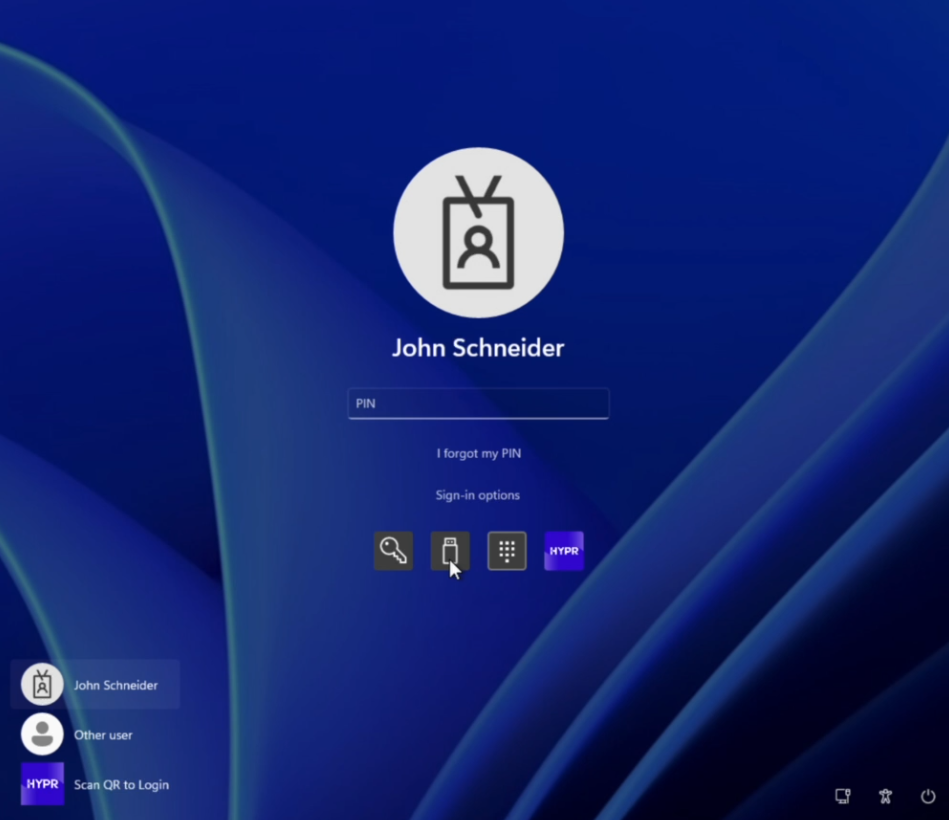
- Verify the registry key:
HKEY_LOCAL_MACHINE\SOFTWARE\Policies\Microsoft\FIDO\EnableFIDODeviceLogon = 1(DWORD). - Restart the workstation after the registry change.
- Confirm the workstation is Entra-joined or hybrid-joined.
- Confirm HYPR Passwordless for Windows is installed correctly.
HYPR Passwordless for Windows installation fails
- Run the installer as Administrator.
- Ensure the MSI and
hypr.jsonare in the same directory. - Confirm the
hypr.jsonis for the correct tenant. - Confirm Windows 10/11 compatibility.
Pairing fails / no passkey appears in My Passkeys after pairing
Verify the following — they cover both pairing failure and the post-pairing missing-passkey case:
- The device runs Android 14 or later, or iOS. Android 13 and earlier cannot host a passkey provider at all, and the app reports that passkeys are not supported — no amount of settings work will change that.
- HYPR Credential Provider is enabled in the HYPR Mobile App and in the mobile OS passkey settings.
On Android, Chrome selects its passkey provider separately from the system setting, so the HYPR sheet may not appear until Chrome is pointed at it too. See Enable HYPR as your passkey provider.
3. Device biometrics are set up.
4. The user signs in to Windows as an Entra cloud-only or hybrid-joined account (not a local account).
5. Both devices have stable network connectivity.
6. The HYPR Mobile App and HYPR Passwordless for Windows are at supported versions.
7. Run dsregcmd /status to confirm workstation join state (see below).
Error 1550012: AzureSecurityKeyRegistrationFailed
Users see "Registration failed. The FIDO2 security key could not be registered with Entra ID. Please contact Support. (Error Code: 1550012)" when setting up Enterprise Passkey, sometimes even when HYPR logs look successful.
This error is almost always one of:
- Passkeys not enabled on the mobile device for the HYPR Mobile App.
- Entra Conditional Access or per-user MFA enforcement blocking the registration flow — typically a policy that requires MFA for Microsoft Graph.
- Primary Refresh Token (PRT) rejected by Microsoft after Windows sign-in, so HYPR never receives the FIDO2
creationOptionspayload from Entra. - Location/IP-based CAP rules that don't allow HYPR's egress IPs (which typically appear as us-east-1 / Virginia).
Diagnostic checklist:
-
Confirm the FIDO registry key:
REG ADD "HKLM\SOFTWARE\Policies\Microsoft\FIDO" /v EnableFIDODeviceLogon /t REG_DWORD /d 1 /fReboot afterwards.
-
Confirm mobile passkey state — HYPR is the active passkey provider; biometrics are configured; the HYPR Mobile App has been restarted after enabling passkeys.
-
Inspect Entra Conditional Access and MFA:
- In
entra.microsoft.com→ Conditional Access → Policies, temporarily disable applicable policies and retry. - If a Microsoft-managed policy can't be disabled, check Per-user MFA: open the Users section, then the three-dot menu in the upper-right → Per-user MFA; set the affected user's state to Disabled, then retry.
- In Sign-in logs, locate the failed registration attempt and review which CAP policies fired.
- After the user signs into Windows, have them browse to
https://login.microsoft.com— if Entra prompts for MFA there, that policy is likely also blocking passkey registration.
- In
-
Confirm allowed locations: if your CAP uses named locations or IP ranges, ensure HYPR's egress IPs (us-east-1 / Virginia) are included or excluded as appropriate.

Related API error (HYPR-side) often seen alongside 1550012:
{
  "title": "Invalid Workstation Configuration. Verify that the Workstation Settings for the 'HYPRPasskeyforEntra' application are correct.",
  "status": 400,
  "detail": "Please contact HYPR customer support and report this issue.",
  "errorCode": 1201029
}
The 1201029 + 1550012 pair on hybrid-joined workstations almost always traces back to Conditional Access or per-user MFA blocking the Entra registration step.
Verifying the Microsoft Entra (MSAL) validation path
Enterprise Passkey registration and Desktop SSO (HYPRspeed) both validate the user's session against Microsoft Entra during their respective flows. Customer-facing behavior under Conditional Access is described in the main docs:
- Passwordless with Enterprise Passkey — Enterprise Passkey registration behavior.
- Using HYPRspeed — Desktop SSO behavior.
To verify on the workstation that the Entra validation succeeded, inspect the HYPR Passwordless logs:
| Flow | Log file | What to look for |
|---|---|---|
| Enterprise Passkey registration | HyprUnlock.log | A line indicating Access Token retrieved. |
| Desktop SSO (HYPRspeed) | HyprOneService.log | A call to /rp/wsapi/client/desktopsso/complete whose payload includes msalToken. |
A successful entry on either log line confirms the Entra validation completed and the corresponding flow proceeded.
The default Enterprise Passkey registration timeout is one minute. If the user does not complete a required MFA prompt within that window, registration fails with a timeout error and the user must restart the registration flow. Set expectations with users in environments where Conditional Access reliably prompts for MFA, especially if the MFA factor takes time to satisfy.
If the MFA prompt appears but the flow fails afterwards — or if an expected MFA prompt does not appear at all — review the tenant's Conditional Access posture using the Error 1550012 diagnostic checklist above.
Desktop SSO (HYPRspeed) does not complete
Over the Microsoft Entra path, Desktop SSO only completes when the desktop session was established with a method HYPR can validate against Microsoft Entra.
- The workstation was signed into with a password. The Entra path requires the session to be established with Windows Hello for Business, or the workstation unlocked with the HYPR Mobile App. After a password sign-in the flow does not complete and the user is returned to the standard sign-in page — re-establish the session with Windows Hello for Business or the HYPR Mobile App, or use the click here to sign in manually link. See Using HYPRspeed for the supported sign-in methods.
Enterprise Passkey FAQ
When does Windows offer QR-based passkey sign-in?
- Physically nearby workstations: When Enterprise Passkey is configured and HYPR Passkey is enabled on the mobile device, Windows automatically offers QR-based sign-in for machines that are physically near the phone. This relies on Bluetooth proximity.
- Virtual machines: Most VMs don't expose Bluetooth in a way that supports the proximity check, so QR-based passkey sign-in is generally not offered on VMs. Use standard HYPR QR login flows instead.
Can a third-party credential manager on the workstation interfere with HYPR Enterprise Passkey?
Yes. Third-party Windows credential managers (for example, DigitalPersona) can interfere with the registration that HYPR Enterprise Passkey performs against the Windows credential-provider stack. In affected configurations:
- The passkey is created on the device and can still be used to sign in to identity-provider-protected applications (SSO works),
- But the Windows-side portion of the registration does not fully complete, so the passkey cannot unlock the workstation.
If workstation unlock fails after a successful Enterprise Passkey registration, check whether a third-party credential manager is installed on the workstation and coordinate with your endpoint team to disable or remove it before re-registering the Enterprise Passkey.
Entra ID join-status verification
Run on the workstation to check Entra join state:
dsregcmd /status
Look for:
| Field | Entra-joined | Hybrid-joined |
|---|---|---|
| AzureAdJoined | YES | YES |
| DomainJoined | NO | YES |
| WorkplaceJoined | YES | YES |
| WamDefaultSet | YES | YES |
Known issues and limitations
Microsoft Entra ID
- Microsoft has known issues with signing in using security keys containing multiple Microsoft Entra accounts.
- Review unsupported scenarios and FIDO2 FAQ.
HYPR Enterprise Passkey
- The HYPR Mobile App supports one Entra passkey credential per device.
- Only Microsoft Entra joined and Microsoft Entra hybrid joined workstations are supported by Microsoft for FIDO2 security keys.
- Administrative accounts may require additional steps — see Microsoft guidance.
Hybrid-joined workstation requirements
Microsoft Entra hybrid joined workstations have additional Microsoft-side prerequisites, including patch levels and Microsoft Entra Kerberos configuration. These are set up and managed through Microsoft; see Microsoft's guidance on enabling passwordless security key sign-in for hybrid environments.
Getting additional support
HYPR
- Email: support@hypr.com
- Support Portal: support.hypr.com
Microsoft
- Microsoft Entra ID Authentication Methods
- Microsoft FIDO2 Security Key Documentation
- Microsoft Passwordless FAQ
What to gather before contacting support
- Workstation details — Windows version,
dsregcmd /statusoutput. - Mobile device — iOS/Android version, HYPR Mobile App version.
- Exact error text or screenshots.
- What you've already tried.
- Entra-joined vs hybrid-joined workstation.