Single Registration
Single Registration allows users to register their mobile device once and use it for passwordless authentication on both their desktop (workstation) and web applications. This streamlines onboarding and enhances security by eliminating the need for multiple registration steps.
Bi-Directional Single Registration
HYPR now supports bi-directional single registration. Users can begin registration on either the web or the workstation and, upon completion, gain seamless access to both environments. This unified experience eliminates the need to choose a specific registration flow and ensures that authentication works everywhere, regardless of where registration was initiated.
Previously, registration flows were separate — users could start on the web or workstation, but each flow had its own limitations. Now, both flows coexist, providing maximum flexibility and a consistent user experience.
Bi-Directional Registration Flow (HYPR 10.7.0+)
- Users can start registration on either the web or workstation
- After initial registration, the user's device is paired for both web and workstation authentication
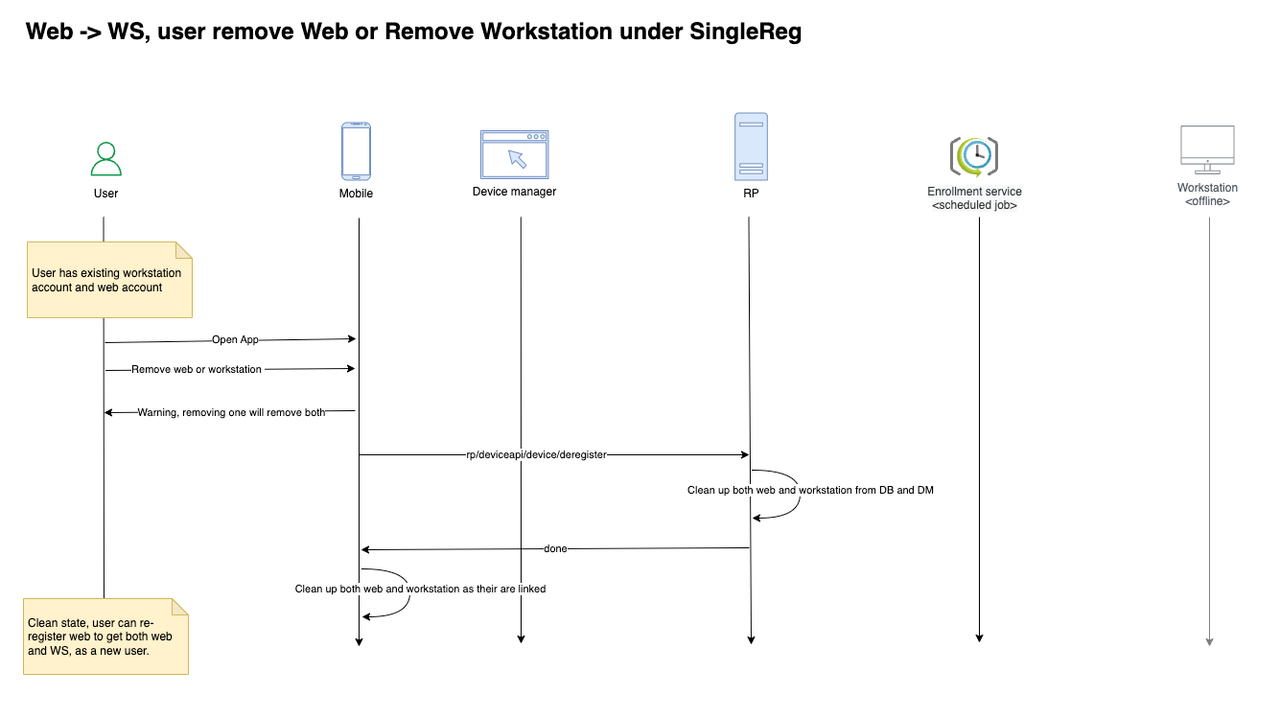
- Deregistering from one platform will remove access from both, maintaining a unified profile
- The system automatically links and manages profiles, regardless of the registration starting point
Example User Experience
- Start registration on either the web or workstation
- Complete pairing using the HYPR Mobile App and QR code
- Authenticate seamlessly on both web and workstation after registration
- Deregister from either platform to remove access from both
Registration Starting Points
Users can begin the registration process from any of the following entry points:
- Workstation: Log in to the workstation using any available method (password, Entra TAP, Windows Hello, security key, or smart card) and initiate registration through HYPR Passwordless
- Web: Access the HYPR Device Manager or other registration interface (e.g., Ping Adapter) and scan the registration QR code displayed by the browser
- Mobile: Access a deep link provided via email, Affirm outcome, or other invitation method from the mobile device and complete registration through the HYPR Mobile App
In all cases, users finish the registration process with both a web and computer account registered, regardless of the initial registration point.
If a user has already registered devices as either web or computer accounts, they can choose to complete registration for the account type they don't have. The existing registration continues to work as usual.
Legacy Single Registration Flows (Pre-10.7.0)
The following sections describe the legacy one-way registration flows that remain available for backward compatibility:
Deployment Strategy
For HYPR 10.7.0 and later, bi-directional single registration is enabled by default when the required feature flags are configured. Both registration flows (Workstation to Web and Web to Workstation) can be enabled simultaneously, allowing users maximum flexibility in choosing their registration starting point.
For earlier versions or specific deployment scenarios, you may choose to enable only one direction:
- For customers with existing passwordless login to desktop: Enable Workstation to Web single registration
- For customers with existing passwordless login to web application: Enable Web to Workstation single registration
- For customers with no existing footprint: Enable both Workstation to Web and Web to Workstation single registration
Workstation to Web Single Registration
This section describes the Workstation to Web registration flow. In HYPR 10.7.0+, this flow works bi-directionally with the Web to Workstation flow, allowing users to start from either entry point.
Overview
Workstation to Web Single Registration allows users to initiate and complete the registration ceremony a single time using the HYPR WFA Client. Users don't have to register explicitly to the configured web applications. After this single registration ceremony, users can log in to their desktop and web applications.
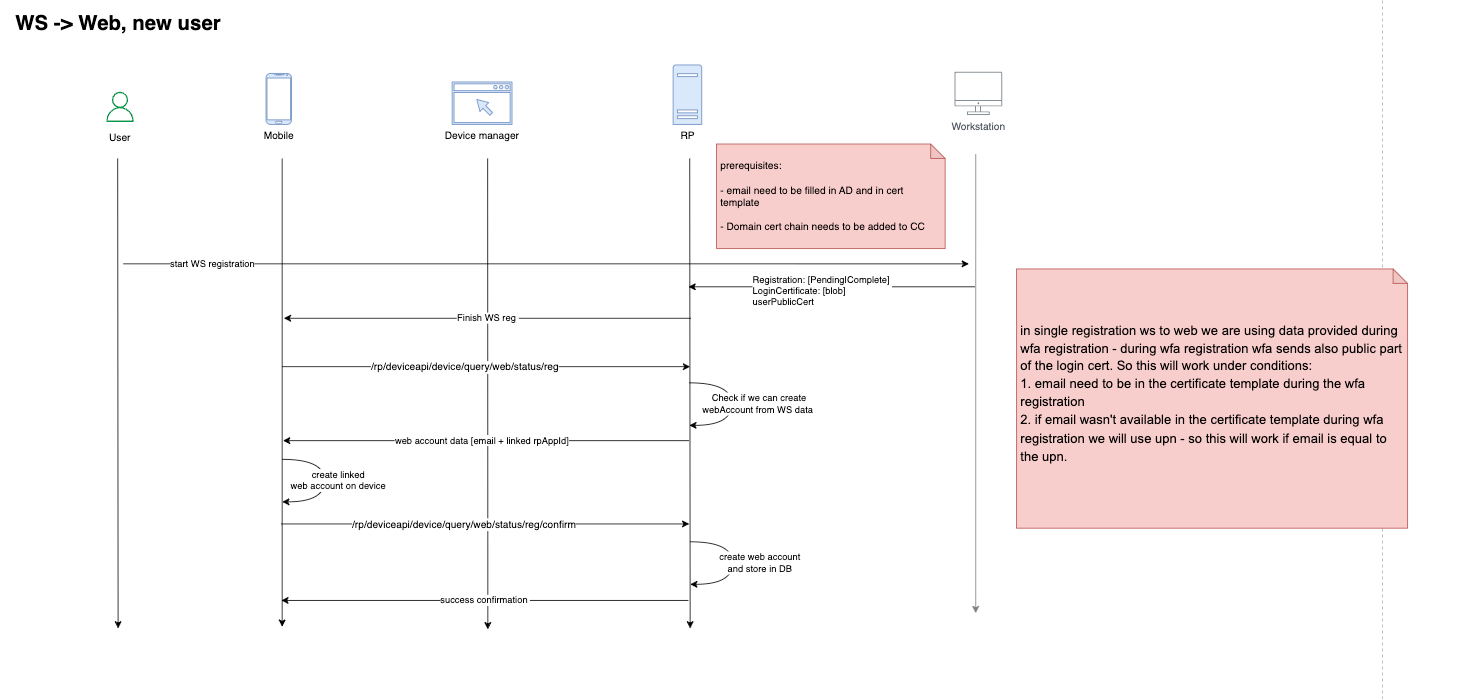
Registration workflow for a new user (no existing registration):
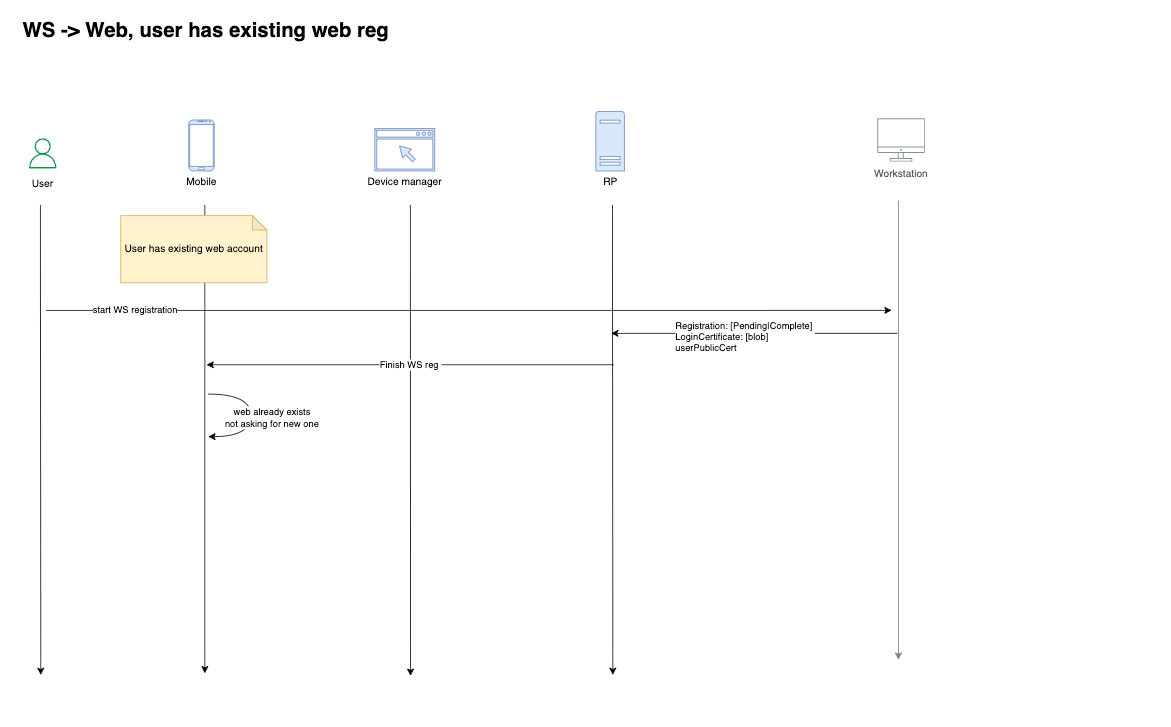
Registration workflow for a new web profile (user already has an existing web profile):
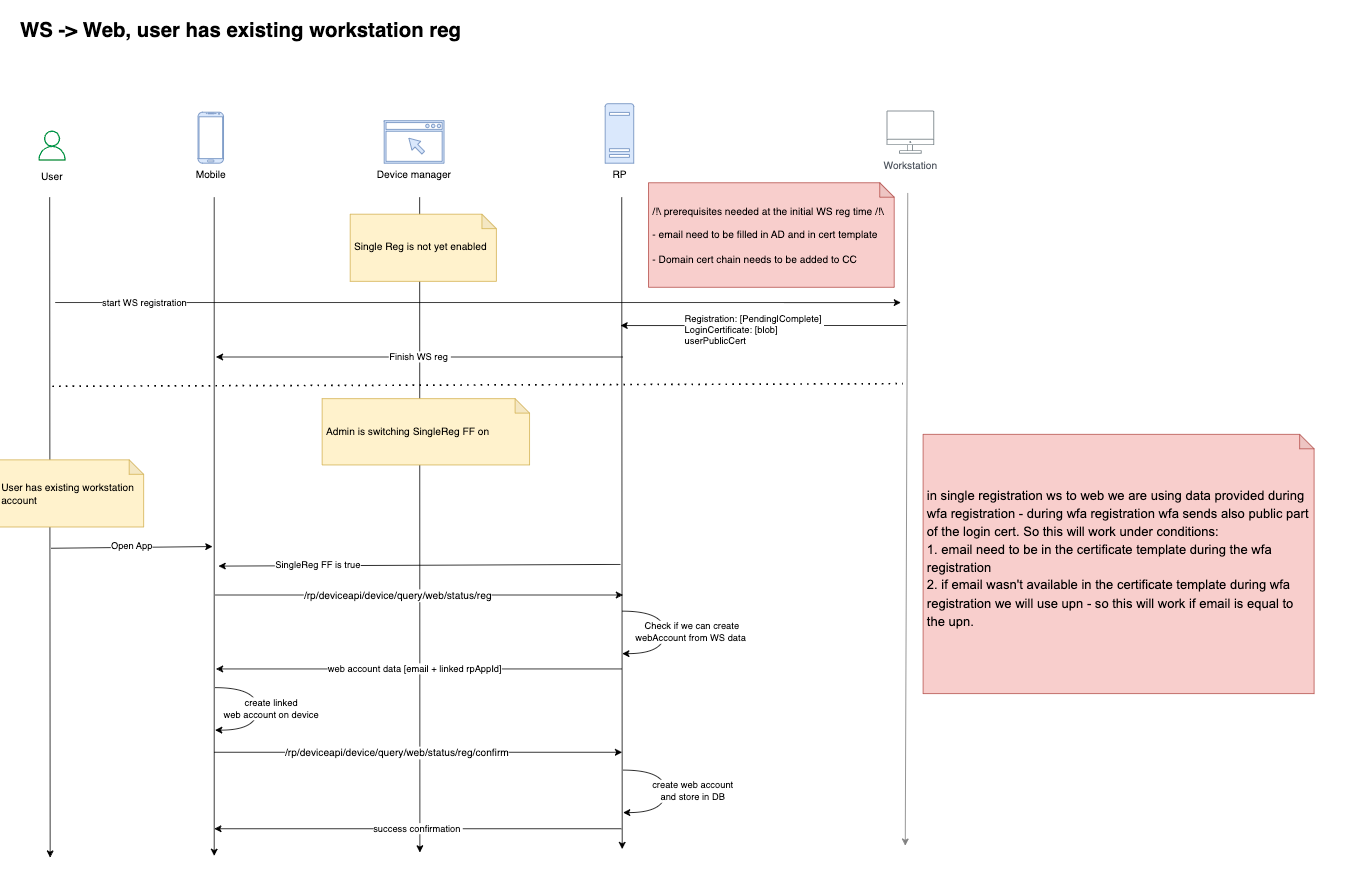
Registration workflow for a new workstation account (user already has an existing registered workstation):
Key Facts
- From the user's perspective, it is a one-time registration experience
- From the backend's perspective, the HYPR Server creates both desktop and web profiles
- This single registration process doesn't stop users from registering explicitly to the web application
- If users register explicitly to the web application, the web registered profile is not linked with the desktop profile
- Users can create multiple desktop profiles for the same user from multiple desktop machines
- All desktop profiles are linked with only one web profile
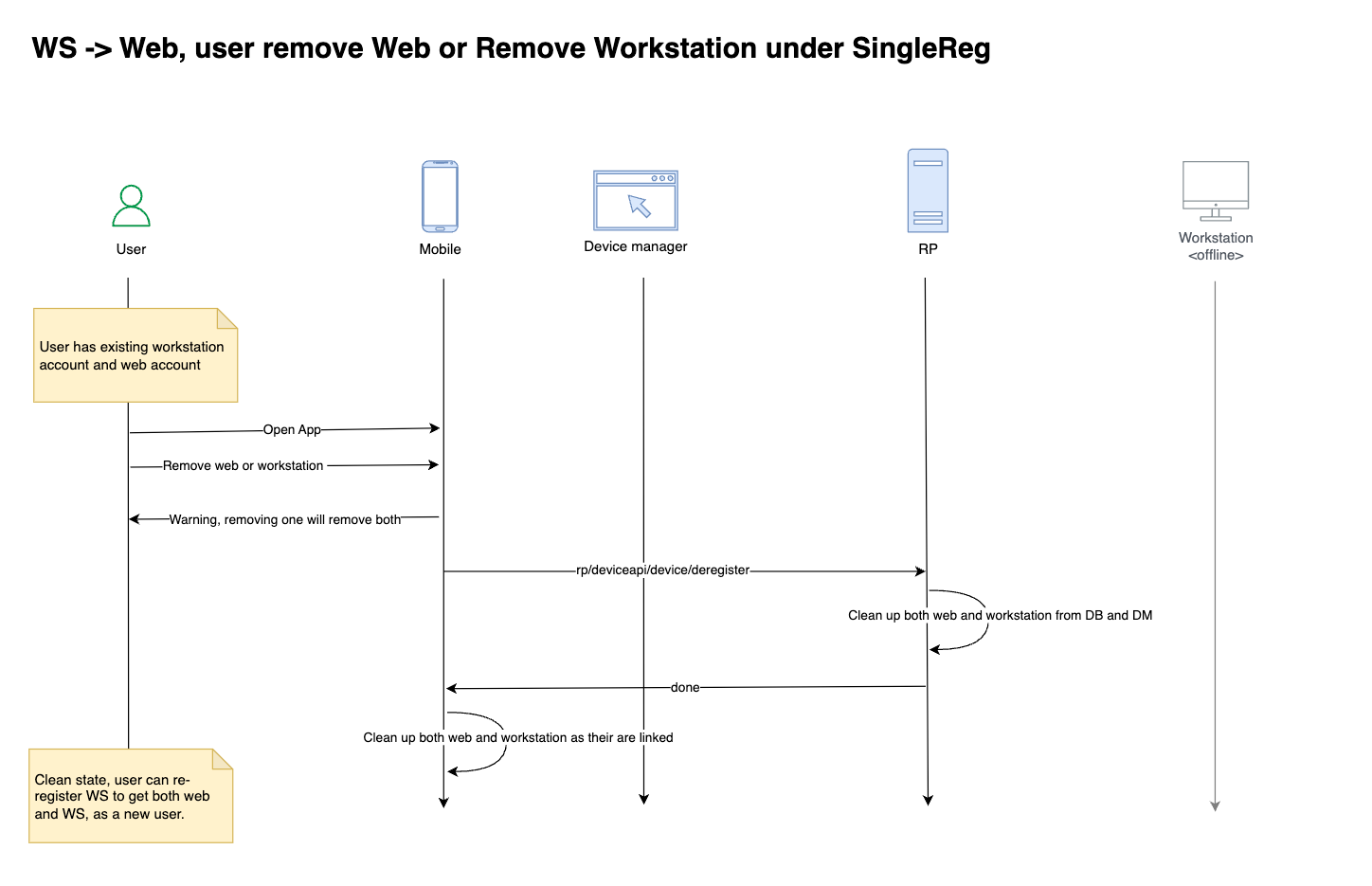
- In HYPR 10.7.0+, deregistering from either platform removes access from both, maintaining a unified profile
Prerequisites
- Create and configure rpApp for Workstation
- Create and configure rpApp for all web applications
- Install the HYPR WFA Client
Configuration
Enable the following feature flags:
On Workstation rpApp level:
WEB_LOGIN_WITH_WFA_REGISTRATION
On Web rpApp level:
WEB_TO_WS_SINGLE_REGISTRATION_TRANSLATIONRP_APP_WORKSTATION_ENABLED
After enabling the feature flags, upload your AD CS domain CA certificate to HYPR Control Center:
- Export the domain certificate from your AD CS server in DER format (base64-encoded).
- Upload the certificate to HYPR CC using the following API call:
- API URL:
https://<HOST>/rp/api/domaincertificate - Request Type:
POST - Request Payload:
{ "domainCertificate": "<Base64Encoded>" } - Authorization: Bearer
<AdminToken>
- API URL:
curl --location \
--request POST "https://HOST/rp/api/domaincertificate" \
--header "Authorization: Bearer hypap-edba607b-b400-4c57-9d3d-839a6e07a6f1" \
--header "Content-Type: application/json" \
--data '{
  "domainCertificate": "MIIDczCCAlugAwIBAgIQS0n13f/8s5Np+dFMzF++0TANBgkqhkiG9w0BAQsFADBM-RMwEQYKCZImiZPyLGQBGRYDbmV0MRcwFQYKCZImiZPyLGQBGRYHaHlwcmxhYjEcMBoGA1UEAxMTaHlwcmxhYi1BRFNFUlZFUi1DQTAeFw0yMjA4MTEyMzQ4MTZaFw0zMjA4MTEyMzU4MTVaMEwxEzARBgoJkiaJk/IsZAEZFgNuZXQxFzAVBgoJkiaJk/IsZAEZFgdoeXBybGFiMRwwGgYDVQQDExNoeXBybGFiLUFEU0VSVkVSLUNBMIIBIjANBgkqhkiG9w0BAQEFAAOCAQ8AMIIBCgKCAQEAuDnPO/GZ1HeNMj1X+yDu46oK1x4mnC8aBDUwVlpzcEv4heLuAWZT/dFVFKKZSNQxbAMubuNwFepySrgp7ThBVp4BGBq7b/LmjZJD9oeqpBhKnryIfYSqLbxY3J2h5YtjQiR7nRr9iNyfT+8I91yyhn95sdtNEyeENlyI+dz41bAj/PksJVtdxhI/ClnJTVSCHFid42jcta0VKgfnmRfvvobX2rOpgmKhAYr9fNZ67TlzTTjji8Hz4vpQGm/9fiLKim4idAksTo1x/w0mOLSbaHTZ/qAUdTyye6aDDw1g9xap3cXPRX82Lstq/4CbhNZRHg1QfFMamghb6siX9KXOhQIDAQABo1EwTzALBgNVHQ8EBAMCAYYwDwYDVR0TAQH/BAUwAwEB/zAdBgNVHQ4EFgQUG9IOpL+oXX7mlkOKNqFPWb/hmp0wEAYJKwYBBAGCNxUBBAMCAQAwDQYJKoZIhvcNAQELBQADggEBAEGU/5V1evJKwTFaac6MnA02Pgwvmaer8Gycun4cAJbd9HUtenKcw8+oryojouniJ7Bm7NTrGPHDFgTxg1P9fdA8DE8nVCidCYiN3iJOzQ5v593eK08SxExEGOIcFveOZf0uAXgtr2UkqTBp2K8RYUT5nTpjBXUMcQdHO1fXYJ/cKqH25CiGqMwUQx+aNWzc7/LT4nX9A9zMiwALD1IbTZOlzU7R8mt0A3IZClJJvCl9PdAcpqiHqAUnq8ojJN0neeANJyiXixedrTp6gxEpGWV7tR2NuYesnwjFtV2jV0VdcYVmDQVtqdpkxbx93re2IGhNqO+H0Pujtie2TTv7J4kE="
}'
User Experience
When you receive an invitation email, follow these steps:
- On the workstation, start the HYPR Passwordless client if it isn't running already
- Click Start Pairing in the HYPR Passwordless client
- If you already have a device paired, click Pair New Device
- Select Smartphone and a QR code appears in the dialog
- On the HYPR Mobile App, click the pairing label to open the account screen
- Grant access to the Camera, if necessary, and scan the QR on the workstation screen
- After completion, the HYPR Mobile App displays the pairing on your phone as both a Computer Account and a Web account
Deregistration workflow:
Web to Workstation Single Registration
This section describes the Web to Workstation registration flow. In HYPR 10.7.0+, this flow works bi-directionally with the Workstation to Web flow, allowing users to start from either entry point.
Overview
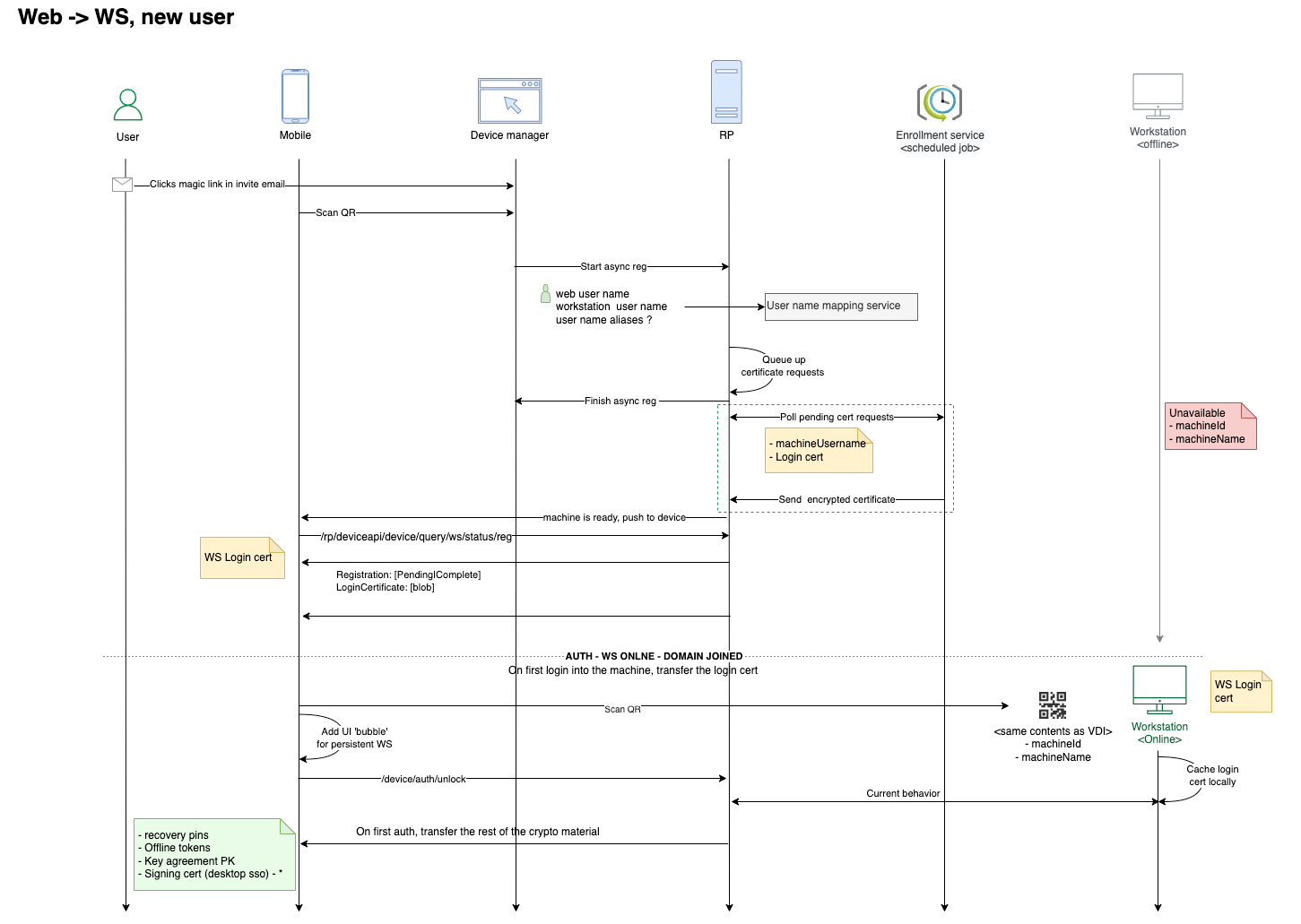
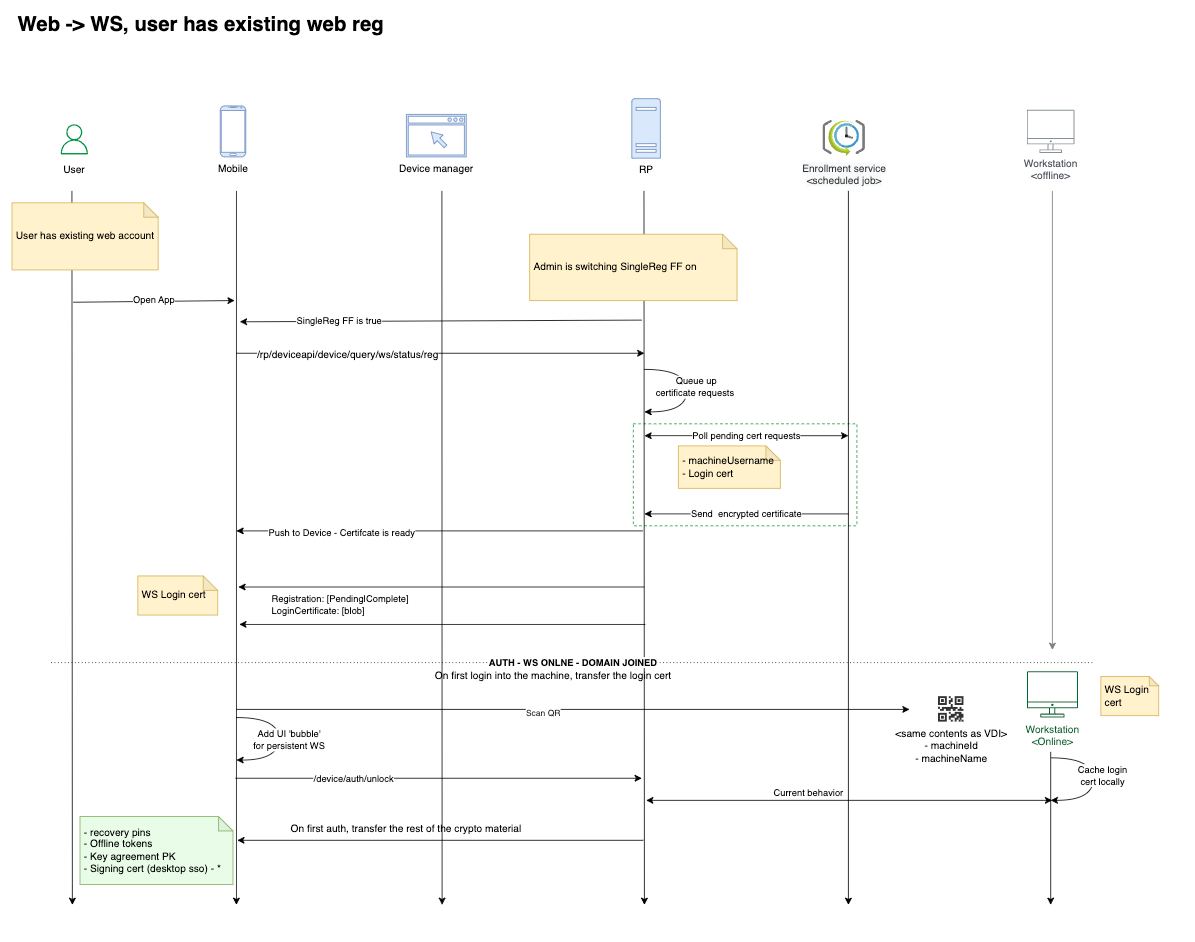
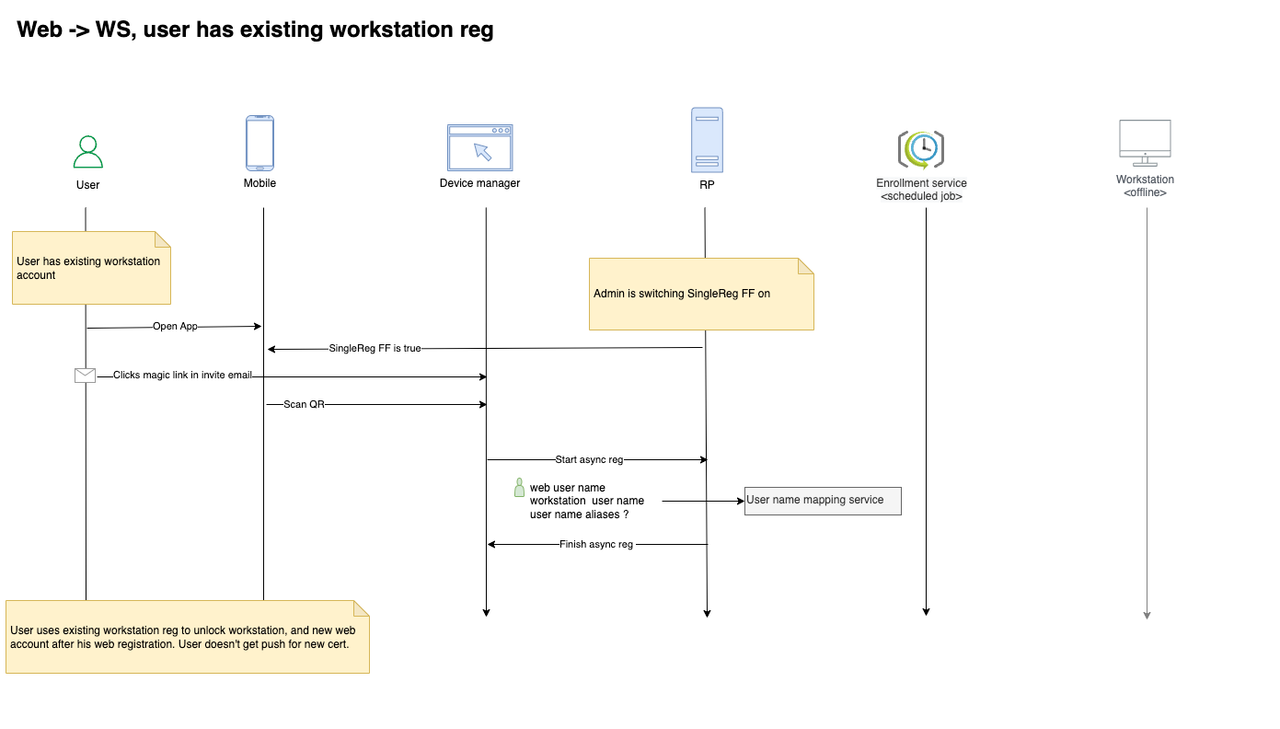
Web to Workstation Single Registration allows users to initiate and complete the registration ceremony a single time using the browser web application interface. Users don't have to register explicitly to the desktop using the HYPR WFA Client. After this single registration ceremony, users can log in to desktop and web applications.
Registration workflow for a new web profile (no existing web profile for user):
Registration workflow for a new web profile (user already has an existing web profile):
Registration workflow for a new workstation account (user already has an existing registered workstation):
Key Facts
- Web to Workstation Single Registration links your desktop and web profiles automatically
- You only need to complete the registration ceremony once in your browser—no need to register separately on your desktop with the HYPR WFA Client
- After this single, seamless experience, you can log in to both your desktop and web applications without extra steps
- HYPR creates both your desktop and web profiles in the background, so you get unified access with minimal effort
- In HYPR 10.7.0+, deregistering from either platform removes access from both, maintaining a unified profile
Prerequisites
- Create and configure rpApp for Workstation
- Create and configure rpApp for all web applications
- Deploy and configure the HYPR Enrollment Service
- Install the HYPR WFA Client (Optional)
Configuration
Enable the following feature flags:
On Global level:
WINDOWS_WEB_ENROLLMENT
On Web rpApp level:
ASYNC_REGISTRATIONWINDOWS_WEB_ENROLLMENTRP_APP_WORKSTATION_ENABLEDWEB_TO_WS_SINGLE_REGISTRATION_TRANSLATIONVIRTUAL_DESKTOP_INFRASTRUCTUREENDPOINT_API_SECURITY_TOKEN_DEVICE(Enabled by Default)ENDPOINT_API_SECURITY_TOKEN_WORKSTATION(Enabled by Default)
On Workstation rpApp level:
WINDOWS_WEB_ENROLLMENTRP_APP_WORKSTATION_ENABLEDVIRTUAL_DESKTOP_INFRASTRUCTUREENDPOINT_API_SECURITY_TOKEN_DEVICE(Enabled by Default)ENDPOINT_API_SECURITY_TOKEN_WORKSTATION(Enabled by Default)
HYPR Enrollment Service
Overview
The HYPR Certificate Enrollment Service manages authentication certificates for end users enrolling with the web application registration interface or Device Manager. When users add a new mobile device to the web application using the registration interface, the HYPR CC Server queues up the certificate request.
Key Facts
- The Enrollment Service interacts with the HYPR CC Server by polling for pending certificate requests
- The service then sends back the encrypted certificate to the CC server
- The CC Server transports the certificate to the user's mobile device
- Interaction is controlled by the feature flag
WINDOWS_WEB_ENROLLMENT
Installation Requirements
- Distributed as an MSI installer package (HyprEnrollmentService_x64.msi)
- Must be installed on a Windows Server with network connectivity to AD CS
- The Windows Server must have .NET Framework enabled
- Cannot be installed on a Domain Controller or AD CS server
User Experience
When you receive an invitation email:
- Open the invitation email on your device
- Click the link to open the HYPR Mobile App and initiate pairing
- Click Get Started to begin
- Complete the device's FIDO authentication when prompted
- The HYPR Mobile App obtains a certificate from the Certificate Enrollment Service
- When the workstation is ready, click Continue
- On the workstation, click Scan QR to Login
- On the HYPR Mobile App, click the pairing label to open the account screen
- Click the matching QR icon beneath Tap to Unlock or press and Hold for Options
- Grant access to the Camera, if necessary, and scan the QR on the workstation screen
- You are passwordlessly logged into the workstation
When configured for single registration, HYPR links the Web and the computer account together. In HYPR 10.7.0+, a deregistration of one account results in the corresponding counterpart account being removed as well, maintaining a unified profile across both platforms.
Deregistration workflow:
Testing the Workflow
- Use the HYPR CC Console to create a magic link for the web application
- Enter the user's email in the Username field (must match Active Directory email)
- Click Create Magic Link
- Navigate to the Magic Link Web Link URL
- Select 'Register mobile device'
- Wait a few minutes for the server to process the certificate
- Tap on the Pending Computer bubble
- Scan the QR code on the Windows lock screen to complete the WFA pairing
Logs and Audit Trail
The HYPR CC Console provides administrators with an Audit Trail mechanism for tracking events that flow through the HYPR components. The Audit Trail events are stored in the HYPR database for a limited time. Customers can integrate their existing SIEM footprint with the HYPR Server for permanent storage of these audit events.