Single Registration
Passwordless Authentication using mobile devices as authenticators enhances application security and simplifies user experiences. Users can register their mobile devices to the desktop using the HYPR WFA client for passwordless login to their desktop and to protected browser web applications. The authentication user experience can be taken to the next level by allowing users to register their mobile device only once using the HYPR single registration mechanism. This single registration allows users to carry out passwordless login to their desktop and protected web applications without having to register their mobile devices additionally.
With Single Registration, users register on the workstation with HYPR Passwordless, and HYPR also creates their web profile. This is Workstation-to-Web Single Registration.
Web-to-Workstation Single Registration, where a web registration also issues a workstation login certificate, is deprecated and no longer supported. Users register for web authentication and workstation authentication separately. For a unified web and workstation experience, talk to your HYPR representative about Enterprise Passkeys.
Workstation to Web Single Registration
CBA Workstation-to-Web Single Registration is supported for existing deployments, maintenance only, until August 1, 2027. HYPR no longer enables it for new deployments, and works with affected customers on a transition plan. You can still register users for web authentication and workstation authentication separately.
Overview
Workstation to Web Single Registration is a one-way registration traffic that allows users to initiate and complete the registration ceremony a single time using the HYPR WFA Client. Users don't have to register explicitly to the configured web applications. After this single registration ceremony, users can log in to their desktop and web applications.
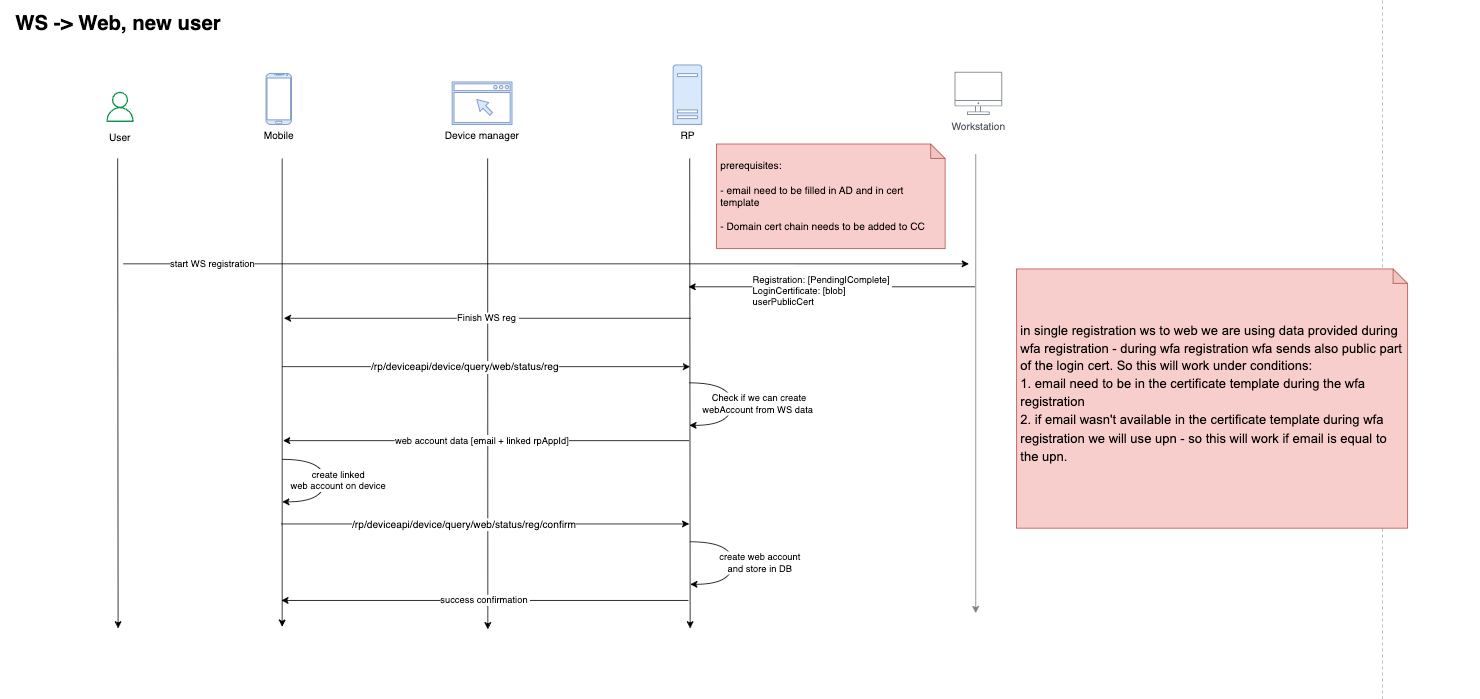
Registration workflow for a new user (no existing registration):
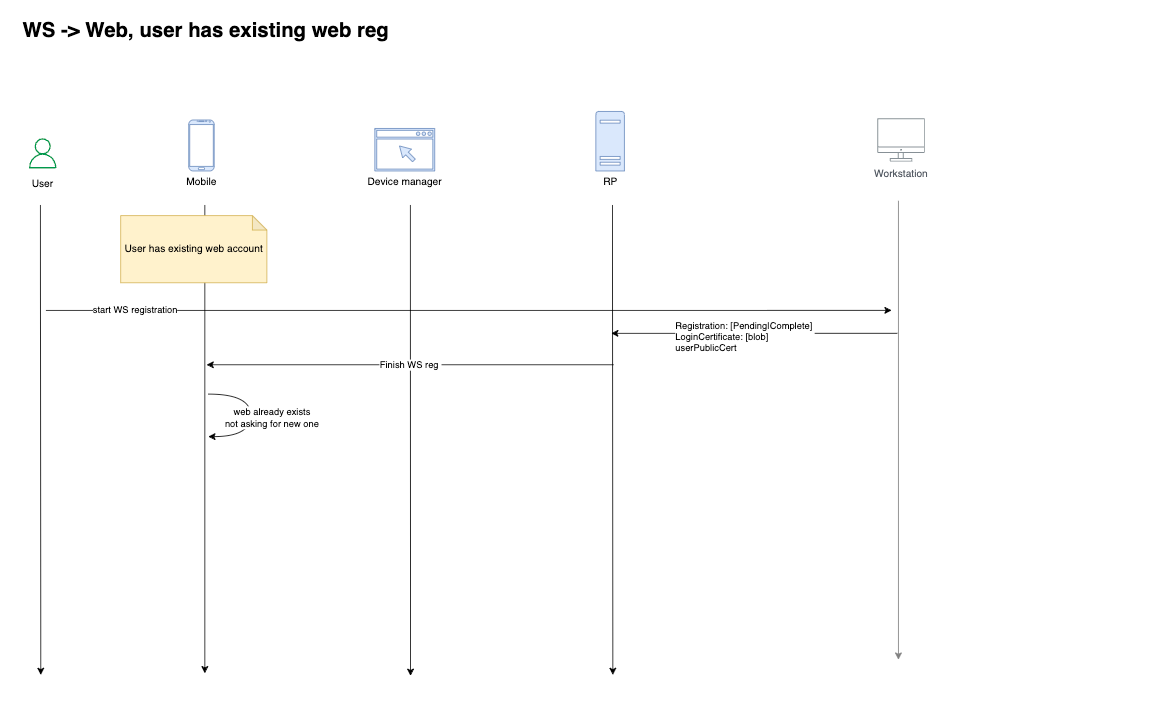
Registration workflow for a new web profile (user already has an existing web profile):
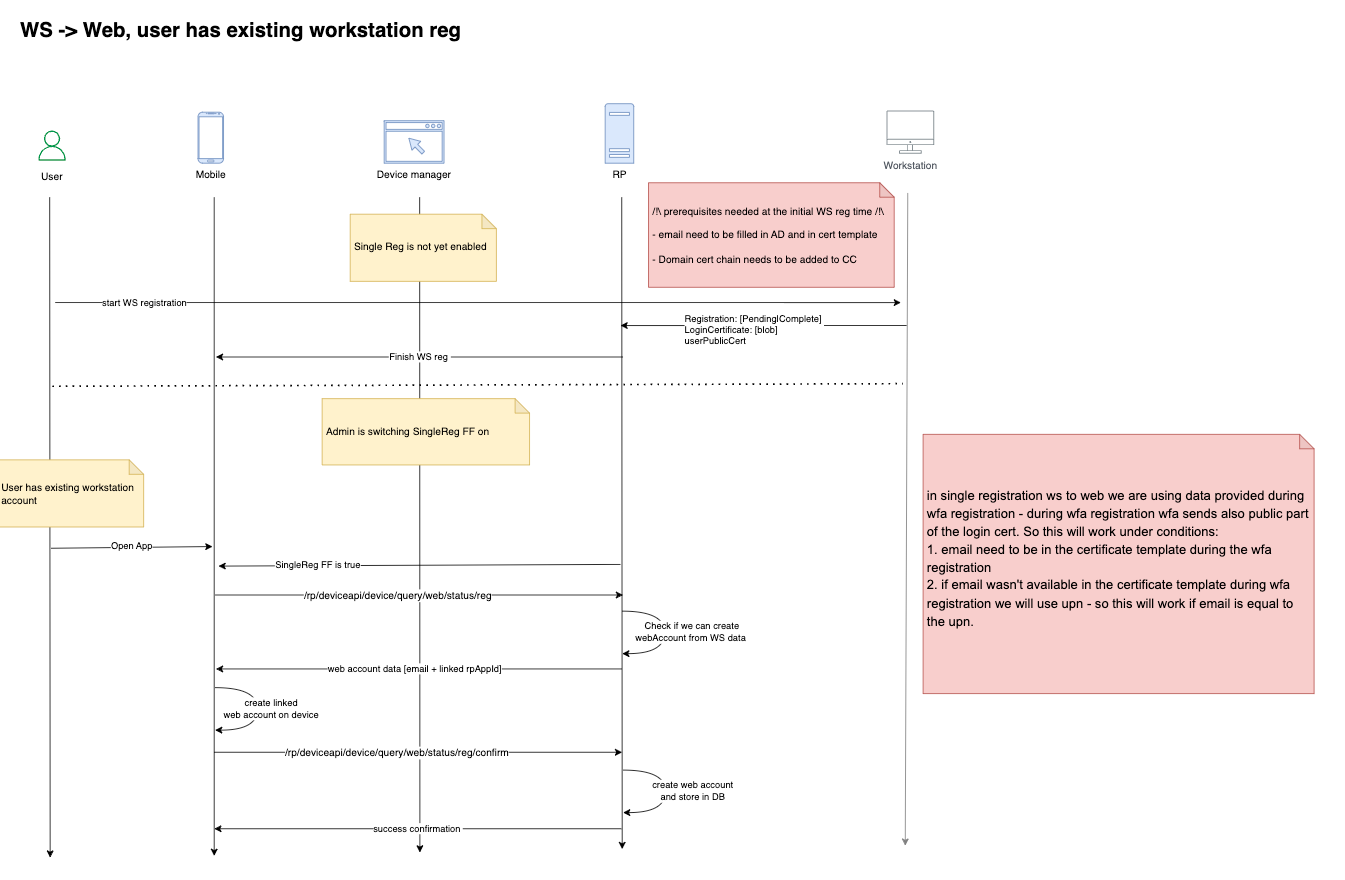
Registration workflow for a new workstation account (user already has an existing registered workstation):
Key Facts
- From the user's perspective, it is a one-time registration experience
- From the backend's perspective, the HYPR Server creates both desktop and web profiles
- This single registration process doesn't stop users from registering explicitly to the web application
- If users register explicitly to the web application, the web registered profile is not linked with the desktop profile
- Users can create multiple desktop profiles for the same user from multiple desktop machines
- All desktop profiles are linked with only one web profile
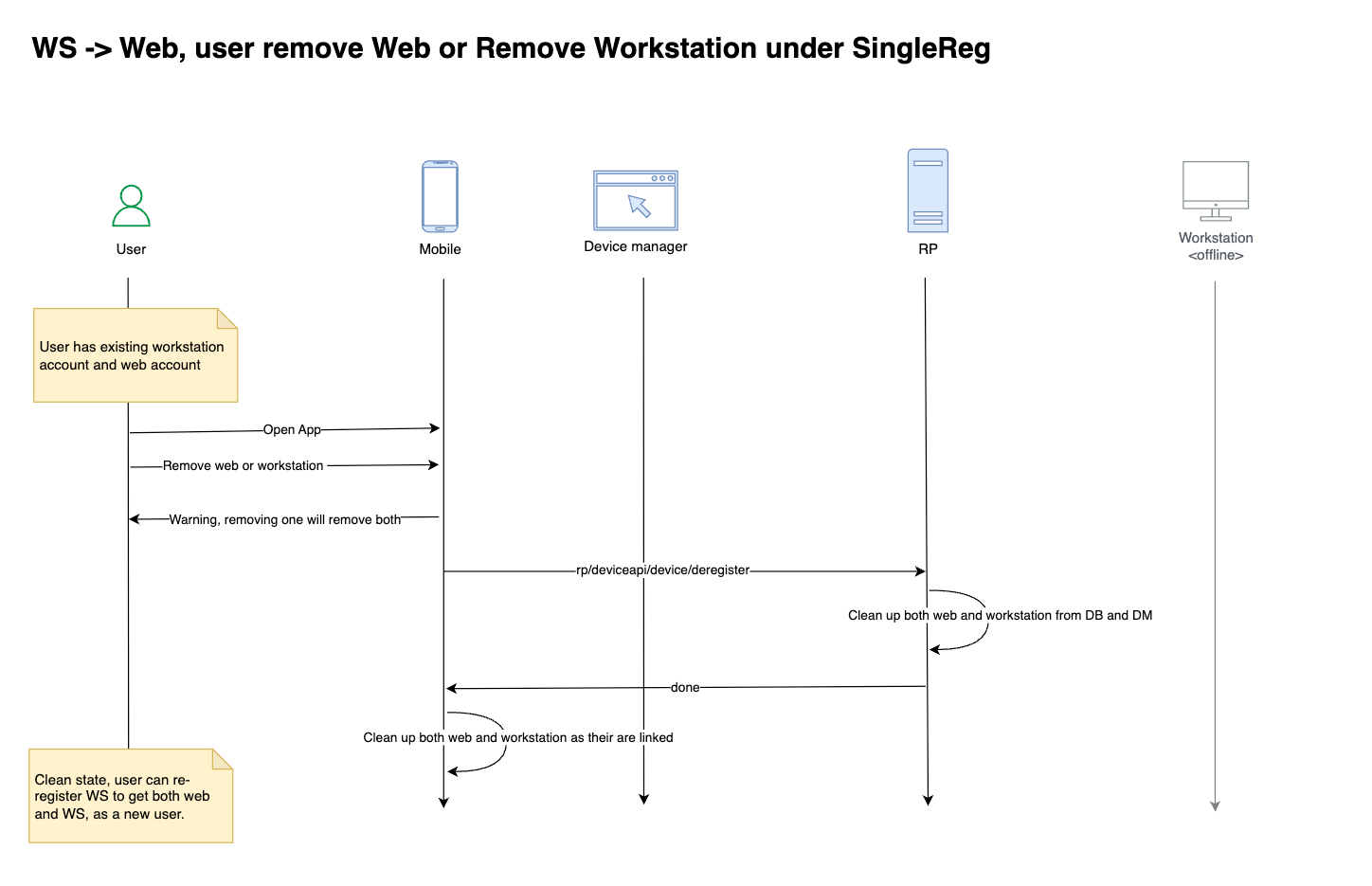
- Desktop profile deregistration on any desktop machine deletes that desktop profile and the associated web profile
Prerequisites
- Create and configure rpApp for Workstation
- Create and configure rpApp for all web applications
- Install the HYPR WFA Client
Configuration
Enable the following feature flags:
On Workstation rpApp level:
WEB_LOGIN_WITH_WFA_REGISTRATION
On Web rpApp level:
WEB_TO_WS_SINGLE_REGISTRATION_TRANSLATION: links the web RP application to the workstation RP application. Workstation-to-Web Single Registration uses this link.RP_APP_WORKSTATION_ENABLED
After enabling the feature flags, upload your AD CS domain CA certificate to HYPR Control Center:
- Export the domain certificate from your AD CS server in DER format (base64-encoded).
- Upload the certificate to HYPR CC using the following API call:
- API URL:
https://<HOST>/rp/api/domaincertificate - Request Type:
POST - Request Payload:
{ "domainCertificate": "<Base64Encoded>" } - Authorization: Bearer
<AdminToken>
- API URL:
curl --location \
--request POST "https://HOST/rp/api/domaincertificate" \
--header "Authorization: Bearer hypap-edba607b-b400-4c57-9d3d-839a6e07a6f1" \
--header "Content-Type: application/json" \
--data '{
  "domainCertificate": "MIIDczCCAlugAwIBAgIQS0n13f/8s5Np+dFMzF++0TANBgkqhkiG9w0BAQsFADBM-RMwEQYKCZImiZPyLGQBGRYDbmV0MRcwFQYKCZImiZPyLGQBGRYHaHlwcmxhYjEcMBoGA1UEAxMTaHlwcmxhYi1BRFNFUlZFUi1DQTAeFw0yMjA4MTEyMzQ4MTZaFw0zMjA4MTEyMzU4MTVaMEwxEzARBgoJkiaJk/IsZAEZFgNuZXQxFzAVBgoJkiaJk/IsZAEZFgdoeXBybGFiMRwwGgYDVQQDExNoeXBybGFiLUFEU0VSVkVSLUNBMIIBIjANBgkqhkiG9w0BAQEFAAOCAQ8AMIIBCgKCAQEAuDnPO/GZ1HeNMj1X+yDu46oK1x4mnC8aBDUwVlpzcEv4heLuAWZT/dFVFKKZSNQxbAMubuNwFepySrgp7ThBVp4BGBq7b/LmjZJD9oeqpBhKnryIfYSqLbxY3J2h5YtjQiR7nRr9iNyfT+8I91yyhn95sdtNEyeENlyI+dz41bAj/PksJVtdxhI/ClnJTVSCHFid42jcta0VKgfnmRfvvobX2rOpgmKhAYr9fNZ67TlzTTjji8Hz4vpQGm/9fiLKim4idAksTo1x/w0mOLSbaHTZ/qAUdTyye6aDDw1g9xap3cXPRX82Lstq/4CbhNZRHg1QfFMamghb6siX9KXOhQIDAQABo1EwTzALBgNVHQ8EBAMCAYYwDwYDVR0TAQH/BAUwAwEB/zAdBgNVHQ4EFgQUG9IOpL+oXX7mlkOKNqFPWb/hmp0wEAYJKwYBBAGCNxUBBAMCAQAwDQYJKoZIhvcNAQELBQADggEBAEGU/5V1evJKwTFaac6MnA02Pgwvmaer8Gycun4cAJbd9HUtenKcw8+oryojouniJ7Bm7NTrGPHDFgTxg1P9fdA8DE8nVCidCYiN3iJOzQ5v593eK08SxExEGOIcFveOZf0uAXgtr2UkqTBp2K8RYUT5nTpjBXUMcQdHO1fXYJ/cKqH25CiGqMwUQx+aNWzc7/LT4nX9A9zMiwALD1IbTZOlzU7R8mt0A3IZClJJvCl9PdAcpqiHqAUnq8ojJN0neeANJyiXixedrTp6gxEpGWV7tR2NuYesnwjFtV2jV0VdcYVmDQVtqdpkxbx93re2IGhNqO+H0Pujtie2TTv7J4kE="
}'
Then link the two applications: in the web rpApp's Workstation Settings, enter the workstation rpApp's ID in the Workstation Application rpAppId field.
User Experience
When you receive an invitation email, follow these steps:
- On the workstation, start the HYPR Passwordless client if it isn't running already
- Click Start Pairing in the HYPR Passwordless client
- If you already have a device paired, click Pair New Device
- Select Smartphone and a QR code appears in the dialog
- On the HYPR Mobile App, click the pairing label to open the account screen
- Grant access to the Camera, if necessary, and scan the QR on the workstation screen
- After completion, the HYPR Mobile App displays the pairing on your phone as both a Computer Account and a Web account
Deregistration workflow:
Logs and Audit Trail
The HYPR CC Console provides administrators with an Audit Trail mechanism for tracking events that flow through the HYPR components. The Audit Trail events are stored in the HYPR database for a limited time. Customers can integrate their existing SIEM footprint with the HYPR Server for permanent storage of these audit events.