Setup Guide: HYPR Passkey for Enterprise Passkey
This is a multi-part, multi-step guide that walks you through setting up Enterprise Passkey and HYPR Passkey in Windows environments from scratch. HYPR's Enterprise Passkeys with HYPR Passkey feature enabled allows HYPR to create and store passkeys on linked mobile devices, letting users in your Entra-joined or hybrid Entra-joined domain to use these passkeys for passwordless access to their enterprise workstations and Entra-protected content like Microsoft 365 and other pages on both their workstations and mobile devices.
Setting up HYPR Passkey to leverage a seamless HYPR integration for setting up a passkey that can be used with Entra ID does not differ in principle from the regular setup for HYPR Enterprise Passkey. However, there are some additional elements that need to be enabled, like an additional feature flag for the tenant you will be using in HYPR Control Center™ and enabling the use of FIDO2 passkeys on your workstation and mobile device. This guide walks you through both the regular and these additional configuration steps.
The Administrator Configuration section of the guide is designed for IT administrators and security professionals responsible for integrating passwordless authentication in Microsoft Entra environments with Windows workstations. The User Experience section contains an overview of the end users' experience with HYPR passkeys and passwordless login. The Troubleshooting section provides solutions for common issues.
Overview
Enterprise Passkey and HYPR Passkey enable Android and iOS mobile devices to act as FIDO2 security keys for Windows workstations, supporting various deployment scenarios including non-domain-joined, on-premises Active Directory, Entra domain-joined and hybrid-joined setups.
How It Works
This diagram shows Windows and Mobile authenticating directly to the FIDO2 server (often Entra ID) while HYPR coordinates secure passkey synchronization between them. A single passkey can be used from either device (platform authentication). Passkeys are synced using end‑to‑end encryption derived from ECDH keys; HYPR transports the encrypted payloads but cannot decrypt them.
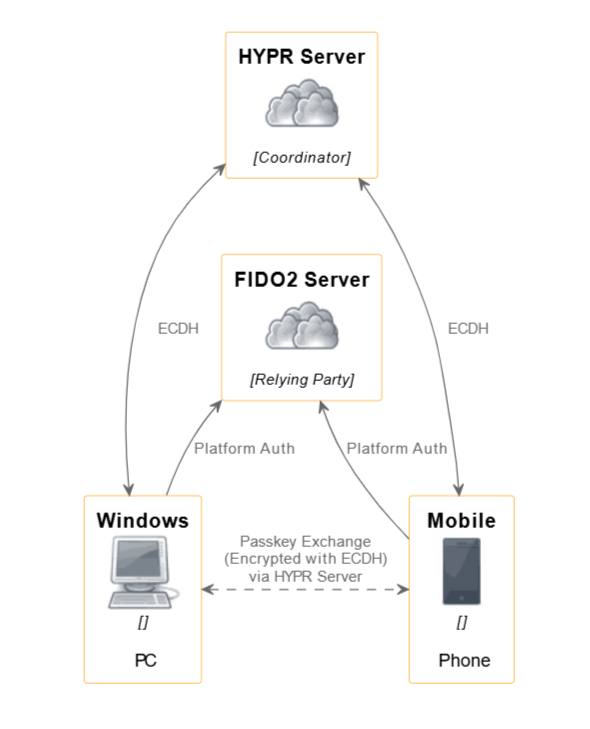
End users can register Enterprise Passkeys either from HYPR Passwordless for Windows or entirely from web/mobile flows (for example via Device Manager reached by Magic Links or dynamic links). Any successful registration on an Enterprise Passkey integration provisions a FIDO2 passkey into Entra ID that can be reused for web, mobile and workstation sign‑in.
Choose Your Administrator Flow
Select the path that matches your environment:
- Entra-only flow: Cloud-first, Entra-joined workstations, no on-premises PKI.
- Hybrid flow: Hybrid-joined workstations with on-premises directory, certificates and Kerberos requirements.
The primary goal of using HYPR's Enterprise Passkey solution with HYPR Passkey support is unifying and simplifying authentication flows by leveraging mobile devices as secure authenticators. This solution enables:
-
Platform Authentication: Both mobile and workstation clients can independently authenticate to the FIDO2 server, allowing flexible login experiences without requiring the presence of both devices simultaneously.
-
Passkey Exchange: Passkeys are securely synchronized between devices using end-to-end encryption with Elliptic Curve Diffie-Hellman (ECDH) keys. The HYPR server facilitates this exchange without being able to decrypt the passkeys.
-
Multi-Platform Support: The architecture covers use cases for mobile (iOS and Android), Windows OS login, Windows browser login and macOS browser login, consolidating workflows across platforms.
-
Session Passkeys and SSO: For Windows, a session passkey can be stored for the duration of the login session, enabling native single sign-on (SSO) experiences. If a session passkey is unavailable, fallback mechanisms such as mobile QR scan or standard UAF authentication are supported.
-
Offline and Recovery Support: Passkeys can be stored as encrypted offline pins, allowing for offline authentication and recovery scenarios.
Supported Sign‑In Paths for Enterprise Passkey
You can sign in using the following paths. Each path relies on the same passkey and native OS capabilities, so experiences stay consistent across devices.
- Mobile (iOS and Android): The OS routes HYPR Passkey requests to the HYPR app, which completes FIDO2 authentication and auditing. Works from QR scan, the mobile app, or the mobile browser.
- Windows OS Login: Windows logs you into the PC using the passkey delivered from mobile or an encrypted offline pin. Optionally, the passkey can be held for the session to enable native SSO.
- Windows Browser Login: If a session passkey exists, the browser authenticates natively with no extra prompts. If not, fall back to a Hybrid QR scan or standard UAF authentication.
Administrator Configuration
This section covers setting up the Entra ID tenant, HYPR Control Center™ and Windows workstations required for Enterprise Passkey functionality.
What you'll learn:
- How to create and configure an Entra ID tenant
- How to join Windows machines to Entra ID
- How to configure HYPR Control Center™ for Enterprise Passkey
- How to enable FIDO2 security key login on Windows
- How to install and configure HYPR Passwordless for Windows™
Go to Administrator Configuration Guide →
User Experience
This section covers the user experience for setting up passkeys and the workflows for acquiring passkeys and linking devices.
What you'll learn:
- How to download and install the HYPR One™ mobile app
- How to set up passkeys using Magic Links
- How to pair workstations with mobile devices
- How to use passkeys for passwordless login
- How to manage passkeys and devices
For a comprehensive, user-friendly guide covering all passwordless login flows and scenarios from the end user's perspective only, see the End User Guide: Setting Up Passwordless Login. This guide provides step-by-step instructions for end users setting up passwordless login for the first time.
Troubleshooting
This section provides solutions for common issues encountered during setup and usage of Enterprise Passkey with HYPR Passkey.
What you'll learn:
- How to troubleshoot passkey pairing issues
- How to resolve common login problems
- How to verify Entra ID join status
- How to troubleshoot mobile app issues
- How to get additional support