End User Guide: Setting Up Passwordless Login
Welcome! This guide helps you set up passwordless login for your workstation using your mobile device. Once set up, you can log in to your computer and access work applications without having to use a password.
- Your work mobile device (iPhone or Android)
- Your work computer (Windows)
- A few minutes to complete setup
Getting Started
Before you can use passwordless login, you need to prepare your mobile device. Follow these steps first, then choose the setup flow that matches how your company has configured things.
Download the HYPR One™ App
- Open the App Store (iPhone) or Google Play Store (Android) on your phone
- Search for "HYPR app"
- Download and install the app
- Open the app and sign in with your work email address
If you already have HYPR One™ installed, make sure it's updated to the latest version. You can check for updates in your app store.
Enable Passkeys on Your Phone
Your phone needs to allow HYPR to work as a passkey provider. This is a one-time setup step.

For iPhone:
- Open Settings
- Go to General > Passwords
- Find the HYPR toggle and turn it on
- Make sure Native Passwords is also enabled
For Android:
- Open Settings
- Go to Security and privacy > More security settings
- Tap Passkeys
- Turn on the HYPR toggle
- If you don't see HYPR, tap Preferred service and select HYPR
The exact location may vary depending on your phone model. Try searching for "passkey" or "passwords" in your phone's local search bar.
Registration and Pairing Your Workstation
This is the most common way to set up passwordless login. You'll pair your phone with your computer so you can use your phone as a secure key to unlock your workstation.
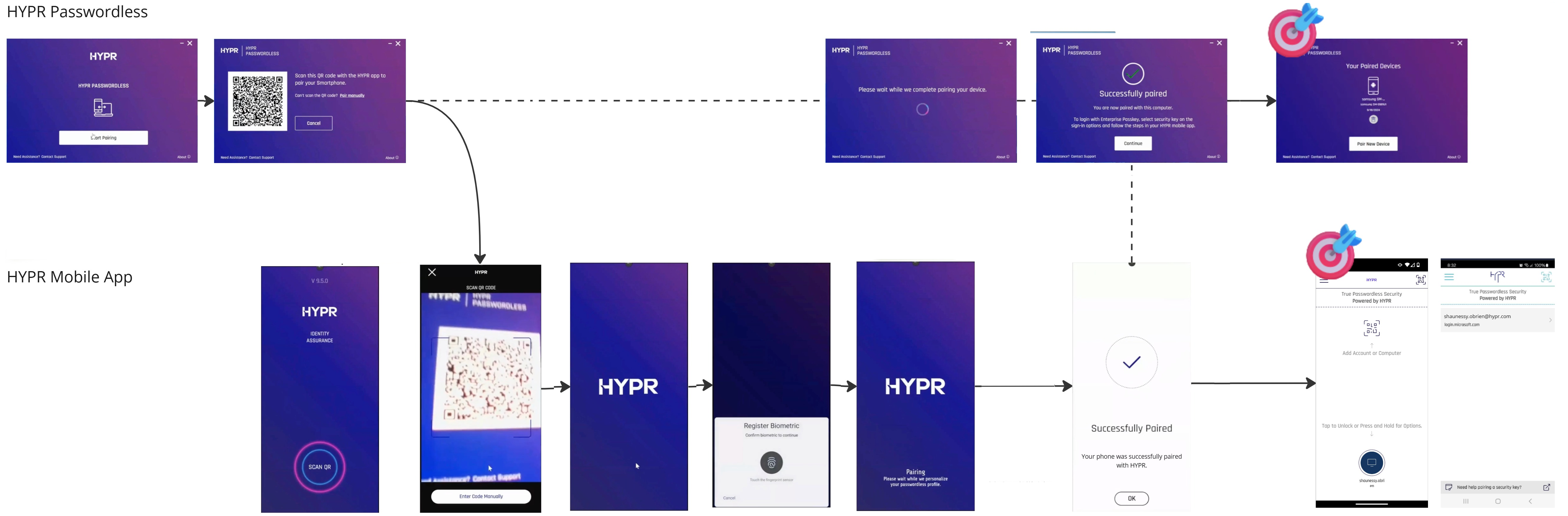
How to Pair Your Phone with Your Computer
- On your computer, open the HYPR Passwordless desktop application
- Click Start Pairing
- You'll be asked to choose between pairing a Smartphone or a Security Key. Select Smartphone to continue.
- On your phone, open the HYPR One™ app
- Tap the Scan QR button at the bottom of the screen (if you already have other pairings in your HYPR mobile app, there will instead be a QR code icon in the upper right corner)
- Point your phone's camera at the QR code on your computer screen
- When prompted, use your phone's biometric authentication (fingerprint or face recognition)
- Wait for the pairing to complete
Once pairing is complete, you'll see your computer listed in the HYPR One™ app under "My Computers," and you'll have a new passkey in "My Passkeys."
You can also pair a FIDO2 security key (such as a YubiKey) instead of your smartphone. When you click Start Pairing and select Security Key, follow the on-screen instructions to register your security key. For Entra-joined devices, you may also have the option to provision your security key directly into Microsoft Entra ID for use with both HYPR and Microsoft services.
Logging In to Your Workstation
After you've paired your phone, logging in is quick and easy. There are a few different ways to log in depending on your situation.
Standard Login (Unlock)
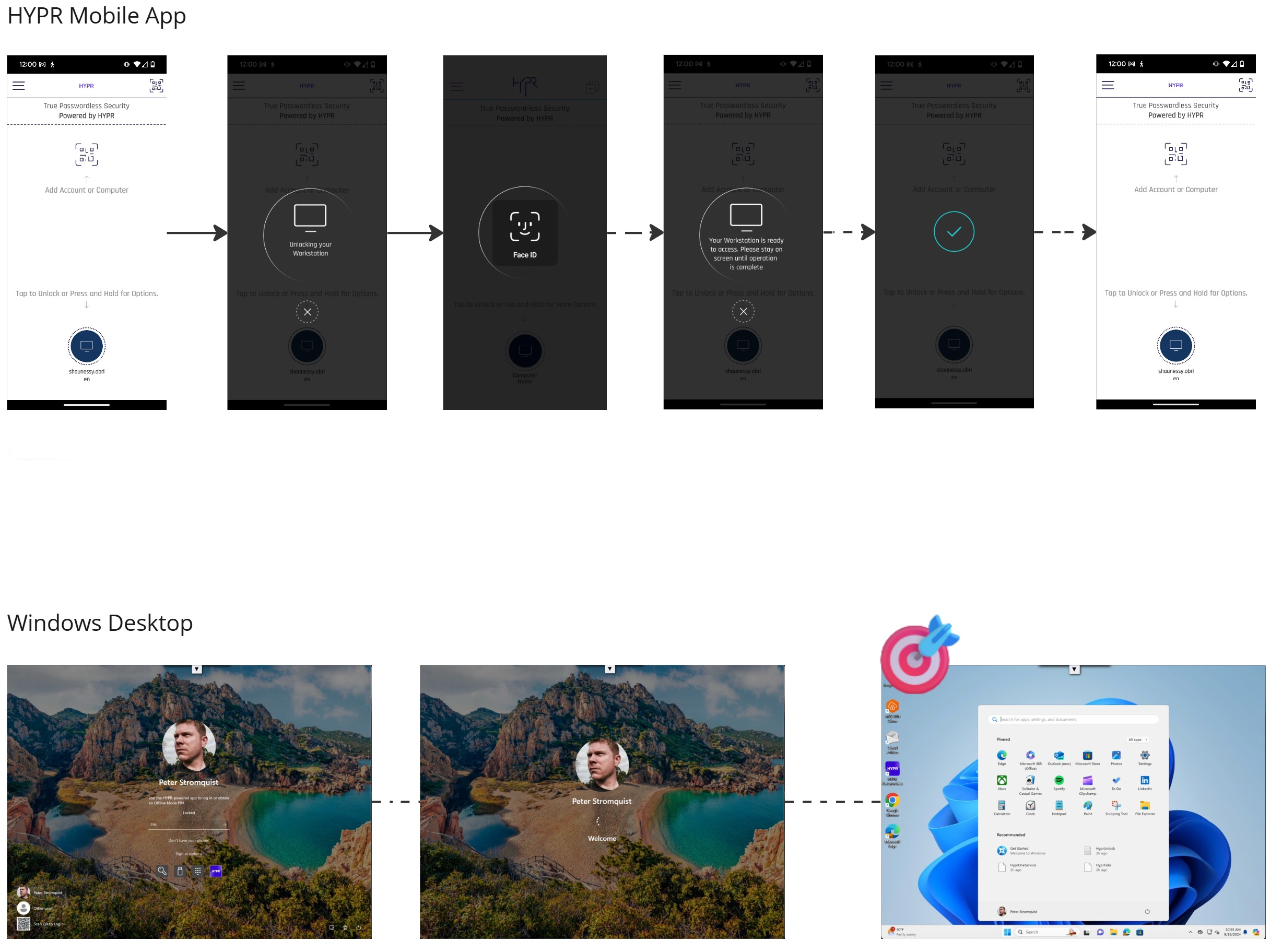
When you're at your desk:
- Open your HYPR mobile app and on the main screen, tap the icon of the workstation you want to unlock
- Use your phone's biometric (fingerprint or face) to confirm
- Your computer will unlock automatically
Locking Your Workstation
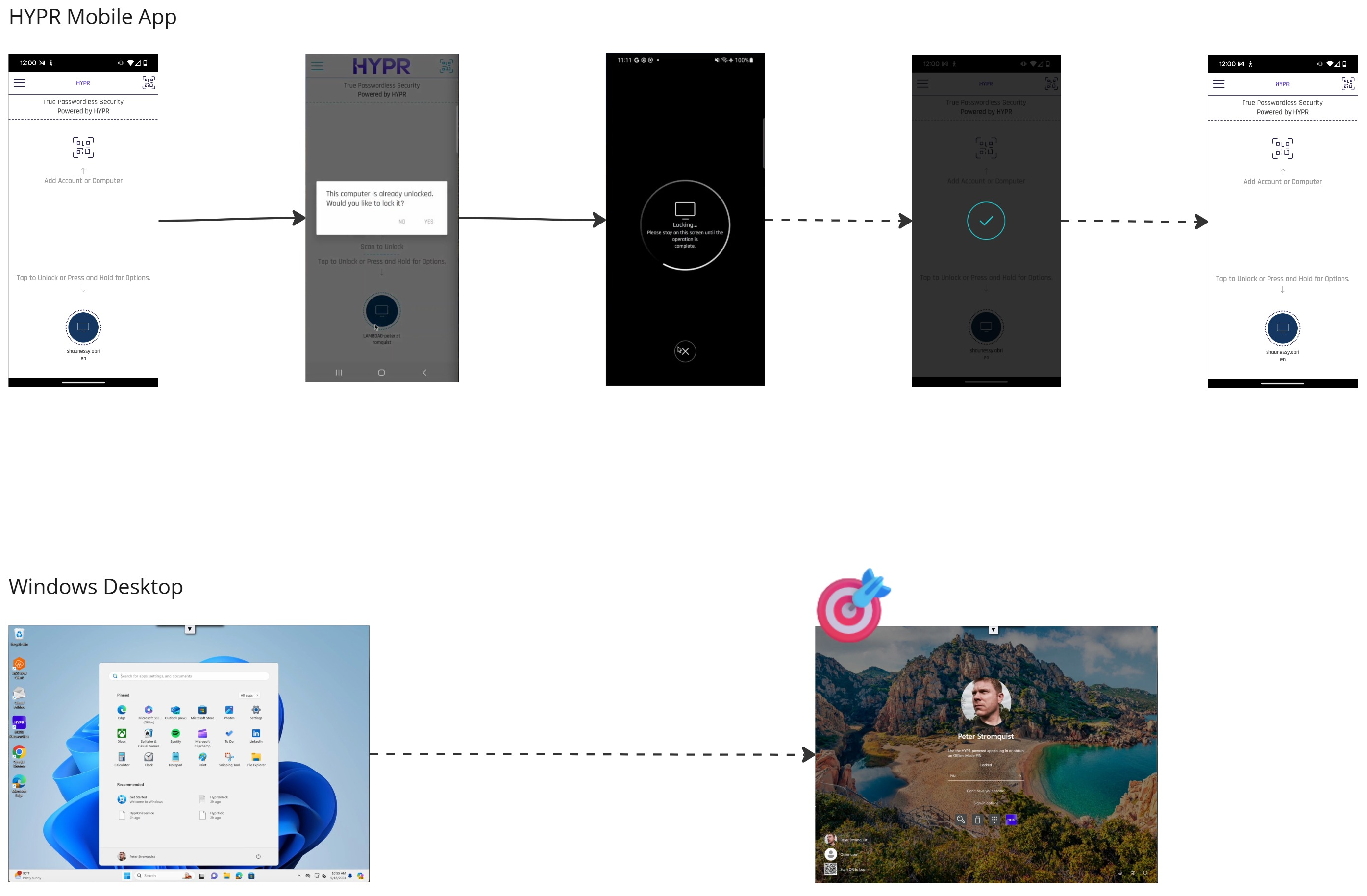
Likewise, you can also lock your workstation using your mobile device:
- Open your HYPR mobile app and on the main screen, tap the icon of the workstation you want to lock
- Wait for the workstation to be locked
- Your workstation is now locked
QR-to-Login
If you're working from a different location or using a computer that isn't your primary workstation, you can still log in using your phone.
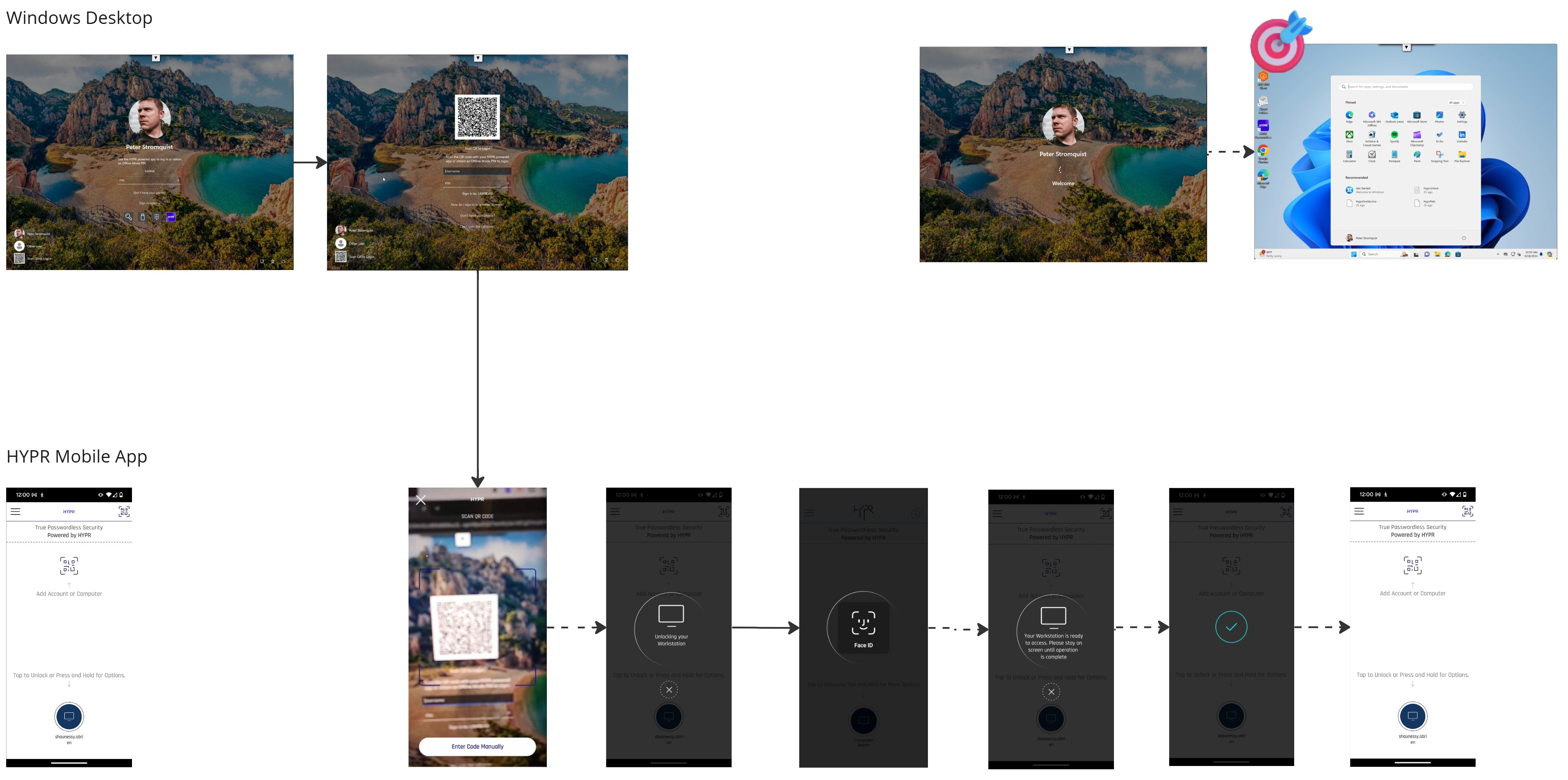
Logging In from Any Computer
- At the login screen of your work computer, select the Scan QR to Login option
- A QR code will appear
- Open HYPR One™ on your phone
- Scan the QR code with the app
- Use your phone's biometric to confirm
- The computer will unlock
This works even if you haven't previously paired with that specific computer, as long as it's part of your company's network.
Using an Offline PIN
If you don't have internet access or your phone isn't available, you can use an offline PIN.
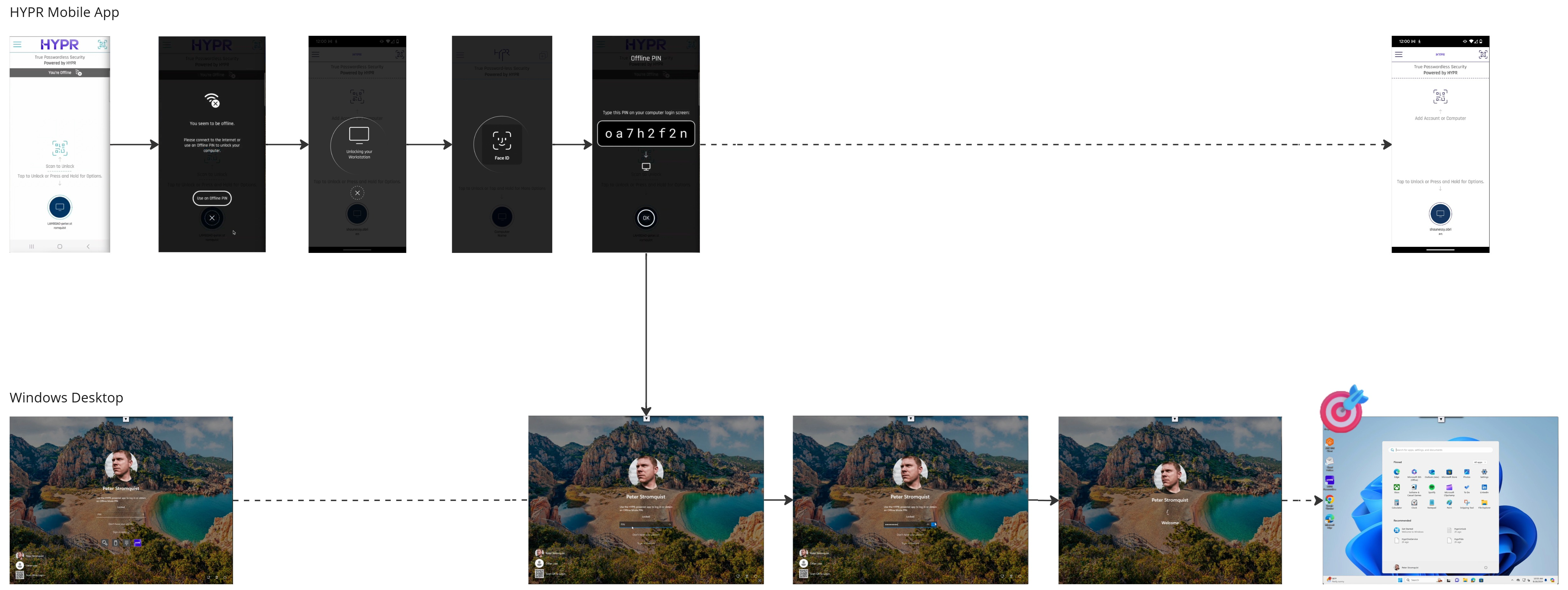
To use your offline PIN:
- Open your HYPR mobile app and on the main screen, tap the icon of the workstation you want to lock
- If your phone or your workstation is not connected to the internet, the app will suggest using an offline PIN
- Tap Use an Offline PIN
- Use your phone's biometric to confirm
- The app will display an offline PIN that you can use to log in to your workstation even when offline
Your offline PIN is a backup security method. Don't share it with anyone, and make sure it's different from other passwords you use.
Creating and Signing In with Passkeys
When you create a passkey for a website or application, you can use it to sign in quickly and securely. This flow shows you how passkey creation and sign-in work on your mobile device.
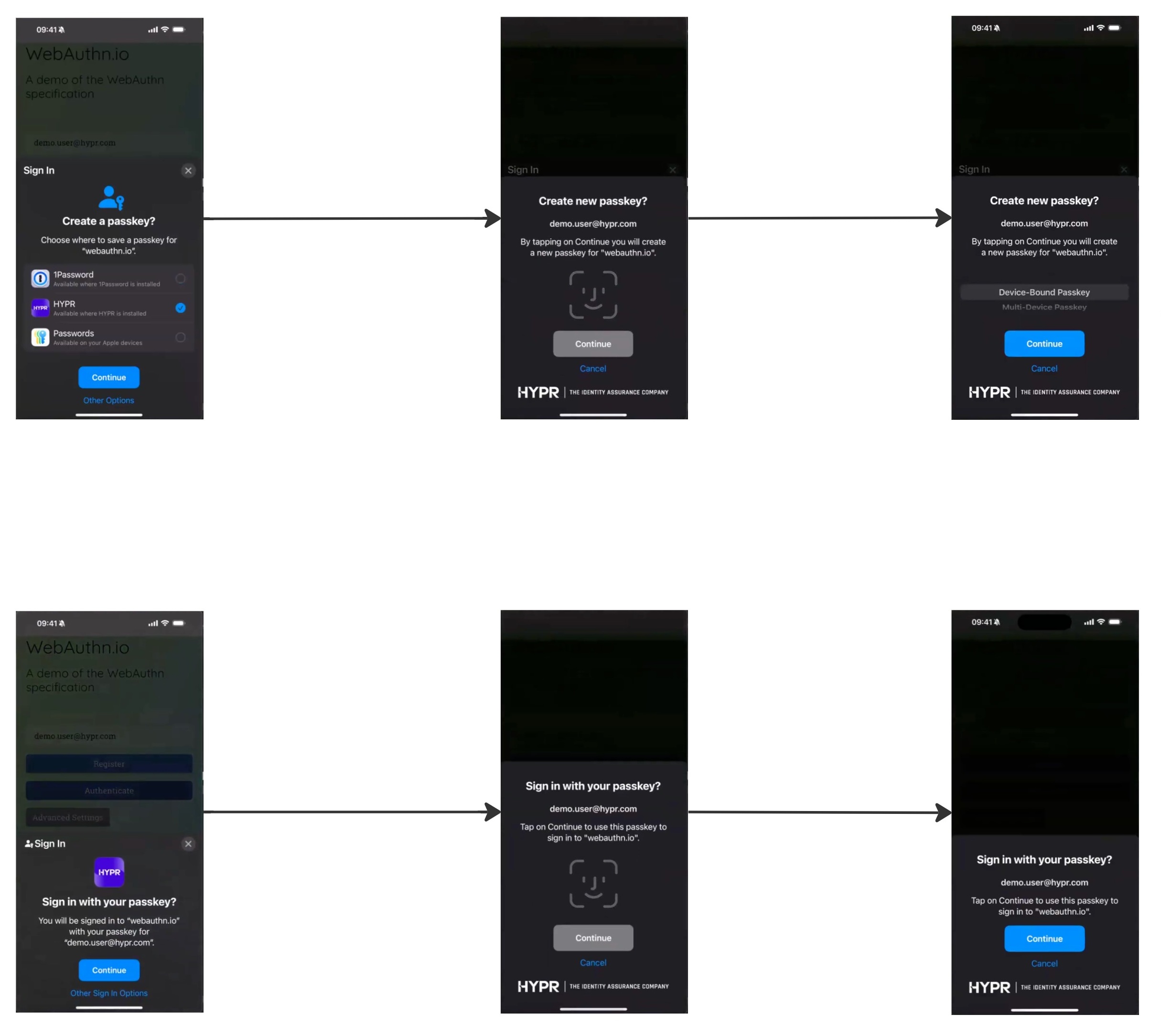
Creating a Passkey
When you first visit a website or app that supports passkeys:
- You'll see a prompt asking if you want to create a passkey
- Choose where to save it - Select "HYPR" as your passkey provider
- Confirm with biometrics - Use Face ID or Touch ID to create the passkey
- The passkey is saved - It's now available for future sign-ins
Signing In with a Passkey
When you return to the same website or app:
- You'll see a sign-in prompt asking to use your passkey
- Confirm with biometrics - Use Face ID or Touch ID to authenticate
- You're signed in automatically - No password needed!
Setting up a HYPR Passkey
HYPR can be used as a passkey provider, enabling you to use HYPR Passkeys to log in and access protected content, such as Entra and Microsoft 365. This flow starts when you first try to access a protected resource.
How to set up a HYPR Passkey
- You try to access a work application or website that requires passwordless authentication
- Your phone automatically prompts you to set up a passkey (if you haven't already)
- Follow the on-screen instructions on your phone to complete setup
- Use your biometric to confirm
- You'll be able to access the resource
This flow is automatic—your phone and the application work together to set things up seamlessly.
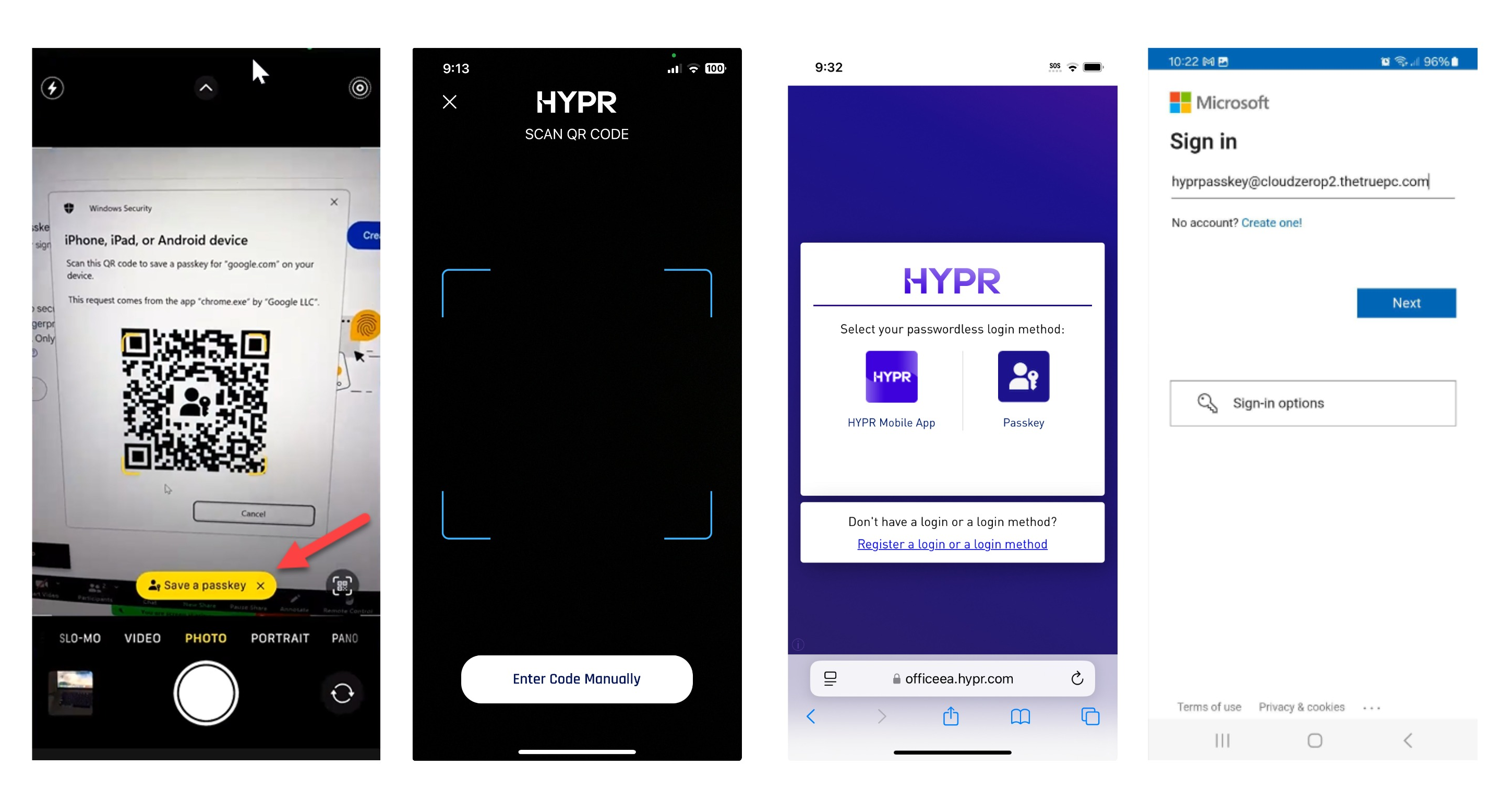
Setting Up HYPR Passkey via QR Code
If you need to set up a HYPR Passkey other than the one you set up during workstation pairing, you can use a QR code:
- You'll see a QR code on your computer or in a browser
- Open HYPR One™ on your phone
- Scan the QR code with the app
- Follow the prompts to create your passkey
- Use your biometric to confirm
Initiation Example: Okta for Office
Here's an example of how passkey initiation works when accessing Office applications through Okta:
- On your workstation or mobile browser, navigate to your company's Office portal
- Sign in through Okta - You'll be redirected to the Okta login page
- Select passkey as your login method - Choose "Passkey" or "HYPR Mobile App"
- Scan the QR code with your phone (if shown)
- Use your biometric to authenticate
- You'll be signed in to Office applications automatically
This works the same way whether you're on your workstation browser or mobile browser.
Desktop SSO via Browser
You can use your passkey to sign in to web applications through your desktop browser. This provides seamless single sign-on (SSO) access.
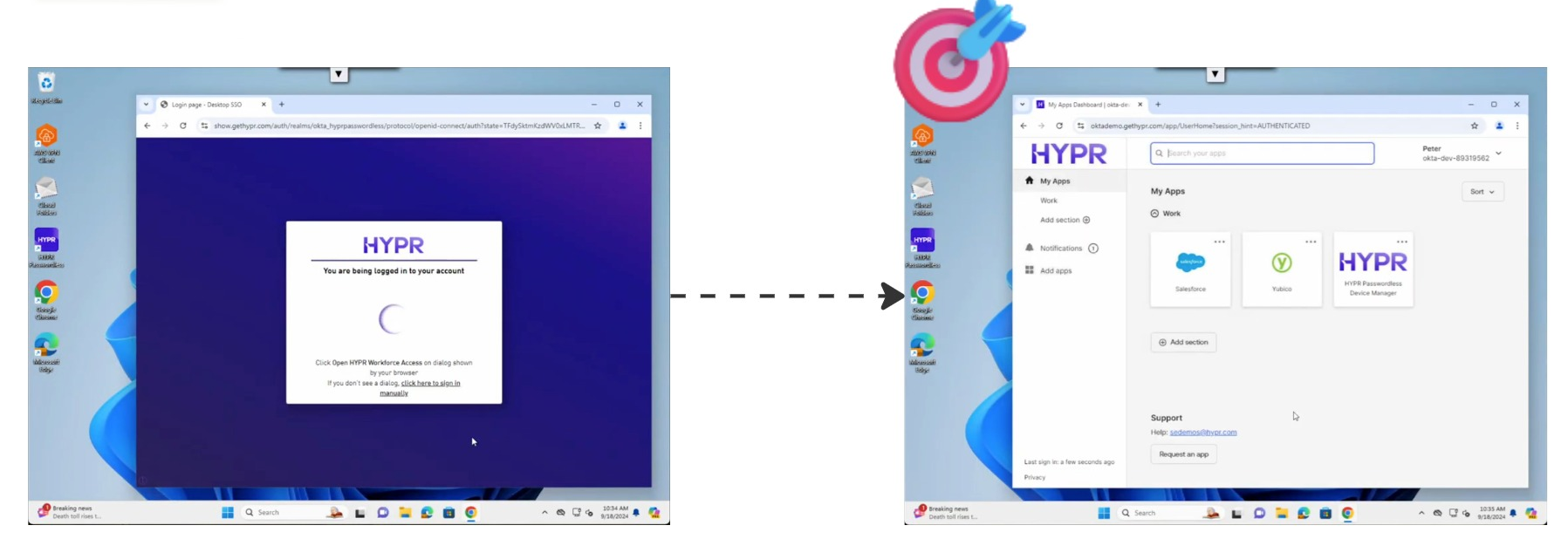
How Desktop SSO Works
- Visit a work website in your desktop browser (like Microsoft 365, Okta, or other company applications)
- You'll see a login prompt - The browser will ask you to sign in
- Select passkey as your method - Choose to use your passkey
- Your phone will prompt you - HYPR One™ will ask you to confirm
- Use your biometric on your phone to authenticate
- You're signed in - The browser completes the sign-in automatically
This allows you to access multiple work applications without entering passwords repeatedly.
Seamless SSO to Entra with Passkey
If your company uses Microsoft Entra ID (formerly Azure AD), you can use your passkey for seamless single sign-on to all Entra-protected applications.
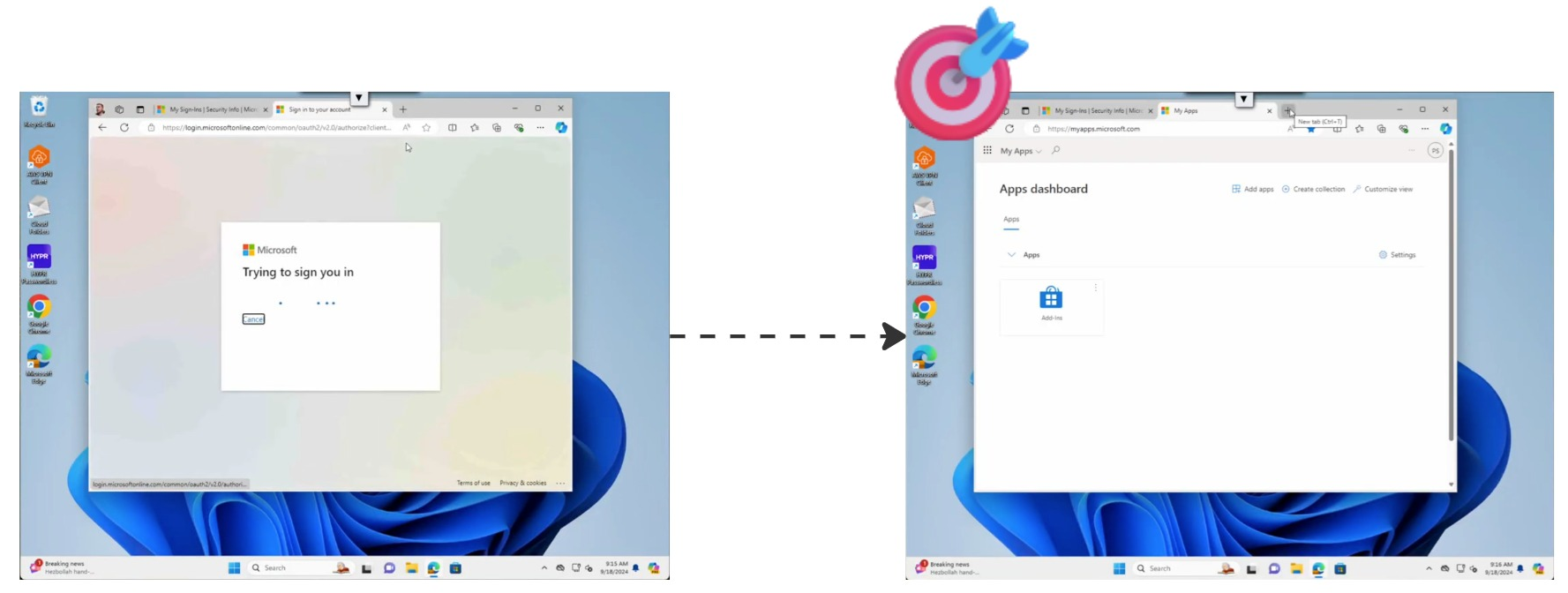
How Entra SSO Works
- Sign in to one Entra application - Use your passkey to sign in to any Entra-protected app (like Microsoft 365)
- You're automatically signed in to other Entra applications
- No repeated authentication - Once signed in, you can access Outlook, Teams, SharePoint, and other Microsoft services without signing in again
- Your passkey works across all apps - The same passkey provides access to all your Entra-protected resources
This creates a seamless experience where you sign in once and have access to all your work applications.
Mobile Credential Provider Experience
When you use your phone as a passkey provider, you'll interact with your phone's native passkey system. This provides a smooth, integrated experience.
-87c05974f0bb4dd868f3b871d09a64b2.jpg)
What to Expect
When you're prompted to use a passkey:
- Your phone will show a native prompt asking you to use your passkey
- You'll see which account the passkey is for (your work account)
- Use your biometric (fingerprint or face) to confirm
- The action completes automatically
This works the same way whether you're logging in to your computer, a website, or an application.
Managing Your Devices and Passkeys
You can view and manage your paired devices and passkeys directly from the HYPR One™ app.
Viewing Your Devices
In the HYPR One™ app, you can:
- See all your paired computers under "My Computers"
- View your passkeys under "My Passkeys" or "My Security Keys"
- Remove devices if you no longer use them
- Check your account status
Removing a Device
If you need to remove a computer or device:
- Open the HYPR One™ app
- Go to "My Computers"
- Find the device you want to remove
- Tap and hold it
- Select "Remove" or "Unpair"
- Confirm the removal
Once you remove a device, you'll need to pair it again to use passwordless login. Make sure you want to remove it before confirming.
Other Setup Methods
Depending on how your company has configured things, you might set up passwordless login in different ways:
From a Magic Link (Email)
Your IT administrator might send you a special link via email:
- Open the email on your phone or computer
- Click the Magic Link in the email
- Follow the on-screen instructions to pair your device
- You'll be guided through the pairing process
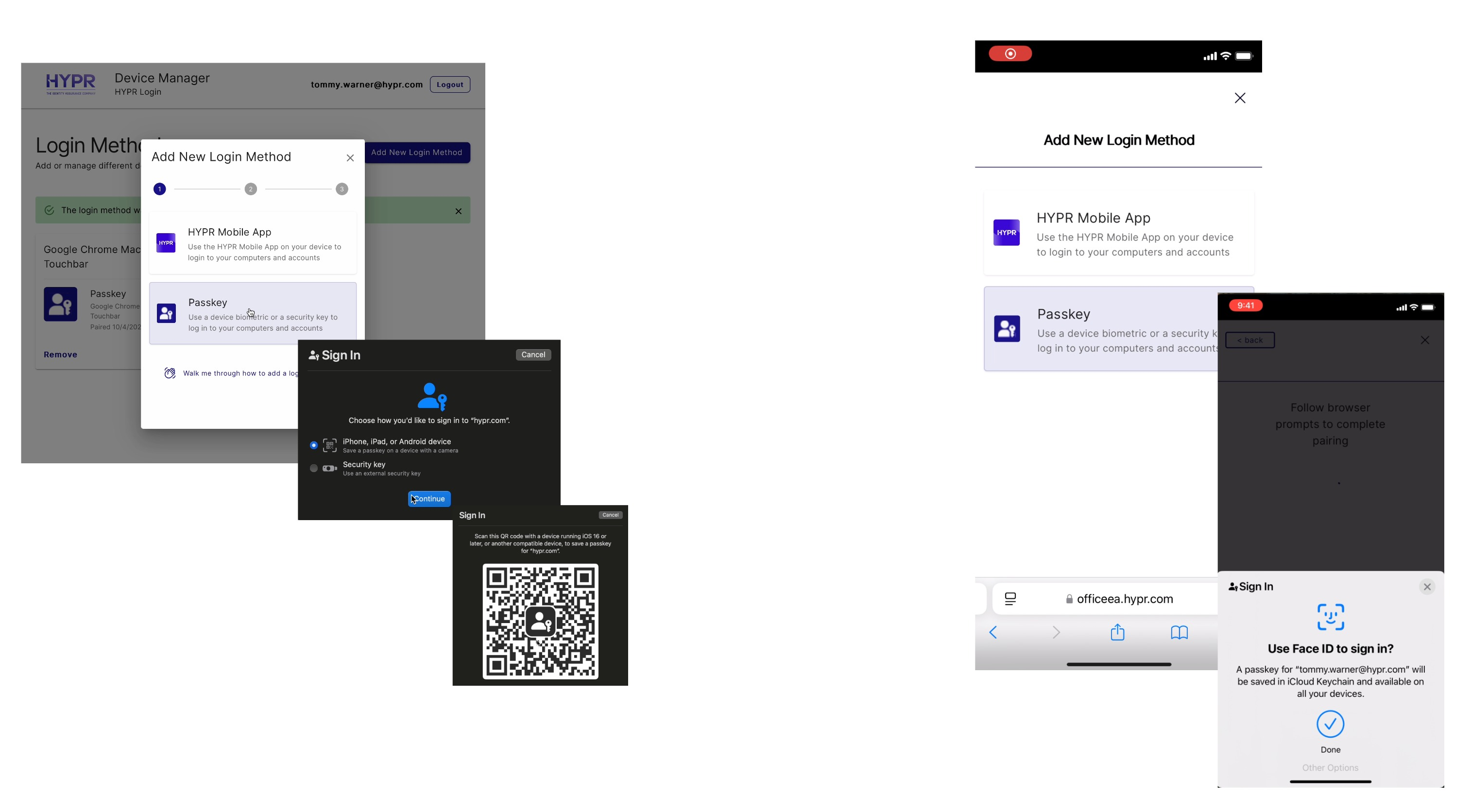
From a Web Application
Some companies set up passwordless login through a web portal:
- Visit your company's login portal in a web browser
- Look for an option to "Add New Login Method" or "Set Up Passwordless"
- Select HYPR One™ Mobile App
- Scan the QR code that appears with your phone
- Complete the pairing process
After Identity Verification (HYPR Affirm)
If your company uses HYPR Affirm for identity verification:
- Complete your identity verification process
- At the end, you'll see a button like "Register HYPR App" or "Set Up Passwordless"
- Tap the button to start the pairing process
- Follow the on-screen instructions
Common Questions
What If I Lose My Phone?
Contact your IT support team immediately. They can help you:
- Remove the lost device from your account
- Set up passwordless login on a new device
- Temporarily restore password access if needed
Can I Use This on Multiple Computers?
Yes! You can pair your phone with multiple work computers. Each computer will appear in your HYPR One™ app under "My Computers."
What If Pairing Doesn't Work?
Try these troubleshooting steps:
- Check your phone's camera permissions - Make sure HYPR One™ can use your camera
- Enable Bluetooth - Some setups require Bluetooth to be on
- Check your internet connection - Both devices need to be online
- Restart both devices - Sometimes a simple restart fixes connection issues
- Make sure you're using the latest app version - Update HYPR One™ from your app store
Contact your IT support team. They can help troubleshoot specific issues with your setup.
Security Tips
- Keep your phone secure - Use a screen lock and enable biometrics
- Don't share your phone - Your phone is now a security key for your work account
- Report lost devices immediately - Contact IT support right away if your phone is lost or stolen
- Keep the app updated - Regular updates include security improvements
Need More Help?
- Contact your IT support team - They can help with setup and troubleshooting
- Check your company's internal documentation - Your organization may have specific instructions
- Visit HYPR Support - support.hypr.com
If you're looking for technical setup and configuration information, see the Enterprise Passkey and HYPR Passkey Setup Guide for administrator documentation. For technical implementation details of the HYPR Passkey end user experience, see the Enterprise Passkey User Experience Guide.