Using HYPR Passkeys in Okta Environments
This guide demonstrates how enterprises can use HYPR Passkeys in Okta environments as an alternative authentication method that does not require dynamic links or QR codes. This solution is ideal for organizations where dynamic link-based authentication may be problematic or unreliable.
Overview
HYPR Passkeys provide a native passkey authentication solution for Okta environments that eliminates the need for dynamic links or QR codes. This is particularly valuable for enterprises where dynamic link-based authentication may be problematic or unreliable.
When users have existing registrations (such as web account pairings or workstation pairings) in the HYPR app, you can add passkey login as an additional authentication option. This provides two distinct login flows:
- HYPR Mobile App Flow: Users select the HYPR Mobile App option, which opens the HYPR app and uses dynamic links (HYPRLinks) for authentication
- Passkey Flow: Users select the Passkey option, which uses native passkey authentication directly in the browser without dynamic links or app switching
The passkey flow offers several key advantages:
- No Dynamic Links Required: Authentication does not rely on HYPRLinks or dynamic links, eliminating potential connectivity issues
- No QR Codes: Native browser-based authentication removes the need for QR code scanning
- Native Authentication Experience: Users authenticate directly in the browser using their device's native passkey system
- No App Switching: Eliminates the need to switch between browser and mobile app during authentication
- Faster Authentication: Streamlined process reduces login time
Prerequisites
Before deploying HYPR Passkeys in your Okta environment, ensure you have:
Enterprise Okta Environment
- Okta tenant configured and operational
- Okta application configured for passwordless authentication
- HYPR Control Center™ configured with your Okta application
- Users already have existing registrations in the HYPR app (web account pairings, workstation pairings, or both)
HYPR Passkey Configuration
- Enterprise Passkey and HYPR Passkey setup completed (see Enterprise Passkey and HYPR Passkey Setup Guide)
- HYPR Credential Provider enabled on user mobile devices (see Enterprise Passkey User Experience Guide)
- HYPR One™ mobile app installed on user devices (version 10.7 or later)
Technical Requirements
- HYPR 10.7 or later
- Mobile devices with iOS or Android supporting native passkeys
- HYPR Credential Provider enabled in device settings
- Browser support for native passkeys (Chrome, Safari, Edge, Firefox with passkey support)
When to Use HYPR Passkeys in Okta
HYPR Passkeys are ideal for enterprises with Okta environments in the following scenarios:
Environments with Dynamic Link Restrictions
If your organization experiences issues with dynamic links (HYPRLinks) or QR codes in your Okta authentication flow, HYPR Passkeys provide a reliable alternative that does not require these technologies.
Existing Registrations
Users who already have existing registrations in the HYPR app (web account pairings, workstation pairings, or both) can add passkey login as an additional authentication method without disrupting their current setup.
Native Browser Authentication
Organizations seeking a native browser-based authentication experience that eliminates app switching and provides seamless integration with the browser's passkey system.
Adding Passkey Login Method
For End Users
To add passkey login as an additional authentication method:
-
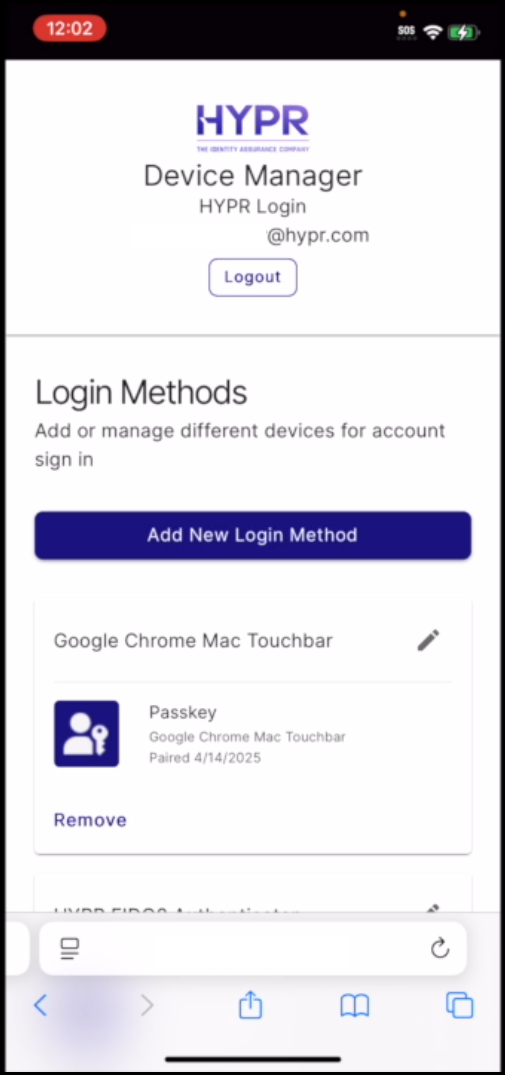
Sign in and navigate to HYPR Device Manager
-
Navigate to Login Methods
-
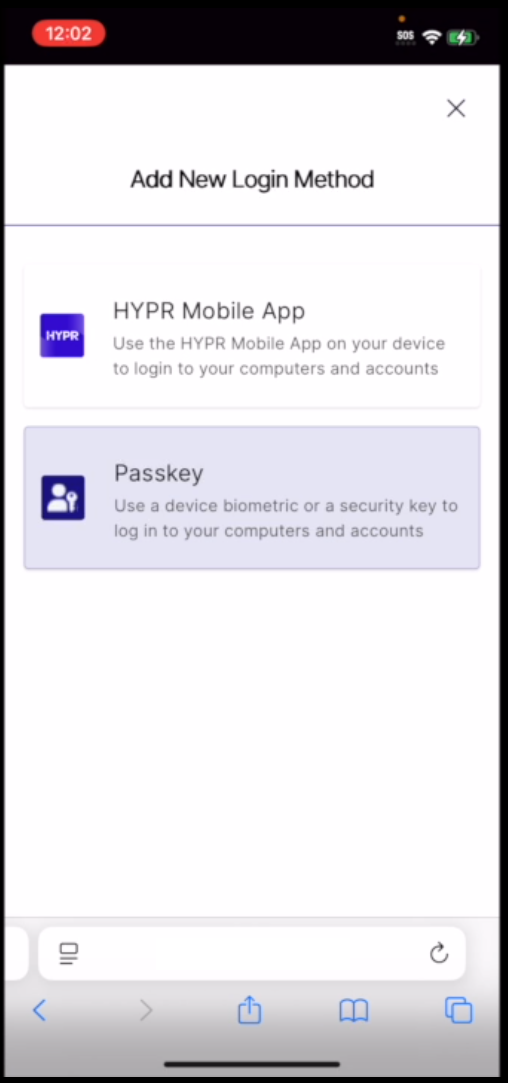
Select Add New Login Method
-
Choose Passkey as the login method type
-
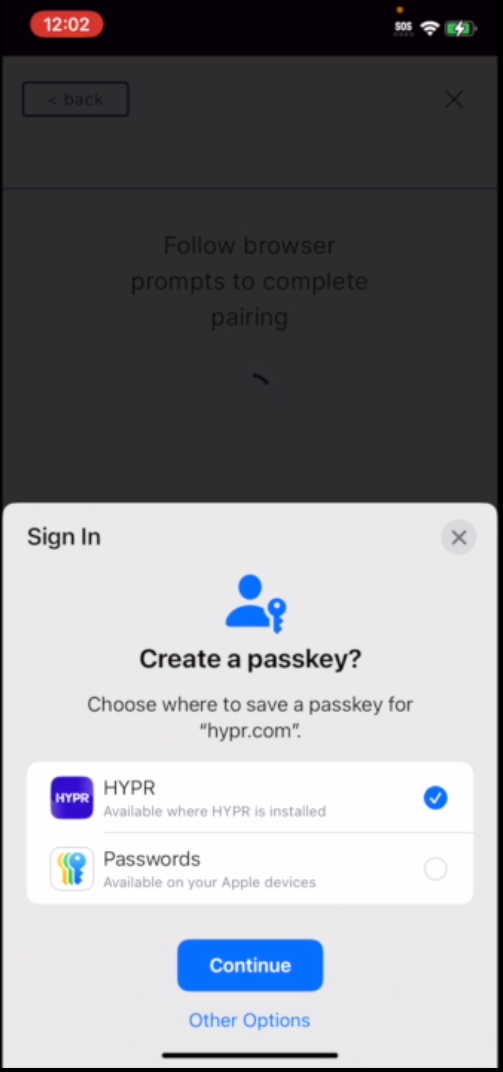
When prompted, ensure HYPR Credential Provider is enabled and selected on your mobile device
-
Select Continue to proceed with passkey creation
-
Complete the passkey pairing process using your device's biometric authentication
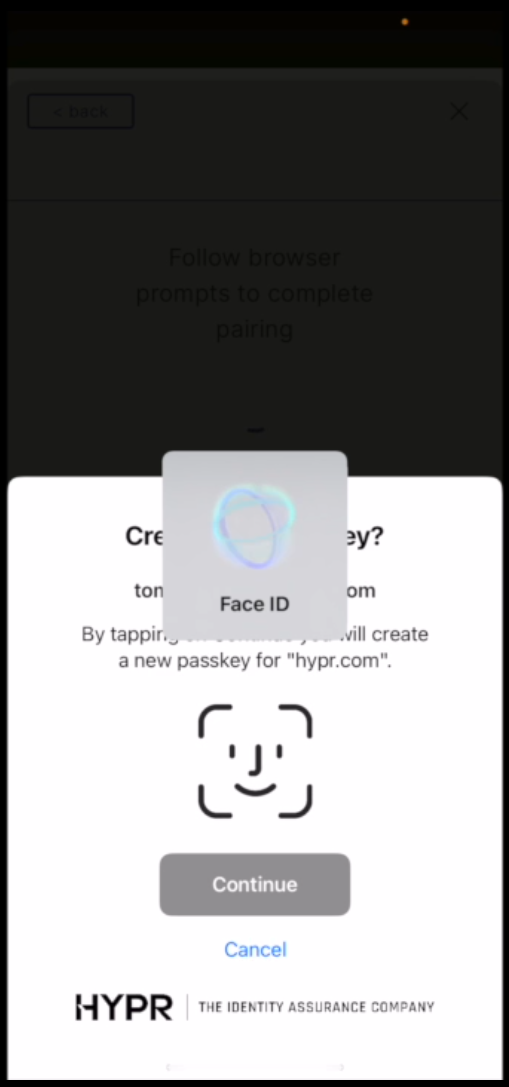
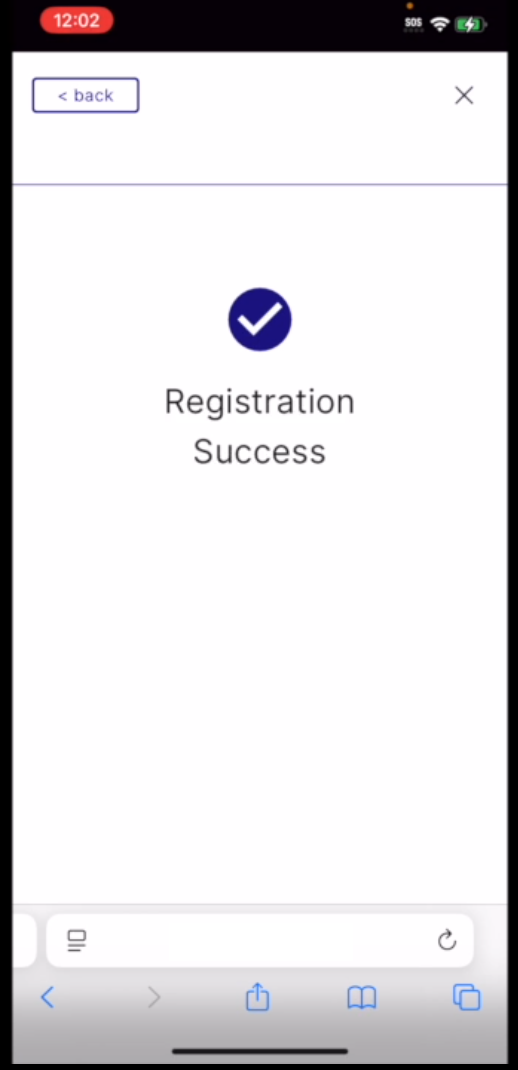
Once the passkey is created, it appears in your HYPR app under My Passkeys alongside your existing registrations (web accounts and workstations).
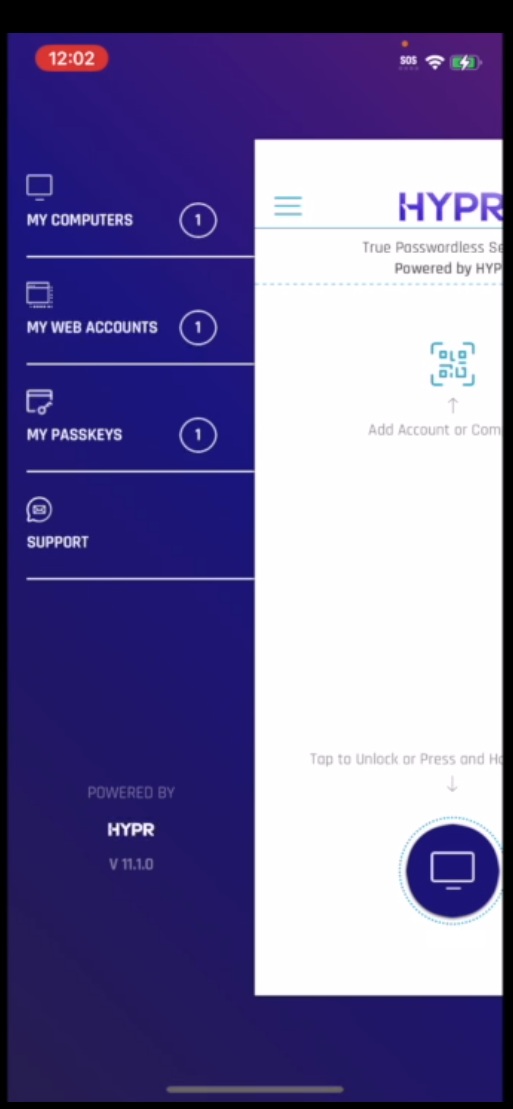
You can have multiple login methods active simultaneously. Your existing HYPR Mobile App registration and your new passkey registration will both be available for authentication.
Authentication Flow Comparison
HYPR Mobile App Flow (Dynamic Link-Based)
When users select the HYPR Mobile App option during Okta login:
- User enters their username in Okta
- User selects HYPR Mobile App as the authentication method
- A dynamic link (HYPRLink) is generated and displayed
- User opens the HYPR mobile app (either automatically or manually)
- Authentication completes in the HYPR app
- User returns to the browser and is signed in to Okta
Considerations:
- Requires dynamic links (HYPRLinks) to function
- Requires switching between browser and mobile app
- May be problematic in environments where dynamic links are restricted or unreliable
- Requires the HYPR app to be installed and accessible
HYPR Passkey Flow (No Dynamic Links)
When users select the Passkey option during Okta login:
- User enters their username in Okta
- User selects Passkey as the authentication method
- HYPR Passkey provider appears in the native browser passkey prompt
- User authenticates using Face ID or Touch ID directly in the browser
- User is signed in to Okta immediately
Key Advantages:
- No Dynamic Links: Authentication does not require HYPRLinks or dynamic links at all
- No QR Codes: Native browser-based authentication eliminates QR code scanning
- Native Authentication: Users authenticate directly in the browser using their device's native passkey system
- No App Switching: Entire authentication process happens in the browser
- More Reliable: Eliminates dependencies on dynamic link infrastructure
- Faster: Streamlined authentication process
Benefits for Enterprise Okta Environments and Users
Eliminates Dynamic Link Dependencies
- No HYPRLinks Required: Passkey authentication does not rely on dynamic links (HYPRLinks) at all
- No QR Codes: Native browser-based authentication removes the need for QR code scanning
- More Reliable: Eliminates potential connectivity issues with dynamic link infrastructure
- Reduced Dependencies: Fewer moving parts in the authentication flow
Improved User Experience
- Native Authentication: Users authenticate directly in the browser using their device's native passkey system
- No App Switching: Eliminates the need to switch between browser and mobile app during authentication
- Faster Login: Streamlined authentication process reduces login time
- Seamless Integration: Works with the browser's native passkey system
Enterprise Flexibility
- Multiple Options: Users can choose between HYPR Mobile App (dynamic link-based) and Passkey authentication methods
- Coexistence: Passkey login works alongside existing registrations without replacing them
- Easy Addition: Passkey can be added to existing accounts without disrupting current authentication methods
- Backward Compatible: Existing HYPR Mobile App registrations continue to work
Troubleshooting
Passkey Option Not Available
If the passkey option is not available:
- Ensure HYPR Credential Provider is enabled on your mobile device
- Verify you are using HYPR 10.7 or later
- Check that your mobile device supports native passkeys (iOS 16+ or Android with passkey support)
- Confirm that passkey login is enabled in your Okta application configuration
Passkey Creation Fails
If passkey creation fails:
- Verify HYPR Credential Provider is enabled in your device settings
- Ensure you have an active internet connection
- Try removing and re-adding the passkey
- Contact your IT administrator if issues persist
Passkey Not Appearing in Browser
If the HYPR Passkey provider does not appear in the browser prompt:
- Ensure HYPR Credential Provider is enabled and set as the preferred passkey provider
- Check that you have completed the passkey registration process
- Verify your browser supports native passkeys
- Try clearing browser cache and cookies and try again
Related Documentation
- Enterprise Passkey and HYPR Passkey Setup Guide - Complete administrator setup guide for Enterprise Passkey and HYPR Passkey
- Enterprise Passkey User Experience Guide - Detailed user experience workflows and technical implementation
- End User Guide: Setting Up Passwordless Login - User-friendly guide with step-by-step instructions for all passwordless login flows
- Setting up a HYPR Passkey - Step-by-step instructions for setting up HYPR Passkeys
Support
For additional assistance with adding passkey login to Okta:
- HYPR Support: support@hypr.com
- HYPR Support Portal: support.hypr.com
This guide provides the foundation for using HYPR Passkeys in your Okta environment as an alternative to dynamic link-based authentication. Follow the steps above and refer to the related documentation for detailed implementation guidance.