FIDO2 Authenticators Granular Control (UI)
Before managing FIDO2 authenticator policies in the UI, ensure that:
- FIDO2 Settings are properly configured and enabled for your application
- You have Admin or App Manager role permissions
- You are familiar with the FIDO2 Authenticators Granular Control API
Manage which authenticators users can register and authenticate with using AAGUID policies. Create either an allowlist (permit specific authenticators) or denylist (block specific authenticators), but not both.
Accessing FIDO2 Authenticator Policies
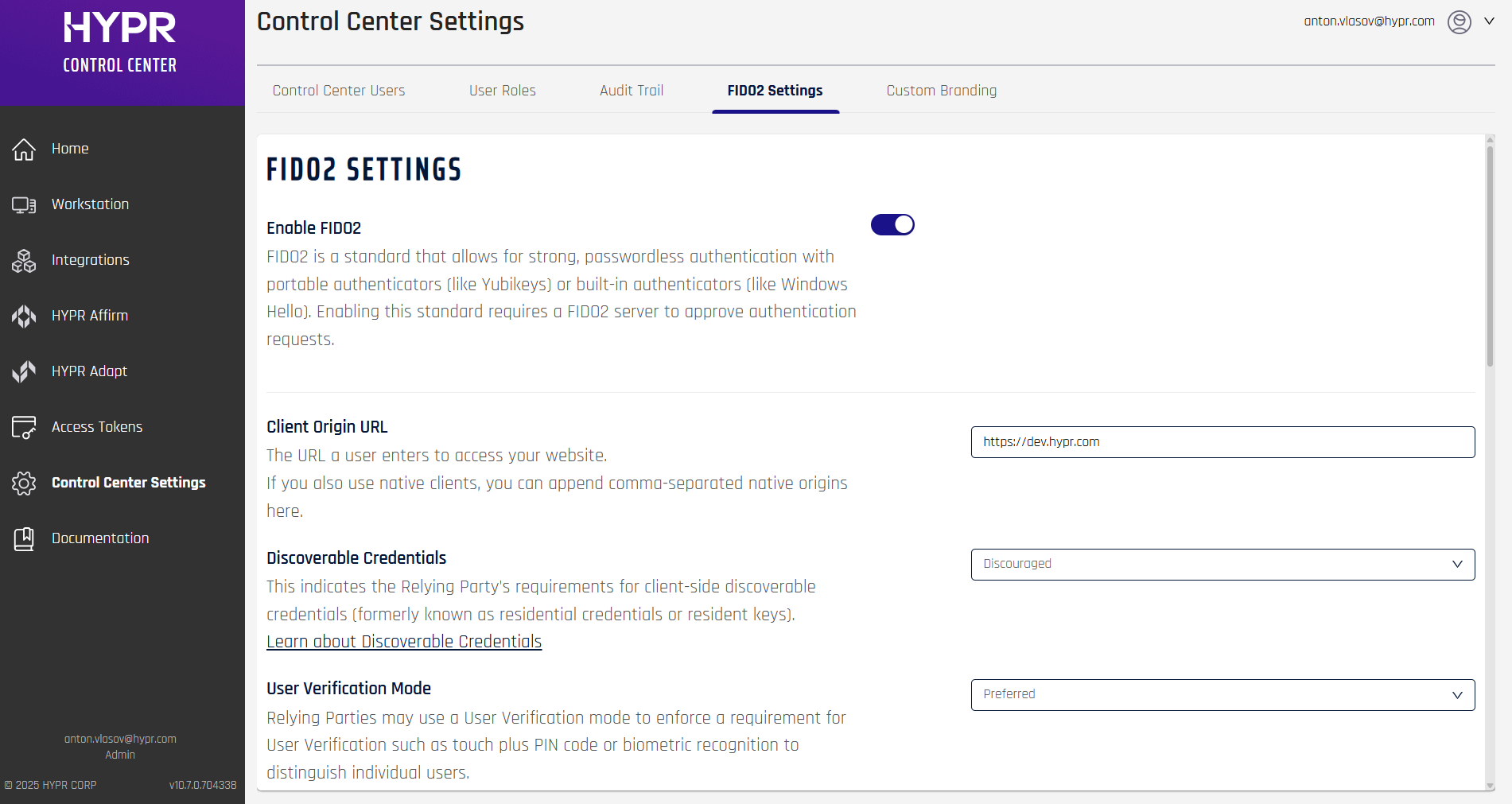
- Navigate to Control Center Settings in the left menu pane in Control Center
- Select the FIDO2 Settings tab
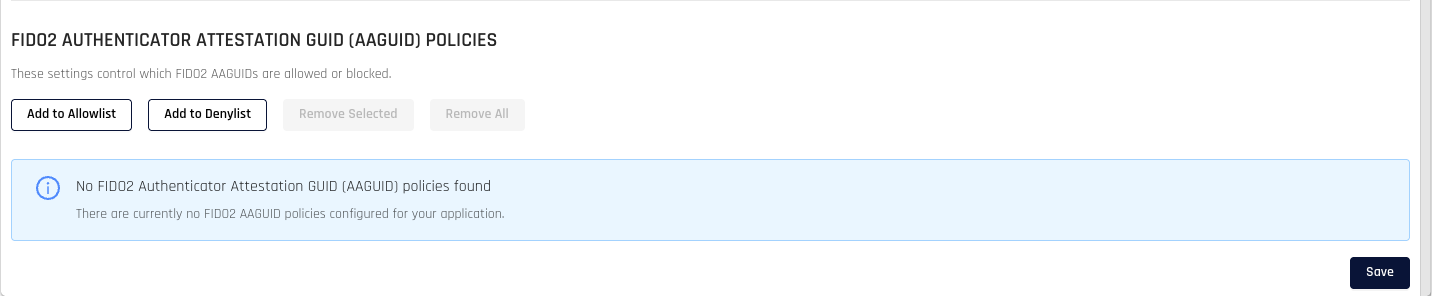
- Scroll down to the FIDO2 Authenticator Attestation GUID (AAGUID) Policies section
This section appears below the standard FIDO2 configuration options and includes four action buttons and a table displaying current policies.
Understanding AAGUIDs
An AAGUID uniquely identifies a FIDO2 authenticator model (e.g., YubiKey 5, Windows Hello, TouchID) in standard UUID format: 00000000-0000-0000-0000-000000000000
Policy Types: Allowlist vs Denylist
Allowlist (Recommended)
Only specified authenticators can be used; all others are blocked.
Use Cases:
- Require specific hardware authenticators
- Meet compliance requirements for approved devices
- Standardize on specific authenticator models
Denylist
All authenticators are permitted except those specifically blocked.
Use Cases:
- Block problematic or vulnerable authenticators
- Prevent consumer-grade authenticators in enterprise settings
- Temporarily block specific models
You cannot have both policy types active simultaneously; creating one type disables the other.
Managing Authenticator Policies
Adding Authenticators
-
Click Add to Allowlist or Add to Denylist
-
The modal opens with two panels:
- Left panel: Available authenticators from FIDO2 Metadata Service
- Right panel: Selected authenticators
-
Search and select authenticators from the left panel
-
Review selections in the right panel
-
Click Add to Allowlist/Denylist to save
To block an authenticator not in the metadata service, enter its AAGUID in format 00000000-0000-0000-0000-000000000000 and click Submit.
Viewing Current Policies
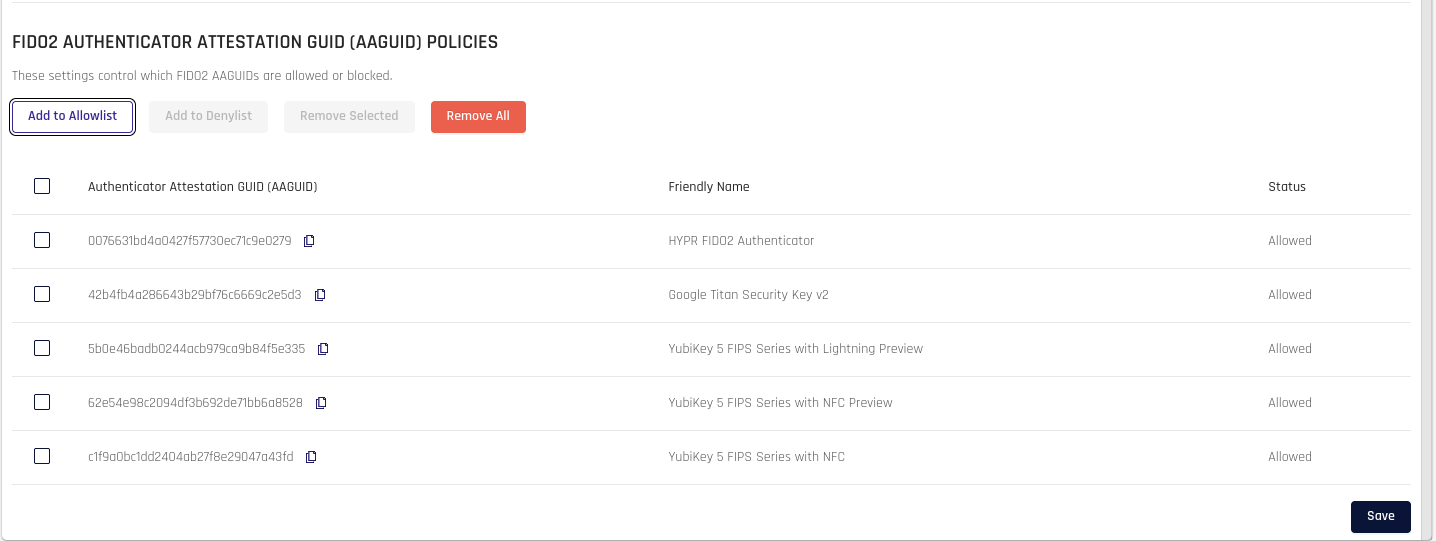
The policies table displays AAGUID, friendly name, and status (Allowed/Blocked). Click rows to select them for bulk operations.
Removing Authenticators
Select authenticators in the table and click Remove Selected to remove them from your policy.
Removing All Policies
Click Remove All and confirm to clear all policies and return to default (all authenticators permitted).
Policy Status
- No policies: All authenticators permitted (default)
- Allowlist active: Only listed authenticators allowed (green status)
- Denylist active: Listed authenticators blocked (red status)
Saving Changes
Click Save at the bottom of the FIDO2 Settings page to apply changes. Policy changes take effect immediately.
Related Information
- FIDO2 Settings - Configure basic FIDO2 settings
- FIDO2 Authenticators Granular Control API - Programmatic policy management
- FIDO2 Error Codes - Troubleshooting FIDO2 errors
- Audit Trail Events - Track policy changes
- FIDO Alliance Metadata Service - FIDO2 authenticator metadata