Enterprise Passkey Settings
Enterprise Passkey Settings can be configured from more than one mode in Control Center:
- In Standard Mode: Workstation under the Workstation Settings tab
- In Standard Mode: Integrations under the Login Settings tab
- In Advanced Mode: Advanced Config: FIDO2 Settings for the Application selected under Choose an App
HYPR's generic Enterprise Passkey allows the freedom of passkeys thorugh any identity provider integration. If you do not see HYPR's generic Enterprise Passkey Settings in your Control Center and want to enable this feature, contact HYPR Support.
Use Cases
HYPR Enterprise Passkey is avialable in the following scenarios:
-
Workstation authentication:
- Entra joined devices
- Entra hybrid joined devices
-
Web authentication:
- Entra joined devices
- Entra hybrid joined devices
- Active Directory joined devices
- BYOD (non-joined) devices
-
Different account types, according to the device join type:
- Entra ID cloud-only accounts
- Hybrid accounts
- On-premises accounts
- Local accounts
Enable the Enterprise Passkey
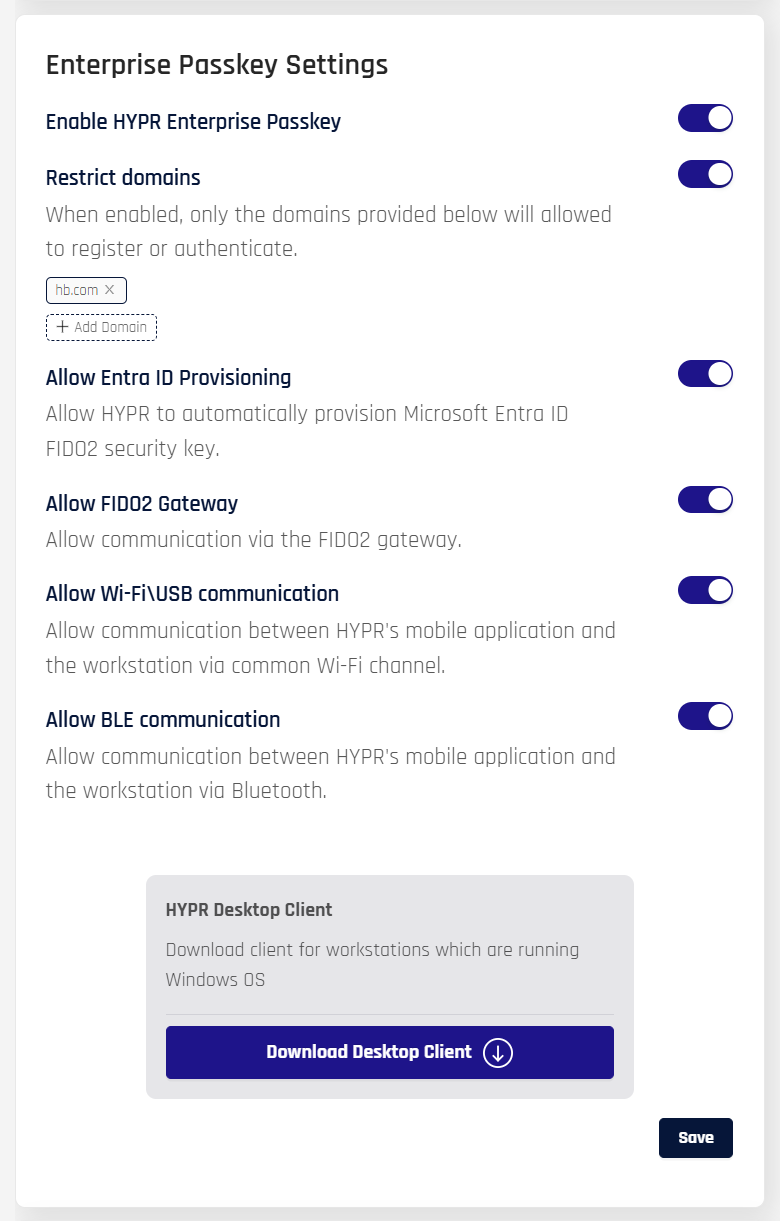
In any of the locations where Enterprise Passkey Settings appear, toggle the switch next to Enable HYPR Enterprise Passkey to turn it on. In Advanced Mode for an RP application and in Standard Mode for Integrations, this will apply to the individual RP application; In Standard Mode: Workstation Settings this will affect default RP application behavior (HYPRDefaultWorkstationApplication).
Configure HYPR Enterprise Passkey
Enterprise Passkey registration can begin from HYPR Passwordless for Windows or from web/mobile (for example, via Magic Links to Device Manager or dynamic links that open the HYPR app). Any successful registration on an Enterprise Passkey integration provisions a FIDO2 passkey into Entra ID that can then be used for web, mobile and workstation authentication.
Restrict Domains
To enable a list of allowed domains where a user can register and authenticate:
-
Toggle the switch next to Restrict domains.
-
Add domains by clicking the dotted bubble labeled + Add Domain. When clicked, this box will become a text field. Enter the URL of the allowed domain and press Enter to save the URL. Add as many as you need; affected users will only have Enterprise Passkey authentication for the listed domains.
-
To disable domains that are in the list, click the x next to the domain name you want to remove.
HYPR Desktop Client
Click 'Download Desktop Client' to obtain a local copy of the HYPR Passwordless Client for Windows that is ready to work with this configuration of HYPR Enterprise Passkey.
FIDO2 Security Key Provisioning for Entra ID
FIDO2 Security Key Provisioning for Entra ID is currently in Preview status and is available for Entra-joined devices in HYPR 10.7.0 and later.
FIDO2 Security Key Provisioning for Entra ID enables users to pair physical FIDO2 security keys and smart cards with Entra-joined workstations, allowing these devices to be used for both HYPR authentication and Microsoft Entra ID sign-in. This feature follows the same enrollment flow as X.509 certificate provisioning but provisions FIDO2 credentials instead.
How It Works
When a user logs in with an Entra ID account on an Entra-joined or hybrid-joined workstation and security keys are enabled, the HYPR Passwordless client (WFA) detects available FIDO2 security keys and presents the option to register a security key. The provisioning process follows the same flow as X.509 certificate enrollment:
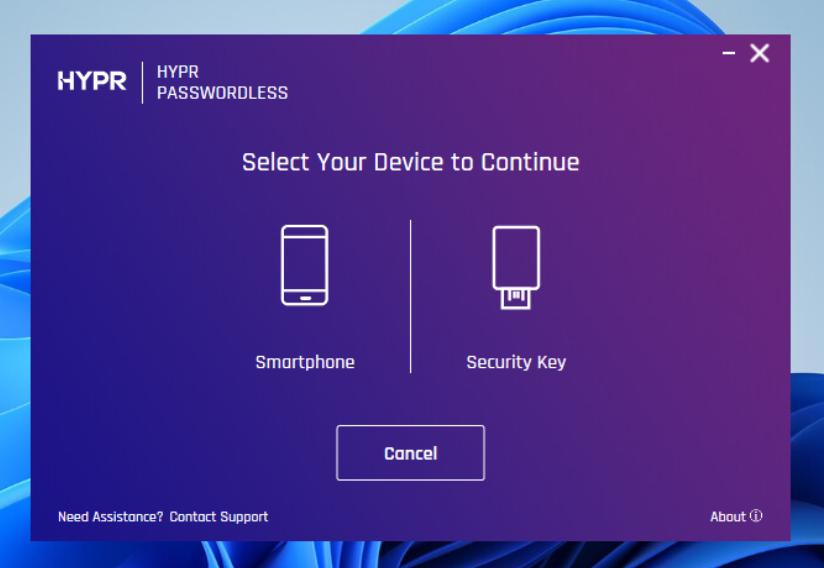
- The user selects Security Key during device pairing in the HYPR Passwordless client
- The system prompts for a PIN (same as X.509 certificate enrollment)
- Instead of enrolling an X.509 certificate with Active Directory, the system provisions a FIDO2 credential directly into Microsoft Entra ID
- The FIDO2 credential is registered and can be used for both HYPR authentication and Entra ID sign-in
The provisioning process occurs automatically in the background once initiated, with no additional UI steps required beyond the initial selection and PIN entry.
This feature provides the following capabilities for physical security keys:
- Register FIDO2 credentials: Users can register FIDO2 credentials on security keys directly into Entra ID through the HYPR Passwordless client
- Manage PINs: Users can change existing PINs on security keys
- Manage fingerprints: For biometric security keys (such as YubiKey Bio), users can manage fingerprint enrollment
- Unpair and delete credentials: Users can unpair security keys and delete FIDO2 credentials when no longer needed
Once provisioned, the security key can be used for:
- Workstation unlock and login on Entra-joined devices
- Web portal authentication via web and mobile browsers
- Native app authentication on desktop and mobile devices
Prerequisites and Requirements
Supported Devices:
-
Windows 10 and Windows 11 workstations
Windows Version RequirementsWindows version support requirements have been updated in HYPR 10.7.0. For the minimum supported Windows versions and other platform requirements, see Supported Platforms.
-
Entra-joined devices (cloud-only)
-
Hybrid domain-joined devices
Supported User Account Types:
- Entra ID cloud-only accounts
- Hybrid user accounts (synced from on-premises Active Directory)
Supported Security Keys and Smart Cards:
- YubiKey 5 Series (non-Bio and Bio variants)
- YubiKey C Bio
- Feitian security keys
- IDEMIA smart cards
- HID Crescendo 4000 smart cards
Required RP App Feature Flags in Control Center:
The following feature flags must be enabled for each Enterprise Passkey RP app used by the HYPR Passwordless client:
AZURE_PROVISION_APIENDPOINT_API_SECURITY_TOKEN_DEVICEENDPOINT_API_SECURITY_TOKEN_WORKSTATIONFIDO2_MOBILE_AUTHENTICATORFIDO2_MOBILE_3PPP_ENABLEDANDROID_BIOMETRIC_PROMPT_SECURITYRP_APP_WORKSTATION_ENABLED
Additional Feature Flags (Optional):
VIRTUAL_DESKTOP_INFRASTRUCTURE— Optional - Enable (checked) for this RP app if you want roaming logins to be enabled
In Control Center, "global" and application-specific feature flags are managed using the same screen and interface. "Global" refers to feature flags that must be enabled for all applications by ticking the higher-level checkbox. Application-specific flags should be enabled on an application-by-application basis (i.e., tick them only for your app and not globally).
Tenant Requirements:
- HYPR tenant with V2 architecture
- rpApp type must be configured for Entra ID integration
- Microsoft Entra ID tenant with appropriate licensing
How It Differs from Regular Flow
The FIDO2 Security Key Provisioning flow differs from the standard X.509 certificate enrollment flow in the following ways:
- Credential Type: Provisions FIDO2 credentials instead of X.509 certificates
- Target System: Credentials are provisioned directly into Microsoft Entra ID rather than Active Directory
- Use Cases: The provisioned security key can be used for both HYPR authentication and native Entra ID sign-in, providing a unified authentication experience
- Account Types: Works with Entra ID cloud-only accounts and hybrid accounts, whereas traditional X.509 enrollment typically requires on-premises Active Directory
The user experience remains similar to X.509 certificate enrollment, with the same PIN prompts and device detection, but the underlying credential provisioning targets Entra ID instead of Active Directory.
Administrators can view and manage Entra ID-provisioned security keys through the Control Center User Management interface. Click Control Center Settings in the main menu pane on the left in Control Center and navigate to Control Center Users. Click the drop-down arrow next to a user's name to view their registered security keys, including those provisioned into Entra ID.
Disable the Enterprise Passkey
To turn off HYPR Enterprise Passkey capabilities:
-
Toggle the Enable HYPR Enterprise Passkey switch to the Off position.
-
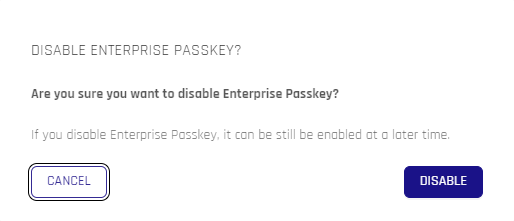
Confirm your decision by clicking DISABLE.