HYPR Affirm: Overview
Introduction
HYPR Affirm is an automated identity verification (IdV) solution designed to ensure that employees and customers are who they claim to be at all times. It provides fast, secure, and passwordless verification for onboarding, account recovery, and other critical verification flows.
Key Features
- Prevents identity fraud using advanced verification technologies
- Streamlines and automates identity verification, reducing administrative overhead
- Enables continuous identity proofing and re-verification throughout the user lifecycle
- Affirm Studio (Screen Management): Customize content and branding for all verification screens - see Configuring End User Screen Management and Affirm Studio
- Content Customization API: Programmatic control over screen content and user experience - see Affirm Content Customization API
- Injectable Outcomes & Retry Limits: Configure step-level outcomes and retry limits for verification steps - see Configuring Injectable Outcomes & Retry Limits
- Photo and Liveness Detection Enhancements: Auto capture and real-time feedback for improved document verification - see Photo and Liveness Detection section below
- KYC Compliance Checks: AML, OFAC, and watchlist screening for regulatory compliance - see KYC Compliance Checks section below
- Supports secure and accurate verification methods, including:
- Document verification (e.g., passports, driver's licenses)
- Facial recognition with spoof detection
- Location detection and compliance
- Chat and video verification (AI and human interaction)
- Manager attestation for added assurance
How it Works
HYPR Affirm adopts a flow model for identity verification. Users are given a URL and are guided through a series of steps (screens), in which users are asked to present identifying information. Configuring Affirm as an administrator involves creating a verification flow by choosing which verification steps are to be included in the verification flow. Once the verification flow has been created, Affirm generates a URL to be given to the end user.
First, you assign Applications which will use HYPR Affirm. Then you choose the verification flow to check the identity of employees by one or more of the following methods:
-
Phone Number and/or SMS confirmation
-
Location data based upon IP address
-
Live chat and/or video with an assigned Approver
-
Document uploads (passport, etc.)
Then assign one or more Approvers to verify the Requester. If you are using an Identity Provider, HYPR can ascertain the individual's immediate report-to (Manager) from there. If not, Approvers can be individually assigned to the flow.
HYPR Affirm Events are logged in the Audit Trail tab; actual approvals and denials are logged in the Activity Log tab.
HYPR Affirm Settings are accessible via the Control Center left navigation menu.
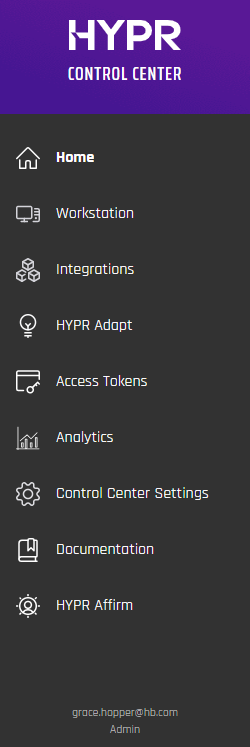
Clicking the HYPR Affirm menu link will display the following tabs, defaulting to the first:
- Verification Flow: Define the steps required by the requester to begin the Identity Verification process
- Approver Assignment: Determine who will evaluate collected IdV information
- Audit Trail: See HYPR-wide Events and related information
- Activity Log: A record of who has made requests to which approvers, and the results
Affirm Studio
Affirm Studio is the screen management interface for HYPR Affirm. It lets administrators design the content and messaging for each verification step by creating reusable “kits” of screen customizations (titles, descriptions, instructions, button labels and other copy) and applying those kits to one or more verification flows. Changes can be previewed before they are applied, ensuring that end-user screens follow corporate branding and communication guidelines across the entire workflow. See Configuring End User Screen Management and Affirm Studio for details.
Verification Steps
Affirm offers the following verification steps:
| Name | Description |
|---|---|
| Login Identifier | Initiates the HYPR Affirm IdV process. This option will always display Required. |
| Escalate to Live Chat | If toggled On and the requester fails the IdV flow checks, the requester is placed into a video and chat session with the approver. |
| Phone Number Verification | SMS Code requires the requester to enter an SMS code sent to a phone number or email address. |
| Location | A location based upon the requester's IP address will be displayed to the approver. |
| Identity Verification via Verified Credentials | [Preview] Allows users to present Microsoft Entra Verified ID credentials stored in Microsoft Authenticator as a verification step. Users scan a QR code or use a deep link to present their credential, which is validated for claims, issuer trust, and expiration. |
| Document and Biometric Verification | This step involves presenting a document (such as passport or driver's license) that gets compared against the identity data from HR. It may optionally include a liveness check. |
| Photo ID and Liveness Capture | Requires upload of a valid photo ID and a subsequent real-time selfie, both of which will be compared to each other to verify a match. This step does not inspect identity data and only concerns image comparison to mitigate risks of deepfakes. |
| Approver Chat and Video | Opens a chat window between the approver (often a manager) and the requester. |
| Attestation | Required in order for the verification flow to issue an Outcome. An approver must review the request before the Outcome is issued. The approver is either a person or HYPR automated approval. HYPR automated approval calculates approval based on the results of the previous steps. |
| Verified Outcome | What to do after the verification succeeds. |
| Unverified Outcome | What to do after the verification fails. |
Details for each of these steps can be found on the HYPR documentation website. See Administering HYPR Affirm for more information.
Pre-configured Verification Flows
To accelerate verification flow creation, Affirm offers several canned verification flows based on business use case and desired friction level:
- Onboarding: for new hire scenarios
- Recovery Flow: for credential recovery
- CC Admin: for onboarding HYPR Control Center admin accounts
For each scenario, you may choose a friction level, which refers to the number of verification steps needed to complete the verification flow. There are six levels of friction:
- Highest
- High
- Medium
- Low
- Lowest
- None (no verification steps are pre-selected)
See Reference: Friction Levels and Feature Flags for which verification steps are included in each friction level.
Application Assignment
Some verification scenarios require you to have configured an integration with an Identity Provider (IDP) elsewhere in the HYPR Control Center. IDP integrations allow HYPR to be used as a passwordless authentication mechanism to the IDP. Each IDP integration has an associated application name, often referred to as relying party application (or rpAppId). You will need to have an IDP integration for the following scenarios:
- The selected Verified Outcome is Redirect to Device Manager to register a new login method
- Document and Biometric Verification has been selected as a verification step AND you are not using an Advanced Customization to retrieve identity data from an external data source
If one of those two scenarios applies, then you will select the application during the configuration of the Affirm verification flow.
See Integrations for more information on creating an integration.
Advanced Settings
HYPR Affirm provides two types of advanced settings for flexible business scenarios:
-
Customizations – Custom code that overrides default behavior in key parts of the verification flow. For example, you can pull identity data from an external system rather than an IDP integration by writing JavaScript code to retrieve that data as part of the IdV flow.
Types of customizations include:
- User Directory: Specify the user info source.
- SMS: Send and verify SMS codes via a custom REST call instead of HYPR's SMS service.
- Email: Send emails through a custom REST call instead of HYPR's SMTP servers.
- Outcome: Customize how outcomes are computed or handled when specific verification steps succeed or fail.
See Customizations for more details on customizations.
-
OIDC Settings – Set up Affirm as an OIDC relying party. These settings can trigger OIDC authentication for the requester or approver at specific points in the flow. Currently, these are assignable via the HYPR Affirm API.
- For the requester: Forces OIDC authentication at a specified part of the flow.
- For the approver: Forces OIDC authentication before entering a verification flow to which they were invited via email or SMS.
Deployment and Configuration
A successful Affirm deployment requires careful preparation and configuration. Use the following checklist to ensure a smooth rollout:
- Identify the Affirm verification flow steps that align with your business requirements
- Determine the desired outcomes for successful and unsuccessful flows
- Ensure you have access to the HYPR Control Center
- Request the HYPR deployment team to enable the relevant functionality in your HYPR Control Center (see Feature Flags below)
- Configure your IDP integration or external data source
- Configure your verification flow
Configuration Tips:
- Understand possible failure modes for document and data validation (e.g., data comparison, image integrity, visual authenticity, data consistency, age validation, etc.)
- Add directory sources and ensure required user attributes (username, email, phone, etc.) are available for your flows
- For Entra or Okta integrations, follow the HYPR documentation for setup steps:
See Deployment Overview for more details.
Friction Levels and Feature Flags
Affirm offers several pre-configured friction levels, each determining the number and type of verification steps required in a verification flow. Choose a higher friction level for sensitive verification flows (e.g., onboarding, admin access) and a lower level for routine or low-risk scenarios.
Feature flags are set by the HYPR deployment team to enable or customize Affirm functionality. Some common flags include enabling core Affirm, CC Admin onboarding, Citrix optimization, international SMS support, helpdesk support, and watchlist checks for admins.
See Reference: Friction Levels and Feature Flags for the full friction level comparison table and a list of feature flags.
Audit Trail and Activity Log
HYPR Affirm provides an Audit Trail tab for a record of events and related information for identity verification flows. The Activity Log records who has made requests, to which approvers, and the results, including granular details such as SMS send time, phone check result, IP location, document type, verification result, and approver notes.
For screenshots and more details, see Audit Trail and Activity Log.
Example Test Cases
To validate your Affirm deployment, use example test cases that cover both functional and non-functional requirements. These include verifying document upload, system behavior on interruption, time to verify, login with new password, page response time, compliance after repeated failures, and more.
For a full list of test cases, see Reference: Friction Levels and Feature Flags.
Photo and Liveness Detection
HYPR 10.3.0 includes significant improvements to Photo ID and Liveness Capture verification steps:
Auto Capture
- Automatic Detection: Automatically detects when a document is properly positioned and initiates capture without requiring manual input
- Reduced Friction: Improves speed especially for users unfamiliar with scanning documents
- Enhanced User Experience: Streamlines the document capture process
Real-Time Feedback
- Live Feedback: Provides real-time feedback to users on issues like poor lighting, glare, blurriness, or out-of-frame images
- Immediate Correction: Helps users correct conditions before submission
- Higher Success Rates: Ensures higher verification success rates by guiding users to optimal capture conditions
Motion Detection
Available in HYPR 10.5.0 as a Beta capability. Controlled by the AFFIRM_MOTION_DETECTION_ENABLED feature flag.
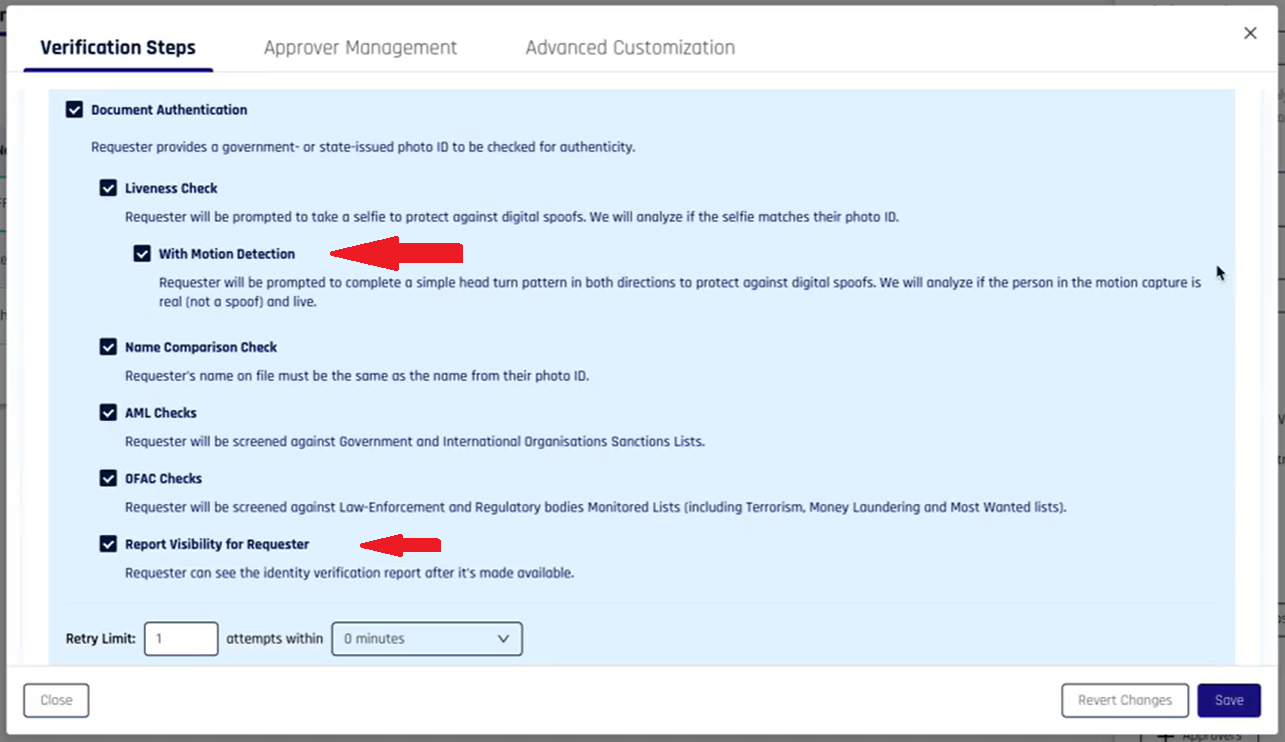
- Purpose: Adds a simple head‑turn pattern during selfie capture to harden against digital spoofs.
- Where to Enable: Verification Steps → Document and Biometric Verification → Liveness Check → enable "With Motion Detection".
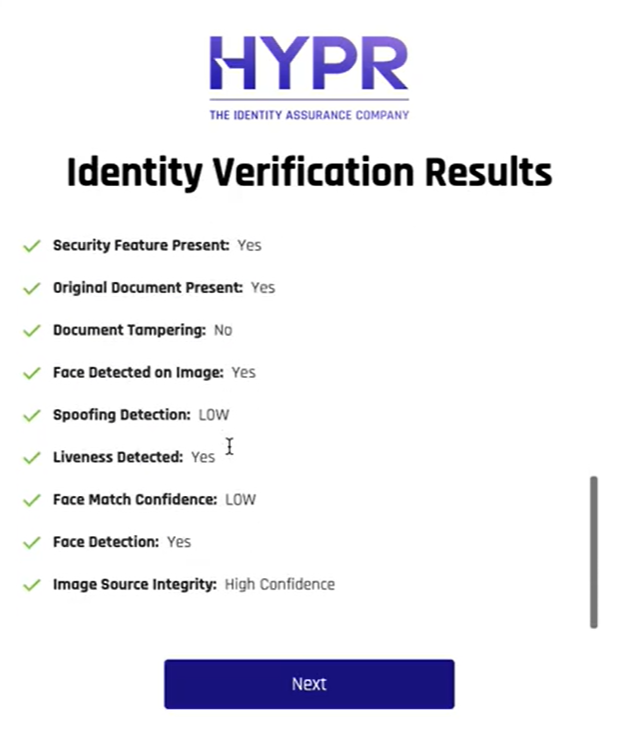
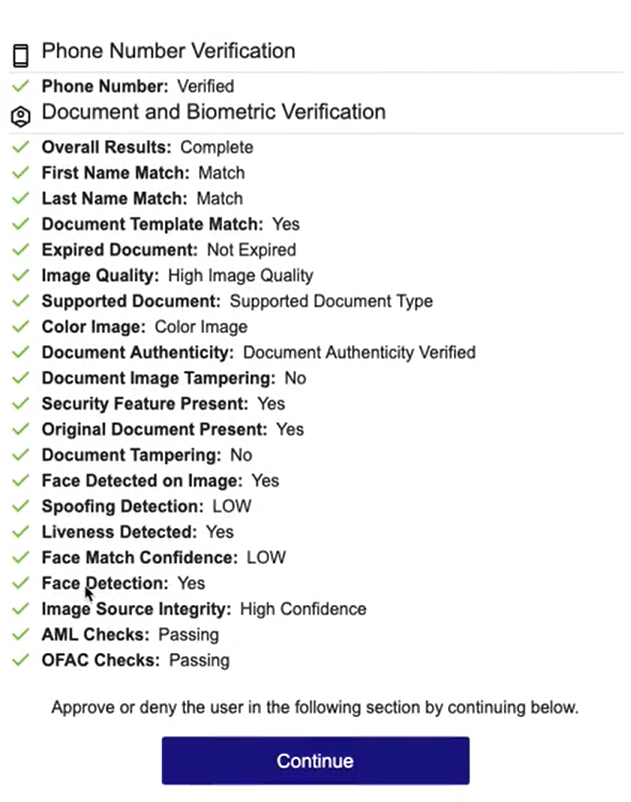
- Results Visibility: Motion/liveness outcomes surface in both the approver Review Results screen and the requester results page (requires enabling "Report Visibility for Requester" in Verification Steps; see examples below).
Motion Detection toggle in Verification Steps:
Approver Review Results (selected fields):
Requester Results (selected fields):
Injectable Outcomes Integration
Photo ID and Liveness Capture steps are fully integrated with Injectable Outcomes & Retry Limits, allowing administrators to configure:
- Retry Limits: Set appropriate retry attempts for document capture failures
- Failure Outcomes: Configure how to handle failed document verification
- Escalation Options: Set up live chat escalation for complex verification scenarios
For detailed configuration information, see Configuring Injectable Outcomes & Retry Limits.
KYC Compliance Checks
HYPR 10.3.0 introduces comprehensive KYC (Know Your Customer), AML (Anti-Money Laundering), and OFAC (Office of Foreign Assets Control) compliance checks for enhanced regulatory compliance and fraud prevention.
Compliance Check Types
Document Authentication
- Purpose: Verify authenticity of government- or state-issued photo IDs
- Process: Automated document verification using advanced authentication algorithms
- Benefit: Ensures submitted documents are genuine and not fraudulent
Liveness Check
- Purpose: Protect against digital spoofs and deepfake attacks
- Process: Requester takes a selfie that is analyzed and compared to their photo ID
- Benefit: Prevents identity fraud through biometric verification
Name Comparison Check
- Purpose: Ensure consistency between user records and submitted documents
- Process: Compare requester's name on file with the name from their photo ID
- Benefit: Validates identity consistency across verification sources
AML Checks
- Purpose: Screen against Government and International Organizations Sanctions Lists
- Process: Automated screening using Onfido's compliance data sources
- Benefit: Identifies individuals on sanctions lists before granting access
OFAC Checks
- Purpose: Screen against Law-Enforcement and Regulatory bodies Monitored Lists
- Coverage: Terrorism, Money Laundering, and Most Wanted lists
- Benefit: Ensures compliance with US and international regulatory requirements
Report Visibility for Requester
- Purpose: Allow requesters to view their identity verification report
- Process: Configurable option to show verification results to end users
- Benefit: Transparent verification process and user confidence
Configuration Options
Retry Limits
- Retry Attempts: Configure number of attempts (default: 1)
- Time Window: Set retry window in minutes (0-60 minutes in 5-minute intervals)
- Purpose: Control how many times a requester can retry failed verification steps
Failure Outcomes
- Deny Verification: Block access when compliance checks fail
- Escalate to Live Chat: Route to human approver for manual review
- Continue Workflow: Allow progression with additional monitoring
- Redirect to URL: Send to alternative verification methods
Feature Flag Configuration
The KYC compliance checks are controlled by the AFFIRM_WATCHLIST_STANDARD_ENABLED feature flag:
- Enabled: Allows Control Center administrators to configure AML and OFAC checks
- Onfido Integration: Retrieves Watchlist Standard reports from Onfido's services
- Pass/Fail Results: Appropriate checks are asserted as pass/fail for each user
Benefits
- Regulatory Compliance: Meet KYC, AML, and OFAC requirements for financial services
- Fraud Prevention: Identify high-risk individuals before granting access
- Automated Screening: Reduce manual review requirements through automated checks
- Comprehensive Monitoring: Track compliance results across all verification flows
- Cost Reduction: Eliminate need for multiple vendor integrations
Help Desk Application
Affirm includes a web-based application for Help Desk operators. Help Desk operators are required to identify users who call in for support, which often involves shared secrets like PINs or security questions. The Affirm Help Desk application increases security by reducing social engineering risk and relieving operators of the burden of managing shared secrets.
The application displays a list of recent Affirm verification flow attempts and their verification results, streamlining the support process and improving security.
Help Desk Application:
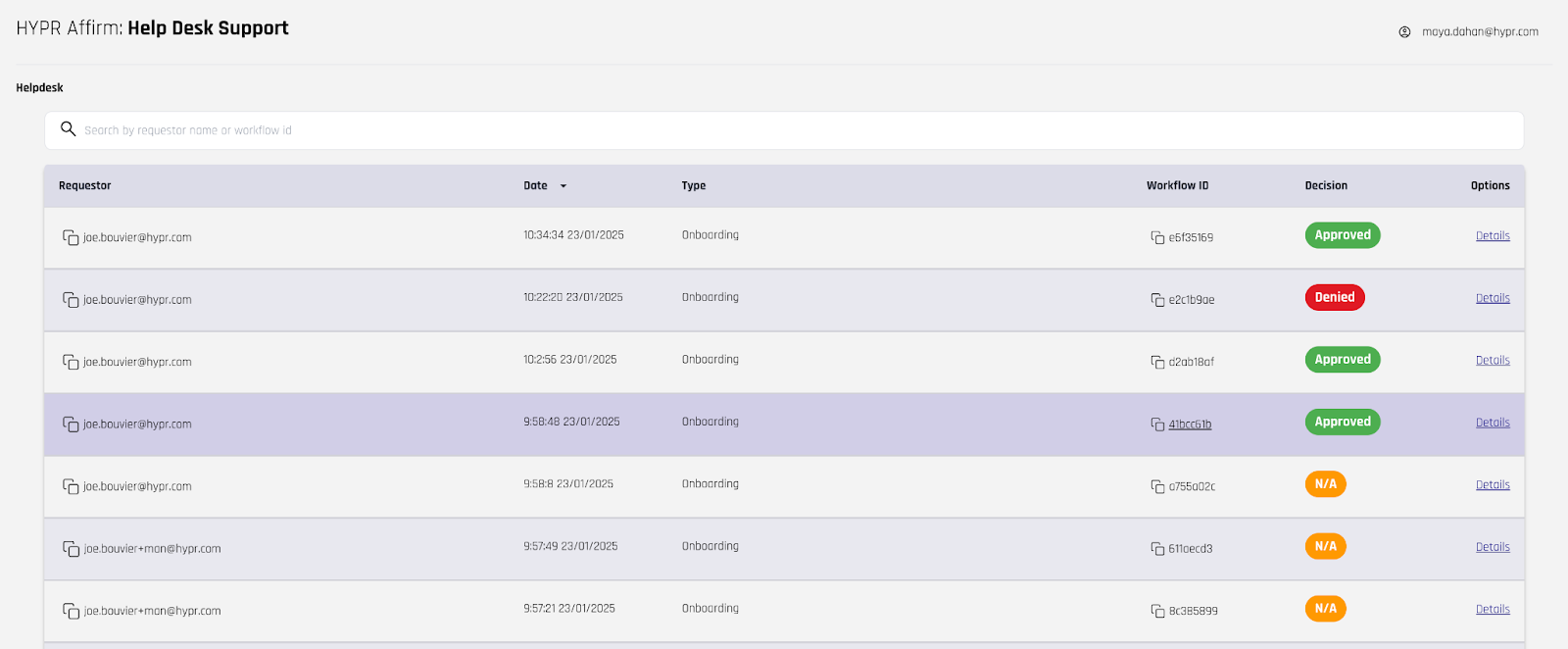
For detailed information about Affirm Help Desk, see Affirm Help Desk.
Affirm Studio
Affirm Studio is the screen management interface for HYPR Affirm. It lets administrators design the content and messaging for each verification step by creating reusable “kits” of screen customizations (titles, descriptions, instructions, button labels and other copy) and applying those kits to one or more verification flows. Changes can be previewed before they are applied, ensuring that end-user screens follow corporate branding and communication guidelines across the entire workflow. See Configuring End User Screen Management and Affirm Studio for details.
HYPR Affirm API
HYPR Affirm provides an API for advanced integration and automation. The API allows you to:
- Perform CRUD operations on verification flows and configurations
- Test HYPR Affirm IdV flows programmatically
- Assign advanced settings such as OIDC triggers and customizations
For detailed API documentation and usage examples, see the HYPR Passwordless API collection.