User Experience and Passkey Workflows
This section covers the user experience for setting up passkeys and the workflows for acquiring passkeys and linking devices.
Users can start Enterprise Passkey registration either from HYPR Passwordless for Windows or from web/mobile (for example, via Magic Links to Device Manager or dynamic links that open the HYPR app). When a user completes registration on an Enterprise Passkey integration, HYPR provisions a passkey into Entra ID that can be used for Entra‑protected web apps, mobile access and Windows workstation login.
Installing the HYPR Mobile App
Before a HYPR passkey can be set up, you need to download the HYPR Mobile App from either the App Store or Play Store and enable HYPR as the credential provider on your device.
-
Download the HYPR Mobile App
- iOS: Download from the App Store
- Android: Download from Google Play Store
- Ensure you have the current supported version
-
Enable HYPR as your credential provider, using either the in-app guided flow (recommended; see Enabling HYPR as your credential provider below) or the manual steps in your device Settings:
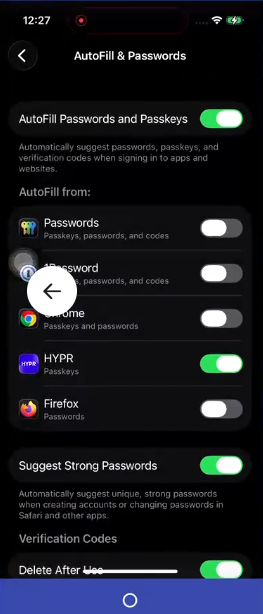
- iOS: Open Settings → General → AutoFill & Passwords and turn the HYPR toggle on. You can leave the native Passwords app enabled as well.
- Android: Open Settings → Security and privacy → Passwords, passkeys, and autofill and enable the HYPR toggle. If HYPR is not listed, select Preferred service and choose HYPR, or select Additional services and enable HYPR.
On Android, Chrome selects its passkey provider separately from the system setting, so the HYPR sheet may not appear until Chrome is pointed at it too. See Enable HYPR as your passkey provider.
The exact path to passkey provider settings varies by manufacturer and Android version. Common paths include:
- Settings → Security and privacy → Passwords, passkeys, and autofill
- Settings → Security and privacy → More security settings → Passkeys
You can also search for "passkey" in the system settings search bar to find the right screen quickly. For device-specific guidance, consult the manufacturer's help documentation.
The HYPR Mobile App must be a current supported version to use Enterprise Passkey functionality. Both iOS and Android versions are available in their respective app stores.
Enabling HYPR as your credential provider
Beginning with HYPR Mobile App 11.3, the app guides you through enabling HYPR as your device's credential provider rather than requiring you to navigate device Settings on your own. The flow differs slightly between Android and iOS.
Android
The HYPR Mobile App home screen displays an Enable HYPR Passkeys banner until HYPR has been set as a credential provider in your device Settings. The banner appears on Android 14 (API 34) and later when HYPR is not the active credential provider and the banner has not been permanently dismissed.
On Android 13 and earlier the banner never appears, because those versions have no credential-provider framework for the app to register with. A passkey action attempted on such a device reports that passkeys are not supported. Plan a passkey rollout against the Android 14 and later portion of your fleet.
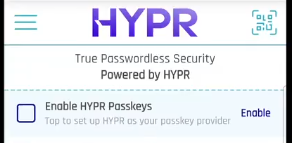
Tap Enable on the banner to open the in-app enablement dialog:
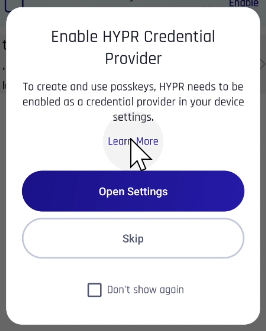
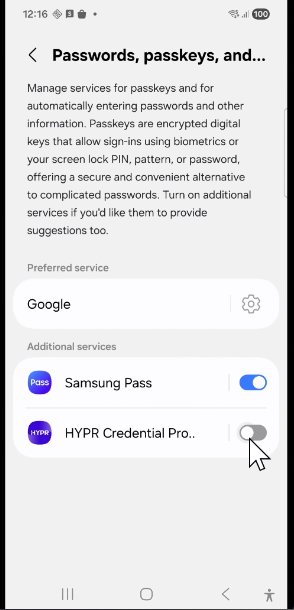
Tap Open Settings to jump directly to the Passwords, passkeys, and autofill screen in your device Settings, then turn the HYPR Credential Provider toggle on under Additional services:
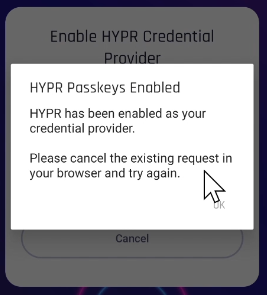
The app confirms enablement and prompts you to restart any in-flight registration:
If you tap Skip without enabling HYPR, the banner remains on the home screen. If you also check Don't show again, the banner is dismissed — but when you start a passkey registration from the HYPR Mobile App scanner with HYPR not yet enabled as a credential provider, the app shows a registration-time enablement dialog that gates the registration:
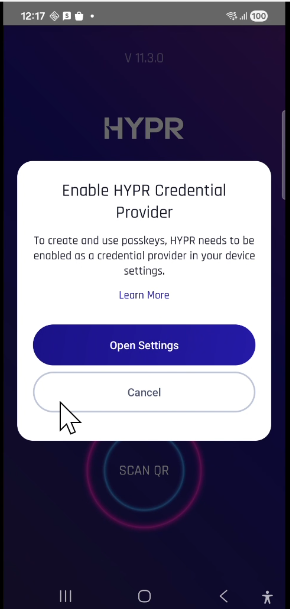
Tap Open Settings, enable HYPR, then use the system back button to return to the HYPR Mobile App.
If you start a passkey registration from the HYPR Mobile App and pick a non-HYPR provider when the system prompts, Android displays a wrong-provider alert and the credential is not created in the HYPR Mobile App. Restart the registration with HYPR selected as the provider.
iOS
On iOS, the Enable HYPR Passkeys banner appears at the top of the My Passkeys screen until HYPR has been set as an AutoFill provider in iOS Settings:
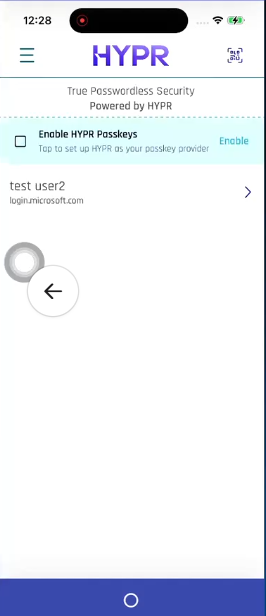
For Entra-provisioned passkey registrations, an in-app enablement dialog also appears mid-registration:
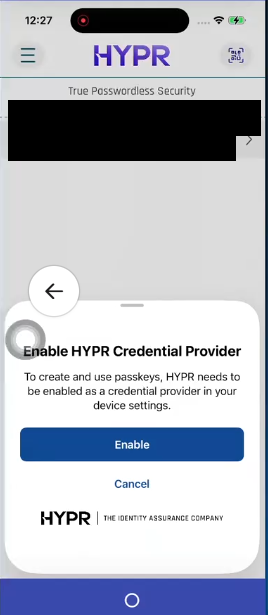
Tap Enable in the dialog. iOS may surface a system prompt asking you to confirm turning on AutoFill from HYPR:
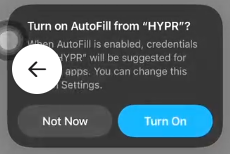
After enabling HYPR, the HYPR toggle appears active under Settings → General → AutoFill & Passwords:
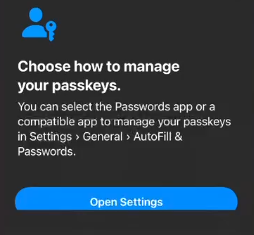
When iOS detects no active credential provider during a registration, it surfaces a system prompt asking how you want to manage your passkeys:
On iOS, the system Passwords app is enabled as a credential provider by default. If you start a passkey registration with HYPR not enabled as an AutoFill provider, iOS may save the credential into Apple's Passwords app rather than into HYPR, where it will not be available for HYPR-authenticated sign-ins. Enable HYPR under Settings → General → AutoFill & Passwords before registering a passkey to ensure the credential lands in HYPR.
On iOS, the in-app enablement dialog currently appears only during Entra-provisioned passkey registrations. For HYPR Passkey registrations on iOS, enable HYPR manually in Settings → General → AutoFill & Passwords before starting the registration. On Android, the in-app dialog appears for all passkey registration types initiated from the HYPR Mobile App scanner.
For more information about mobile app functionality, see:
Installing HYPR Passwordless for Windows™
If not installed on your workstation already, your network administrator should provide you with an MSI installer for HYPR Passwordless for Windows™ and a hypr.json configuration file.
Make sure both are in the same directory or folder, and run the MSI installer. Follow the on-screen prompts and complete the installation.
Registration Flow Overview
There are two flows for setting up a HYPR Enterprise Passkey for users: workstation-to-web and web-to-workstation. For more information, see Workstation to Web Single Registration and Web to Workstation Single Registration.
Workstation to Web Flow:
- Users register once on their workstation using HYPR Passwordless for Windows™
- HYPR automatically creates both desktop and web profiles
- Users can then access both workstation and web applications with a single registration
Web to Workstation Flow:
- Users register once through a web application interface using a Magic Link created by HYPR Control Center™
- HYPR creates both web and desktop profiles automatically
- Users can access both web applications and workstation with a single registration
- Ideal for customers looking to make their onboarding process completely passwordless
For detailed configuration steps, see the Single Registration documentation and the Enterprise Passkey and HYPR Passkey Setup Guide.
Quick troubleshooting tips for users
-
QR code is not offered in the browser on your workstation
- Windows automatically offers the QR‑based passkey flow for machines that are physically next to you by using Bluetooth to detect your registered mobile device. If you are on a virtual machine, or if Bluetooth is disabled or unavailable, you may not see this option. In that case, use the standard HYPR QR login flows instead of relying on the Windows‑initiated QR prompt.
-
You see “The FIDO2 security key could not be registered with Entra ID. Error Code: 1550012.”
- This error can be due to passkeys not being enabled on your mobile device for the HYPR Passwordless app, or to Entra configuration (for example, Conditional Access or MFA policies) blocking passkey creation. Contact your administrator and mention the exact error code. Administrators can use the Enterprise Passkey and HYPR Passkey Setup Guide – Troubleshooting playbook (which includes mobile passkey enablement and Entra Sign‑in logs checks) to diagnose the issue.
Web to Workstation Flow for Enterprise Passkey with HYPR Passkey
The Web to Workstation registration flow lets a user register an Enterprise Passkey on a web surface (Entra portal or HYPR Magic Link landing page) and then pair their workstation using the same HYPR Mobile App credential. The end-user steps and per-screen UI are covered in:
- Enterprise Passkey User Experience (web flows) — the canonical user-experience walkthrough.
- HYPR Passwordless and the HYPR Mobile App (pairing) — pairing the saved passkey to a workstation.
- Magic Links — when the registration is initiated via a HYPR Magic Link.
Deployment-relevant nuances
- The user must enable HYPR as their device passkey provider in the mobile OS settings before the cross-credential registration succeeds.
- For Entra-only environments, the web registration happens in the Entra portal; for Hybrid environments, it can happen via either the Entra portal or a HYPR Magic Link, depending on the admin's chosen rollout pattern.
- After registration, the passkey appears in the My Passkeys tab of the HYPR Mobile App; from there the user pairs their workstation via Scan to Unlock.
Workstation to Web Flow for Enterprise Passkey with HYPR Passkey
The Workstation to Web registration flow lets a user pair their workstation first (via HYPR Passwordless for Windows + HYPR Mobile App) and then have HYPR automatically provision the Enterprise Passkey on the web side. The end-user steps and per-screen UI are covered in:
- HYPR Passwordless and the HYPR Mobile App — initial workstation pairing.
- Enterprise Passkey User Experience — the post-pairing web-side passkey activation.
- Single Registration (Workstation-to-Web) — the underlying Single Reg mechanism that auto-provisions the web profile from the workstation registration.
Deployment-relevant nuances
- This flow requires Workstation-to-Web Single Registration enabled on the RP application (see the Single Reg admin doc above).
- The HYPR Mobile App must be paired and enabled as the device passkey provider before the workstation registration completes; otherwise the passkey-side activation will not fire.
- After the workstation registration completes, the user can sign in to any web application configured in the Single Reg pairing using the same HYPR Mobile App credential.
Troubleshooting Common Issues
If No Passkey Appears in My Passkeys After Pairing
If users don't see their passkey after pairing, check the following:
- Confirm Credential Provider: Verify the mobile Credential Provider is enabled in the HYPR Mobile App, and that HYPR is enabled as a credential provider in the Passkey settings of your mobile device
- Check Biometrics: Ensure device biometrics are set up; passkeys require biometrics
- Verify Account Type: Must login as Entra cloud-only or hybrid account (not local Windows account)
Common Pairing Issues
- Camera Access: Ensure mobile device camera permission is enabled for QR code scanning
- Bluetooth/Proximity: Check that Bluetooth and proximity features are working
- Network Connectivity: Verify both devices have internet connectivity
- Version Compatibility: Ensure a supported HYPR Passwordless for Windows™ version and the current HYPR Mobile App version
- Account Type: Must login as Entra cloud-only or hybrid account (not local Windows account)
If you encounter issues during setup or need additional assistance, contact HYPR Support at support@hypr.com or visit our support portal at support.hypr.com.
See Also
- Administrator Configuration
- Troubleshooting
- End User Guide: Setting Up Passwordless Login - Complete user-facing guide with step-by-step instructions for all passwordless login flows