HYPR Windows Passwordless Login using Smartcard Playbook
Introduction
What is a smartcard authentication?
Public-key and certificate-based authentication are two common alternatives to password-based authentication. Instead of using a password, your identity is verified through the use of public and private keys. A certificate is a digital document that identifies an individual, server, company, or other entity and links that identity to a public key. Similar to a driver's license or passport, a certificate serves as widely accepted proof of identity. Public-key cryptography relies on certificates to prevent impersonation.
In smart card authentication, your credentials—public and private keys, along with a certificate—are stored on a smart card. These credentials can only be used once the card is inserted into a reader and the correct PIN is entered. Since this method requires both a physical device (the smart card) and knowledge of the PIN, it qualifies as two-factor authentication.
HYPR provides certificate-based authentication for Windows and macOS workstations.
Products: HYPR Mobile App and HYPR Passwordless for Windows
Features: Passwordless MFA workstation login, Remote Lock, RDP, roaming user
Benefits
- Reduces the attack surface
- Makes login faster and simpler
- Helps avoid business risk
- Increases user productivity
- Lowers help desk support costs
- Reduces employee onboarding times
Expected Outcome
To successfully install, configure and use HYPR Passwordless for Windows on workstations for passwordless authentication, remote lock, Remote Desktop Login and as a Roaming User
Preparing for the solution deployment
Preparing for the Solution Deployment | HYPR Identity Assurance
Platform Before deploying the HYPR Passwordless solution, ensure that the environment, identity infrastructure, and endpoint configurations are fully prepared. Completing the steps below helps avoid installation failures, authentication issues, and support escalations during rollout.
(Windows) HYPRReady Diagnostics Tool | HYPR Identity Assurance
Platform Before deployment, download and run the HYPRReady Tool on representative Windows endpoints to validate readiness.
Ensure the following checks pass:
-
Supported Windows OS version and patch level
-
Network connectivity to the HYPR tenant (HTTPS and WebSocket endpoints)
-
Proper proxy configuration and TLS inspection compatibility
-
Availability of required Windows services and cryptographic providers
-
Device join state (Azure AD Joined, Hybrid Joined, or Domain Joined)
Use the diagnostics output to remediate any failures prior to client installation.
Getting Started | HYPR Identity Assurance Platform
Confirm that the HYPR tenant and core platform components are ready:
-
HYPR Control Center access is available for administrators
-
Required administrator roles are assigned
-
HYPR tenant URL (rpUrl) and Application ID (appId) are identified
-
Installation tokens or enrollment methods are defined
-
Mobile application availability is confirmed for end users (iOS / Android)
At this stage, define whether the deployment will follow:
-
Quick Install (non–domain joined endpoints)
-
Advanced Install (Active Directory–integrated endpoints)
Passwordless Client Config | HYPR Identity Assurance Platform
Prepare the Passwordless Client configuration before deployment:
-
Create and validate the hypr.json configuration file
-
Define required parameters such as:
-
Relying Party URL
-
Application ID
-
Installation or registration behavior
-
-
Confirm authentication policies (PIN requirements, biometric enforcement)
-
Validate offline authentication and recovery options
This configuration should be finalized and tested prior to mass deployment.
Desktop Client | HYPR Identity Assurance Platform
Prepare endpoints and deployment tooling for the HYPR Desktop Client:
-
Confirm endpoints meet minimum hardware and OS requirements
-
Ensure users or deployment accounts have sufficient permissions
-
Validate that endpoint protection and firewall rules allow HYPR services
-
Decide on deployment method:
-
Intune / MDM
-
SCCM / Configuration Manager
-
Manual or scripted installation
-
For enterprise deployments, pre-package the client with configuration files and test silent installation behavior.
Workstation Settings | HYPR Identity Assurance Platform
Configure Workstation Settings in the HYPR Control Center to match enterprise security requirements:
-
Authentication behavior (lock, unlock, login)
-
PIN complexity and retry limits
-
Biometric enforcement policies
-
Device trust and recovery options
Ensure workstation policies are published and validated before user onboarding begins.
Requirements Analysis | HYPR Authenticate Passwordless Client
This section outlines the certificate infrastructure and Active Directory requirements necessary to support HYPR Passwordless authentication using Microsoft Certificate Services (AD CS). These requirements apply to Advanced Installations and environments leveraging certificate-based authentication.
Microsoft Certificate Services (AD CS) | HYPR Identity Assurance
Platform A functioning Microsoft Active Directory Certificate Services (AD CS) deployment is required to issue authentication certificates for HYPR Passwordless users.
Ensure the following prerequisites are met:
-
An Enterprise Certification Authority (CA) is deployed and operational
-
The CA is integrated with Active Directory
-
The CA supports user authentication certificates
-
Certificate auto-enrollment is enabled for target users or devices
-
CRL and OCSP endpoints are reachable by domain controllers and endpoints
The CA must be trusted by all domain-joined systems participating in passwordless authentication.
HYPR Certificate Template | HYPR Identity Assurance Platform
A dedicated HYPR certificate template must be created and published in AD CS to support passwordless authentication.
Template requirements:
-
Based on a Smart Card Logon or User Authentication template
-
Includes the Client Authentication and Smart Card Logon EKUs
-
Uses a compatible cryptographic provider (KSP recommended)
-
Supports strong key sizes and modern algorithms (e.g., RSA 2048 or ECC)
Configuration considerations:
-
Allow enrollment permissions for target user groups
-
Enable auto-enrollment where applicable
-
Ensure the Subject Name is correctly populated from Active Directory
-
Validate template compatibility with HYPR client workflows
This template is used by HYPR to issue certificates that represent the user’s passwordless credential.
Domain Controller Certificate Supporting Smart Card Authentication |
HYPR Identity Assurance Platform All domain controllers participating in passwordless authentication must have a valid domain controller certificate that supports smart card authentication.
Certificate requirements:
-
Issued to each domain controller from the enterprise CA
-
Contains the Smart Card Logon EKU
-
Includes Server Authentication where required
-
Is trusted by domain members and endpoints
-
Has a valid and reachable CRL distribution point
Validation steps:
-
Confirm certificates are present in the Local Computer certificate store on each DC
-
Verify smart card logon functionality using built-in Windows tools
-
Ensure domain controllers can validate user authentication certificates issued by the HYPR template
Without a smart card–capable DC certificate, certificate-based logon attempts will fail even if user certificates are issued correctly.
Configuring Control Center for HYPR Passwordless Client
The Workstation Settings screen in Control Center is where you enable and configure optional HYPR workstation features (Require User Presence for Registration, Enable Security Key, Roaming Users, Single Reg pilot group, Enable Offline Mode, Recovery Mode, Security Key Recovery Mode, and the related toggles). The default settings apply to the HYPR Default Workstation Application and become the defaults for any newly created RP Applications.
See Workstation Settings for the canonical configuration walkthrough — every toggle, what it controls, and the platform applicability.
Some toggles (Security Key, Roaming Users, certain Recovery configurations) require users to pair again to pick up the new behavior. Plan deployment ordering accordingly — see the per-toggle notes in the main doc.
Non-exportable Private Keys
HYPR can use either exportable or non-exportable private keys for workstation registration. The non-exportable path requires both a CA-side certificate-template change and a per-tenant registry/configuration adjustment — see Non-Exportable Private Keys and the cert-template steps in Creating a Custom Certificate Template below.
Installing the HYPR Passwordless client
The HYPR Passwordless client for Windows can be installed via the UI (interactive), via the command line with msiexec (silent, for unattended deployments via Intune / SCCM / GPO), or unattended into VDI images. The reference walkthroughs and the full parameter contracts live in the main docs; this playbook calls out the deployment-relevant choices.
Quick versus Advanced install
When you download the installer in Control Center, you choose between Quick (Non-Domain-Joined) and Advanced (Domain-Joined). Quick install pre-populates all parameters from the embedded hypr.json. Advanced install lets you change values during install — typically only needed when HYPR Support has supplied custom values for your environment.
- See Requirements for a Quick install vs. Advanced install for the prerequisite differences.
- See Step-by-step UI install (with screenshots) for the interactive walkthrough.
Silent install for unattended deployments
For Intune, SCCM, GPO, or other unattended deployment tooling, install via msiexec with the parameters either pre-baked into hypr.json (alongside the MSI) or passed inline on the command line. See Install via msiexec (silent) for the full parameter reference (HYPRRP, HYPRAPPID, HYPRHASH, HYPRINSTALLTOKEN, HYPRSUPPORT, plus the optional toggles).
Run silent installs from an elevated command prompt; parameters passed on the command line override any values in hypr.json.
Non-persistent VDI
If the workstation is part of a stateless / non-persistent VDI deployment, toggle the Non-persistent VDI setting during install. This prevents HYPR from caching workstation-specific identity material between sessions.
Disable Password Login
To hide the password login/unlock option on Windows after HYPR is registered, toggle Disable Password Login during install. The toggle persists as the registry value HKEY_LOCAL_MACHINE\SOFTWARE\HYPR Workforce Access\Config\Disable Password Login.
After install
A reboot is required for the credential provider to register correctly — HYPR Passwordless may not function fully until the workstation has restarted.
Creating a Custom Certificate Template
HYPR registration on Windows / macOS uses an Active Directory certificate template issued by your CA. The cert-template setup is a one-time CA-side task and follows the canonical procedure in Configuring a Custom Certificate Template. The three high-level steps are:
- Create a Certificate Template on the Server — duplicate the User template (Windows) or Smartcard User template (macOS), set request handling, subject name, extensions, and cryptography.
- Issue the Certificate Template on the Server — publish the template in the Certification Authority console.
- Configure HYPR to Use the Certificate on the Workstation — point the client at the template name via registry (Windows) or
HyprOneService.plist(macOS).
Deployment-relevant nuances
- Template naming: the HYPR installer is preconfigured to expect
hyprwin(Windows) /hyprmac(macOS). Naming your templates to match saves a per-workstation registry change. - Non-exportable private keys: if you're deploying with non-exportable keys, switch to the non-exportable template variant at step 5 of the cert-template creation — the Request Handling, Cryptography, and provider settings differ.
- Single Registration (Workstation-to-Web): when this is enabled on the tenant, the template's Email name must also be checked under Subject Name for the feature to function. See Workstation-to-Web Single Registration.
- Windows Server 2019 / 2022 — January 2025 security patch: a patch released in January 2025 introduced a fix that caused issues with certificates containing an empty Subject Name. If your DCs are stuck on that patch level and cannot upgrade to February 2025 or later, Microsoft's Known Issue Rollback is the documented workaround — contact HYPR Support for guidance specific to the HYPR template.
- Key size: HYPR supports a minimum of 1024-bit, recommends 2048-bit RSA private keys.
API alternative
For programmatic certificate-template and domain-certificate management, see the RP Applications → Workstation → Certificates and Control Center → Certificates API references.
Pairing devices
End users pair their device (HYPR Mobile App or a security key) to the HYPR Passwordless client after installation. The end-user walkthrough lives in the main docs:
- Mobile pairing (camera-based QR scan, optional Require User Presence enrollment): see HYPR Passwordless and the HYPR Mobile App.
- Security key pairing and PIN handling (Windows and macOS, including PIN requirements, registration, authentication, deregistration, PIN reset, and certificate renewal): see Using a Security Key.
Deployment-relevant nuances
- Require User Presence for Registration lengthens the QR code expiration window (1 minute → 3 minutes) and requires the user to confirm enrollment in-app. See Device Registration and the Require User Presence Feature.
- Security key PIN policy: HYPR enforces minimum-length and complexity rules at registration. The PIN is set on the security key itself, not on HYPR — confirm the policy with users before bulk enrollment.
- Connection order: insert the security key into the workstation before clicking Pair New Device in the HYPR Passwordless client, so the device is detected during pairing.
Validating and testing the solution
Login using HYPR mobile App
Windows Login Screen 🡪 Open HYPR Mobile App 🡪 Click the registered Machines 🡪 Authenticate using Pin/Biometric 🡪 Access

Log in using QR code
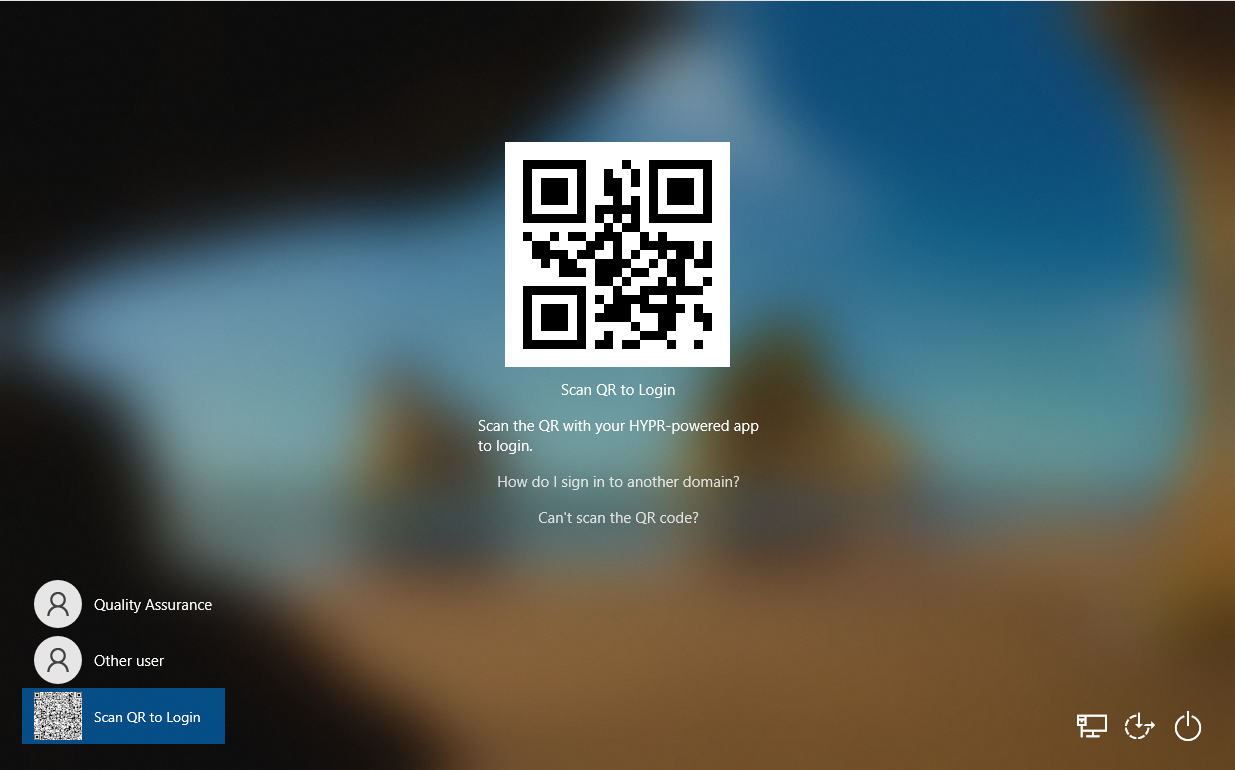
Windows Login Screen -> Select Scan QR to Login
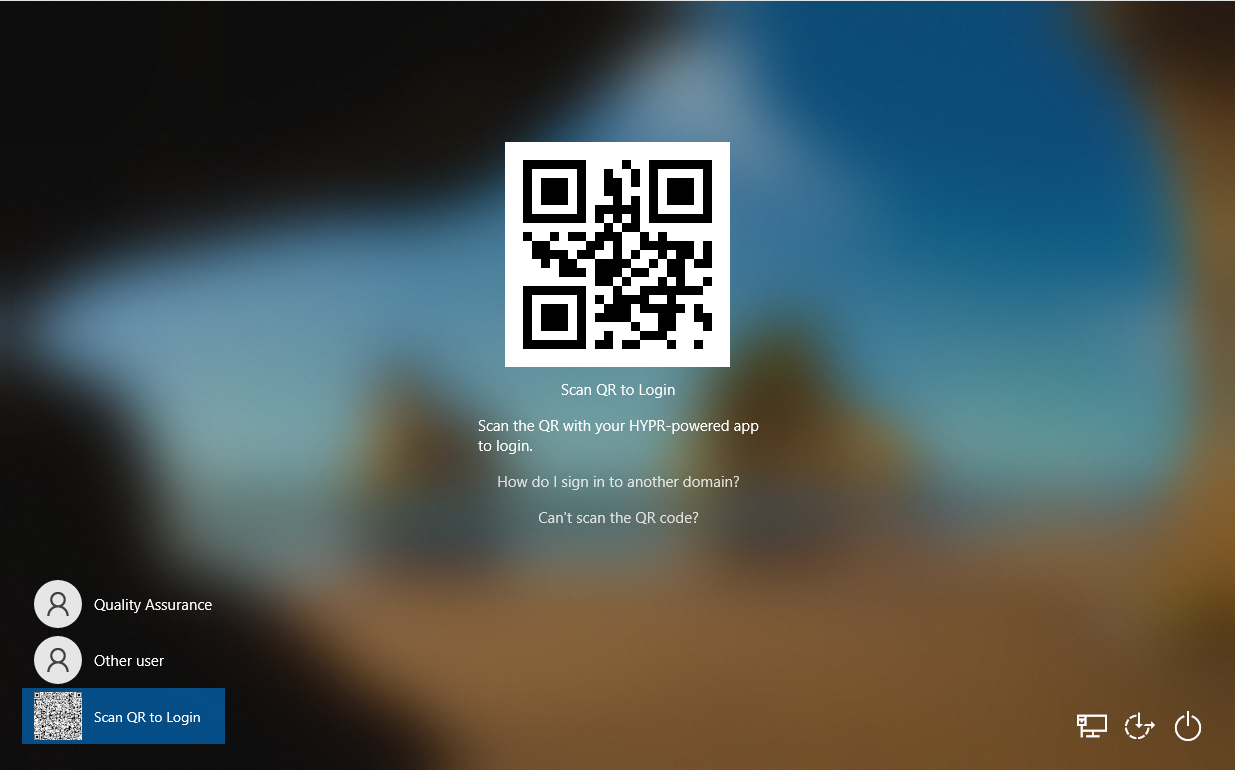
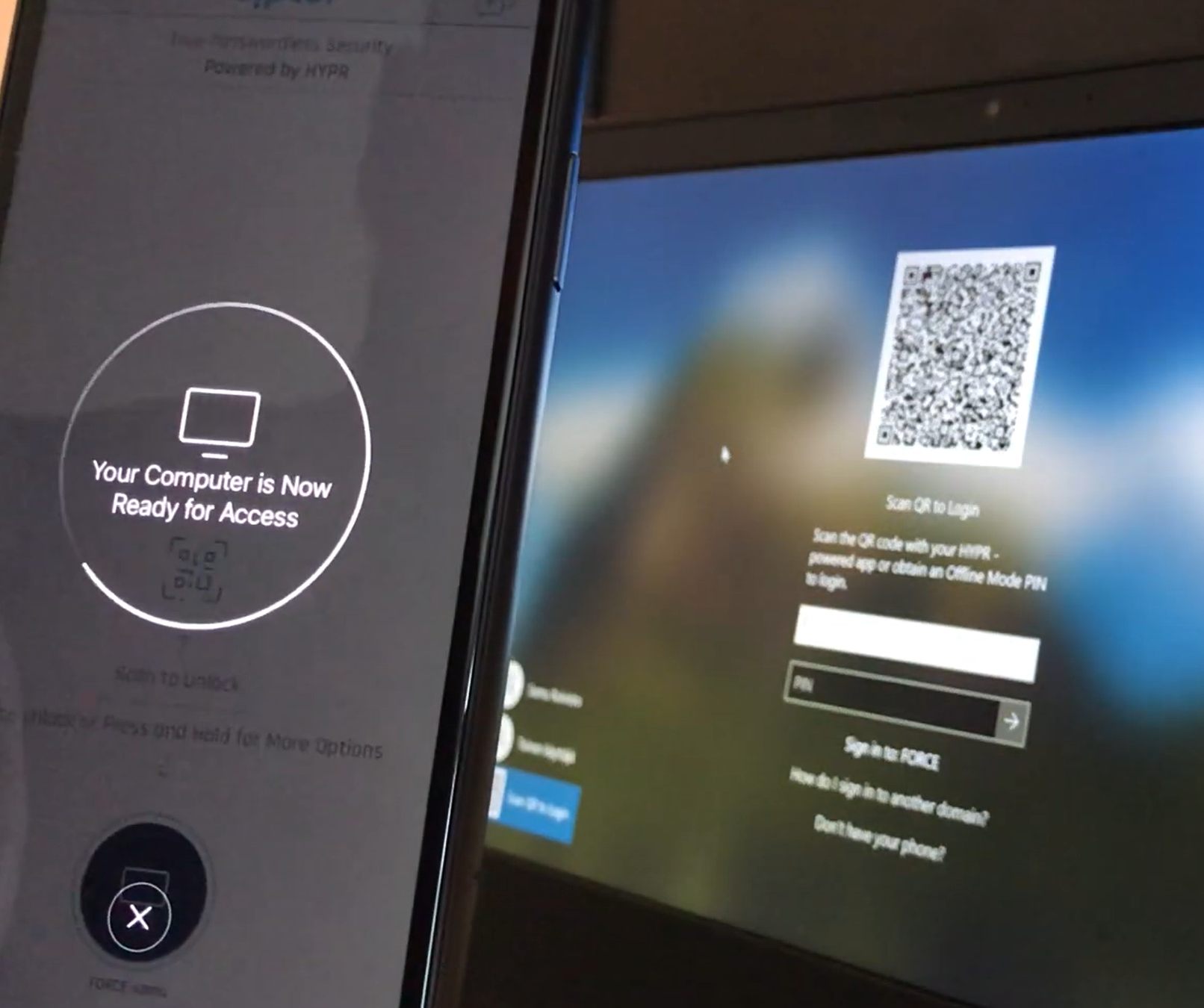
Open your HYPR Mobile App and scan the QR code -> Authenticate with your PIN/Biometrics
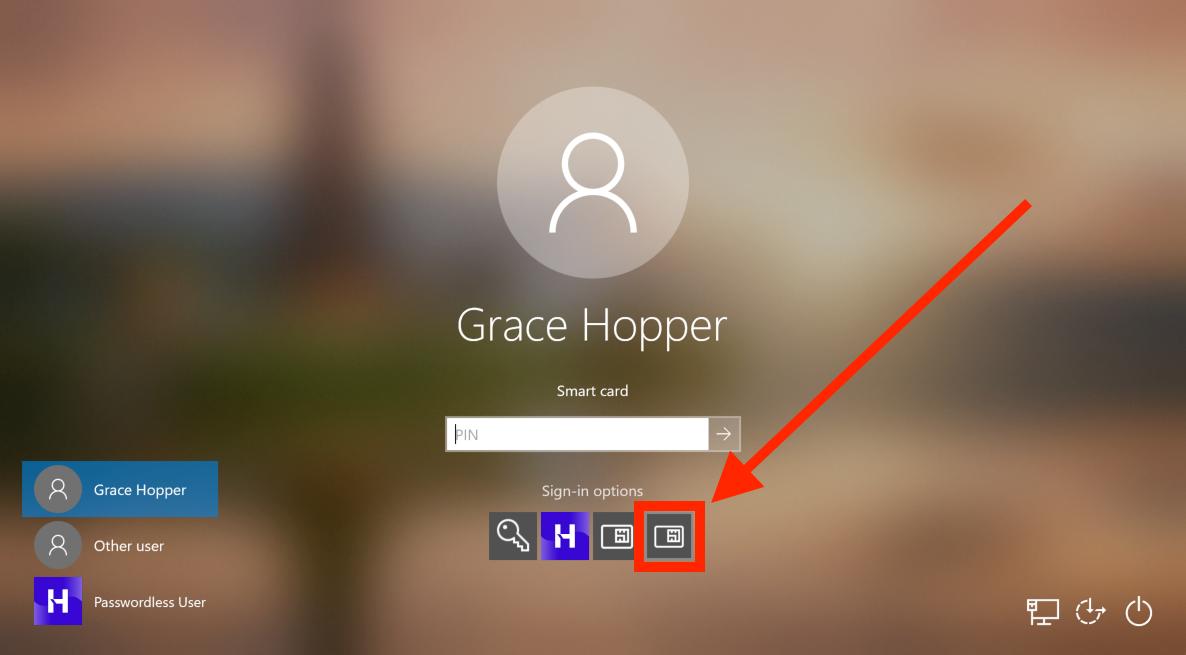
Login using Security Key
- Insert your paired Security Key into the USB port of the computer. Windows will offer the smart card icon as an additional login option. Click the smart card icon.
- Type your PIN.
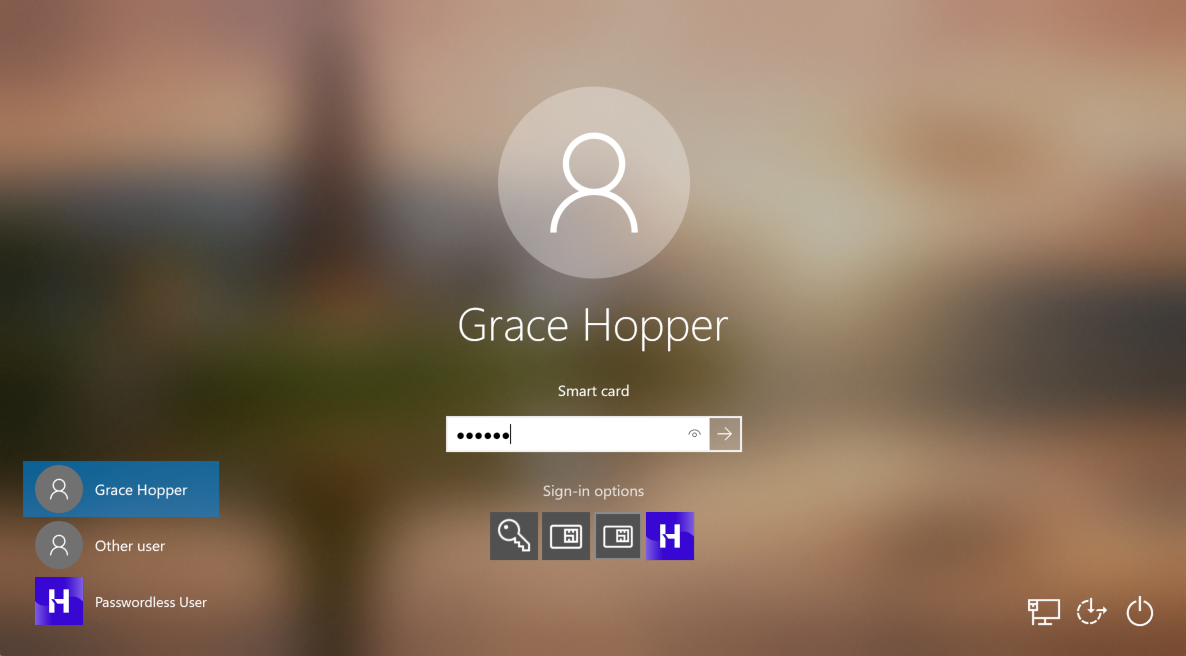
- Press Enter on your keyboard or click the submit arrow to login.
Offline PIN
The Offline PIN lets a user unlock their workstation when the HYPR Passwordless client cannot reach HYPR (workstation offline) or when the user's mobile device is offline. PINs are generated on the mobile device and replenished automatically when the device is back online.
See Unlocking a Workstation in Offline Mode for the end-user walkthrough — generating an Offline PIN, the three offline scenarios (workstation offline, mobile offline, mobile online), using the PIN to log in, and replenishing PINs.
Deployment-relevant nuances
- Enable Offline Mode must be turned on in Workstation Settings before users can generate Offline PINs.
- Replenishment requires the mobile device to be online and paired — once the mobile device reconnects to HYPR, the workstation can request a fresh batch of PINs the next time the two devices interact.
- Offline PINs are per-workstation — if a user has paired multiple workstations, each workstation generates its own PIN set.
Remote Desktop Login
Logging In to a Remote Desktop
To access a Windows remote desktop with HYPR, the user can choose to initiate the authentication from their mobile device or can scan a QR code on the workstation.
Accounts and Permissions
The account used to log in to the remote machine doesn't have to be the same as the one used to log in to the local machine. However, it must have the necessary access permissions on the remote machine to successfully connect.
It's also not necessary for the HYPR Passwordless client to be installed on the remote machine.
Device-initiated Authentication
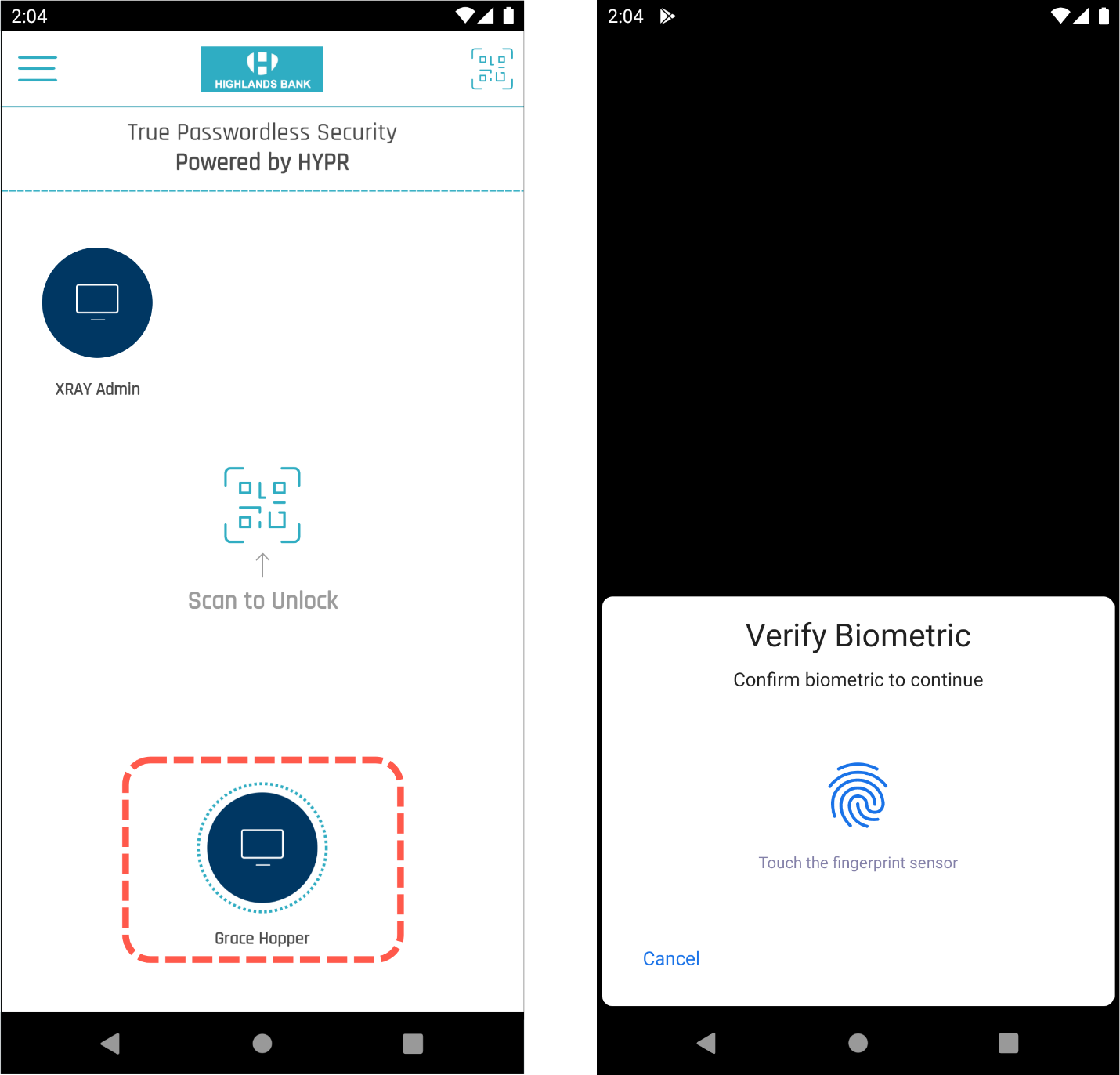
If the account being used to connect to the remote machine has previously been paired with the local machine (see HYPR Passwordless and the HYPR Mobile App), the user may initiate the authentication from the HYPR Mobile App.
- Open the Remote Desktop Connection application.
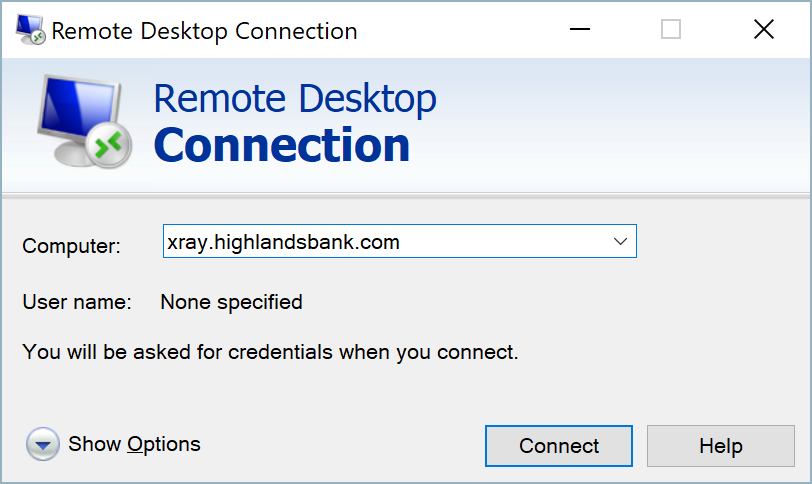
- Enter the address of the remote computer and click Connect to show the Enter Your Credentials dialog.
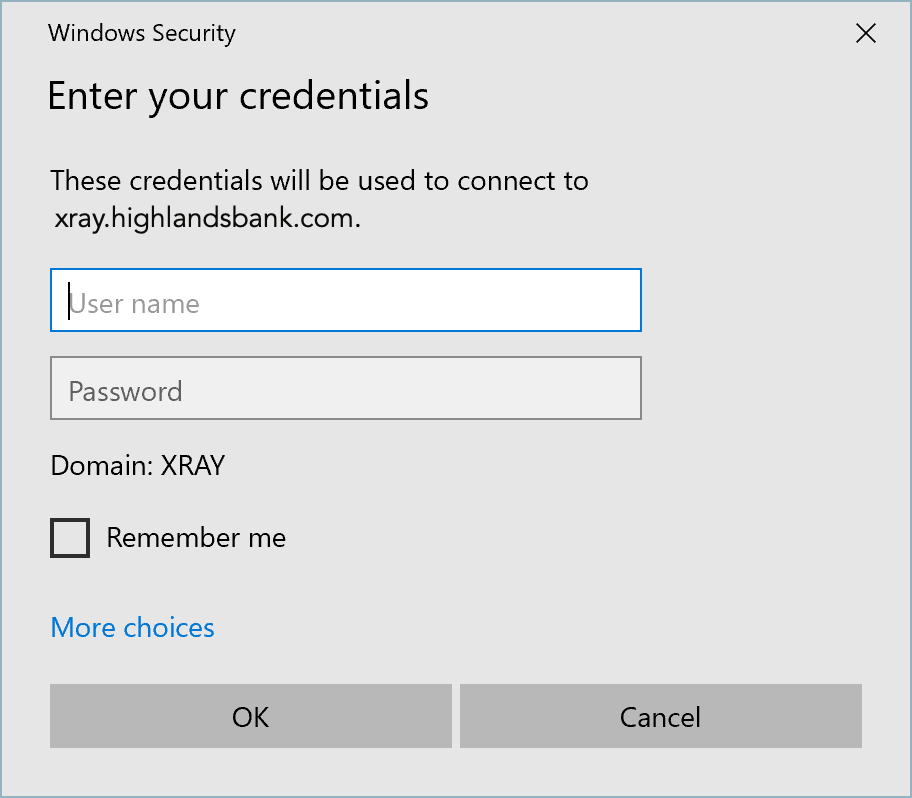
- WITHOUT CLICKING OK, initiate an authentication in the HYPR Mobile App by pressing the relevant computer icon as if logging in locally.
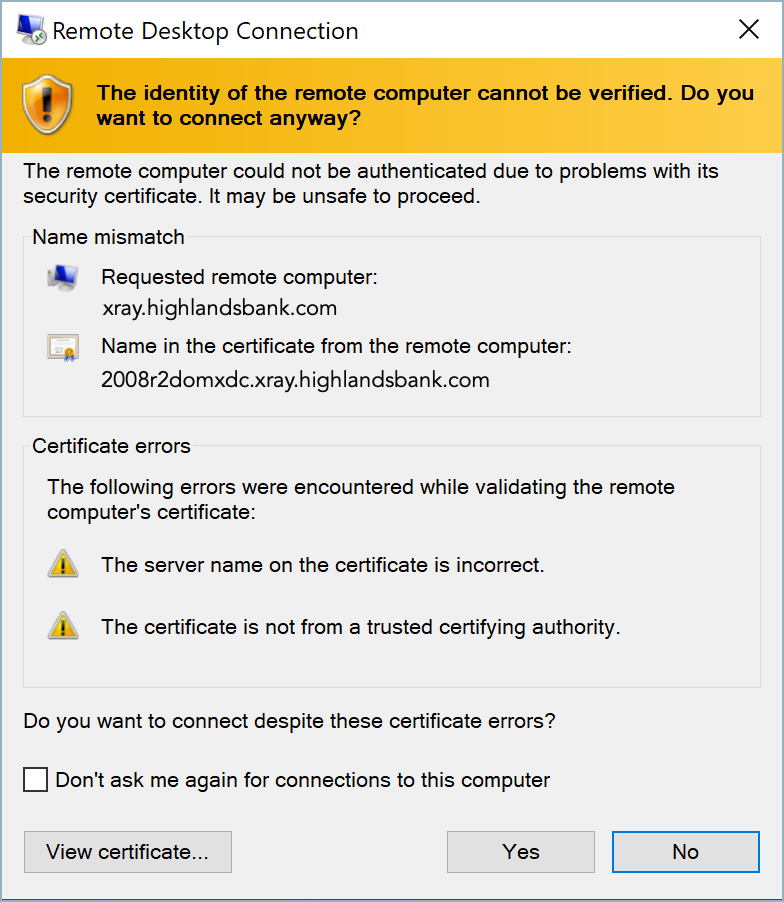
- Wait for the connection to be established and accept the certificate-based authentication warning if necessary. (Check the Don't ask me again for connections to this computer box to skip this warning in future.)
- Wait for the Remote Desktop session to finish authenticating.
Scan QR to Log In for RDP
As an alternative to device-initiated authorization, the user can also scan a QR code on the local machine to unlock the remote machine.
Control Center Settings
The Scan QR to Log In feature is only available if Roaming Users is enabled in Control Center Workstation Settings. Roaming Users is disabled by default.
- Open the Remote Desktop Connection application.
- Enter the address of the remote computer and click Connect to show the Enter Your Credentials dialog.
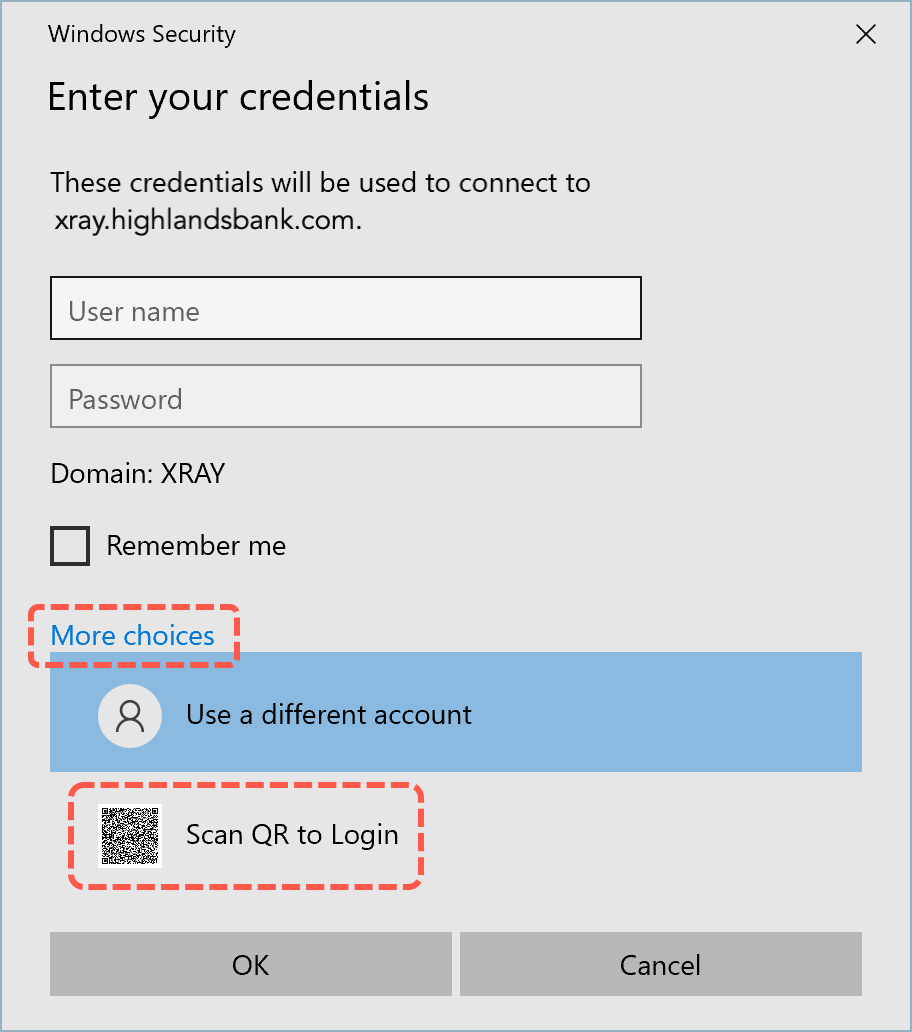
- Click More choices then click Scan QR to Login to expand the choices on the credentials screen.
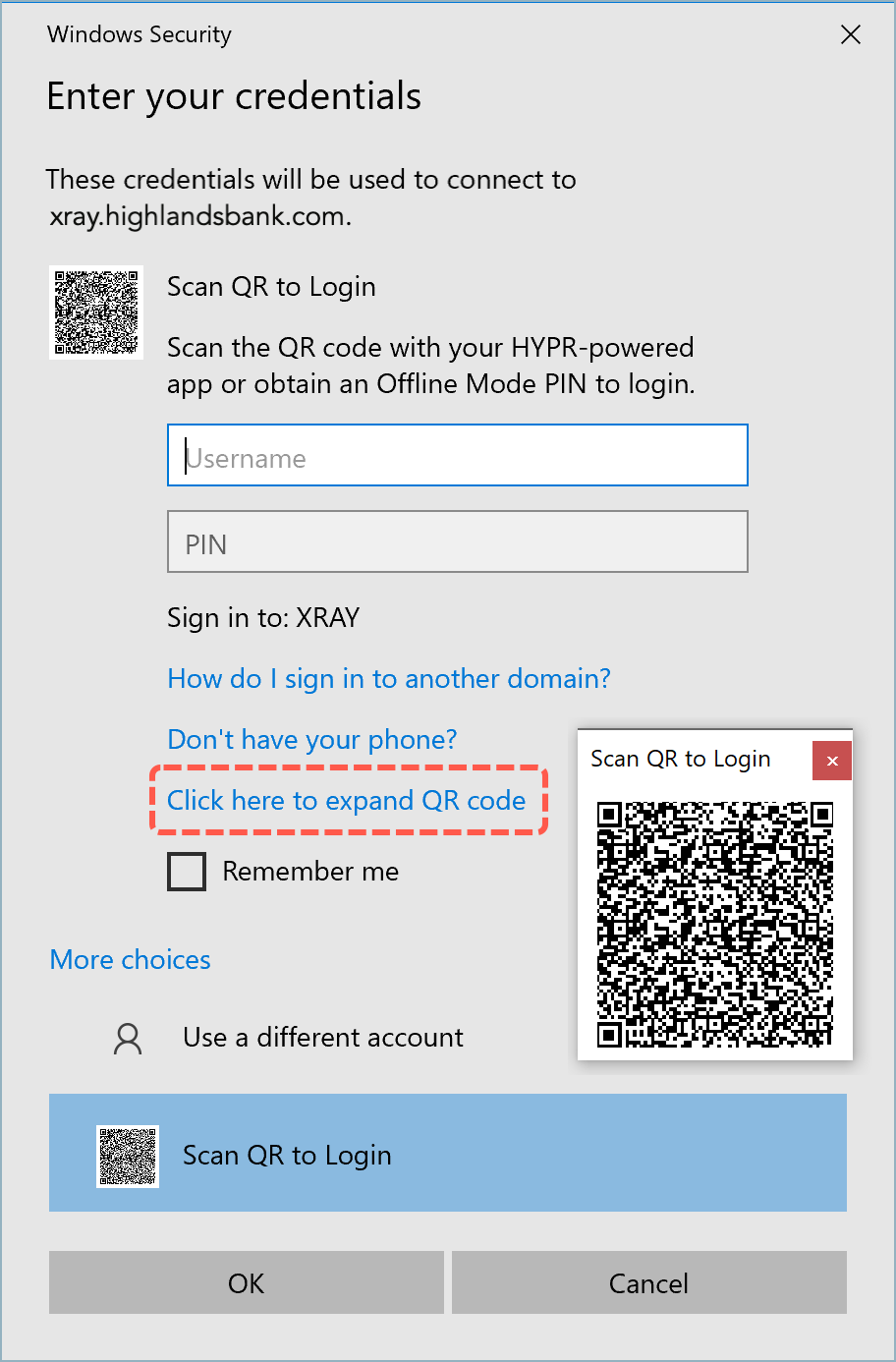
-
Use Click here to expand QR code to reveal a larger scannable copy of the QR code.
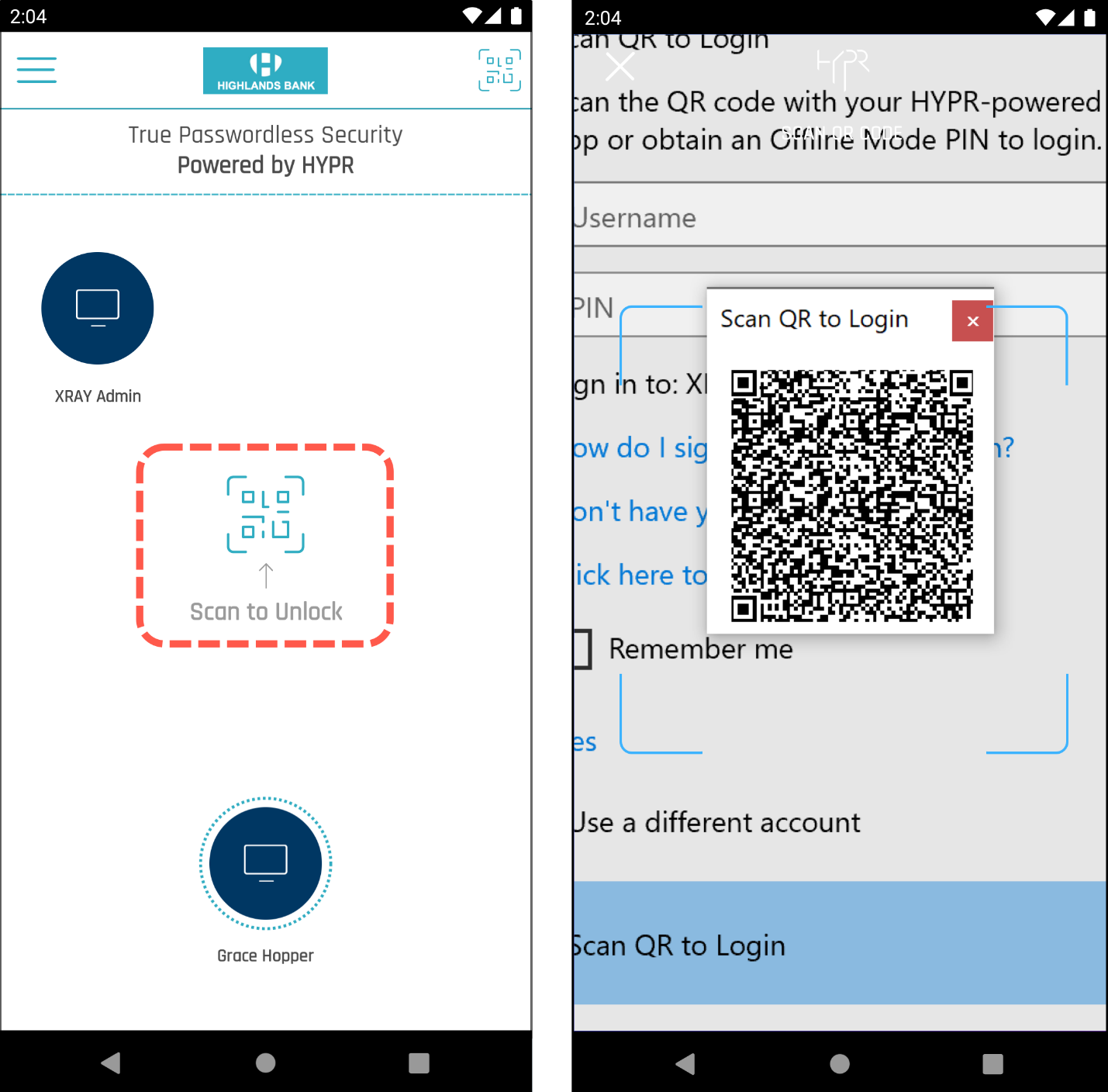
-
In the HYPR Mobile App, press the Scan to Unlock button and scan the QR code to log in.
- If there's more than one domain-joined account stored on the mobile device, the HYPR Mobile App prompts the user to choose before presenting the identity authorization screen.
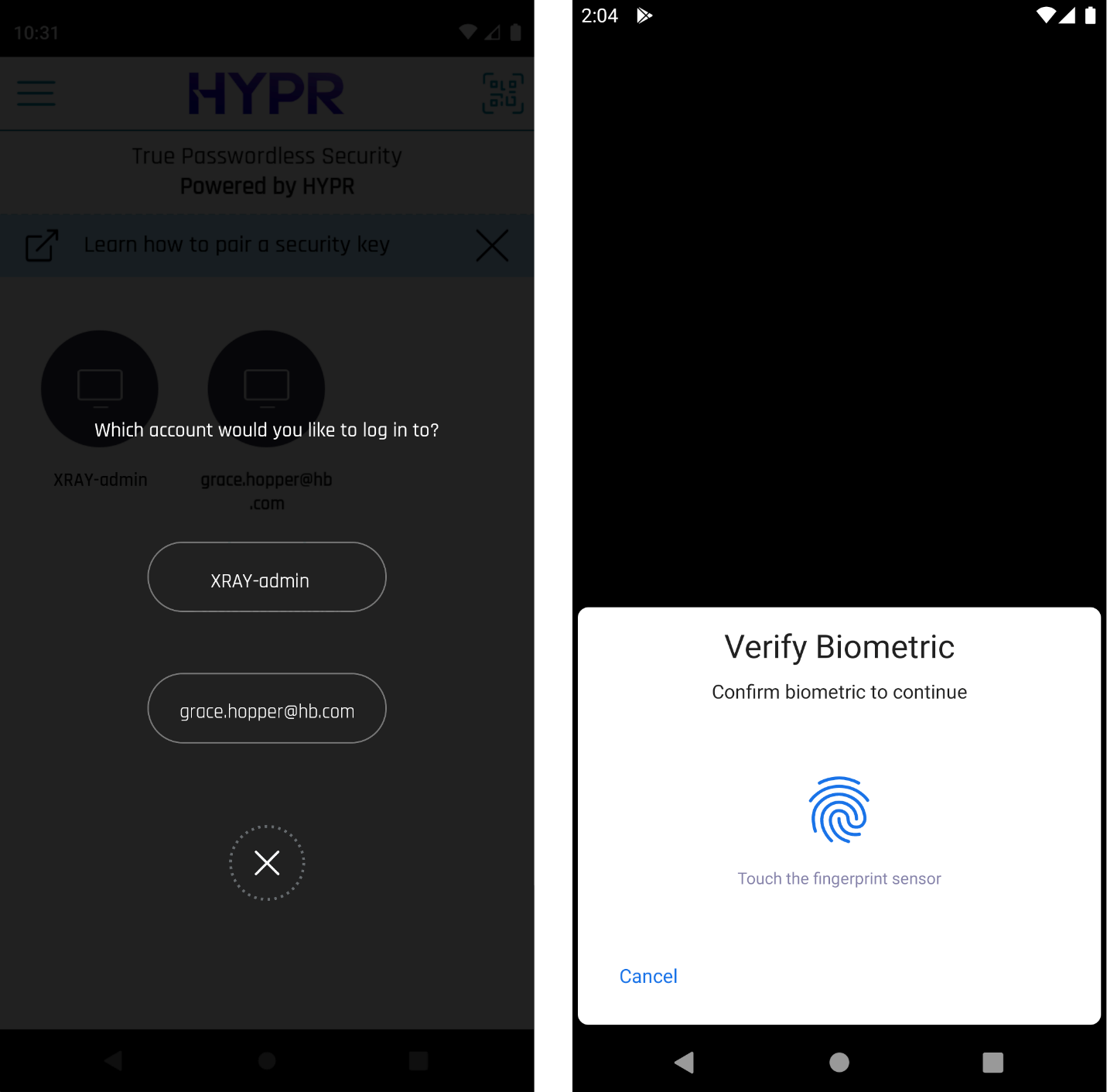
- Wait for the Remote Desktop session to finish authenticating.
Roaming User Login
Users after registration can subsequently select the Scan QR to Login option on the login screen of any other domain-joined computer. It must have the HYPR Passwordless client installed. Users then simply scan the code with the HYPR Mobile App to access the machine.
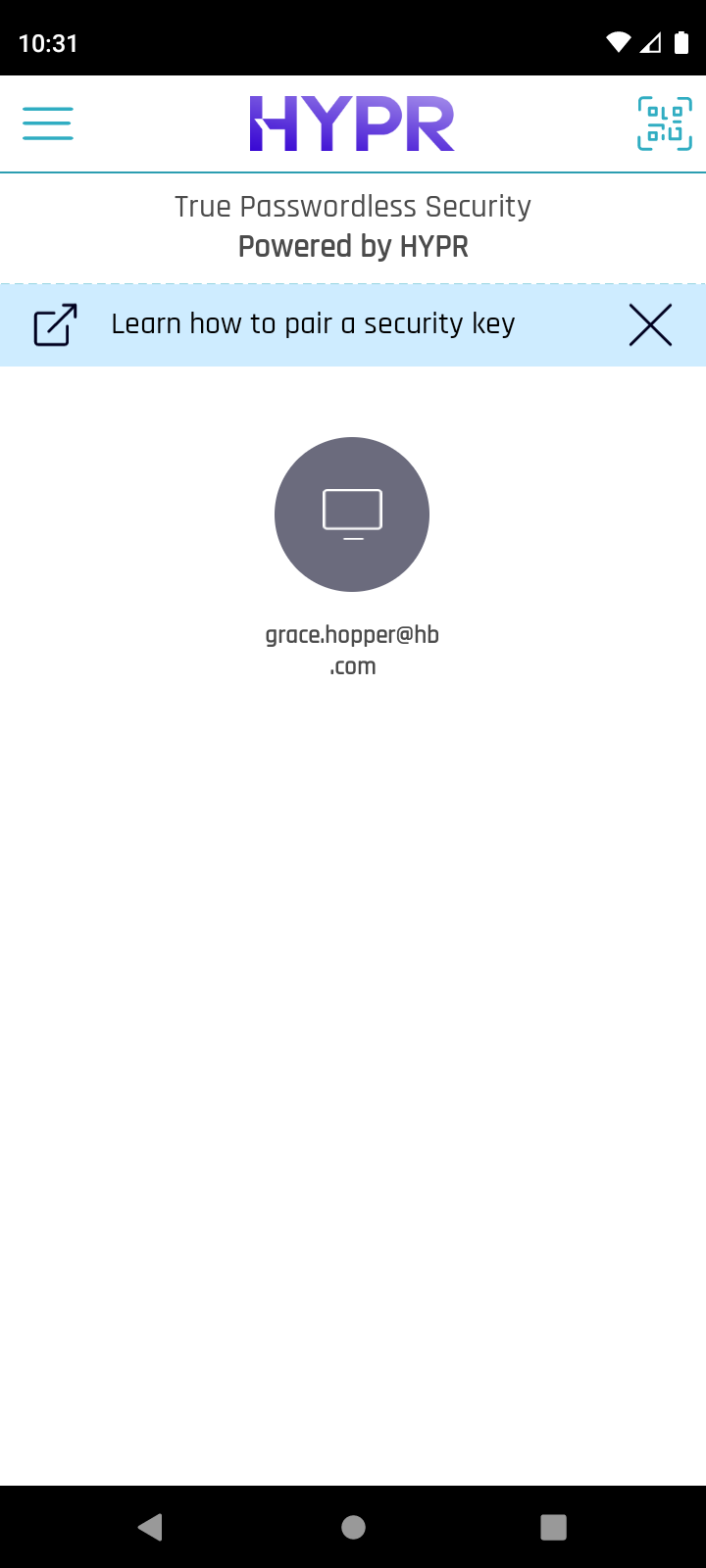
Locking the workstation
- Tap the circle labeled with the desired workstation name.
-
A dialog appears: "This computer is already unlocked. Would you like to lock it?" Tap Yes.
-
The workstation locks immediately. HYPR Mobile App displays a checkmark for confirmation, and returns to the main screen.
Best Practices
Lockout Settings
To provide additional security for Offline and Recovery PINs and prevent potential Brute Force Attacks, HYPR recommends enforcing the Lockout Settings in Active Directory for all user accounts. This policy locks a user account if the PIN is entered X number of times incorrectly.
You can learn more about configuring Lockout Settings in the Microsoft documentation.
You can also adjust the amount of allowed retry attempts for certain security keys or smart-cards. See Windows Installation instructions for full details on how to configure these options.
Log Security
By default, the HYPR Passwordless client allows user accounts without admin privileges to access the application log files. This is recommended practice during the initial deployment phase to ensure users can send log files to Admins or HYPR support for troubleshooting. However, after the initial deployment phase is over you should restrict log access to only accounts with local admin privileges.
Setting Log Levels
The HYPR Passwordless cient Log Level can be adjusted to limit the amount of data that is being logged. The following values can be used to adjust the logging:
-
0 = No logging
-
1 = Adds Fatal errors
-
2 = Adds Errors
-
3 = Adds Warnings
-
4 = Adds more Information events
-
5 = Default setting; debug logging
-
6 = Increase to more verbose logging
Level 5 is enabled by default as this provides the needed amount of information for troubleshooting and technical support. Please be aware that reducing the logging level will significantly hinder HYPR's ability to provide technical support.
This log level can be adjusted as follows:
Windows
- Edit the Windows registry's Log level entry located in HKEY_LOCAL_MACHINE\SOFTWARE\HYPR Workforce Access
Setting Log Access on Windows
For controlling access to the C:\Program Files\HYPR\Log folder, you must set parameters when installing the HYPR Passwordless client. See HYPR Registry Keys for more information regarding Windows installation parameters.
During Installation
For setting access to the logs folder on Windows during a fresh install, include the configuration parameter HYPRPROTECTLOGS (in MSI) or protectLogs (in hypr.json).
-
Set to "1" to make the folder readable only by users who belong to the built-in Administrators group.
-
Set to "0" (or omit the parameter) to make the folder readable and writable by all users.
Require User Presence for Registration
Additional measures can be implemented on HYPR Passwordless for Windows deployments to remove the risk of an attacker adding their mobile device while the user's workstation is unattended – for example, the user walks away but leaves the screen or device unlocked.
For additional user verification during workstation device registration, administrators can require users to re-authenticate during pairing to prove their identity. This is configurable in CC in Workstation Settings.
Additional Certificate Revocation Checks
In addition to native Windows' certificate revocation checks, HYPR Passwordless for Windows can be configured to attempt to perform a revocation check before the user gets logged into the workstation. This is configurable on HYPR Passwordless through the User Account Check setting.
Non-exportable Private Keys
For sites wishing to protect security key or smart-card users' private keys, HYPR Passwordless for Windows client allows an additional installation parameter (via both.json and .msi configuration) to cause private keys to be generated on the security key or smart-card, and to never leave that device. This option works alongside the existing mobile certificate template; however, it is mutually exclusive with Security Key Recovery Mode functionality, which depends on exportable private keys.
Deployment strategy and risk mitigation
Pilot Group selection, deployment and testing
Global Deployment using
-
MDM or
-
GPO
-
Enforcing HYPR Passwordless Solution for workstations
-
Password resets consisting of large or complex password
-
Notice of HYPR registration completion to End users and enforcement of HYPR only login. Also Making HYPR the default cred provider
-
Disabling Password Authentication using GPO or registry or Active Directory. If HYBRID, Conditional Access can be used.
Logs and audit trail
Troubleshooting | HYPR Identity Assurance Platform
Workstation Troubleshooting | HYPR Identity Assurance Platform
HYPR Error Codes Table | HYPR Identity Assurance Platform
Audit Trail | HYPR Identity Assurance Platform
Event Descriptions | HYPR Identity Assurance Platform
Upgrading
The HYPR Passwordless Windows client supports in-place upgrades via both the UI installer and silent install — see Upgrading HYPR Passwordless for the canonical procedure. Existing values persist across the upgrade; no parameters or hypr.json are required, and a reboot may or may not be required depending on the upgrade scope.
Removing the Passwordless client
Removing the client deletes the HYPR registry keys, installation artifacts, and HYPR user accounts from the workstation. A restart is required after uninstall to complete removal.
The Removal procedure supports three paths:
- Silent uninstall via
msiexec.exe /x <MSI>orMsiExec.exe /X{<PRODUCT-CODE>} /qn /norestart— suitable for Intune / GPO / unattended rollback. The HYPR product code is environment-specific; pull it from the installed-products registry. - Interactive uninstall via Windows Apps & Features → select HYPR Passwordless → Uninstall.
- CMD/PowerShell prompt as administrator (same
msiexecinvocations as above).
See Removing HYPR Passwordless for the canonical procedure and the silent-uninstall parameter set.