Suppressing the Windows Hello Enrollment Prompt
Keeping the Windows Hello enrollment prompt out of a HYPR rollout
Post-logon provisioning is the Windows term for the Windows Hello for Business enrollment wizard that starts on its own the first time a user reaches the desktop after signing in. This playbook covers how to turn it off, so the people you are onboarding to HYPR are guided to HYPR rather than to a second authenticator.
Why suppress the enrollment prompt
Windows Hello for Business reaches a user by two independent routes, and they are configured separately.
The first is the sign-in screen, where Windows Hello appears as a credential provider alongside the HYPR tile. Passwordless Enforcement covers that route, and excluding the NGC, Face, WinBio and PIN credential providers removes those tiles.
The second is the enrollment wizard, which Windows starts after sign-in regardless of which credential providers are visible. Excluding the providers does not stop it. The DisablePostLogonProvisioning policy does, and it is the subject of this playbook.
The wizard is also disruptive on its own terms. It opens as soon as the desktop loads, interrupting whatever the user signed in to do, which makes it worth suppressing during any rollout where it is not wanted.
Choose the method that matches how the workstations are managed. All three set the same policy, and setting it by more than one route is unnecessary.
| Method | Use when |
|---|---|
| Group Policy | Devices are Active Directory domain-joined or hybrid-joined |
| Registry | You deploy through registry preferences or a script |
| Microsoft Intune | Devices are cloud-managed or co-managed |
Prerequisites
-
Administrator access to the Group Policy Management Console, the Registry Editor, or the Microsoft Intune admin center, depending on the method you choose.
-
A supported Windows build. The policy is recognized on Windows 10 version 2004 (build 19041.4239) and later, Windows 11 version 21H2 with KB5036894, Windows 11 version 22H2 with KB5035942, and build 20348.2402 and later. On an earlier build the policy is accepted but has no effect.
-
DisablePostLogonProvisioningis a device policy. There is no per-user equivalent, so it applies to every user of a workstation you target.
Method 1: Group Policy
For Active Directory domain-joined or hybrid-joined devices, use the Group Policy Management Console (gpmc.msc) or the Local Group Policy Editor (gpedit.msc):
-
Go to Computer Configuration > Administrative Templates > Windows Components > Windows Hello for Business.
-
Open the Do not start Windows Hello provisioning after sign-in setting.
-
Set the policy to Enabled.
Method 2: Registry
To deploy the same setting through registry preferences or a script, target the following value:
| Property | Value |
|---|---|
| Hive | HKEY_LOCAL_MACHINE |
| Key path | SOFTWARE\Policies\Microsoft\PassportForWork |
| Value name | DisablePostLogonProvisioning |
| Type | REG_DWORD |
| Value data | 1 |
Method 3: Microsoft Intune
For cloud-managed or co-managed Windows 10 and Windows 11 endpoints, deploy a custom configuration profile with Platform set to Windows 10 and later and Profile type set to Templates > Custom, then add the following OMA-URI setting:
| Setting | Value |
|---|---|
| Name | Disable Post Logon Provisioning |
| OMA-URI | ./Device/Vendor/MSFT/PassportForWork/{TenantId}/Policies/DisablePostLogonProvisioning |
| Data type | Boolean |
| Value | True |
Replace {TenantId} with your Microsoft Entra tenant ID.
For creating and assigning profiles, see Deployment via Intune.
A GPO and an Intune profile can both target this policy on the same device. Enable MDM Wins Over GPO where Intune is the intended authority. Where Windows Hello for Business is not otherwise configured in your environment, set UsePassportForWork in the same profile; Microsoft's published sample configurations set it alongside the PassportForWork sub-policies.
What users can still do
Suppressing the prompt removes the wizard, not the feature. A user who needs Windows Hello is not blocked from registering, and can set up a PIN, a fingerprint or facial recognition at any time from Settings > Accounts > Sign-in options.
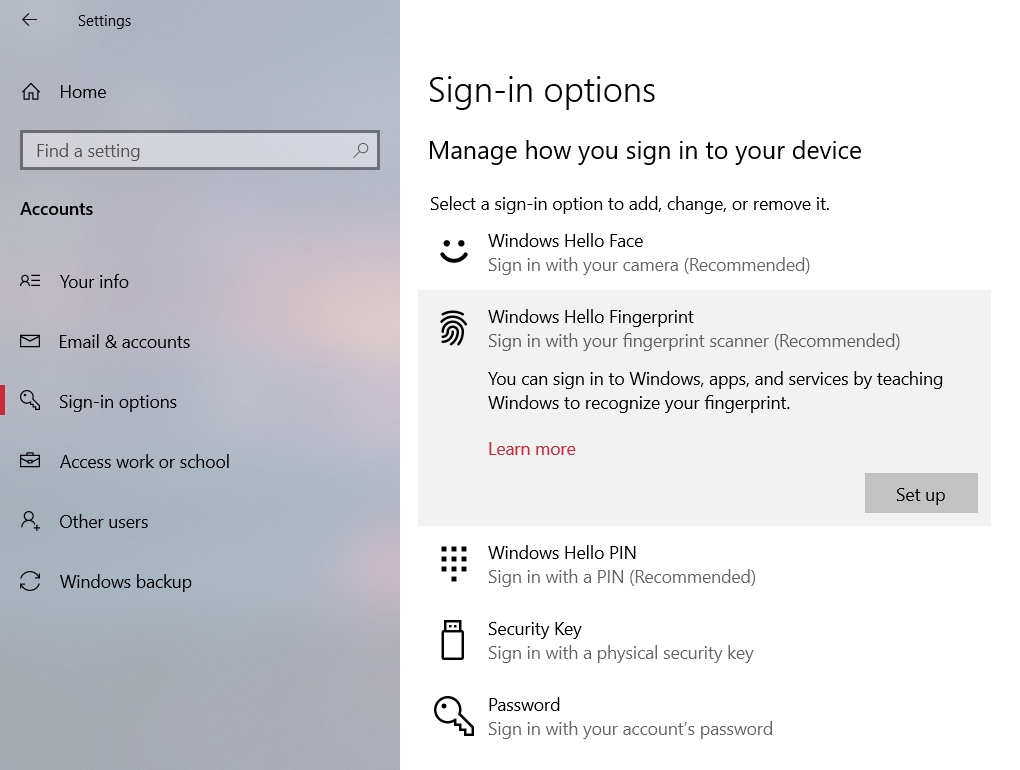
That path matters where HYPR uses a native biometric as the authentication method on the workstation, because it is the path those users follow. See Using Native Biometrics for the registration and authentication steps.
See also
- Passwordless Enforcement — disabling password login and excluding credential providers on Windows, including the Windows Hello provider CLSIDs
- Deployment via Intune — deploying the HYPR Passwordless client through Intune
- Using Native Biometrics — using a Windows Hello biometric as a HYPR authentication method