Using HYPR Passkeys in Okta Environments
This playbook describes how an enterprise Okta tenant can offer HYPR Passkeys as a login method alongside the standard HYPR Mobile App (HYPRLink/dynamic-link) flow. It is targeted at deployments where dynamic links or QR codes are unreliable, restricted, or undesirable from a UX standpoint.
Why a passkey-based Okta flow
When users already have HYPR registrations (web account pairings, workstation pairings, or both), adding a passkey login method gives Okta users two distinct sign-in flows:
- HYPR Mobile App flow — Okta surfaces the HYPR Mobile App as a login method; authentication uses HYPRLinks (dynamic links). Requires app switching.
- Passkey flow — Okta surfaces a Passkey login method; the HYPR Mobile App provides the passkey via the device's native passkey provider; authentication completes in the browser without an app switch.
The passkey flow has no dynamic-link dependency, no QR scan, no app switch, and benefits from the native browser passkey UX. Both methods can coexist for the same user.
Prerequisites
This playbook assumes you already have:
- An Okta tenant configured and operational, with an Okta application set up for passwordless authentication and wired up to HYPR Control Center.
- HYPR Enterprise Passkey / HYPR Passkey setup complete — see Enterprise Passkey and HYPR Passkey Setup Guide for the administrator-side configuration and User Experience for the mobile-side passkey-provider enablement.
- Existing HYPR registrations for the user (web account pairings, workstation pairings, or both).
- Mobile devices with iOS, or Android 14 or later, and the HYPR Credential Provider enabled in device settings. Android 13 and earlier cannot host a passkey provider, so those devices cannot take part in this flow.
- Browser support for native passkeys (Chrome, Safari, Edge, Firefox with passkey support).
Adding the passkey login method (end user)
Adding a passkey is an end-user action initiated from HYPR Device Manager. The on-device steps live in the End User playbook; the deployment-relevant summary:
-
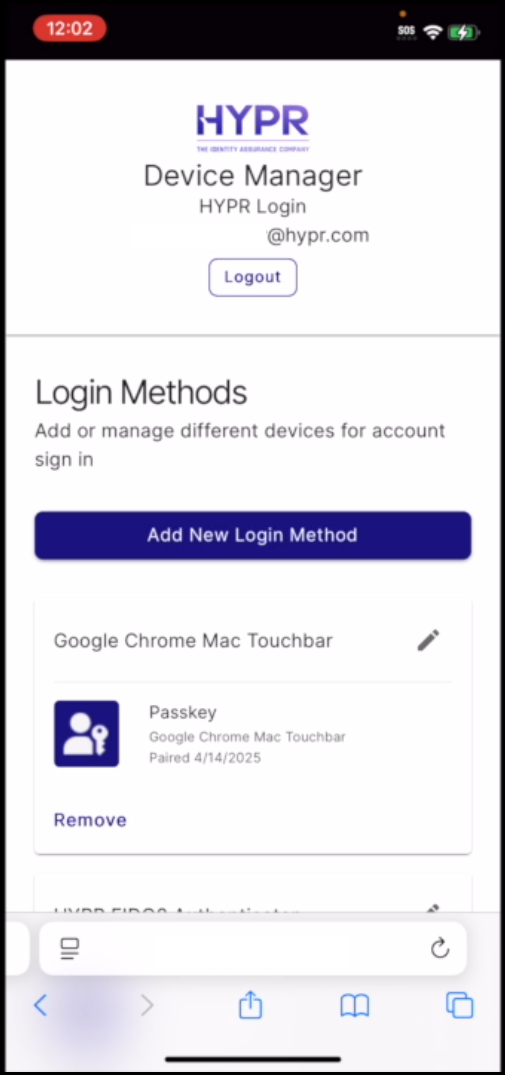
User signs in and navigates to HYPR Device Manager → Login Methods.
-
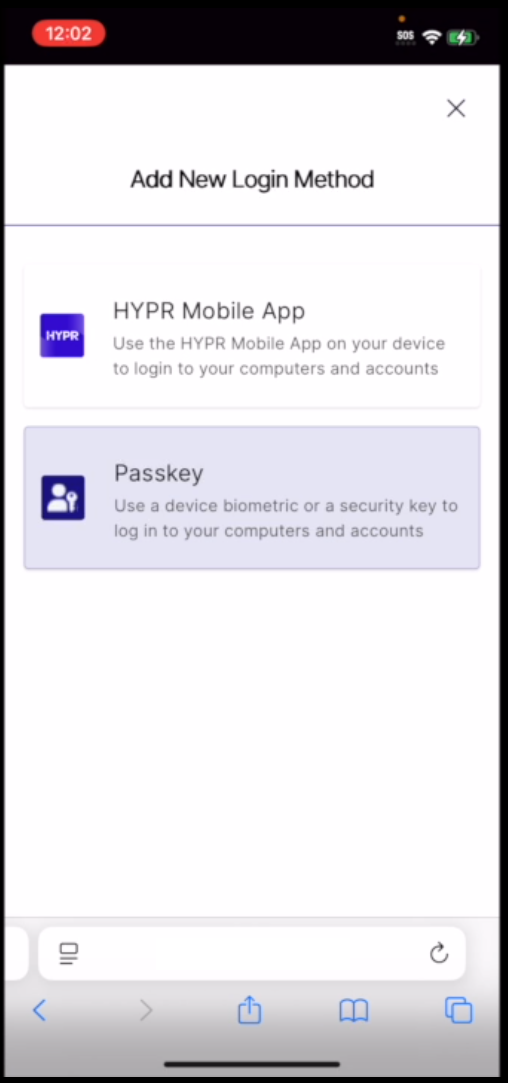
User selects Add New Login Method → Passkey.
-
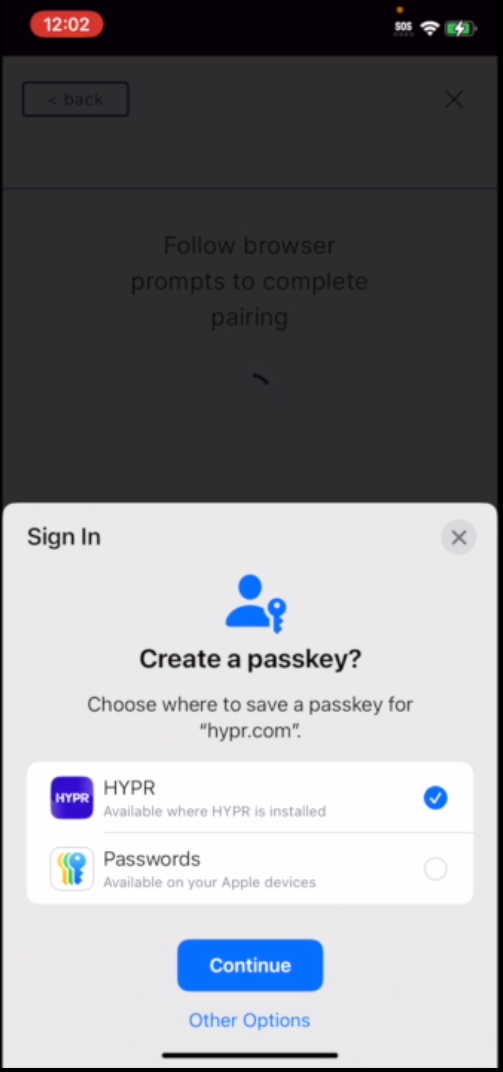
When prompted, the user confirms HYPR Credential Provider is enabled and selected on the mobile device.
-
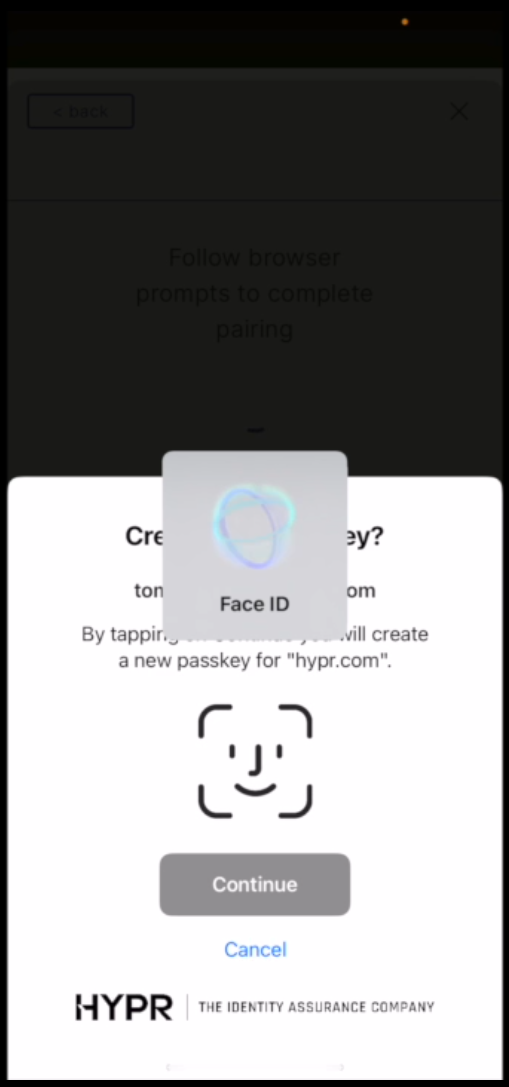
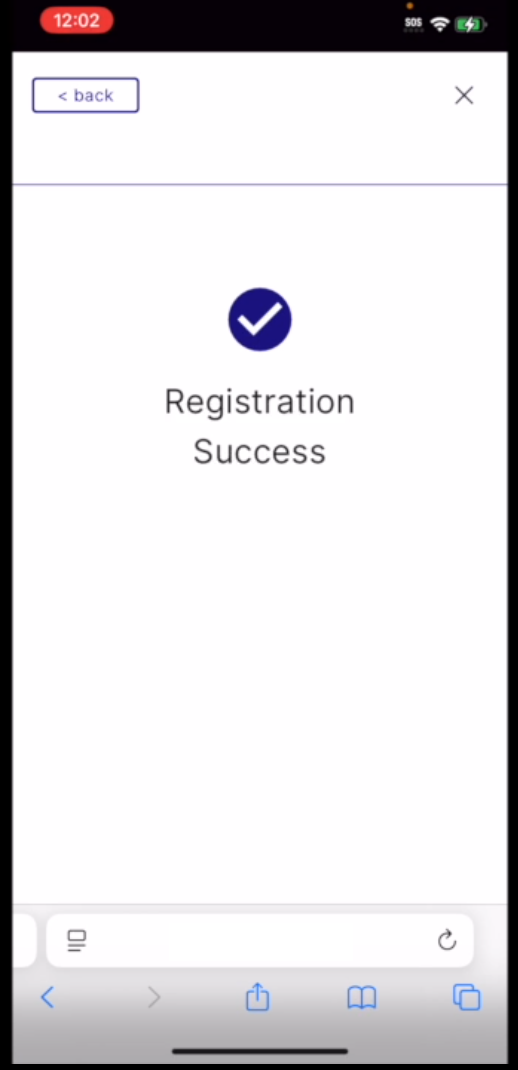
User completes the passkey pairing using their device's biometric authentication.
-
The new passkey appears in the HYPR app under My Passkeys alongside existing registrations.
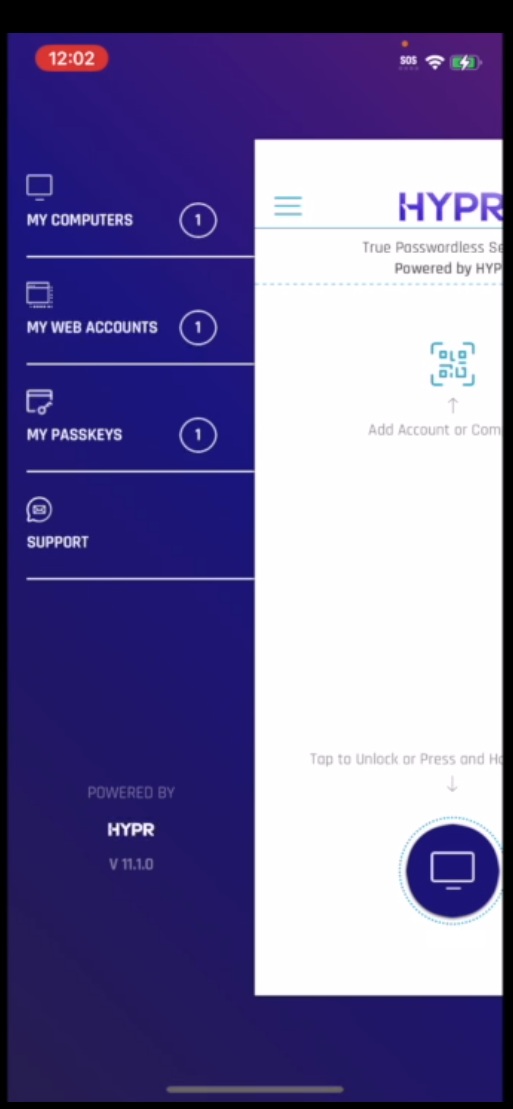
Users can have both their existing HYPR Mobile App registration and the new passkey active simultaneously — Okta will offer both during sign-in.
For the full end-user walkthrough of setting up a HYPR Passkey, see Setting up a HYPR Passkey.
Authentication flow comparison
| HYPR Mobile App flow | HYPR Passkey flow | |
|---|---|---|
| Dynamic link (HYPRLink) required | Yes | No |
| QR code required | Sometimes | No |
| App switching | Yes | No |
| Biometric prompt surface | HYPR Mobile App | Browser native passkey prompt |
| Typical use | Existing rollouts; users prefer the mobile-app UX | Environments where dynamic links are restricted, or for fastest browser-side login |
Troubleshooting
- Passkey option not available — Confirm HYPR Credential Provider is enabled in the mobile OS settings, the device is on a supported iOS/Android version with native passkey support, and passkey login is enabled in the Okta application configuration.
- Passkey creation fails — Re-verify HYPR Credential Provider is enabled; ensure the device has internet connectivity; remove and re-add the passkey; escalate to HYPR Support if the failure persists.
- HYPR passkey provider does not appear in the browser prompt — Ensure HYPR is set as the preferred passkey provider in the mobile OS; verify passkey registration completed; clear browser cache and retry.
For broader passkey troubleshooting, see Enterprise Passkey Troubleshooting.