CIAM Deployments for Passkeys Playbook
This playbook provides practical guidance for designing and rolling out passkeys in customer identity and access management (CIAM) environments.

Introduction
Passwords are easy to forget, often reused, and vulnerable to phishing and data breaches; even MFA one-time codes can be tricked onto fake login pages. Passkeys are a passwordless authentication method that uses cryptographic keys stored on the user's device; authentication happens via local biometrics (fingerprint, face) or device PIN, and the private key never leaves the device. The result is stronger phishing resistance plus a faster, lower-friction login.
For the underlying WebAuthn/FIDO2 concepts, sequence diagrams, and SDK API reference (registration + authentication function flows, error handling), see:
- HYPR FIDO2 WebAuthn SDK — the canonical reference for the JavaScript SDK, function signatures, registration/authentication flows, and error handling.
Below is a high-level overview diagram as published by FIDO Alliance which provides a conceptual, simplified view of a passkey's core components and interactions.
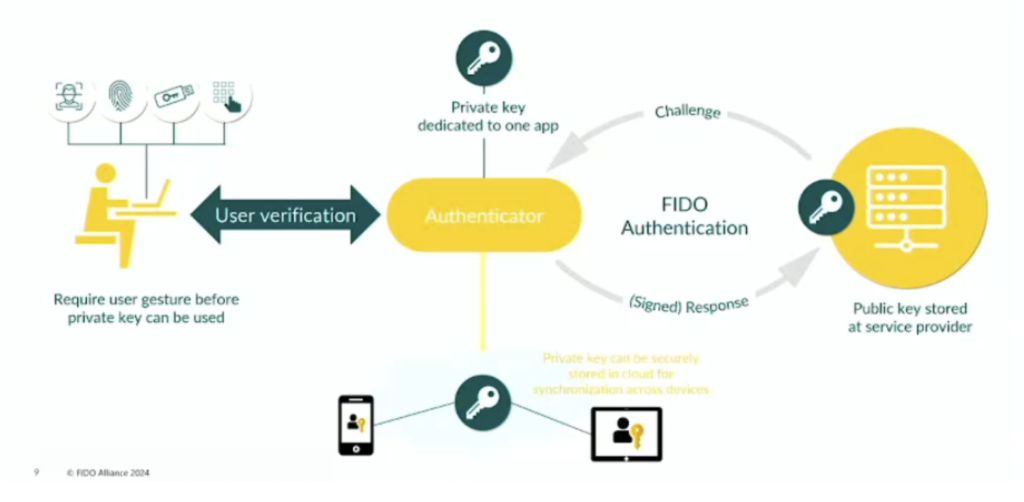
Web Passkey
Passkey Types Reference
Passkeys differ along two axes that matter for CIAM rollouts:
- By storage: Synced Passkey (Multi-Device) — synced across devices in an ecosystem (Apple iCloud Keychain or Google Password Manager); and Device-Bound Passkey (Single Device) — bound to one authenticator.
- By authenticator: Platform Passkey — embedded in the client device (Apple Touch/Face ID, Windows Hello); credential stored locally and linked to a Google or iCloud account. Cross-Platform Passkey — separate authenticator (USB security key, mobile device via QR/NFC); credential stored on the authenticator.
HYPR Enterprise Passkey sits in the device-bound category: the credential is bound to the mobile device that created it and is not synced across an ecosystem account. Synced passkeys from other providers can still be registered and used, governed by the Allow Synced Passkeys setting — see FIDO2 Enforced Settings.
HYPR Server maintains FIDO2 metadata in the database (including passkey provider AAGUIDs) in sync with the publicly maintained FIDO Alliance metadata.
User Experience by Browser
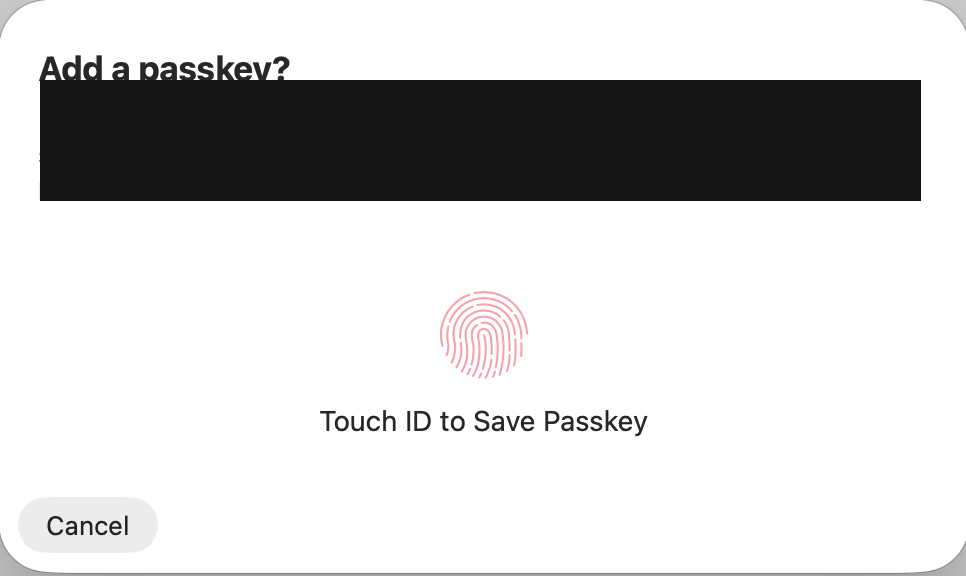
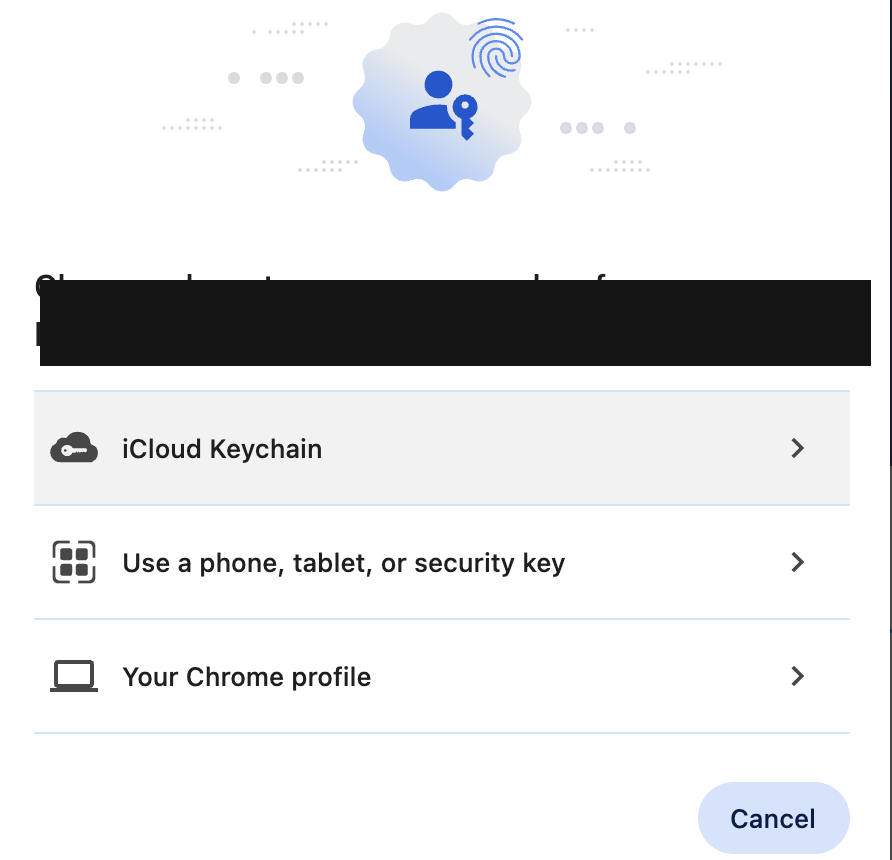
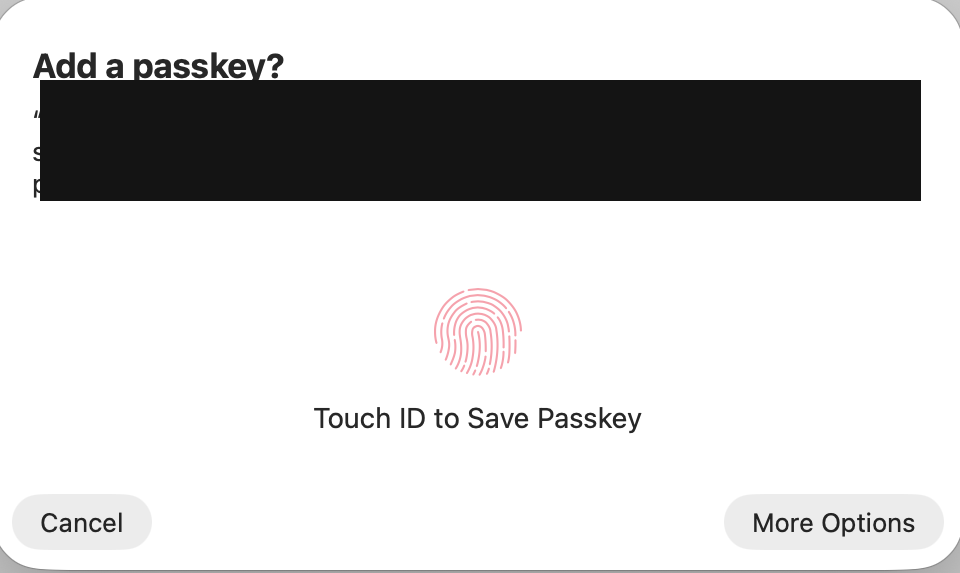
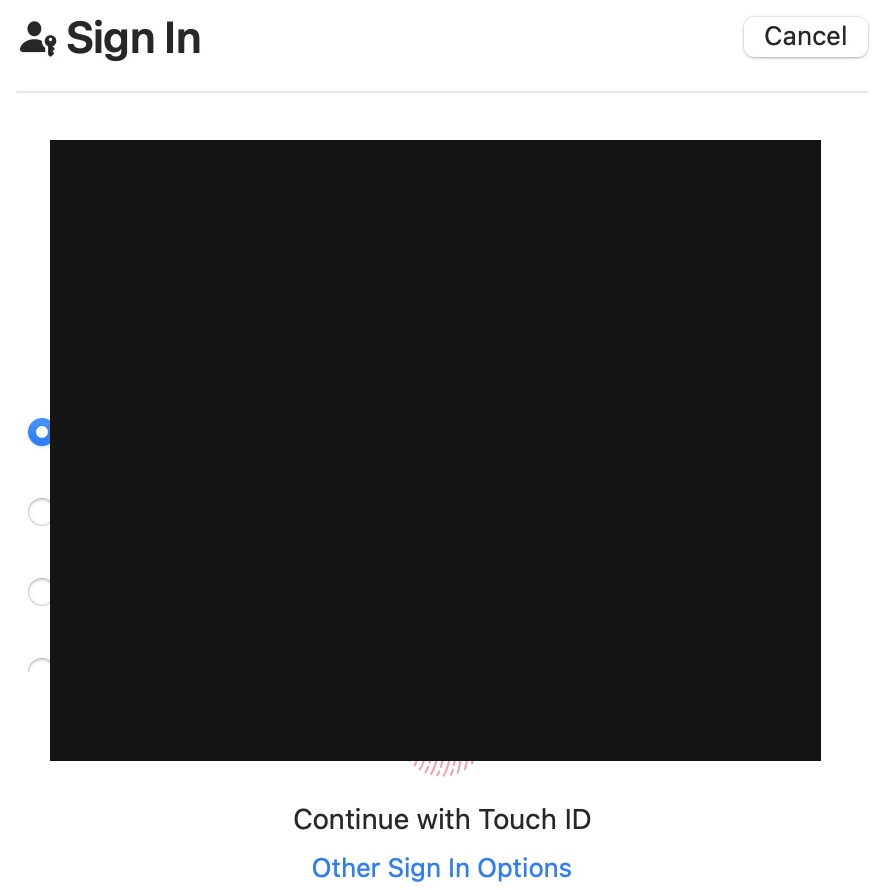
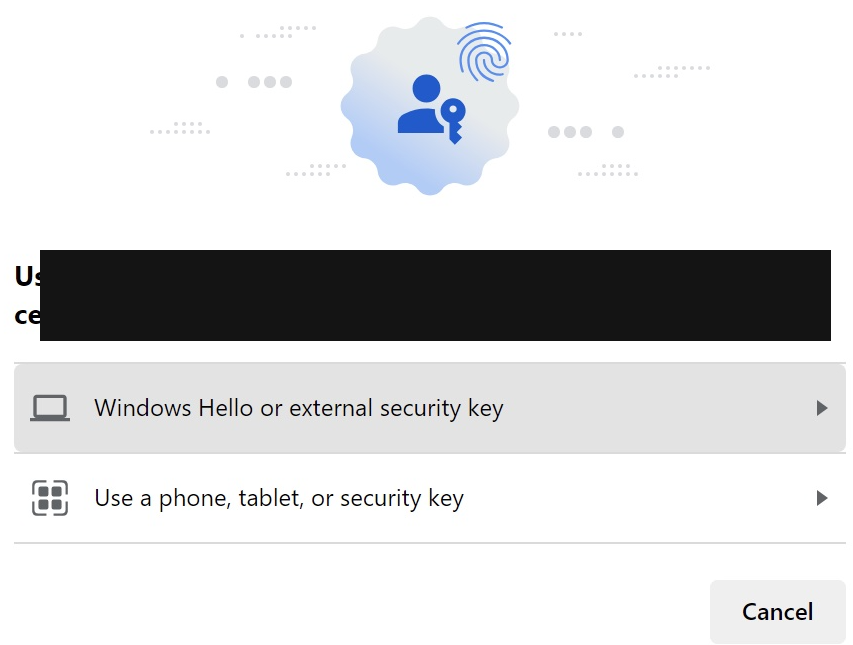
The end-user passkey UX is rendered by the browser/OS, not by the relying party. Reference screenshots:
Registration:
-
Chrome
-
Safari
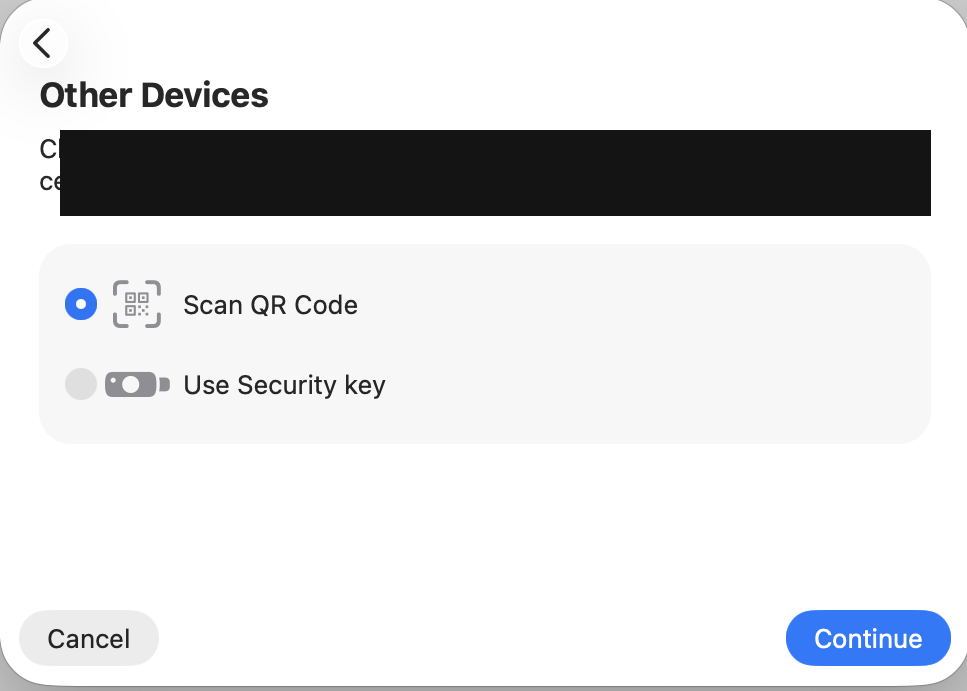
-
Windows 11 → Edge
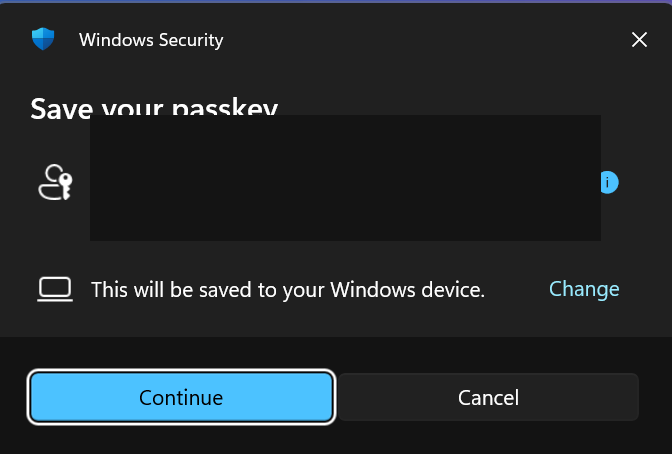
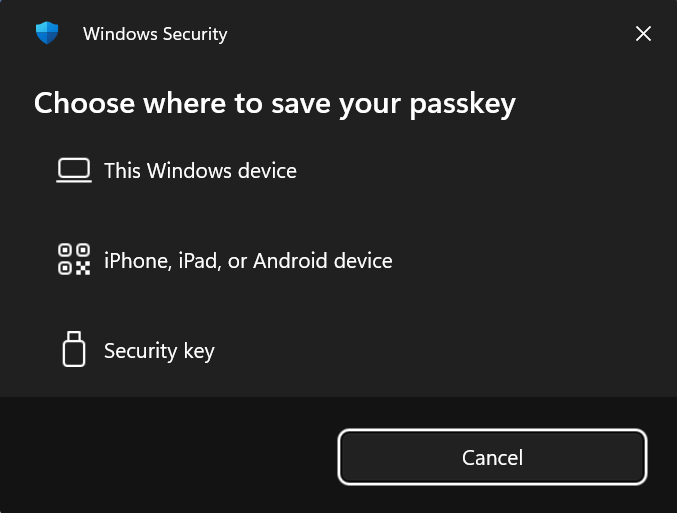
Authentication:
-
Chrome
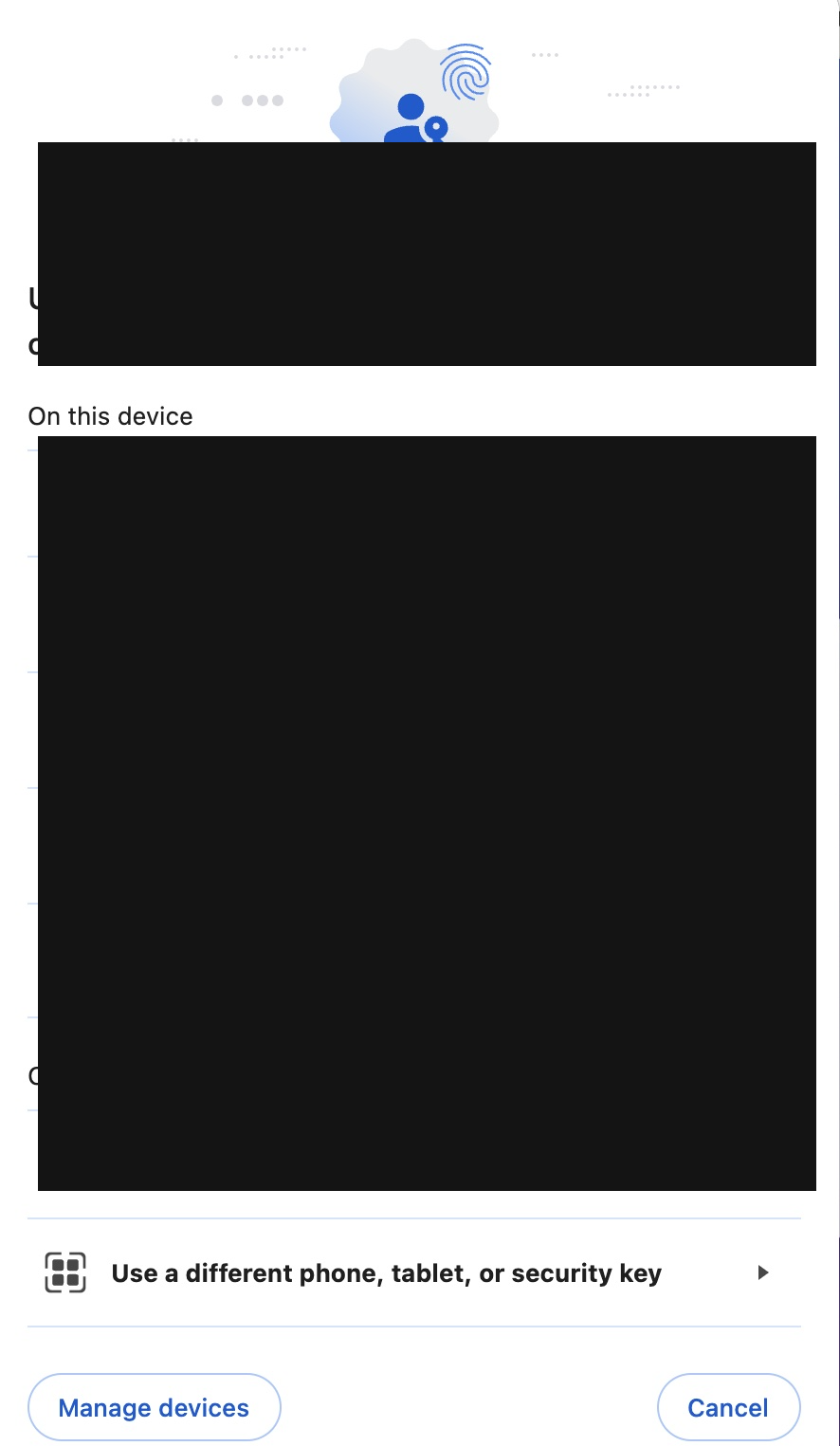
-
Safari
-
Windows 11 → Edge
Prerequisites
- HYPR FIDO2 SDK JavaScript library — see HYPR FIDO2 WebAuthn SDK: Getting Started.
- The user's browser must support the WebAuthn specification.
- For platform passkeys, the client device must be linked to a Google or iCloud account.
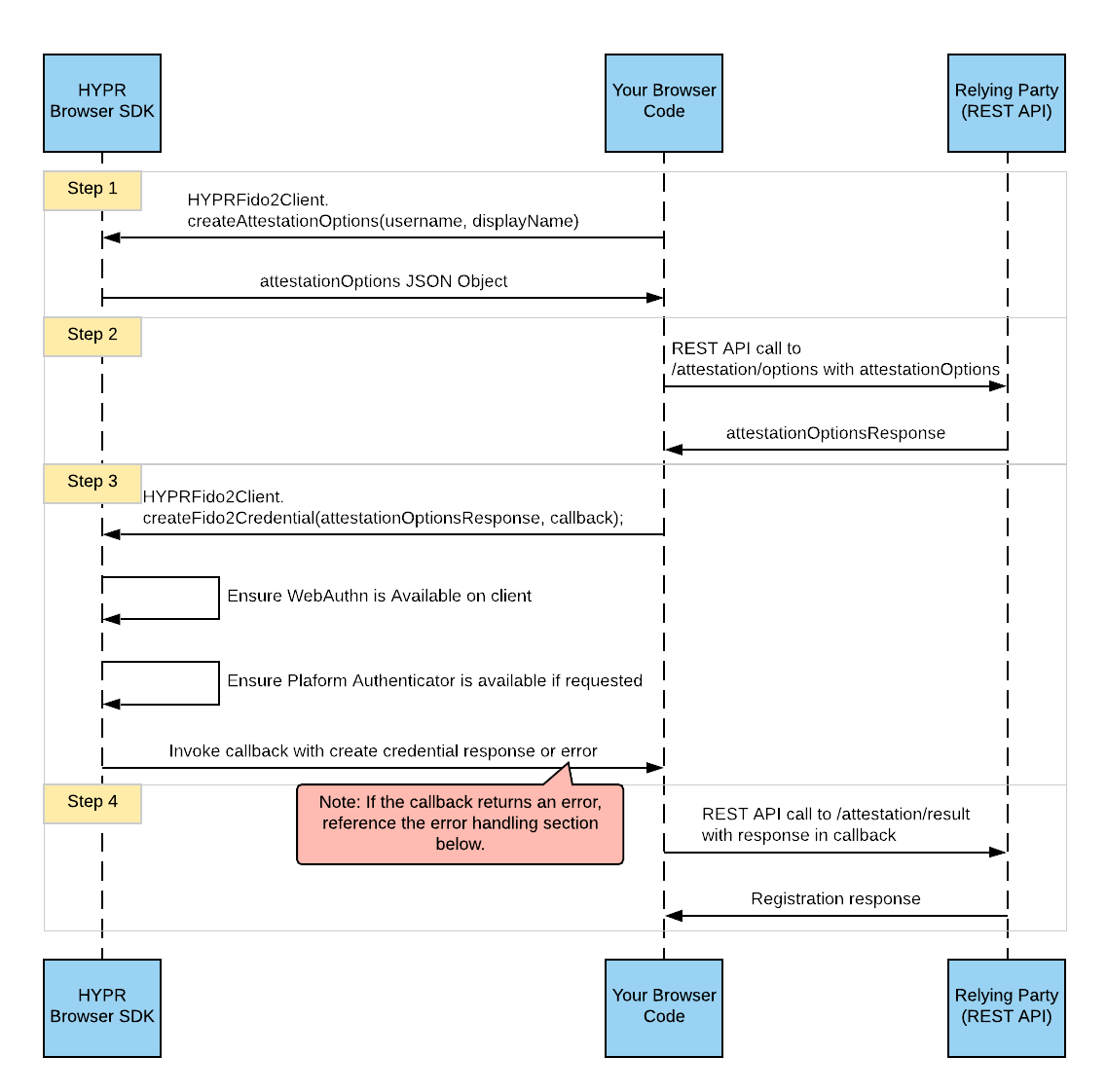
Sequence Diagrams
Registration:
Authentication:
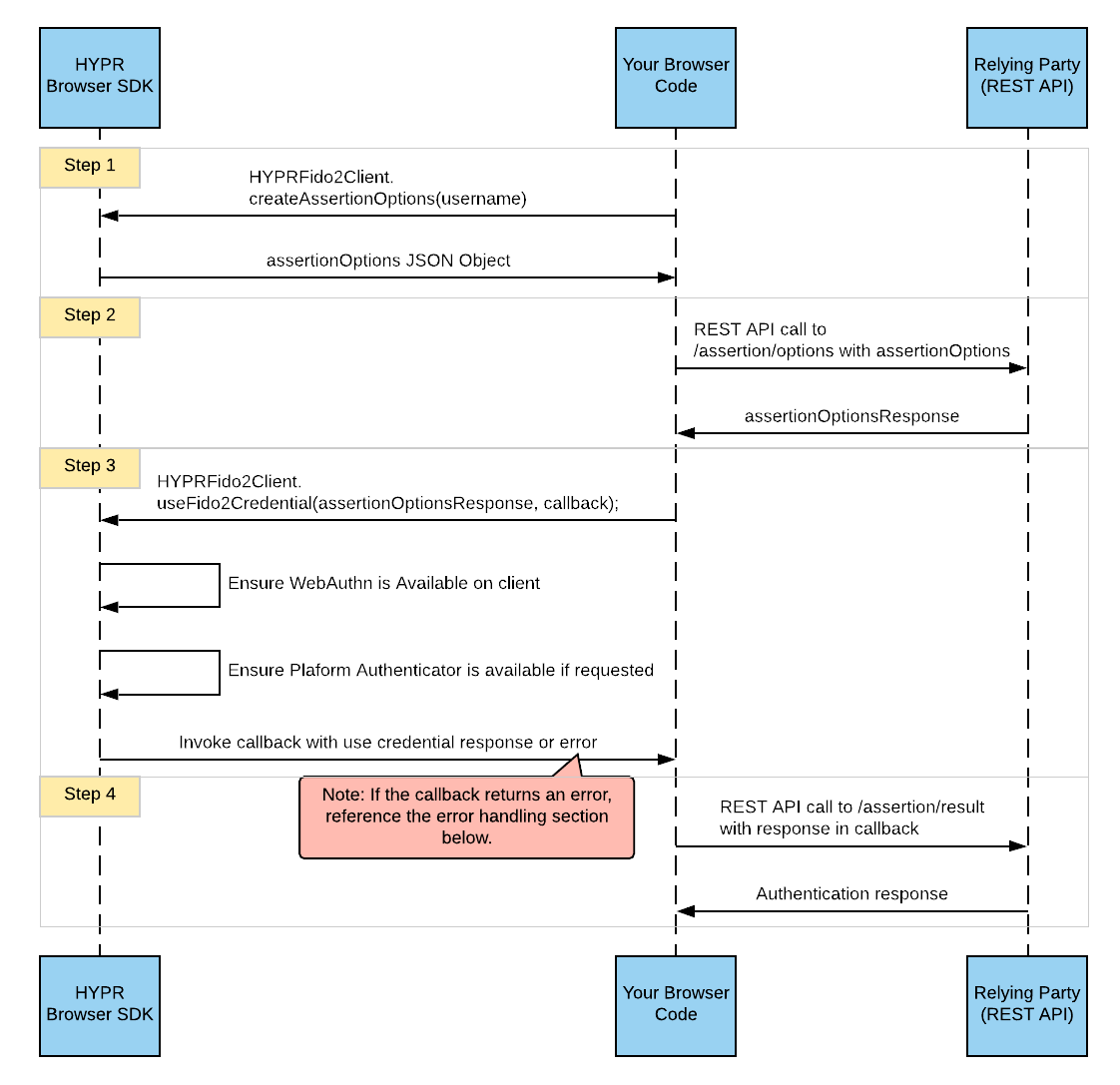
For the step-by-step registration and authentication flow descriptions, see HYPR FIDO2 WebAuthn SDK: User Registration and User Authentication.
Configuration in HYPR Control Center
-
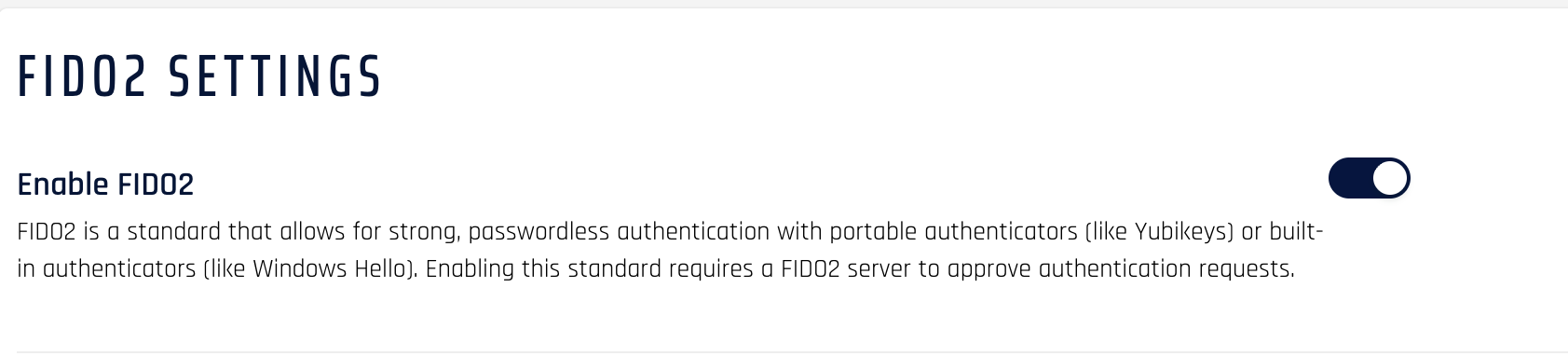
Enable FIDO2 for the rpApp: Control Center → rpApp → Advanced Config → FIDO2 Settings → Enable FIDO2.
-
Add values to the configuration elements:
| Config Name | Value | Default Value | Description |
|---|---|---|---|
| Client Origin URL | https://host.com | Relying Party application URL | |
| Discoverable Credentials | discouraged / preferred / required | discouraged | Required: Relying Party requires a client-side discoverable credential. Preferred: Strongly prefers creating a client-side discoverable credential, accepts server-side. Discouraged: Prefers server-side, accepts client-side. |
| User Verification Mode | discouraged / preferred / required | preferred | Required: Operation fails if the response does not have the user-verification flag set. Preferred: Prefers user verification but does not fail. Discouraged: Does not want user verification. |
| Attestation Type | none / direct / indirect / enterprise | direct | Direct: Receive an attestation statement that may include uniquely identifying information. Indirect: Receive the attestation statement as generated by the authenticator. None: Not interested in authenticator attestation. Enterprise: Binds a unique authenticator key pair to a serial number; removes the AAGUID-only limitation. |
| Attestation Timeout | 30000 | Registration timeout in milliseconds | |
| Assertion Timeout | 30000 | Authentication timeout in milliseconds |
For the JavaScript snippets that implement registration and authentication against this configuration, see HYPR FIDO2 WebAuthn SDK: User Registration and User Authentication.
Passkey Conditional UI
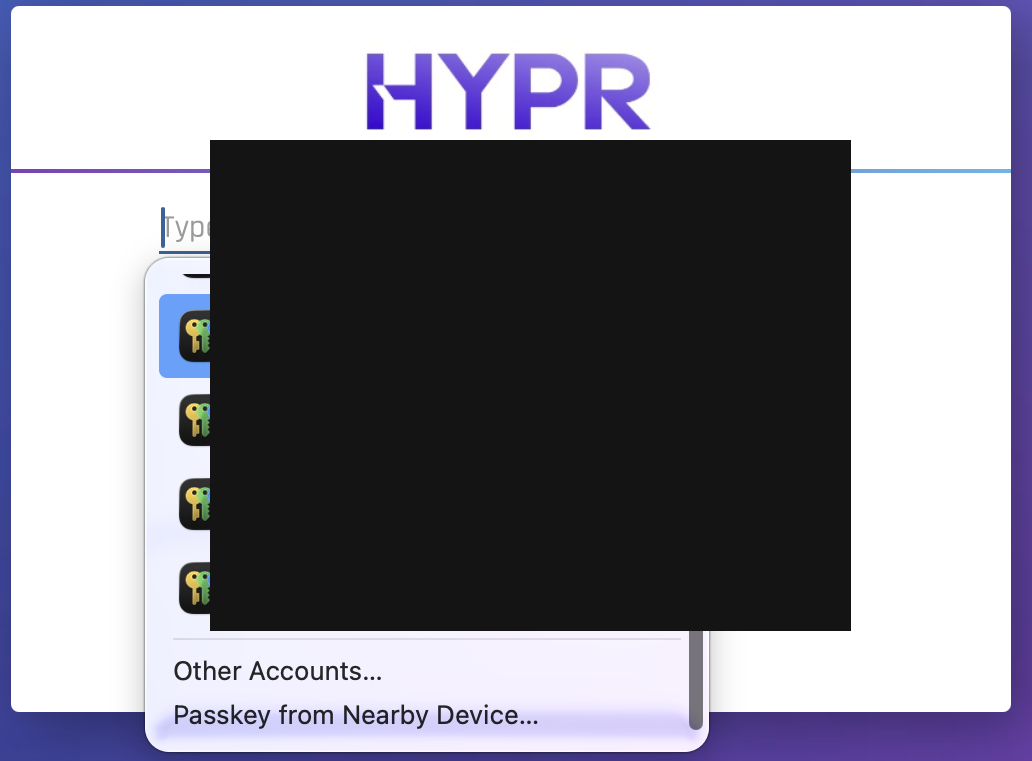
Conditional UI (also called passkey autofill) displays available passkeys in a selection dropdown for the user when a resident key is registered with the relying party. This smooths the transition from passwords to passkeys and lets users sign in without an explicit button click — the browser surfaces the available credential as part of the autofill experience.
Requirements:
- Browser support for
PublicKeyCredential.isConditionalMediationAvailable(). - The relying party application calls
navigator.credentials.get()withmediation: 'conditional'once the page exposes the username/passkey input.
For the SDK helper functions and example code, see HYPR FIDO2 WebAuthn SDK: User Authentication.
Testing the Workflow
Validate the end-to-end flow against the relying party application:
- Passkey Registration — User signs into the account settings screen and clicks Create Passkey. Browser prompts for biometric verification; registration is marked successful.
- Sign In Using Passkey — Happy Path — User enters their username and clicks Sign in using Passkey.
- Sign In Using Passkey — Alternate Flow — User clicks Sign in using Passkey without entering a username (discoverable credential flow).
- Conditional UI Flow — User taps the username field; the browser surfaces available passkeys; user selects one and completes biometric verification.
Deployment Strategy
Two common rollout patterns for CIAM:
- Gradual Adoption — Lower cost, slower gain. Introduce passkeys as an optional feature in account settings, alongside passwords. Users discover them organically.
- Rapid Adoption — Higher effort, faster benefit. Proactively promote passkeys in new user sign-up flows and existing login pages; educate users on the benefits.
Logs and Audit Trail
HYPR Control Center provides an Audit Trail mechanism for tracking events through the HYPR components. See Audit Trail for the full event reference.
Audit Trail events are stored in the HYPR database for a limited time; customers can integrate an existing SIEM to retain events permanently.
Passkey-related events:
| Event Name | Event Description |
|---|---|
| FIDO2_DEVICE_REG | Passkey registration was initiated; challenge was sent back to the client application. |
| FIDO2_DEVICE_REG_COMPLETE | Passkey registration was completed. |
| FIDO2_WEBAUTHN | Passkey authentication was initiated; challenge was sent back to the client application. |
| FIDO2_WEBAUTHN_COMPLETE | Passkey authentication was completed. |