Identity Verification and Assurance Strategies Playbook
Consideration for an Affirm Deployment
This playbook helps you plan and deploy HYPR Affirm verification flows for common enterprise use cases (onboarding, helpdesk and account recovery).

Introduction
HYPR Affirm is an automated identity verification solution designed to ensure that employees and customers are who they claim to be at all times. It provides fast, secure, and passwordless identity verification throughout the user lifecycle.
Key Features of HYPR Affirm:
-
Prevent Identity Fraud: Utilizes advanced verification technologies to detect and prevent unauthorized access.
-
Simplify and Automate Identity Verification: Streamlines the verification process, reducing administrative overhead.
-
Continuous Identity Proofing and Verification: Allows for re-verification at critical moments throughout the user lifecycle.
-
Secure and Accurate Verification Methods:
-
Document Verification: Validates official documents like passports and driver's licenses, detecting any forgeries or alterations.
-
Facial Recognition: Employs cutting-edge technology to detect spoofing tactics such as photos or masks.
-
Location Detection: Compares geolocation against expected locations while adhering to global regulations.
-
Chat and Video Verification: Combines AI and human interaction for secure verification through chat systems and live video feeds.
-
Manager Attestation: Allows supervisors to attest to an employee's identity, further strengthening security.
-
Benefits of Using HYPR Affirm:
Automated Screening: Reduce manual review requirements through automated checks
Comprehensive Monitoring: Track compliance results across all verification flows
Cost Reduction: Eliminate need for multiple vendor integrations
-
Fraud Prevention: Identify high-risk individuals before granting access.
-
Improved User Experience: Offers a fast, intuitive identity verification process that removes user friction.
-
Automated Screening: Reduce manual review requirements through automated checks.
-
Cost Reduction: Eliminate need for multiple vendor integrations
-
Comprehensive Monitoring: Track compliance results across all verification flows
-
Compliance Controls: Verification evidence and its retention are configurable per workflow (standard 7-day or 1-day short-retention), so you can align a flow with the regional data-residency or deletion rules you are subject to — see Data Residency and Retention. For more information on the assurance levels and regulatory frameworks HYPR addresses, and on its certifications, audit reports and privacy commitments, see the HYPR Trust Center.
-
Integration Flexibility: Integrates with various credential systems, including the Microsoft Entra ID Temporary Access Pass (TAP), and supports a Zero Trust security framework.
What will be the end result of this solution playbook?
After completing this playbook, you will have:
-
Defined specific use case(s), where Affirm solves your identity verification business needs
-
Established the source of truth for the identity verification user data. Often this is an identity provider such as Okta or Entra, which sources the user data from HR. NOTE: this step may require coordination with other departments within your organization
-
Created one or more Affirm verification workflows that implement the business logic
-
Outlined a schedule to rollout Affirm to your organization
Planning for a HYPR Affirm deployment
Generally speaking the best first step(s) for implementing and getting the most out of your investment in HYPR Affirm is to define the current business challenges you wish to address through identity verification. The next section provides a template for recording business requirements and documenting any associated questions that may need to be resolved before implementation can be accomplished.
Requirements analysis
Requirement Example
Statement: Streamline the user-provisioning process for first-time user verification
Interpretation: The current business process involves human inspection of a scanned verification document (passport, driver’s license, etc.), which is a prerequisite for creating user accounts in the IT system. The business would like to automate verification to improve security and accuracy of first-time user provisioning. In addition, the user should be able to immediately register to create their primary authentication account.
| Question | Answer |
|---|---|
| What ID would you like users to enter on the “Let’s get started” screen? This is typically a username or email address, but could also be another value like employee ID. Whatever value provided will be used to lookup the user profile in the system of record. | |
| Document verification requires Affirm to retrieve First Name and Last Name from a system of record to compare with the names on the ID. What system do you want to retrieve that data from? | |
| How would you like to integrate identity verification into your existing onboarding process? | |
| How will the user’s get notified to start the IDV flow? | |
| Do you have any branding or content customization requirements? | |
| What HYPR web application do you want to want to use for creating the initial HYPR registration upon successful verification? |
General Approach for Affirm Verification Flows
Regardless of the business use case, you need to make some determinations to configure an Affirm verification flow. The below process is a good starting point:
-
Determine what ID you would like users to enter on the “Let’s get started” screen? This is typically a username or email address, but could also be another value like employee ID. Whatever value provided will be used to lookup the user profile in the system of record.
-
Decide which verification steps are needed to meet the business requirements. The more steps, the more friction is added to the user experience. More steps increases the level of assurance, but also increases the burden on the user.
- For higher‑risk flows, consider enabling Document and Biometric Verification with Document Type Restriction so that only a limited set of high‑security government‑issued documents from allowed issuing countries can be presented to the user.
-
Each verification step requires some information from the user profile from the system of record. For example, document verification requires first name and last name. For each of your verification steps, review the documentation to make sure what data is required and check to see if that data is available in your system of record.
-
If you are not using the HYPR Okta or EntraID Integrations, you will need to write a custom Javascript program to query your system of record for the user profile information. See Customizations in the product documentation for more information.
-
Determine what the outcome of the verification flow should be in the case of both successful verification and unsuccessful verification. If one of the default outcomes provided does not match your use case, then you will have to write an Outcome customization.
-
Finally, if you would like to change the text or use your own branding, you should review the HYPR features Configuring End User Screen Management and Affirm Studio and plan out the design accordingly.
Following the above procedure should cover the majority of use cases.
HYPR Affirm Overview
HYPR Affirm adopts a workflow model for identity verification. Users are given a URL and are guided through a series of steps (screens), in which users are asked to present identifying information. Configuring Affirm as an administrator involves creating a workflow by choosing which verification steps are to be included in the workflow. Once the workflow has been created, Affirm generates a URL to be given to the end user.
Verification Steps
Affirm offers a configurable set of verification steps; each step requires specific user-profile fields from the System of Record (SoR) as a basis for comparison. The available steps are:
- Login Identifier (required) — entry point for the flow.
- Phone Number / Email Verification — SMS- or email-delivered OTP.
- Location — IP-based location displayed to the approver.
- Document and Biometric Verification — government-issued ID + facial comparison + optional liveness; supports Document Type Restriction.
- Photo ID and Liveness Capture — selfie compared against either an uploaded photo ID or an anchor image (for Liveness-Only / Anchor Image flows).
- Approver Chat and Video — live chat / video between requester and approver.
- Escalate to Live Chat — automatic redirect to chat on identity-check failure.
- Attestation — the human-approver review checkpoint that gates the outcome.
- Verified Outcome / Unverified Outcome — terminal steps that fire actions on success / failure.
See Create a Verification Flow for the full step descriptions, the per-step required user data, and the configuration walkthrough.
Pre-configured Workflows
In order to accelerate the workflow creation process, Affirm offers a number of canned workflows based on business use case:
-
Onboarding — for first-time user provisioning
-
Recovery Flow — for credential recovery
-
CC Admin — for verifying HYPR Control Center administrators. A tenant has at most one, and its verified outcome is fixed; see Control Center Administrator Flows
-
Custom — for flows that do not fit the three standard types
Application assignment
Application assignment associates an Affirm verification flow with an Identity Provider (IDP) integration previously configured in HYPR Authenticate. IDP integrations allow HYPR to be used as a passwordless authentication mechanism to the IDP. Each IDP integration has an associated application name, often referred to as relying party application (or rpAppId). Affirm uses the existing IDP application to retrieve user profile data needed as a baseline for the identity verification. If you do not already have an IDP integration with HYPR, you can create one just for this purpose (either Entra or Okta).
If you do not have an IDP or would like to use a different source, you can use the Advanced Customization to write the Javascript to retrieve user profile data from your system of record.
You will need to have an IDP integration for the following scenarios:
-
The selected Verified Outcome is Redirect to Device Manager to register a new login method
-
You are not using an Advanced Customization to retrieve identity data from an external data source
If one of those two scenarios applies, then you will select the application during the configuration of the Affirm workflow.
See HYPR Integrations for more information on creating an integration.
Advanced settings
There are two types of advanced settings in HYPR Affirm:
-
Customizations - custom code that gets executed during a workflow
-
OIDC Settings - sets up Affirm as an OIDC relying party
These advanced settings provide flexibility for business scenarios that do not fit into the out-of-the-box Affirm workflows.
Customizations
HYPR Affirm allows multiple types of customizations that override the default behavior in key parts of the verification flow. For example, if you need to pull user profile data from an external system rather than an IDP integration, then you write Javascript code to retrieve that data as part of the IDV flow.
Types of customizations are
| Customization Type | Description |
|---|---|
| User Directory Source | Specifies the user-profile source for the requester. |
| User Phone Number / Email / Date of Birth Directory Source | Per-attribute directory sources for specific user-profile fields when those attributes live in different systems from the primary user profile. |
| User Image Directory Source | Provides an anchor image to the Photo ID and Liveness step (used for Liveness-Only / anchor-image verification flows). |
| User Image Writeback Directory | Pushes verification images (selfies, document captures) to an external directory after a successful verification — see Directory Image Writeback. |
| SMS Sending | Sends SMS via a custom REST call instead of HYPR's SMS service. |
| SMS Verifying | Handles the result of a verified SMS code through a custom REST call instead of HYPR's SMS service. |
| Email Sending | Sends emails through a custom REST call instead of HYPR's SMTP servers. |
| Outcome API Call | Executes after the verification decision has been made at the end of the flow. |
| Custom Step Preprocessor / Function / Postprocessor | Code customizations attached to a Custom Verification Step. |
For customizing the email templates themselves (branding edits, template revisions, version history, and custom image uploads), see Email Notification Customization.
See Customizations for the full type list and the customization-creation walkthrough.
OIDC Settings
OIDC settings can be used to trigger OIDC authentication for the requester or approver.
Currently, these are only assignable to a verification flow via the HYPR Affirm API.
For the requester, this will force an OIDC authentication at the specified part of the flow. It must be assigned to the verification flow, and the setting for the specific step should be enabled to trigger when the authentication should take place.
For the approver, this will force an OIDC authentication before the approver enters a verification flow to which they were invited via email or SMS.
Affirm Studio
Affirm Studio is the screen management interface for HYPR Affirm. It lets administrators design the content and messaging for each verification step by creating reusable “kits” of screen customizations (titles, descriptions, instructions, button labels and other copy) and applying those kits to one or more verification flows. Changes can be previewed before they are applied, ensuring that end-user screens follow corporate branding and communication guidelines across the entire workflow. See Configuring End User Screen Management and Affirm Studio for how to tailor the look and feel of your verification workflows.
Affirm API
HYPR Affirm offers REST APIs to integrate Identity Verification into custom web apps or other integrations. For example, a self-service password reset page could invoke an Affirm verification flow prior to displaying the password reset page, thereby minimizing phishing attempts. See HYPR API docs for more information.
Solution deployment overview
Affirm is quite simple to configure, but preparation is key to ending up with a solution that meets the business requirements.
You can use the following as a checklist to make sure you cover all the bases:
- Identify the Affirm verification flow steps that align with your business requirements
- Determine what the outcome of successful and unsuccessful flows should look like
- Ensure you have access to the HYPR Control Center
- Request HYPR deployment team to enable the relevant functionality in your HYPR Control Center (see Affirm Feature Availability)
- Configure your IDP integration or external data source
- Configure your verification workflow
Solution deployment use cases
This section describes some typical use cases, in which Affirm automates traditionally manual business processes with a high degree of assurance.
First-time user provisioning
Affirm is well-suited to first-time user provisioning, where a remote user needs to verify their identity before an account is activated and credentials are issued.
Once you create a verification flow with the steps needed to assure proper user identification, the use case would look like this:
-
The user-provisioning system is updated with the new user's data and automatically emails them (to their personal email address if they don't yet have a corporate email) a link to the Affirm verification flow.
-
The user successfully completes the verification flow.
-
The designated approver is notified that the user completed and inspects the result of the verification flow.
-
If appropriate, the approver approves the verification and the provisioning process continues as usual.
First-time workstation provisioning
A first-time user can verify their identity, register a passkey, and unlock a corporate workstation in a single onboarding flow. With the HYPR Passwordless desktop application, HYPR Mobile App with Passkeys, and the Microsoft Entra ID integration, this scenario is possible without the user ever needing to know a password.
Configuration
-
Configure the Microsoft Entra ID HYPR Enterprise Passkey integration
-
Deliver the Entra hybrid workstation to the user with the HYPR Passwordless client pre-installed
-
Configure an Affirm verification flow with the Redirect to Device Manager to register a new login method outcome
User experience
-
The user receives their corporate workstation and an email with a link to the Affirm verification flow.
-
After successful verification, they are presented with a registration screen where they register a passkey using the HYPR Mobile App.
-
They boot up their workstation and scan a QR code on the login screen, which logs them into their workstation using HYPR passwordless authentication using a passkey.
-
They can now access Microsoft using the same passkey and, from the Entra portal, access other corporate applications via SSO.
Helpdesk
Affirm includes a separate web-based Helpdesk application that lets Helpdesk operators initiate identity verifications on behalf of callers, replacing shared-secret challenges (PINs, "secret" questions) that are prone to social engineering. The end-user walkthrough and admin configuration live in the main docs — see HYPR Affirm Helpdesk Support and, for OIDC-based agent authentication, Okta OIDC Integration for HYPR Affirm Helpdesk.
Typical Helpdesk flow
- The user calls the Helpdesk for support; the operator needs to verify the caller's identity.
- The operator opens the HYPR Helpdesk Application and clicks Initialize on the appropriate verification flow.
- The operator fills in the requester details and sends the link via email, SMS, or copy-to-clipboard.
- The user completes the verification; on completion they share the displayed verification code with the operator.
- The operator locates the matching row in the Helpdesk activity list and confirms the Decision column (Approved / Not Associated / Denied).
- On Approved, the operator proceeds with the support request. On Denied, the operator follows the failure-path business process.
Roles
The Helpdesk application supports two roles:
- Affirm Helpdesk Viewer — can inspect workflow links, status, and results, but cannot initialize a new verification.
- Help Desk Editor — can additionally initialize verifications.
Pre-requisites
The HYPR deployment team enables these capabilities before the Helpdesk application becomes available:
- HYPR Affirm (core)
- Affirm Helpdesk
See Affirm Feature Availability.
Authentication method
The Helpdesk application supports two auth methods for operators:
- HYPR passwordless — operator authenticates directly to the Helpdesk RP application with HYPR Passwordless.
- OIDC via IdP — operator authenticates through an IdP (e.g., Okta) that issues an
affirm_helpdesk_roleclaim valuedAFFIRM_HELPDESK_VIEWERorAFFIRM_HELPDESK_EDITOR(or theHYPR_-prefixed equivalents).
Both paths require creating an RP application for the Helpdesk — this is done in Control Center Advanced Mode (RP application creation is only available there). See Adding an RP Application for the canonical procedure, then assign the new RP via HYPR Affirm → Helpdesk Settings → Universal Configuration, and add operator users via HYPR Affirm → Helpdesk Users. For the OIDC path, Okta OIDC Integration for HYPR Affirm Helpdesk covers the full claim mapping and authorization-server setup.
Accessing the Helpdesk application
Once the feature flags are enabled and the RP application is assigned, operators reach the Helpdesk at:
https://<your-tenant>.hypr.com/cc/ui/idv/support/helpdesk
Password Reset
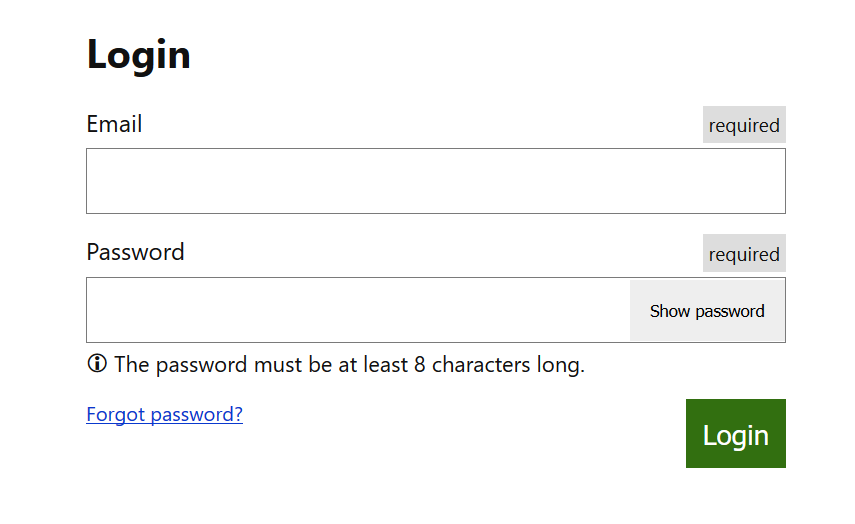
One of the most common Helpdesk calls involves a user who has lost or forgotten their password. While the Affirm Helpdesk application can address this use case, the scenario can be refined even further to eliminate the Helpdesk altogether.
The idea is to replace the typical “Forgot password?” link with an Affirm verification link.
Configuration
-
Create an Affirm verification flow with the steps needed to assure proper user identification
-
Create an Outcome customization that makes API calls to your user directory or IDP to reset the user password. The Outcome customization is Javascript code that gets executed after the verification flow completes.
-
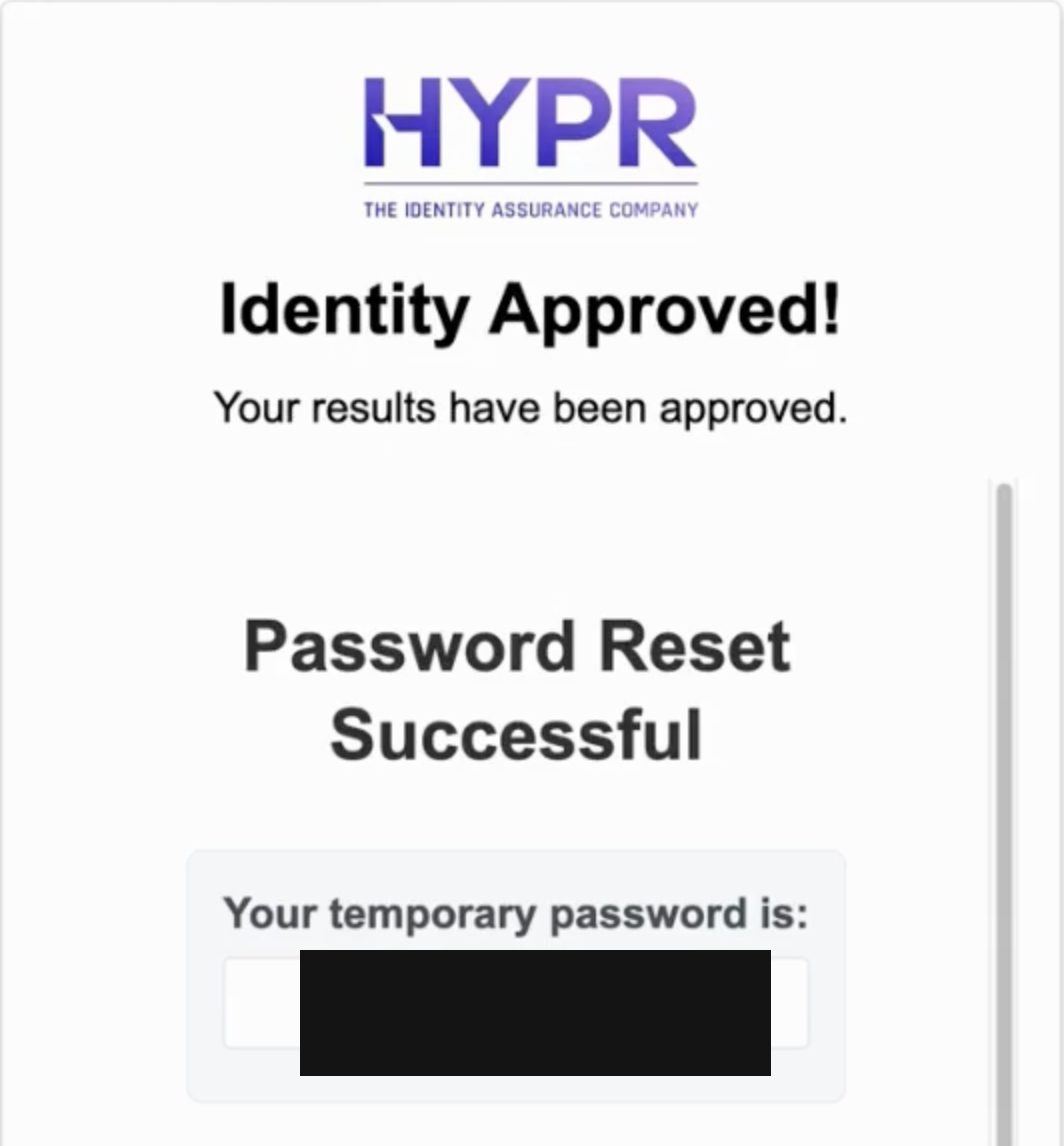
Display the new password to the user when they successfully verify their identity
Tips and Tricks
IDV failure modes
documentation.onfido.com guide: document report breakdown descriptions
"breakdown": {
  "data_comparison": {
    "result": "consider",
    "breakdown": {
      "first_name": "consider",
      "last_name": "consider"
    }
  },
  "data_validation": {
    "result": "consider",
    "breakdown": {
      "gender": "clear",
      "date_of_birth": "clear",
      "document_numbers": "clear",
      "document_expiration": "consider",
      "expiry_date": "clear",
      "mrz": "",
      "barcode": "consider"
    }
  },
  "image_integrity": {
    "result": "clear",
    "breakdown": {
      "image_quality": "clear",
      "supported_document": "clear",
      "colour_picture": "clear",
      "conclusive_document_quality": "clear"
    }
  },
  "visual_authenticity": {
    "result": "consider",
    "breakdown": {
      "fonts": "clear",
      "picture_face_integrity": "clear",
      "template": "clear",
      "security_features": "consider",
      "original_document_present": "consider",
      "digital_tampering": "clear",
      "other": "clear",
      "face_detection": "clear"
    }
  },
  "data_consistency": {
    "result": "consider",
    "breakdown": {
      "date_of_expiry": "",
      "document_numbers": "consider",
      "issuing_country": "",
      "document_type": "",
      "date_of_birth": "consider",
      "gender": "",
      "first_name": "consider",
      "nationality": "",
      "last_name": "consider",
      "multiple_data_sources_present": "clear"
    }
  },
  "police_record": {
    "result": "",
    "breakdown": {}
  },
  "compromised_document": {
    "result": "clear",
    "breakdown": {}
  },
  "age_validation": {
    "result": "clear",
    "breakdown": {
      "minimum_accepted_age": "clear"
    }
  },
  "issuing_authority": {
    "result": "",
    "breakdown": {
      "nfc_active_authentication": "",
      "nfc_passive_authentication": ""
    }
  }
}
Adding a Custom User Directory Source
If your user-profile data lives outside Okta or Entra (HR system, custom directory, internal API), write a User Directory Source code customization. The customization receives a loginIdentifier, queries your system, and returns the user-profile fields Affirm needs (first/last name, email, phone, location attributes, etc.).
The full input/output contract and the customization creation walkthrough (Affirm → Advanced Settings → Code Customizations → New Customization → User Directory Source) lives in Affirm Customizations. Once registered, assign it to a verification flow via the workflow's step configuration.
For the script itself — the entry point, the design pattern, a worked example, error handling, and how to test before attaching it to a flow — see Writing Affirm Code Customizations.
For per-attribute sources (when phone, email, or the extended profile details come from different systems than the primary user profile), separate User Phone Number Directory Source, User Email Directory Source, and User Extended Info Directory Source customization types are available.
For an anchor-image source (Liveness-Only flows), use the User Image Directory Source customization — see Configuring Liveness-Only Verification (Anchor Image).
Test Cases
HYPR documentation provides example test cases for validating an Affirm deployment.
Analytics Dashboard
The HYPR Control Center provides an Analytics Dashboard for seeing trends in user verifications. The dashboard allows you to drill down into detailed events to inspect the status of individual user verifications. See HYPR Documentation for more information.
Activity Log
The Affirm Activity Log provides a high-level overview of recent verification flows and their results. This is useful for troubleshooting when a user reports an issue during the verification process.
Appendix A: Affirm Feature Availability
HYPR enables Affirm capabilities per tenant. For the current list — what each one provides, whether it is required or optional, and how to request one — see Affirm Feature Availability.