HYPR Authenticate Integrations
HYPR Authenticate integrates with enterprise identity providers (IdPs) to deliver passwordless authentication, and with network infrastructure and observability platforms for broader deployment. Use the Control Center Standard Mode Integrations section to add and manage these connections.
For instructions on enabling, disabling, managing users, and configuring login settings for any authentication integration, see HYPR Integrations.
Identity Providers
Microsoft Entra ID
HYPR offers three integration models for Entra ID. Each is mutually exclusive and suited to different organizational architectures. Entra ID integrations also support HYPR Affirm outcomes and HYPR Enterprise Passkey provisioning.
-
HYPR Enterprise Passkey — The HYPR Mobile App acts as an Entra-native FIDO2 Enterprise Passkey. Users authenticate directly in the Entra login experience without redirection to HYPR. Required when workstations are Entra joined or will be in the future.
-
External MFA — HYPR becomes a native MFA option in Entra ID without federation. User identities are managed in Entra; HYPR satisfies Conditional Access, PIM, and sign-in risk policies.
-
HYPR Login Experience — Entra ID federates to HYPR via SAML. HYPR owns the login UX. Use only when workstations are AD-joined with no plans to migrate to Entra.
See Entra ID Integration Overview for a full comparison of options.
Okta
-
Okta OIDC — Control Center UI-based integration using OIDC. Enables passwordless login to the Okta application console and supports HYPR Affirm and Enterprise Passkey workflows.
-
Okta Identity Engine (OIE) — Static API token integration with Okta Identity Engine, allowing per-user authentication method customization.
When running multiple HYPR Okta integration deployments, the same individual email addresses can be enrolled separately into each deployment.
Ping Identity
-
PingOne DaVinci — Control Center UI integration. HYPR authenticates users through the PingOne DaVinci Admin Console application.
-
PingFederate — Manual integration using the HYPR Integration Kit. Supports FIDO UAF, FIDO2, and OOB authentication through the PingFederate IdP Adapter.
Network and Infrastructure
RADIUS
- RADIUS — Integrate HYPR with your RADIUS server for network-level passwordless access. Supplemental articles cover Cisco Meraki VPN, VMware Identity Manager, custom attributes, and security best practices.
Observability
SIEM and Event Hooks
Route HYPR authentication events to your SIEM or monitoring platform using event hooks.
- Datadog Event Hooks — Forward HYPR events to Datadog for monitoring and alerting.
- Splunk Event Hooks — Forward HYPR events to Splunk for log analysis.
- Custom Event Hooks — Send HYPR events to any endpoint using a custom webhook.
Additional Identity Providers
The following integrations are configured through Control Center in the same way as the primary IdPs above.
- Google Workspace — Passwordless authentication for Google Workspace users.
- OneLogin — Passwordless authentication for OneLogin users.
- OpenID Connect (Beta) — Generic OIDC integration for custom or unsupported IdP configurations.
- AD FS Plugin — Manual installation for Active Directory Federation Services environments.
- BeyondTrust (Beta) — Passwordless authentication for BeyondTrust privileged access users.
Login Settings
For general Login Settings (FIDO2 authenticators, enable/disable), see Login Settings in the HYPR Integrations reference.
Using HYPR Affirm as an Authenticator
In addition to passwordless login, HYPR can also use HYPR Affirm as an authenticator during sign-in attempts. When configured, Control Center routes the user into the selected Affirm verification flow as part of the login experience, replacing the default PUSH/QR flow.
This option is supported for the following integration types:
- Generic OpenID Connect (OIDC)
- Microsoft Entra external MFA (formerly external authentication methods)
- Okta
- PingOne DaVinci
Prerequisites:
- Create and configure the Affirm verification flow you want to use.
- Attach the verification flow to the correct RpApp (the HYPR Relying Party Application associated with the integration you are configuring). This is required for the integration to route into the intended Affirm flow.
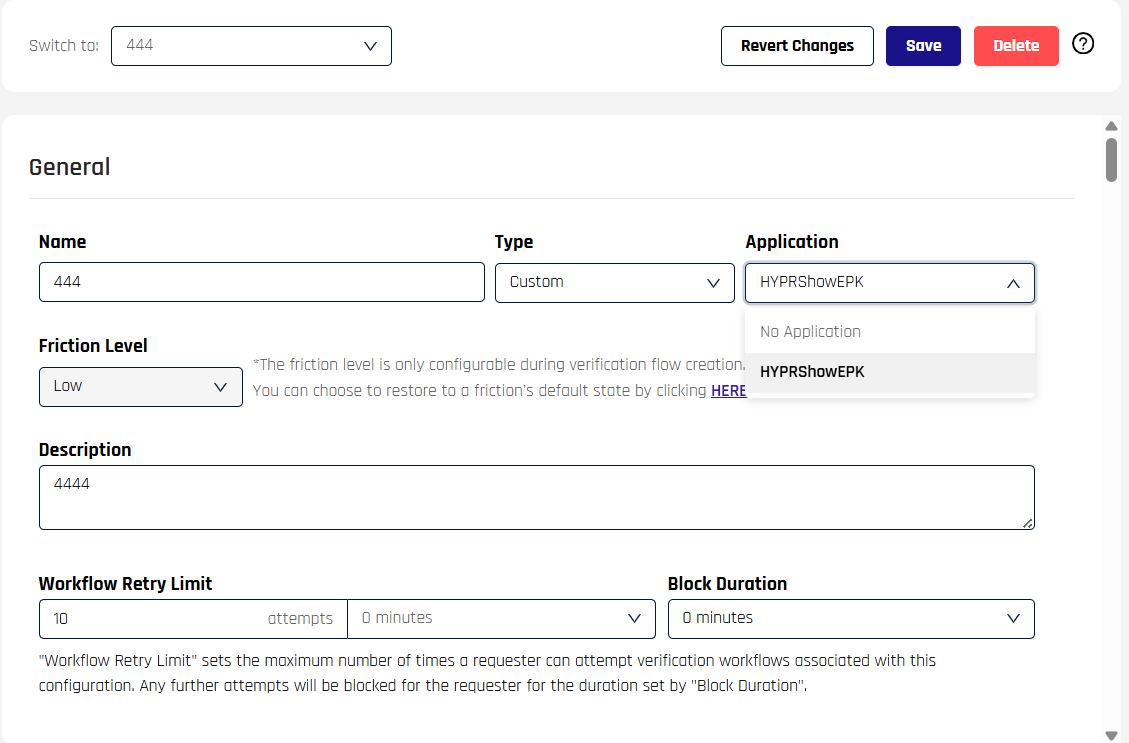
For verification-flow setup, see Verification Flows in the Affirm configuration guide.
To configure Affirm as the authenticator:
- Open Integrations in the HYPR Control Center and click the desired integration.
- Select the Login Settings tab.
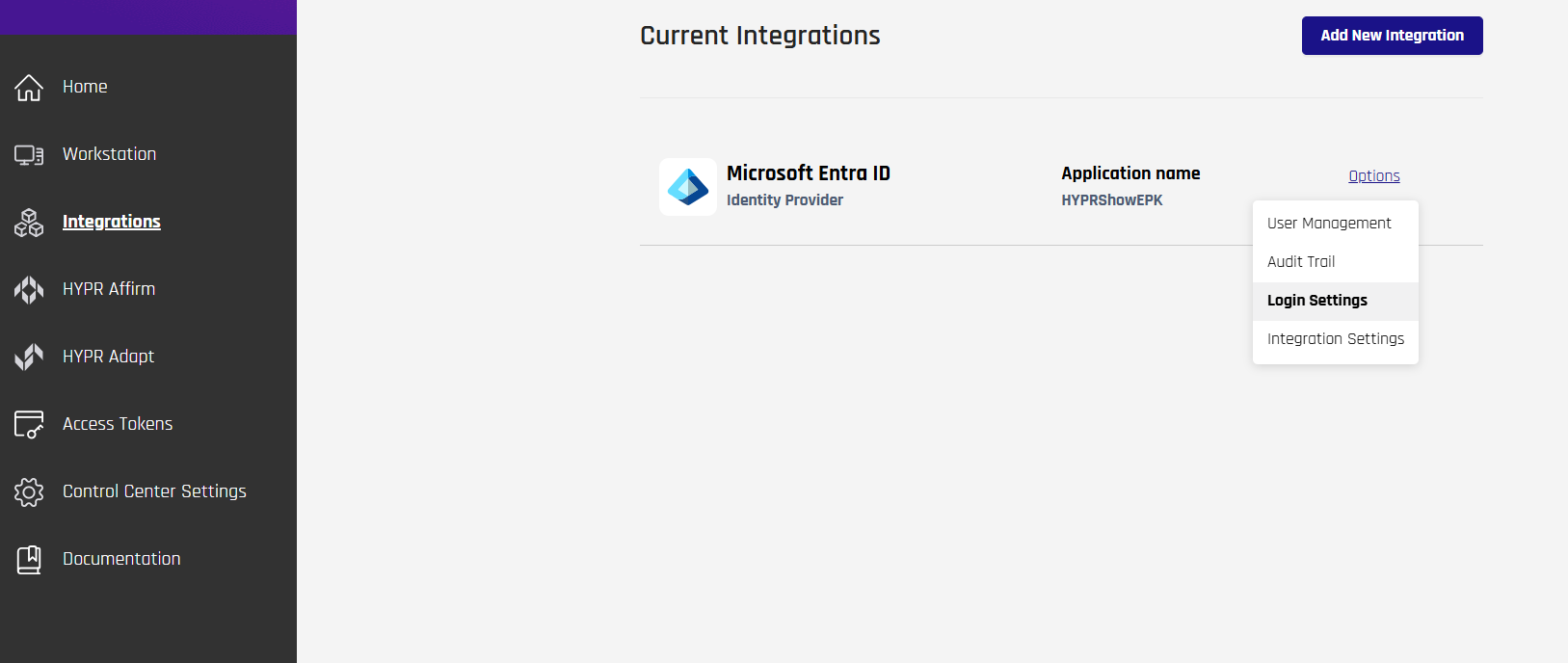
- Under [Affirm] Authenticator (add or select the section if not visible), configure HYPR Affirm Settings:
- Set Enable Affirm Override to On.
- In Verification Flow, select the Affirm verification flow you created.
- Click Save.
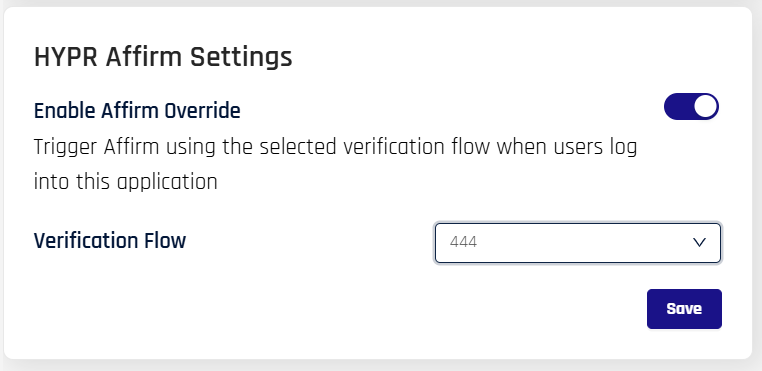

After the configuration is saved, the next relevant sign-in attempt routes the user to the configured Affirm verification flow, and the login outcome follows the result of that verification.