Okta API Access for HYPR Affirm Customizations
A HYPR Affirm code customization can call the Okta Management API to read your users' Okta profiles. For example, it can act as the User Directory source of a verification flow. The customization signs in to Okta as its own service app with OAuth 2.0 client credentials, so no Okta administrator's API token is involved.
The setup has three parts:
- In Okta, create an API Services app, give it an admin role and the Okta API scopes it needs, and generate its key pair.
- In HYPR Control Center, create the customization and store the Okta values as its attributes.
- Assign the customization to a verification flow.
Prerequisites
- An Okta Super Administrator. Only that role can grant Okta API scopes to an app.
- HYPR Affirm in Control Center, with permission to manage customizations.
Create an API Services App in Okta
-
In the Okta Admin Console, go to Applications and Resources > Applications. On Okta Classic Engine, the menu is Applications > Applications.
-
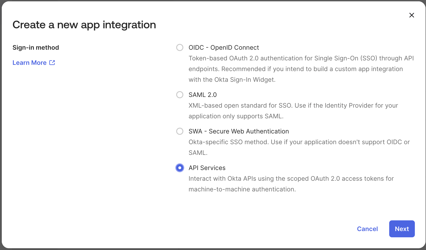
Click Create App Integration, select API Services, and click Next.
-
Enter a name for the app, for example HYPR Affirm, and click Save. Okta opens the app's settings.
Assign an Admin Role
A service app reads users only with an admin role. Without one, Okta answers its API calls with 403 Forbidden.
-
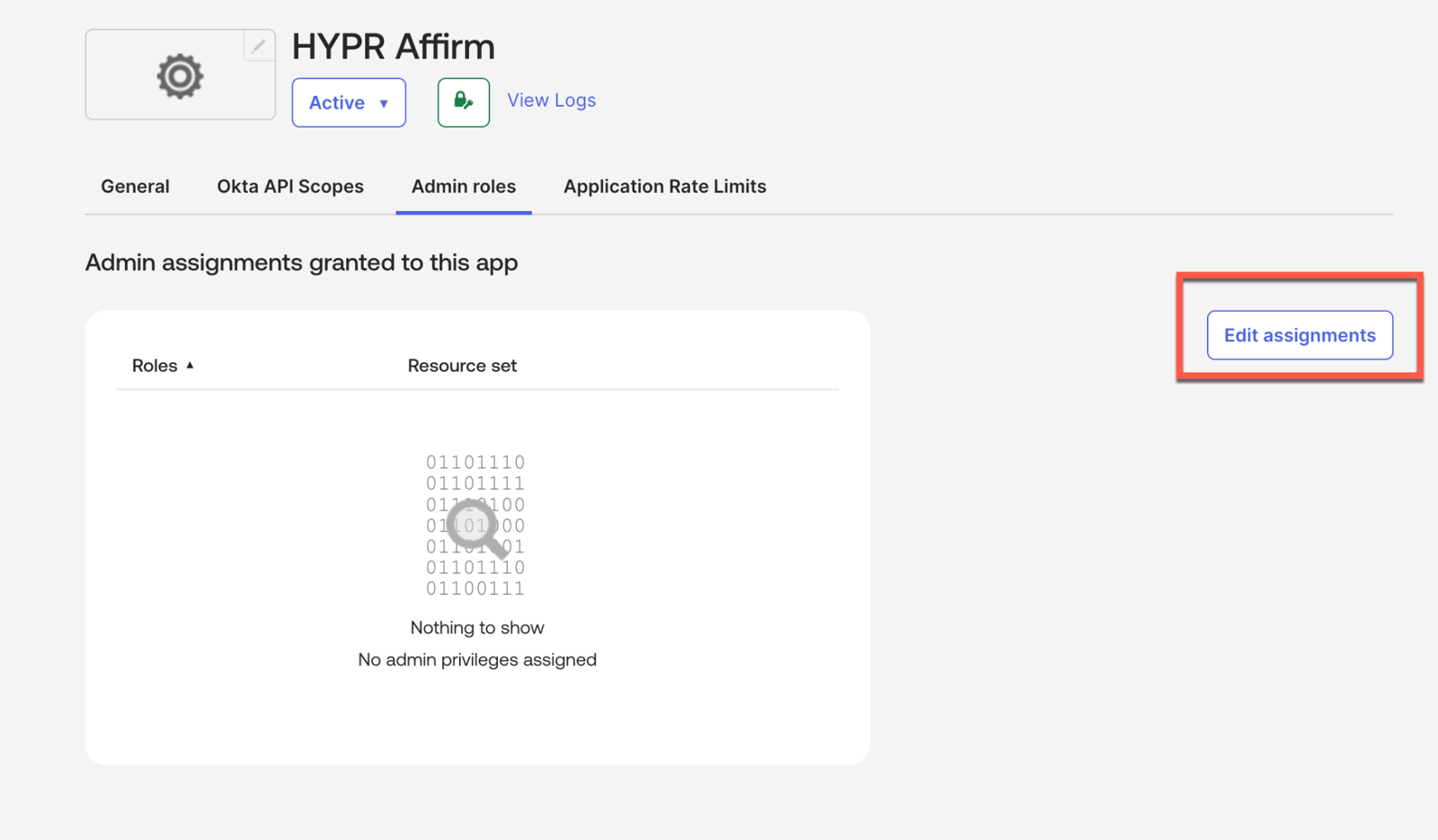
Select the Admin roles tab and click Edit assignments.
-
Assign a role that can view users, then click Save changes. Read-only Administrator works. For least privilege, create a custom admin role with the View users and their details permission, scoped to the users Affirm needs.
Grant the Okta API Scope
-
Select the Okta API Scopes tab.
-
Find okta.users.read and click Grant. Grant only the scopes your customization uses. Reading a user's profile needs
okta.users.readalone.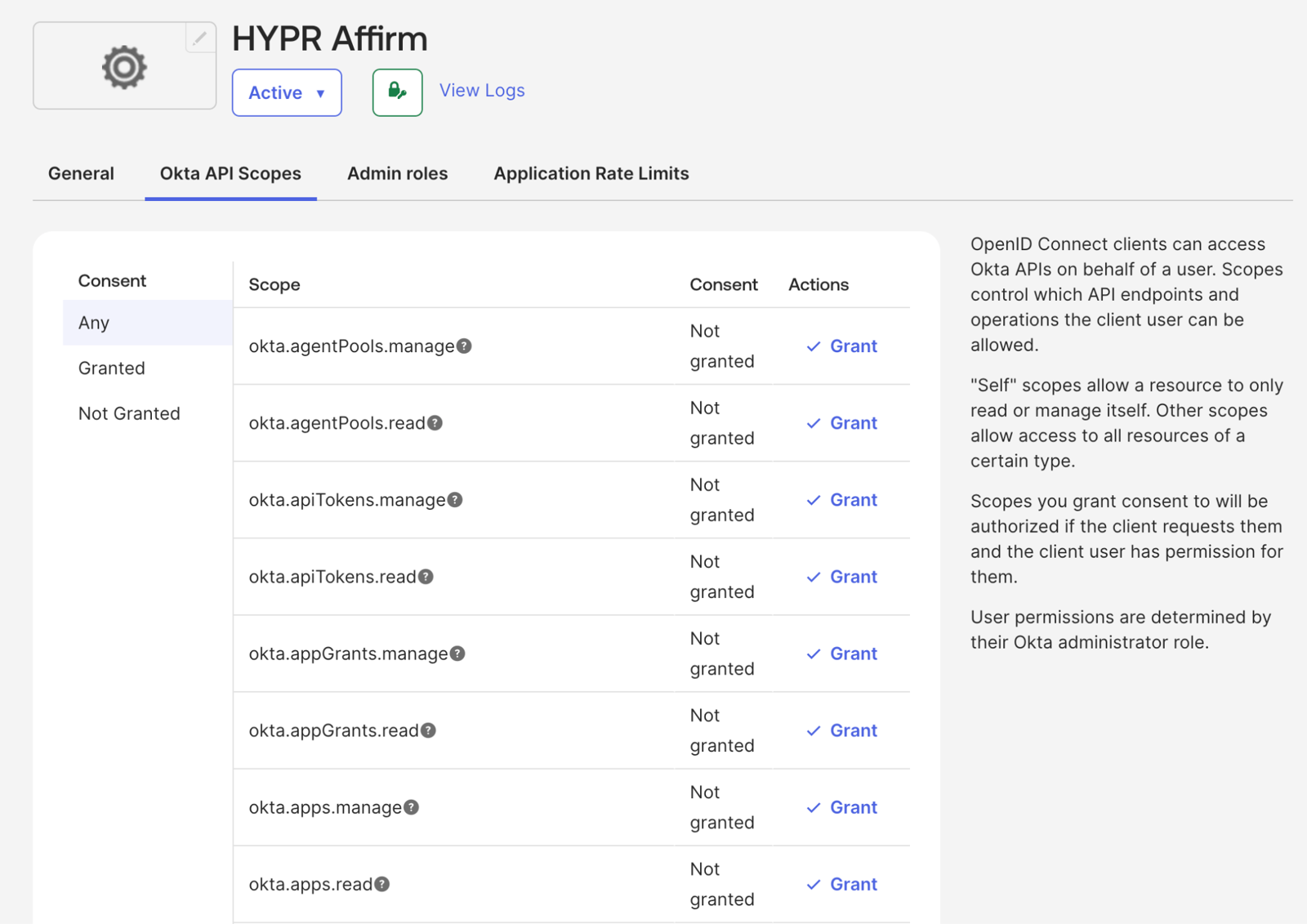
Switch to Public Key Authentication and Generate a Key
The customization proves its identity with a JWT signed by a private key, instead of a client secret.
-
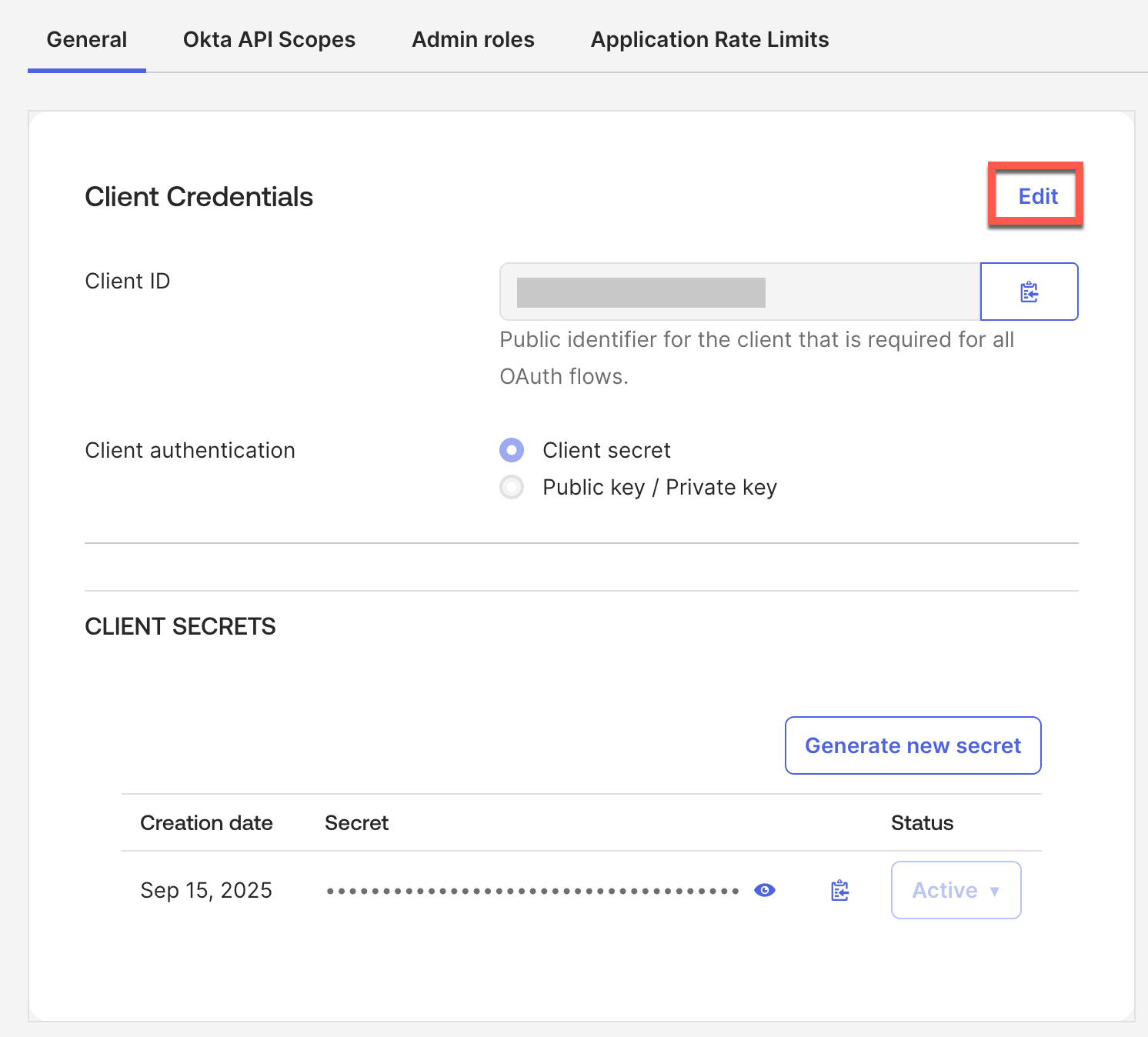
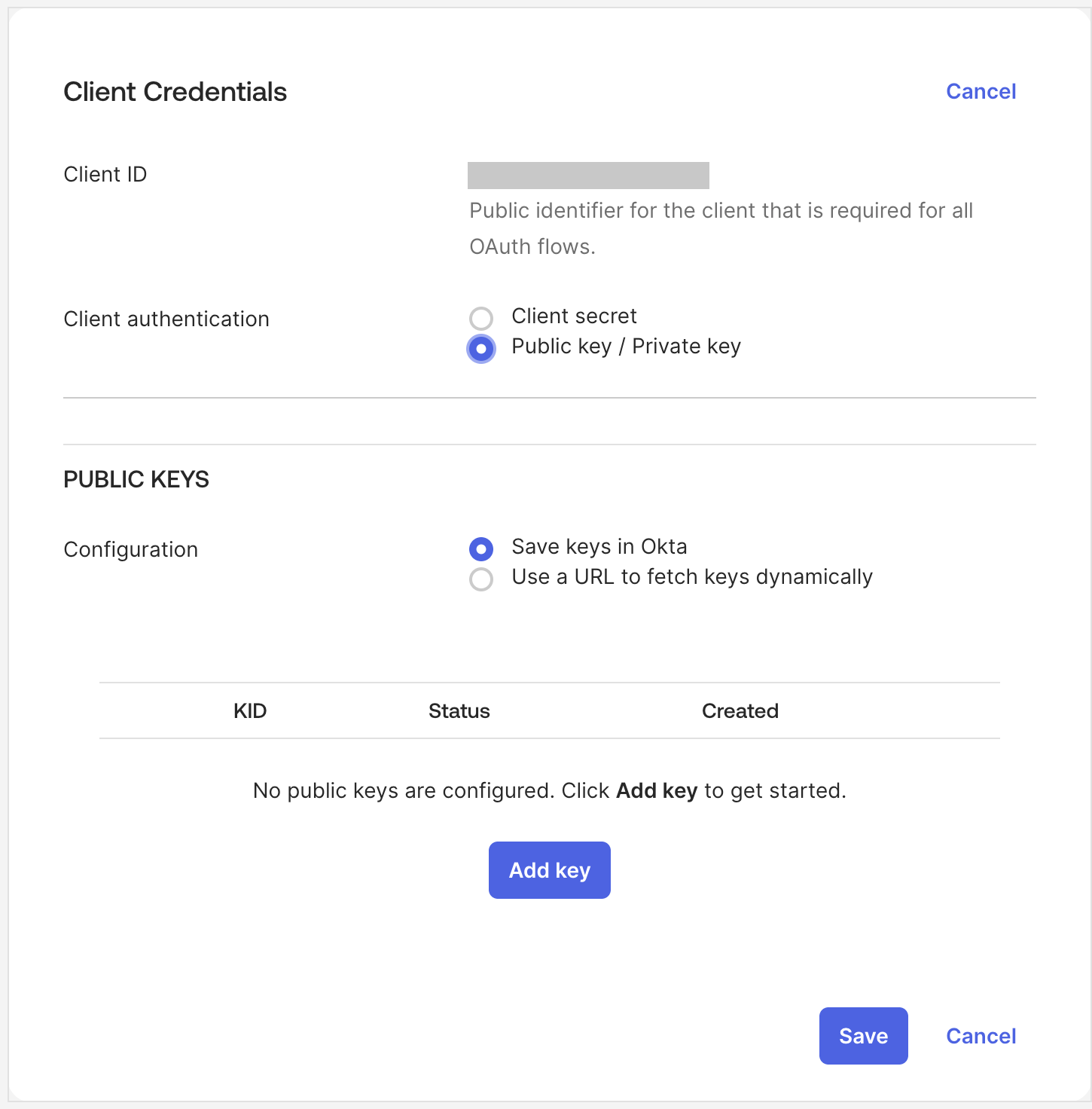
On the General tab, in the Client Credentials section, click Edit.
-
Under Client authentication, select Public key / Private key.
-
Under Public keys, set Configuration to Save keys in Okta, then click Add key.
-
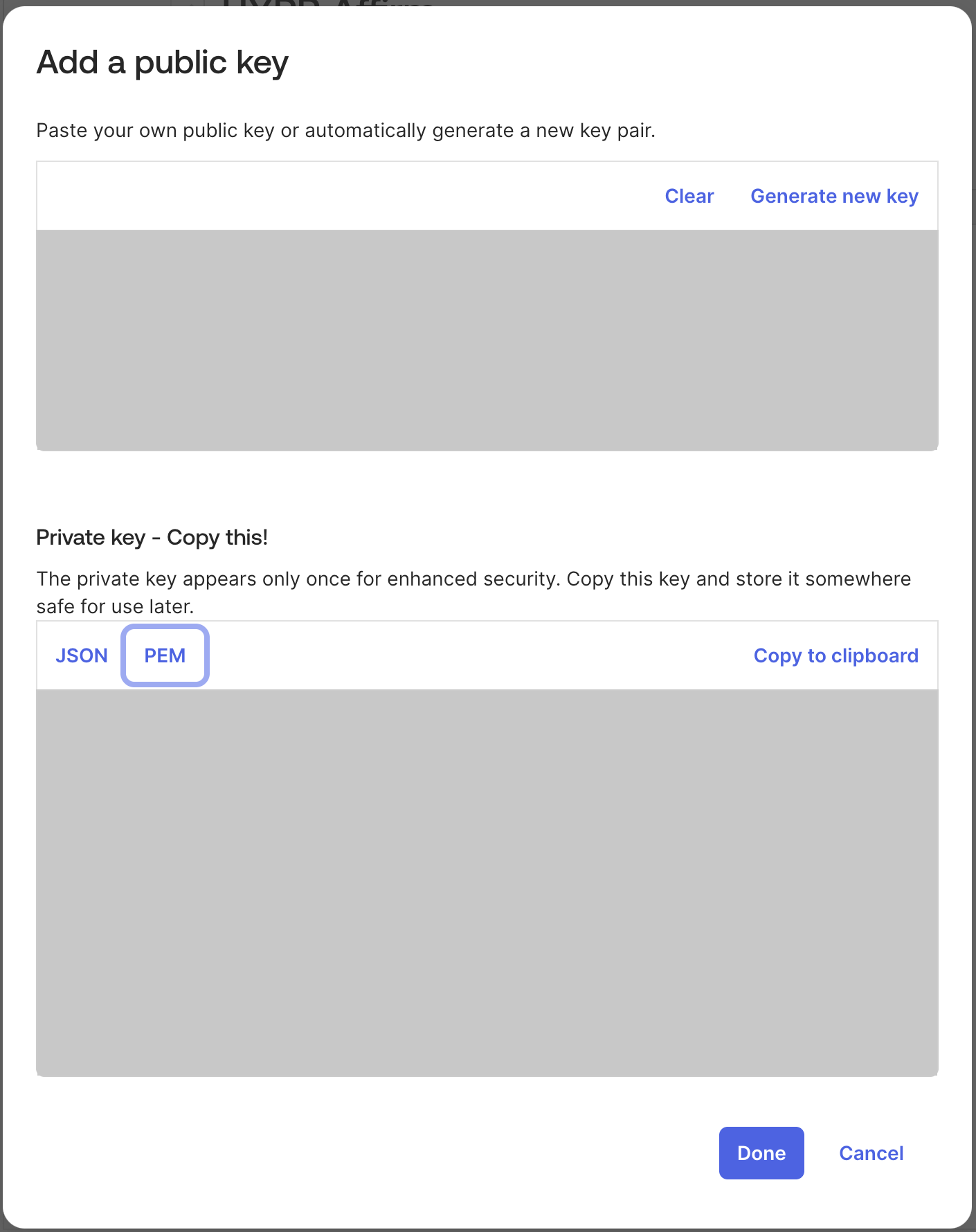
Click Generate new key. Under Private key - Copy this!, select PEM, and click Copy to clipboard. Store the private key somewhere safe: Okta shows it only once and keeps only the public key.
-
Click Done, then Save. Okta warns that existing client secrets will be deleted. Click Save to confirm.
-
Record the Client ID and the KID of the new key, now listed as Active under Public keys.
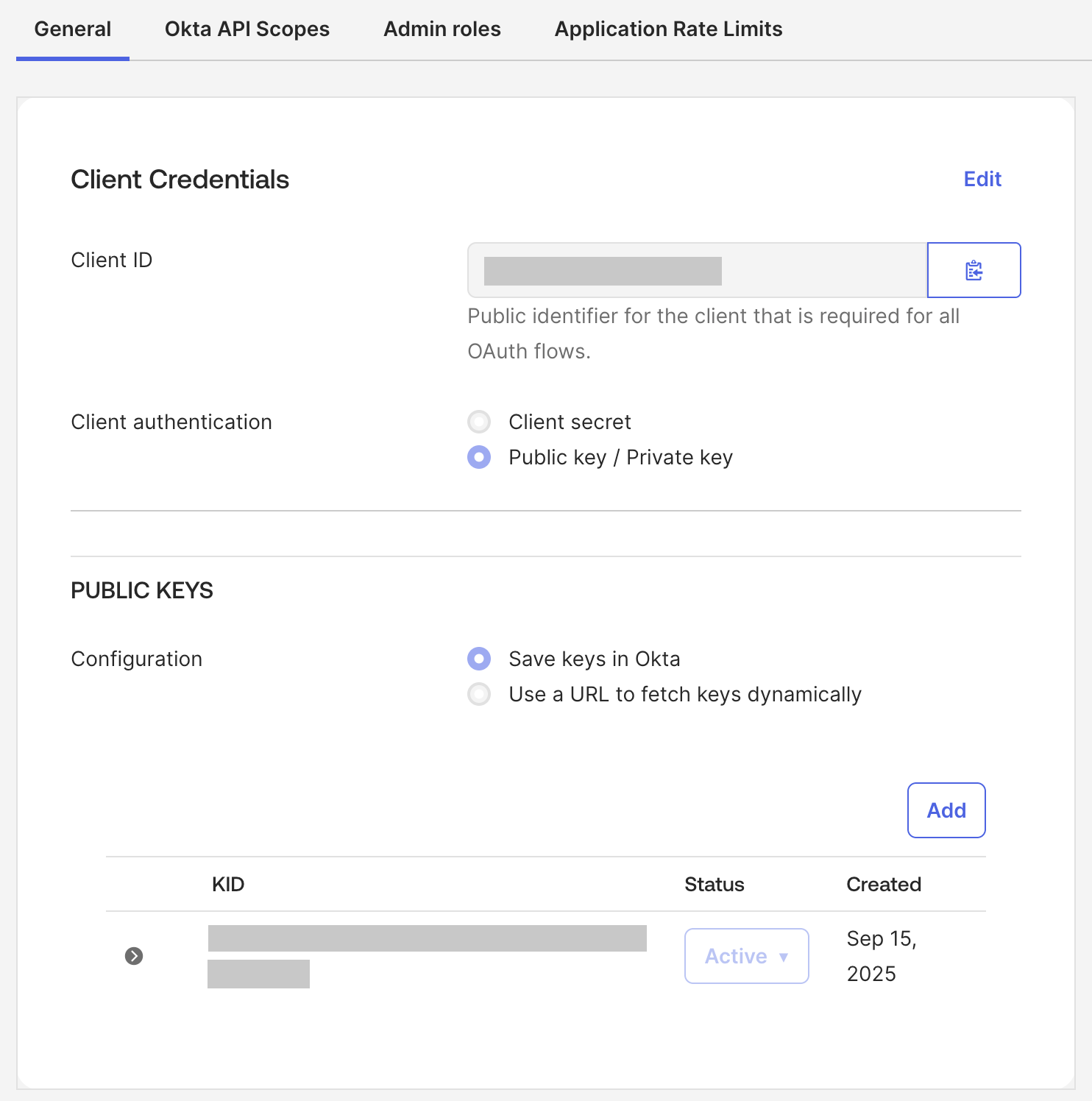
Okta cannot show the private key again. Generate a new key, update the customization's attributes, and then deactivate and delete the old key in Okta.
Turn Off Proof of Possession
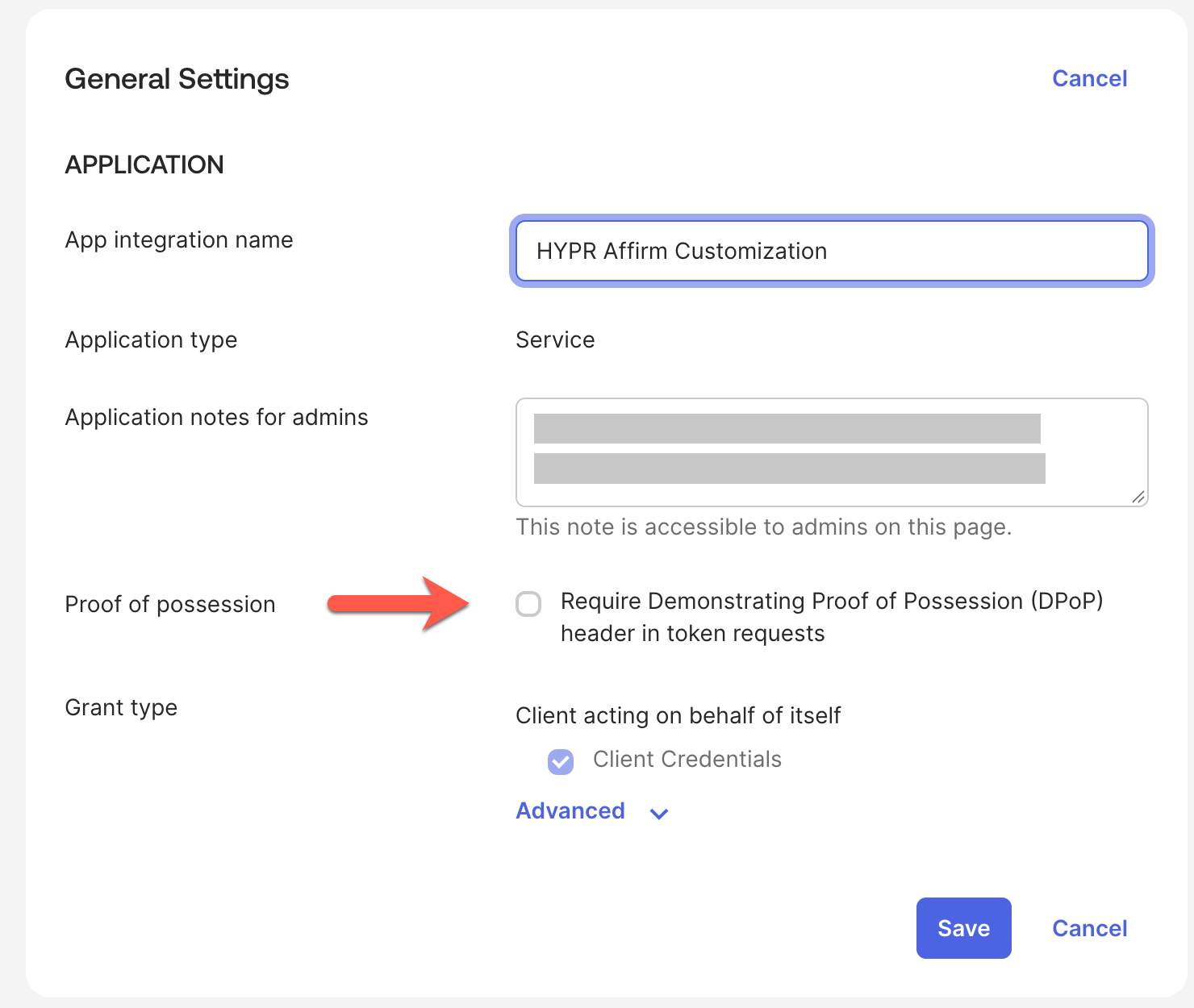
New API Services apps require Demonstrating Proof of Possession (DPoP) by default. The customization does not send a DPoP proof, so Okta refuses its token requests until you turn this off.
-
On the General tab, in General Settings, click Edit.
-
Under Proof of possession, clear Require Demonstrating Proof of Possession (DPoP) header in token requests, and click Save.
Create the Customization in Control Center
-
In HYPR Control Center, go to HYPR Affirm → Advanced Settings → Customizations, and click New Customization.
-
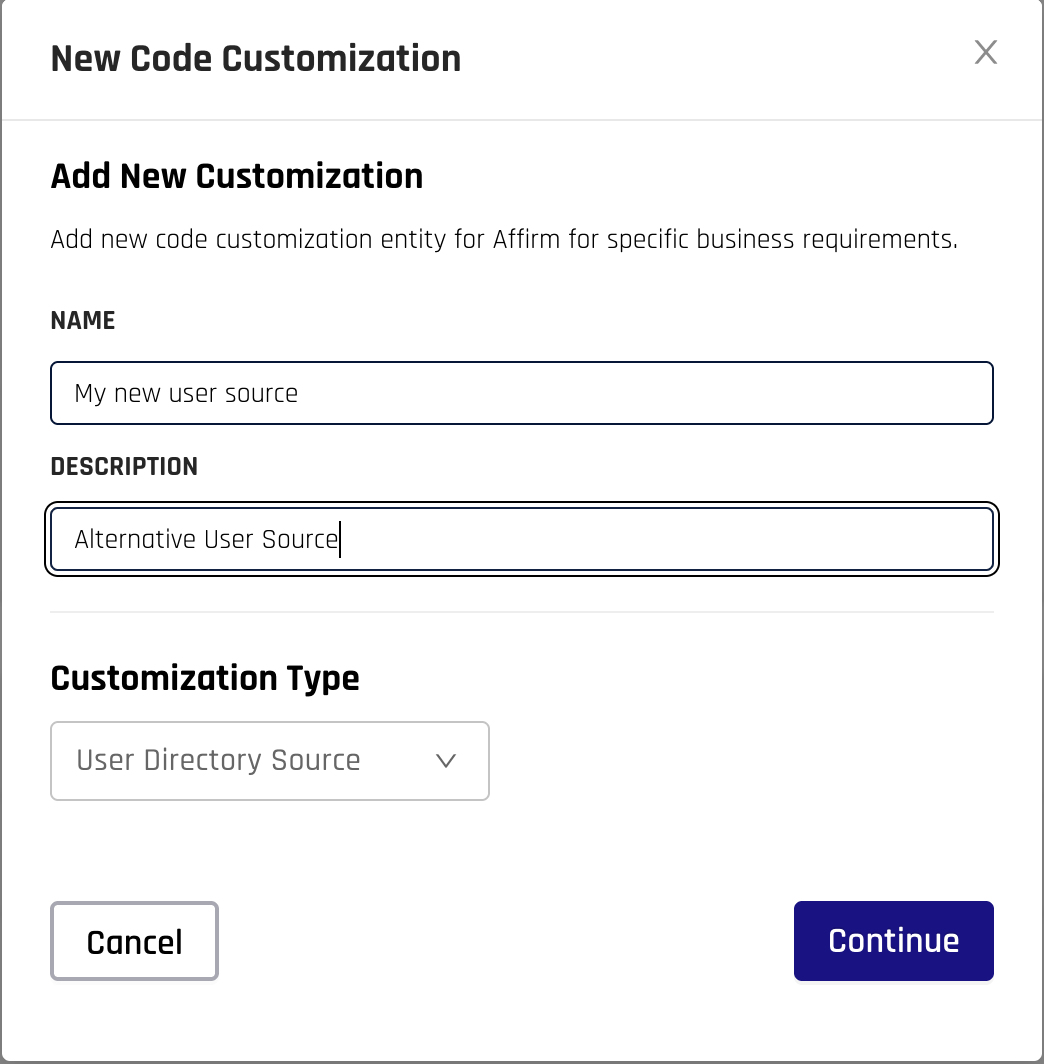
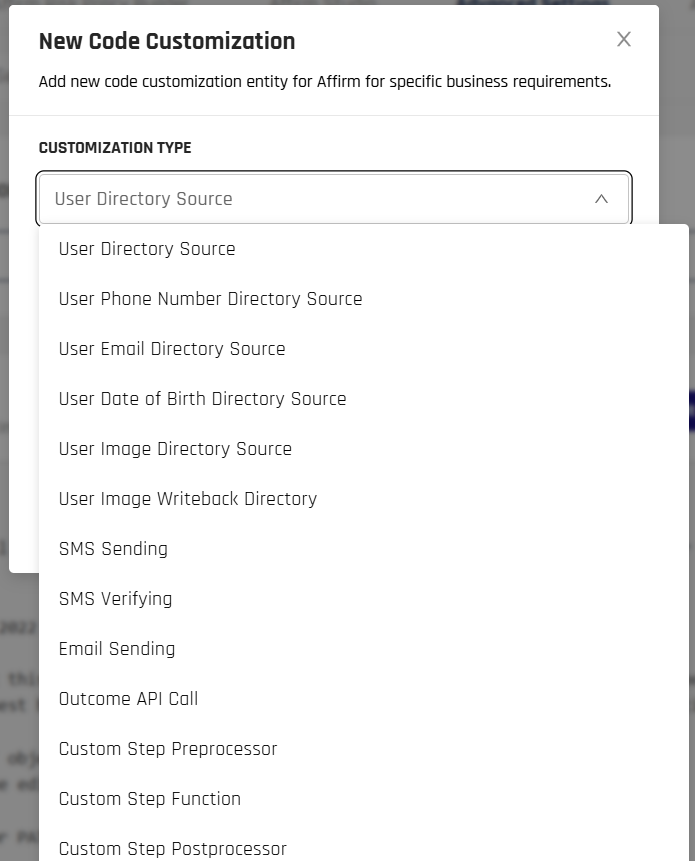
Give the customization a name and description, select User Directory Source as the customization type, and click Continue.
-
Select the new customization from the drop-down, click Edit Mode, and paste the script from Example: Read a User from Okta.
-
In the Attributes panel, click Add New Attribute for each row of the following table. Enter the attribute name as the Key and its value as the Secret Value, then click Save. Attribute values are stored encrypted and shown masked.
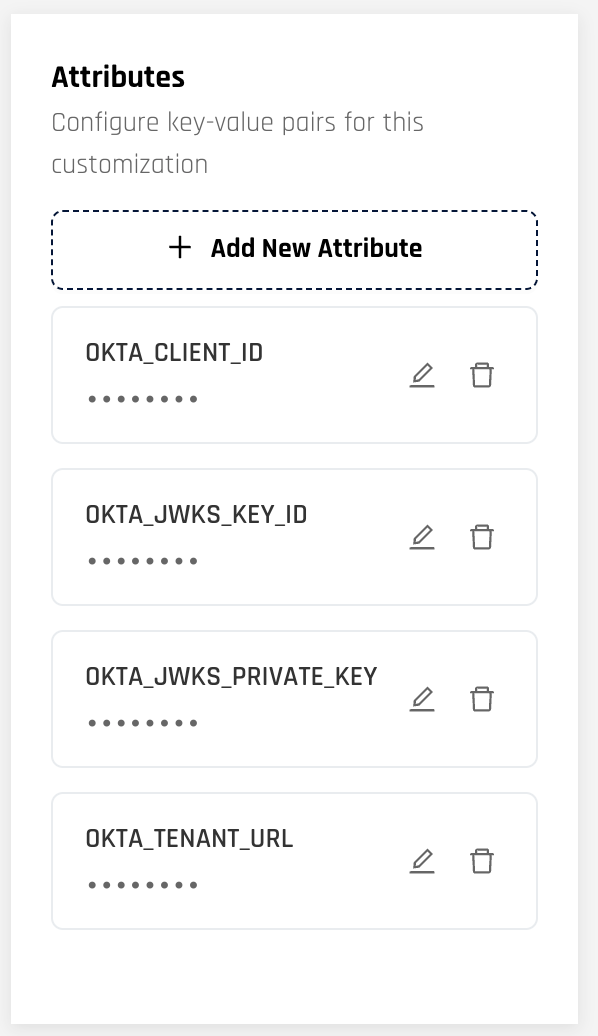
The script reads these attributes:
| Attribute | Value |
|---|---|
OKTA_TENANT_URL | Your Okta org URL, for example https://example.okta.com, with no trailing slash |
OKTA_CLIENT_ID | The Client ID of the API Services app |
OKTA_JWKS_KEY_ID | The KID of the key you generated |
OKTA_JWKS_PRIVATE_KEY | The private key from the PEM, as one line: the base64 text between the -----BEGIN PRIVATE KEY----- and -----END PRIVATE KEY----- lines, with every line break and space removed |
To remove the whitespace from the private key, save the PEM body in a file and run:
tr -d '[:space:]' < private-key-body.txt
Delete the file afterwards. The private key grants the customization's access to Okta, so never commit it, paste it into a ticket, or write it to a log.
Example: Read a User from Okta
The script exchanges a signed JWT for an Okta access token, then reads the user by their login and returns the fields Affirm uses. Adapt the profile mapping to the attributes your Okta org holds.
function loadCredentials() {
    // getAttribute throws if an attribute is missing from the customization.
    return {
        tenantUrl: ctx.getAttribute("OKTA_TENANT_URL"),
        clientId: ctx.getAttribute("OKTA_CLIENT_ID"),
        privateKey: ctx.getAttribute("OKTA_JWKS_PRIVATE_KEY"),
        keyId: ctx.getAttribute("OKTA_JWKS_KEY_ID")
    };
}

// A client assertion: issuer and subject are the client ID, the audience is the token URL.
function createClientAssertion(creds) {
    const tokenUrl = creds.tenantUrl + "/oauth2/v1/token";
    return ctx.jwtCreateSignedJwt(
        creds.clientId,   // subject
        creds.clientId,   // issuer
        creds.privateKey, // private key
        tokenUrl,         // audience
        60,               // lifetime in seconds
        creds.keyId,      // key ID
        {},               // extra claims
        "RS256"
    );
}

function getAccessToken(creds) {
    const tokenUrl = creds.tenantUrl + "/oauth2/v1/token";
    const headers = {
        "Accept": "application/json",
        "Content-Type": "application/x-www-form-urlencoded"
    };
    const form = "grant_type=client_credentials"
        + "&scope=okta.users.read"
        + "&client_assertion_type=urn:ietf:params:oauth:client-assertion-type:jwt-bearer"
        + "&client_assertion=" + createClientAssertion(creds);

    const response = JSON.parse(ctx.httpPost(tokenUrl, headers, form));
    if (response.statusCode !== 200) {
        throw new Error("Okta token request failed with HTTP " + response.statusCode);
    }
    return JSON.parse(response.body).access_token;
}

function getOktaUser(creds, accessToken, login) {
    const url = creds.tenantUrl + "/api/v1/users/" + encodeURIComponent(login);
    const response = JSON.parse(ctx.httpGet(url, {
        "Accept": "application/json",
        "Authorization": "Bearer " + accessToken
    }));
    if (response.statusCode === 404) {
        return null;
    }
    if (response.statusCode !== 200) {
        throw new Error("Okta user lookup failed with HTTP " + response.statusCode);
    }
    return JSON.parse(response.body);
}

function handle(input) {
    try {
        const creds = loadCredentials();
        const user = getOktaUser(creds, getAccessToken(creds), input.loginIdentifier);
        if (!user) {
            return {};
        }
        const profile = user.profile;
        return {
            loginIdentifier: profile.login,
            email: profile.email,
            firstName: profile.firstName,
            lastName: profile.lastName,
            mobilePhone: profile.mobilePhone,
            status: user.status === "ACTIVE" ? "ACTIVE_FOR_AFFIRM" : "INACTIVE_FOR_AFFIRM"
        };
    } catch (error) {
        ctx.log("WARNING", "Okta user lookup failed: " + error.message);
        return { error: "The user directory is unavailable. Contact your administrator." };
    }
}

handle(ctx.getInputAsJson());
The access token is valid for one hour. This example requests a new one on each lookup, which keeps it simple. A customization run has a few seconds to finish, and two calls fit within that. The script never logs the token, the private key, or the user's profile.
ctx.log takes Java logging levels, such as WARNING, INFO and FINE. A level such as ERROR or DEBUG is not accepted and stops the script.
Before you assign the customization to a flow, test it. Switch to Test, enter a login identifier, and click Execute Test. The user's details come back when the setup works.
Assign the Customization to a Verification Flow
- Open the verification flow in the Verification Flows tab.
- In the left navigation pane, scroll down to Advanced Customization.
- Under OIDC Settings and User Directory, select your customization in the Custom User Directory drop-down.
- Click Save.
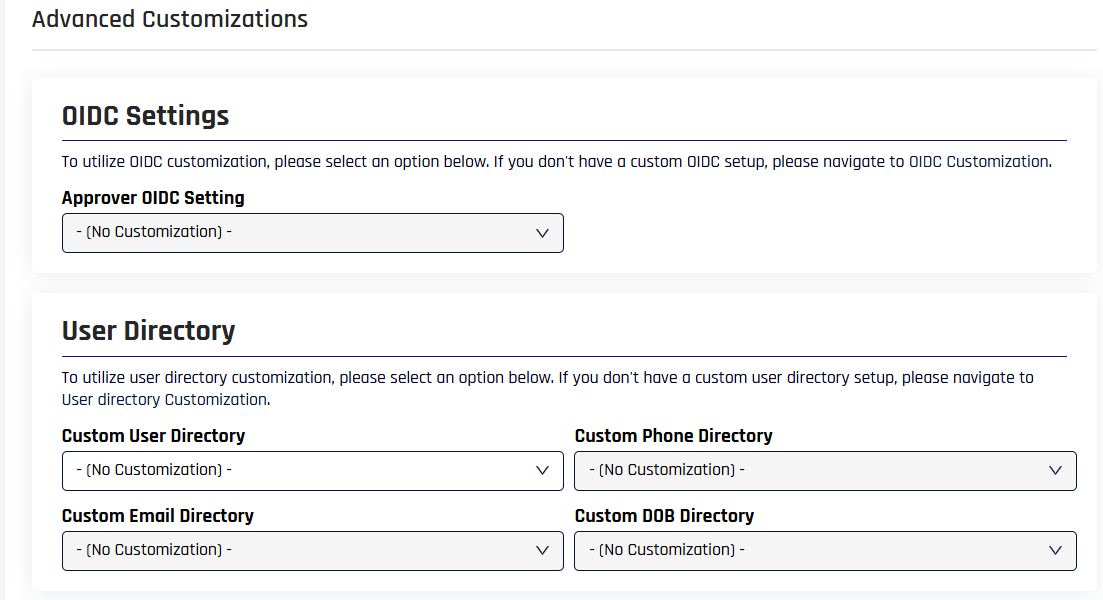
For the rest of the panel, see Advanced Customization.
Troubleshooting
| What you see | What to check |
|---|---|
invalid_dpop_proof from the token request | DPoP is still required on the app. Turn off proof of possession |
invalid_client from the token request | The client ID, key ID or private key does not match the app's active key, or the private key still contains its header lines or whitespace |
403 Forbidden from the user lookup | The app has no admin role that can view users, or okta.users.read is not granted |
404 Not Found from the user lookup | No Okta user has that login. The script returns an empty result, so Affirm treats the user as not found |
Related
- Customizations — every customization type and its inputs and outputs
- Okta Password Reset for HYPR Affirm — the Okta password policy settings Affirm relies on