Entra ID Temporary Access Pass (TAP) for HYPR Affirm
When a requester successfully completes a HYPR Affirm verification flow, HYPR can issue a Microsoft Entra ID Temporary Access Pass (TAP) as the outcome. The TAP gives the requester time-limited access to register new authentication methods — including passwordless options — without requiring an existing credential.
This integration requires a Microsoft Entra ID integration configured in HYPR Control Center. The Entra application must have the appropriate Microsoft Graph permissions to create TAPs on behalf of users.
For where the TAP outcome is selected in the verification flow editor, see Configure Verification Steps → Verified Outcome.
What you need
- A Microsoft Entra tenant
- An administrator account in the
*.onmicrosoft.comdomain with Global Admin access - A HYPR tenant with HYPR Affirm enabled
- A decision on whether this Entra integration will be used only for Affirm or shared with other HYPR use cases
Entra must provide the following attributes for all target users: username (UPN), and email address. Depending on the verification flow steps configured, additional attributes may be required: mobile phone number, first and last name, manager, and street address with city, state, postal code, and country code.
Set up the Entra ID tenant
Enable the Temporary Access Pass policy
Before HYPR can issue a TAP, the Entra tenant must allow TAP for the users or groups that will go through the Affirm workflow.
- Sign in to the Microsoft Entra admin center as an administrator with permission to manage Authentication methods policies.
- Browse to Entra ID > Authentication methods > Policies.
- Select Temporary Access Pass.
- Enable the policy and include the users or groups that should be allowed to sign in with TAP.
- If necessary, select Configure and adjust the policy defaults, such as minimum lifetime, maximum lifetime, default lifetime, passcode length, and whether TAP is one-time use.
- Click Save.
Entra allows a TAP lifetime between 10 minutes and 30 days, and its default policy permits 1 to 8 hours.
The HYPR TAP outcome issues a pass between 60 and 480 minutes — Entra's default range — whatever the tenant policy allows. Widening the Entra policy does not widen what the outcome will issue. To issue a pass outside 60 to 480 minutes, an Outcome API Call customization can create the pass directly through the Microsoft Graph API.
HYPR can create and return a TAP only if the target user is in scope for the Entra TAP policy.
If your requesters will use TAP to enroll a device or complete passwordless registration after the verification flow, review the lifetime and one-time-use settings carefully. Microsoft's guidance notes that one-time TAPs can require tighter timing during passwordless registration, while multi-use TAPs can simplify longer onboarding flows.
HYPR can issue a TAP only for users who are allowed to use TAP in the Entra tenant. For additional details on TAP policy options, onboarding, and lifecycle considerations, review Microsoft's guidance in Configure Temporary Access Pass to register passwordless authentication methods.
With the TAP policy in place, complete the Entra app registration. See Entra ID Application Setup for HYPR Affirm for the full app registration, permissions, admin consent, and client secret steps. Return here to add the integration in HYPR Control Center.
Set up the HYPR tenant
Install the integration
Once the Entra app registration is complete, add the corresponding integration in HYPR Control Center.
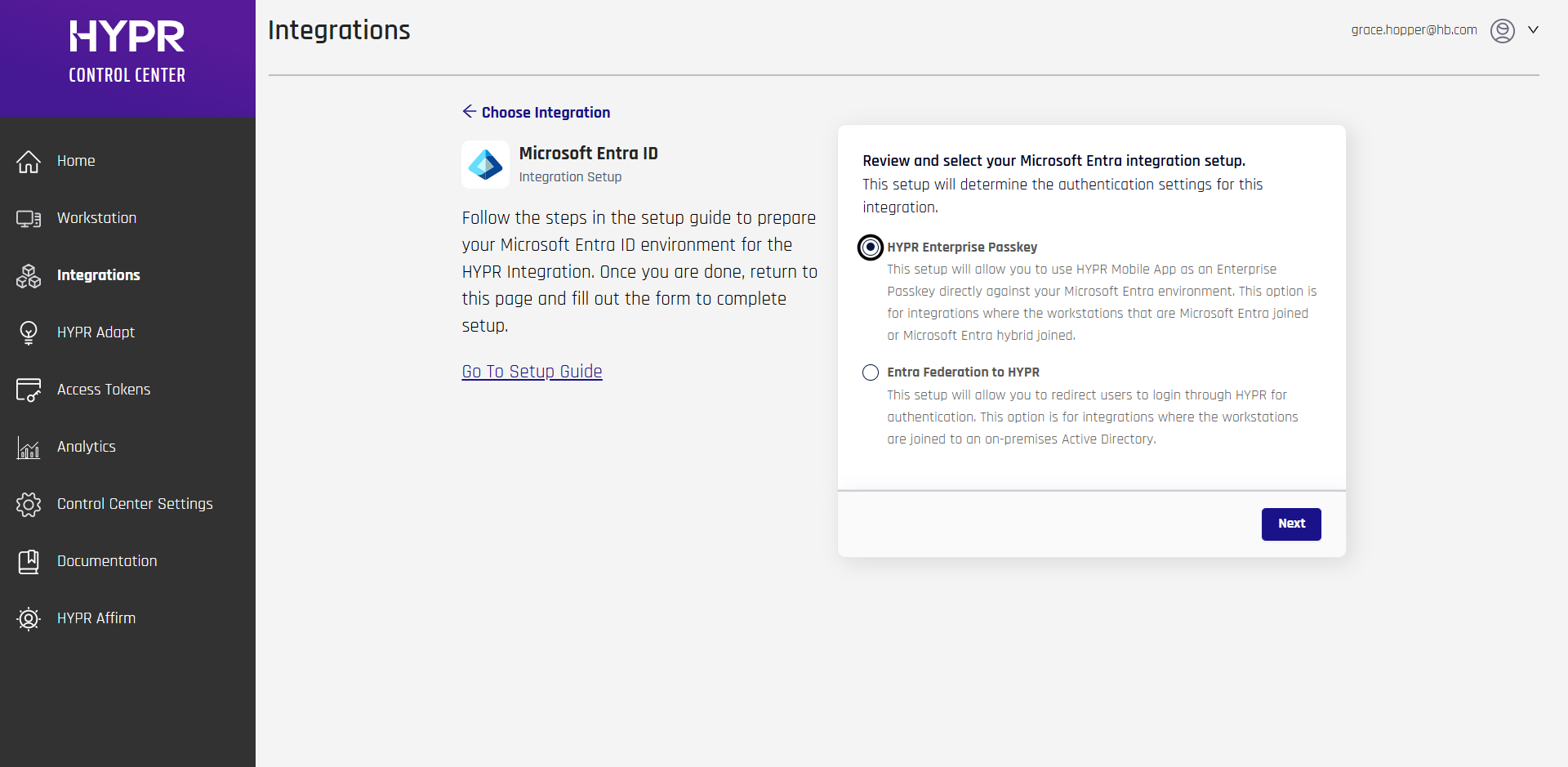
- In HYPR Control Center, go to Integrations > Add New Integrations > Microsoft Entra ID.
- In the setup-choice dialog, select HYPR Enterprise Passkey.
- Complete the setup form using the values noted during app registration:
- Application Name
- Directory (tenant) ID
- Application (client) ID
- Authentication Method: Certificate or Client Secret
- Client Secret (if Client Secret authentication is selected)
- Client Certificate and Client Private Key (if Certificate authentication is selected)
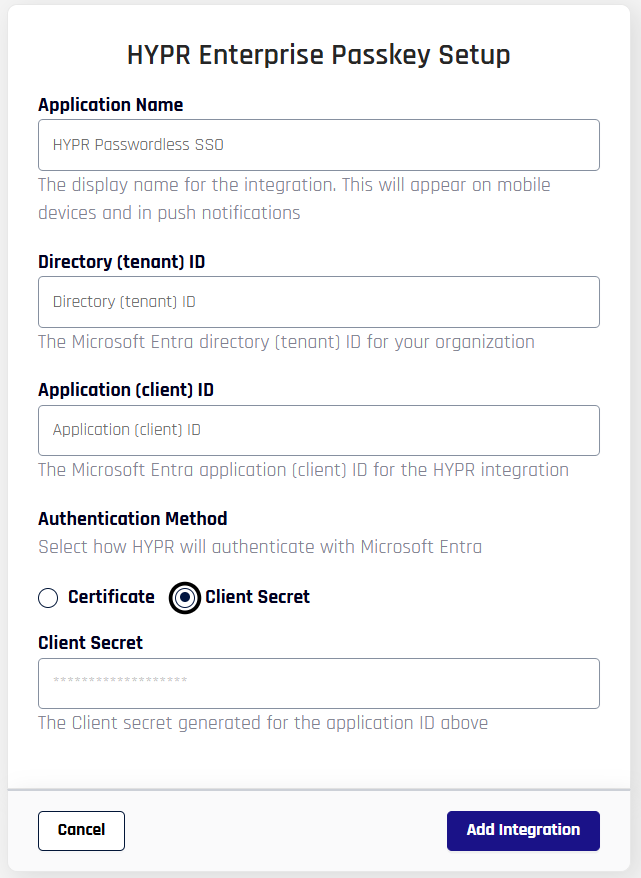
- Click Add Integration. HYPR confirms that the provided values are valid and that it can connect to Entra ID.
- In the post-setup confirmation dialog, click Maybe Later unless you specifically want to continue with self-enrollment.
Selecting HYPR Enterprise Passkey also creates Entra groups used by that integration. If you are creating this integration only to support Affirm TAP outcomes, you do not need to manage those groups directly.
Configure Affirm to use the integration
After the Entra integration exists, assign it to the HYPR Affirm workflow that should issue TAPs.
- Open HYPR Affirm in Control Center.
- Open the target verification flow.
- In the Applications section, add the Entra application associated with the integration you created.
- In the workflow Verified Outcome section, select Issue a Microsoft Entra ID Temporary Access Pass (TAP).
- Save the workflow.
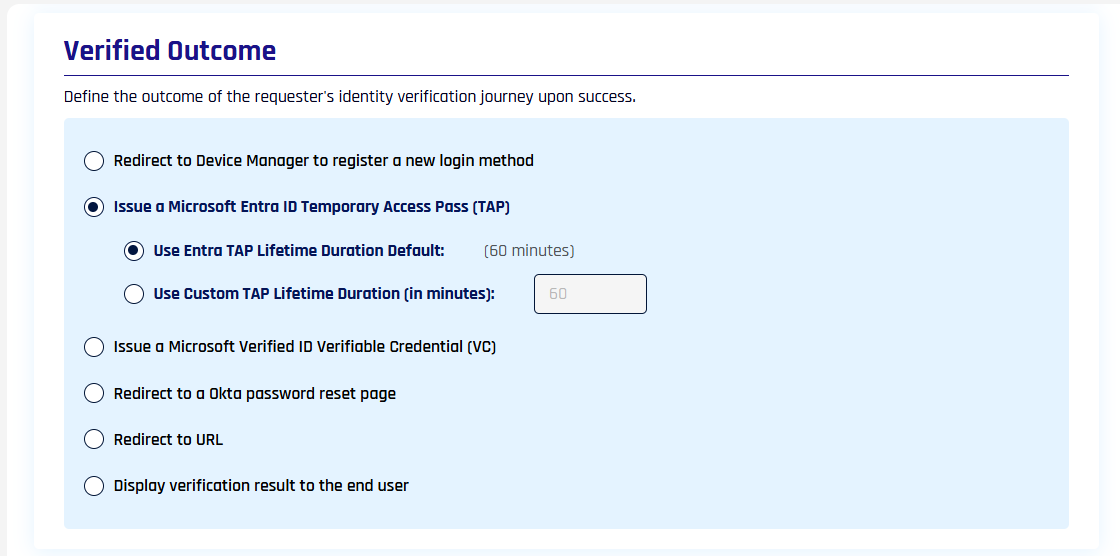
The TAP outcome in the workflow editor. Use Entra TAP Lifetime Duration Default issues a 60-minute pass; Use Custom TAP Lifetime Duration accepts 60 to 480 minutes.
For more information about the overall workflow configuration, see Creating and Managing Verification Flows.
Issue a pass outside 60 to 480 minutes
The built-in TAP outcome issues a pass between 60 and 480 minutes. When you need a lifetime outside that window — a 10-minute pass for a tightly-scoped recovery, for example — an Outcome API Call customization can create the pass directly through the Microsoft Graph API, within whatever range your Entra TAP policy permits.
See Issue a TAP Outside 60 to 480 Minutes for the customization, how to register it, and how to attach it to a verification flow.
Validate the configuration
After the workflow is configured, run a test verification against a user who is in scope for the Entra TAP policy.
Successful validation should confirm the following:
- The verification flow completes successfully
- The configured workflow returns the TAP outcome
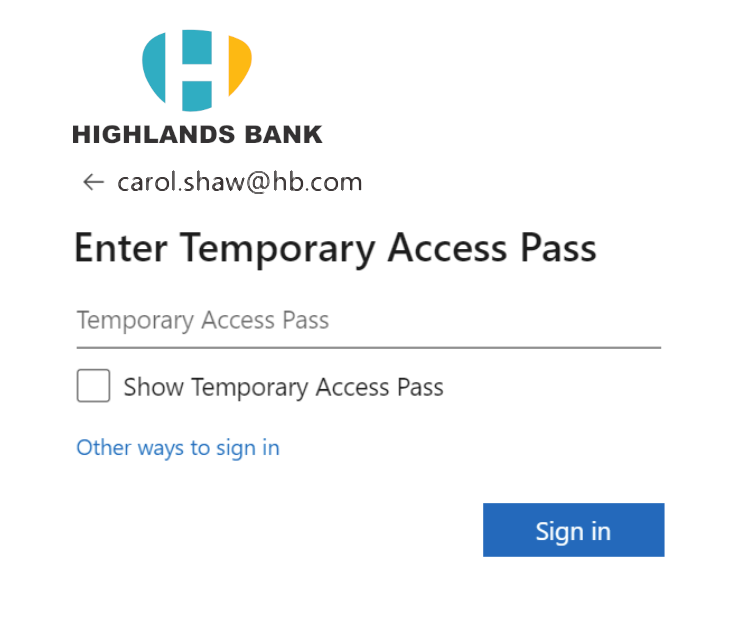
- The requester receives the Temporary Access Pass result
- The TAP can be used in accordance with your Entra tenant's TAP policy
The requester experience looks similar to this when the TAP outcome is returned:
For guidance on how users can use the issued TAP after the Affirm workflow completes, see Microsoft's TAP documentation: Configure Temporary Access Pass to register passwordless authentication methods.
Related
- Entra ID Application Setup for HYPR Affirm — Entra app registration, API permissions, admin consent, and client secret
- Entra Verified ID for HYPR Affirm — another Entra-based outcome
- Configuring HYPR Affirm — author and configure verification flows
- HYPR Affirm Requester Experience — what the requester sees during and after the flow