Get HYPR
These guides cover running HYPR day to day: what it does, which platforms it runs on, how to plan a rollout, and what to do when something goes wrong. If you are new to HYPR, the demo at the foot of this page is the quickest way to see it work.
What's in This Section
| Area | Covers |
|---|---|
| Troubleshooting | Error codes for Windows, macOS, iOS, Android and Control Center, log aggregation, the Splunk dashboard, and debugging mobile devices |
| Features | HYPRspeed, Offline Mode, Recovery Mode, Roaming Users, Remote Desktop Access, Passwordless Run-As, Security Key Support and Unlock/Lock |
| Frequently Asked Questions | The HYPR Mobile App and SDK, and security and infrastructure |
| Adoption | Planning a rollout, with communication templates for your users |
| Best Practices | How HYPR Support works, raising a ticket, and submitting a feature request |
| HYPR Supported | Supported platforms, mobile compatibility matrices, product lifecycle and the roles reference |
| Extras | HYPR Linux PAM |
How to Set Up HYPR for Web Login Demo
Sign in to a sample banking site with your phone instead of a password. The demo runs on HYPR's own tenant, so there is nothing to install or configure first.
Your complete web login experience should look something like this:
-
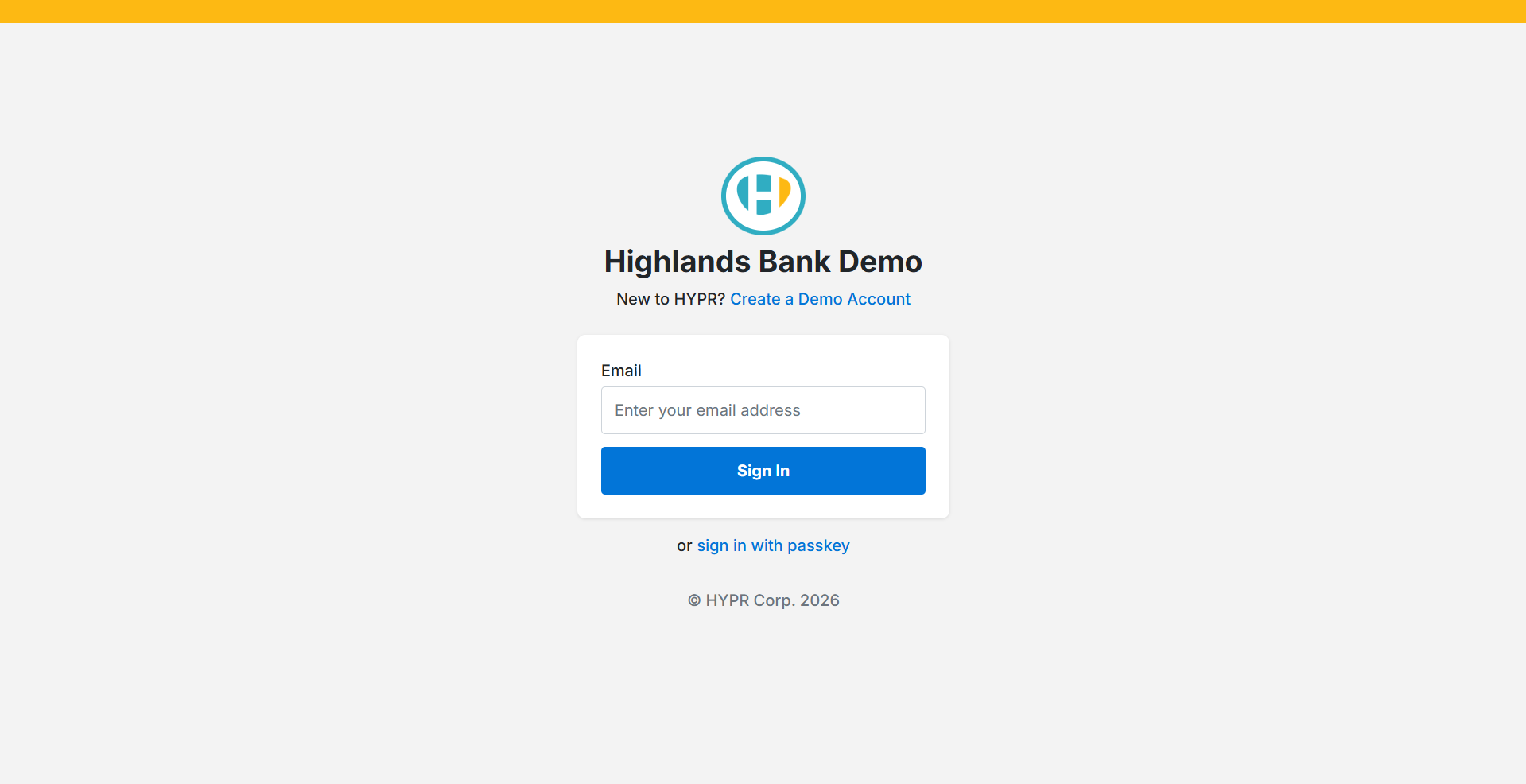
Browse to demo.hypr.com on your computer. Enter your email address and select Sign In, or select sign in with passkey. If you have not used the demo before, select Create a Demo Account first.
-
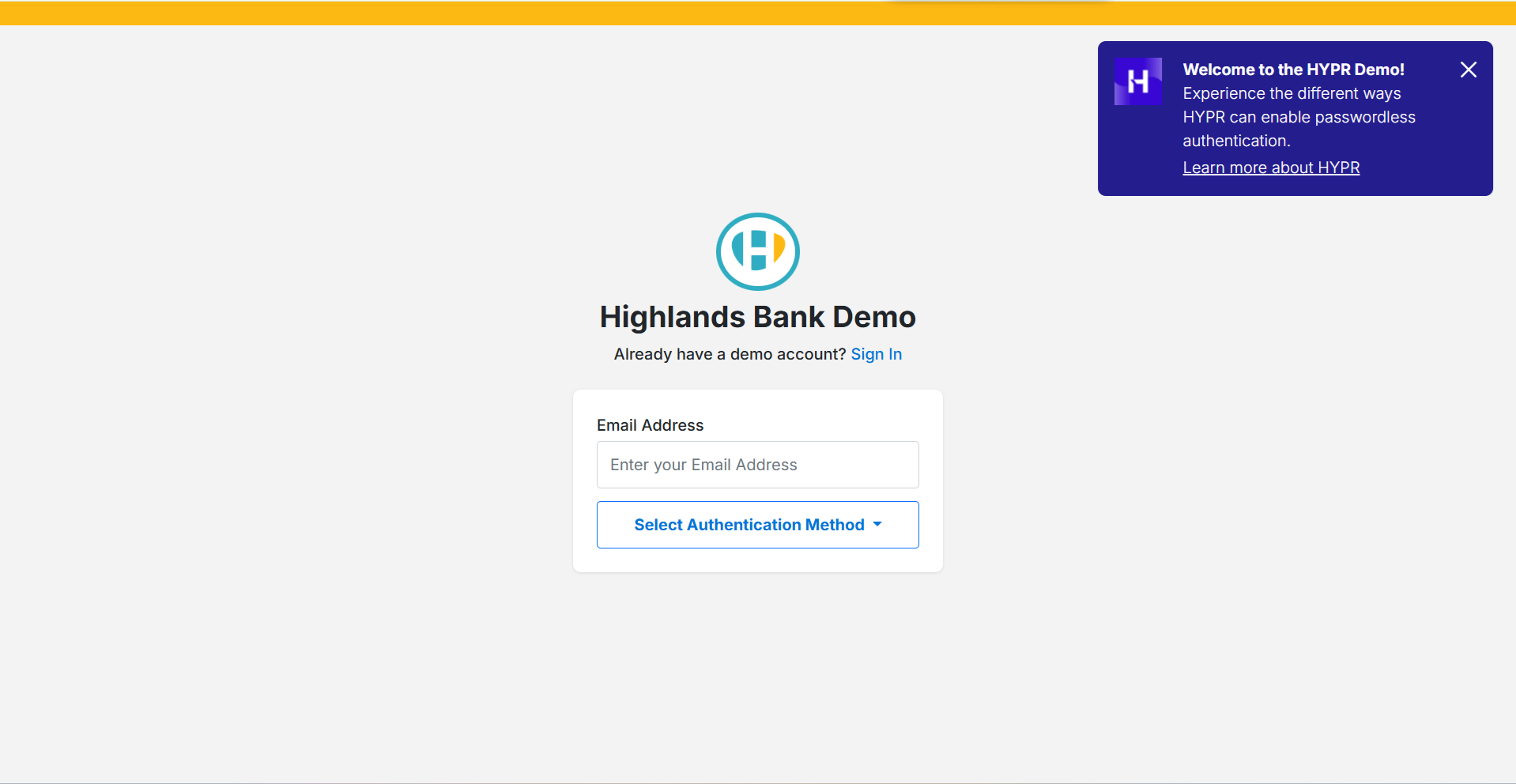
Enter your email address, then choose how you want to sign in under Select Authentication Method.
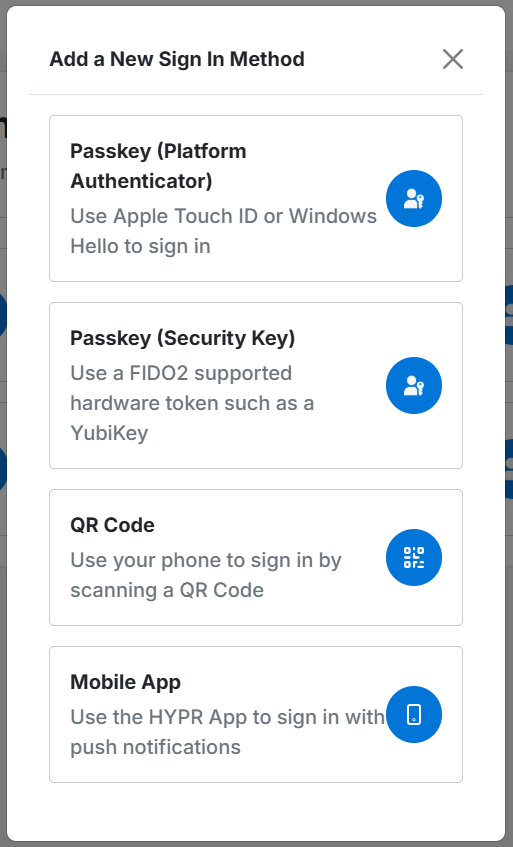
Four methods are offered:
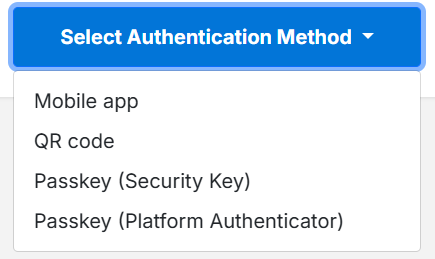
- Mobile app — approve a push notification in the HYPR Mobile App
- QR code — scan a code with your phone
- Passkey (Security Key) — a FIDO2 hardware token such as a YubiKey
- Passkey (Platform Authenticator) — Apple Touch ID or Windows Hello
-
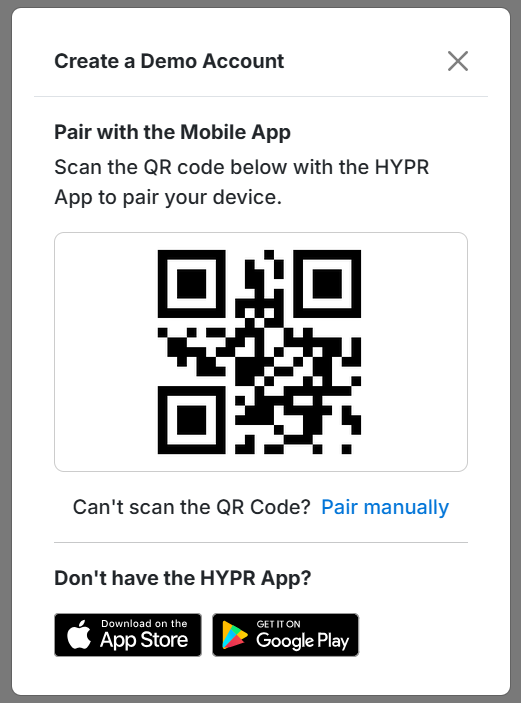
For the mobile app or the QR code, scan the code with the HYPR Mobile App to pair your phone. Pair manually covers the case where the camera cannot read it.
-
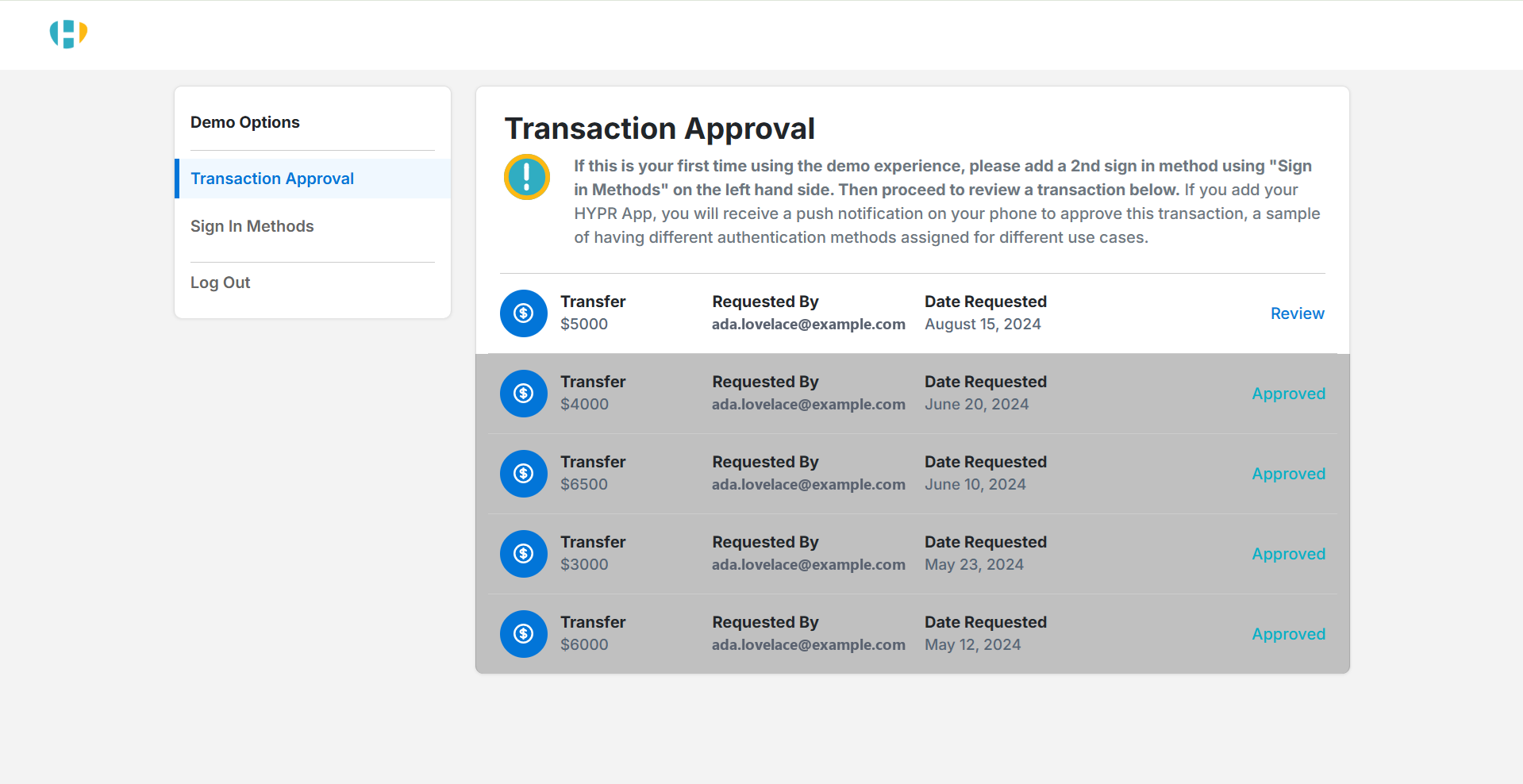
Once you are signed in, the demo opens on Transaction Approval, where you review a transfer and approve it with the method you registered.
-
Sign In Methods lists everything paired with the account, and Add New Device registers another.
You have now signed in to a web application without a password, and seen the same account accept more than one way of doing it.
Next Steps
To run HYPR in your own environment rather than on the demo tenant, start the free trial. To build HYPR into your own application, see the HYPR SDK.