SSL Pinning
HYPR is announcing the end of support for Certificate Pinning (also referred to as SSL Pinning):
- Beginning in 2026 — end of support for pinning in mobile apps and mobile SDKs.
- Early 2027 — end of life for all pinning, including workstation environments.
HYPR strongly recommends that you transition to standard TLS trust validation as soon as possible. This provides strong, modern security aligned with TLS best practices, reduces operational complexity, lowers the risk of service disruption, and prepares your environment for post-quantum cryptography requirements.
End of Support for Certificate Pinning
Why is support for Certificate Pinning ending?
Certificate pinning was originally introduced to add protection against man-in-the-middle (MITM) attacks. Modern security standards have made this approach unnecessary and increasingly problematic. These advancements include:
- AWS TLS 1.3 and mTLS improvements (cloud infrastructure)
- Operating system–managed trust stores
- Post-quantum cryptography (PQC) and crypto-agility requirements
Risks of continuing to use pinning
Certificate pinning introduces significant operational risk by tightly coupling applications to specific certificates or keys. This can lead to:
- Application outages during certificate renewals or key rotations
- Connectivity failures when infrastructure changes occur
- Increased operational overhead to maintain pin accuracy
Because of these risks, industry leaders and standards bodies — including Apple, Google, and NIST — recommend relying on standard TLS validation instead of certificate pinning.
HYPR recommendation
HYPR strongly recommends that customers transition to standard TLS trust validation as soon as possible. This approach provides:
- Strong, modern security aligned with TLS best practices
- Reduced operational complexity
- Lower risk of service disruption
- Readiness for post-quantum cryptography requirements
Transitioning to standard TLS trust validation
The remainder of this page describes how Certificate Pinning works in Control Center for environments that still use it until end of life.
Starting with 11.5.0, the HYPR Mobile App and the HYPR SDKs for Android and iOS no longer enforce certificate pinning, so the pins configured on this page apply to workstation clients only.
SSL Pinning appears only in Advanced Mode: Global Settings.
The calls to list, save, and delete domain certificates can be found under Control Center > Certificates in the HYPR Passwordless API collection.
To Synchronize SSL PINs across HYPR for a machine, see the API call GET /rp/wsapi/settings.
SSL Pinning enhances the security of the overall HYPR ecosystem and prevents MitM (Man-in-the-Middle) attacks. Before any HTTPS communication occurs, the client checks that the server is trusted by the client. After SSL Pinning is enabled, all subsequent registration, authentication, and de-registration requests are checked for a valid certificate. The client will check the server certificate and will make sure the client certificate hash matches the hash of the server certificate before proceeding with any HTTPS requests.
Two different certificates are required for SSL Pinning to work. Upload the certificates in the SSL Pinning section, located in the global Settings of the HYPR Control Center.
The Control Center supports certificates in the .PEM format in base64 ASCII. Only .pem, .crt, .cer file types can be uploaded to the Control Center.
The iOS app requires two SSL certificates to be pinned. Be sure to upload two certificates.
Enabling SSL Pinning
-
Ensure your two certificate files are available to find from the server.
-
Launch Control Center as an admin and open the Global Settings menu, then SSL Pinning.

-
Toggle SSL Pinning On.
-
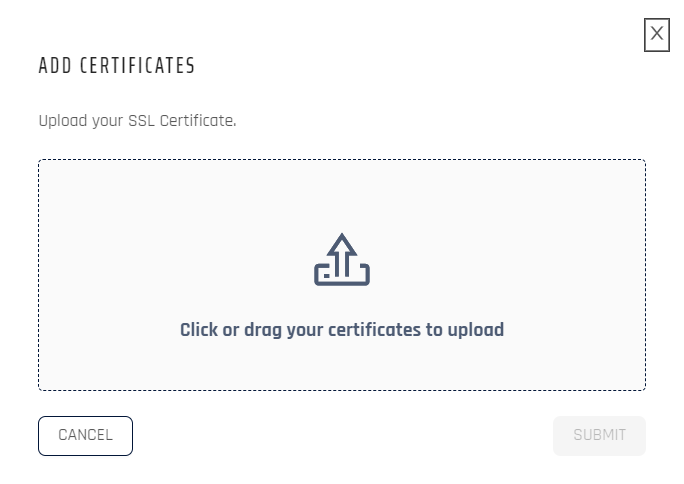
Upload SSL Pinning certificates.
-
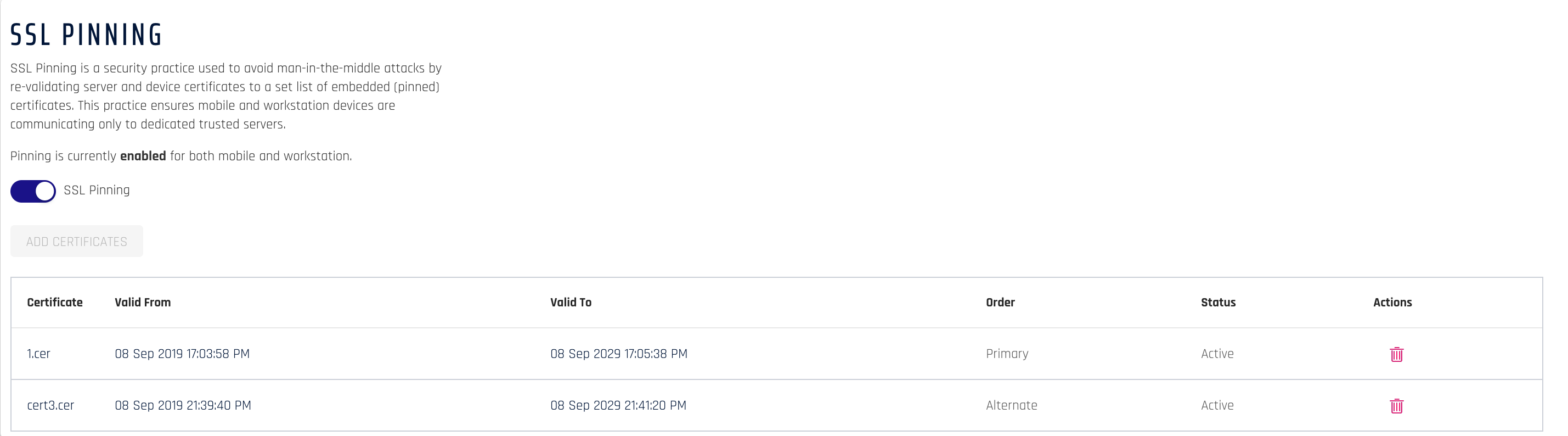
Uploaded certificates display below the Add Certificates button.
SSL Pinning Properties and Removal
The SSL Pinning properties are described here.
| Field | Description |
|---|---|
| Certificate | The file name of the certificate which is being uploaded. |
| Valid From | The start date of the certificate. |
| Valid To | The expiration date of the certificate. |
| Order | Primary | Alternate An admin can choose to make a certificate Primary while uploading the second certificate. The Primary will be one used for pinning and Alternate can be used in place of Primary when the Primary expires. |
| Status | Active | Expired The current state of the certificate. |
| Actions | Click the trash can icon to remove certificates. Deletion will not revoke the certificates. |
The HYPR Passwordless client download's .json file will now use a pinningHash key with a value of the actual hash.
Disabling SSL Pinning
An admin can disable SSL Pinning using the toggle button. A confirmation dialog will appear; click Disable to confirm.
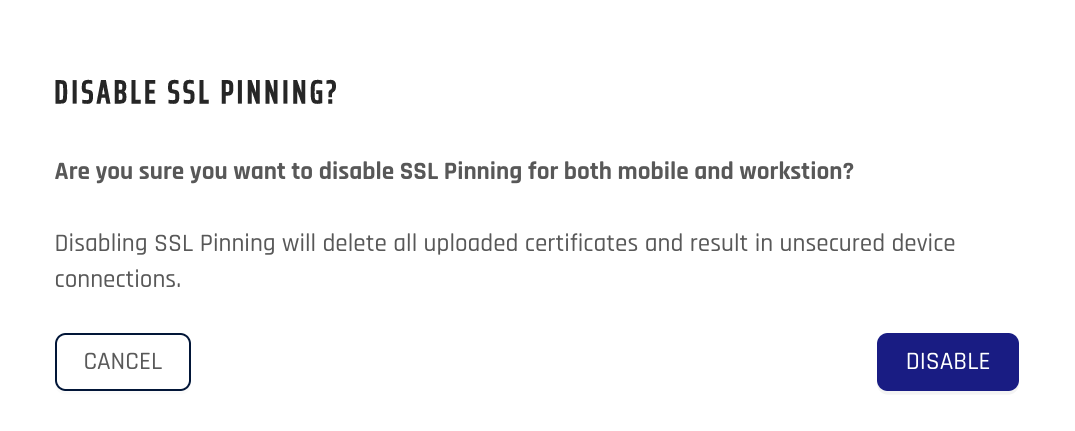
Once you click Disable, certificates will be removed and SSL Pinning will be disabled. This cannot be undone. To use SSL Pinning again, you must upload certificates again.
Certificate Expiration
Currently, administrators can upload two certificates. If the primary certificate expires, Administrators must take one of the following steps:
- Admins can make the secondary as the primary for SSL Pinning OR
- Replace the primary with a new valid certificate
Always maintain at least one active certificate in Control Center.