Logs
The Logs tab lists the diagnostic logs that HYPR Mobile App devices and workstations upload to Control Center. Use it to find the logs for a user, device or workstation and download them, for example to attach to a HYPR Support case.
Viewing and downloading logs requires the Admin role. See Control Center User Roles.
Logs appear only for clients that upload them. If the tab stays empty, contact HYPR Support to confirm that log upload is enabled for your tenant.
Open the Logs Tab
- In Standard Mode: click Control Center Settings and go to the Logs tab.
- In Advanced Mode: click the Settings gear at the foot of the navigation pane to open Server Settings, and go to the Logs tab.
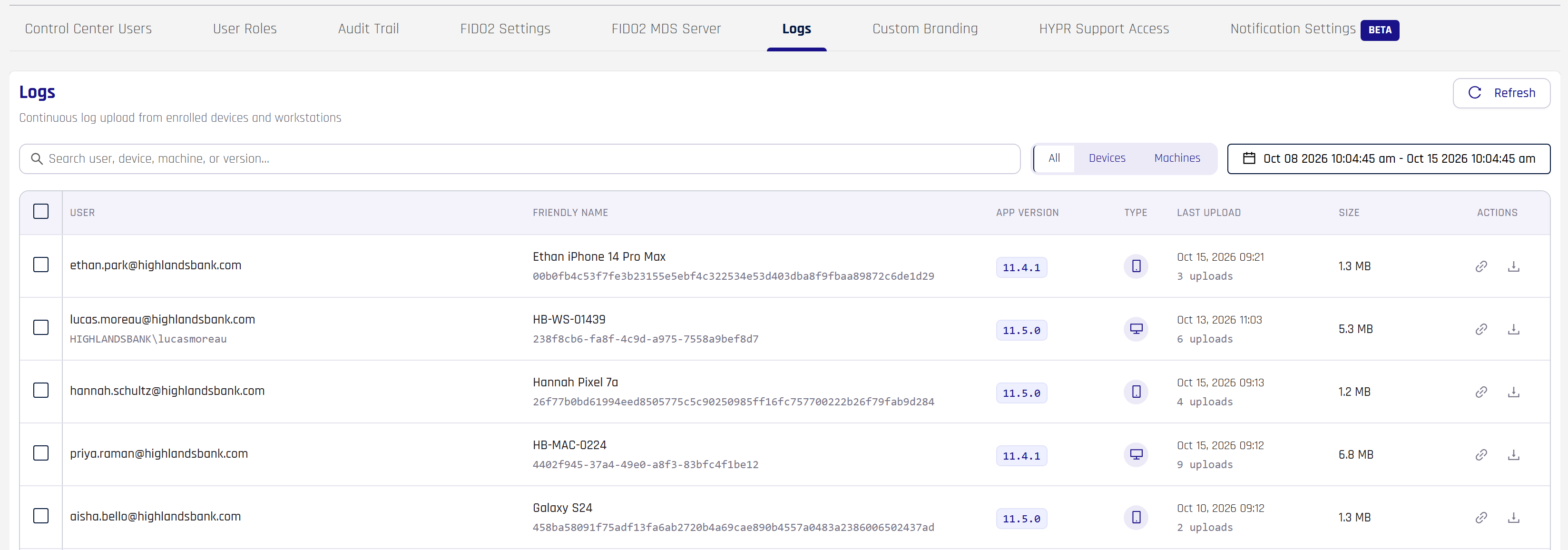
Find Logs
Each row is one device or workstation that uploaded logs in the selected time range:
| Column | Shows |
|---|---|
| User | The user the device or workstation is registered to |
| Friendly name | The device or workstation name, with its device or machine ID beneath |
| App version | The version of the HYPR client that uploaded the logs |
| Type | Whether the row is a mobile device or a workstation |
| Last upload | The time of the most recent upload, and how many uploads fall in the time range |
| Size | The total size of the logs in the time range |
To narrow the list:
- Type in the search box to match a user, device, machine or version.
- Choose All, Devices or Machines to show one type of client.
- Set the date and time range. The list shows only uploads within that range.
Click Refresh to load uploads that arrived since the page opened.
Download Logs
To download the logs for one row, click its Download icon in the Actions column. To copy a link to the same download, click Copy download link. The link works only for a Control Center user with the Admin role.
To download logs for several rows at once:
- Select the rows with the checkboxes. A bar above the table shows how many rows are selected and their total size.
- Click Download .zip.
Each download contains only the logs uploaded within the selected time range. By default, a single .zip download is limited to 1,000 log files and 1 GB in total; narrow the time range or select fewer rows if a download is refused.