Configure Microsoft Entra ID As an OIDC Provider for Control Center
The Control Center portion of this functionality must be configured using CC's Advanced Mode.
Sign in to HYPR Control Center (CC) with Microsoft Entra ID, and manage each administrator's CC role from Entra ID.
Entra ID acts as the OpenID Connect (OIDC) provider and Control Center as the relying party. When an administrator signs in, Entra ID returns their assigned role in a hypr_role claim. Control Center creates the account on first sign-in, and applies the role from the claim on every sign-in after that.
The setup has two halves: an application in Entra ID that carries the HYPR roles, and the IdP settings in Control Center.
Prerequisites
- An Entra ID administrator who can register applications and manage enterprise applications, such as an Application Administrator or Cloud Application Administrator
- Microsoft Entra ID P1 or P2, if you assign roles to groups rather than to individual users
- A Control Center administrator account, and your Control Center URL
HYPR Roles
Control Center reads the role from the hypr_role claim. Each value is the name of a Control Center role:
| Value | Access |
|---|---|
HYPR_ADMIN | Read and write access to all resources |
HYPR_APP_MANAGER | Integration setup access |
HYPR_USER_MANAGER | Account recovery and magic link access |
HYPR_VIEWER | View-only access |
HYPR_LOG_AUDITOR | Access to audit logs |
See Control Center Users and Roles for the permissions behind each role.
Control Center matches values without regard to case and ignores a value it does not recognize. When a user holds several roles, they get the permissions of all of them, and HYPR_ADMIN outranks the rest. A user with no recognized role is handled as described in Set the Access Level for Users Without a Role.
Register the Application in Entra ID
-
Sign in to the Microsoft Entra admin center, and go to App registrations.
-
Click New registration. Enter a name, for example HYPR Control Center, select Accounts in this organizational directory only (single tenant), and click Register.
-
Go to Authentication, click Add a platform, and select Web.
-
Add both of these redirect URIs, replacing
{HYPR_URL}with your Control Center URL:{HYPR_URL}/login/oauth2/code/controlCenterAdmin, where Entra ID returns the administrator after sign-in{HYPR_URL}/login, where Entra ID returns the administrator after sign-out
Leave the implicit grant options cleared, and click Configure.
-
Go to Certificates & secrets, click New client secret, and create a secret. Copy its Value to a secure location. Entra ID shows it only once.
-
Go to API permissions. Control Center requests the
openid,profileandemailscopes, so make sure the Microsoft Graph delegated permissions openid, profile and email are present. Add any that are missing, then click Grant admin consent for your organization.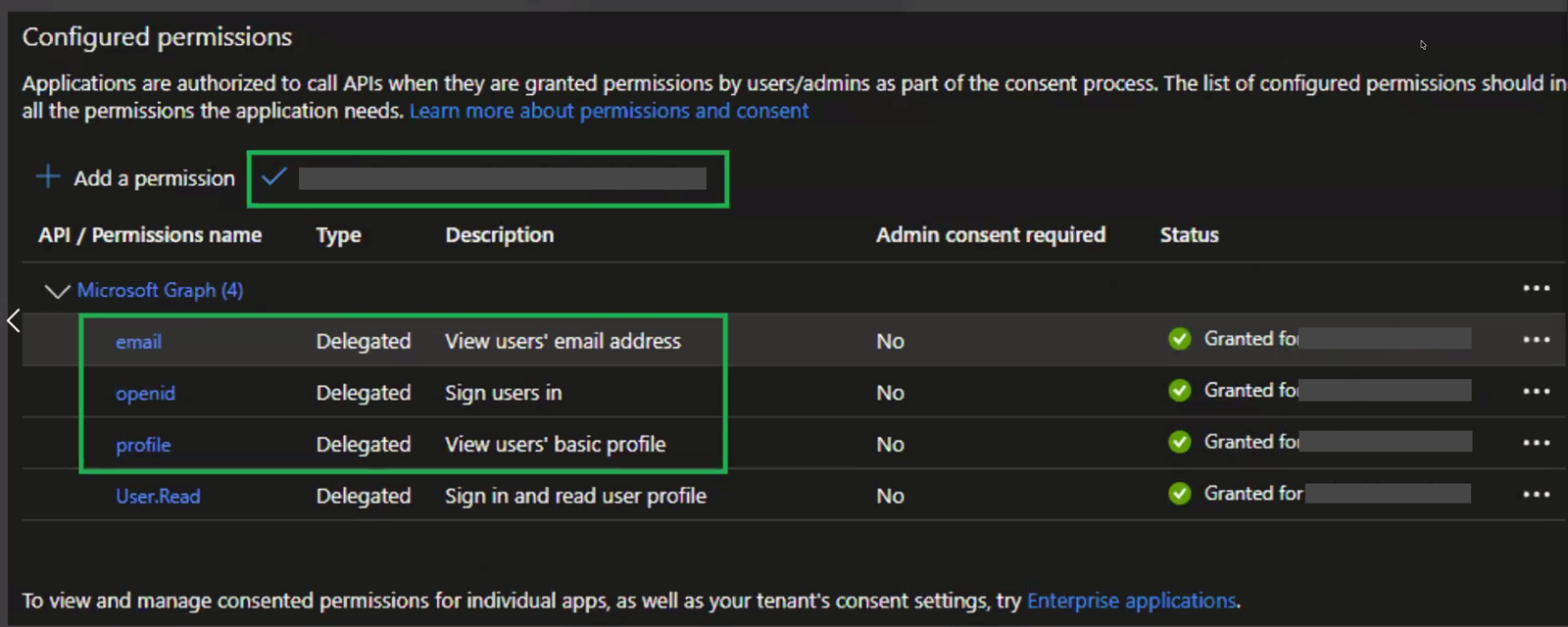
Add the HYPR Roles as App Roles
-
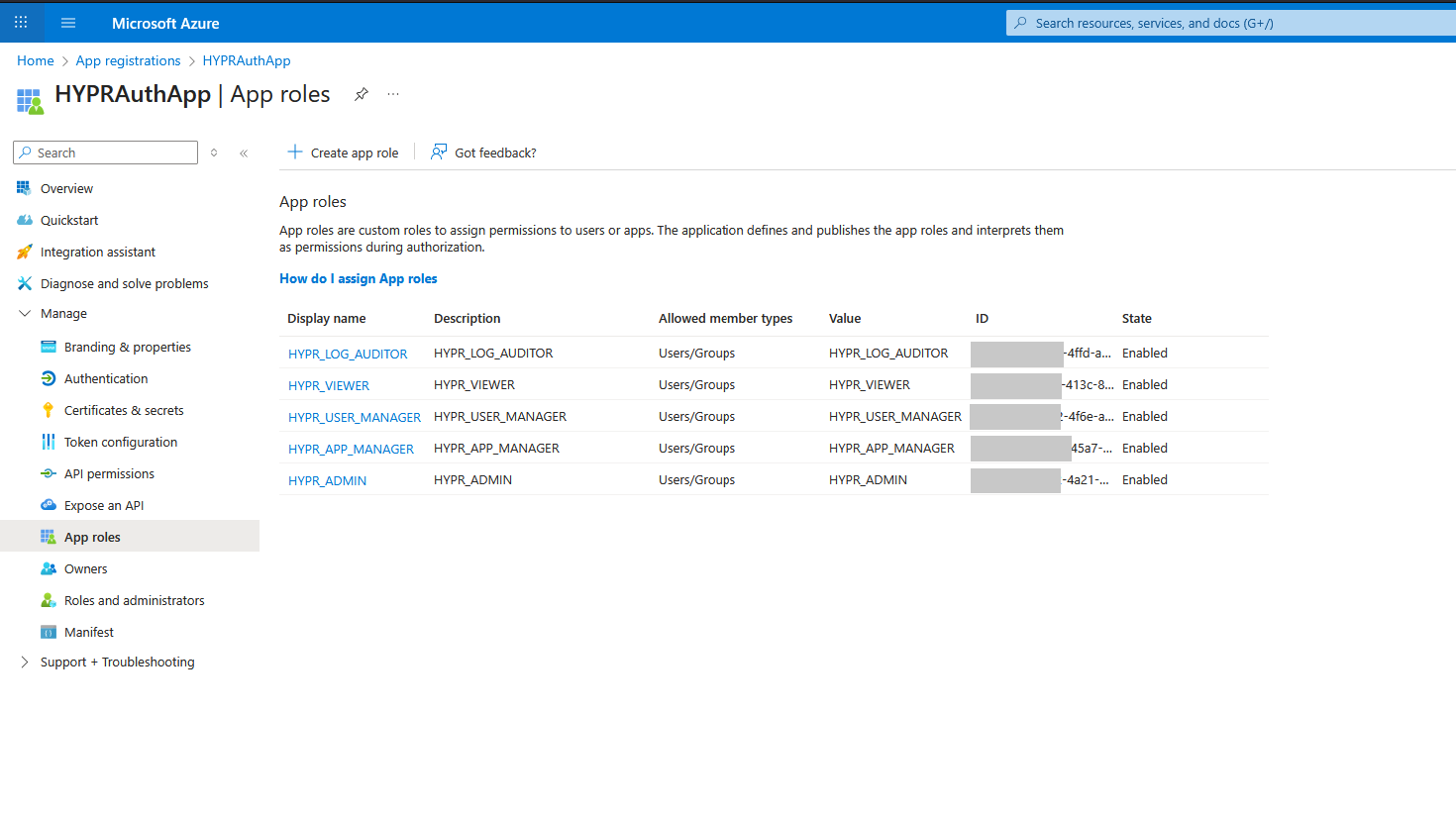
In the application, go to App roles, and click Create app role.
-
Create one app role for each HYPR role you use. Enter the Value exactly as listed in HYPR Roles, and use the same text for the Display name. Set Allowed member types to Users/Groups, and select Do you want to enable this app role?.
Allow Mapped Claims in the Manifest
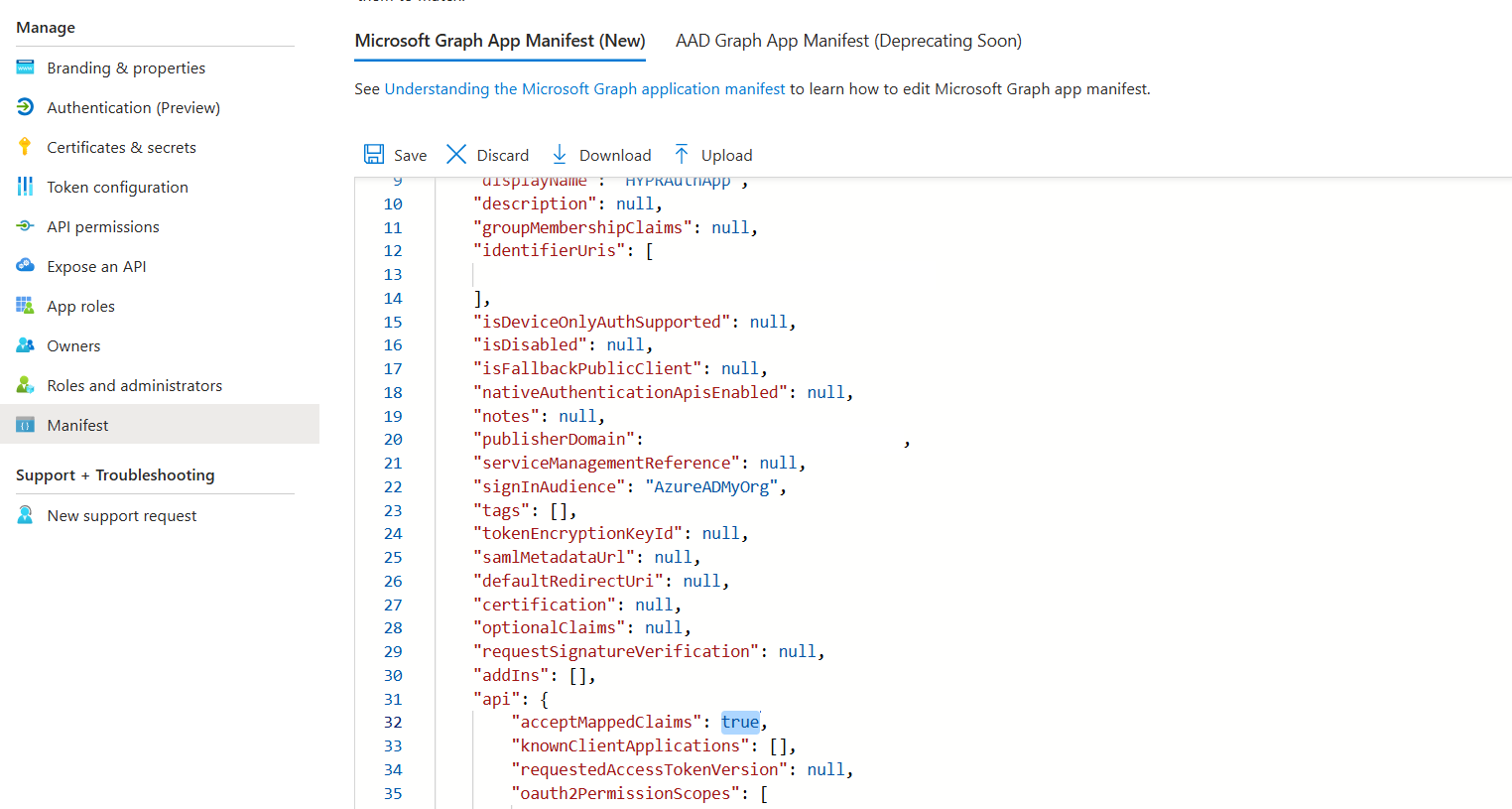
Entra ID sends the roles under the custom name hypr_role only when the application accepts mapped claims.
-
In the application, go to Manifest.
-
Inside the
apiobject, setacceptMappedClaimstotrue. -
Click Save.
Microsoft supports acceptMappedClaims for applications that accept accounts from one organization only. Do not set it on an application registered for multiple tenants.
Assign Users and Groups to Roles
Role assignments are made on the enterprise application that Entra ID created for your app registration.
-
Go to Enterprise applications, and select your application.
-
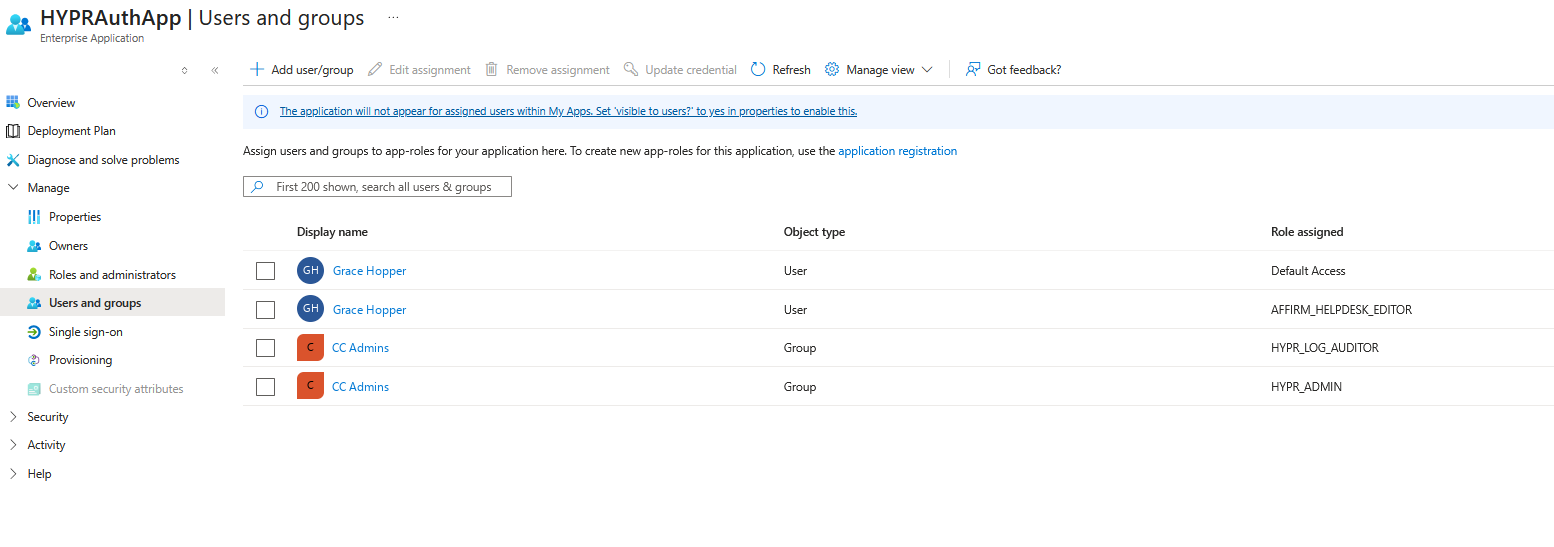
Select Users and groups, and click Add user/group.
-
Select the users or groups, select one role, and click Assign.
-
To give the same users a second role, add another assignment for that role. Each assignment carries one role.
Group assignments apply to direct members of the group. Members of nested groups do not receive the role.
Add the hypr_role Claim
-
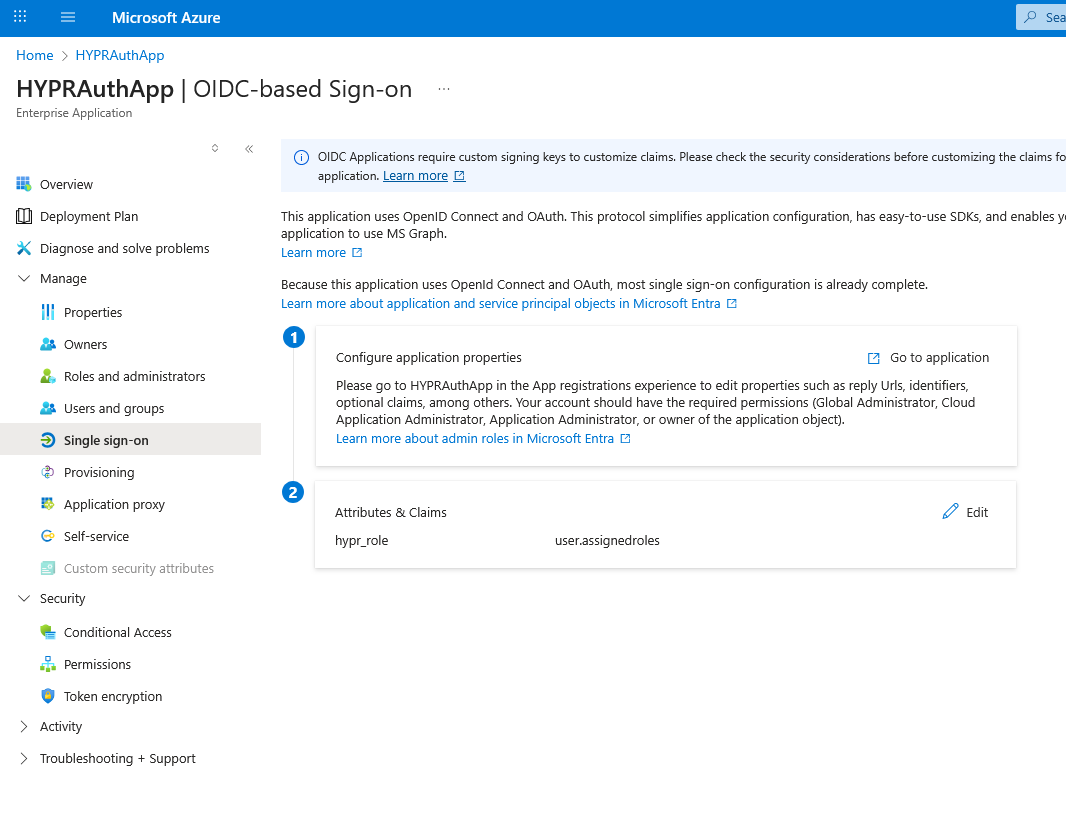
In the same enterprise application, select Single sign-on.
-
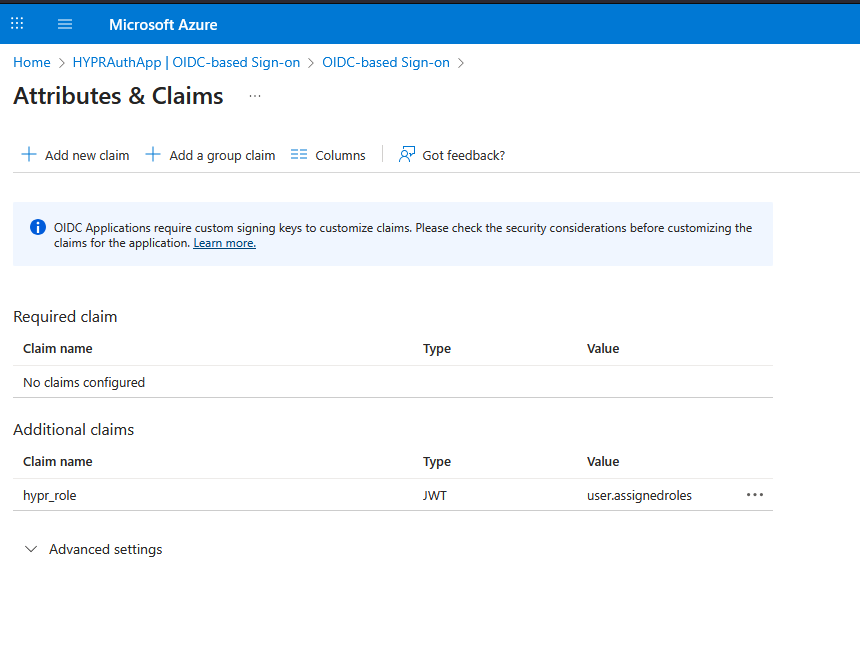
In Attributes & Claims, click Edit, then Add new claim.
-
Enter Name
hypr_role, leave Namespace blank, and set Source attribute touser.assignedroles. Click Save.
Restrict Sign-in to Assigned Users
-
In the enterprise application, go to Properties.
-
Set Assignment required to Yes, and click Save.
With Assignment required set to No, anyone in your directory can sign in to Control Center. A user with no HYPR role then receives the access level for role-less users.
Set the Access Level for Users Without a Role
Decide what Control Center does when a user's token carries no recognized hypr_role value, before you turn on Entra ID sign-in.
-
In Control Center, open the Global Settings menu (gear icon at the bottom of the left navigation).
-
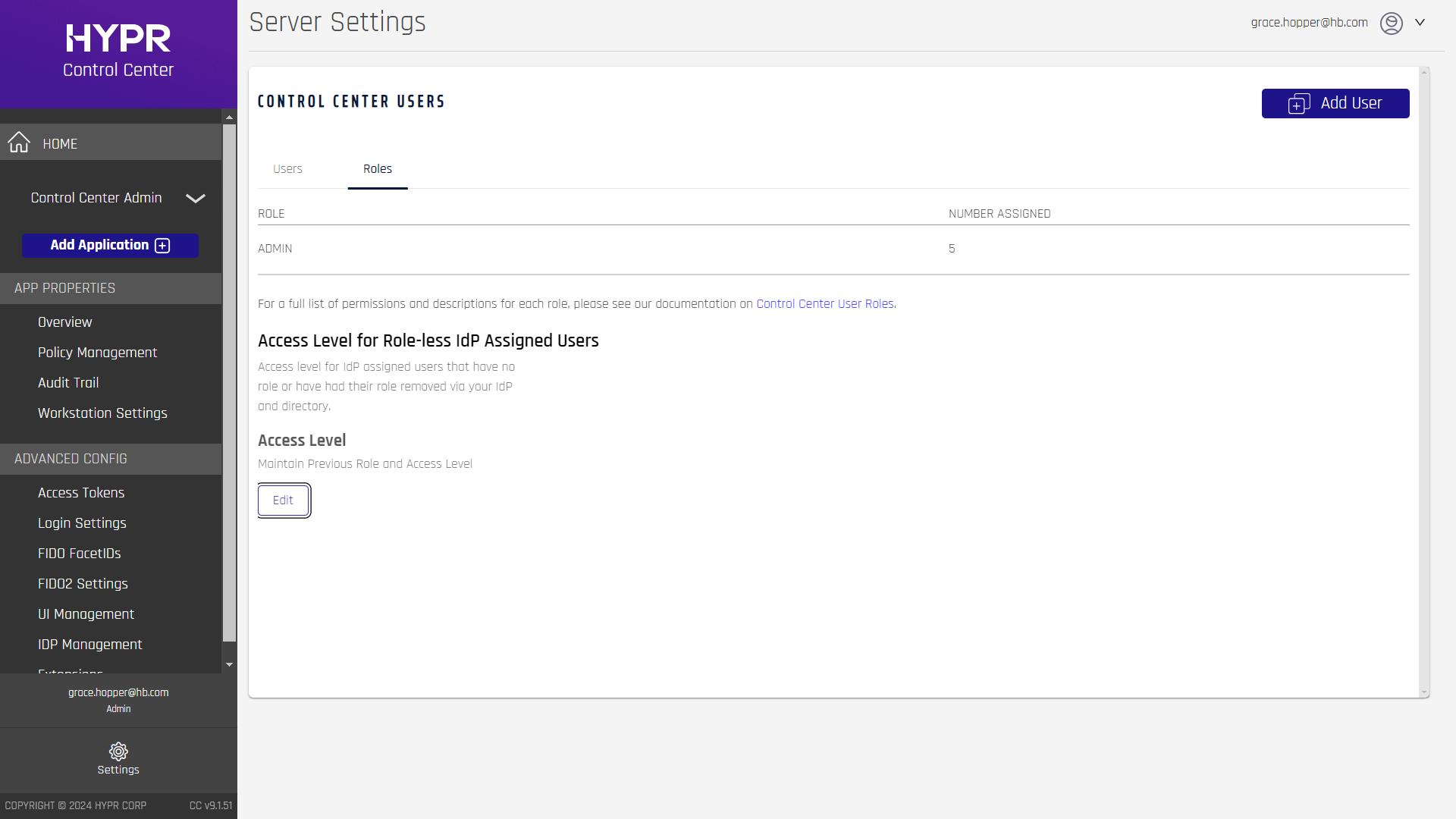
Click Control Center Users, then select the Roles tab.
-
Under Access Level for Role-less IdP Assigned Users, click Edit.
-
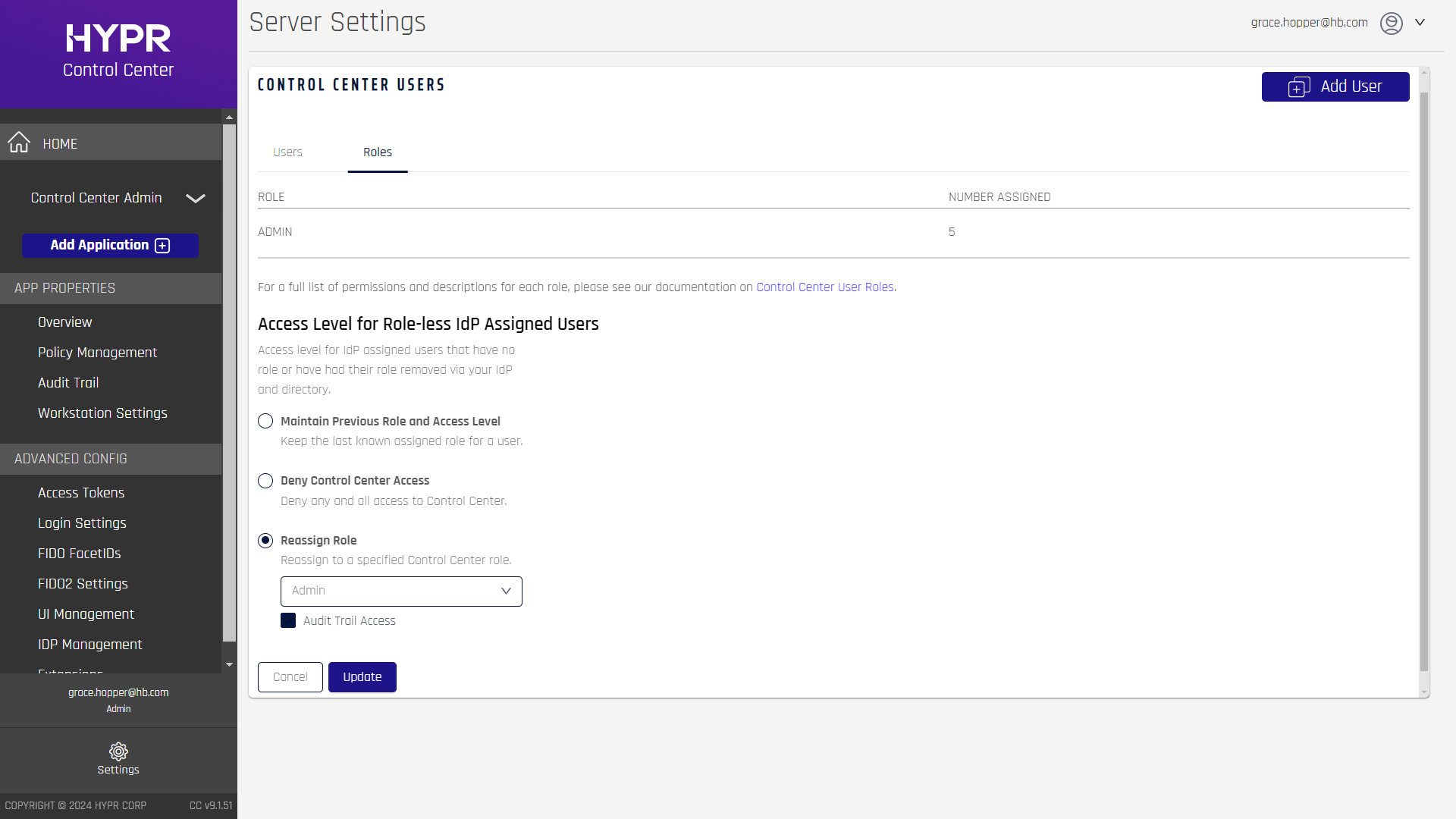
Choose an option, and click Update.
| Option | Effect |
|---|---|
| Maintain Previous Role and Access Level (default) | An existing user keeps their current role. A new user is created as a Viewer |
| Deny Control Center Access | The user cannot use Control Center |
| Reassign Role | The user receives the role you choose here |
See Control Center Users: Setting Default Roles.
Configure the IdP Settings in Control Center
Before you save these settings, assign your own Entra ID account the HYPR_ADMIN app role. Once the settings are saved, Control Center sign-in goes through Entra ID.
-
In Control Center, switch to Advanced Mode using the toggle in the top right of the Home page.
-
Open the Global Settings menu, and go to Server Settings → IDP Settings.
-
Enter the following values. Replace
{TENANT_ID}with your Entra Directory (tenant) ID, shown on the application's Overview page. The endpoints are the Microsoft identity platform v2.0 endpoints.Field Value PKCE Enabled Leave cleared OAuth URL https://login.microsoftonline.com/{TENANT_ID}/oauth2/v2.0/authorizeToken URL https://login.microsoftonline.com/{TENANT_ID}/oauth2/v2.0/tokenUserInfo URL https://graph.microsoft.com/oidc/userinfoJWKS URL https://login.microsoftonline.com/{TENANT_ID}/discovery/v2.0/keysLogout URL https://login.microsoftonline.com/{TENANT_ID}/oauth2/v2.0/logoutClient ID The Application (client) ID from the application's Overview page Client Secret The client secret Value you copied HYPR URL Your Control Center URL User Name Claim Attribute preferred_usernameResource Leave blank Generic parameters Leave blank -
Click Save Config.
The same values are listed in the application's OpenID Connect metadata document, at https://login.microsoftonline.com/{TENANT_ID}/v2.0/.well-known/openid-configuration.
The User Name Claim Attribute decides which Entra ID claim becomes the Control Center username. preferred_username carries the user's sign-in name. Your Control Center usernames may be user principal names (UPNs) that differ from that value. In that case, add the upn optional claim to the ID token under Token configuration in the app registration, and set the field to upn.
Verify the Sign-in
-
Sign out of Control Center, and open your Control Center URL. The browser is redirected to Entra ID.
-
Sign in as a test user who is not an Entra ID Global Administrator. Global Administrators can sign in even when Assignment required is on, so they do not test the assignment.
-
In Control Center, go to Global Settings → Control Center Users. The test user appears with IdP Assigned next to their role, which shows the role came from the
hypr_roleclaim.
To see the claims Entra ID sends, decode the user's ID token with a JWT viewer such as jwt.ms. It carries hypr_role alongside the built-in roles claim, which Control Center does not read.
Control Center applies the role on every sign-in. To change an administrator's role, change their app role assignment in Entra ID. The new role applies at their next sign-in.
Troubleshooting
| What you see | What to check |
|---|---|
Entra ID error AADSTS50146 | The manifest does not accept mapped claims. Set acceptMappedClaims to true inside the api object |
Entra ID error AADSTS50011 | The redirect URI does not match. Add {HYPR_URL}/login/oauth2/code/controlCenterAdmin to the application exactly |
Entra ID error AADSTS50105 | The user has no assignment and Assignment required is on. Assign them a role |
| The user signs in as a Viewer, or keeps an old role | Their token carries no recognized hypr_role value. Check the role assignment and the claim, then the access level for role-less users |
| The user is created with an unexpected username | The User Name Claim Attribute names a different claim from the one your usernames use |
Related
- Configure Okta As an OIDC Provider for Control Center — the same integration with Okta
- Identity Provider (IdP) Management — every IdP setting in Control Center
- Entra ID: OIDC Integration for HYPR Affirm Helpdesk — Entra ID sign-in for the Affirm Helpdesk portal, which uses its own roles and claim