Using HYPRspeed
Users of the HYPR Passwordless client can automatically log into their corporate SSO accounts. Please contact your HYPR Customer Success manager if you'd like to access this beta functionality.
HYPRspeed activates when you have used one of the following methods to unlock your workstation:
- The HYPR Mobile App on a smartphone
- Windows Hello for Business, on an Entra-joined or Entra hybrid-joined Windows workstation where HYPR Control Center is integrated against your Microsoft Entra tenant
If you used a different method to access your computer — for example, a security key, a smart-card, an embedded biometric authenticator on a workstation that is not Entra-joined, or macOS Touch ID — cancel the browser prompt and use the click here to sign in manually link to authenticate normally.
An embedded browser is a browser view inside a desktop application, such as the Microsoft 365 sign-in dialog, rather than a standalone browser window. HYPRspeed in an embedded browser has two requirements beyond a standalone browser window, and both must be met:
- Windows 11 24H2 or later, on build 26100.7462 or 26200.7462 and above. Windows 11 23H2 and earlier, Windows 10, and the LTSC editions cannot meet the next requirement, so embedded-browser HYPRspeed is not available on them at all.
- Two Windows settings on the endpoint. Microsoft's WebView2 integration policy for Entra sign-in must be enabled, which is what renders the sign-in page with an engine that can run it; and the Entra sign-in broker must be exempt from Windows loopback isolation, which is what allows the page to reach the HYPR agent. Neither is set by default, and either one alone changes nothing the user can see.
For what each setting is and how to deploy it through Group Policy or Intune, see (Windows) Desktop SSO in Embedded Browsers.
Where a requirement is not met, HYPRspeed does not activate in the embedded browser and the user signs in to the resource normally. Standalone browser windows are not subject to either requirement, and Windows 10 support in a standalone browser is unchanged.
From release 11.3.4, HYPRspeed works in Safari on macOS. The handoff between the browser and the workstation runs over HTTPS on a HYPR-provided hostname that resolves to the user's own machine, which is what Safari requires of a request made from a secure page. Chrome, Edge, and Firefox are unaffected and continue to work as before.
Safari support requires a HYPR Cloud tenant. Self-hosted deployments continue to use the earlier handoff, which Safari does not permit from a secure page, so HYPRspeed does not activate in Safari on a self-hosted deployment.
Contact your HYPR representative to enable Safari support on your tenant. Administrators should also review the network controls under HTTP Proxy Support: Desktop SSO, because a proxy or DNS filter that intercepts the hostname prevents the handoff from reaching the workstation.
Some browsers can block a site from opening local applications, which stops the HYPRspeed handoff from reaching the HYPR client on the workstation. It is an edge case, but where it happens the sign-in page keeps waiting, and on macOS the system reports that no application is set to open the hyprlogin:// URL.
In Chrome the permission is Apps on device. Go to Settings > Privacy and security > Site settings, find your HYPR sign-in site — under Recent activity, or in View permissions and data stored across sites — and set it to Ask. Sign in again and click Allow when the browser asks.
When HYPRspeed activates via Windows Hello for Business, the sign-in flow validates against Microsoft Entra. If your organization's Conditional Access policy requires multi-factor authentication for the destination resource, Microsoft presents the MFA prompt during the SSO step; complete the prompt to continue. If no Conditional Access policy applies, HYPRspeed completes silently with no additional prompt.
For administrators verifying that the Entra validation path was taken, see Verifying the Microsoft Entra validation path in the Enterprise Passkey troubleshooting playbook.
To configure HYPRspeed, see HYPR Control Center Advanced: Login Settings: Workstation SSO.
To enable the Windows Hello for Business sign-in path on Entra-joined or Entra hybrid-joined workstations, the HYPR Entra ID app registration must include the Mobile and desktop applications platform and Microsoft Entra token validation — see Entra ID: HYPR Enterprise Passkey in CC. The Entra Desktop SSO capability must also be enabled on both the web and workstation applications.
Authenticating with HYPRspeed can be performed via the HYPR Passwordless API under RP Applications > Workstation > HYPRspeed .
Locking your workstation ends your HYPRSpeed session. If you subsequently unlock using a step-down authentication method — such as a Windows password — HYPRSpeed will not be available for new sign-in requests. You will be redirected to the normal sign-in page for the resource rather than signed in automatically. To restore HYPRSpeed, unlock the workstation using one of the supported methods listed above. Existing browser sessions already signed in before the lock are not affected.
User Guide
-
Unlock your computer using the HYPR Mobile App on your mobile device.
-
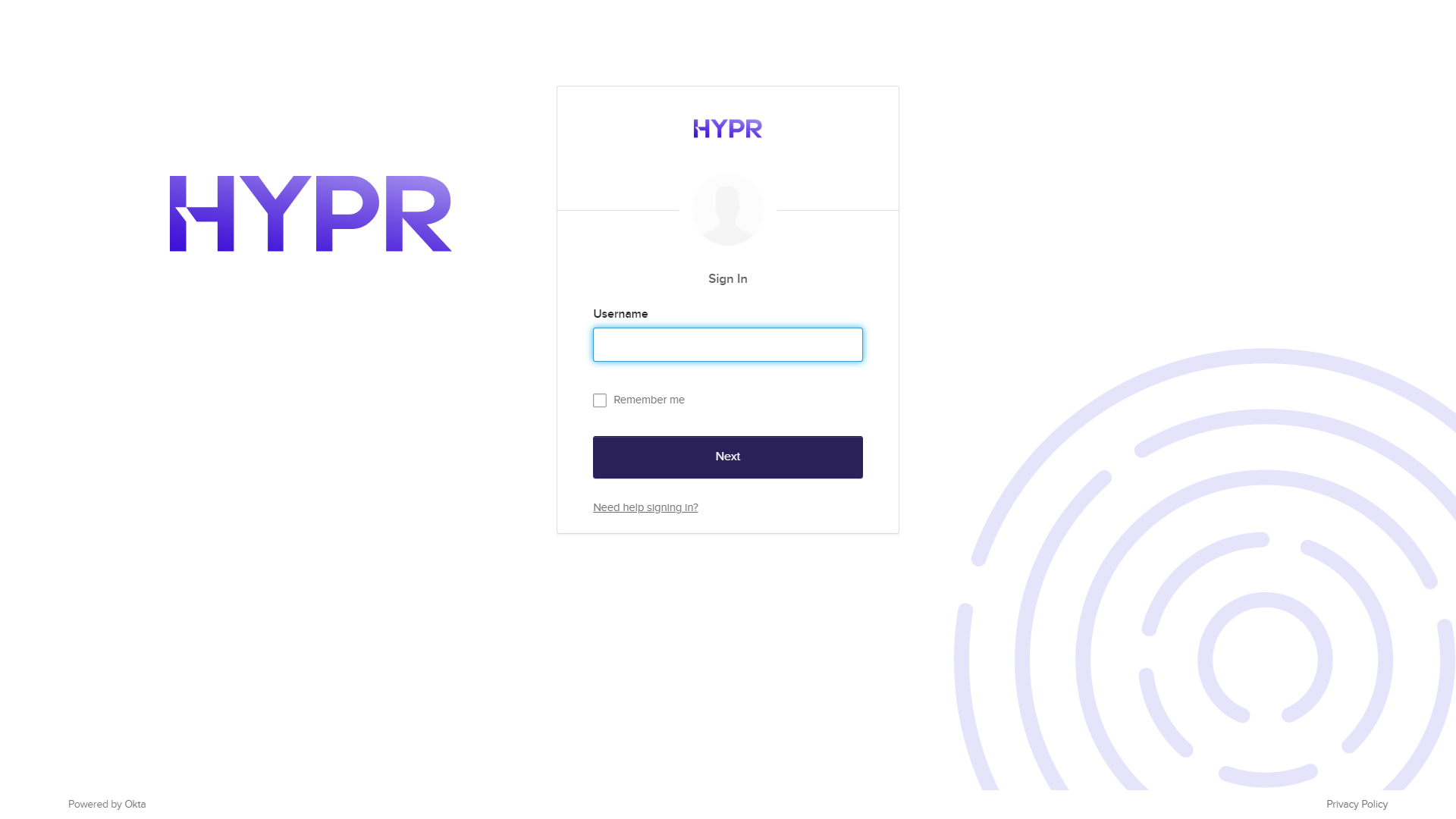
Navigate to the Corporate SSO Login page and enter your username.
-
To complete the login, confirm that you want to Open HyprUnlock.
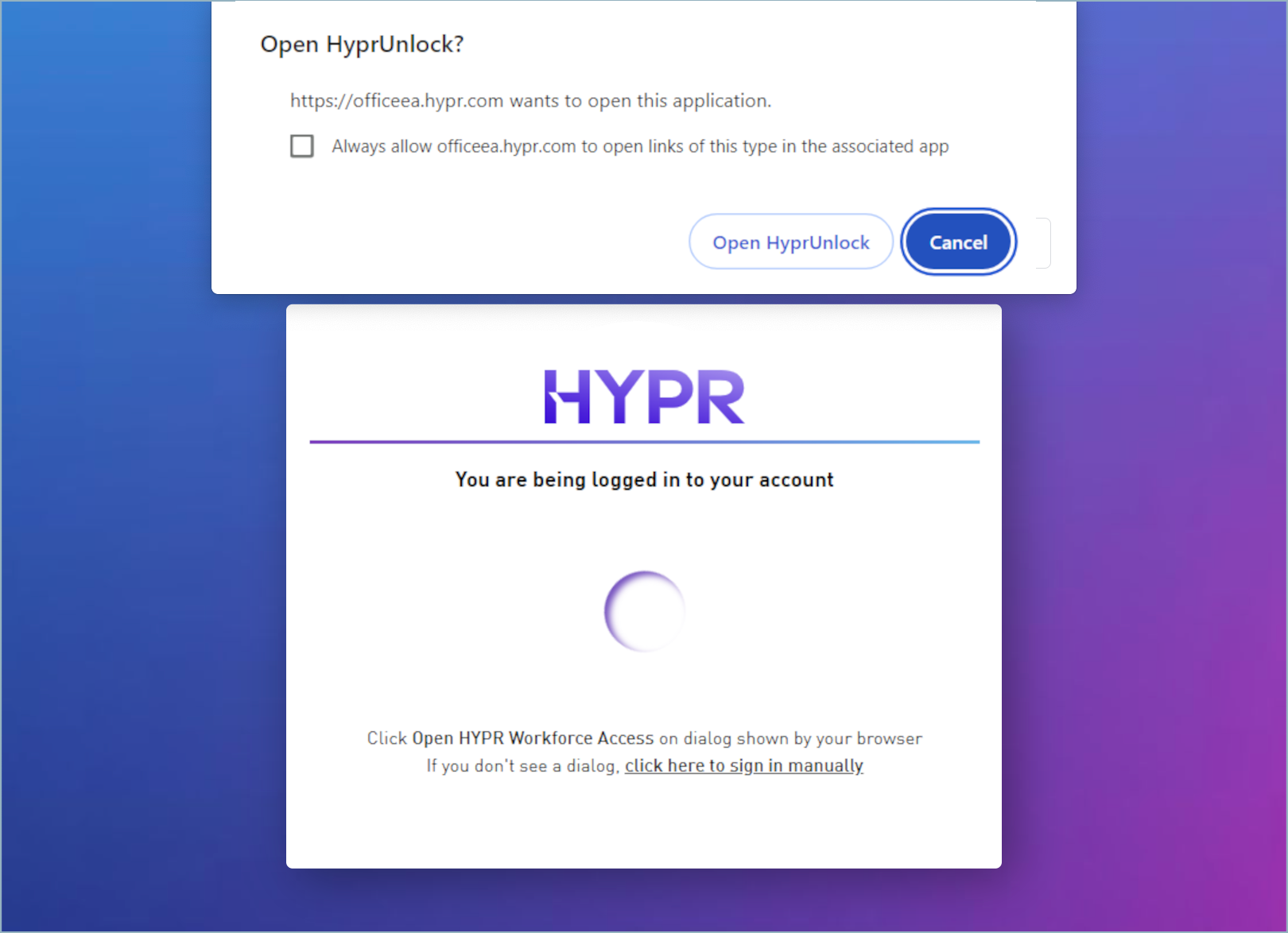
To opt out of HYPRspeed SSO, selecting click here to sign in manually will cause a login dialog to appear.
If your organization requires sign-in from a managed computer, the page offers click here to cancel this sign in instead, and there is no manual sign-in. See Risk Policy Template: Managed Machine Login.