Unlocking/Locking
For Unlocking/Locking to work, the workstation in question must have the HYPR Passwordless client installed and be paired with a mobile device that is using the HYPR Mobile App.
HYPR Mobile App users paired to a domain-joined workstation using the HYPR Passwordless client can now lock and unlock the workstation directly from the HYPR Mobile App.
Unlock
-
HYPR Mobile App
-
HYPR Passwordless
-
Tap the circle labeled with the desired workstation name.
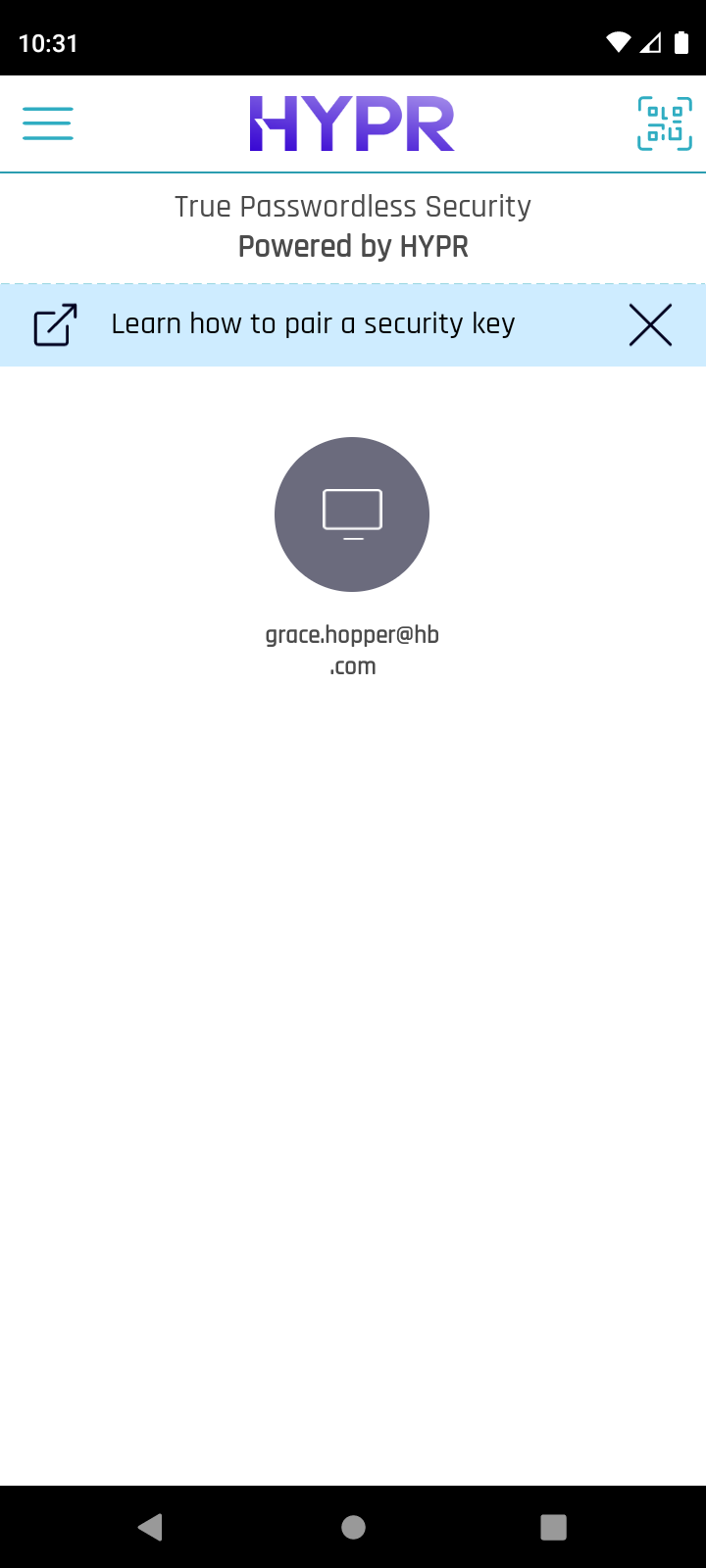
-
Complete HYPR passwordless authentication on the HYPR Mobile App. When it is ready, a message will display stating, "The computer is ready for access." If Offline Mode is enabled in Control Center, you will have the option here of using an Offline PIN.
-
The computer will still require CTRL+ALT+DEL to be pressed before allowing access.
-
HYPR Mobile App displays a checkmark for confirmation, and returns to the main screen.
Lock
-
Tap the circle labeled with the desired workstation name.
-
A dialog appears: "This computer is already unlocked. Would you like to lock it?" Tap Yes.
If the workstation is locked, tap Unlock instead to unlock it. On iOS, this option is Unlock computer and appears for workstations saved with HYPR Passkey Fabric.
-
The workstation locks immediately. HYPR Mobile App displays a checkmark for confirmation, and returns to the main screen.
Unlock with an NFC Tag
Users can tap their phone against an NFC tag to start unlocking their default workstation without opening the HYPR Mobile App first. Any blank, writable NFC sticker works; users set it up once from the app and place it on or near the workstation.
The tag holds only a fixed HYPR link. It carries no credentials and no information about the user or the workstation, so the unlock still requires the usual authentication in the HYPR Mobile App.
- A phone that can read NFC tags, with NFC turned on. The option to set up a tag appears only on such phones.
- A default workstation. To check, press and hold the workstation's name in the app, tap Computer Details, and make sure This is my Default Computer is enabled. On Android, the setting is This is my default computer.
- On Android, the phone must be unlocked when it touches the tag.
Set Up an NFC Tag
-
Open the tag setup:
- iPhone: Press and hold the workstation's name, then tap Configure NFC Tag.
- Android: Press and hold the workstation's name, tap Computer Details, then tap Create a NFC shortcut.
-
When prompted, hold the phone near a blank NFC tag.
-
The app confirms that the tag is configured for HYPR unlock. If the app reports that the tag cannot be used, for example because it is read-only or too small, try a different tag.
The tag stays rewritable, so it can be configured again. A tag set up on either platform works with both iPhone and Android. On Android 15 or later, a tag set up on an iPhone first asks whether to open the link it contains.
Unlock with the Tag
-
Tap the phone against the NFC tag. The HYPR Mobile App opens. On iPhone, if a notification appears instead, tap it to open the app.
-
Follow the prompt in the app. What the app does depends on the default workstation and the phone's connection:
Situation Result The workstation is locked and the phone is online The standard unlock starts; complete HYPR passwordless authentication. The workstation is already unlocked On iPhone, if locking from the app is enabled, the app offers to lock it. The phone is offline The app opens the Offline PIN flow for the default workstation. No default workstation is set, for example because none is paired The app opens the QR code scanner.
The tag unlocks only the default workstation. To unlock a different workstation, tap its circle in the app as described in Unlock.