HTTP Proxy Support
Desktop SSO
From release 11.3.4, Desktop SSO can serve its handoff over HTTPS on a HYPR-provided hostname that resolves to the user's own workstation. On HYPR Cloud production that hostname is prod.wfalocal.com. The workstation answers on its loopback address, so the request never leaves the machine.
If the proxy resolves the hostname, the request is answered on the proxy server instead of the user's machine and Desktop SSO does not complete.
Two other network controls can intercept the same request:
- DNS filtering. The hostname resolves through public DNS. A filter that blocks unfamiliar or newly registered domains prevents it from resolving.
- DNS rebinding protection. Some resolvers and security appliances discard answers that point at a loopback or private address. This hostname resolves to a loopback address by design, so a resolver applying that protection discards the answer.
Allow the hostname in whichever of these controls your network applies. Where it cannot be reached, the browser falls through to the earlier handoff methods.
Passwordless for Windows
Admins can configure proxy settings so that the HYPR Passwordless client can communicate to the HYPR Control Center. Proxies are honored in the following order if set:
-
Configured proxy in the HYPR Passwordless client.
-
Configured system-wide WinHttp proxy.
-
Support for a Proxy Auto Config (PAC) URL — discovered from DNS, DHCP, or set directly on the HYPR Passwordless client.
Any of the proxy registry locations above can also be populated by Group Policy rather than configured directly on the workstation. When that is the case, manual changes made on the workstation can be re-applied at the next Group Policy refresh — coordinate with the team that owns the GPO if values you have cleared keep returning, or if a stale enterprise-proxy entry needs to be removed at the source.
Configured Proxy in the HYPR Passwordless for Windows Client
The HTTP proxy can be configured solely for HYPR Passwordless via the following registry settings:
| Registry Value Name | Description |
|---|---|
| Proxy Server | Specifies the proxy server (i.e., "proxy[:port]) to be used (e.g., "proxy.mycompany.com:8080"). If the port is not specified, it defaults to 8080. |
| Proxy Bypass | Specifies the proxy bypass list (i.e., a comma-delimited list of host names and/or IP addresses to be excluded from consideration). If the URL matches any of the hosts in the proxy bypass list, the proxy will be bypassed and a direct connection will be made. Wildcards are supported (e.g., *.hypr.com, 10.20.*). |
Configuring a System-wide WinHttp Proxy
A proxy can also be specified system-wide using the netsh winhttp set proxy command. Here's an example:
netsh winhttp set proxy proxy.hypr.com:8080 "*.hypr.com,10.20.*"
You can restore the proxy settings back to direct access with netsh winhttp reset proxy.
netsh winhttp reset proxy
Support for a Proxy Auto Config (PAC) URL
A proxy can also be configured to reference a PAC URL, a JavaScript file controlling proxy settings. It can look like this:
function FindProxyForURL(url, host) {
    return "PROXY proxy.mycompany.com:8080";
}
The PAC URL can be picked up from DNS or DHCP, or manually configured for the HYPR Passwordless client with this registry setting:
| Registry Value Name | Description |
|---|---|
| Proxy Auto Config Url | Specifies the URL of the proxy auto config file (e.g., http://mycompany.com/proxy.pac). |
Use the HTTP Proxy to Install HYPR Passwordless Client for Windows
Once you've configured the HTTP Proxy, include it when installing the HYPR Passwordless client on the workstation.
Using msiexec with Command Line Parameters.
If you're setting the parameters directly on the command line, pass in the proxy via the HYPRPROXYSERVER parameter. See Command Line Installation for Windows.
msiexec.exe /qn /i .\WorkforceAccess.msi HYPRRP="https://highlandsbank.com/rp"
HYPRSUPPORT="support@hb.com" HYPRHASH="LeM8XnCIy8+Cxm+HKTEOBZr1g3D8odQNHTH+vdu7RWc="
HYPRTEMPLATE="HYPRUser" HYPRPROXYSERVER="proxy.example.com:8080"
Using msiexec with the hypr.json File
If you're setting the parameters using the hypr.json configuration file, pass in the proxy via the proxyServer parameter.
{
 "version":"1.0",
 "rpUrl":"https://highlandsbank.com/rp",
 "appId":"WorkstationAccess",
 "pinningHash":"LeM8XnCIy8+Cxm+HKTEOBZr1g3D8odQNHTH+vdu7RWc=",
 "supportEmail":"support@hb.com",
 "proxyServer":"proxy.example.com:8080",
 "fullUI":"1"
}
Upgrading Earlier Versions
The installation commands are the same as for a fresh install (see above). However, you only need to provide the new proxy value. The installer will reuse the existing values for the rest of the parameters.
For example, to upgrade using msiexec with command line parameters, just specify the HYPRPROXY value:
msiexec.exe /q /i WorkforceAccess_x64.msi APPLYDURINGUPGRADE=1 HYPRPROXY="http://proxy.example.com:8080"
Troubleshooting: stale or leftover proxy configurations
When an organization migrates between enterprise proxy or SASE solutions — for example, replacing one Secure Web Gateway (SWG) client with another, or moving from a split-tunnel VPN to a SASE-style remote-access product — residual proxy settings can remain on the workstation and cause HYPR Passwordless to take an unexpected network path. Symptoms include intermittent connection failures during pairing or unlock, "Failed to get QR Code" messages, and error code 1590001 reported as RequestQrCodeLowApiVersion ("Unsupported version" / MaxApiVersion=-1 < V4ApiVersion=4) even when the HYPR Server is current and reachable from the workstation by other means (browsers and on-premises resources continue to work).
HYPR Passwordless for Windows reads the proxy resolution order documented above (configured proxy → WinHTTP → PAC URL), but the service runs under the LocalSystem service context and therefore consults the WinINet Internet Settings of that service context when resolving a PAC URL — not the interactive user's per-user settings. A stale PAC URL left in that service context from a previously-installed enterprise proxy or SASE client is a common cause of this failure mode.
HYPR Passwordless for Windows 11.3 and later includes resilience improvements that bound the user-visible failure window when the configured proxy or PAC-defined upstream becomes unreachable, so the service no longer remains stuck in an unrecoverable state. This is a mitigation, not a substitute for clearing the stale reference — when a stale PAC URL is present, the durable fix is still to remove it at its source so the client takes the intended network path on the first attempt.
Where to look
WinINet Internet Settings are read per Windows account context — the per-user context for interactive sign-ins, and a separate service context for Windows services. The HYPR Passwordless service reads the service context, so that is where stale values typically live. Group Policy may write Internet Settings under a policies path as well, which is worth inspecting if cleanup does not stick.
Cleanup workflow
- Inspect the
WinINetInternet Settings under the same account context the HYPR Passwordless service runs in. Standard endpoint-management tooling or a registry editor launched in that service context will surface these values; coordinate with your endpoint or network team if you do not already have a procedure for inspecting service-context registry settings on managed workstations. - Look at the
AutoConfigURL,ProxyEnable,ProxyServer, andProxyOverridevalues. IfAutoConfigURLreferences a PAC URL from a proxy or SASE product that is no longer in use on this workstation, that is the stale reference. - Remove the stale value.
- Restart the HYPR Passwordless service.
- Retest a pairing or unlock from the workstation.
If the same value reappears after cleanup, see One-off cleanup vs. durable fix below.
One-off cleanup vs. durable fix
If the stale value reappears after cleanup — at the next reboot, the next Group Policy refresh, or after a Windows Update — something on the workstation is repopulating it. One-off registry cleanup will not hold. Address it at the source:
- If the value is being written by a Group Policy, update or remove the corresponding GPO rather than editing the workstation directly.
- If the value is being written by a SASE or proxy client that is still installed, coordinate with the team that owns that product to stop it from populating the HYPR Passwordless service context's
Internet Settings, or to bypass HYPR domains in the upstream PAC file. - If the value is being copied by an installer or login script, identify and update the responsible mechanism.
Modifying registry values under a Windows service account context can affect other services on the workstation. Coordinate changes with your endpoint management or network team rather than making them ad hoc — especially for Group Policy-managed entries, which must be cleared at the GPO source rather than per-workstation.
Passwordless for macOS
You can configure the HYPR Passwordless client for macOS to communicate with the HYPR Control Center server via a proxy. You may:
-
Configure the proxy directly in the HYPR Application
-
Set a system-wide proxy in macOS
Configuring a Proxy for the HYPR Passwordless for Mac Client
Configure a proxy directly in the HYPR Passwordless client by modifying ProxyServer and ProxyBypass parameters in the Application's HyprOneService.plist file:
| Parameter | Description |
|---|---|
| ProxyServer | The proxy server to be used (proxy[:port]). The port is default to 8080 if not specified. |
| ProxyBypass | A comma-separated list of host names to be excluded. Matches bypass the proxy for direct connections. Host names can include wildcards (e.g., .mycompany.com or 10.20.). |
For more information on changing the HyprOneService.plist configuration settings, see Installing Manually. Remember to save the file and restart the computer for your changes to be applied.
Configuring a System-wide Proxy in the macOS Settings
Alternatively, use the following steps to configure a system-wide HTTP/HTTPS proxy in macOS.
-
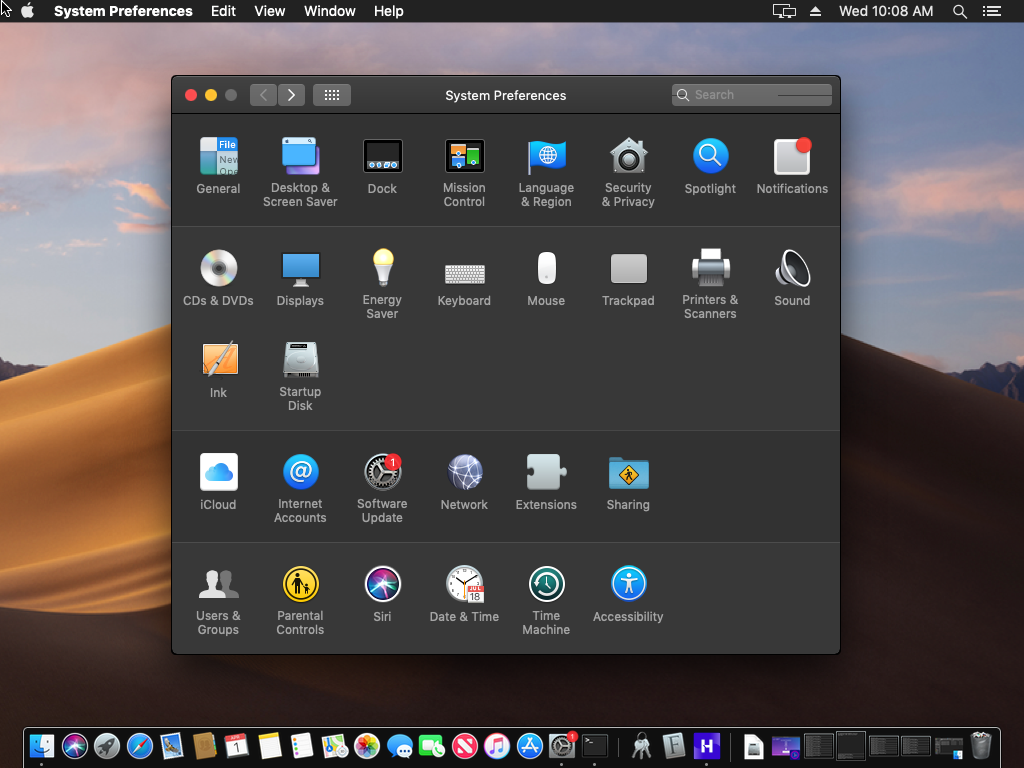
Open System Preferences > Network.
-
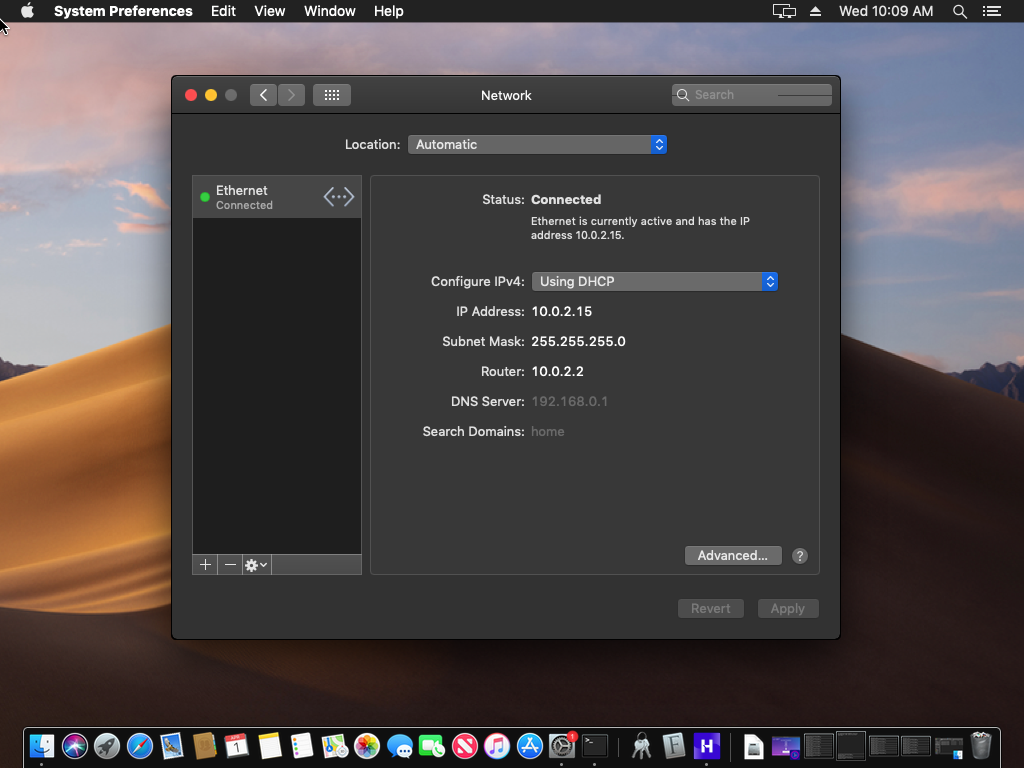
Depending on which network adapters are available (e.g., Ethernet or Wi-Fi), select the appropriate network adapter and then click Advanced….
-
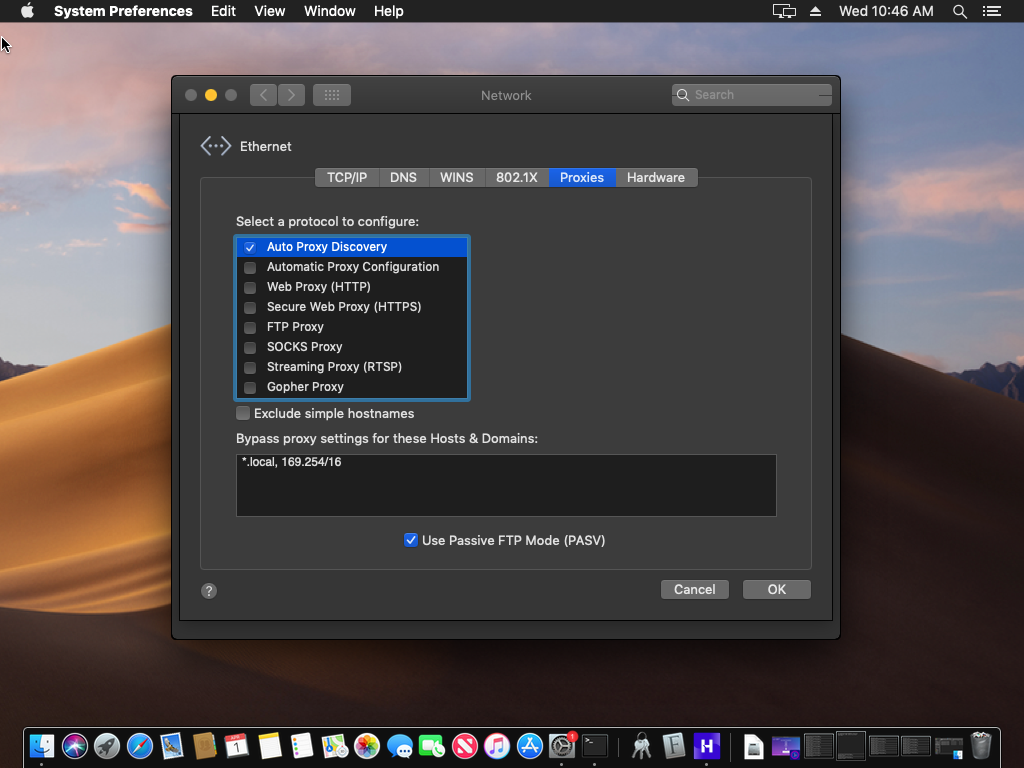
Choose the Proxies tab at the top of the page. There are three ways to configure a proxy:
-
Manually configuring the proxy
-
Specifying a URL for a proxy auto config (PAC) file
-
The system discovers the proxy automatically via DNS
-
Manually Configuring the Proxy
-
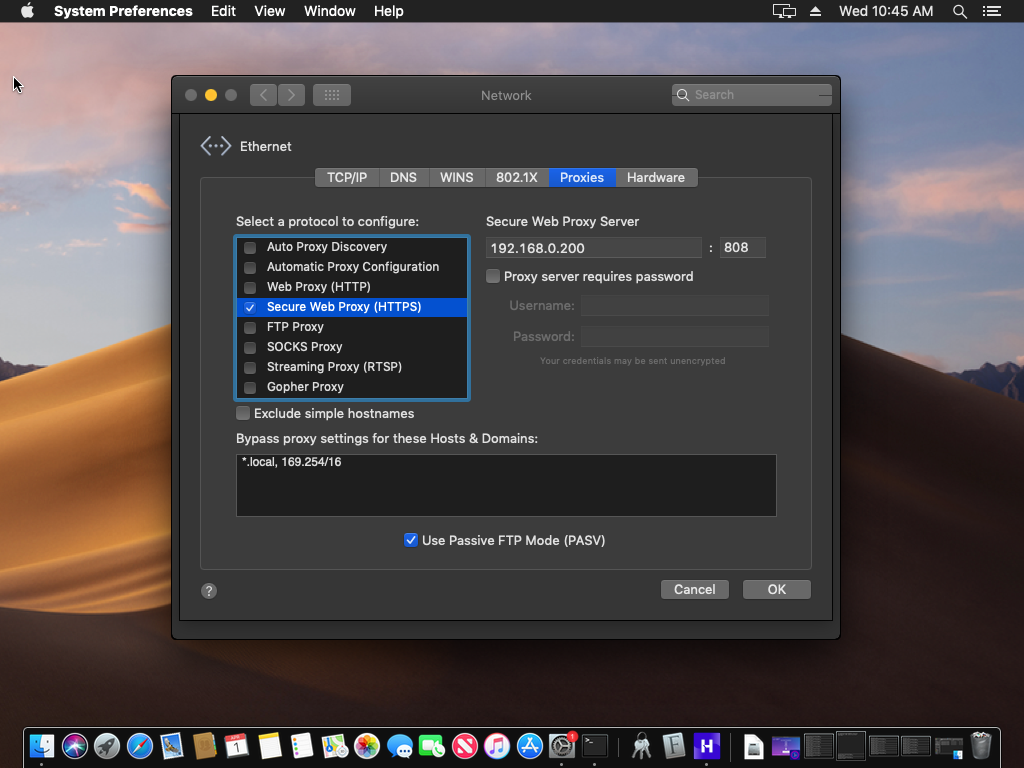
Select "Secure Web Proxy (HTTPS)".
-
Enter the host name or IP address of the proxy server along with the TCP port on which the proxy server is listening. For example, the following screenshot shows a proxy at 192.168.0.200 listening on port 808.
-
Click OK when finished.
Specifying the URL of the Proxy Auto Config (PAC) File
-
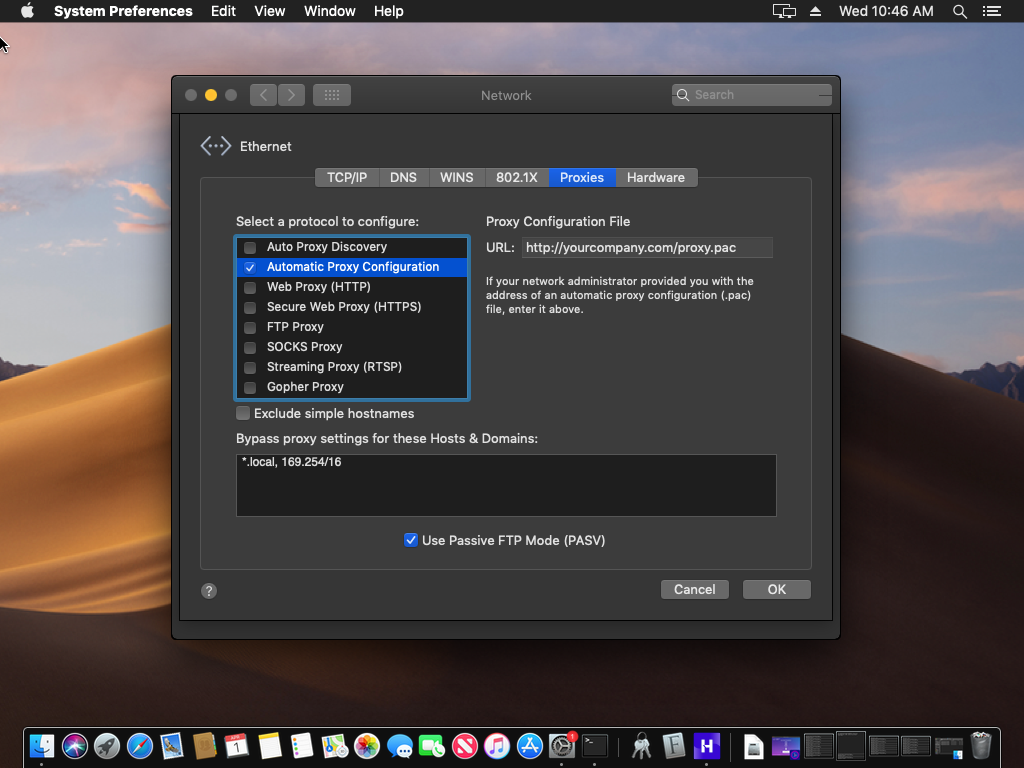
Select Automatic Proxy Configuration.
-
Enter the URL for the Proxy Auto Config (PAC) file.
-
Click OK when finished.
Discovering the Proxy Automatically via DNS
Select Auto Proxy Discover to have macOS discover the proxy automatically via DNS.
Use the HTTP Proxy to Install HYPR Passwordless Client for Mac
Once you've configured the HTTP Proxy, include it when installing the HYPR Passwordless client on the workstation. See Installing with the UI: Installing on macOS.
Upgrading Earlier Versions
If your installer came without a hypr.json configuration file, you'll need to manually create one with the proxy field added. For example:
{
 "version":"4",
 "rpUrl":"https://highlandsbank.com/rp",
 "appId":"WorkstationAccess",
 "pinningHash":"LeM8XnCIy8+Cxm+HKTEOBZr1g3D8odQNHTH+vdu7RWc=",
 "supportEmail":"support@hb.com",
 "proxy":"http://proxy.example.com:8080",
}
See the Installing Manually page for more information about the hypr.json configuration file.
To upgrade, place the hypr.json file and the HYPR installer package in the same folder and execute:
installer -pkg WorkforceAccess-X.X.X-Installer.pkg