Client Download
Desktop Client appears only on the Standard Mode: Workstation page as a tab.
Use the Desktop Client screen in the Workstation section to select and download the HYPR Passwordless client installers for Windows and Mac.
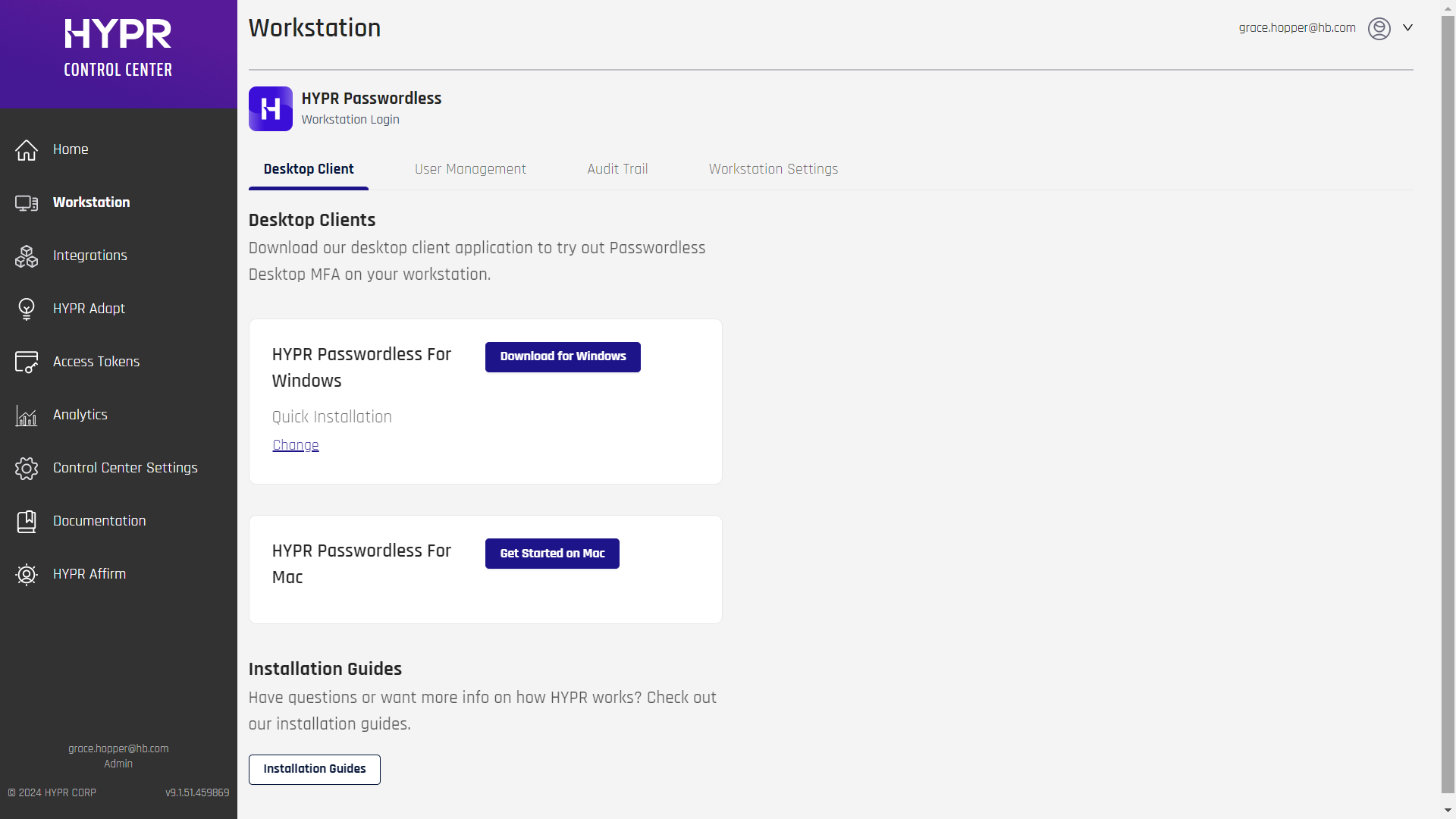
HYPR Passwordless for Windows supports ARM-based (ARM64) workstations. Once you have chosen an installation type, the Windows card offers two download buttons: one for x64 workstations and one for ARM64 workstations, for example Download for Windows (x64) and Download for Windows (ARM64). If the ARM64 button does not appear, contact HYPR Support.
Workstations that run the 11.5 ARM64 client or later receive ARM64 builds when they upgrade automatically. Install the 11.5 ARM64 build manually on ARM64 workstations that run an earlier version.
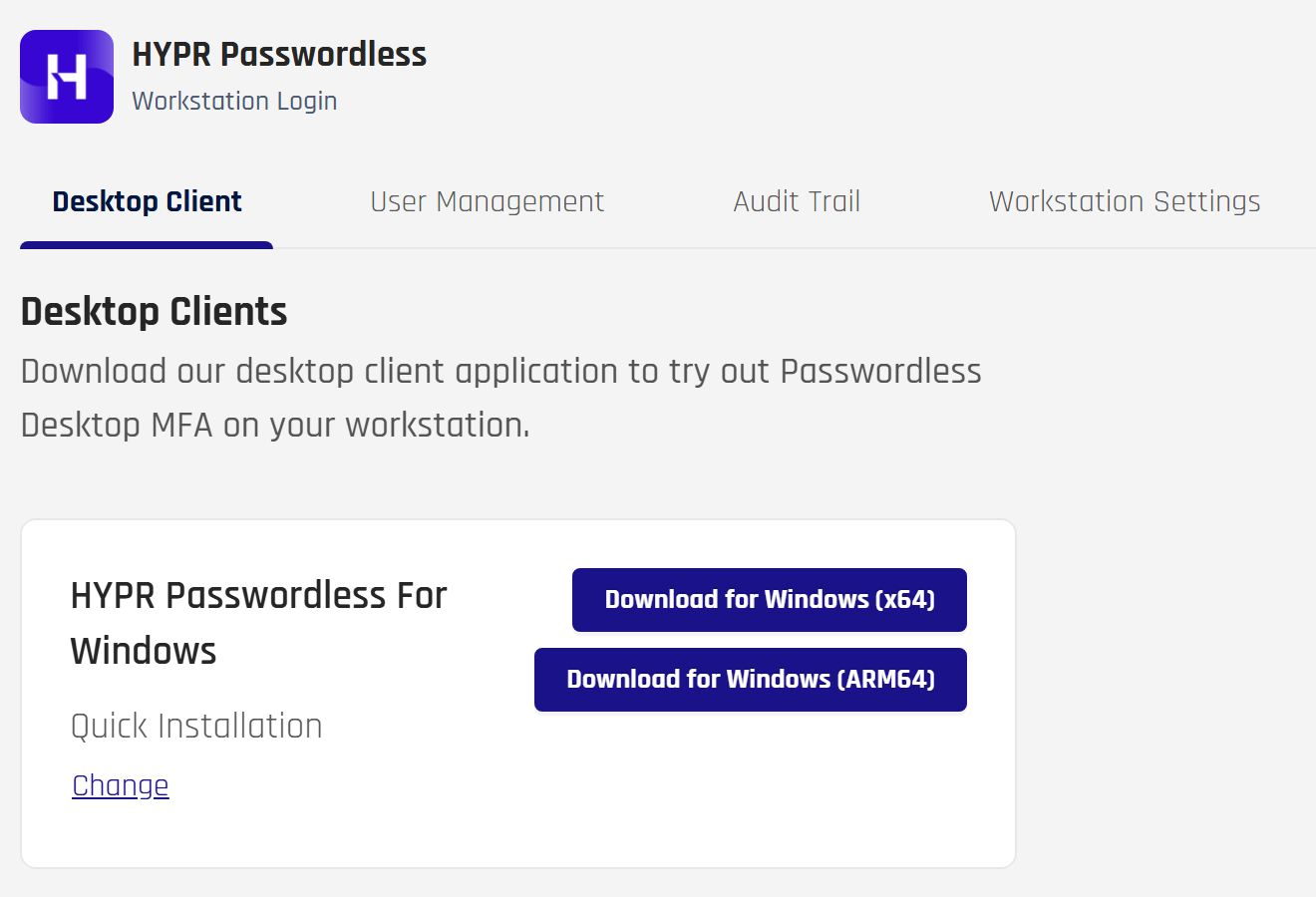
Downloading the HYPR Passwordless Client Installer
For both the Windows and macOS installers, the button to download the Passwordless client will at first be labeled Get Started on [Windows or Mac]. Once you have chosen which type of installation will download, the button for that installer changes to Download for [Windows or Mac].
-
Click the Download for... button for the platform you're using (Windows or Mac).
-
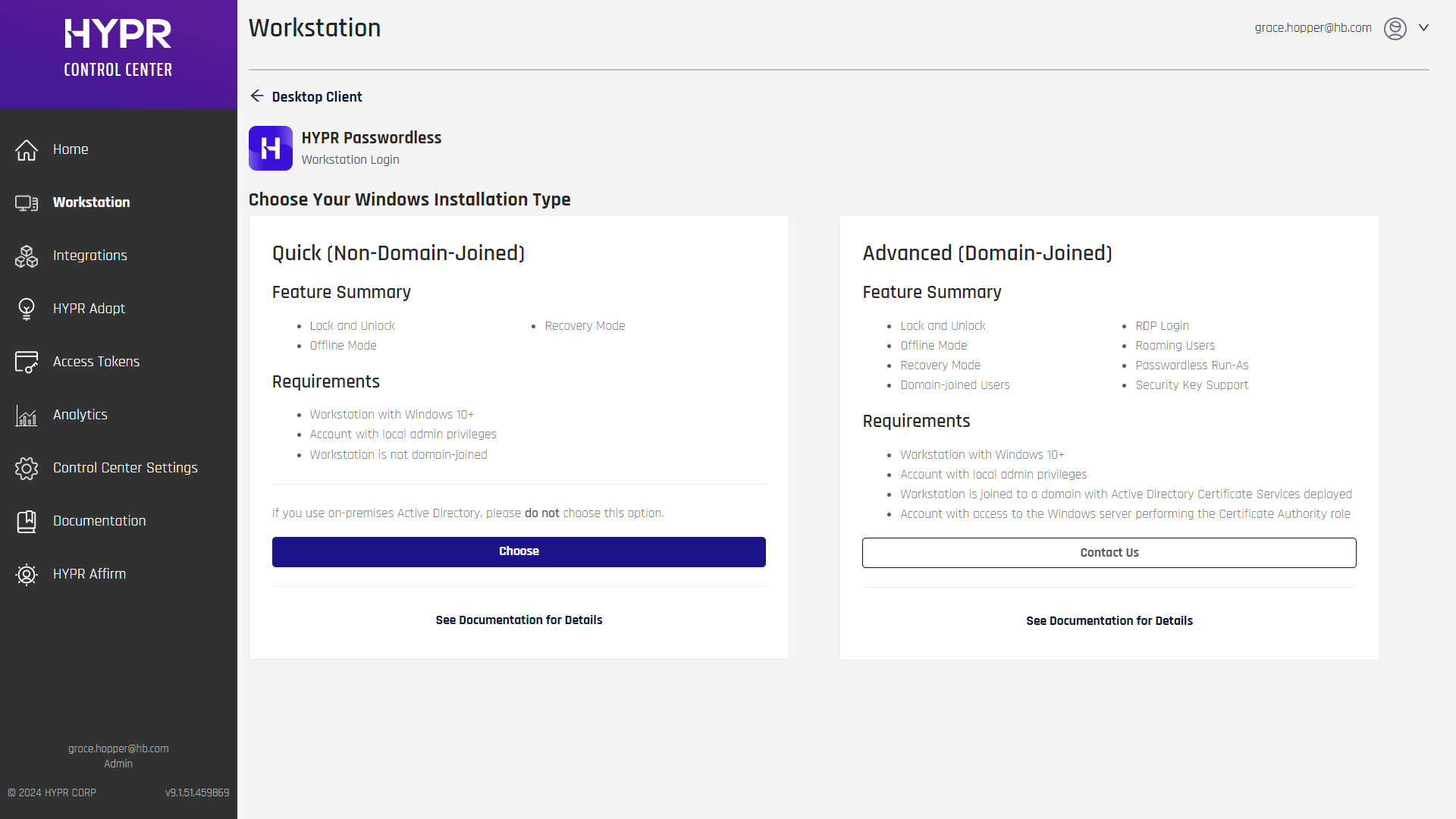
Choose your installation type: Quick (Non-Domain-Joined) or Advanced (Domain-Joined). For more information about the two types, see the Passwordless client Requirements page.
-
To continue with a Quick installation, click Choose in the left pane and continue with the next step
-
If you want a more configurable client, click Contact Us on the Advanced pane, and await further instructions
-
-
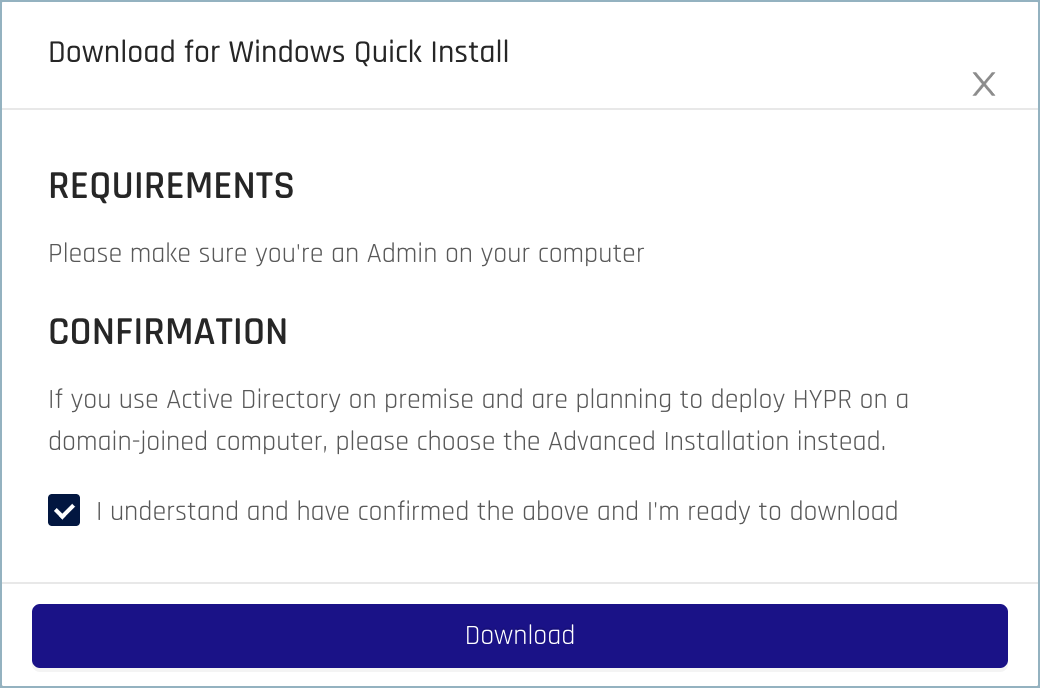
Confirm the requirements to start the download.
-
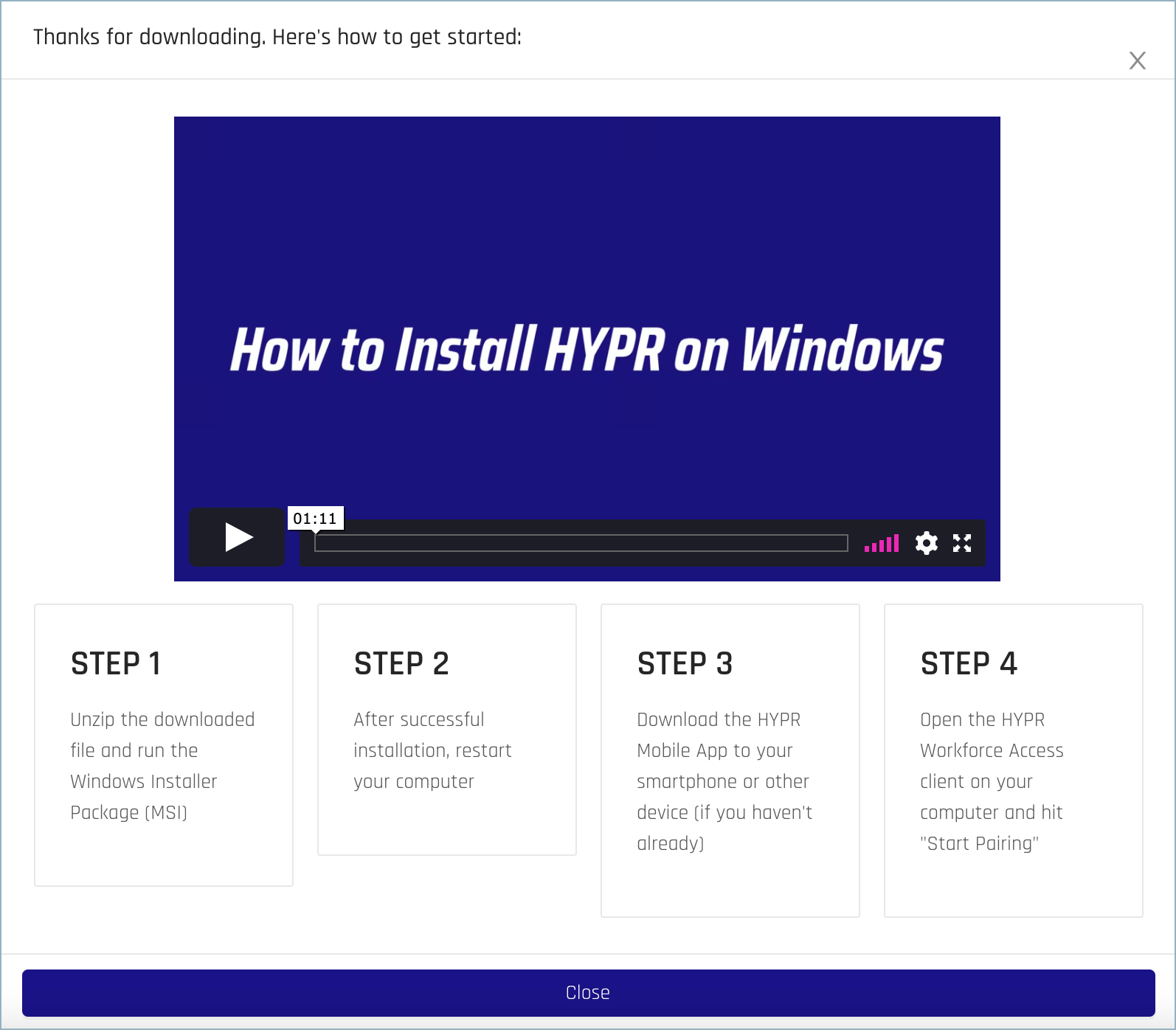
Once the installer file has finished downloading, follow the on-screen steps to start the install process. For detailed instructions, see HYPR Passwordless client Installation.
Changing the Download Type
Once you've completed a download, you can use the Change link on the main Desktop Clients screen to go back and choose a different installation type if necessary.
Alternatively, use the Download for... buttons to download the same type of installer again.