Login Settings
Login Settings appear in multiple places:
-
In Advanced Mode: Advanced Config for the Application selected under Choose an App
-
In Standard Mode: Integrations for the selected integration; in this case, Login Settings will only show Workstation SSO and HYPR Adapt Settings from the list below, and otherwise displays FIDO2 Settings and Generic Enterprise Passkey Settings
HYPR 11.3 introduces safer defaults for authentication and registration policies in new integrations and web applications:
- FIDO2 is enabled by default in all integrations and web rpApps. FIDO2 settings remain available under FIDO2 Settings.
- QR authentication is available everywhere without feature-flag enablement; QR fallback is enabled by default.
- Pull authentication is now a first-class authentication method that can be configured directly in Control Center.
- Push authentication is deprecated for new configurations and is disabled by default. Existing tenants that have Push enabled retain their current behavior after upgrade. Pull is the recommended replacement.
- Authentication policy options that previously required Advanced view can now be configured in Standard view when QR and Pull authentication are enabled.
See the 11.3 release notes for the full summary of policy-related changes.
Open the Login Settings page to manage Firebase push notifications, HYPRspeed, QR code authentication, and logs user submission from inside the Application.
Login Settings can be administered using the following API calls:
- Get login settings:
GET /cc/api/appconfig/push - Save login settings:
PUT /cc/api/appconfig/push
Enable Push Notifications
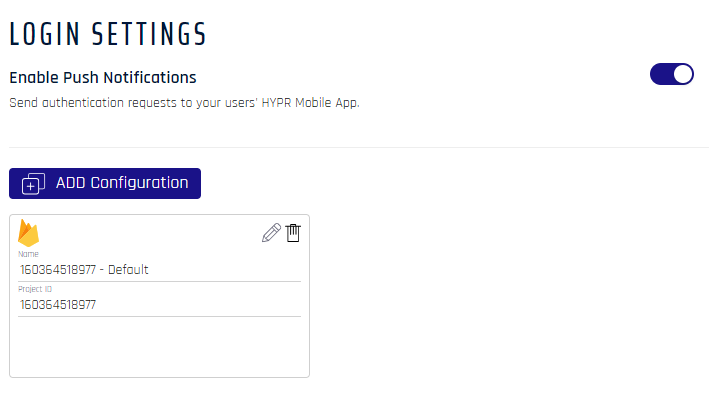
HYPR uses Firebase as a push notification provider for its Web Applications.
Click Add Configuration to configure Firebase to work with your HYPR web Applications; see Configuring Push Notifications via FireBase.
Workstation SSO
HYPRspeed/Desktop SSO is enabled by toggling the Workstation SSO (Advanced Mode Application Advanced Config Menu: Login Settings) or Enable Desktop SSO (Standard Mode Integrations: Login Settings) feature. Be sure to set the SSO Timeout (Minutes) to the desired limit. If left unchanged, the default is 360 (6 hours). For the conditions under which HYPRspeed activates and the end-user experience, see Using HYPRspeed. From release 11.3.2 onward, Desktop SSO in an embedded browser requires Windows 11 24H2 or later and additional configuration on the endpoint; standalone browser windows are not subject to either requirement. See (Windows) Desktop SSO in Embedded Browsers.
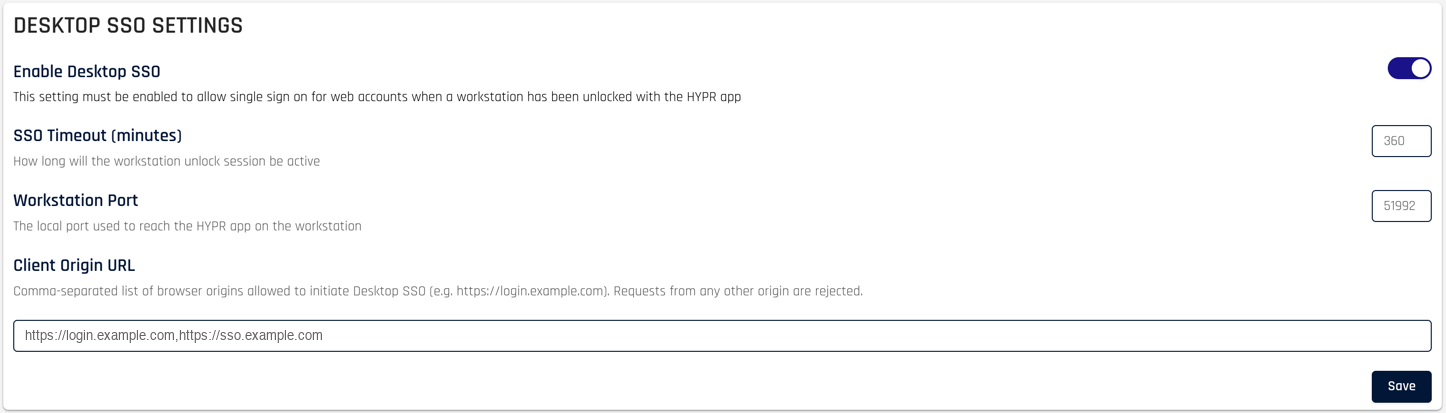
Enabling Desktop SSO also exposes three settings that govern the hand-off between the browser and the workstation. The defaults suit most deployments; review them when your users sign in from an address other than Control Center, or when the default port is already in use on your workstations.
| Setting | Default | Accepted values |
|---|---|---|
| SSO Timeout (Minutes) | 360 (6 hours) | 0 up to the maximum configured for your tenant |
| Handoff Timeout (Seconds) | 60 | 1 to 300 |
| Client Origin URL | Your tenant's Control Center address | A comma-separated list of bare origins, each https://host |
| Workstation Port | 51992 | 1024 to 65535 |
Handoff Timeout
Handoff Timeout (Seconds) is how long the browser waits for the workstation to answer before falling back to the next login method. Leave it blank to use the default of 60 seconds.
This is not the same as SSO Timeout (Minutes), which sets how long a completed Desktop SSO session stays valid. Handoff Timeout governs only the moment the browser hands the login over to the workstation.
Raising the value gives a slow workstation more time to answer. Lowering it shortens the wait before the fallback login method appears.
Client Origin URL
Client Origin URL lists the sites that may start a Desktop SSO login for this Application. When a user signs in, the workstation reports the site the login came from, and Control Center completes the login only when that site appears on the list. A login started from any other site is refused, and Control Center returns error 1201102.
List every sign-in page your users start Desktop SSO from — your identity provider's login page, for example.
Format rules
Each value is a bare origin: a scheme (https or http) and a host, and nothing more. Separate multiple origins with commas, without spaces.
https://login.example.com
https://sso.customer.no,https://adfs.customer.no
- No trailing path, query string, or fragment.
https://login.example.com/auth/realms/hyprwill not match a login started fromhttps://login.example.com; enter the bare origin instead. - No wildcards. Enter each host in full; an entry such as
https://*.example.comis not accepted. - Origins are compared in full and are not case-sensitive. A host that differs by so much as a subdomain is a different origin.
Control Center reports an error when you save a value that does not follow these rules.
A Desktop SSO login started from a site that is not on the list is refused. When your sign-in address changes — a new identity provider hostname, or a move from http to https — add the new origin before your users sign in from it.
Adding the origin is the only change a domain change requires. You do not need to reinstall the workstation client or repeat the Desktop SSO setup.
This setting applies to Desktop SSO only. It is separate from the Client Origin URL in FIDO2 Settings, which governs FIDO2 registration and authentication for the Application.
Workstation Port
Workstation Port is the local port the browser uses to reach the HYPR app on the workstation while it completes a Desktop SSO login. The connection stays on the workstation and does not cross the network.
The default is 51992, and accepted values run from 1024 to 65535. The value applies to every workstation registered to this Application, and each workstation adopts it the next time it retrieves its configuration from Control Center.
From release 11.3.4 the Workstation Port field is read-only in Control Center, so the port cannot be changed there. Contact your HYPR representative if another program on your workstations already uses the default port.
Where local security software on your workstations restricts connections between programs on the same machine, allow the port you configure here so the browser can reach the HYPR app.
Passkey-Favored Login
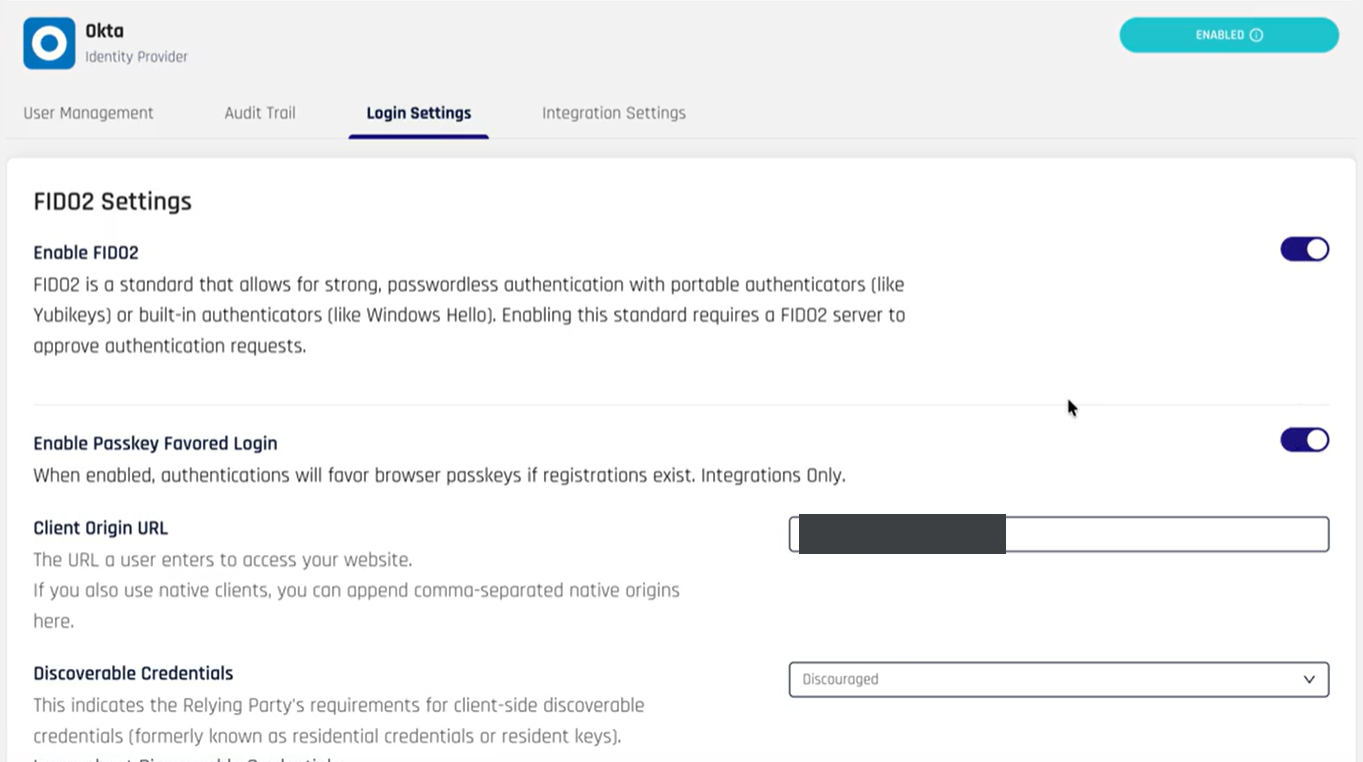
Passkey-Favored Login lets a returning user sign in to a web application with their browser passkey automatically, without first choosing a login method. It applies to integrations only.
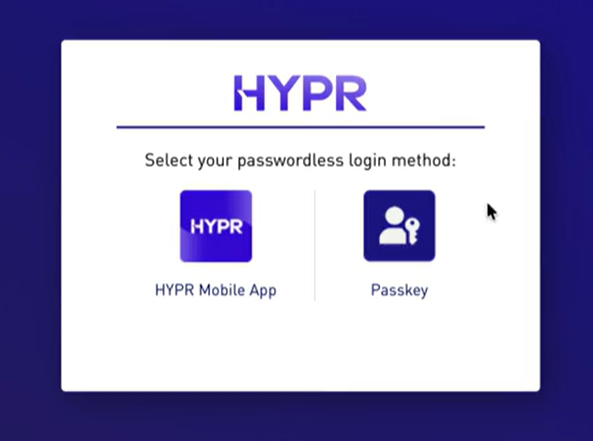
When the setting is off, a user who has more than one available method sees the login-method selection screen at sign-in:
When the setting is on, HYPR favors the user's browser passkey and takes them straight to the passkey prompt, skipping the selection screen:
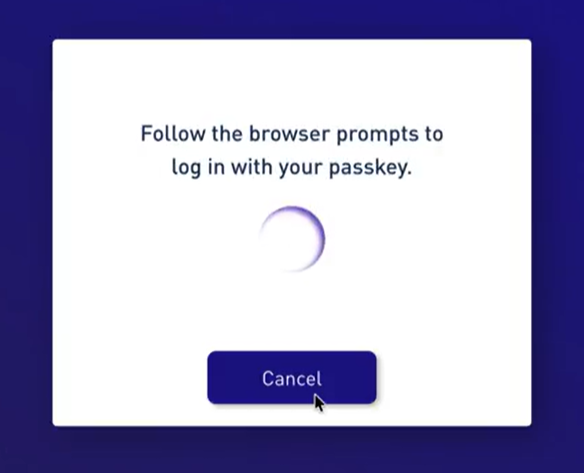
The same applies in a mobile browser, where the user is prompted for their passkey directly.
The selection screen still appears when the user signs in from a different browser or operating system than the one where their passkey was registered, or when no browser passkey exists for the account. In those cases the user can choose the HYPR Mobile App or another available method.
Enable Passkey-Favored Login
In the integration's Login Settings, under FIDO2 Settings, turn on Enable Passkey Favored Login. FIDO2 must be enabled for the integration.
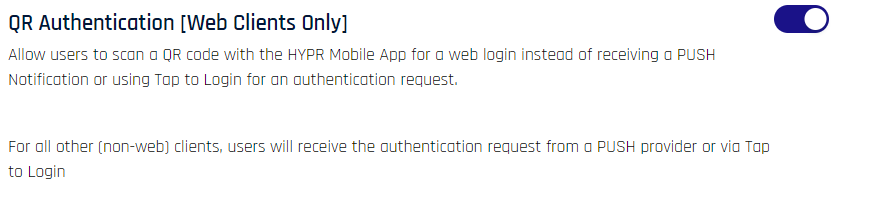
QR Authentication (Web Clients Only)
Allow users to scan a QR code with the HYPR Mobile App for a web login instead of receiving a push notification or using Tap to Login for an authentication request.
For all other (non-web) clients, users will receive the authentication request from a push provider or via Tap to Login.
Allow Manual QR Entry: Admins
If a HYPR Mobile App user is unable, unwilling, or otherwise prohibited from using the device's onboard camera to complete a QR code registration (pairing) or authentication (login), this toggle enables a link on the user's QR dialog that will initiate Manual QR Entry, a.k.a. QR Fallback.

In-App Logs Submission
HYPR log submission can be configured to be emailed to the HYPR Support Team to assist with troubleshooting. See Contact Support for more information.
-
If In-App Logs Submission is enabled, users will be able to directly generate an email to the configured address just by clicking Send on the Contact Support dialog
-
If In-App Logs Submission is disabled and the email address is provided, clicking Send on the Contact Support dialog will open the default email client and use the provided email address
-
If In-App Logs Submission is disabled and the email address is left empty, the user will be required to provide an address to the email client and send the email

JWT Token Configuration
Validate incoming ID tokens and issue signed JSON Web Tokens (JWTs) for the Application after FIDO and Passkey flows. See JWT Token Configuration for details.
HYPR Adapt Settings
Policies can also be assigned in Standard Mode under the HYPR Adapt Policy Configuration Tab, by clicking '+ Policy Assignment'.
Add policies to the application (including integration RP Apps) here. See Risk Policy Management for details on policy assignment.
