Authoring a Policy with AI
Instead of writing a condition, you can tell HYPR AgentPass™ what a policy should stop, and let an AI author write the condition. For example: "Stop the agent from writing to files outside the project directory."
You describe the goal in the New policy wizard. The author writes the expression into the same editor you would use by hand, and the wizard reads it back to you in plain language. From there, the policy is like any other: you can change the expression, back-test it against recent traffic, and publish it, in Observe by default.
The author adapts to the connector you choose:
- A tool connector, such as an MCP server or a REST API. The author reads the connector's tool catalog, and writes a rule about which tools are called and with what arguments.
- An inference connector, such as Anthropic, OpenAI or AWS Bedrock. The author reads the shape of recent conversations, and writes a rule about what is sent to the model or what the model proposes.
Describing a policy needs Policies: Add, which Admin, Operator and Supervisor hold out of the box. It also needs AI drafting set up under Settings → Gateway settings, on the Policies tab. See Setting Up AI Authoring.
Start by Describing It
Start in any of these ways:
- On Policies, click New policy, and choose Describe it in your own words.
- On a connector's detail page, open the Policies tab, click New policy, and choose Describe it in your own words. The connector is already chosen.
- On Activity → Session watch, focus an entity in the findings graph, and click Draft a policy on its card. The wizard opens with Describe it in your own words chosen, the entity's connector picked, and a goal written from the entity's counts. You can edit both, and nothing is drafted until you ask. See Drafting a Policy from an Entity.
Then complete Details as for any policy. See Creating a Policy. Two fields work differently when you describe a policy:
- Action starts on Let the AI choose from the goal. The author picks Deny, Require approval or Allow from what you describe, and you see its choice on the next step. You can also choose the action yourself.
- Apply to, on a single MCP connector, adds Let the AI choose. The author reads every tool's description, and picks the tools that match your goal. It suits a goal such as "require approval for anything that writes or deletes".
The author writes for what one connector can see: its tools and its recent requests. With no connector chosen, or several, Describe it instead is unavailable, and the wizard says why. Pick one connector under Connector in Details, or write the expression yourself.
Describe the Goal
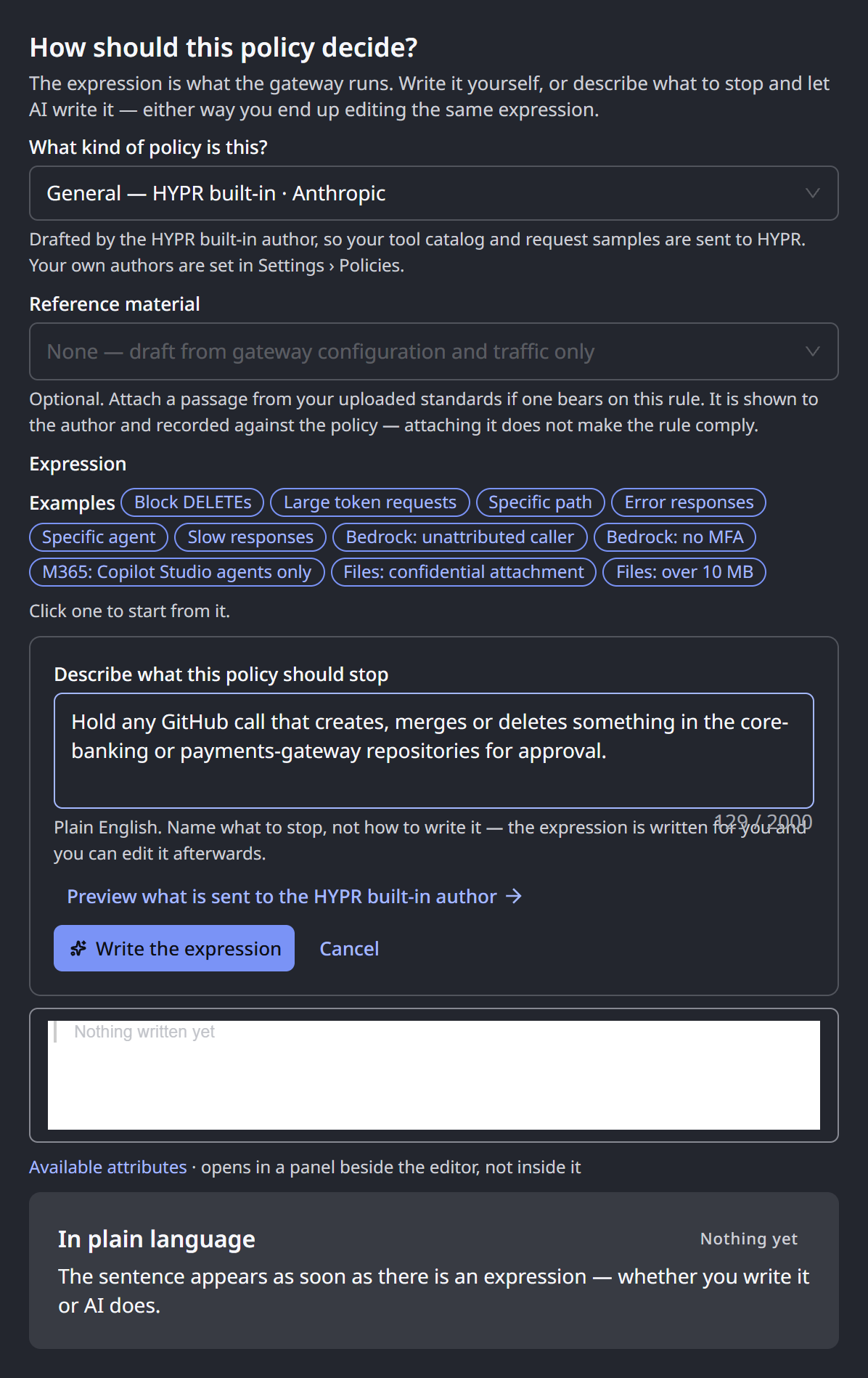
On the Logic step, the description panel is open. If you started another way, click Describe it instead, next to the Expression label, to open it.
- Under Describe what this policy should stop, type your goal. Use one or two sentences, in your own words, naming what should and should not happen. The box holds up to 2,000 characters, and counts as you type.
- Optional: Under What kind of policy is this?, choose the kind of policy. Each option names the author that drafts it, such as General — HYPR built-in · Anthropic. The field appears only when an Admin has routed some kinds of policy to a different author, and only to someone who can view gateway settings. See Route by Policy Type.
- Optional: Under Reference material, choose one or more passages from your uploaded standards. The field appears only when your library holds a readable document. Left empty, it reads None — draft from gateway configuration and traffic only. See Writing Policies from Reference Material.
- Optional: Click Preview what is sent to … to read exactly what the author will receive: the system prompt, and the user message with its context. The preview also shows the estimated input tokens and the prompt version.
- Click Write the expression. The step shows that the author is writing, such as The HYPR built-in author is writing the expression… You can keep editing the goal while it writes.
When the goal does not say enough, or no valid expression could be written, the step says so, and your goal stays in the box:
| Message | What to do |
|---|---|
| The AI needs more to go on: … | Answer the question it asks in your goal, and click Try again |
| The AI could not write a valid expression for this. | Make the goal more specific, and try again |
| Too many drafts just now. Try again in N seconds. | Wait for the time the message gives, then try again |
| AI drafting is unavailable right now — the AI provider did not answer. Try again, or write it by hand. | Try again. If it persists, ask an Admin to check the drafting setup. See Setting Up AI Authoring |
| … did not answer within N seconds. Your prompt is still here. Try again, or write the expression yourself — nothing about this policy depends on the AI. | Nothing was drafted, and no other author was used instead. Try again, or ask an Admin to raise the route's time limit. See Timeouts and Fallback |
Write it by hand closes the description panel, and leaves the editor as it was.
Every draft is compiled and checked before you see it. A draft that fails the checks goes back to the author with the error, and is redrafted. The checks also refuse rules the gateway cannot evaluate reliably. Examples are a rule about the time of day, or, on an inference connector, a rule that reads the raw transcript instead of the newest message.
Read What the Author Wrote
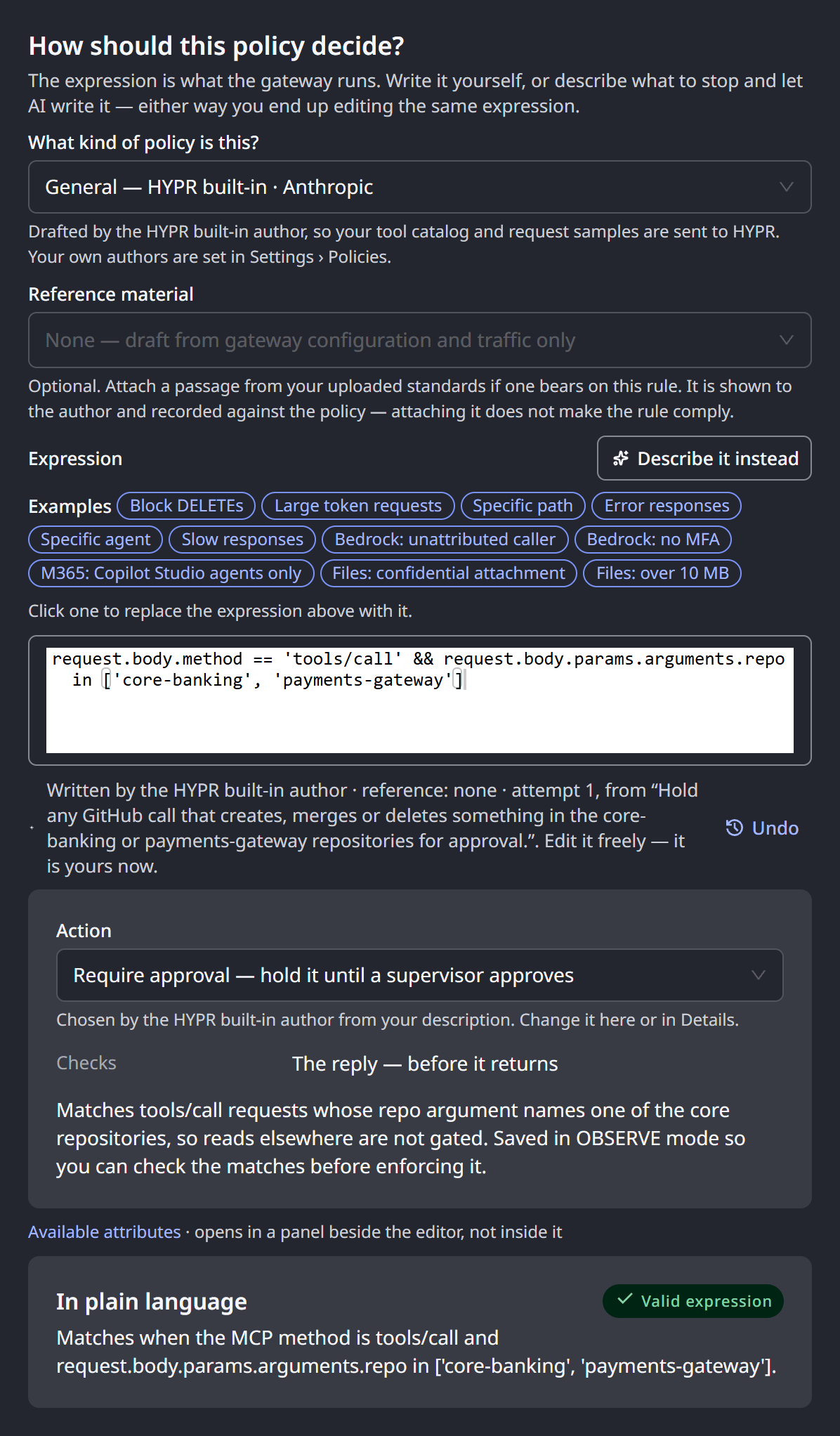
The expression appears in the editor, with a line under it naming the author, the reference material and the attempt, such as Written by the HYPR built-in author · reference: none · attempt 1, from “…”. Edit it freely — it is yours now. Undo puts back the expression you had before.
Under that line, the wizard shows what the author chose with its draft:
- Action. When you left the choice to the AI, its pick reads Chosen by … from your description. Change it here or in Details.
- Checks. Whether the rule checks the request or the reply.
- Its reasoning, in a sentence or two.
- What it flagged, when the author noticed something you should know, such as an ambiguity in the goal or a case the rule cannot cover.
The In plain language card reads the expression back to you. Read it before you continue. When the draft catches the same requests as a policy you already have, a line names that policy, such as Overlaps block-deletes — 12 shared requests. Open it opens the existing policy in a new tab.
To try a different goal, click Describe it instead again. Your previous goal is still in the box.
Back-Test and Publish
Continue to Back test, which replays the policy against the last 7 days of the connector's traffic, then to Review & publish. Both work as for any policy. See Back-Test It and Review and Publish.
On Review & publish, the Authored row names who wrote the expression, such as With AI · HYPR built-in. When the draft overlaps an existing policy, the step warns This looks like a policy you already have. You can still create yours.
A published policy is a normal policy. Its page shows the Authored row, and you edit it, back-test it and change its state like any other.
What the AI Does Not Write
The author works from the request and response bodies and, on inference connectors, from the conversation. You write some rules yourself, in the same editor on the Logic step.
| Rule about | Write it using |
|---|---|
| Which connector, or what kind of connector, a request came through | connector.name, connector.template |
| The signed-in person behind a request | request.user |
| Files attached to a request: their name, type, size or text | request.file_count, request.files |
| The AWS developer behind a Bedrock request | connector.aws.bedrock.*. See Bedrock Caller Policies |
| The Copilot surface, a Copilot Studio agent, or a Copilot reply | connector.m365.copilot.*, inference.completion.text. See Microsoft 365 Copilot Policies |
Creating a Policy covers the editor. Policy Examples has a ready expression for each of these.
Related
- Setting Up AI Authoring — configure the drafting model, and what data leaves the gateway
- Choosing Who Drafts Your Policies — route each kind of policy to the HYPR built-in author or your own agent
- Governing Inference Traffic — why some rules belong on the reply, and what enforcing one does
- How Policies Are Evaluated — modes, actions and promoting to Enforce
- Seeing What Findings Touched — find the hosts, files and commands that keep drawing evaluator findings, and draft a policy from one