Setting Up AI Authoring
In the New policy wizard, Describe it in your own words drafts a HYPR AgentPass™ policy from a goal you write in plain English. By default, the HYPR built-in author does the drafting: the gateway calls an Anthropic model with an Anthropic API key and a model name that you configure, set once for the whole gateway. Until they are set, AI drafting is off, and policies are written by hand.
The key belongs to whichever Anthropic account issued it, and the calls made with it are billed to that account. HYPR does not supply a key or run the model.
This page is for whoever changes gateway settings. Drafting once it is configured is covered in Authoring a Policy with AI.
Configuring the drafting model needs Settings: Edit, which Admin holds out of the box. Drafting a policy needs Policies: Add, which Admin, Operator and Supervisor hold. One person often holds both, but not necessarily. See Roles and Permissions.
What the Gateway Calls
The built-in author calls Anthropic's Messages API directly from the gateway. It is not one of your connectors. It does not use a connector's credentials, does not appear in the Request log as agent traffic, and needs no Anthropic connector to exist. The gateway needs outbound HTTPS access to Anthropic's API endpoint.
Any current Claude model works. Drafting uses plain text completion, with no tool use and no streaming, so the choice of model trades drafting quality against cost.
What the Key Is Used For
The key on this card is used for:
- Drafting by the HYPR built-in author, on every route that names the built-in author
- Policy descriptions, the one-sentence, plain-English description of each policy
- Suggestion wording, the sentence that states each proposed rule under Suggested
- Preparing uploaded reference documents, when your default route names the built-in author
A cloud agent that you choose as a policy author never uses this key. It drafts with its own connector's credentials, in its own provider account. You choose the author on the Who drafts your policies card, on the same tab. See Choosing Who Drafts Your Policies.
If every route names one of your own agents, the key is optional. Without it, policy descriptions and suggestion wording use plain forms built from the policy and the evidence.
Configure the Key and Model
- Open Settings → Gateway settings, and click the Policies tab. The Policy authoring (LLM) card is at the top.
- Under Anthropic API key, paste a key from your Anthropic console, and click Save. The label beside the field changes from Not configured to Configured.
- Under Author model, leave the default or enter the model you want drafting to use, and click Save. The field's help text names the current default.
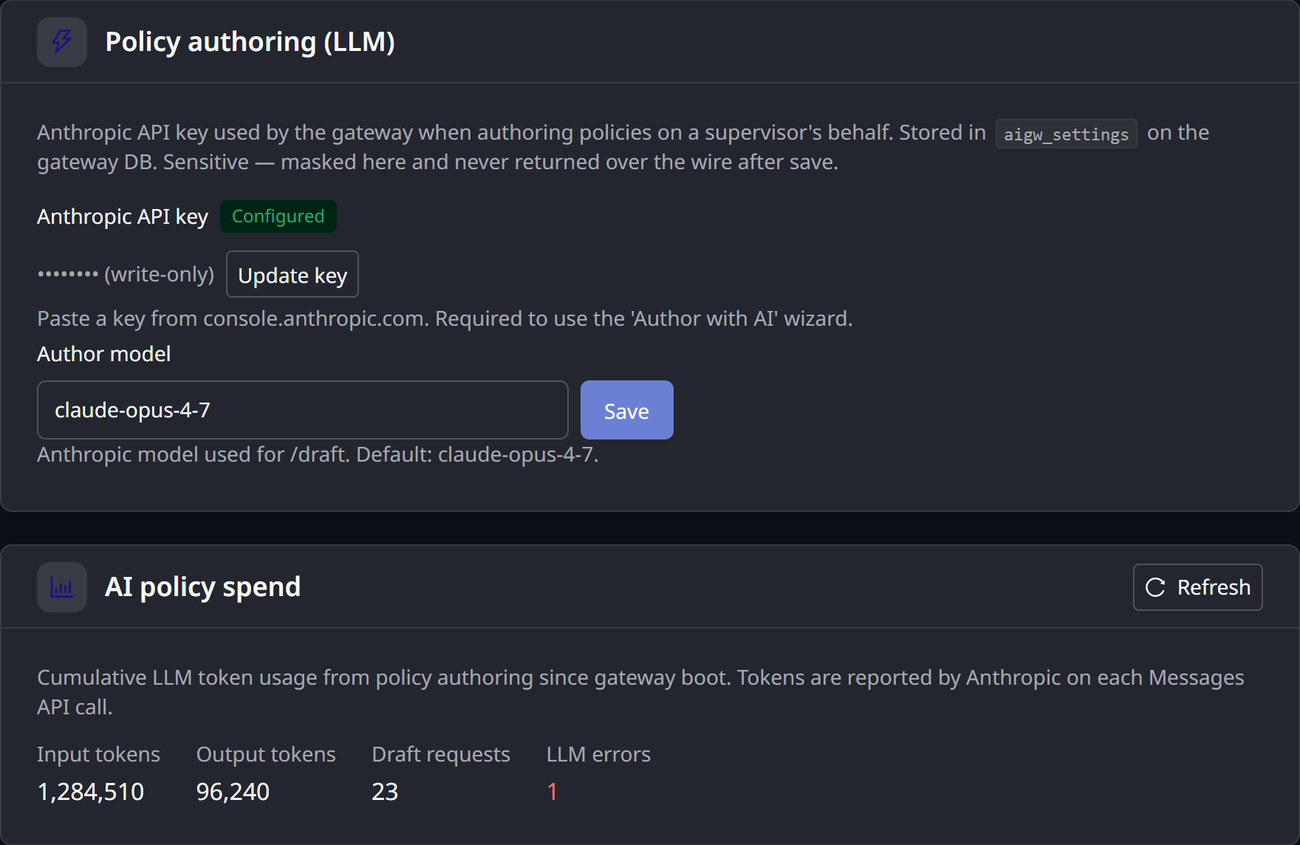
The key is write-only. Once saved, it is shown masked and never returned again. Update key replaces it with a new one.
The change takes effect on the next draft. Nothing needs restarting.
Set It Up From the Wizard
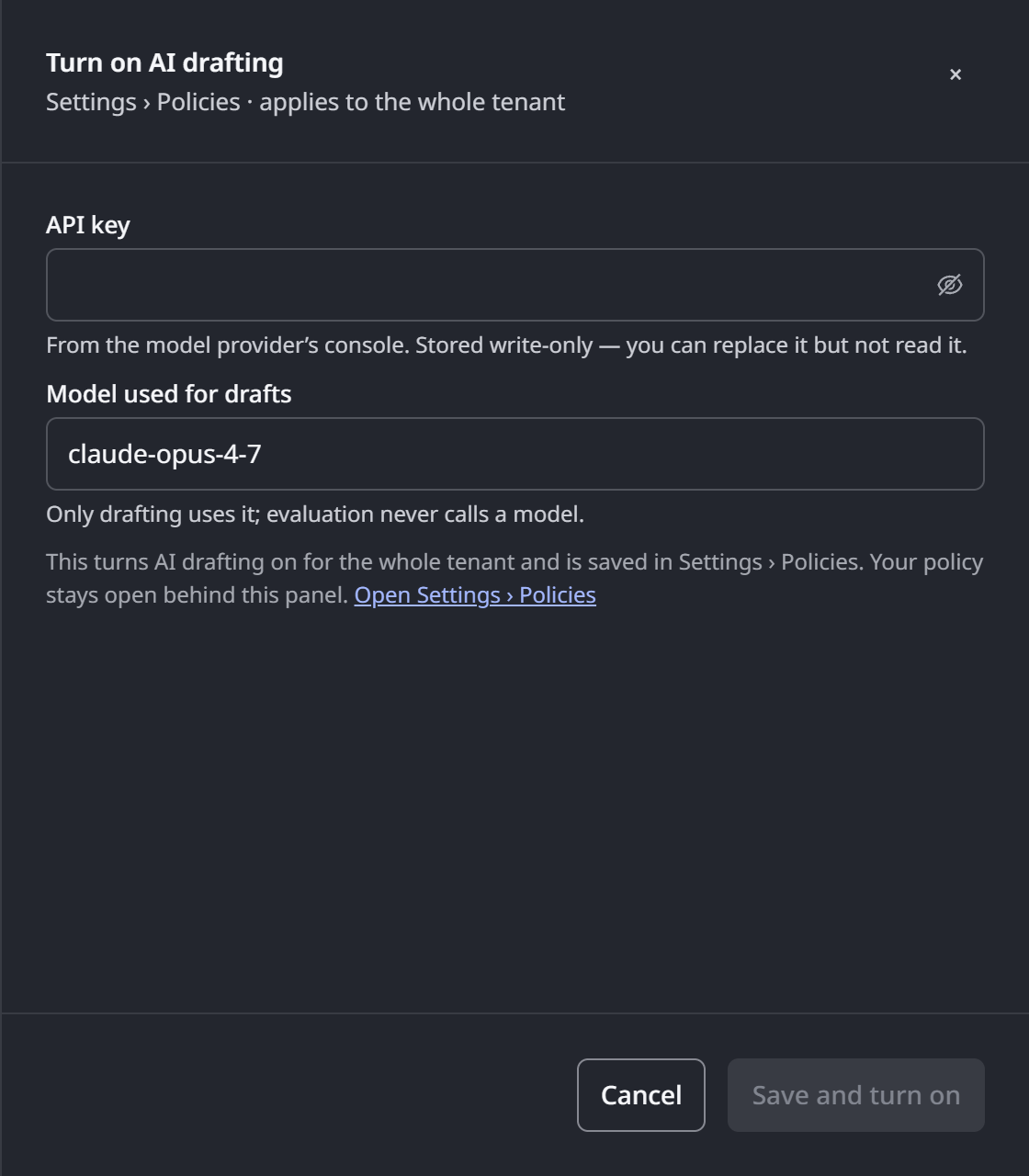
Someone who can edit gateway settings can also turn drafting on without leaving a policy. On the wizard's Logic step, when the step reads AI drafting is not switched on yet, click Set up AI drafting. The Turn on AI drafting panel opens beside the policy.
- Under API key, paste a key from your Anthropic console. It is stored write-only: you can replace it but not read it.
- Under Model used for drafts, leave the default or enter a model. Only drafting uses it. Evaluating a policy never calls a model.
- Click Save and turn on.
The setting applies to the whole organization, and is saved on the Policies tab of Gateway settings. Your policy stays open, and Describe it instead becomes available.
What Leaves the Gateway
When the built-in author drafts, each attempt sends one request to Anthropic. A cloud agent you choose as policy author receives the same content. The request carries:
- Your goal, exactly as you typed it, plus any clarification you added.
- The connector's context. On a tool connector, this is the catalog of tools the connector exposes: their names, descriptions and argument schemas. On an inference connector, it is normalized digests of recent conversations on that connector: the models and tools in use and the shape of recent turns, not raw transcripts.
- A summary of recent traffic on the connector, so the model can name what is actually in use.
- The attribute reference the model must write against, and the action or phase you pinned.
You can see the exact request before it is sent. On the wizard's Logic step, click Preview what is sent to …. What you see there is what leaves.
The traffic context comes from the request examples the gateway retains. On a new deployment with no recorded traffic, the model drafts from the tool catalog alone, and the wizard's back test reads No traffic to test against.
Drafting is rate-limited per user, so one person's experiments cannot exhaust the key.
Watch the Spend
Below the settings card, AI policy spend shows a running count since the gateway last restarted. Click Refresh to update it.
| Figure | What it counts |
|---|---|
| Input tokens, Output tokens | Tokens Anthropic reports for each call made with the key on this card: built-in drafts, policy descriptions, suggestion wording and reference document preparation |
| Draft requests | Every draft started in the wizard, whichever author handles it |
| LLM errors | Every draft attempt that failed because its author was unavailable, timed out or was misconfigured, whichever author handles it |
Tokens used by a cloud agent that you choose as a policy author are not counted here. Read them in that agent's provider console.
The counts restart when the gateway restarts. Use them to spot activity, not to reconcile a bill. Your Anthropic console is the record of what the key has cost.
To see the card, you need Settings: View and Policies: View. Admin, Operator and Auditor hold both out of the box.
When the Key Is Missing or Wrong
If no key is configured, and your default route uses the built-in author, the wizard's Logic step reads AI drafting is not switched on yet. Describe it instead stays unavailable, and policies are written by hand. For someone who can edit gateway settings, the step offers Set up AI drafting. See Set It Up From the Wizard. Anything already written in the policy is kept.
If Anthropic rejects the key, a draft on a route that uses the built-in author fails. The step reads AI drafting is unavailable right now — the AI provider did not answer. Try again, or write it by hand. Routes that name one of your own agents are not affected. Nothing is saved, and the goal you typed is still in the box.
Replace the key, and click Try again.
Related
- Authoring a Policy with AI — draft a policy once the model is configured
- Data Management — the request examples that drafting and back tests draw on
- Roles and Permissions — who may edit gateway settings and who may add policies