Understanding Your Policies
As a policy set grows, it becomes hard to hold in your head. HYPR AgentPass™ lists every rule with what it has caught, and reads each rule back to you in plain language, so you can tell what a rule does without reading its CEL expression.
The other tabs on Policies answer questions the list cannot: Coverage, Redundancy, Suggested and Reference material.
Any role with Policies: View can read this tab: Admin, Operator, Supervisor, Security analyst and Auditor, out of the box.
The All Policies Tab
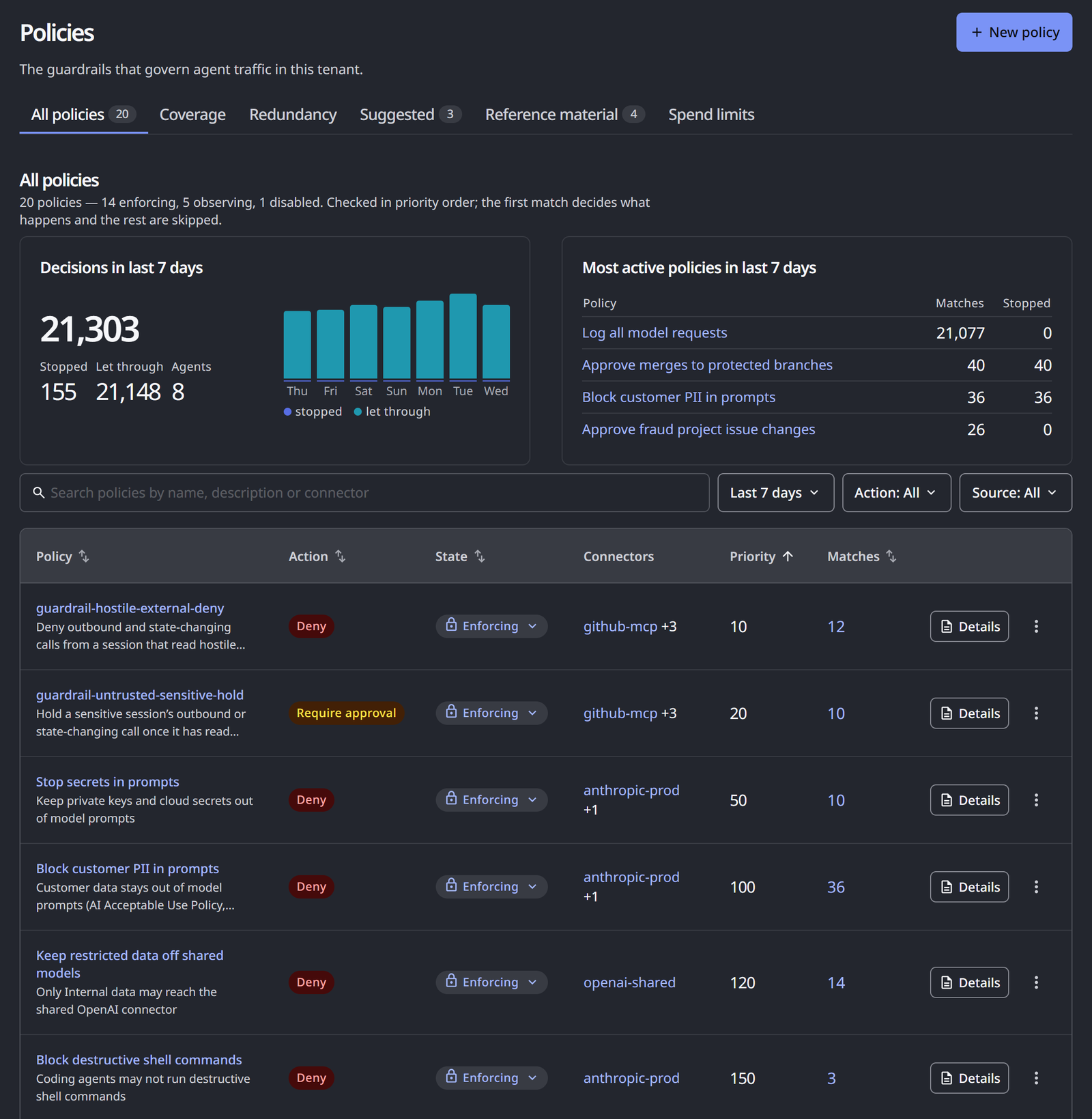
Open Policies. The All policies tab opens first.
Two cards summarize the last 7 days:
- Decisions in last 7 days counts every match, how many requests were stopped and let through, and how many agents were involved.
- Most active policies in last 7 days names the policies that matched most.
A sentence over the list counts your policies by state, such as 5 policies — 3 enforcing, 1 observing, 1 disabled. It also reminds you that policies are checked in priority order, and that the first match decides.
The list has one row per policy.
| Column | What it shows |
|---|---|
| Policy | The policy's name, with its description beneath |
| Action | Deny, Require approval or Allow |
| State | Enforcing, Observing or Disabled. Click the badge to change it, if your role can |
| Connectors | The connectors the policy watches, or All connectors |
| Priority | Lower runs first |
| Matches | How often the policy matched in the last 7 days. Click the number to see those decisions |
Each row also has Details, which opens the policy's own page, and a menu with Edit, View decisions and Delete policy. The list shows 25 policies at a time.
The toolbar's search finds policies by name, description or connector. The Action: filter narrows to Deny or Require approval. The Source: filter narrows to policies Written by hand, Drafted with AI or From an agent.
Read a Policy in Plain Language
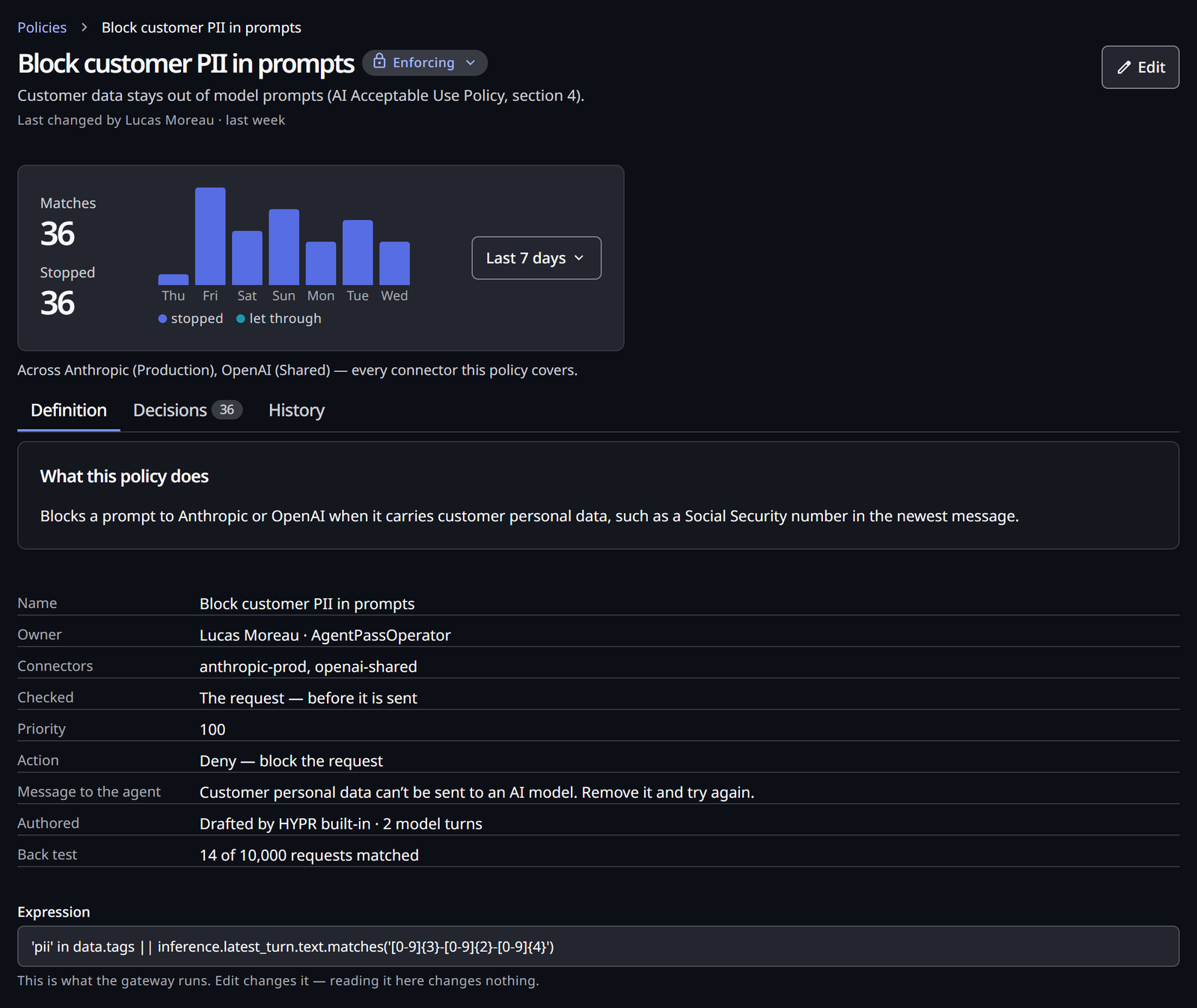
Click Details on a policy's row to open its page. The header shows the policy's name and description, who changed it last, and its state. Edit opens the policy in the New policy wizard. See Edit a Policy.
Under the header, Matches in last 7 days counts the policy's matches, and how many requests it stopped. Three tabs follow: Definition, Decisions and History.
The Definition Tab
The What this policy does card describes the rule in a sentence: the connector and tool it applies to, the condition that makes it match, and the action it takes. For an observing policy, it adds that the policy only records matches until you switch it to Enforce.
Under the card, the tab lists the policy's settings:
| Row | What it tells you |
|---|---|
| Name, Owner, Connectors, Priority | As set in the wizard |
| Checked | Whether the policy checks the request or the reply |
| Action | What a match does, such as Deny — block the request |
| Message to the agent | What the agent is told when the policy acts |
| Authored | Where the expression came from: From template · …, With AI · … naming the author, or From an agent. A policy written by hand has no Authored row |
| Source | The reference passage that was in view when the policy was drafted, such as Reference material · … |
| Back test | The newest back test of the policy |
Last, Expression shows the condition the gateway runs. It is read-only here. Edit changes it.
The Expression Is the Source of Truth
The sentence is derived from the CEL expression, never stored in its place. When you edit an expression, its sentence is regenerated from the new expression. A summary therefore never describes a rule the gateway no longer runs.
Read the sentence to orient yourself. Read the expression when a decision depends on the exact condition. It is what the gateway actually evaluates.
The plain-language sentence is different from the policy's Description. The description is the note you wrote about why the rule exists, and it is shown under the policy's name. The sentence describes what the rule does. AgentPass shows both, and keeps them apart, because they are different claims.
The Decisions Tab
The Decisions tab lists every request the policy matched, newest first. Filter it by outcome, connector, user or condition, and click Open request to open a request in the Request log. See Policy Decisions.
The History Tab
The History tab holds two records:
- Changes: who changed the policy, when, and what changed.
- Back tests: every run of the policy against past traffic, and what it would have caught. View run shows a run's window, counts and the condition as it ran.
A back test that ran on an earlier version of the condition says so. Its numbers describe the old rule.
See Whether a Rule Has Ever Fired
The Matches column, and the Matches in last 7 days card on the policy's page, show how often the policy matched in the last 7 days. That answers a question a list of rules cannot. A rule that has matched nothing is either guarding against something that has not happened, or not written the way you think.
The count covers the requests an enforcing rule stopped, held or let through, and the matches an observing rule recorded as Would deny or Would wait.
When a policy matched nothing, its Decisions tab reads Nothing has matched yet. The policy was checked against every request in the last 7 days, and none met its condition. That is a measured result, not missing data. A policy that went live recently reads Nothing yet instead.
Treat a quiet rule as a prompt to look, not as a defect. For a view across the whole set, including rules that cannot fire because a higher-priority rule always wins first, see Finding Redundant and Conflicting Rules.
Before a Rule Runs
This page is about rules that are already running. To see what a rule would have done before you publish it, use the wizard's back test. See Back-Test It. To decide when an observing rule is ready to enforce, see Promoting a Policy to Enforce.
Related
- Policies — the section overview, and what your role lets you do
- Policy Coverage — which connectors and tools have a rule reaching them
- Finding Redundant and Conflicting Rules — how two rules relate, and rules that never run
- Policy Decisions — every policy's decisions in one place