Investigating a Policy Decision
A policy can block a request, hold it for approval, or, in Observe mode, record what it would have done. Each time, HYPR AgentPass™ keeps the decision together with the request that caused it. Tracing one decision answers four questions:
- Which policy decided?
- What traffic caused it?
- What else did that request set off?
- Why did the rule match?
Reading decisions needs Policies: View, which Admin, Operator, Supervisor, Security analyst and Auditor hold it for every policy, out of the box. The request behind a decision is shown only to a role that can also view the Request log, with Request log: View. Supervisor sees the requests of their own agents. See Who Sees What.
When a User Reports a Block
Most investigations start with someone saying their agent was stopped. What they saw already names the policy. A blocked agent receives the policy's name and its message. A held request appears on the Approvals page with the policy that raised it.
- Open Activity → Policy decisions.
- Set Policy: to the name they were given, and Outcome: to Denied or Sent for approval.
- Find their row. Search by the agent's or the supervisor's name if the list is long. Under the row's condition, read the part of the rule that held and the value it matched on.
- On a row with one request, click Open request. The Request log opens on that request. On a grouped row, click See the N requests, then Open request on the one you want.
Policy Decisions describes the page and its filters.
If the rule caught something it should not have, set it back to Observing while you narrow it. See Roll Back.
An observing policy that never appears on Policy decisions has not matched anything in the last 7 days. Before you switch it to Enforcing, send the traffic you meant it to catch, and confirm a Would deny or Would wait row appears.
Find a Decision on Its Connector
A connector keeps its own record of what happened to its traffic. Open Connectors, pick the connector, and click the Connections tab. The Events card lists the connector's events from the last 24 hours, newest first, policy decisions among them. When the card is empty, it offers to widen the window to 7 days.
Each policy decision in the card carries a disposition: what happened to the request.
| Disposition | Meaning |
|---|---|
| Blocked | The request was refused |
| Would block | An Observe policy matched. Nothing was changed. This is what the policy would have done once enforced |
| Approval | The request was held for a supervisor |
| Resolved | A held request was approved, denied, answered or expired |
| Allowed | An Enforce ALLOW policy matched, and the request went through |
| Info | Anything else worth recording |
Open a Decision
Click a decision in the Events card. A panel opens, headed with the policy name and the request's full correlation ID, which you can copy. Beneath the mode, disposition and time, it has four sections.
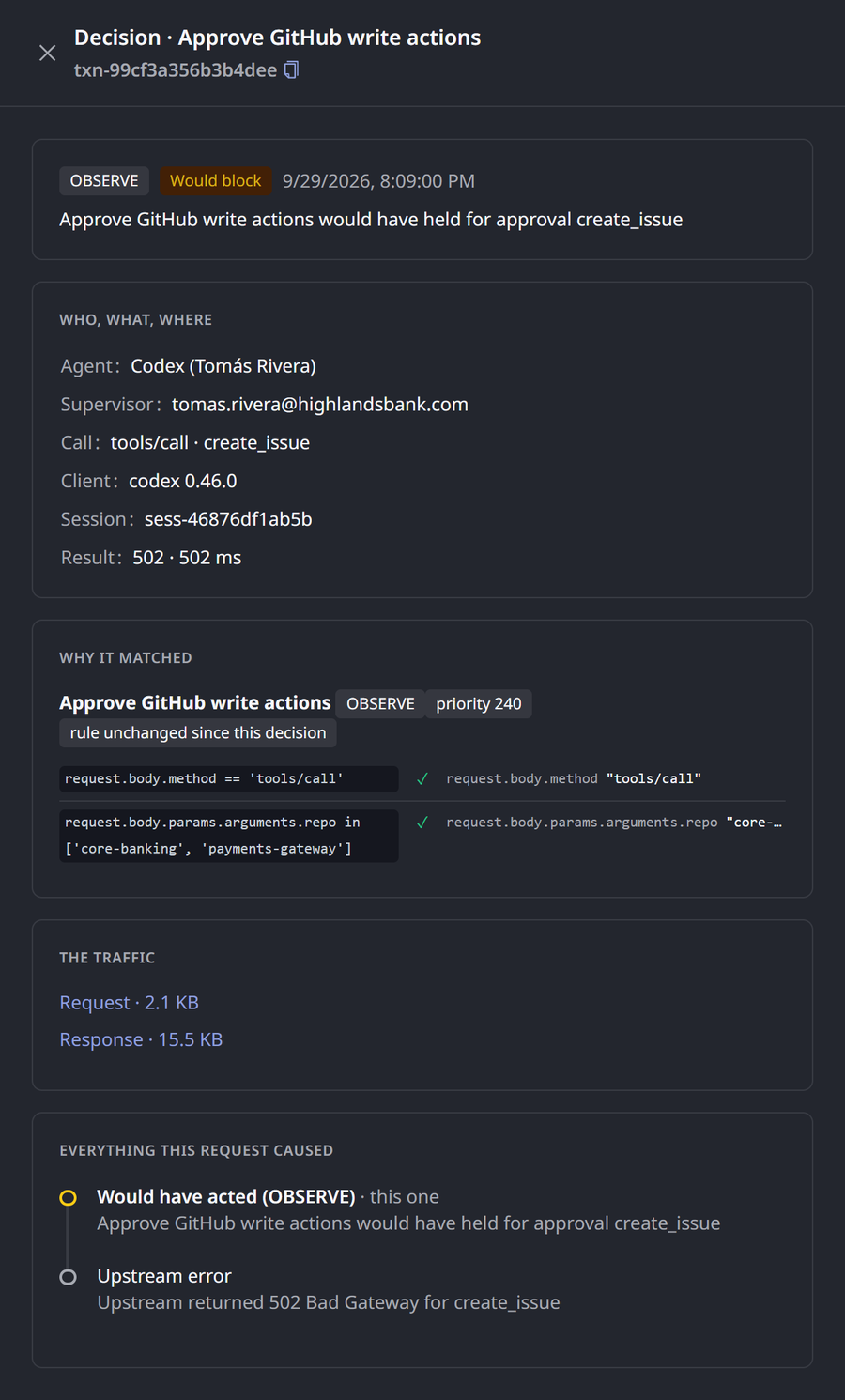
Who, What, Where
This section describes the request behind the decision.
| Field | What it shows |
|---|---|
| Agent | The agent's name, or Unattributed when the request carried no agent identity |
| Supervisor | The supervisor responsible for the agent |
| Call | The method, and the tool called |
| Client | The client software and its version |
| Session | The session the call belonged to |
| Result | The status the call returned, and how long it took |
The request may not be available. It may be older than the Request log keeps, or belong to a supervisor whose requests you may not see. The panel then says so, and leaves this section out. The rest of the decision is still shown. For an older event with no linked request, the panel says that the traffic behind it cannot be identified.
Why It Matched
This section shows the policy's name, mode and priority, and whether it is global. A tag says whether the rule has changed since the decision: rule changed since this decision, rule unchanged since this decision or rule version not recorded. Beneath that, the rule is broken into its clauses, the parts joined by &&. Each clause is shown as written, with:
- ✓ if the clause held, ✗ if it did not, or ? if it could not be judged on its own
- The value each attribute in the clause resolved to at the moment of the decision
This is the evidence for a decision: not what the rule says today, but what the gateway actually saw. When a clause reads request.method == "DELETE" and the value shown is DELETE, you know exactly which part of the request the rule caught.
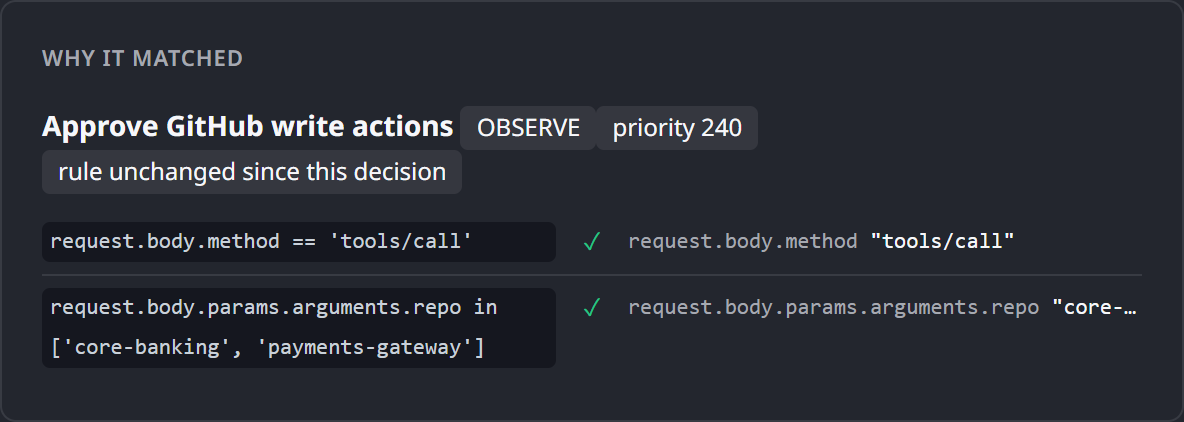
A few cases display differently:
- A rule written with
||is shown as one clause. - A very long value is shortened, and a rule with many clauses records only the first ones. The panel notes when that happened.
- For decisions made before clause values were recorded, the panel shows the rule as written instead.
- Rule changed since this decision means the values were judged against an earlier version of the rule than the one in your policy list now.
- When the policy has since been deleted, the panel says that its rule cannot be shown.
Clause values are recorded as they were, so anyone who can view decisions can read them. A rule that tests a header or tool argument carrying a secret would show that secret to everyone with that permission. Test for the presence or shape of such a value, with has(…) or .startsWith(…), instead of comparing it to a literal secret. By default, clause values are not sent to your external event destinations. An administrator can change how the evidence attribute leaves the gateway on the Data Management page.
The Traffic
This section shows the size of the request and the response. When the payload was kept, each line links to that request in the Request Log, where the detail panel opens on it and shows the body. When it was not kept, the line says why: the body was empty, or payloads are not retained for that tool. When there is no request record, the line says there is no payload to show.
Everything This Request Caused
This section lists every event the same request produced, oldest first, with the one you opened marked this one. A block, the approval it raised, and any other policy that also matched line up here in order. An event that raised an approval carries Open the approval, which takes you to that approval on the Approvals page.
Who Sees What
Each part of an investigation needs its own permission.
| To see | A role needs |
|---|---|
| Policy decisions and a policy's Decisions tab | Policies: View |
| A connector and its tabs | Connectors: View |
| The decision panel | Policies: View |
| The request behind a decision | Request log: View |
On Policy decisions and a policy's Decisions tab, a role whose Request log: View is limited to its own records, such as Supervisor, sees rows built only from its own agents' requests. The totals still count every decision.
On a connector, where a permission is limited to your own records, the list shows only decisions made by policies you authored. The panel then shows only requests from agents you supervise. Admin, Operator, Security analyst and Auditor see everything. You set permissions in Roles and Permissions.
Related
- How Policies Are Evaluated — modes, actions and what a match does
- Policy Decisions — every policy's decisions, grouped by condition and outcome
- Creating a Policy — the New policy wizard and the connector's Policies tab
- Promoting a Policy to Enforce — using observed decisions to decide when to enforce, and rolling back
- Request Log — the full detail of a request, including its body