Policies
Policies are the rules that govern agent traffic in HYPR AgentPass™. The gateway checks every request an agent sends against your policies as it passes. When you ask for it, it checks every reply that comes back, too. A control therefore takes effect in real time, not after the fact.
A policy pairs a condition with an action. When the condition matches, the action decides what happens: the traffic goes through, is blocked, or is held until a supervisor approves it. Until you promote a policy to enforce, it only records what it would have done.
Require a Person for High-Value Agent Actions sequences coverage, drafting, impact preview and enforcement.
Any role with Policies: View can read every policy: Admin, Operator, Supervisor, Security analyst and Auditor, out of the box. Admin can write and change any policy. Operator and Supervisor write their own, and change only the policies they own. See What Your Role Lets You Do.
How It Fits Together
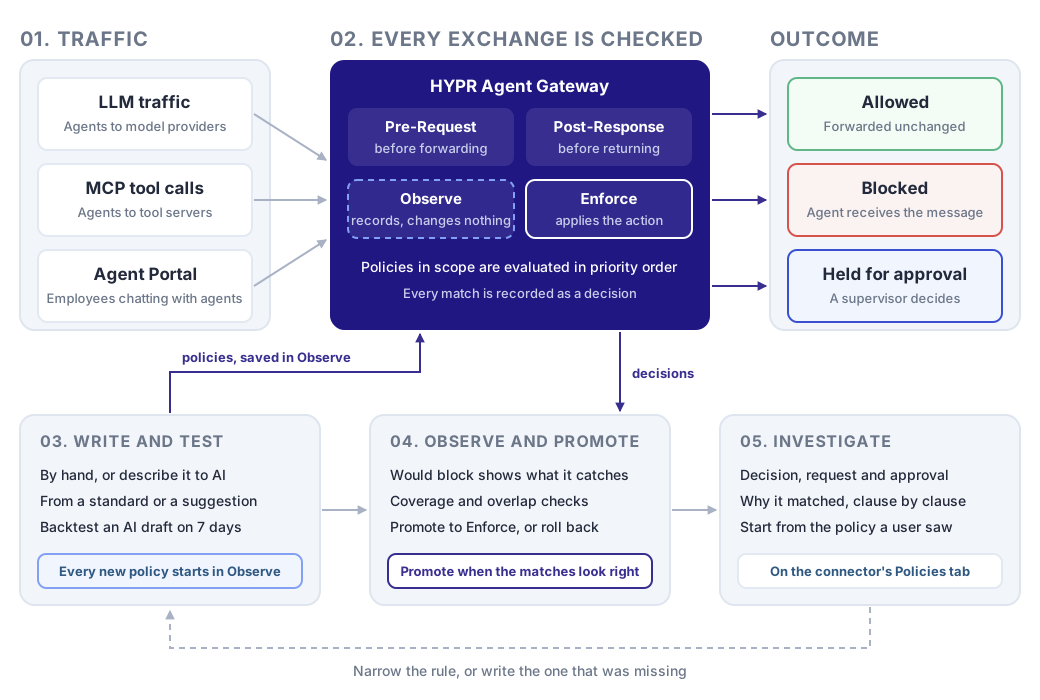
Every exchange is checked. An agent calling a model, an agent calling a tool on an MCP server, and an employee chatting with an agent in the Agent Portal all pass through the gateway. The gateway checks each request before forwarding it, and each reply before returning it, against the policies in scope for that connector.
A match becomes a decision. A policy in Observe mode only records a DENY or REQUIRE_APPROVAL match, as a Would deny or Would wait decision. A policy in Enforce mode applies its action. The request is allowed, blocked with the policy's message, or held until a supervisor approves it. Every decision is kept with the request that caused it. You read decisions on Activity → Policy decisions, on each policy's page, and on each connector.
Rules move through a cycle. You write a rule, and it starts in Observe. Its decisions show what it would have caught. When they look right, you promote it to Enforce. When it blocks or holds something, you investigate the decision. That usually sends you back to narrow the rule, or to write one that was missing.
The Policy Cycle
The pages in this section follow the order you work in.
| Stage | What you do | Start with |
|---|---|---|
| Set up | Once, by an Admin: choose the model that drafts policies with AI, who drafts each kind, and which MCP clients may manage policies | Setting Up AI Authoring |
| Write and test | Create a rule from scratch, from a template, with AI, from reference material or from a suggestion. Back-test it, then publish it, in Observe by default | Creating a Policy |
| Roll out | Check what the rule caught while observing, then promote it to Enforce, or roll it back | Promoting a Policy to Enforce |
| Monitor | Keep the set healthy: what each rule means, whether it fires, what it covers and where rules overlap | Understanding Your Policies |
| Investigate | Read what your rules decided. When one blocks or holds something, trace the decision to the request and the values it matched | Policy Decisions |
Observe First, Then Enforce
A new policy starts in Observe mode by default. The New policy wizard preselects Observe for every policy, and asks you to confirm before it publishes an untested policy in Enforce. In Observe mode, the gateway evaluates the rule against real traffic and records every DENY or REQUIRE_APPROVAL match, but changes nothing. When the matches look right, set the policy's state to Enforcing from the policy list, and the action starts to apply. Promoting a Policy to Enforce lists what to check first.
Keep this workflow for every rule. A condition that matches nothing in Observe mode does nothing in Enforce mode either. A condition that matches too much is far cheaper to find while it is still only logging.
When you start writing rules, How Policies Are Evaluated explains the modes, the actions, priority, and what a match does on each kind of connector.
The Policies Page
Open Policies. The page lists your rules, evaluated in priority order, where the first match wins. Six tabs sit across the top of the page.
| Tab | What it shows | See |
|---|---|---|
| All policies | The decisions of the last 7 days, the most active policies, and every policy with its action, state, connectors, priority and matches | Understanding Your Policies |
| Coverage | Which connector and tool pairs carrying traffic have a rule reaching them | Policy Coverage |
| Redundancy | Rules that duplicate, contain or conflict with each other, and rules that never run | Redundant and Conflicting Rules |
| Suggested | Proposed rules, each with the evidence behind it | Suggested Policies |
| Reference material | The standards you uploaded, and the policies that cite them | Writing Policies from Reference Material |
| Spend limits | Daily caps on what each person's agents spend on AI. Each limit is also listed in All policies | Daily Spend Limits |
New policy, in the page header, opens the New policy wizard. See Creating a Policy.
Click Details on a policy's row to open the policy's own page, with its definition, its decisions and its history. Every policy's decisions are also listed together on Activity → Policy decisions. See Policy Decisions.
What Your Role Lets You Do
Each action on this page needs a permission under Policies in Roles and Permissions.
| To | Permission | Out of the box |
|---|---|---|
| Open the page, read every tab and read policy decisions | Policies: View | Admin, Operator, Supervisor, Security analyst and Auditor, for every policy |
| Create a policy, answer a suggestion, add reference material or run Suggest policies | Policies: Add | Admin. Operator and Supervisor, as the new policy's owner |
| Edit a policy or change its state | Policies: Edit | Admin, for every policy. Operator and Supervisor, for the policies they own |
| Delete a policy or remove a document | Policies: Delete | Admin, for every policy. Operator and Supervisor, for the policies they own |
New policy, Add reference and Remove appear only for roles that hold the permission. On a policy you cannot change, Edit and Delete policy are unavailable, and say why. The gateway checks the permission when you use a control, and refuses a change your role does not allow.
A policy's owner is the person in its Owner field, who answers for the policy when it blocks something. It defaults to the person who creates the policy. Where your Policies: Add or Policies: Edit permission is limited to your own records, the gateway makes you the owner when you save.
When you can view policies you cannot change, the page header carries a Limited access badge. Operator and Supervisor see every policy, and change only the ones they own. For such a role, the sentence over the list also counts the policies you own.
No role holds Policies: View for its own records only out of the box. In a custom role where it is limited that way, the tabs narrow in different ways:
- All policies lists only the policies you own.
- Coverage counts every rule in your organization, but names only yours. Rules owned by someone else appear as a count.
- Redundancy lists only pairs where you own both rules.
- Suggested and Reference material are the same for everyone who can open the page.
Where your Request log: View permission is limited to your own records, as it is for Supervisor, lists of policy decisions show only your own agents' requests.
Related
- HYPR AgentPass: Overview — where policies fit in the product
- Controlling MCP Tool Access by Role — decide which MCP tools each role may use, a control that runs alongside policies
- Approving and Denying Agent Actions — what a supervisor sees when a policy requires approval