Guardrail Settings
Guardrails → Settings sets how loud guardrail alerts get, what happens when an attack is confirmed, how long a held action waits for a person, and how the session investigator behaves. This page lists every field, with its default and range.
Before You Begin
| To | You need | Out of the box |
|---|---|---|
| Open the page and read the values | Guardrails: Manage | Admin and Security analyst |
| Save changes, and add or change per-agent overrides | Guardrails: Manage and Settings: Edit | Admin |
A role that can open the page but not save it sees the values, and You need settings:edit to change these. in place of Save changes. The page and its sidebar entry are hidden from roles without Guardrails: Manage.
Change the Settings
- Open Guardrails → Settings.
- Change the fields you need. Each panel is described below.
- Click Save changes.
The console confirms Guardrail settings saved. The form does not accept a value outside its range. The guardrail settings, like the data classification settings, are managed on their own page, and the general settings API does not change them.
Turning on tool quarantine while changed tools still wait for review asks Quarantine changed tools?, because agents lose those tools as soon as you save. Click Quarantine them to go ahead.
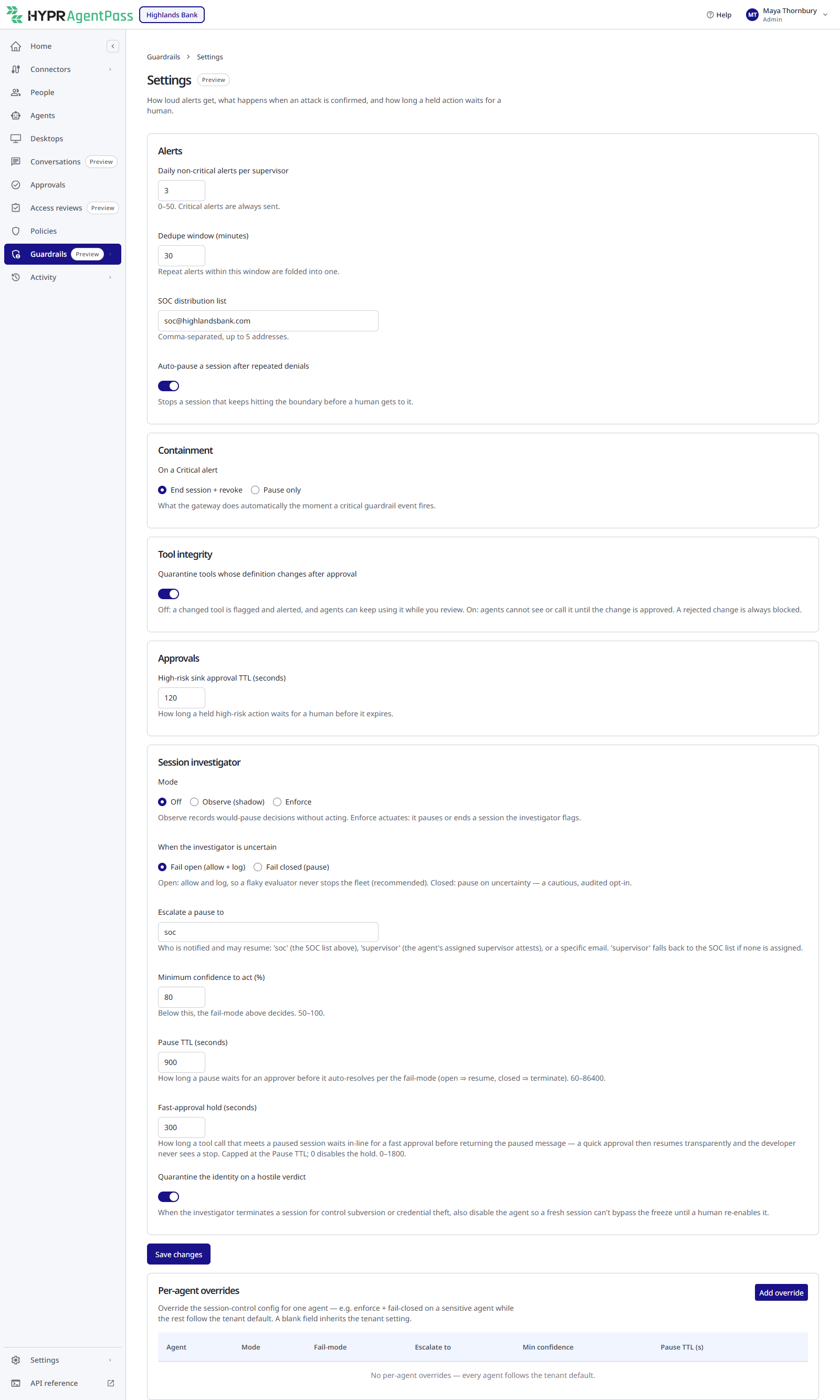
Alerts
| Setting | What it controls | Default | Range |
|---|---|---|---|
| Daily non-critical alerts per supervisor | How many non-critical alerts are raised for one supervisor per UTC day. Critical alerts are always raised | 3 | 0–50 |
| Dedupe window (minutes) | How long repeats of the same situation fold into one alert | 30 | 5–1,440 |
| SOC distribution list | The addresses a session pause goes to when the investigator escalates it to soc. Comma-separated | Empty | Up to 5 addresses |
| Auto-pause a session after repeated denials | Whether repeated guardrail denials on one session, close together, pause the session. See What Pauses a Session | On | — |
The SOC distribution list is empty until you fill it. While it is empty, a pause escalated to soc reaches no one by email, and resolves when its pause TTL passes. See Escalation and Signed Resume.
Containment
| Setting | What it controls | Default |
|---|---|---|
| On a Critical alert | The automatic containment for a critical guardrail event: End session + revoke or Pause only | End session + revoke |
Tool Integrity
| Setting | What it controls | Default |
|---|---|---|
| Quarantine tools whose definition changes after approval | Off: a changed tool is flagged and alerted, and agents can keep using it while you review. On: agents cannot see or call it until the change is approved. A rejected change is always blocked. See Tool-Definition Integrity | Off |
Approvals
| Setting | What it controls | Default | Range |
|---|---|---|---|
| High-risk sink approval TTL (seconds) | How long a held high-risk action waits for a person before it expires | 120 | 30–900 |
Session Investigator
These settings are explained on The Session Investigator.
| Setting | Default | Range |
|---|---|---|
| Mode: Off, Observe (shadow) or Enforce | Off | — |
| When the investigator is uncertain: Fail open (allow + log) or Fail closed (pause) | Fail open | — |
Escalate a pause to: soc, supervisor or an email address | soc | — |
| Minimum confidence to act (%) | 80 | 50–100 |
| Pause TTL (seconds) | 900 | 60–86,400 |
| Fast-approval hold (seconds). Capped at the pause TTL. 0 turns it off | 300 | 0–1,800 |
| Quarantine the identity on a hostile verdict | On | — |
Per-Agent Overrides
The Per-agent overrides panel, below the settings, overrides the session investigator for one agent. Each override can set Mode, Fail-mode, Escalate to, Minimum confidence (%) and Pause TTL (seconds), with the same ranges as the tenant settings. A blank field inherits the tenant setting, and reads Inherit (tenant default) in the table.
The panel saves on its own, separately from Save changes. With no overrides, it reads No per-agent overrides — every agent follows the tenant default. For the steps, see Per-Agent Overrides.
Related
- Alerts and Containment — working the alerts these settings tune
- The Session Investigator — what the Session investigator panel controls
- Tool-Definition Integrity — what tool quarantine withholds
- Permissions by Role — which roles hold Guardrails: Manage and Settings: Edit