Controlling MCP Tool Access by Role
The MCP tools an agent can use through HYPR AgentPass™ follow its supervisor's roles. An agent's reach therefore stays aligned with the authority of the person it acts for. Tool access is the third section of the role editor, beside the console permissions covered in Roles and Permissions.
How Role-Based Tool Access Works
Every agent has a supervisor, the person it acts on behalf of, and every supervisor holds one or more roles. AgentPass uses those roles to decide which MCP tools the agent may work with. An agent may use a tool when any role its supervisor holds allows it: the agent gets the union of every role the supervisor holds, whichever role the supervisor is viewing the console as. The gateway applies that decision in two complementary ways:
- Tools are advertised by role. When an agent asks the gateway which tools are available, AgentPass returns only the tools the supervisor's roles allow. Other tools are not listed, so an agent is never offered a tool it may not use.
- Tool calls are checked by role. When an agent calls a tool, AgentPass confirms one of the supervisor's roles permits the call before it reaches the tool. The gateway stops a call no role permits.
Both read the same role grants, so they always agree. An agent is never shown a tool it cannot call, and never blocked on a tool it was shown.
The Admin role has access to every tool, and is not configurable. A supervisor who holds Admin among their roles gives their agents every tool.
A workload agent runs with nobody at the keyboard, so it has no supervisor to take roles from. It carries one role of its own instead, and its tools follow exactly that role through the same grid, with no union. Set them on the role you assigned to the workload agent.
What an Agent Sees
When an agent lists the tools on a gateway MCP server, the result reflects its supervisor's roles:
- If any of the supervisor's roles may call a tool, the tool appears in the list, and the agent can call it.
- If none of the supervisor's roles may call a tool, the tool is missing from the list the agent receives.
- If the supervisor holds Admin, every tool on the server appears.
A tool withheld by tool-definition integrity is also missing from the list, for every role, until a person reviews its change. That happens when quarantine is on in Guardrails → Settings, or after someone rejects the change.
The gateway still reaches the MCP server behind the scenes, and your visibility and audit records still reflect the full set of tools. Only the list handed back to the agent is trimmed to what the roles permit.
Role-based tool access applies automatically to the MCP servers the gateway hosts. Agents need no reconfiguration, and supervisors take no extra step.
Set Which Tools a Role Can Use
You need Roles: Manage, which Admin holds out of the box. Other roles with Roles: View can open the grid but not change it.
- Open People, and click the Roles tab.
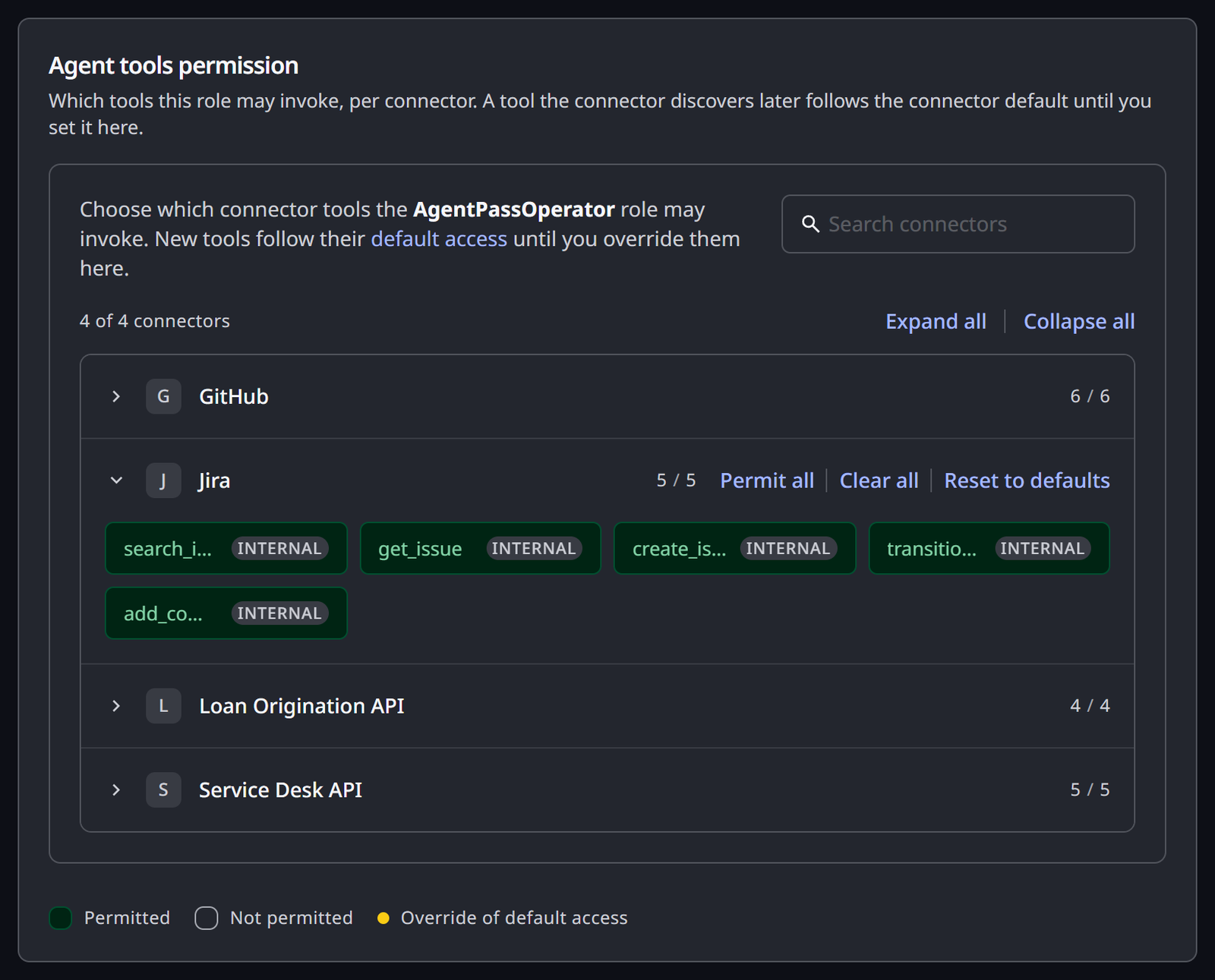
- Click Edit on the role, and go to Agent tools permission. Tools are grouped by the connector that provides them, so you work through one MCP server at a time.
- Expand a connector to see its tools.
- Select a tool to permit it, or clear it to withhold it.
- Click Save changes. Changes take effect immediately.
The count beside each connector shows how many of its tools the role may call, so you can read a whole catalog at a glance without expanding it. For a large catalog, use the search box to narrow the list to one connector. Permit all and Clear all set every tool on a connector at once.
A tool you withdraw stops being offered, and stops being callable, on the agent's next request. Nothing needs restarting, and supervisors do not need to sign in again.
Default Access and Overrides
Every tool has a default access, which applies to any role you have not made a decision about. What you set on this tab overrides that default for this role. A tool that differs from its default is flagged, so you can see where a role departs from the norm. Reset to defaults removes your overrides for a connector, and returns its tools to their default access.
New tools are discovered without access. A tool that appears when a connector's catalog grows stays out of reach until you decide it belongs to a role. Review tool access when you add a connector, and when an MCP server you use gains new capabilities. For a REST API connector, you can turn default access on or off for many tools at once, filtered by HTTP method or by text, on the connector's Tools tab. See Choose Which Tools Agents Can Use.
Grant a role the tools it needs for its work, not the tools it might one day need. An agent is never shown a tool none of its supervisor's roles can call, so a narrow grant also keeps the agent focused on the tools that matter to its task.
Related
- Roles and Permissions — the roles that govern tool access, and how to create your own
- Workload Agents — an agent whose tool access follows a role of its own
- Tool-Definition Integrity — what happens when an approved tool's definition changes
- Connect to a Gateway MCP Connector — how an agent reaches the tools a role permits