Daily Spend Limits
A spend limit caps what each person's agents, or each agent, may spend on AI in a day. Once someone goes over it, HYPR AgentPass™ holds their model requests until the limit's owner approves more, or stops them until the next day.
A spend limit is also a policy. AgentPass writes the policy for you and keeps it in step with the limit, so it appears in All policies with the rest of your rules.
How Spend Is Counted
- What counts. Requests that run a model on an Anthropic, OpenAI, AWS Bedrock or Microsoft Foundry connector. Tool calls, and Microsoft 365 Copilot, are not counted.
- At what price. Each response's tokens are priced at your model prices, in US dollars. See Model Prices. A model with no price is not counted until it has one.
- For whom. A limit counted per Person adds up every agent the person supervises. A limit counted per Agent counts each agent by itself.
- For how long. Spend is counted from 00:00 UTC, and starts again at the next 00:00 UTC.
AgentPass checks the limit before it sends a request, and adds a request's cost once the model has answered. Requests already on their way when someone reaches the limit can therefore take them past it.
The amounts are estimates from model prices. Your provider's invoice is the record of what you were charged.
Before You Begin
| To do this | You need |
|---|---|
| See the Spend limits tab and a spend limit's policy | Policies: View |
| Create or change a spend limit | Policies: Add or Policies: Edit, for all policies. Admin holds both out of the box. A spend limit covers other people, so a role that manages only its own policies cannot create or change one |
| See who has spent what | Request log: View. With it for your own records only, as Supervisor holds it, you see your own spend or your own agents' |
| Raise someone's limit for today | Policies: Edit for all policies, or be the limit's owner |
| Set model prices | Settings: Edit |
Create a Spend Limit
-
Open Policies, and click the Spend limits tab.
-
Click New spend limit.
-
Fill in the form.
Field What to enter Name A name of letters, numbers, dots, dashes or underscores. It is shown in Spend limits and in All policies, and cannot be changed later Applies to The user groups the limit covers. Leave it empty to cover everyone Daily limit US dollars per day, from $0.01 to $100,000 Counted per Person or Agent When someone goes over it Require approval holds their requests until the owner approves more. Deny stops them until the reset Owner The person who approves more when someone goes over the limit. It defaults to you Message to the agent What the agent is told while the request waits, or when it is stopped. Say when the limit resets Start in Observe records who would be held, and holds nobody. Enforce holds or stops anyone over the limit from their next request. Off saves the limit, and checks nobody -
Read Back test · last 7 days. It says how many people would have reached the limit, and on how many days, and updates as you change the fields. See who would have been held lists each person or agent, the day and what they spent.
-
Click Create spend limit.
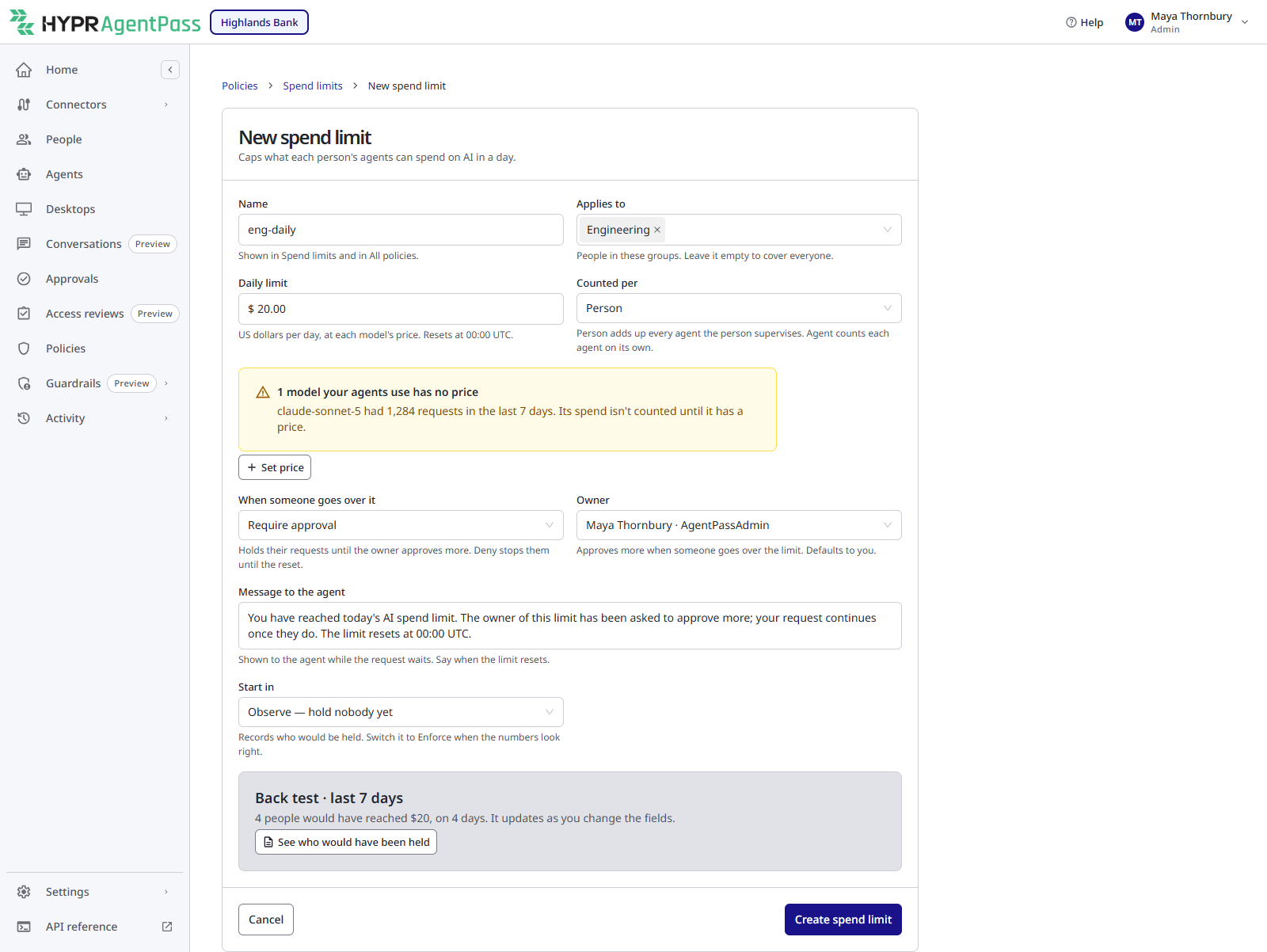
When a model your agents use has no price, the form says so, with how many requests it had in the last 7 days. With Settings: Edit, click Set price to price it there.
Start a new limit in Observe. The limit's Spend tab then shows who would be held today. When the amount looks right, switch the policy to Enforcing from the state menu beside its name.
The Spend Limits List
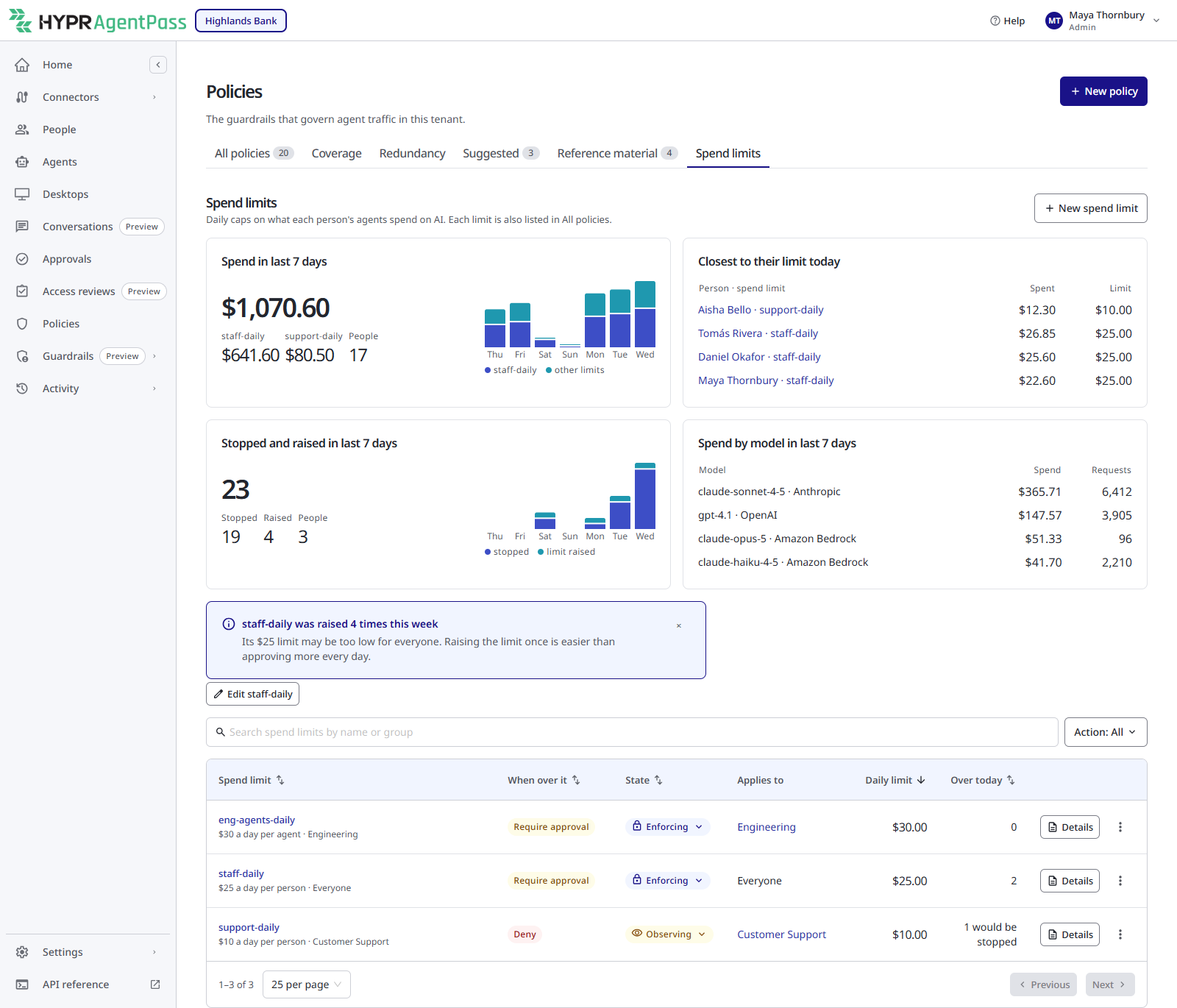
The Spend limits tab opens with four cards for the last 7 days and today.
| Card | What it shows |
|---|---|
| Spend in last 7 days | Total spend and the number of people, with a bar for each day split by spend limit |
| Closest to their limit today | The people nearest their limit, with what they spent and their limit |
| Stopped and raised in last 7 days | How many requests were stopped, how many limits were raised, and how many people that involved |
| Spend by model in last 7 days | Spend and requests for each model. A model with no price reads Not counted |
When one limit was raised many times in a week, a note under the cards suggests that its amount may be too low, with a button to edit it.
The table lists each spend limit with its action under When over it, its State, whom it Applies to, its Daily limit, and how many people are Over today. Search by name or group, or filter by action. Details opens the limit's policy. The ⋮ menu holds Edit spend limit and Delete spend limit.
Deleting a spend limit deletes its policy with it. Raises and past decisions stay in the history.
What Happens Over the Limit
While a limit is enforcing, AgentPass checks it before each model request.
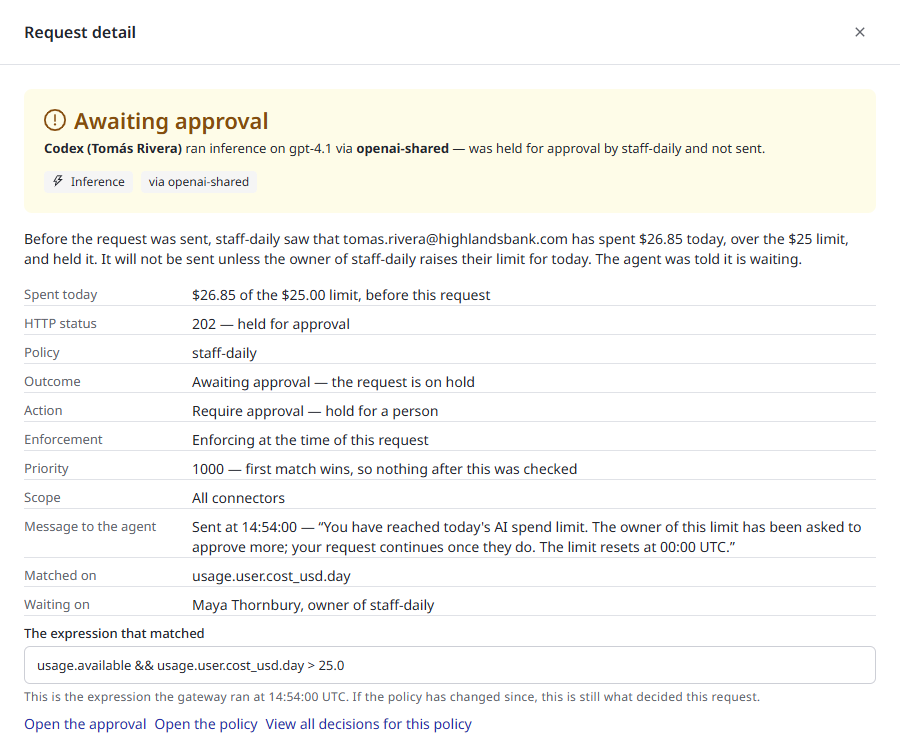
Require approval. The request is held, and the agent is told what the person has spent, what their limit is, and who has been asked. The approval goes to the limit's owner, not to the agent's supervisor. A person has one approval a day for a limit, so a second agent of the same person joins the first one's request.
- When the owner approves, the person's limit for that day rises by the amount of the limit, and the waiting requests go through. A $25.00 limit becomes $50.00 for the rest of the day.
- Nobody can approve their own spend over a limit, except the limit's owner.
- In Approvals, the request's details name the decider as Owner of the limit.
- When the limit has no active owner, the request is denied.
Deny. The request is stopped, and the agent is told that requests are stopped until 00:00 UTC. Someone who may raise the limit can still let the person continue. See Raise Today's Limit.
In Activity, the request's detail shows the decision: what had been spent against the limit, the policy, the outcome, the message sent to the agent, and who the request is waiting on. See Request Detail.
See Who Is Near or Over the Limit
Open a spend limit's policy, and click the Spend tab. Spend today lists everyone the limit covers who has spent anything since 00:00 UTC.
Four cards count the people the policy covers: All, Over the limit, Near the limit and Under the limit. Click one of the last three to list only those people. Near the limit means 80% of the limit or more.
| Column | What it shows |
|---|---|
| Person or Agent | Who the row is for |
| Spent today | Their spend since 00:00 UTC |
| Against the limit | A bar of their spend against today's limit, with how much is left or how far over they are |
| Requests | Their model requests today |
| Status | Under the limit, Near the limit, or Over. An over row also says whether the person is waiting for approval or stopped. Someone whose limit was raised today shows today's limit |
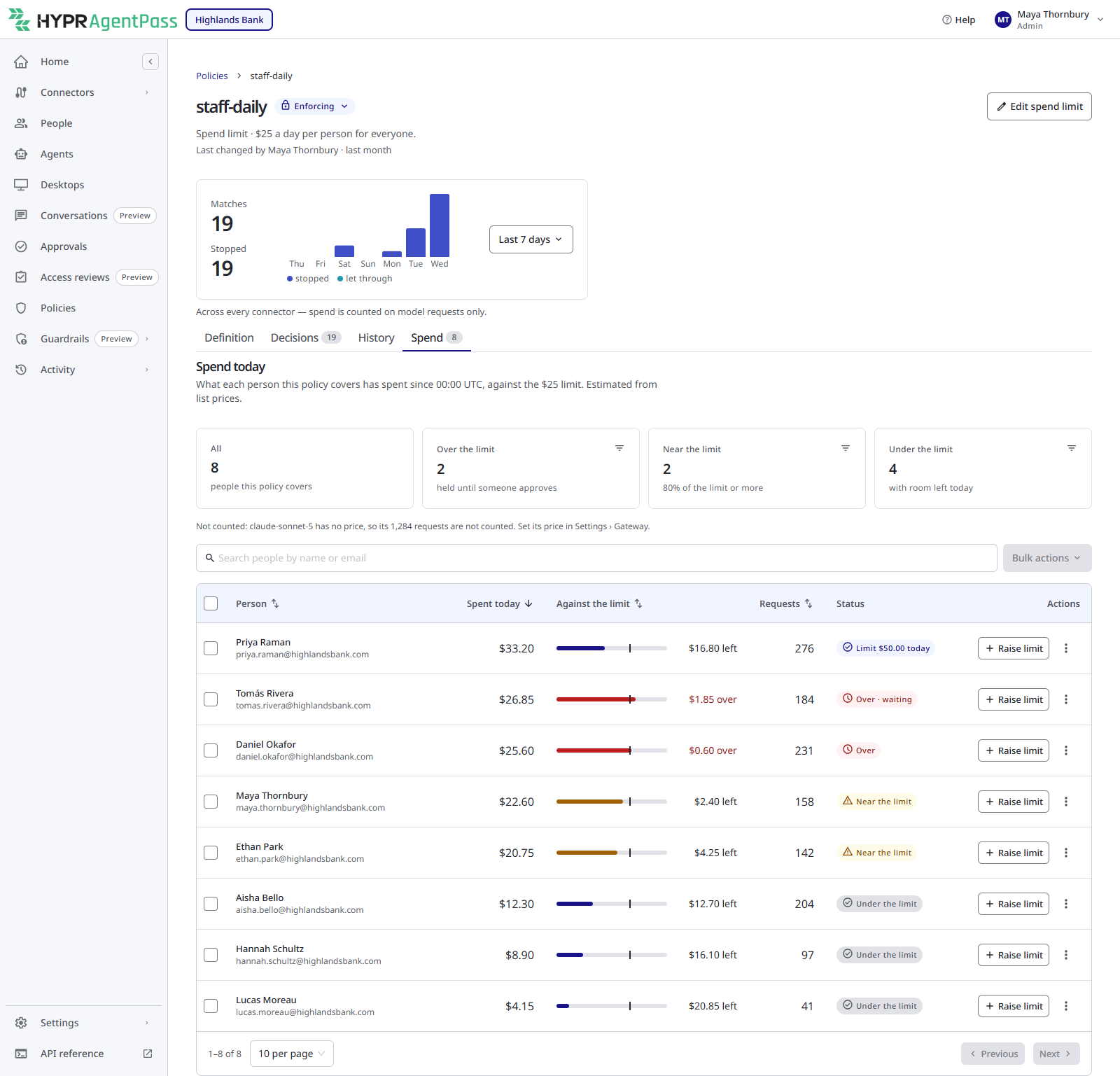
A row's ⋮ menu opens today's requests in Activity, the pending approval, or the person in People.
While the policy is observing, the tab shows who would be held, and holds nobody.
With Request log: View for your own records only, you see only your own row, or your own agents', and no raise controls.
Raise Today's Limit
- On the Spend tab, click Raise limit on a person's row. To raise several people at once, select their rows, and choose Bulk actions → Raise today's limit. You can raise up to 100 people at a time.
- Choose how much more they may spend today: the limit once again, twice the limit, or Another amount from $0.01 to $10,000.
- Click Raise limit to with the new amount.
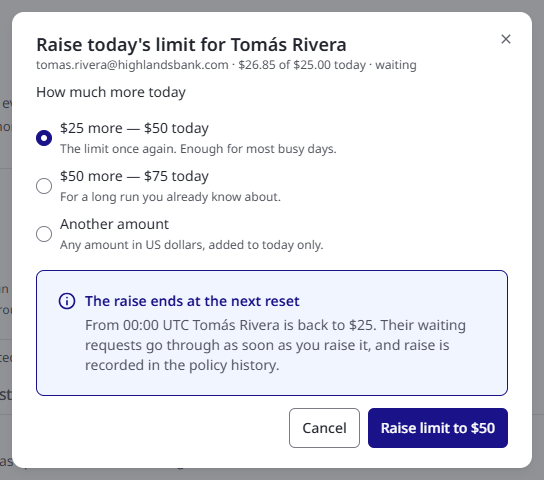
The person's waiting requests go through straight away. The raise ends at 00:00 UTC, when they are back to the limit.
To take a raise back, choose Undo today's raise from the row's ⋮ menu.
You cannot raise your own limit, unless you are the limit's owner.
The Policy Behind a Spend Limit
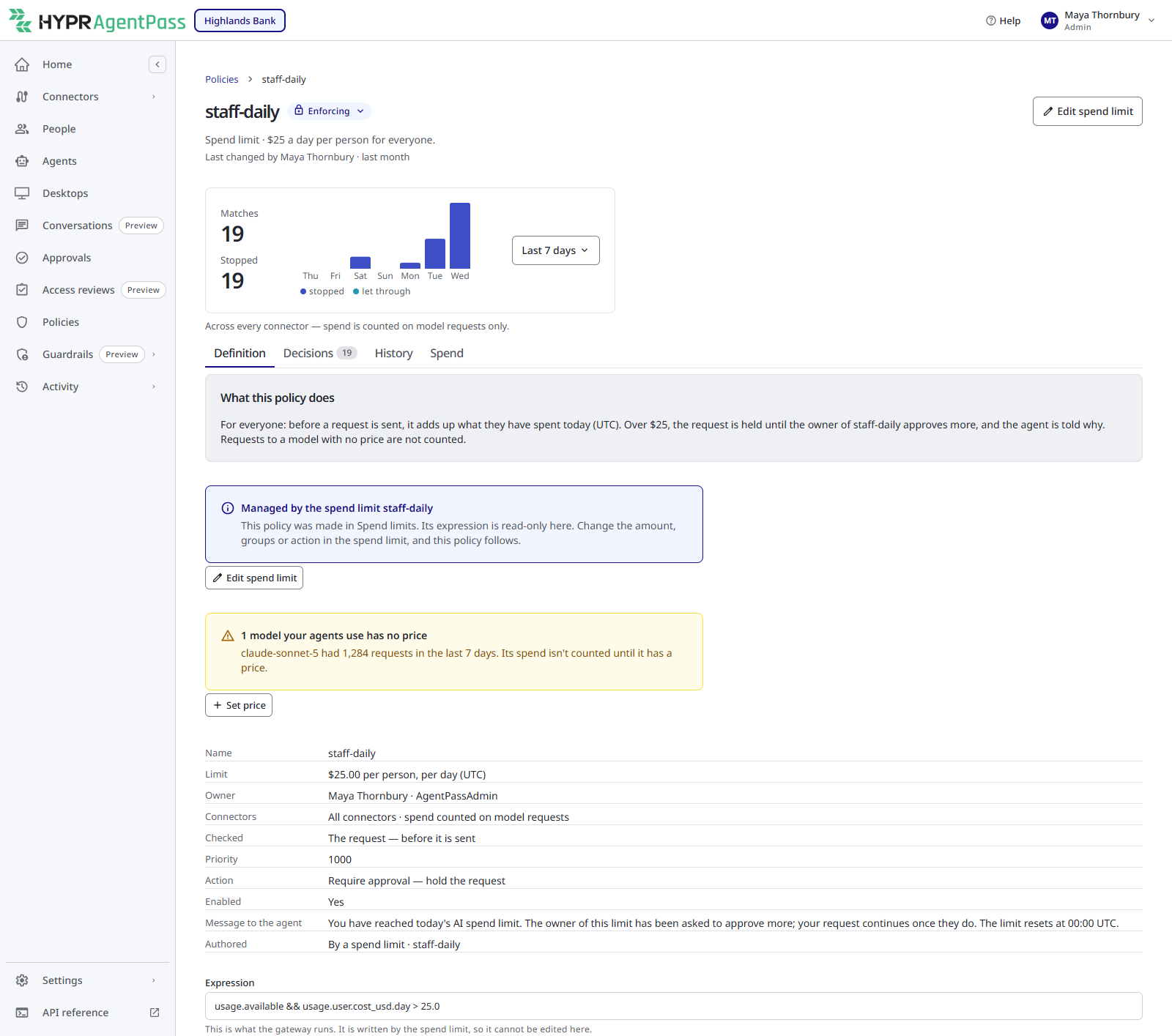
Each spend limit owns one policy with the same name. It covers every connector, is checked before a request is sent, and has priority 1000.
- Definition. The tab shows the limit, owner, action and message, with a note that the policy is managed by the spend limit. The expression is read-only. Edit spend limit opens the spend limit's form.
- State. You can switch the policy between Observing, Enforcing and off in the usual way. See Promoting a Policy to Enforce.
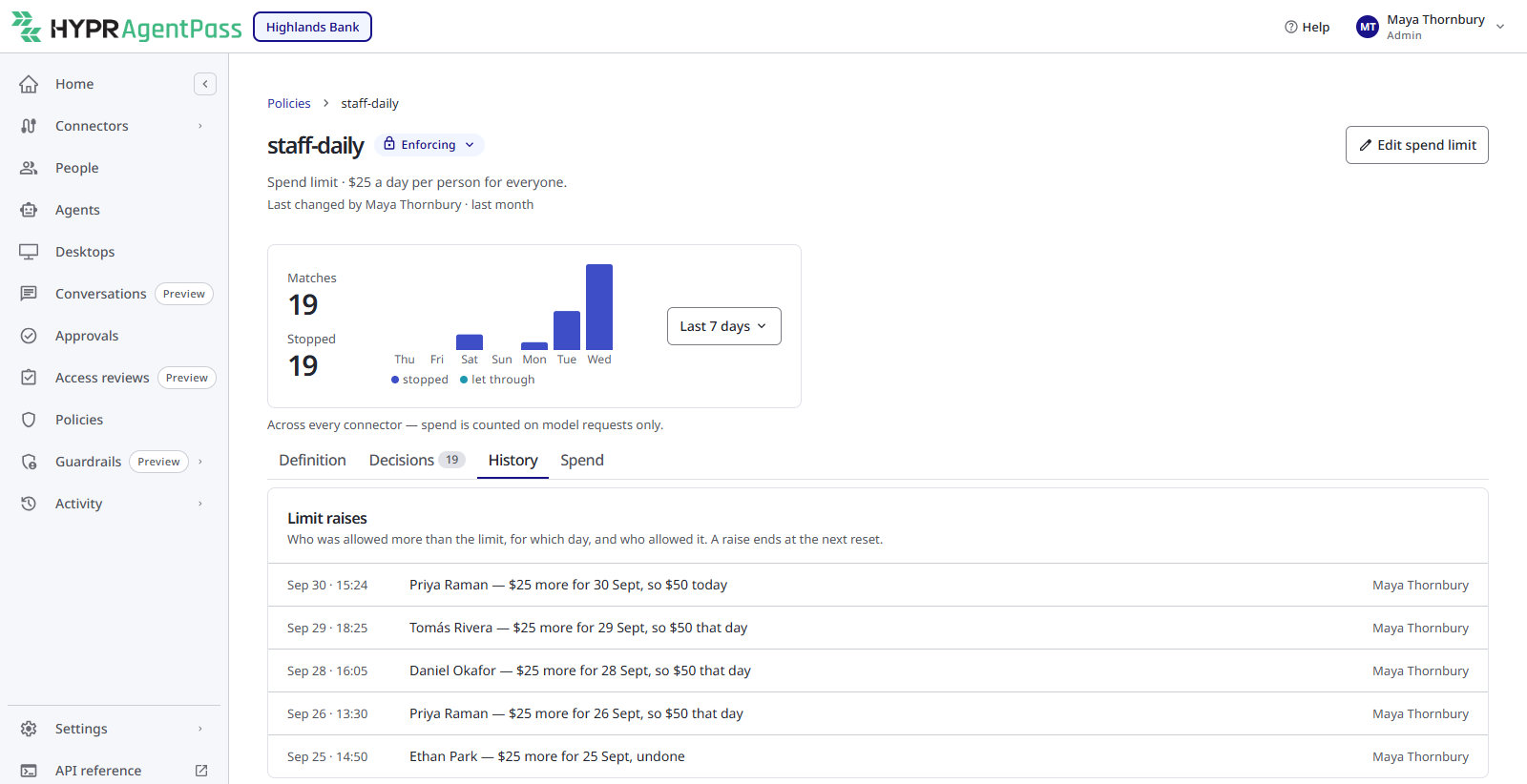
- History. Limit raises lists who was allowed more than the limit, for which day, and who allowed it.
- In All policies. The row's Edit spend limit opens the form. To delete the policy, delete the spend limit from the Spend limits tab.
When a group that a limit applies to is renamed, the limit follows it. When a group is deleted, it is removed from the limit. A limit left with no groups is switched off. It is not widened to everyone.
To cap spend in a rule of your own, use the usage attributes. See Usage.
AI Spend on a Person or an Agent
A person's details on People, and an agent's details on Agents, have an AI spend section. It shows what was Spent today against the limit that covers them, their Status, and the Last 7 days. When several limits cover someone, it shows the one with the least room left.
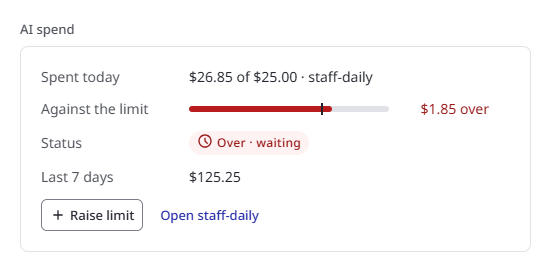
- Raise limit opens the same dialog as the Spend tab, when you may raise that limit.
- Set a spend limit shows when no limit covers them. It opens the form with the person's groups filled in.
The Agents list has a 7-day spend column, and Home has a What does it cost? card. See Read the List and What Does It Cost?.
Related
- Model Prices — the prices spend is counted at
- Approvals — where a limit's owner approves more
- Understanding Your Policies — the All policies tab, where each spend limit's policy is listed
- Attribute Reference — the
usageattributes, for rules you write yourself