Setting Up Your Approval Passkey
You approve agent actions in HYPR AgentPass™ with a passkey on your phone. Each approval is therefore tied to you, and can later be shown to have come from you. You enroll the passkey once. Afterward, approvals arrive as notifications on your phone.
A passkey is a cryptographic key held on your device and unlocked by your face, fingerprint or device PIN. You type nothing, so there is nothing to phish or reuse. See HYPR passkeys in the Device Manager for how HYPR handles passkeys generally.
Before You Begin
- Your phone, and a computer with a browser
- Your work account, which signs you in to the console through your organization's identity provider
- The console address, from your administrator. It looks like
https://gateway.yourcompany.com
You need nothing else to become a supervisor. You sign in with your organization's default role, and an agent becomes yours when you onboard it. See Being a Supervisor. Your administrator can also email you an invitation to enroll a passkey, but you do not need one to follow these steps.
Enroll a Passkey on Your Phone
Enroll your phone first, because approvals are delivered to it.
- Install the HYPR app. Follow the setup guide for iOS or Android.
- In your computer's browser, open the console, and sign in with your work account.
- Click your name at the top right, then My passkeys. While you have no passkey, the page shows Don't have HYPR?, with a QR code for the App Store and one for Google Play.
- Click Add passkey, then On my phone. The phone is the device that can approve agent actions.
- In Label, name the passkey something you will recognize later, such as the phone's model or "work phone." It starts as My phone, and takes up to 120 characters.
- Click Enroll. Your browser shows a QR code.
- Scan the QR code with your phone's camera or the HYPR app.
- Complete the prompt on your phone. Your phone asks for your face, fingerprint or PIN, which protects your passkey.
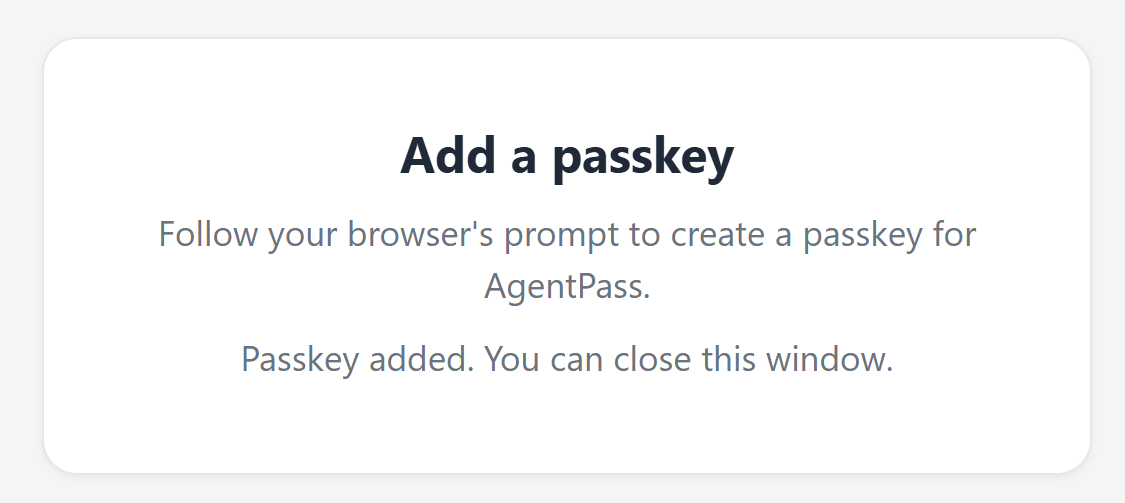
If your organization uses a sign-in address for passkeys, step 6 opens a small Add a passkey window instead. Follow your browser's prompt there. It shows the QR code for your phone. When the window says Passkey added, close it.
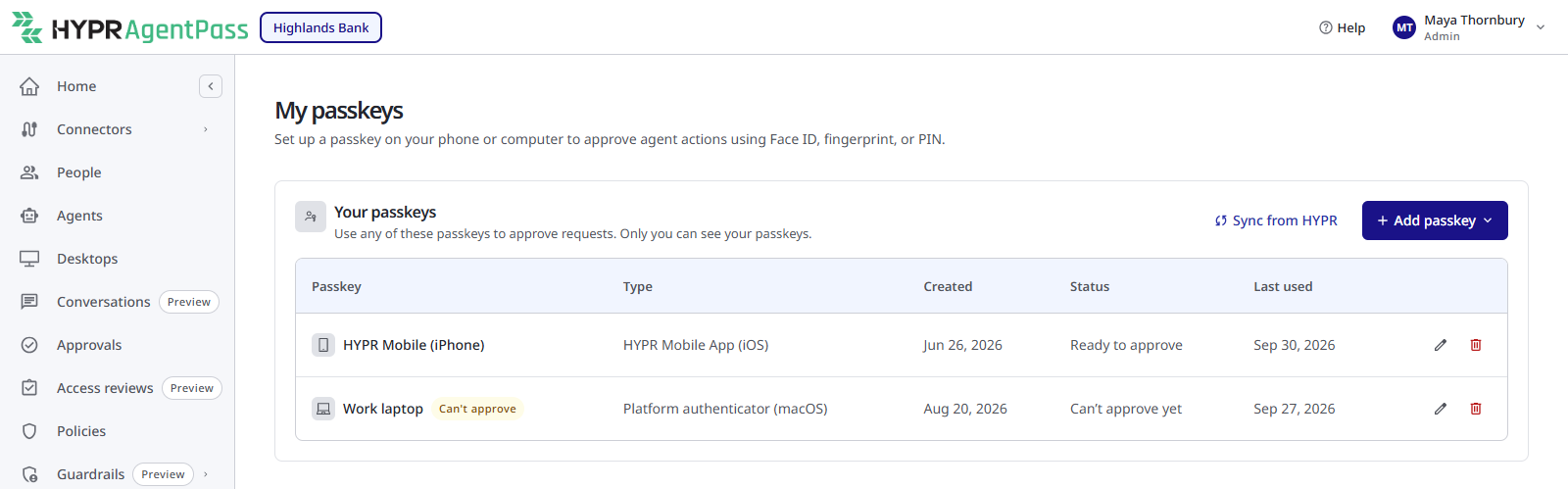
Your phone now appears under Your passkeys, and can approve agent actions.
Enroll a Passkey on Your Computer
Add passkey › On this device enrolls the computer you sign in from. It is optional.
A computer passkey signs the approvals you make in the console on that computer. It counts only when your organization's passkey approval policy accepts it. Under a policy that accepts only passkeys from the HYPR mobile app, the passkey shows Can't approve. It does not replace the phone passkey, because approval notifications arrive on your phone. You sign in to the console with your work account either way.
Manage Your Passkeys
My passkeys lists every passkey on your account under Your passkeys, with its Type, Created date, Status and Last used date. Status reads Ready to approve, Can't approve yet or Revoked. Only you can see your passkeys. A badge marks a passkey that needs attention:
| Badge | Meaning |
|---|---|
| Revoked | The passkey no longer works |
| Can't approve | Your organization's policy does not accept this passkey for approvals. Hover over the badge for the reason |
| From HYPR | The passkey was registered through the HYPR app, not from the gateway |
- Sync from HYPR adds passkeys registered through the HYPR app, and marks credentials removed from HYPR as revoked in AgentPass. A passkey created in the HYPR app, instead of from the gateway, appears after you sync.
- To rename a passkey, click its Rename button, enter a Name, and click Save.
- To delete a passkey you no longer have, click its Delete button, then Yes, delete passkey. The passkey is removed on the gateway and in HYPR. You can enroll again later.
If you delete your last approval-capable passkey, you cannot approve any agent action until you enroll another. When you replace a device, enroll the new one before you remove the old.
If Passkeys Are Not Set Up
Passkeys come from your organization's HYPR tenant. Until your administrator connects it, My passkeys shows Passkeys aren't set up, and Add passkey and Sync from HYPR are unavailable. Requests that need your passkey wait until you can approve them. Ask your administrator to connect HYPR. See Connecting to Your HYPR Tenant.
If your browser cannot create passkeys, the page says so. Try a recent version of Chrome, Safari, Edge or Firefox. You can still rename and delete the passkeys you have.
Replace a Lost Phone
- From any computer, sign in to the console with your work account, and open My passkeys from the account menu.
- Delete the passkey belonging to the lost phone.
- On your new phone, install the HYPR app, and follow Enroll a Passkey on Your Phone again.
You sign in to the console with your work account, not with a passkey, so a lost phone does not lock you out of the console. Enroll the new phone to receive approvals on it again.
Troubleshooting
The following table lists common problems and what to do.
| Problem | What to do |
|---|---|
| The passkey window doesn't open | Allow pop-ups for the gateway in your browser, then click Enroll again |
| The phone doesn't detect the QR code | Hold the phone about 30 cm from the screen, and turn up the screen brightness |
| The HYPR app refuses to create the passkey | Contact your administrator. The gateway's address may not be approved in HYPR yet |
| A new passkey shows Can't approve | Your organization's policy doesn't accept it for approvals. Enroll a passkey on your phone with the HYPR app |
| No notification arrives | Allow notifications for the HYPR app in your phone's settings |
Related
- Getting the HYPR App on iOS — install the app before enrolling your passkey
- Getting the HYPR App on Android — install the app and turn AgentPass on before this page
- Approving and Denying Agent Actions — what to do when a request arrives
- Connecting to Your HYPR Tenant — what your administrator configures so passkey approvals work