Onboarding Your Agent
Onboarding connects an agent to HYPR AgentPass™ for the first time. You point the agent at the gateway and approve its connection. From then on, its traffic flows through the gateway under a verifiable identity. This page uses Claude Code as the example.
An agent is a language model paired with a harness: the loop that prompts the model, carries out the actions it chooses, and feeds the results back. When it runs on your machine, it acts under your identity, which makes you its supervisor. You onboard it, approve its connection, and keep visibility into what it does.
Before You Start
- Claude Code is installed and signed in, with your Claude account or an Anthropic API key. You have run
claudeat least once. - You have the gateway URL from your administrator. It looks like
https://<your-gateway-url>. - You can sign in to the console, or you have the HYPR app with a passkey enrolled. You approve the connection in either one.
Point Your Agent at the Gateway
When your organization runs Endpoint Guard and routes Claude Code through AgentPass, Endpoint Guard sets the gateway address for you. Don't set ANTHROPIC_BASE_URL yourself. Restart Claude Code, and continue at Approve the First Connection. See Routing and Observation.
Claude Code sends its requests to the address in the ANTHROPIC_BASE_URL environment variable.
-
Set the variable to the gateway URL.
On Mac or Linux:
export ANTHROPIC_BASE_URL="https://<your-gateway-url>"On Windows, in PowerShell:
setx ANTHROPIC_BASE_URL "https://<your-gateway-url>" -
Optional: On Mac or Linux, add the
exportline to your shell profile to make the setting permanent. -
Restart Claude Code, so it picks up the new endpoint.
Keep your existing sign-in in place, whether that is your Claude account or an Anthropic API key. The gateway forwards approved traffic on your behalf. See Authenticate With Anthropic.
Approve the First Connection
The first request from a new agent is held until its supervisor approves it. What happens next depends on the connector's onboarding mode, which your administrator sets. See Onboarding Mode.
With Require Approval:
- Sign in to the console.
- Open Approvals.
- Find the request under Needs your attention, and check the agent details.
- Click Approve. A dialog opens with the request.
- Click Approve in the dialog.
- If your approval is signed, complete the passkey prompt in your browser or on your phone. When your organization makes signing optional, you can click Skip signature instead. What applies to you is in Sign an Approval With Your Passkey.
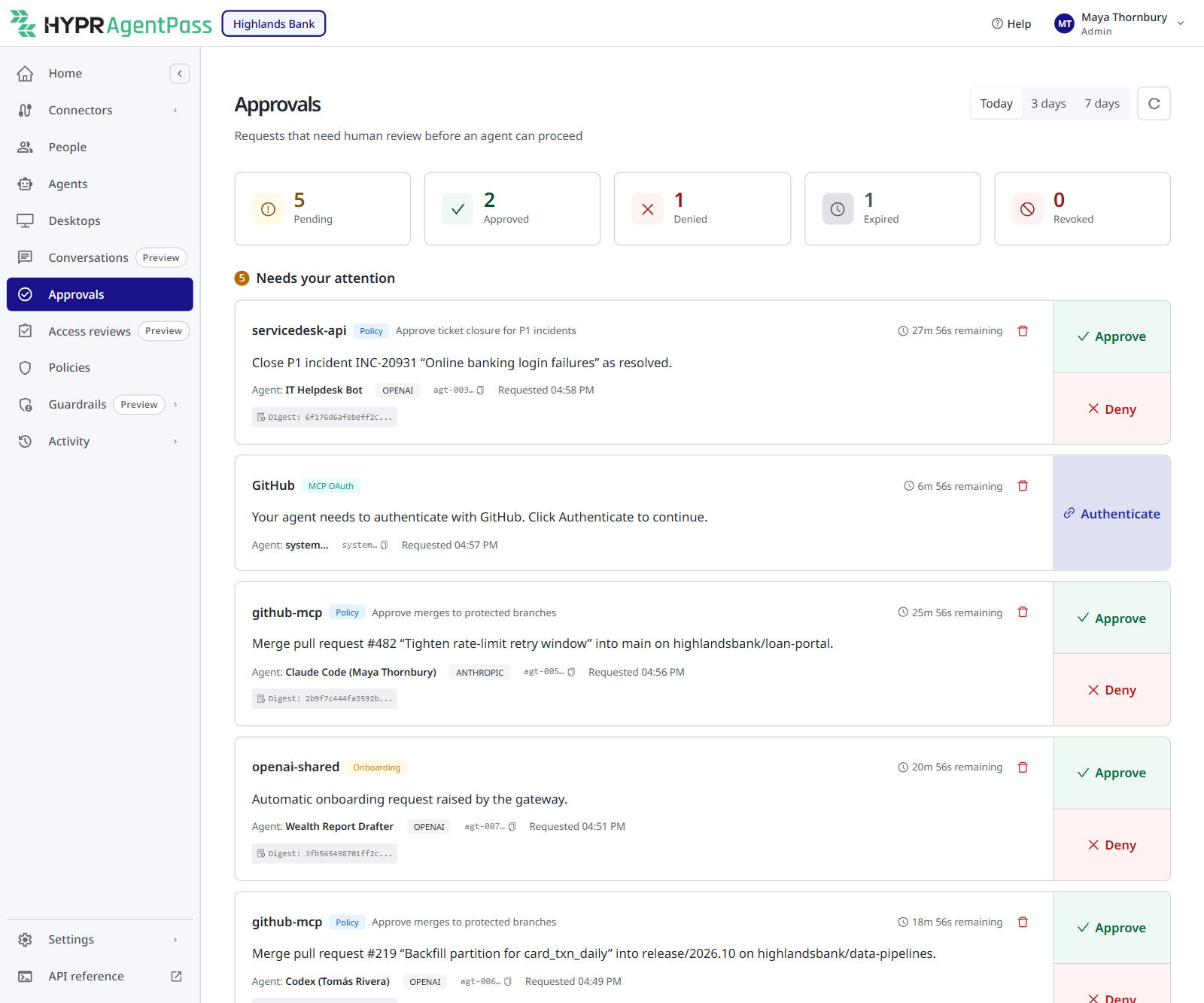
The gateway releases the agent's traffic, and the agent continues, with no restart needed. You approve only the agents you supervise.
If you have enrolled a passkey, the same request also reaches your phone as a notification, and you can approve it there. See Setting Up Your Approval Passkey and Approving and Denying Agent Actions.
Confirm Your Traffic in the Request Log
Open Activity › Request log in the console, and find your agent's requests in the stream. Recent requests with a success status mean the agent is onboarded and routing through the gateway. See Viewing the Request Log.
Re-Approve When Access Expires
An onboarding approval is valid for a limited time. When it lapses, the agent's next request is held again, and a re-onboarding request appears. Approve it the same way.
If an agent that was working normally stops receiving responses, look for a pending re-onboarding request.
Related
- Connecting to a Gateway MCP Connector — give your agent tools next
- Having Conversations with Your Agent — message the agent while it runs
- Onboarding Mode — what an administrator decides about first connections