Connecting to a Gateway MCP Connector
An MCP connector hosted by HYPR AgentPass™ gives your agent a tool through the gateway, such as Jira, Slack, Confluence or another service your administrator has connected. You add the connector to your agent once, and sign in to the service behind it. The gateway holds the credential from then on, and renews it for you.
This page assumes you are at your keyboard to authorize the connection. An administrator gives an agent that runs unattended a credential instead. See Workload Agents.
Get the Connector's Gateway MCP URL
Every MCP connector has a gateway MCP URL, such as https://<your-gateway-url>/mcp/<connector-name>. Your administrator gives it to you. It is also shown on the connector's Overview tab in the console.
Add It to Your Agent
On a computer where your organization runs Endpoint Guard, your coding tools may already list the gateway's MCP servers. Run /mcp in Claude Code to check. If the connector is listed, go to Authorize the Connector. See Provisioning MCP Tools.
Otherwise, add the URL to your agent as an HTTP MCP server. In Claude Code, for a connector named hypr-jira, run:
claude mcp add --transport http jira https://<your-gateway-url>/mcp/hypr-jira
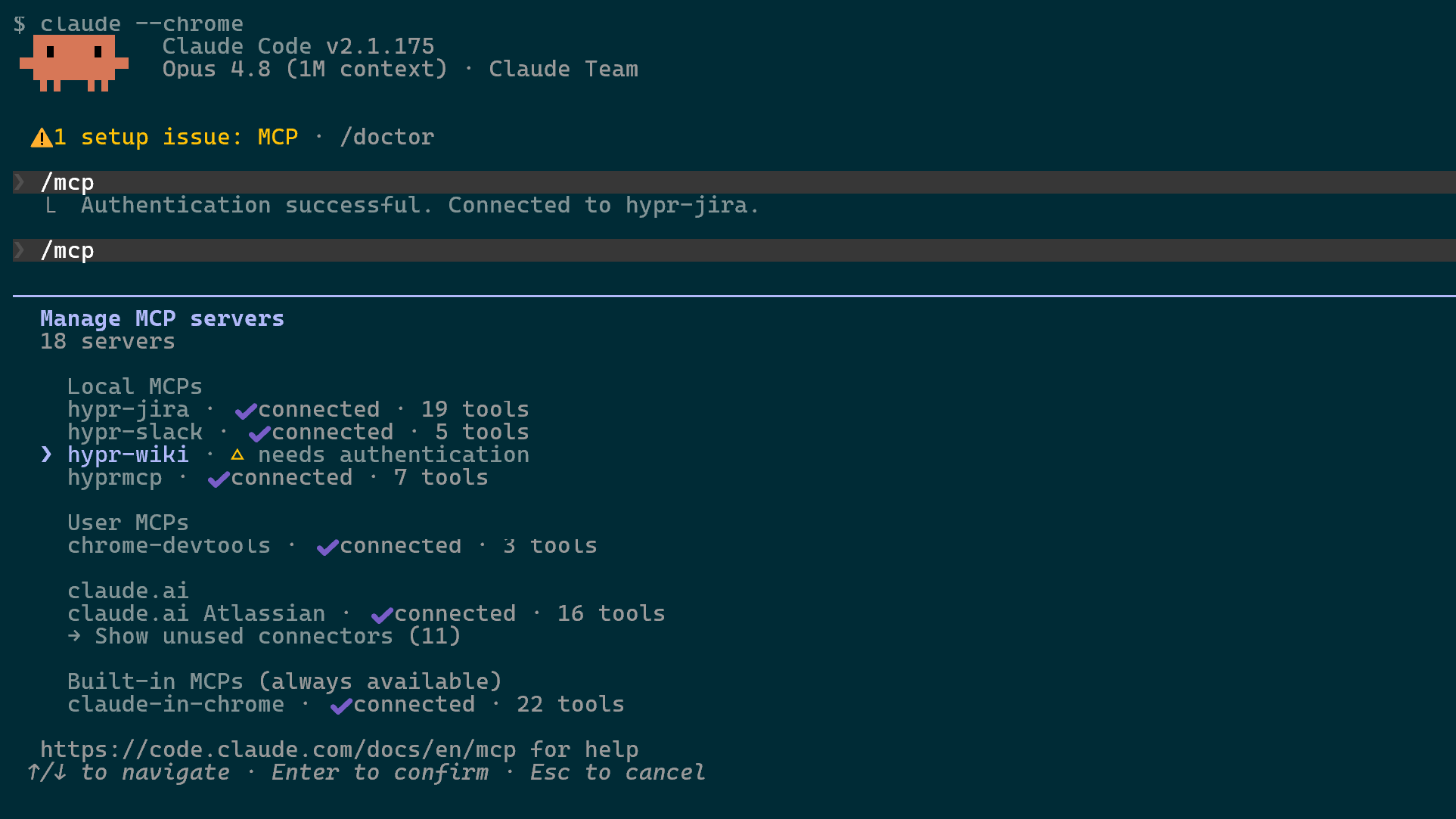
Run /mcp inside Claude Code to see the connector and its status. A connector that still needs authorization shows as needs authentication.
Authorize the Connector
-
Inside Claude Code, run
/mcp. -
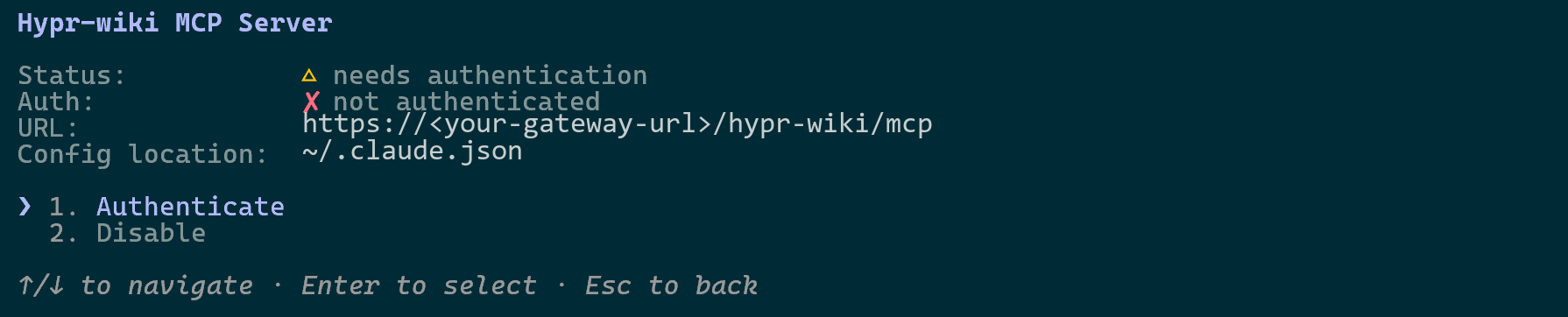
Choose the connector, and select Authenticate.
-
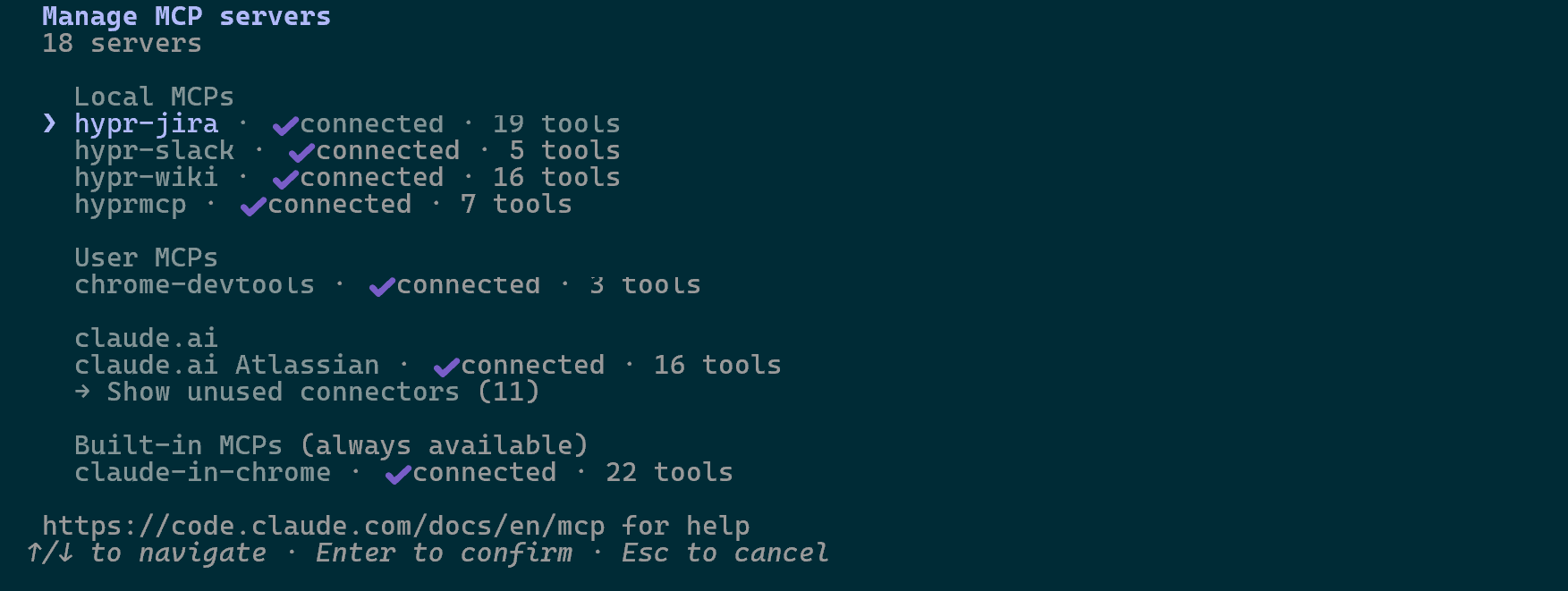
Complete the sign-in in the browser that opens. When it finishes, the connector shows as connected.
Sign In to the Service Behind It
The first time you use the connector, you also sign in to the service behind it, such as Jira. The gateway raises a sign-in request for you, and sends a notification to your phone. Until you complete it, your agent's tool calls report Sign-in required for the server, with a link to the Approvals page.
-
In the console, open Approvals.
-
Under Needs your attention, find the card named for the MCP server and tagged MCP OAuth.

-
Click Authenticate.
-
Sign in to the service in the tab that opens. The page reads Authentication Complete when it finishes.
-
Return to your agent, and retry the request. Its tools are now available.
You can also complete the sign-in from the notification on your phone.
The sign-in link works once, and expires after 10 minutes. If it has expired, the page reads This sign-in link has expired. To get a new link, run the authentication command in your agent again, or open the pending request in the console.
Only you can complete your own sign-in request. Anyone else who can see it, such as an administrator, sees who it belongs to instead of Authenticate.
The gateway stores and refreshes the resulting token. Your agent never handles the credential.
Signing In Again
The gateway renews your access to the service on its own. When it cannot, it raises a new sign-in request, and the card says your access to the server has expired and could not be renewed.
You also sign in again when the service stops accepting the stored credential, or when an administrator resets your token. Those requests read like the first one.
Complete it the same way: open Approvals, click Authenticate on the card, and sign in to the service. Then retry the request in your agent.
What Your Agent Can Call
The tools a connector lists reflect your role. An agent is offered only the tools its supervisor's role permits. See Controlling MCP Tool Access by Role.
Related
- Onboarding Your Agent — connect your agent to the gateway first
- Viewing the Request Log — watch the tool calls as they happen
- MCP Server Connectors — how an administrator adds and configures a connector