Getting the HYPR App on Android
Approvals reach you on your phone, so the HYPR app is the first thing to put in place. On Android, it comes through the HYPR AgentPass™ early access program, and you switch AgentPass on inside the app once. Android also asks one thing of the phone before AgentPass can be turned on: HYPR has to be its passkey provider. This page covers all three.
Complete this page before Setting Up Your Approval Passkey, which assumes the app is already installed.
Before You Begin
You need these in place.
| You need | Detail |
|---|---|
| An Android phone on Android 14 or later | AgentPass signs your approvals with a passkey held by the HYPR app. Android allows an app to act as your passkey provider only from Android 14 onward. The HYPR app itself runs on earlier versions, but AgentPass cannot be turned on there. See Supported Platforms. The phone's version is under About phone in its settings |
| The HYPR app for Android | From Google Play, on the phone that will receive approvals |
| A Google Account on the program | The account Google Play is signed in with on that phone |
AgentPass on Android is distributed through an early access program on Google Play. Access is granted per Google Account. To request it for yourself or your team, contact your HYPR representative.
Join the Early Access Program
Enrollment is tied to the Google Account that Google Play uses on your phone. Confirm which account that is before you ask for access.
- On the phone, open the Google Play Store, and tap your profile icon in the top-right corner. Note the email address shown beneath your name.
- Send that address to your HYPR representative, and say it is for the AgentPass early access program.
- Once HYPR confirms you are on the program, open the opt-in page on that phone, and tap Become a tester.
- Allow time for the change to reach the phone. Then open the Google Play Store, search for HYPR, and tap Update, or Install if the app is not on the phone yet.
The address you send must be the Google Account currently signed in to the Google Play Store on that phone. Google Play offers the early access version only to that account.
If your phone is enrolled in mobile device management, your administrator controls which apps and versions reach it. Ask your IT administrator to make the early access version available, or contact your HYPR representative for help with the request.
Turn AgentPass On in the Android App
AgentPass runs in the HYPR app's updated interface, so you switch that on first. Both settings apply to that phone and survive app updates, so you do this once.
The first time you turn AgentPass on, the app checks that the phone can run it. The phone must be on Android 14 or later, and HYPR must be its passkey provider. If HYPR is not the provider yet, the app takes you through setting that up before AgentPass switches on.
-
Open the HYPR app.
-
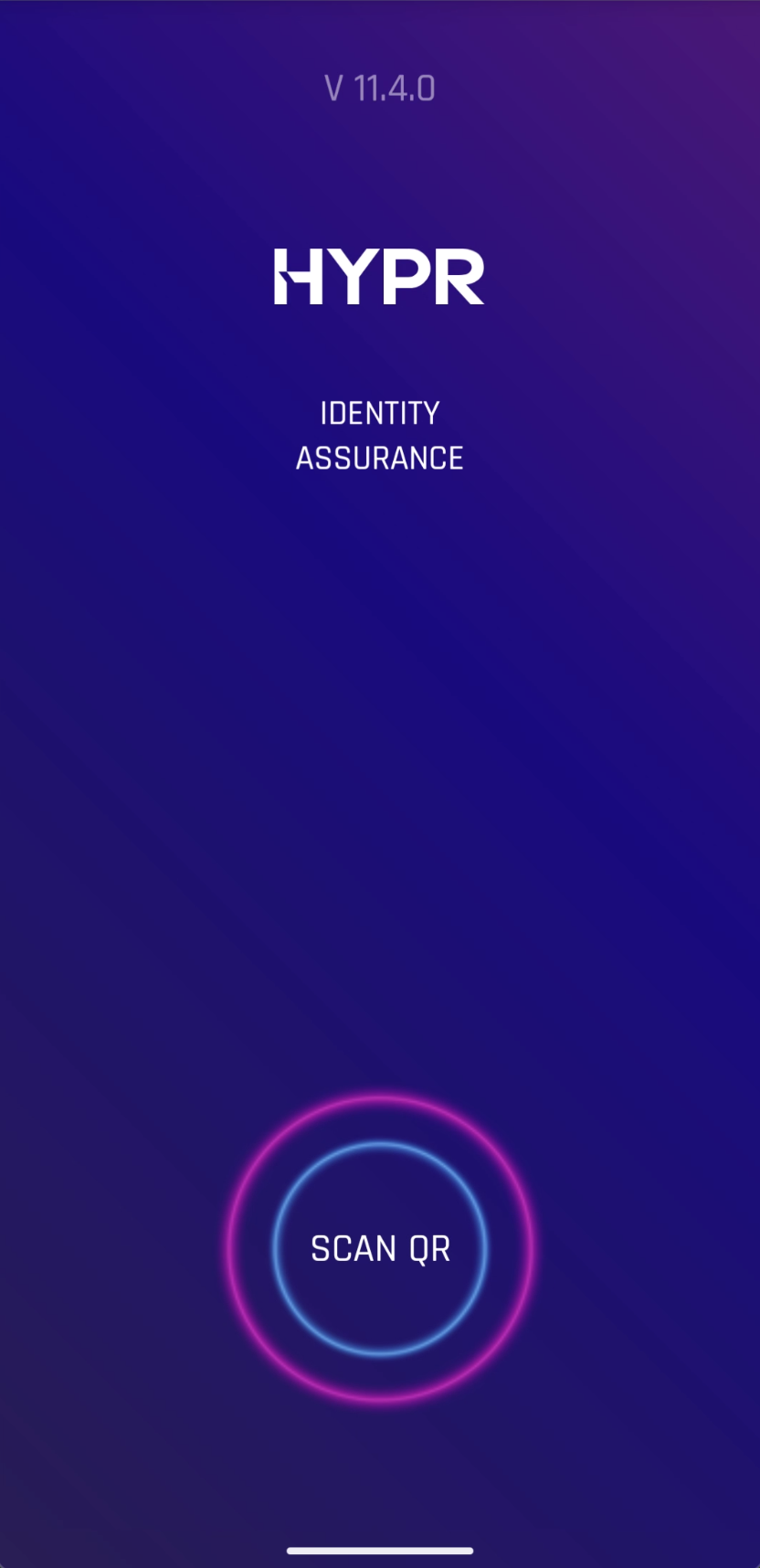
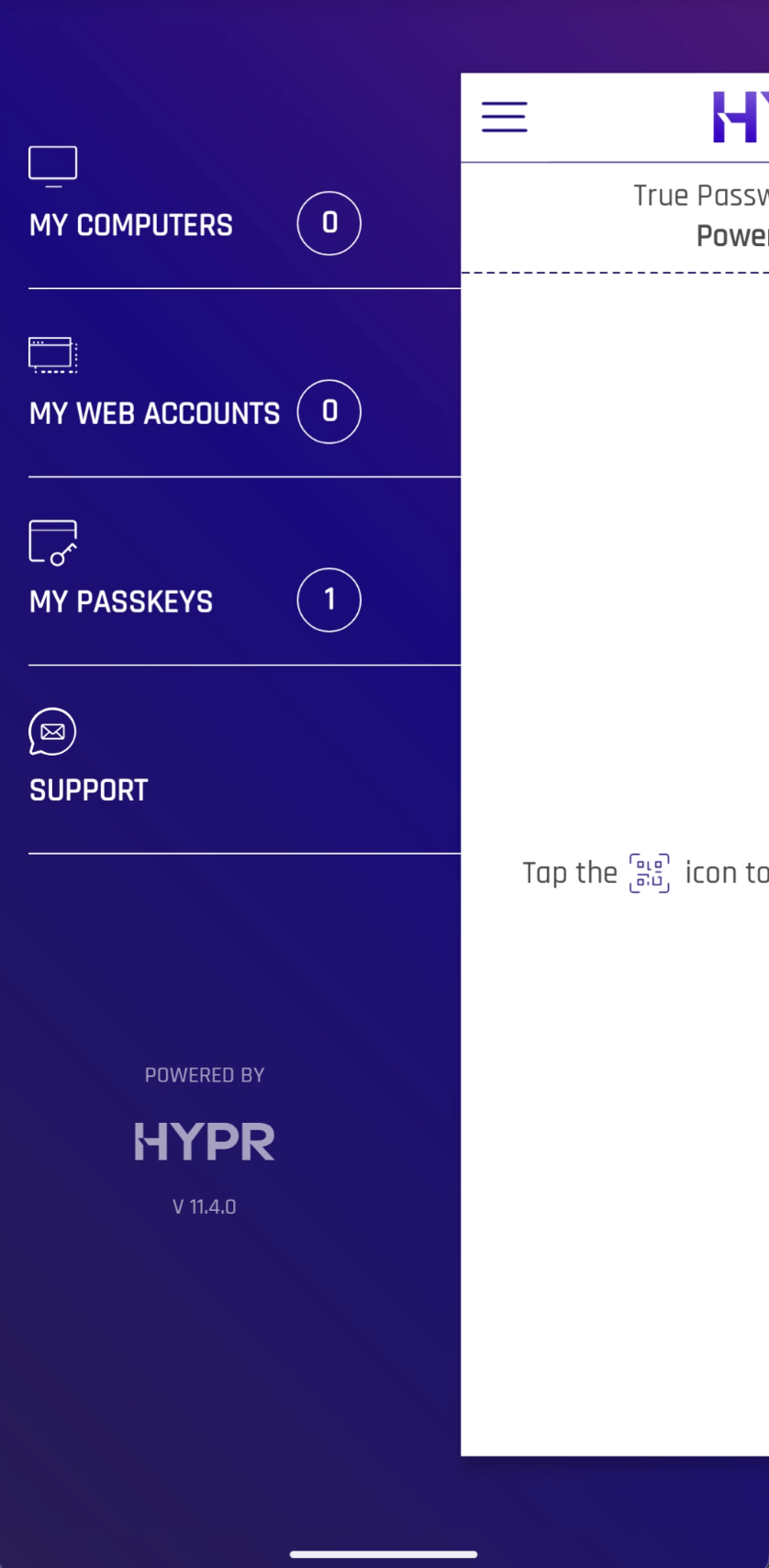
Double-tap the HYPR logo. Before you register the phone, the logo is on the welcome screen. Afterward, it is at the bottom of the side menu.
-
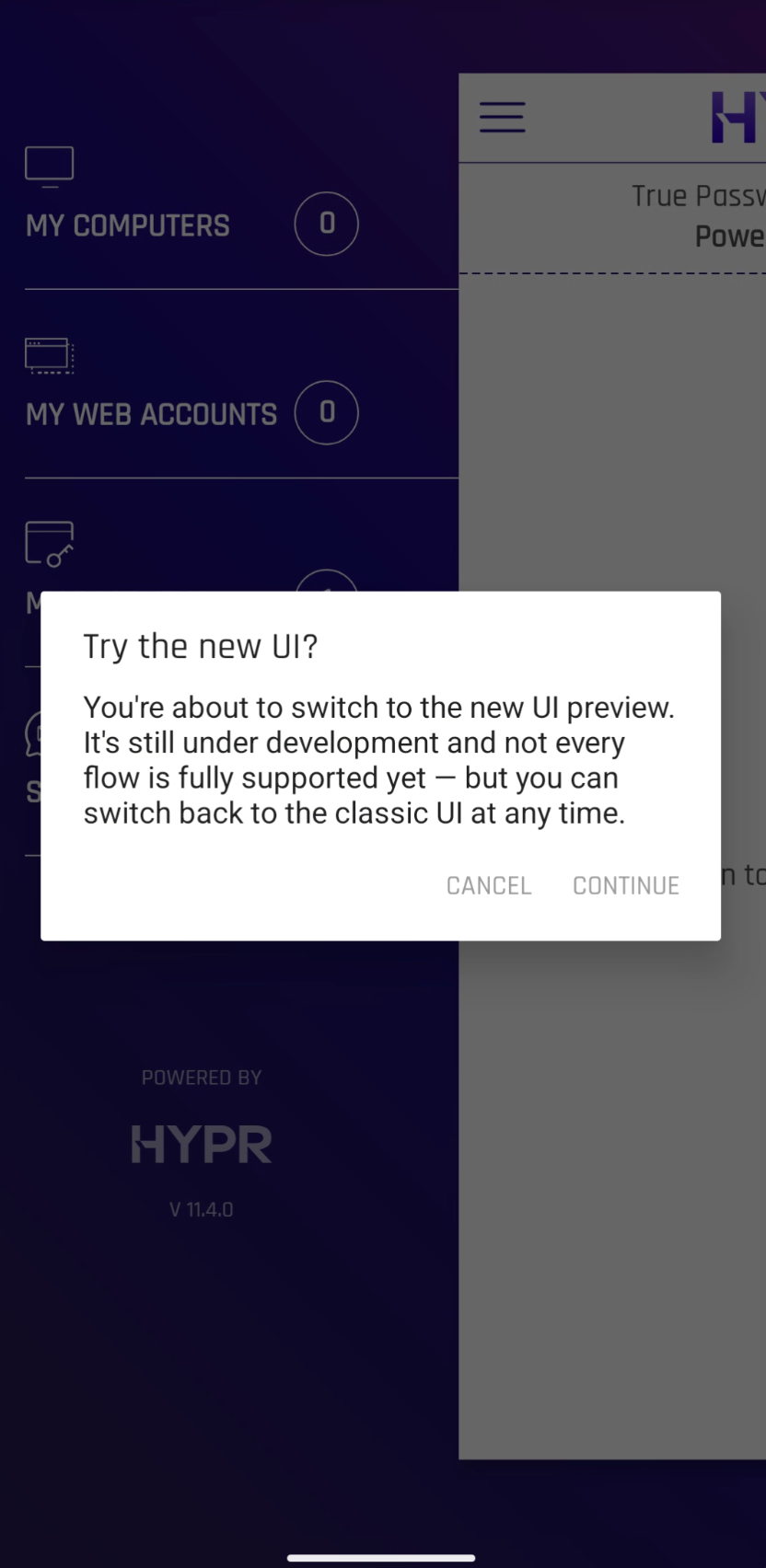
In the Try the new UI? dialog, tap Continue. The app reopens in the updated interface.
-
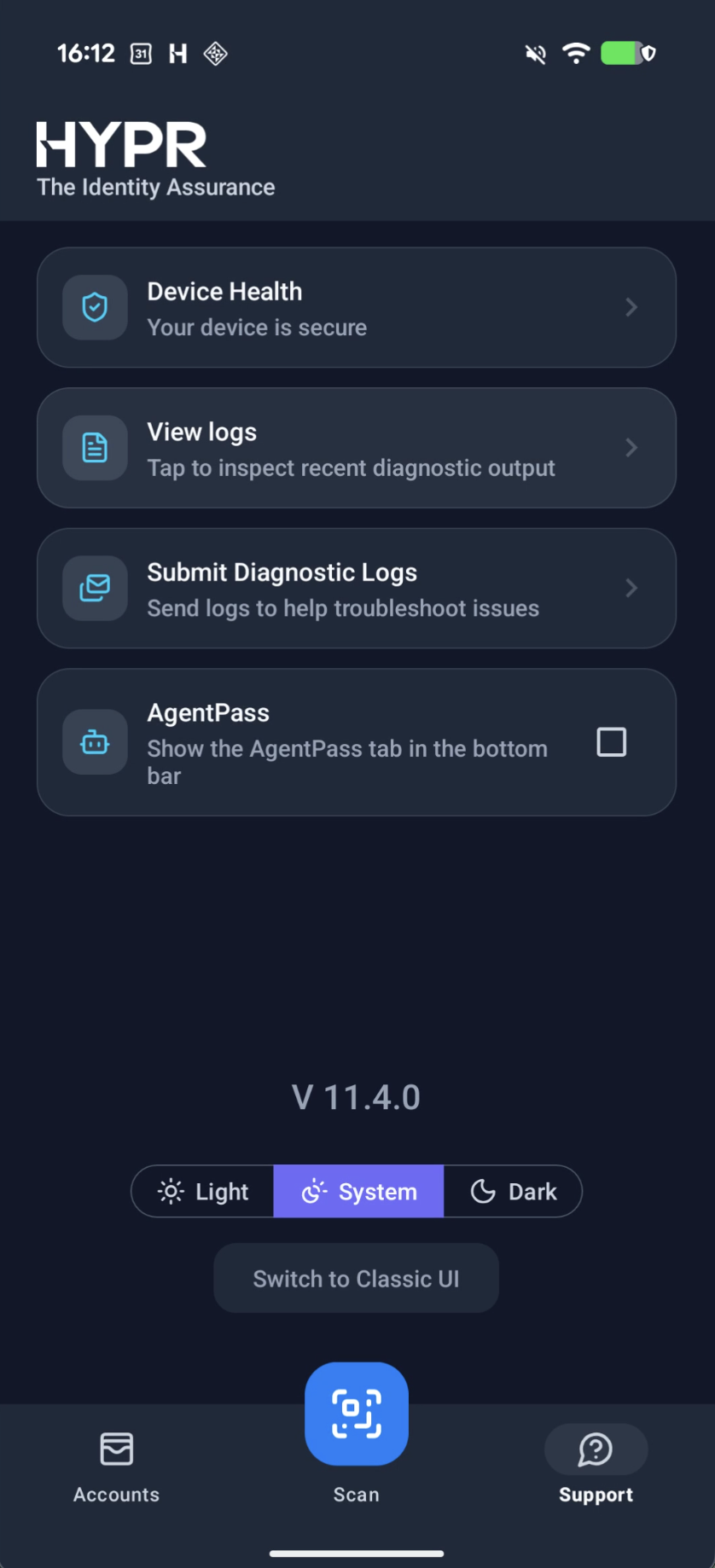
Go to the Support tab, and select the AgentPass checkbox.
-
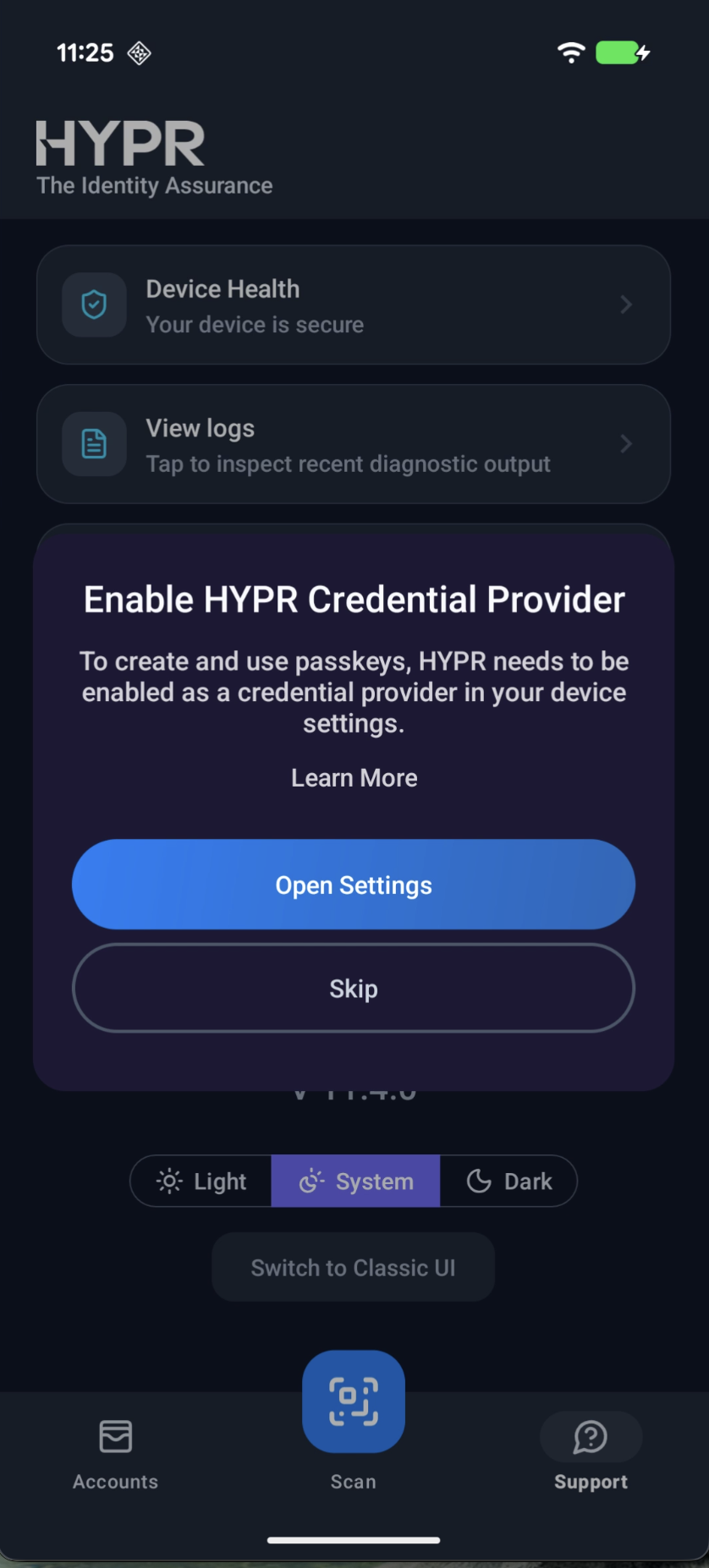
If asked, make HYPR the phone's passkey provider. If HYPR is not yet the provider, the Enable HYPR Credential Provider prompt opens as soon as you select the checkbox, and the checkbox stays clear. Tap Open Settings, and follow Make HYPR Your Passkey Provider. AgentPass switches on by itself when you return with HYPR selected. If HYPR is already the provider, AgentPass switches on immediately.
-
Check the bottom bar. AgentPass moves to the first position, Accounts to the last, and Support becomes an icon in the screen header. That rearrangement shows AgentPass is on.
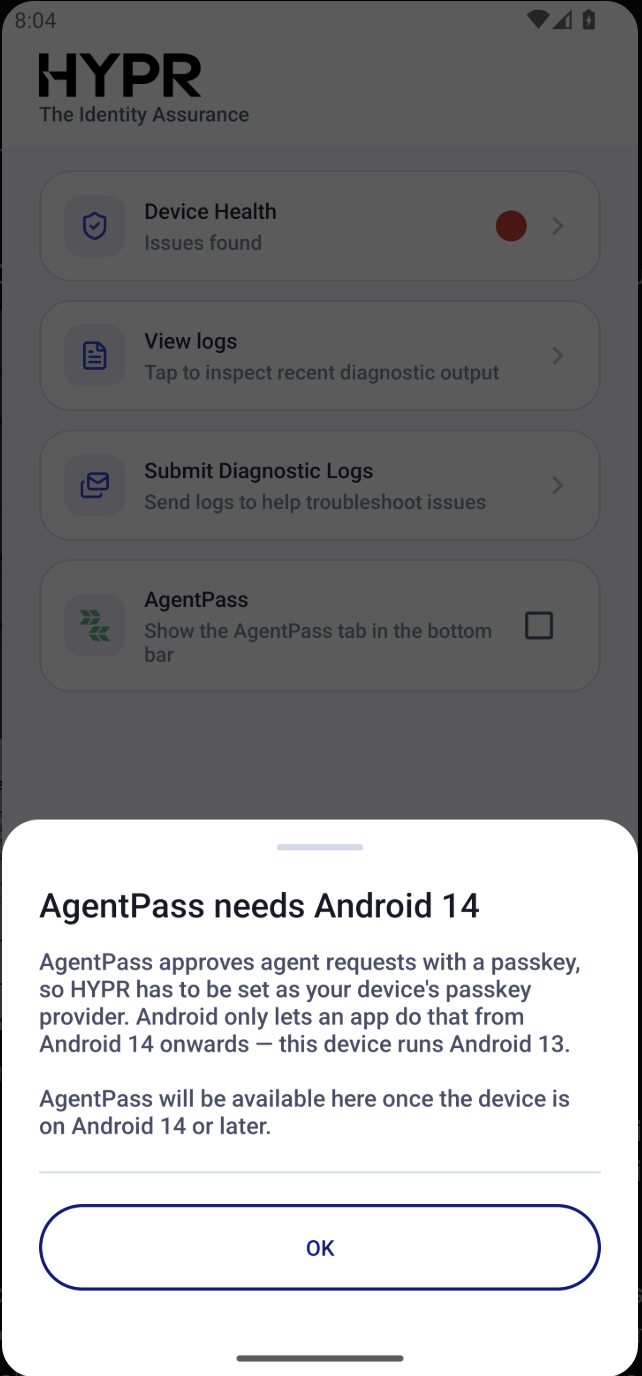
On Android 13 or earlier, selecting the checkbox opens AgentPass needs Android 14 instead, and the checkbox stays clear. The sheet names the version the phone is running. AgentPass becomes available once the phone is updated to Android 14 or later. The rest of the HYPR app is unaffected.
With the app installed and AgentPass on, enroll the passkey that signs your decisions. See Setting Up Your Approval Passkey.
Make HYPR Your Passkey Provider
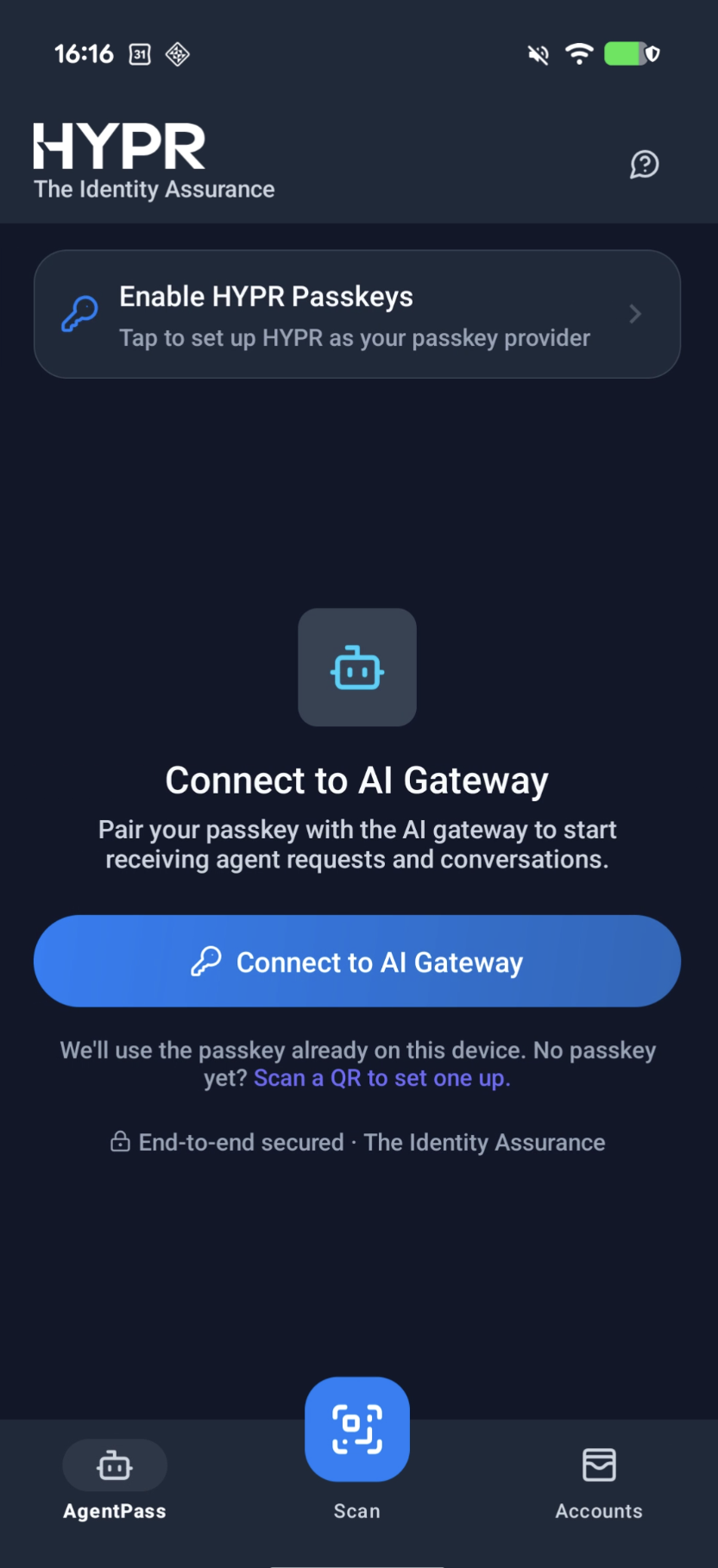
Your approvals are signed with a passkey held by the HYPR app, so Android must know that HYPR is where passkeys are saved. The app asks for this with the Enable HYPR Credential Provider prompt the first time you turn AgentPass on. AgentPass stays off until it is done. If HYPR later stops being the provider, the AgentPass tab shows an Enable HYPR Passkeys banner that opens the same prompt.
Android's passkey settings hold two separate lists, and only one works here. HYPR must be set as the Preferred service. Turning HYPR on under Additional services is not enough, and does not substitute for it.
Only the preferred service receives newly created passkeys, as Android states in the confirmation dialog. An additional service can only offer passkeys it already holds, and an AgentPass approval passkey has to be created in HYPR.
-
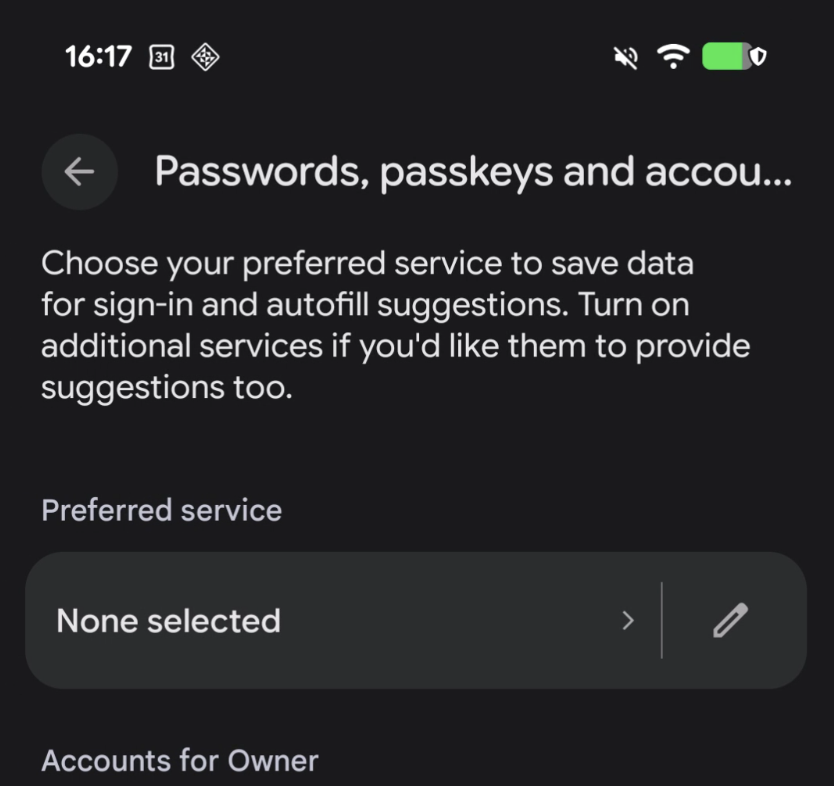
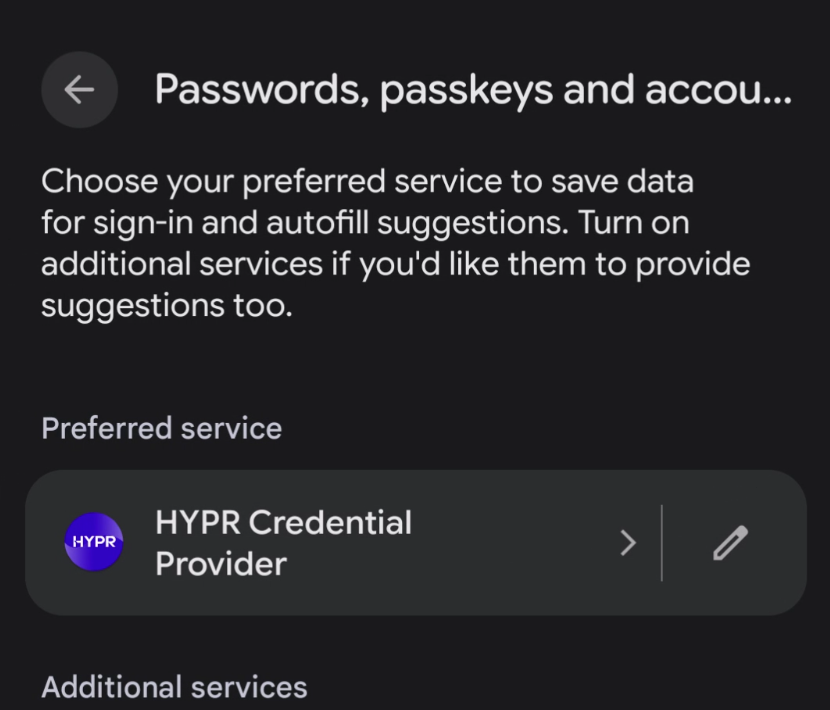
In the Enable HYPR Credential Provider prompt, tap Open Settings. Android opens Passwords, passkeys and accounts. If Preferred service reads None selected, nothing is currently allowed to save passkeys for you.
-
Tap Preferred service, the top entry, not Additional services further down. Choose HYPR Credential Provider from the list.
-
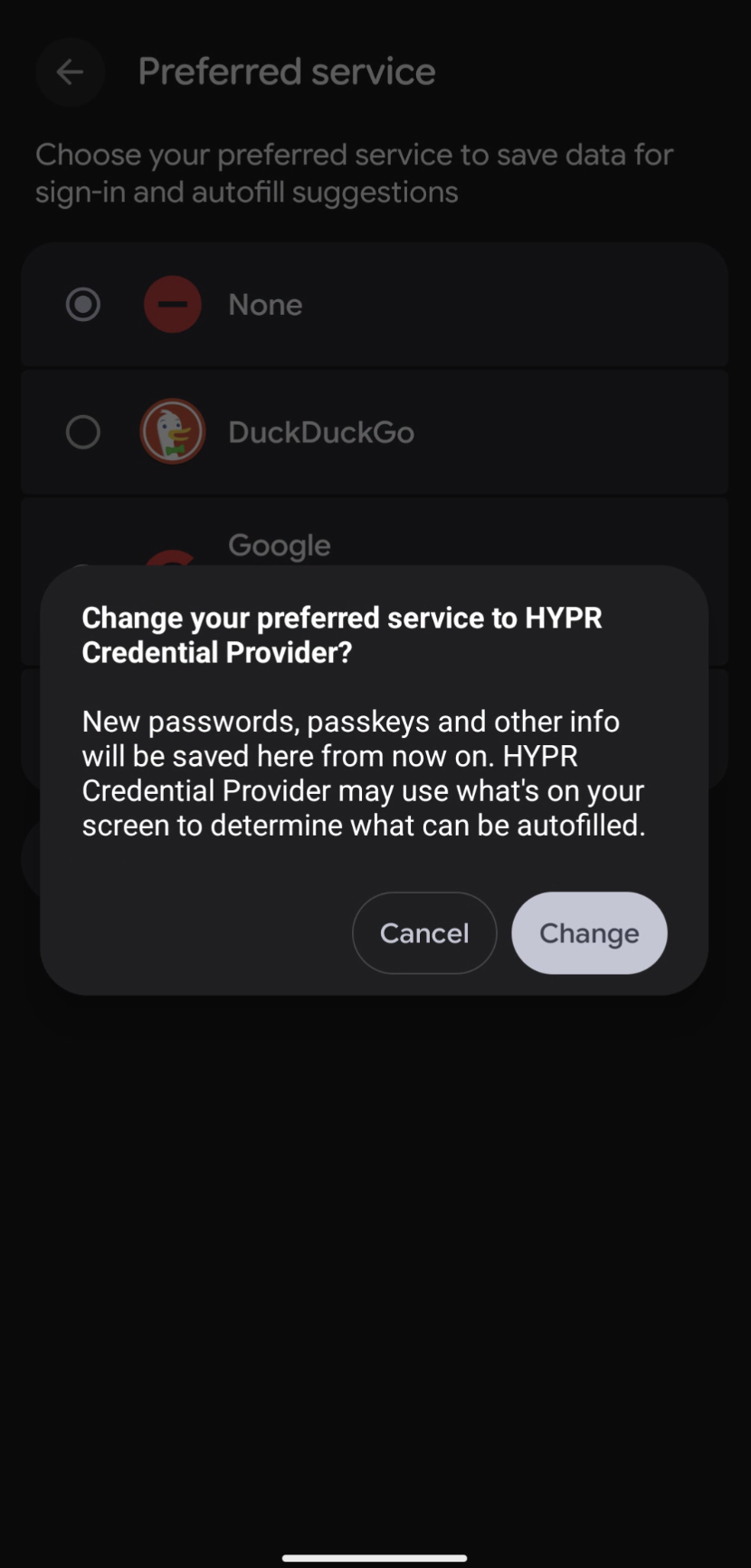
Android asks "Change your preferred service to HYPR Credential Provider?", and explains that new passwords, passkeys and other information will be saved there from now on. Tap Change.
-
Check that Preferred service now reads HYPR Credential Provider. That is the one state AgentPass works in. If HYPR appears under Additional services instead, go back to step 2.
-
Return to the HYPR app with the system back gesture. The prompt closes by itself, the AgentPass checkbox is selected, and AgentPass is on. If you come back without choosing HYPR, the checkbox stays clear. Select it again to reopen the prompt.
If you tap Skip, AgentPass stays off. The prompt opens again each time you select the AgentPass checkbox, so you lose nothing by putting it off.
The path described is a Pixel on a recent Android release. Manufacturers name and arrange these settings differently. Security and privacy is another common home for them. Searching system settings for "passkey" is the fastest way to the right screen.
Connect to the AI Gateway
With AgentPass on, and HYPR set as your passkey provider:
- Open the AgentPass tab.
- Tap Connect to AI Gateway. It uses the passkey already on the device. If you do not have one yet, the same screen offers to scan a QR code to set one up, which Setting Up Your Approval Passkey covers in full.
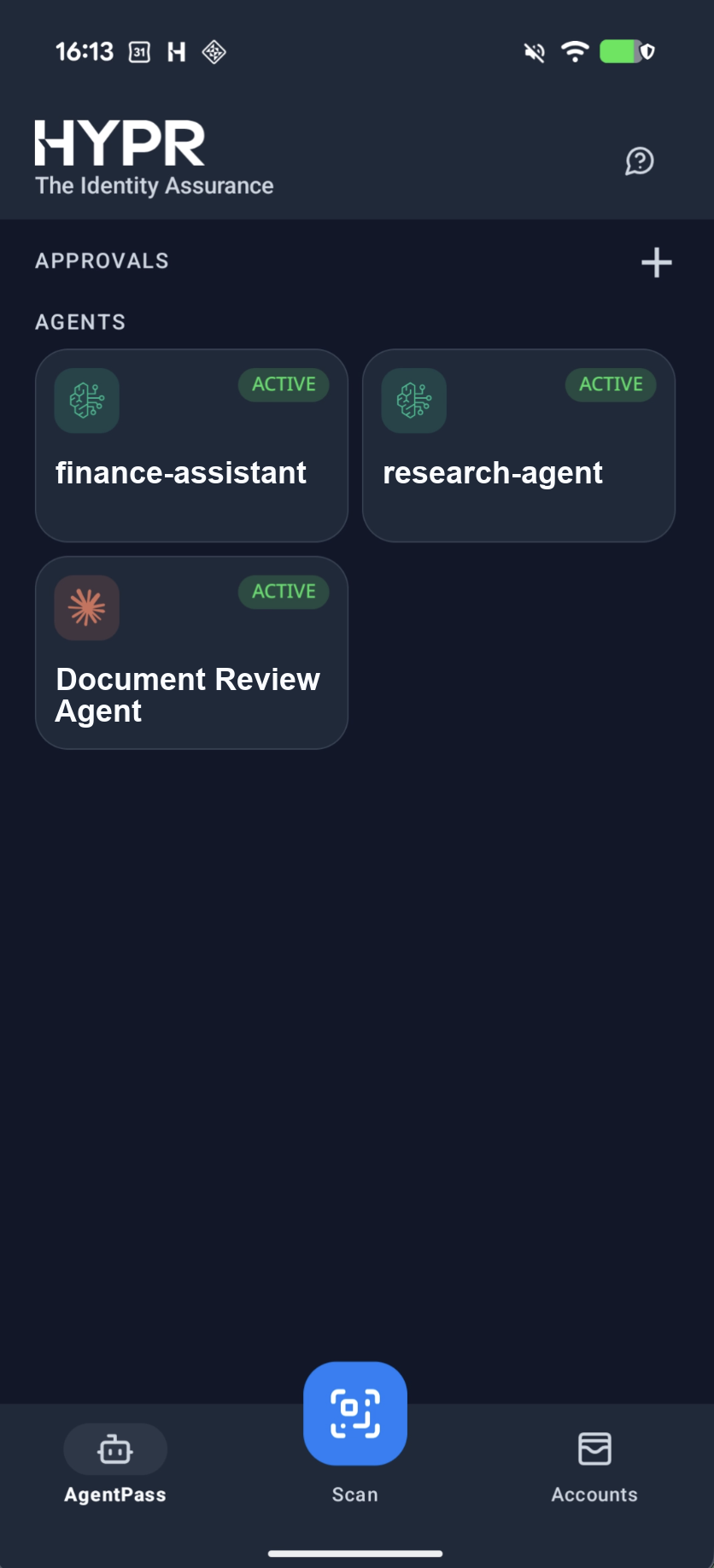
Once connected, the AgentPass tab lists the agents assigned to you, and any approvals waiting on you.
If Something Is Missing
Start with what you see:
- Google Play does not offer the early access version. Check that the address added to the program matches the Google Account signed in to Google Play on that phone. Also check that you opened the opt-in page and tapped Become a tester. A newly added address takes a while to reach the phone. On a managed phone, ask your IT administrator to make the version available. If none of that explains it, contact HYPR Support.
- The Try the new UI? dialog does not appear. The updated interface needs Android 10 or later. The double-tap is not available while a screen reader is running.
- Selecting the AgentPass checkbox shows AgentPass needs Android 14. The phone is on Android 13 or earlier, where Android does not let HYPR act as its passkey provider. Update the phone to Android 14 or later, or use one that already is.
- The AgentPass checkbox will not stay selected. The app is waiting for HYPR to become the phone's passkey provider, and opens the Enable HYPR Credential Provider prompt each time you select the checkbox. Follow Make HYPR Your Passkey Provider, and return to the app with HYPR set as the Preferred service.
- There is no AgentPass tab. AgentPass stays off until you turn it on. Follow Turn AgentPass On in the Android App.
- The Support tab has gone from the bottom bar. That is expected once AgentPass is on. Support is the icon in the screen header.
- The Enable HYPR Passkeys banner will not go away. HYPR is not yet the Preferred service for passkeys. Follow Make HYPR Your Passkey Provider. Having HYPR switched on under Additional services does not clear the banner, and does not count.
- Passkey creation fails, or another app offers to save the passkey. Something else is still the preferred service. Open Passwords, passkeys and accounts, and check the Preferred service entry itself. It must read HYPR Credential Provider. Seeing HYPR listed somewhere on that screen is not the same thing.
- AgentPass opens but lists no agents or requests. An agent appears once you onboard it, or once an administrator assigns one to you. See Onboarding Your Agent.
- The app closes as soon as it opens. For security reasons, the HYPR app for Android stops on a rooted device. See Supported Platforms.
Related
- Setting Up Your Approval Passkey — the next step, once the app is on your phone
- Approving and Denying Agent Actions — what to do when a request arrives