Agents Observation
Overview
Observation is the list of AI agents your desktops watch for, with how each one is recognized. It tells the HYPR endpoint client which agents to report, how much activity to report and what to hide before anything leaves the desktop. It was earlier called the observation manifest.
You find it on Desktops → Desktop configuration → Observation. Watching only reports which AI agents run. It changes nothing on the desktop. Desktops pick up your changes on their next check. Adding an agent is a list edit, not a client update.
The Watch desktops switch at the top of this view turns the whole desktop channel on or off. See Watch Desktops.
Editing the watch list needs Settings: Edit, which Admin has. With Settings: View, which Operator and Auditor also have, you see it read-only.
Read the Watch List
The view lists each watched agent in match order, followed by any agent you can configure but do not watch. It has these columns:
| Column | What it shows |
|---|---|
| AI agent | The agent's name and category |
| Recognized by | The agent's first matchers, such as an executable name and a signed publisher. A configurable agent that is not on your list reads Not watched |
| Talks to | The hosts the agent talks to. These come from HYPR's agent catalog, plus any hosts you add under Block direct traffic in Agent Configuration |
| Configuration | Configured or Not configured in Agent Configuration, or Can't be configured for an agent AgentPass can only watch |
Until you save your own list, your organization uses the HYPR default list. The list's title then carries the HYPR default tag, and your organization receives updates to the default automatically. Once you save your own list, it stays as you saved it.
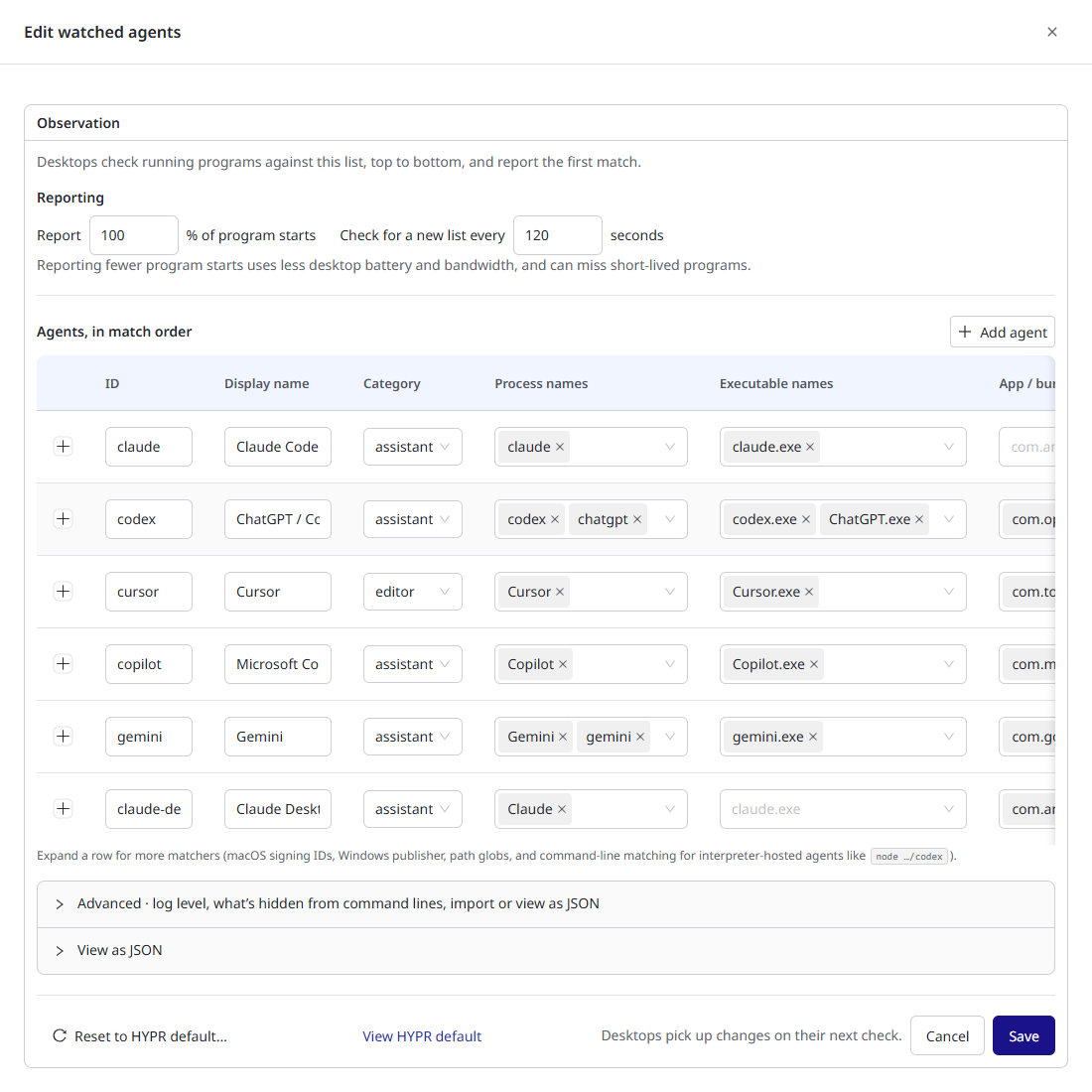
To change the list, click Edit list. The Edit watched agents panel opens. With view permission only, the button reads View list.
Reporting
The Reporting section of the panel sets how much desktops report, and how often they look for a new list:
- Report N % of program starts sets the share of matched program starts desktops report, from 0 to 100 percent. Lower it to reduce volume on busy fleets. Sampling is deterministic, so a sampled tool session is reported consistently, not as a scatter of half its events.
- Check for a new list every N seconds sets how often desktops check for the latest list, from 10 to 3600 seconds. The default is 60.
Agents, in Match Order
The Agents, in match order table lists the AI agents you want to observe, one per row. Each row has an ID, a display name, a category (assistant, editor, cli, test or other) and a set of matchers. The matchers describe how a desktop recognizes the agent among the programs running on it.
Desktops check running programs against this list, top to bottom, and report the first match. A desktop identifies an agent when any one of its matchers matches, evaluated for the desktop's operating system. One row can therefore describe the same agent across platforms.
The main matchers are in the table itself. Expand a row to reach the rest.
| Matcher | Where | Platform | What it matches |
|---|---|---|---|
| Process names | Table | All | The running process or image name, ignoring case and file extension. claude matches claude, Claude and claude.exe |
| Executable names | Table | All | The exact executable file name, including extension, such as claude.exe |
| App / bundle IDs | Table | macOS, Linux | The reverse-DNS application identifier: a macOS bundle identifier or a Linux application ID, such as com.anthropic.claude |
| Command line contains | Expanded row | All | Text in an agent's command line. Use it to recognize an agent hosted inside an interpreter, such as node running a tool script |
| Path globs | Expanded row | All | A path pattern for the agent's executable, such as /Applications/Claude.app/**. ** spans any number of folders, and * stays within one. Either path separator matches on either platform |
| macOS signing IDs | Expanded row | macOS | The macOS code-signing identifier, such as com.anthropic.claude-code |
| Windows app IDs | Expanded row | Windows | The packaged-app identity for Store and MSIX apps: the Package Family Name or Application User Model ID (AUMID) |
| Windows publishers | Expanded row | Windows | The signed publisher name from the app's Authenticode signature, such as Anthropic, PBC |
To enter several values in a matcher, press Enter after each one. In most matchers a comma also ends a value. Command line contains, Path globs and Windows publishers keep commas, because their values can contain one, such as Anthropic, PBC. Type every character as itself: a value that holds an escape sequence is refused when you save.
Names, paths and command lines match without regard to case. Signing IDs and app or bundle IDs match exactly. When two agents could match the same program, the agent listed first wins, so keep the more specific agent higher in the table.
Some AI agents run inside a general-purpose runtime such as Node.js or Python, so the process name is the runtime, not the agent. Use Command line contains to recognize them, matching the part of the command line that names the agent's script.
A match backed by a signature is higher confidence than a match on a name or path, which a look-alike process could imitate. Signatures here are a macOS signing ID, a Windows publisher, or an app or bundle ID. Where you can, include a signature-based matcher, so observed activity is attributed with confidence.
Every agent needs at least one matcher, and a unique ID.
HYPR updates the default list from time to time. A list you saved keeps its own matchers until you edit it or switch to the HYPR default, so use View HYPR default to compare them.
The default list already watches Claude Code, ChatGPT and Codex, Cursor, Microsoft Copilot, Gemini and Claude Desktop, with cross-platform matchers you can adjust or extend. Claude Code and Claude Desktop are separate agents, so their activity is reported apart. The default recognizes Claude Code installed with npm, too. On macOS, it also recognizes the Codex that Xcode runs. Desktops tell Claude Code and Claude Desktop apart accurately once their Endpoint Guard is up to date.
Add an Agent
To add an agent by hand, click Add agent, and fill in the empty row. To remove an agent, use the remove control at the end of its row.
To add an agent definition you already have in JSON, such as one shared by HYPR or another team:
- Expand Advanced, and click Add from JSON.
- Paste one tool object, a JSON array of tools, or several comma-separated tool objects. Only the
idfield is required. - In the Add tools from JSON dialog, click Import. The editor validates the JSON and adds the agents to the table, where you review and adjust them like any other row.
- Click Save. Importing adds the agents to the editor, and saving publishes them.
A pasted agent whose ID already exists replaces the existing row.
Advanced Settings
The collapsed Advanced section holds the settings you change less often:
- Desktops observe programs sets whether desktops observe at all. When it is off, enrolled desktops keep checking in but report nothing.
- Log level sets how much the endpoint client logs on the desktop:
trace,debug,info,warnorerror. - Add from JSON imports agent definitions. See Add an Agent.
- What's hidden from command lines holds the redaction settings, described in the following section.
- View as JSON shows the complete list exactly as desktops receive it. Use it to review a change before you save, or to share an agent definition with another team.
What's Hidden From Command Lines
Redaction keeps sensitive details out of the activity desktops report. It applies to the command-line arguments and working directory a desktop captures for each agent invocation. It runs on the desktop, before anything is queued or sent.
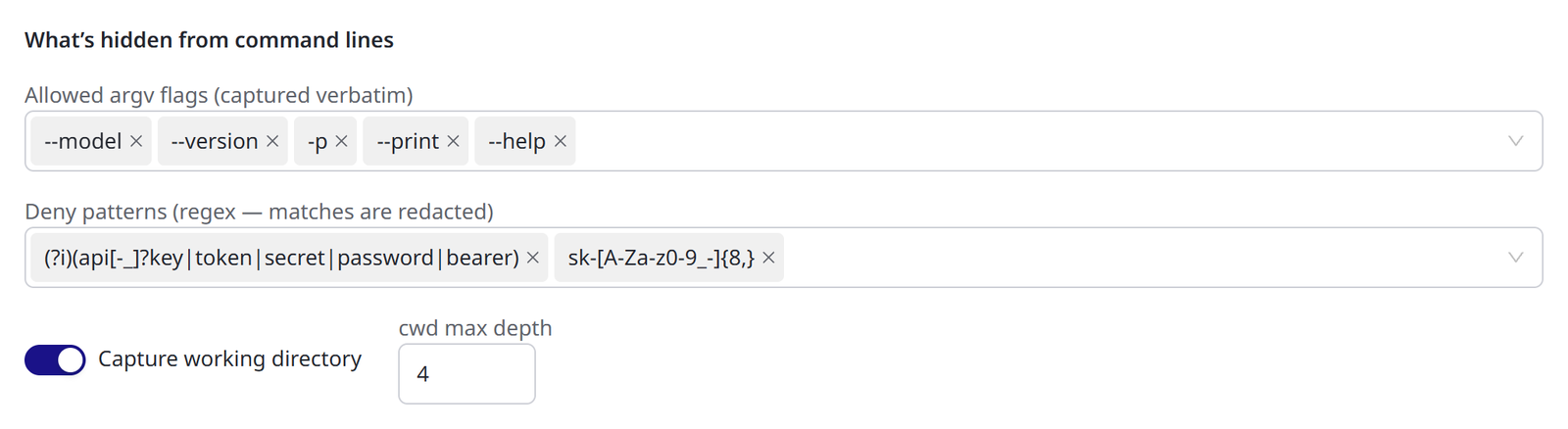
The What's hidden from command lines settings are:
- Allowed argv flags (captured verbatim) lists command-line flags worth keeping exactly as typed, such as
--modelor--version. An allowed flag is exempt from the deny patterns. The exemption covers the flag itself, not the value that follows it. - Deny patterns (regex — matches are redacted) are regular expressions that mask anything they match. They are a safeguard against secrets slipping through in an argument, such as values that look like API keys, tokens or passwords. Matches are replaced with
***. The editor rejects a pattern that is not a valid regular expression. - Capture working directory sets whether to record the folder the agent was run from. cwd max depth sets how many folder levels to keep. A depth of
4reports/Users/jdoe/project/srcfor an agent run deep inside that tree.
Each argument is handled in turn:
- An argument on the allowed list is kept as is.
- Otherwise, every deny pattern is applied to it, and matches are masked.
- An argument that matches neither list is kept unchanged.
The gateway reapplies your deny patterns to every report it receives, as a backstop. A value that matches a deny pattern is masked before it is stored, even if a desktop missed it.
Save or Reset
Click Save to publish your changes. Each save produces a new version of the list. A desktop checking in receives the new version, and an unchanged list costs it nothing. Desktops pick up changes on their next check. Click Cancel to close the panel without saving.
Reset to HYPR default… discards your organization's list and returns you to the HYPR default list. Use it when you want to stop maintaining your own list. Confirm with Yes, reset to default, or click No, keep my changes. Your organization uses the default immediately, and desktops pick it up on their next check.
Compare Your List With the Default
When your organization has its own list, the panel also shows View HYPR default. It opens the HYPR default watch list, the list organizations without their own list use. It shows each default agent in match order, with its process names, executable names and app or bundle IDs. Expand View as JSON to see the complete default.
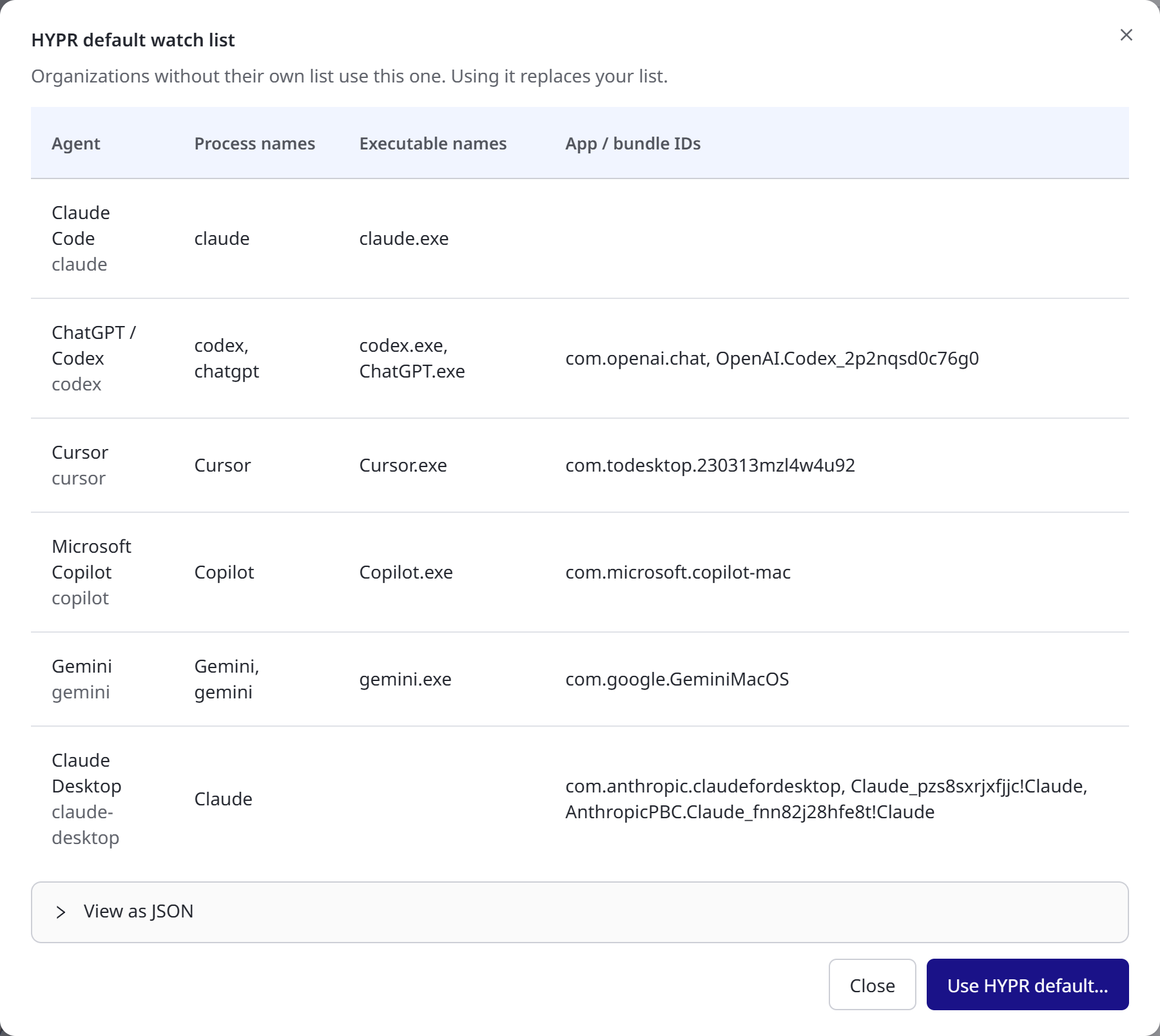
To switch to the default, click Use HYPR default…, and confirm with Yes, reset to default. Using it replaces your list. To keep your list, click Close.
Related
- Enrolling Desktops — the Watch desktops switch, enrollment tokens and revoking desktops
- Platform: Observation — the default list your organization inherits
- Endpoint Guard — how desktops apply the list and recognize agents