Egress Enforcement
Overview
Routing sends an agent's model traffic through the gateway. Egress enforcement makes sure it cannot go anywhere else.
For each configured agent, you can block its direct traffic to the provider hosts it would otherwise reach. Its model traffic then has to go through the gateway, where it is attributed and governed. The gateway holds the intent, and each desktop applies the block with the network controls it already has.
Configuring egress enforcement needs Settings: Edit, which Admin has. With Settings: View, which Operator and Auditor also have, you see it read-only.
Block Direct Traffic Per Agent
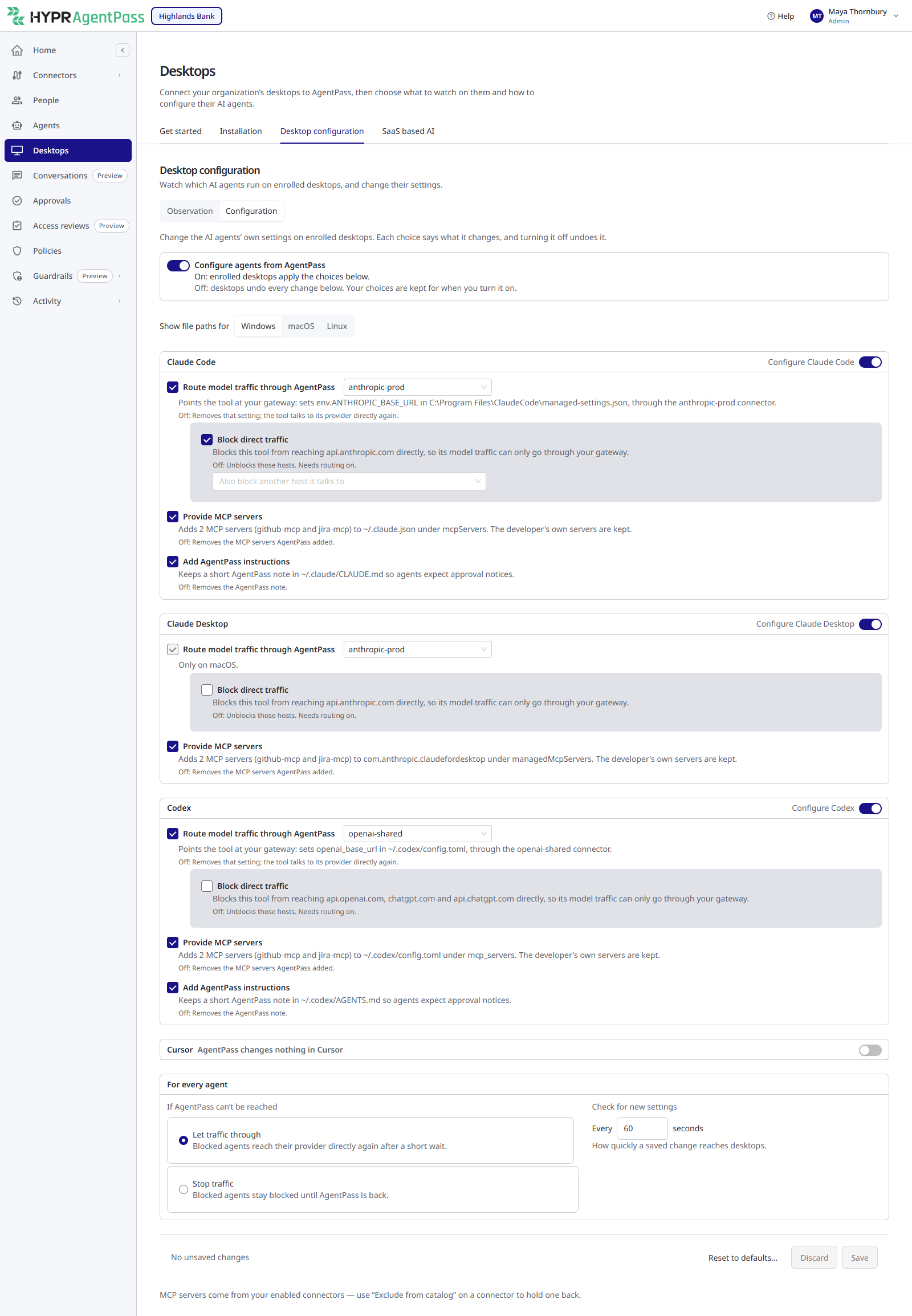
Enforcement is set per agent, with the Block direct traffic checkbox on the agent's card.
- Open Desktops → Desktop configuration, and choose Configuration.
- On the agent's card, tick Block direct traffic. For an agent that can route, it sits inside Route model traffic through AgentPass, which must be ticked first.
- Click Save to publish the change.
The sentence beside the checkbox names the hosts it blocks, such as api.anthropic.com for Claude Code. With the checkbox clear, the agent's direct traffic is left alone.
On macOS, the block is scoped to the agent. The endpoint client identifies the agent by its code-signing identity. Other applications on the desktop, including browsers, are untouched. The provider's sign-in endpoints stay reachable, so the agent can still authenticate. A routed Claude Desktop can also still download Claude Code and check for updates.
On Windows, the block applies to every process on the desktop, browsers included. It covers HTTP/3 traffic as well. While Claude Code, Codex or a routed Claude Desktop is not signed in, the block pauses for that agent until sign-in completes, and routing stays in place. Users can therefore sign in while enforcement is on.
On macOS, the endpoint client takes the agent's identity from its code-signing identifiers in your Observation list. An agent with no identity in the list is never blocked device-wide. Instead, the desktop declines to apply the block, and reports it as failed with the reason no process identity for this tool in the observation manifest. Keep each enforced agent, with its code-signing identifiers, in the list so its block stays scoped.
Blocking an agent's direct traffic before it is routed through the gateway leaves it with no path to its provider. That is why Block direct traffic needs routing on for an agent that can route. The endpoint client also applies the two in a safe order: it installs an agent's block only after it confirms the agent's route to the gateway. See Routing and Observation.
Block-Host Lists
Each agent has a list of provider hostnames that enforcement blocks. Hosts match by name, including subdomains. The list combines two sources:
- HYPR defaults. A baseline list per agent, which every organization inherits, so it starts with sensible coverage. For example,
api.anthropic.comfor Claude Code, andapi.openai.comandchatgpt.comfor Codex. - Your additions. Extra hostnames for your organization, merged on top of the HYPR defaults. To add one, tick Block direct traffic, type the host in the Also block another host it talks to field beneath it, and press Enter, a comma or a space.
Your additions extend the HYPR defaults, and never remove them. They also show in the agent's Talks to column on Observation. The list is maintained as data, so the hosts an agent blocks can be extended as providers change, without a desktop update.
Outage Behavior
On the For every agent card, If AgentPass can't be reached decides what a desktop does with an agent's block when it cannot reach the gateway:
- Let traffic through (the default). The agent keeps working. During a grace period, the desktop keeps the agent's last known-good routing and its block, so a short interruption releases nothing. After the grace period, it releases the block and withdraws the agent's routing, so the agent reaches its provider directly and the developer can keep working. When the gateway answers again, the desktop routes and blocks the agent again.
- Stop traffic. The agent stays blocked and does not fall back to direct traffic. Model traffic cannot leave your organization ungoverned, even during an outage. Choose this as a deliberate lockdown.
A desktop's own settings name these choices Fail open and Fail closed.
Windows desktops keep their last configuration while the gateway is unreachable, the same as Stop traffic, whatever you choose here.
Outage behavior is an organization-wide default. You can override it for one desktop while troubleshooting. See Managed Desktops. For how each operating system's endpoint client applies it, see Platform Support. For the grace period and what a Mac keeps during an outage, see Endpoint Guard for macOS.
Confirm Enforcement Is Effective
Each desktop reports the state of every agent's block. Read it in the desktop's Managed configuration, on the By desktop tab of Activity → Desktop activity. See Managed Desktops.
| State | Meaning |
|---|---|
| Applied | The desktop's network filter holds the block |
| Off | Blocking is off for that agent |
| Off on this desktop | Blocking is turned off in that desktop's own settings |
| Failed | The desktop could not apply the block. A reason is shown |
On Windows, a block paused for a sign-in shows a reason ending in deferring, such as tool is not yet authenticated — deferring. This includes claude-desktop.
Turning off blocking for one desktop, from its own settings, removes that desktop's blocks without changing your organization-wide setting.
Related
- Routing and Observation — route an agent before you enforce its egress
- Platform: Configuration — the default block-host lists your organization inherits
- Managed Desktops — relax blocking or outage behavior for a single desktop