Agent Configuration
Overview
Configuration is where HYPR AgentPass™ changes the AI agents' own settings on your enrolled desktops. You turn configuration on for your organization, choose which agents AgentPass configures, and choose what it changes in each one. Each choice says what it changes, and turning it off undoes it. This was earlier called managed mode, in the Desktop Tools view.
You find it on Desktops → Desktop configuration → Configuration. Configuration stays off until you turn it on here.
Opening Configuration needs Settings: View, which Admin, Operator and Auditor have. Changing anything in it needs Settings: Edit, which Admin has, so other roles see it read-only.
Before You Begin
Agent configuration uses the same enrolled desktops and signed channel as Agents Observation. Have these in place first:
- Watch desktops is on. Desktops fetch their configuration over the same channel. While Watch desktops is off, the gateway turns enrolled desktops away, and they receive no configuration. It is on by default. See Watch Desktops.
- Your desktops are enrolled. A desktop that has not enrolled receives nothing, so configuration has no effect on it until it enrolls. See Enrollment Tokens.
- Your organization's gateway address is configured. Routing and MCP provisioning give each agent your organization's public gateway address. Confirm with your HYPR representative that it is set for your organization. While it is missing, routing reads Set the gateway's public address first (Gateway settings).
- A provider connector exists for each agent you want to route. Claude Code and Claude Desktop route through an Anthropic connector, and Codex through an OpenAI connector. Without one, routing reads Add an Anthropic connector first. or Add an OpenAI connector first., and the agent's other capabilities still apply. See Connectors.
Open Agent Configuration
In the console, open Desktops, click the Desktop configuration tab, and choose Configuration. From top to bottom, the view holds:
- The Configure agents from AgentPass switch
- Show file paths for, which picks the operating system whose file paths the descriptions name: Windows, macOS or Linux
- One card per agent
- The For every agent card
- The save bar, with Reset to defaults…, Discard and Save
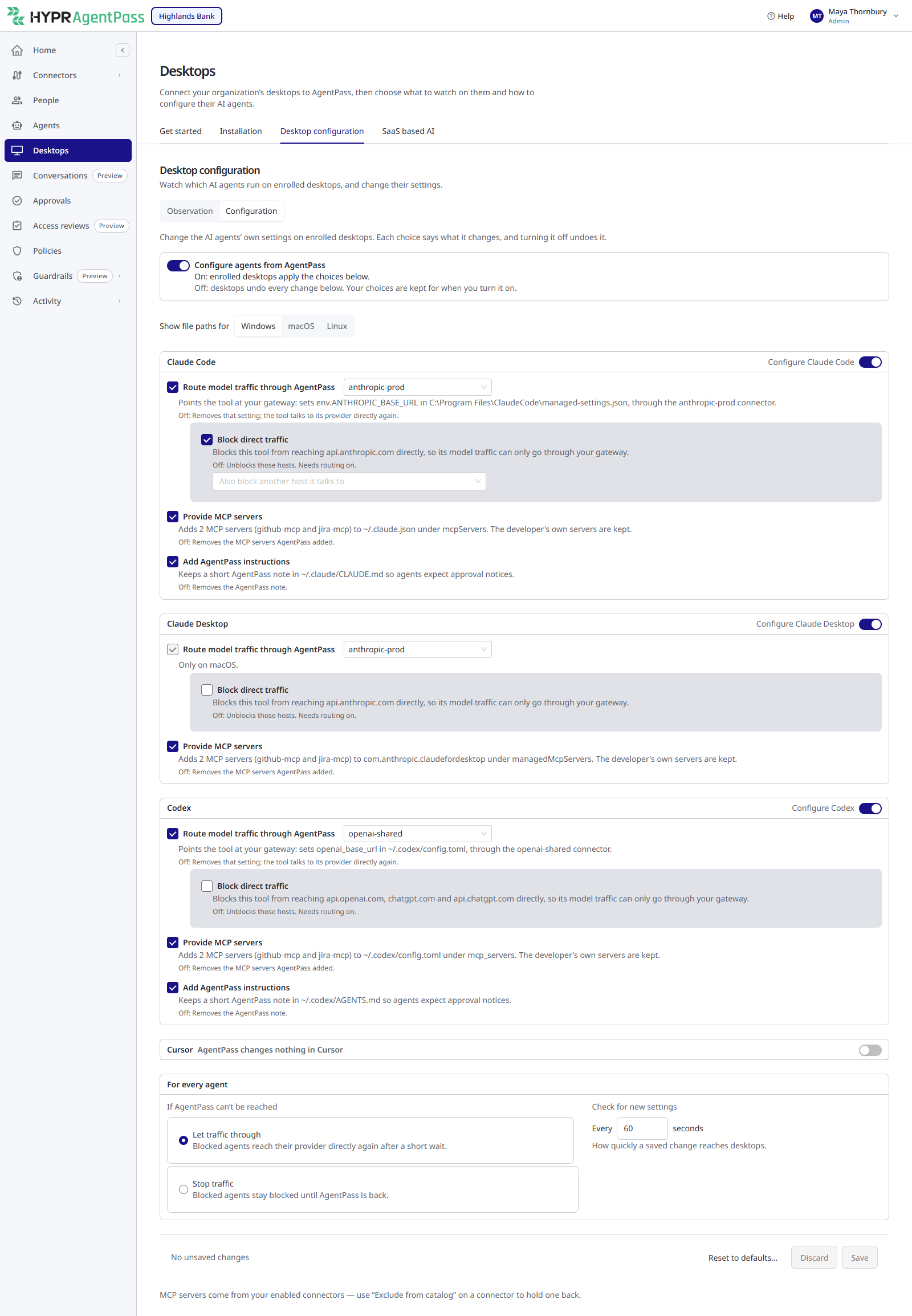
Turn On Configure Agents From AgentPass
The Configure agents from AgentPass switch is your organization-wide on and off switch. It takes effect immediately, without Save.
- Click the Configure agents from AgentPass switch. The Configure agents from AgentPass? dialog lists the agents whose settings change.
- Click Turn on.
On its next check, each enrolled desktop applies your choices. Settings a developer added themselves are kept.
While the switch is off, enrolled desktops receive a configuration that leaves their agents alone, so nothing changes on a developer's machine.
What Your First Provider Connector Turns On
When an administrator adds your organization's first enabled connector for a provider in the console, AgentPass turns on that provider's tools here:
| Connector | Tools turned on |
|---|---|
| Anthropic | Claude Code and Claude Desktop |
| OpenAI | Codex |
Each tool gets every capability it offers, with Block direct traffic not ticked. If the Configure agents from AgentPass switch has never been set, AgentPass turns it on too.
- This happens only for the first connector of a provider. A later connector changes nothing, so a tool you turned off stays off.
- If an administrator turned the switch off, AgentPass leaves it off, and turns on no tools.
- The person adding the connector needs Settings: Edit, which Admin has. For anyone else, the connector is added and nothing here changes.
To turn it off, click the switch, then Stop configuring. On their next check, enrolled desktops undo every change AgentPass made to the agents. They also stop sending model traffic through AgentPass where routing was on, and remove their blocks. Your choices are kept for when you turn it back on. For per-desktop controls that stop short of this, see Managed Desktops.
Choose the Agents and Capabilities
Each agent has its own card. An agent AgentPass does not configure folds to one line, AgentPass changes nothing in followed by the agent's name.
- On the agent's card, turn on Configure followed by the agent's name, such as Configure Claude Code. Every capability the agent supports is ticked, except Block direct traffic.
- Untick any capability you do not want AgentPass to apply.
- Click Save.
Each capability is a checkbox, with a sentence that says what it changes on the desktop for the operating system you picked. A second line, starting Off:, says what turning it off undoes.
| Capability | What it does | See |
|---|---|---|
| Route model traffic through AgentPass | Points the agent's model traffic at your gateway. Pick the connector beside it | Routing and Observation |
| Provide MCP servers | Adds your enabled connectors to the agent as MCP servers. The developer's own servers are kept | Provisioning MCP Tools |
| Report activity through the tool's hooks | Adds AgentPass activity hooks to the agent's hooks file. The developer's own hooks are kept | Routing and Observation |
| Add AgentPass instructions | Keeps a short AgentPass note in the agent's instructions file, so agents expect approval notices. Click Preview note to read it | — |
| Block direct traffic | Blocks the agent from reaching its provider's hosts directly, so its model traffic can only go through your gateway | Egress Enforcement |
For an agent that can route, Block direct traffic sits inside routing, because it needs routing on. Unticking routing also unticks the block.
Agents support these capabilities:
| Agent | Provider | Capabilities |
|---|---|---|
| Claude Code | Anthropic | route, mcp, instructions, enforce |
| Claude Desktop | Anthropic | route, mcp, enforce |
| Codex | OpenAI | route, mcp, instructions, enforce |
| Cursor | — | mcp, hooks, enforce |
A capability the agent cannot use where you are says why, in place of its sentence. For example, Only on macOS. or Not supported by this tool.
Turn a Capability or an Agent Off
Untick a saved capability, and the card shows what your save will undo, starting When you save:. Turn an agent's switch off, and its card says that desktops remove what AgentPass added to it when you save.
Desktops then remove only what AgentPass added for that capability or agent. The developer's own settings stay. On macOS, a routing address the developer had set before AgentPass changed it is put back.
Settings for Every Agent
The For every agent card holds two organization-wide settings:
- If AgentPass can't be reached is Let traffic through (the default) or Stop traffic. It decides what a desktop does with an agent's block when it cannot reach the gateway. With Let traffic through, blocked agents reach their provider directly again after a short wait. With Stop traffic, they stay blocked until AgentPass is back. See Outage Behavior.
- Check for new settings every N seconds sets how often each enrolled desktop checks for configuration, from 10 to 3600 seconds. The default is 60. A shorter interval gets your changes to desktops sooner. A longer one reduces traffic on large fleets.
Save, Discard or Reset
The save bar counts your unsaved changes. Click Save to publish them. Every enrolled desktop picks them up on its next check. Click Discard to drop unsaved changes.
Reset to defaults… discards your choices for every agent, saved or not, and returns your organization to the HYPR defaults it inherits. Confirm with Reset, or click Keep my choices.
Capability Awareness
Each desktop advertises, when it enrolls, what it can apply on its operating system. The gateway sends an agent only what the agent supports, what the desktop can apply and what you ticked.
Claude Desktop configuration, and Claude and Codex channels, apply on macOS desktops only.
A capability the desktop cannot apply is not sent, and does not count as a failure. In the desktop's Managed configuration, its state reads Not in this client version, not Failed. For what each operating system's endpoint client applies, see Platform Support.
Related
- Routing and Observation — choose the provider connector to route through, or observe agents that cannot route
- Egress Enforcement — block direct traffic to provider hosts
- Managed Desktops — see what each desktop applied, and change one desktop's settings