Managed Desktops
Overview
Each enrolled desktop reports what it applied, per agent and per capability. HYPR AgentPass™ therefore shows the real state on the machine, not only the configuration you intended. You can also change one desktop's settings without changing your organization-wide settings. Use both to confirm the fleet is in the state you intend, and to troubleshoot one machine.
- What a desktop applied is on Activity → Desktop activity. On the By desktop tab, open the desktop, and read its Managed configuration section.
- One desktop's settings are on Desktops → Installation. Open the desktops of the token it enrolled with, and click Manage. The desktop's Desktop activity panel also links there, with Manage in Desktops ›.
Reading a desktop's managed configuration, and opening its settings, needs permission to view settings. Changing a desktop's settings needs permission to edit settings.
Read What a Desktop Applied
The Managed configuration section lists each agent AgentPass configures on the desktop, with a count such as 2 of 3 applied. Beneath it, each capability shows its state. A capability that did not apply carries a short reason.
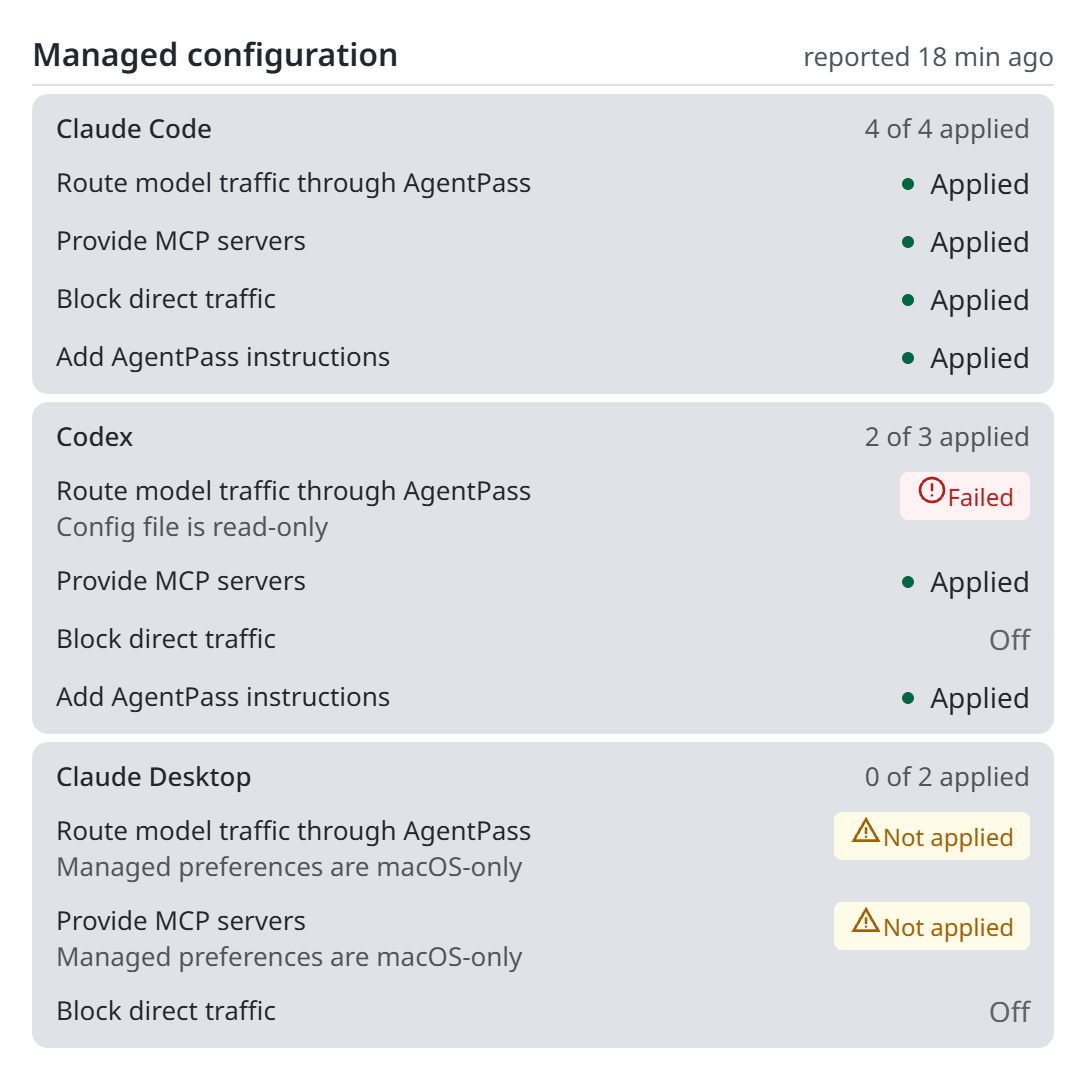
Each capability is in one of these states:
| State | Meaning |
|---|---|
| Applied | The desktop applied the capability. For Block direct traffic, the desktop's network filter holds the block |
| Failed | The desktop could not apply the capability. The reason is shown with it |
| Not applied | The desktop received the capability, but did not apply it. The reason is shown with it |
| Waiting for the desktop | The desktop received the capability, and has not reported on it yet |
| Off | You did not tick this capability. For Block direct traffic, blocking is off for this agent |
| Off on this desktop | Blocking is turned off in this desktop's own settings |
| Not in this client version | The desktop's client cannot apply this capability. This is expected, not a problem |
| No connector to route to | Your organization has no enabled connector for the agent's provider |
| No gateway address set | Your organization's public gateway address is not set |
The section also says when:
- The configuration changed after the desktop's last report. The desktop picks it up at its next check-in.
- Configuration is off for this desktop, so nothing is sent to it.
- An agent is no longer configured, and reverts at the next check-in.
Tags at the top show this desktop's own settings: configuration off, blocking off, outage: fail open, outage: fail closed or restore pending.
Focus troubleshooting on Failed results. First check for an agent the developer has not signed in to yet. The endpoint client defers routing until the agent is signed in, so pointing it at the gateway never breaks its sign-in. Its reason then reads tool is not yet authenticated — deferring, and the client applies the routing on a later check-in.
Change One Desktop's Settings
A desktop's own settings override your organization-wide settings for that one desktop. Use them to troubleshoot without relaxing anything for the rest of the fleet.
- In Desktops → Installation, click the count in the Desktops column of the token the desktop enrolled with.
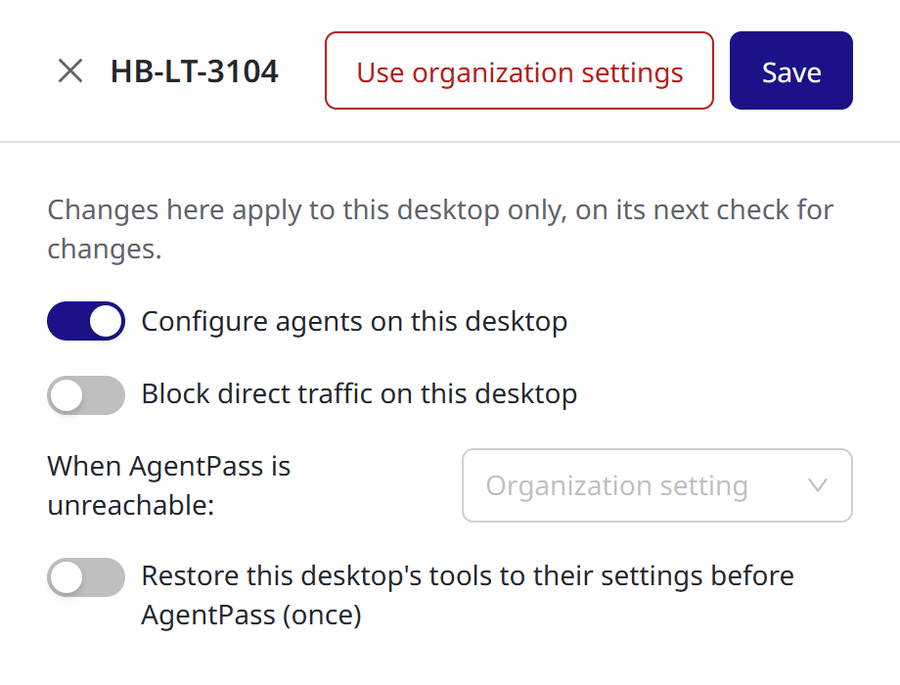
- Click Manage on the desktop. A panel opens, titled with the desktop's name.
- Set the controls described in the following list.
- Click Save. The changes take effect on the desktop's next check for changes.
The controls are:
- Configure agents on this desktop. Turn it off to return that desktop's agents to their previous state, without turning configuration off for anyone else. The desktop then carries the configuration off tag.
- Block direct traffic on this desktop. Turn it off to stop blocking the desktop's direct traffic, while its agents stay routed and provisioned. It is a quick way to rule blocking out during troubleshooting.
- When AgentPass is unreachable. Choose Fail open or Fail closed for this desktop alone, for example to relax a fail-closed desktop while you investigate. Leave it on Organization setting to follow your organization-wide setting.
- Restore this desktop's tools to their settings before AgentPass (once). Returns the desktop's agents to their settings from before AgentPass configured them. A Mac backed up each agent's original settings before its first change, and puts back the original files. A Windows desktop recorded each value it changed, and puts back the earlier values. Either way, restore works even when the current configuration is the problem. After the desktop restores its agents, turn the switch back off. Until you do, the request stays in effect and is sent again on every check-in.
Use organization settings clears every one of this desktop's own settings, so it follows your organization-wide settings again.
Use organization settings clears the desktop's own settings as soon as you click it, with no confirmation step.
Turning off Configure agents on this desktop removes only what AgentPass added: the routing settings, the provisioned MCP servers and the hooks. The developer's own changes stay in place. Restore this desktop's tools to their settings before AgentPass (once) puts back their settings from before AgentPass. On a Mac, it puts back the original files in full, including reverting edits the developer made since. Use restore when an agent's configuration is broken and you want it exactly as it was.
Turn Configuration Off for Everyone
To stop configuring agents across your whole organization at once, turn off Configure agents from AgentPass in Agent Configuration. Every desktop stands down on its next check. It removes its blocks and returns its agents to their previous state. To act on one machine instead of the whole fleet, use that desktop's own settings.
Audit Trail
The ingest-activity log records these changes, with the administrator who made them:
- Turning Configure agents from AgentPass on or off
- Changing one desktop's settings
See Read the Ingest-Activity Log.
Related
- Agent Configuration — the organization-wide switch and choices
- Egress Enforcement — the organization-wide blocking and outage defaults these settings override
- Enrolling Desktops — enroll and revoke the desktops listed here
- Desktop Activity — what each desktop reports