Endpoint Guard for macOS
Endpoint Guard for macOS reports AI tool activity and applies your Managed Desktop Tools configuration. It also connects managed Claude Code and Codex sessions to supervisors. It runs in the signed-in user's session, so it can safely merge settings in that user's home folder.
On the Mac, Endpoint Guard installs as AgentPass. The application is AgentPass.app, and its components appear under that name in System Settings.
Before You Begin
You need:
- macOS 13 or later
- Outbound HTTPS from the Mac to your organization's gateway address. Endpoint Guard opens no listening ports
- An enrollment token from the AgentPass console
A Mac with a Secure Enclave keeps its workstation signing key there. Other Macs keep the key in the keychain, bound to that Mac.
Install Endpoint Guard
Choose the installation method that matches your deployment:
- Endpoint Guard installer package. The installer asks for the gateway address and enrollment token, and configures the user who installs it. Your device-management tooling can run it with no user interface.
- HYPR Passwordless for Mac package. The installer carries Endpoint Guard and registers it to start at login.
- AgentPass disk image. Open the disk image, and drag AgentPass onto the Applications folder beside it. Then open AgentPass from
/Applications, configure enrollment and complete the setup approvals.
Endpoint Guard runs from /Applications only. Open it from there, not from the disk image or your Downloads folder.
Install on One Mac
Download the installer package from Desktops → Installation in the console, which offers a download for each platform your gateway has installers for. The download is a zip that holds the installer. When the tab reads Installers aren’t available right now, get the package from your HYPR representative. It is named for its version, such as AgentPass-<version>.pkg, and its window is titled Endpoint Guard for macOS. Whoever installs needs an administrator's name and password, the gateway address and the enrollment token.
- Double-click the installer package. It opens at the Configuration step.
- In AgentPass server, enter the gateway address. It starts with
https://. - In Enrollment token, paste the token. It starts with
ssf_. - Select I agree to the End User License Agreement, and click Continue.
- Click Install, and enter an administrator's name and password when macOS asks.
When it finishes, the installer writes the gateway address and token to the user's configuration file, and opens AgentPass. The AgentPass Setup window then asks for the macOS approvals.
The installer checks only that the gateway address starts with https://, and that the token looks like an enrollment token. It does not contact the gateway. A Mac with a mistyped or removed token installs normally, then keeps trying to enroll and never appears in the console. Confirm every Mac afterwards. See Confirm the Installation.
Install From a Deployment Tool
To install with no user interface, from your device-management tooling or from Terminal, place a config.json file with the enrollment details beside the installer package. The file has the same contents as the user's configuration file, and needs both the gateway address and the token.
sudo installer -pkg AgentPass-<version>.pkg -target /
The installer copies the file into the signed-in user's ~/.hypr folder, and opens AgentPass in that user's session. It uses the file only if the file and every folder above it belong to root or to the signed-in user, and no other user can change them. A device-management staging folder, or the user's own Downloads folder, qualifies. Otherwise, the installer ignores the file, and says so in the installation log, /var/log/install.log.
Without a config.json beside the package, the installer leaves an existing configuration file as it is. If no user is signed in, there is no user to configure, so provision the configuration file separately.
The token is in the config.json file you deploy, so treat the deployment like a credential. Limit who can read it, and do not reuse a token outside the intended organization. If a token is exposed, remove it in the console and create a new one. Workstations that already enrolled keep reporting.
Update Endpoint Guard
Endpoint Guard updates itself from your gateway. It checks every hour, and installs a newer version once your gateway offers one.
- It downloads the update only from your gateway.
- Before it installs, it confirms that the installer is signed by HYPR and notarized by Apple, and that the version is newer than the one installed.
- The update runs in the background, and needs no administrator password. The network filter is replaced with the app, and macOS does not ask you to allow it again.
- It waits while an Endpoint Guard prompt is on the screen.
ap-cli status shows the last check, and what it found, under Updates.
You can still install a newer version yourself, by hand or through your device-management tooling.
To update an installation from the installer package, run the newer installer package. It stops the running AgentPass and replaces it. On a configured Mac, AgentPass server shows the current gateway address, and leaving Enrollment token empty keeps the current token. Select I agree to the End User License Agreement again to continue. The workstation keeps its enrollment.
To update a disk-image installation:
- In the disk image window, open Quit AgentPass. The running components stop.
- Drag AgentPass onto Applications, and choose Replace.
The network filter keeps working throughout an update.
Configure Enrollment
The installer package writes this file for the user who installs Endpoint Guard. For a disk-image installation, write the gateway address and enrollment token to the signed-in user's configuration file. Your device-management tooling can provision this file before or after Endpoint Guard starts.
{
  "gatewayBaseURL": "https://<your-gateway-url>",
  "ssfEnrollmentToken": "<enrollment token>"
}
Restrict the file to the user with mode 600. Alternatively, place the token in ~/.hypr/ssf-enrollment-token. If both carry a token, the token in ~/.hypr/ssf-enrollment-token is used. The installer package removes that file, so the token you enter in the installer is the one in force.
Endpoint Guard reads the configuration file every 30 seconds, so nothing needs restarting after you change it. It checks for a newly delivered token every five minutes. Without an https:// gateway address, the Mac contacts no gateway, and the AgentPass menu shows Not set up — ask your administrator.
Changing the gateway address enrolls the Mac at the new gateway as a new device, which needs an enrollment token from that gateway. The old device stays listed in the old gateway's console.
After enrollment, the workstation authenticates with its signing key and keeps its identity across restarts. Keep an active enrollment token available through your device-management tooling, so the workstation can re-enroll after a capability update. If you remove the token a deployment uses, deliver a replacement token to those workstations.
Approve the macOS Components
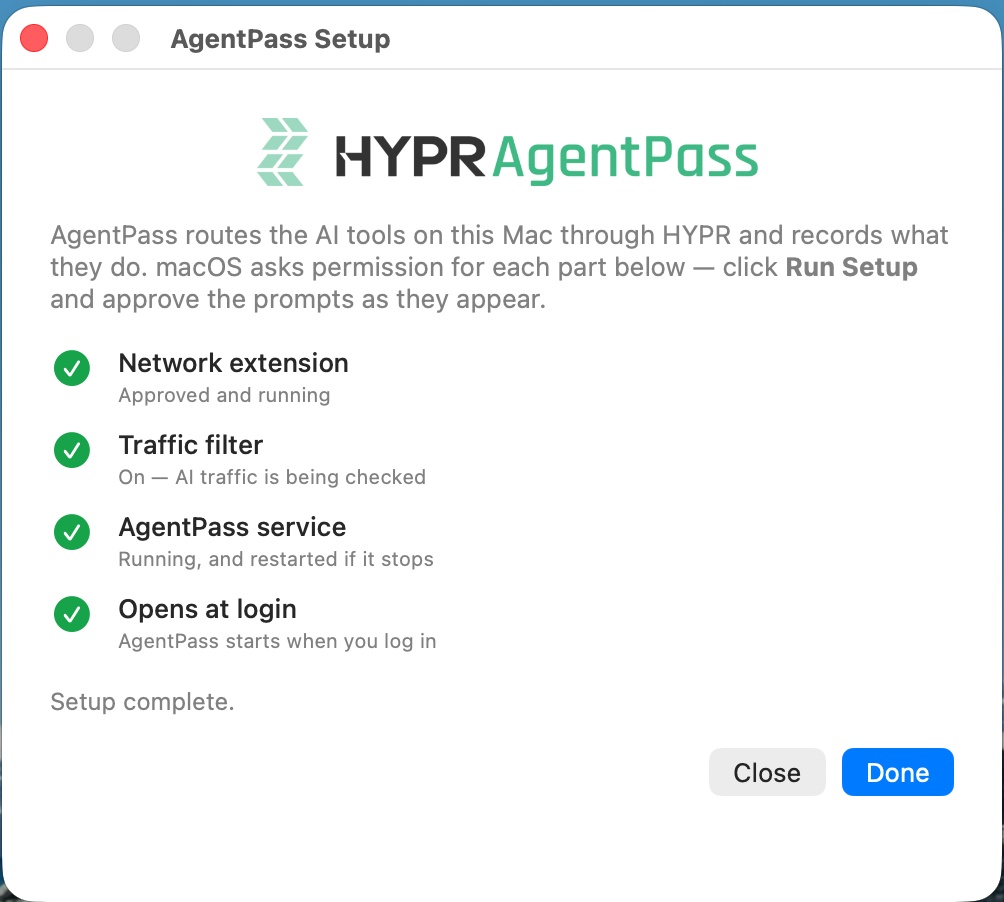
The installer package opens the AgentPass Setup window when it finishes. After a disk-image installation, the window opens when you first open AgentPass from /Applications. To open it again later, choose Run Setup… from the AgentPass menu.
- In the AgentPass Setup window, click Run Setup.
- Approve each macOS prompt. The setup window confirms each component as it becomes ready.
The setup window lists these components.
| Setup window | Purpose | Approval |
|---|---|---|
| Network extension | Runs the Endpoint Guard network extension | Allow the system extension when macOS asks |
| Traffic filter | Attributes network connections and enforces configured egress controls | Allow AgentPass to filter network content |
| AgentPass service | Enrolls the Mac, discovers AI tools and applies managed configuration. Restarts automatically if it stops | None |
| Opens at login | Opens the AgentPass menu bar app at login | None |
| Full Disk Access | Optional. Lets the network extension's Endpoint Security client report each AI tool the moment it starts or exits | Turn on the AgentPass extension under Privacy & Security → Full Disk Access, or grant it from your MDM |
Full Disk Access is optional. With it, Endpoint Guard sees each AI tool start and exit as it happens. Without it, Endpoint Guard looks for AI tools every 15 seconds, which can miss one that runs for less than that. Nothing else depends on it, and Setup never waits for it. The Full Disk Access row appears once the network extension runs. Open Full Disk Access opens the list, where the extension appears as soon as it has asked. Turned on later, it is used within a minute, without a restart. The entry to turn on is the extension, com.hypr.HyprPasswordless.AgentPass.systemextension. An AgentPass entry in the same list is the menu bar app, which does not need it. ap-cli status says which of the two ways is in use.
Endpoint Guard asks for no notification permission.
Approve From Your MDM
On a Mac you manage, grant the approvals from your MDM, so the user sees no prompt for them. Both payloads must come from the MDM the Mac is enrolled in. A profile installed by hand cannot grant either.
| Approval | Payload | Settings |
|---|---|---|
| The system extension | System Extensions (com.apple.system-extension-policy) | AllowedSystemExtensions: team 85XQ42NB2J, com.hypr.HyprPasswordless.AgentPass. A policy that also limits AllowedSystemExtensionTypes must allow both NetworkExtension and EndpointSecurityExtension for the team |
| Full Disk Access | Privacy Preferences Policy Control (com.apple.TCC.configuration-profile-policy) | SystemPolicyAllFiles, with Identifier com.hypr.HyprPasswordless.AgentPass, IdentifierType bundleID, Authorization Allow, and the code requirement below |
identifier "com.hypr.HyprPasswordless.AgentPass" and anchor apple generic and certificate 1[field.1.2.840.113635.100.6.2.6] and certificate leaf[field.1.2.840.113635.100.6.1.13] and certificate leaf[subject.OU] = "85XQ42NB2J"
Without the Full Disk Access payload, a managed Mac works as one whose user has not turned it on.
The AgentPass icon in the menu bar confirms the user interface is running. Its menu offers About AgentPass, Run Setup… and Share Diagnostics…. About AgentPass opens a window with the AgentPass and network filter versions, the gateway and the device ID. Copy Details copies them for a support request. Hold ⌥ (Option) while the menu is open to add Share Logs… and Trace…, as macOS does for its own menu bar items. Share Diagnostics… saves the ap-cli status report, and Share Logs… saves the last two hours of Endpoint Guard logs, each as a text file to attach to a support request. Neither file holds tokens or keys. When something needs attention, the icon carries a badge, and the menu lists the problem at the top, with what AgentPass does next. See Troubleshoot a Mac. You manage everything else from the AgentPass console.

Confirm the Installation
Confirm the installed components in System Settings:
-
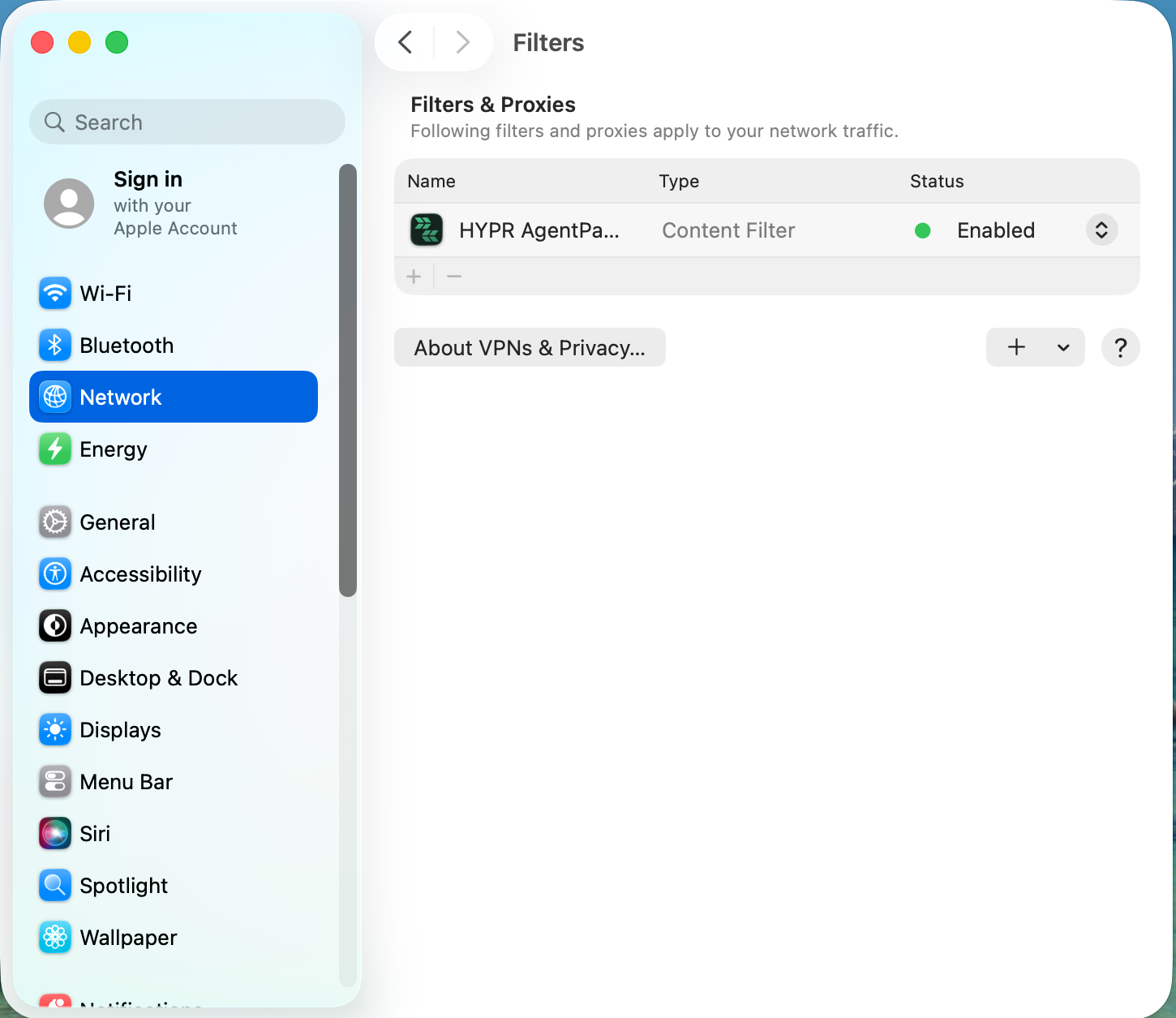
Network → Filters lists HYPR AgentPass as an enabled content filter.
-
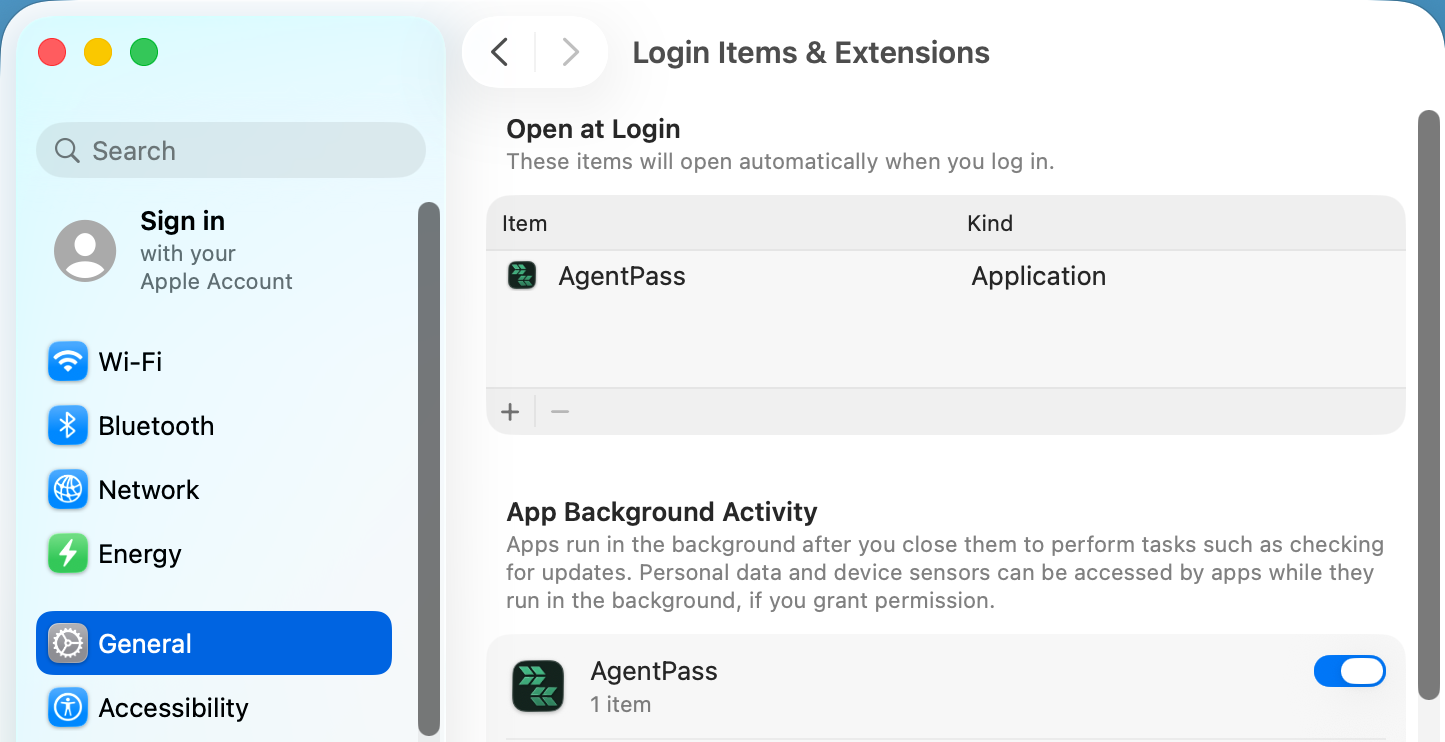
General → Login Items & Extensions lists AgentPass under Open at Login and App Background Activity.
-
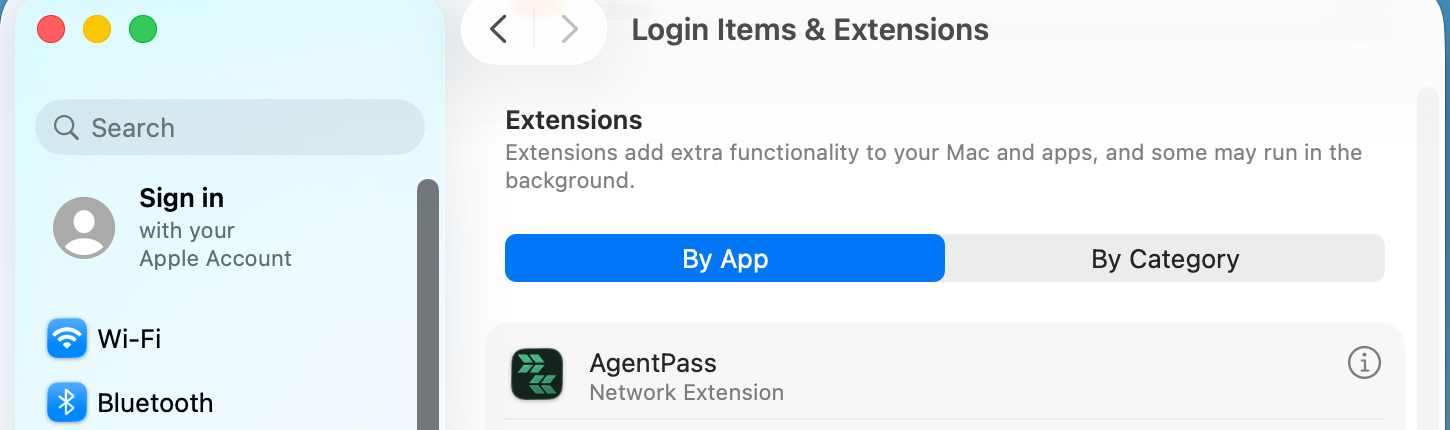
General → Login Items & Extensions lists the AgentPass extension under Endpoint Security Extensions. It is the network extension, which also watches for AI tools starting, so macOS files it there and not under Network Extensions.
After enrollment, the Mac is counted under its enrollment token on Desktops → Installation. See Review and Revoke Desktops. It is also listed on the By desktop tab of Activity → Desktop activity, with the matching tool activity it sends. See Desktop Activity.
Check a Workstation with ap-cli
Endpoint Guard includes ap-cli, a command-line tool that reports the state of a workstation. Its reporting commands only read state. They are safe to run on any Mac, including from a device-management check script.
/Applications/AgentPass.app/Contents/Helpers/ap-cli status
ap-cli status exits with 0 when the workstation is healthy, and 2 when it finds a problem. It ends with findings that explain each problem. The report has these sections.
| Section | What it answers |
|---|---|
| AgentPass | Which version is installed, and whether the network extension is active with a filter configuration that belongs to Endpoint Guard |
| Gateway | Which gateway address is in force and where it came from, whether the gateway answers, and whether an enrollment token is present |
| Enrollment | Whether the workstation is enrolled, and which version of the managed configuration it applied |
| Network filter | Whether the filter is enforcing or observing, and what it does when the gateway is unreachable. Also the hosts blocked for each tool, with the code-signing identities each block is scoped to |
| Agents | For each AI tool: whether it is installed and signed in, whether its inference is routed through the gateway, whether its egress is enforced, and which MCP servers its configuration carries |
ap-cli has these other commands.
| Command | Purpose |
|---|---|
ap-cli status --json | The same report as JSON, to attach to a support request or read from a script |
ap-cli version | The installed and active versions of the application and the network extension |
sudo ap-cli logs brain --last 2h | Recent log entries from the service that applies managed configuration |
ap-cli reenroll | Enrolls a revoked workstation again, as a new device. See When a Workstation Is Revoked |
ap-cli trace | What Endpoint Guard recorded of what it did and why. See Trace What AgentPass Did |
Run the copy of ap-cli inside AgentPass.app. The service answers only that copy.
Trace What AgentPass Did
The trace answers why AgentPass did something. Each Endpoint Guard component records what it did and decided, on this Mac only, with credentials redacted.
| Component | What it records |
|---|---|
| The service that applies managed configuration | Its calls to the gateway, the AI tools it saw start and stop, its channels' runs and updates, and its state as ap-cli status shows it |
| The network filter | Its blocks, the connections it refused unread, the AI tools Endpoint Security saw start and exit, and its policy |
| The menu bar app | When the Mac slept, woke, locked, turned its display off or ran its screensaver, so a gap in the trace explains itself |
| Every component | Its log lines, and its health: what is wrong, and when it was found and resolved |
The service's and the menu bar app's traces are in ~/.hypr/trace. The network filter's is in /Library/Application Support/HYPR/AgentPass/Trace, readable by administrators only.
The flight recorder always keeps the last 30 minutes. To keep more while you reproduce a problem, start a full trace. It also records the programs AI tools start, for up to a day:
sudo /Applications/AgentPass.app/Contents/Helpers/ap-cli trace start --for 30m
--for takes a length such as 90s, 30m or 2h. What a full trace records is kept for a day after it ends. sudo ap-cli trace stop ends it early.
Read the Trace
Hold ⌥ (Option) while the AgentPass menu is open, and choose Trace….
- The strip at the top says whether AgentPass is healthy, or how many problems it has. It shows how the service, the network filter, Endpoint Security, the gateway, the enrollment, the profile and manifest, and the Claude and Codex channels are. A channel shows starting with its version until the gateway gives it a session, then running. Click one to see the event that last changed it.
- The timeline shows each component on its own line. A problem is a band from when it was found until it was resolved. The timeline is shaded while the Mac was asleep, locked, had its display off or ran its screensaver.
- Click an event to see what it means, what AgentPass did about it, what you can do, and what was recorded just before and after it. Click the timeline to see each component's state at that moment.
- Problems shows only what went wrong. Live follows new events as they are recorded.
- Full trace copies the commands that start and stop a full trace, to run in Terminal.
On a Mac where the user is not an administrator, the network filter's trace cannot be read, and the window says so.
Send a Trace
ap-cli trace export writes this Mac's traces to one .aptrace folder. It holds no tokens or keys. Zip it, and attach it to a support request:
/Applications/AgentPass.app/Contents/Helpers/ap-cli trace export --out ~/Desktop
In the Trace window, Trace → Export… does the same, and Trace → Open Exported Trace… opens one sent to you. ap-cli trace status says what each component's trace holds.
Pause Enforcement on One Workstation
Quitting the AgentPass menu bar app does not stop Endpoint Guard. The service and the network filter keep running. To stop enforcing egress on one workstation, use either:
- Block direct traffic on this desktop, in the Mac's own settings in the console. See Change One Desktop's Settings. Its tools stay routed and provisioned, and the change takes effect on its next check-in.
- System Settings → Network → Filters on the Mac. Turning off HYPR AgentPass stops all filtering until you turn it back on.
When the Gateway Is Unreachable
A managed workstation checks every 30 seconds that it can reach the gateway. While it cannot, it applies your organization's outage behavior:
- Stop traffic. Nothing changes. The tools stay routed through the gateway, and their egress blocks stay in place, so routed tools do not work until the gateway answers.
- Let traffic through. Nothing changes for the first 15 minutes, so a short interruption releases nothing. Then the workstation lifts its egress blocks, and withdraws each tool's routing, so the tools reach their providers directly. MCP servers and Cursor hooks stay in place, except Claude Desktop's MCP servers, which are part of its gateway configuration. When the gateway answers again, the workstation routes the tools again, and then restores the blocks.
A desktop's own settings in the console name these choices Fail closed and Fail open.
A workstation that starts while it cannot reach the gateway, for example away from your network, applies the configuration it last received. A tool that is already running keeps its routing until it restarts. In ap-cli status, the outage row of the Network filter section shows when an outage started, and when the blocks lift or lifted. The AgentPass menu says the same, such as Lifts its blocks at a given time if the gateway still does not answer.
When a Workstation Is Revoked
When you revoke a desktop, Endpoint Guard stops managing it at its next check-in, as when you turn off Configure agents on this desktop. It removes its egress blocks, restores each tool's routing, MCP servers and hooks, and shows the user a notice. A workstation that was offline when you revoked it does this when it next reaches the gateway.
The gateway never accepts a revoked identity again. To bring the workstation back, make sure it has an active enrollment token, and run this command as the signed-in user:
/Applications/AgentPass.app/Contents/Helpers/ap-cli reenroll
ap-cli reenroll discards the revoked identity, and enrolls the workstation as a new device. The revoked device stays listed as Revoked.
What Endpoint Guard Changes
Before its first change to a tool, Endpoint Guard backs up the tool's original settings. It then merges managed settings with the developer's own configuration. It writes to these locations.
| Configuration | Location |
|---|---|
| Claude Code routing | ANTHROPIC_BASE_URL in the user's login session or an existing enterprise managed-settings.json file |
| Codex routing | openai_base_url in ~/.codex/config.toml, and in ~/Library/Developer/Xcode/CodingAssistant/codex/config.toml for the Codex that Xcode runs |
| Claude Desktop routing and MCP servers | /Library/Managed Preferences/com.anthropic.claudefordesktop.plist, written by the network extension |
| Claude Code and Codex channels | Managed by Endpoint Guard for the signed-in user. See Claude and Codex Channels |
| MCP servers | Each tool's MCP configuration file |
| Cursor hooks | ~/.cursor/hooks.json |
| Original tool settings | ~/.hypr/backups/ |
| Enrollment identity and gateway settings | ~/.hypr/ and the keychain |
Endpoint Configuration Locations has the complete file list. Restart a tool after its routing or MCP configuration changes. A running tool keeps its current settings until it restarts.
How Claude Desktop Signs In
When Endpoint Guard routes Claude Desktop, Claude Desktop signs in to your gateway with the user's Claude Code sign-in. Claude Code must therefore be installed and signed in on the Mac with a claude.ai account. Endpoint Guard renews that sign-in by itself, and never asks the user.
Claude Desktop then names HYPR AgentPass as its provider, in its sidebar and account menu. While Claude Desktop is blocked from its provider, it works only through your gateway. It can still download Claude Code and check for its own updates.
If Claude Desktop does not use the gateway, or says its sign-in has expired, ask the user to open Claude Code so it renews its sign-in, then quit and reopen Claude Desktop.
What Developers See on a Mac
Endpoint Guard tells the developer at the Mac when it blocks a tool or changes its setup. Share these messages with developers before you turn on enforcement, so they know what to do.
AI Agent Blocked
When Endpoint Guard blocks a managed tool's direct connection to its provider, the AgentPass menu bar icon opens an AI Agent Blocked prompt. It reads Direct access to AI agents is not allowed per company policy., then names the tool and the host it tried to reach. The same prompt appears before anything is blocked, when a tool is running without routing at the moment a block goes in.
The prompt then says what to do:
| The prompt says | What it means |
|---|---|
| … was already running when your organisation's settings were applied, so it hasn't picked them up. | The tool started before Endpoint Guard routed it. Restart it, as the next line says |
| Quit it here and start it again to connect through the gateway. | Quitting and starting the tool again is enough |
| Its terminal was also started before those settings, and a new tab inherits the same environment. | The terminal or editor running the tool also started before the routing. Quit that application, named in the prompt, and reopen it, or log out and back in, then start the tool again. A new terminal tab is not enough |
| Quit it here and start it again. If it is still blocked, quit your terminal app and reopen it, then try once more. | Try the tool first, then the terminal |
| Your organisation wants … to connect through its gateway. Set it up as your administrator describes … | A tool AgentPass does not route. Set it up to use the gateway the way your organization describes |
| Use the approved launch method to route traffic through the corporate gateway. | The blocked tool is no longer running. Start it the way your organization describes |
When the tool is still running, the prompt offers Quit with the tool's name, which asks the tool to quit. A tool that is busy, for example with unsaved work, is not forced to quit. Dismiss closes the prompt. A dismissed prompt stays quiet for that tool for a short while.
Routed and Restart Alerts
When Endpoint Guard routes a tool the developer is already using, an alert says that a restart is what is left to do:
- … is now routed through the HYPR gateway, when the gateway routed the tool.
- … is configured for the HYPR gateway, when the developer asked for it from the blocked prompt.
For a running application, the alert offers Restart with the tool's name, and Later. Otherwise, it offers OK. An application that does not quit when asked, usually because it is waiting for something to be saved, stays open, and the alert … is still running asks the developer to quit it and open it again.
An alert reading MCP servers updated means Endpoint Guard changed the MCP servers a tool is provided with. When a desktop is revoked, an alert reads This Mac is no longer managed by HYPR AgentPass. See When a Workstation Is Revoked.
Blocked AI SaaS Apps
When a browser or app on the Mac reaches an AI SaaS app your organization blocks, an alert reads <domain> is blocked by your organisation. Its text is the coaching message you set for that app, followed by Use <alternative> instead. when you name an alternative. An app with no coaching message shows no alert. The alert appears at most once every 30 minutes for each domain, and never for an app you only observe. See SaaS Based AI.
Troubleshoot a Mac
When something needs attention, the AgentPass menu lists the problem at the top, with what AgentPass does next. A problem shows only once it has lasted a minute. To see what happened and why, open the trace. See Trace What AgentPass Did. The following table lists each message, and what to do.
| The menu says | What to do |
|---|---|
| Not set up — ask your administrator | Deploy ~/.hypr/config.json with your gateway address. See Configure Enrollment. The reason follows in the menu. Nothing needs restarting |
| Not enrolled: no enrollment token is installed | Deploy an enrollment token. See Configure Enrollment |
| Not enrolled: the gateway rejected the enrollment token | Create a new token in the console, and deploy it. Check that no older ~/.hypr/ssf-enrollment-token file is left over, since it takes precedence |
| Not enrolled: the gateway is not accepting enrollments | Check that Watch desktops is on, and that the token is active |
| Not enrolled: the gateway asked AgentPass to wait before trying again, or Not enrolled: the gateway answered with an error | Nothing. AgentPass tries again by itself, and the menu says when. If it persists, contact HYPR Support |
| Not enrolled: the gateway refused this Mac's enrollment | Check that the Mac's date and time are correct. ap-cli status says so when they are not. Otherwise, contact HYPR Support with the ap-cli status report |
| Cannot reach the HYPR gateway, or Offline from the HYPR gateway | Check the Mac's network, VPN and firewall. AgentPass syncs again as soon as it can reach the gateway |
| The network filter is off — run Setup to turn it on | Choose Run Setup…, and approve what macOS asks |
| The AgentPass service is not running | Choose Run Setup…. If it is waiting for approval, allow AgentPass in General → Login Items & Extensions. Otherwise, restart the Mac |
| The AgentPass service could not start after the update — log out and back in | Log out of the Mac, and back in |
| This Mac was removed from AgentPass by an administrator | The desktop was revoked in the console. See When a Workstation Is Revoked |
Remove Endpoint Guard
How you remove Endpoint Guard depends on how it was installed.
Remove a HYPR Passwordless Installation
Removing the application does not undo the routing and MCP settings it applied to each tool. Restore those first.
- In the Mac's own settings in the console, turn off Configure agents on this desktop, or turn on Restore this desktop's tools to their settings before AgentPass (once), and click Save. See Change One Desktop's Settings.
- Wait for the workstation's next check-in.
- Use the HYPR Passwordless uninstaller.
- Revoke the desktop on Desktops → Installation, so the gateway rejects its former identity. See Review and Revoke Desktops.
Remove a Standalone Installation
For an installation from the installer package or the disk image, run the uninstaller included in AgentPass, from an administrator account:
sudo /Applications/AgentPass.app/Contents/Resources/agentpass-uninstall
The uninstaller asks before it starts, and removes Endpoint Guard for the user signed in at the Mac. In order, it:
- Restores each tool's routing, MCP servers and hooks, and removes the egress blocks, as turning off Configure agents on this desktop does
- Removes the Mac from your gateway, which then lists it as revoked
- Quits AgentPass, removes its network filter and login items, and asks macOS to remove its network extension
- Removes the enrollment identity, the workstation's signing key, the Endpoint Guard settings and logging configuration, and the application
| Option | Effect |
|---|---|
--yes | Starts without asking, for example from your device-management tooling |
--user <name> | Removes Endpoint Guard for this user, in place of the user signed in at the Mac |
When macOS asks, approve the removal of the network extension with an administrator's name and password. Your device-management tooling can allow the removal without asking, with a system extension policy that lists the AgentPass network extension as removable. Confirm the identifiers with your HYPR representative. Without the approval, the network extension stays installed, including across restarts, but it filters nothing, because the uninstaller removed its filter configuration.
The uninstaller restores the tools, and removes the Mac from the gateway, through the AgentPass service, so run it while AgentPass is running. If it could not restore them, it says so, and keeps ~/.hypr/backups/, which holds each tool's original settings. It also names any gateway setting left in the tools' managed settings, such as Claude Code's managed-settings.json. These files belong to your organization, so the uninstaller does not edit them.
When the uninstaller removes the Mac from the gateway, it reports The device was removed from the gateway. If the gateway cannot be reached, or the AgentPass service is not running, the uninstaller names the device at the end instead. Revoke that desktop on Desktops → Installation, so the gateway rejects its former identity. See Review and Revoke Desktops.
Related
- Endpoint Guard — how workstation discovery, reporting and controls fit together
- Supported Platforms and Components — compare macOS and Windows capabilities
- Managed Desktop Tools — configure routing, MCP tools and egress controls
- Having Conversations with Your Agent — message an agent through the channel Endpoint Guard runs